

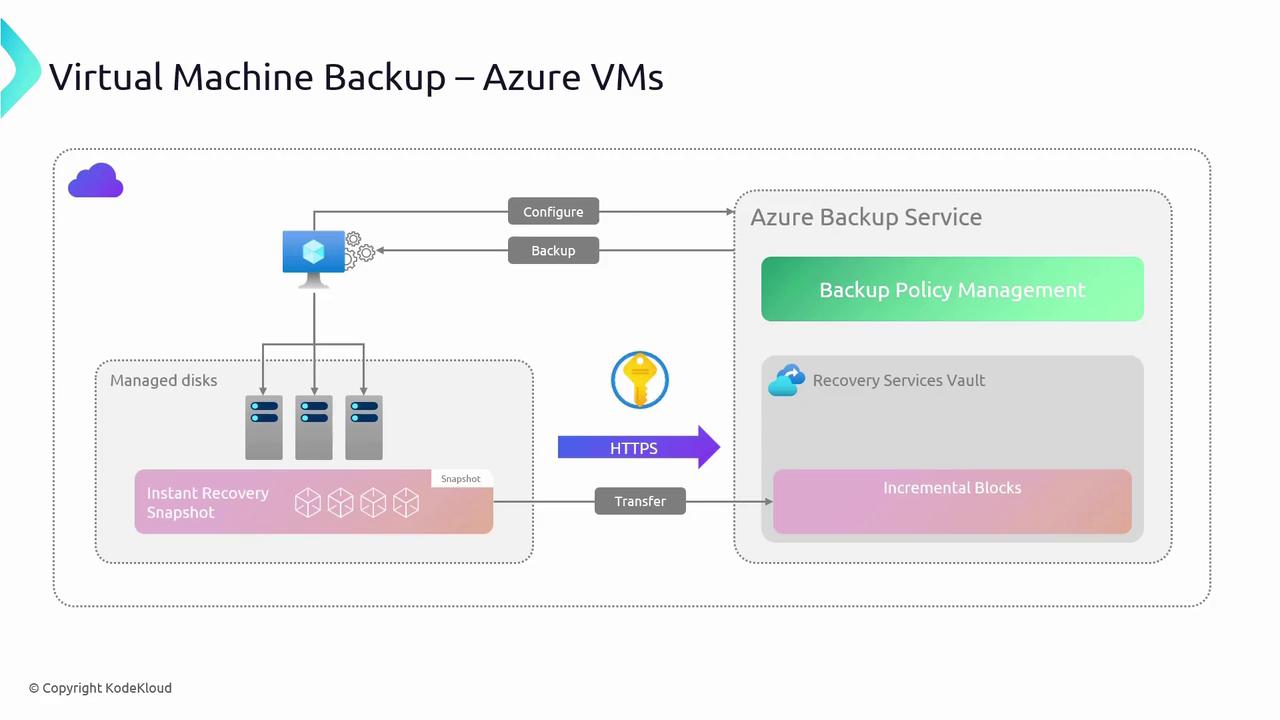
Creating a Backup for an Azure VM
To create a backup for your Azure VM, follow these steps:- Access Your Virtual Machine:
- Open the Azure portal and navigate to the Virtual Machines section.
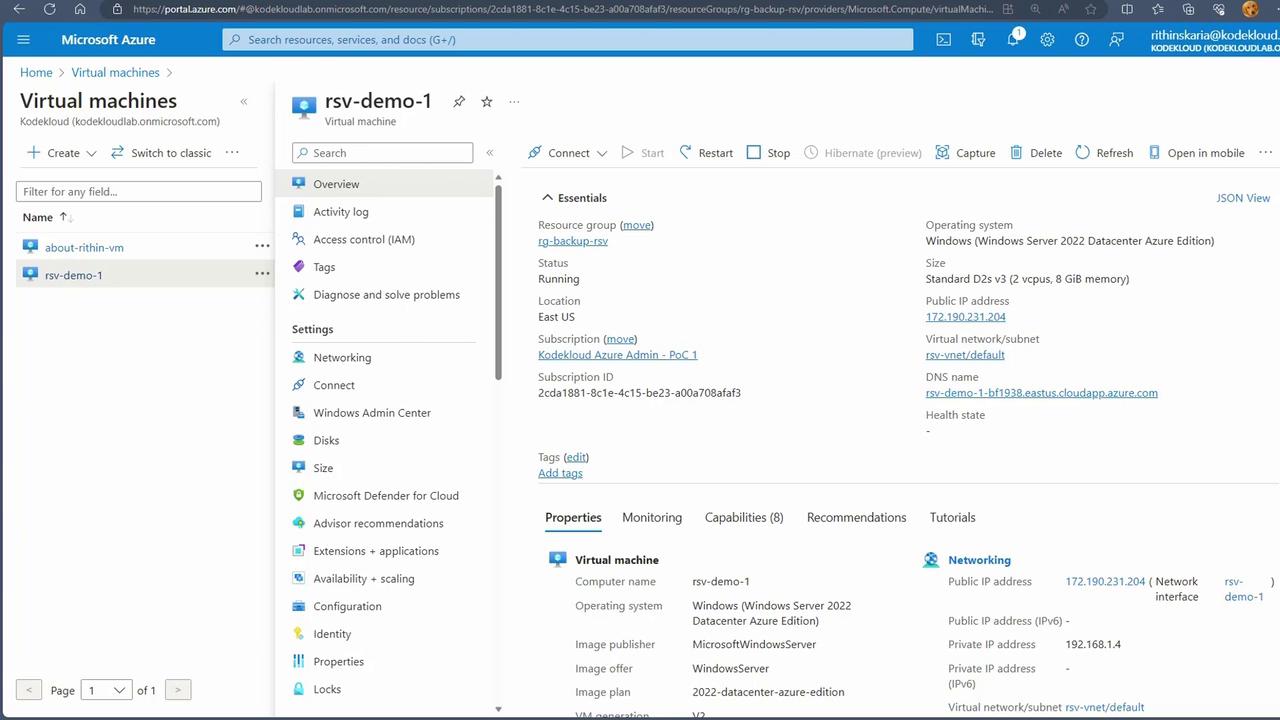
- In this demonstration, we are using a VM named “RSV Demo 1,” which is running a web server. Although the web server is accessible via its public IP, the focus here is solely on backup configuration.
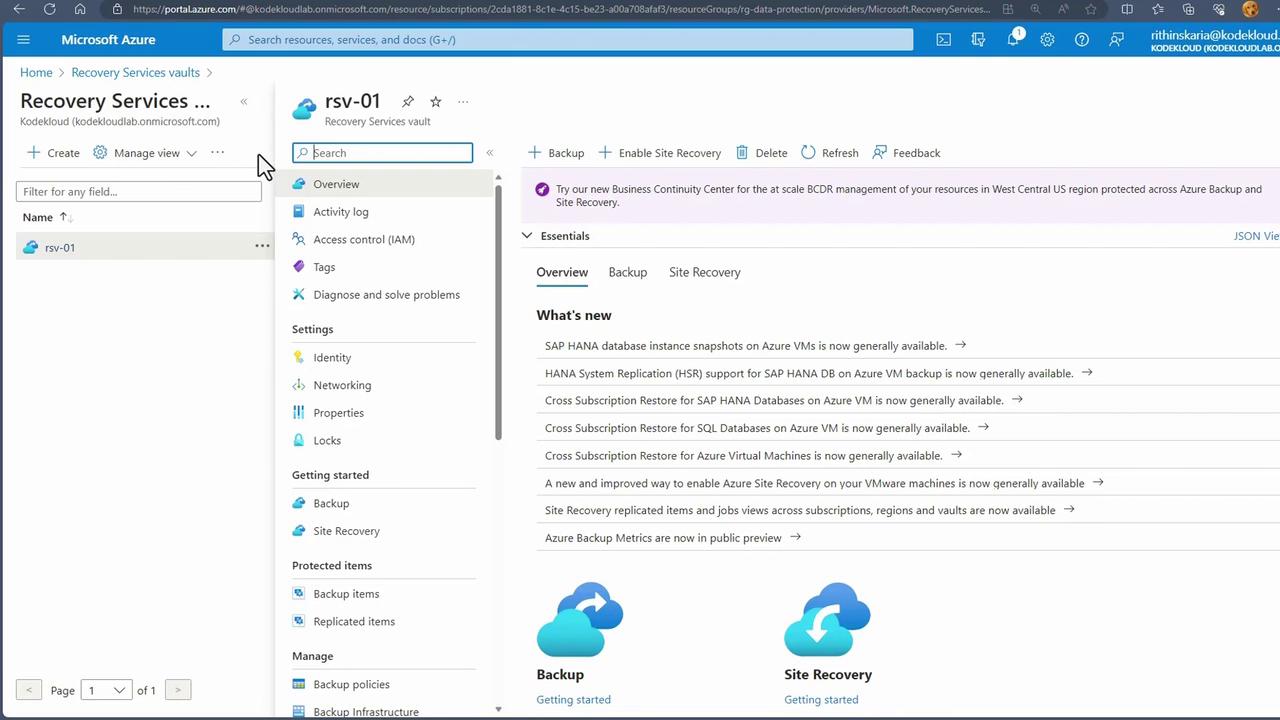
- Select or Create a Recovery Services Vault: Before enabling backup, create or choose an existing Recovery Services vault. This vault acts as the centralized storage location for your backup data. In this example, we use a previously created vault used for file and folder backups, a method that is especially beneficial when managing backups for multiple VMs.
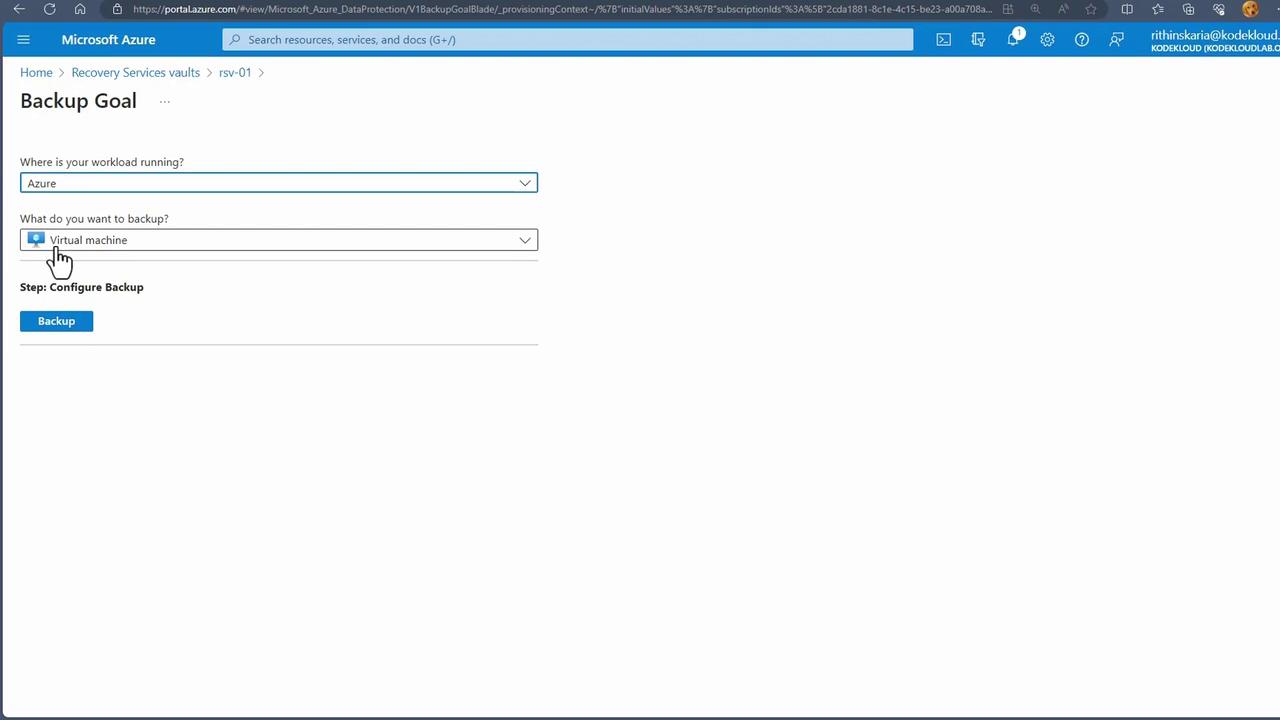
- Set Up Your Backup Goal:
- With the vault selected, set your backup goal by clicking on “Backup.”
- From the options provided (such as once-a-day backups with different operational tiers and enhanced modes), choose the one that fits your scenario—in this demonstration, the standard mode is used.
Configuring the Backup Policy
1. Policy Settings
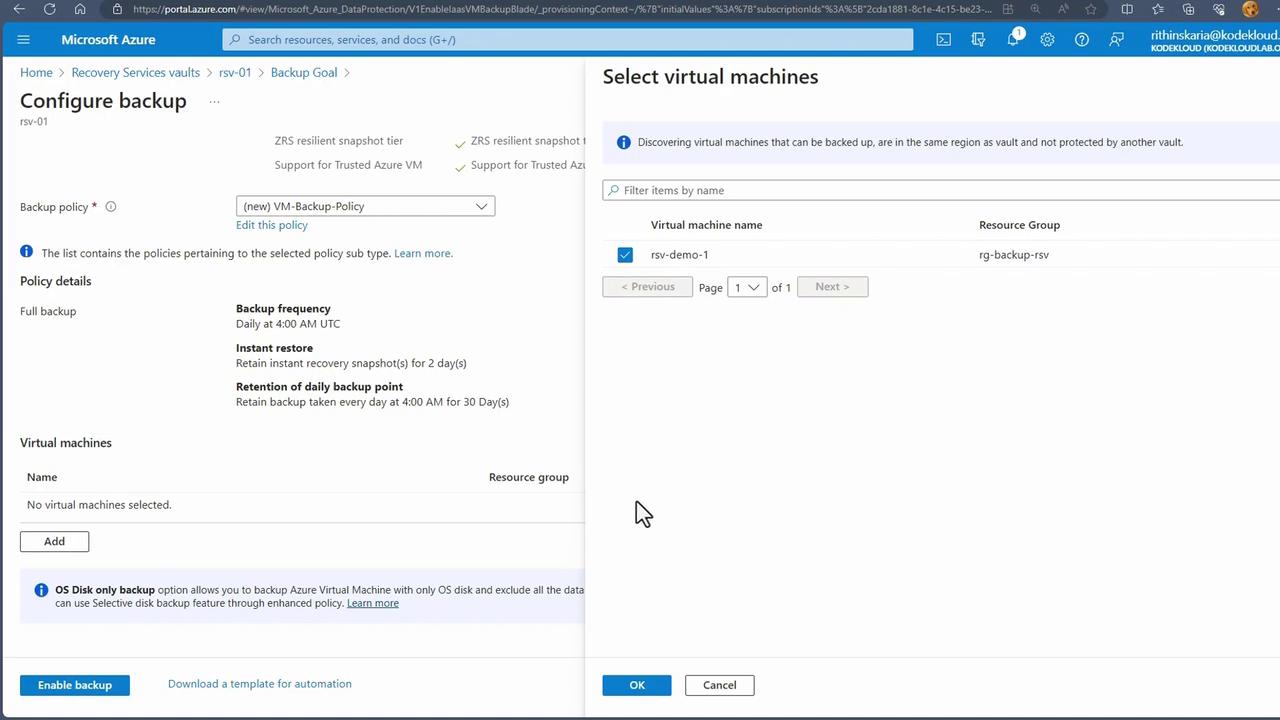
- Create a new policy (e.g., “VM Backup Policy”) or modify the default policy.
- Set the backup frequency (e.g., daily at 4 a.m. with support for your local time zone).
- Define instant restore points (snapshot retention) and specify a retention period (the default might be two days).
- Configure retention for weekly, monthly, and yearly backups, determining both the scheduled backup day and the retention duration.
2. Assigning VMs to the Policy
- After configuring your policy, click OK to save it.
- Add the desired VMs to the policy. The portal will list all VMs in the selected region, allowing you to choose which ones to back up.
3. Enabling Backup
- Validate your configuration. The system checks if the backup extension can be installed on the selected VMs.
- Once validated, click on “Enable Backup” to install the backup extension, which will handle ongoing backup operations.
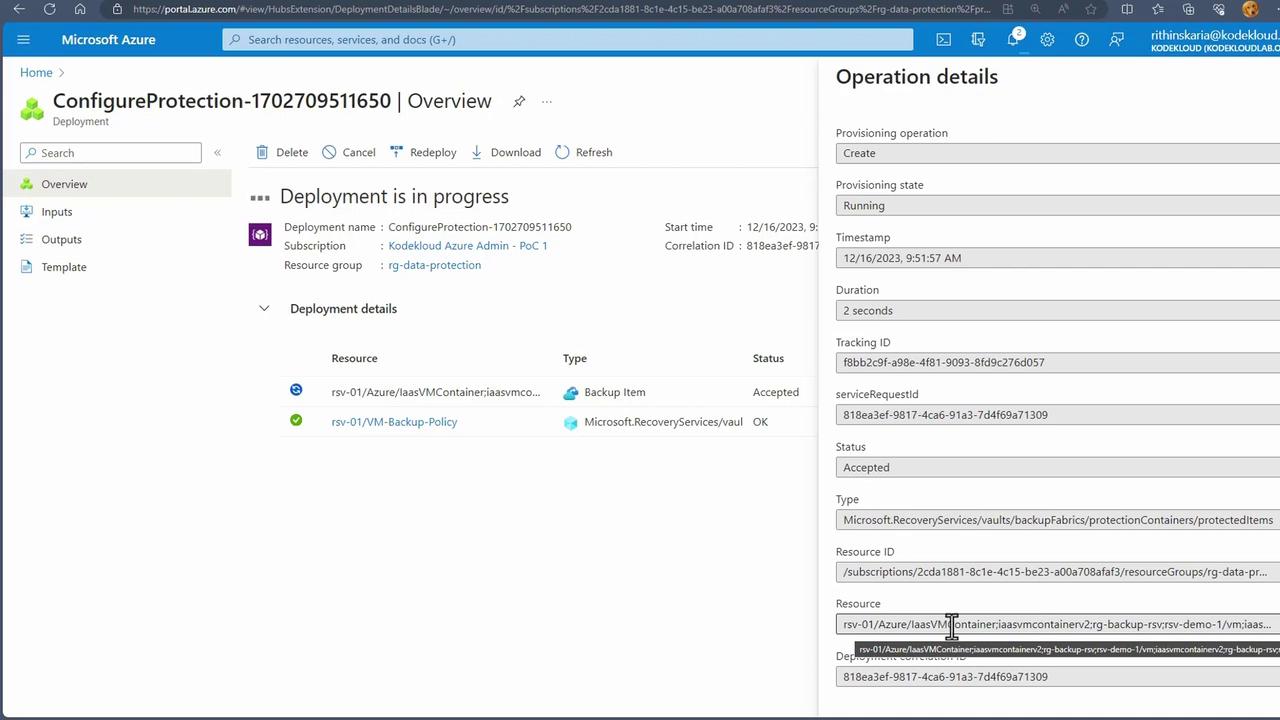
- The deployment details displayed in the portal will confirm the addition of the backup extension to your VM.
Initiating the First Backup
Once backup is enabled, initiate the first backup operation as follows:- Open the Recovery Services vault resource.
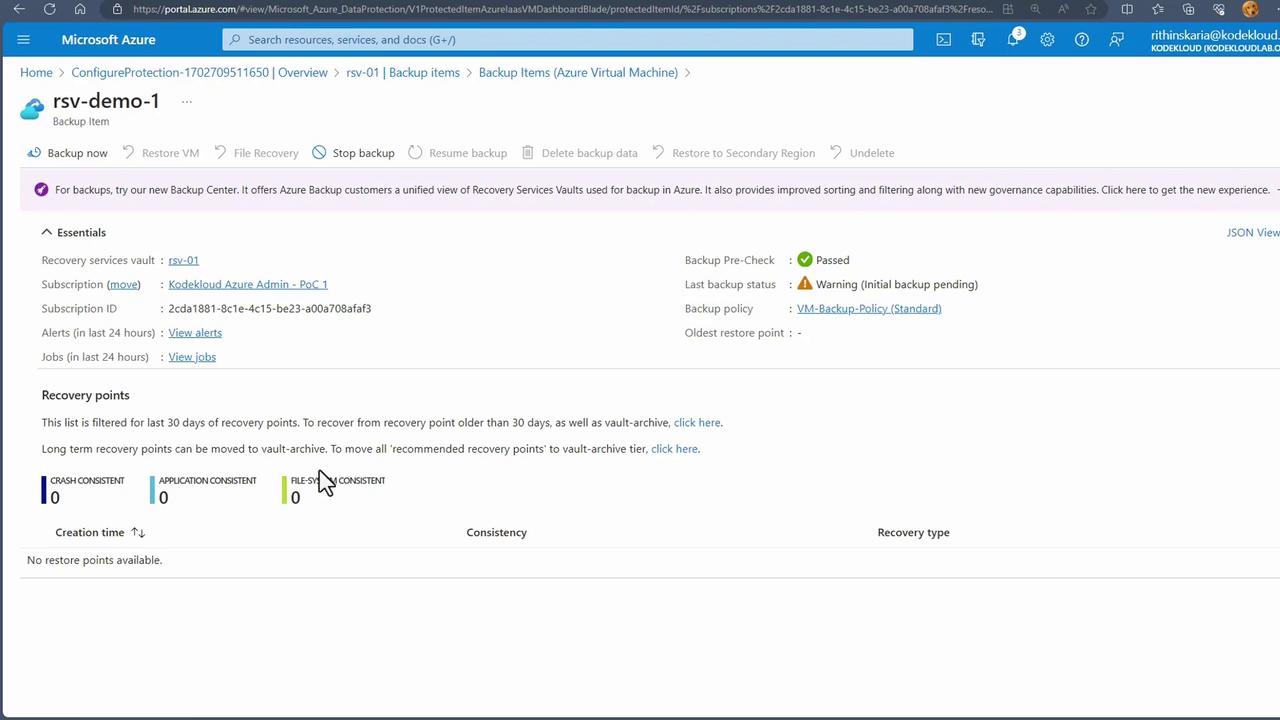
- Under the Backup Items section, locate your virtual machine (for example, “VM1”).
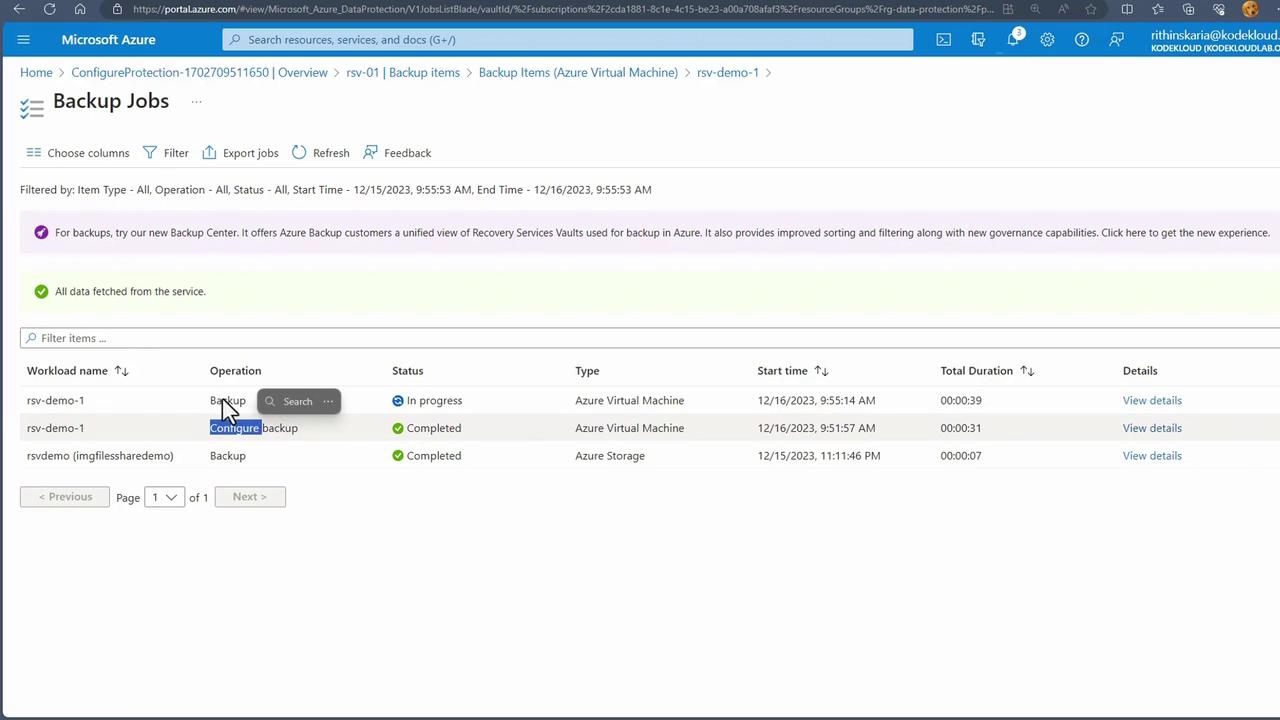
- Click on “View Details” and then start the first backup.
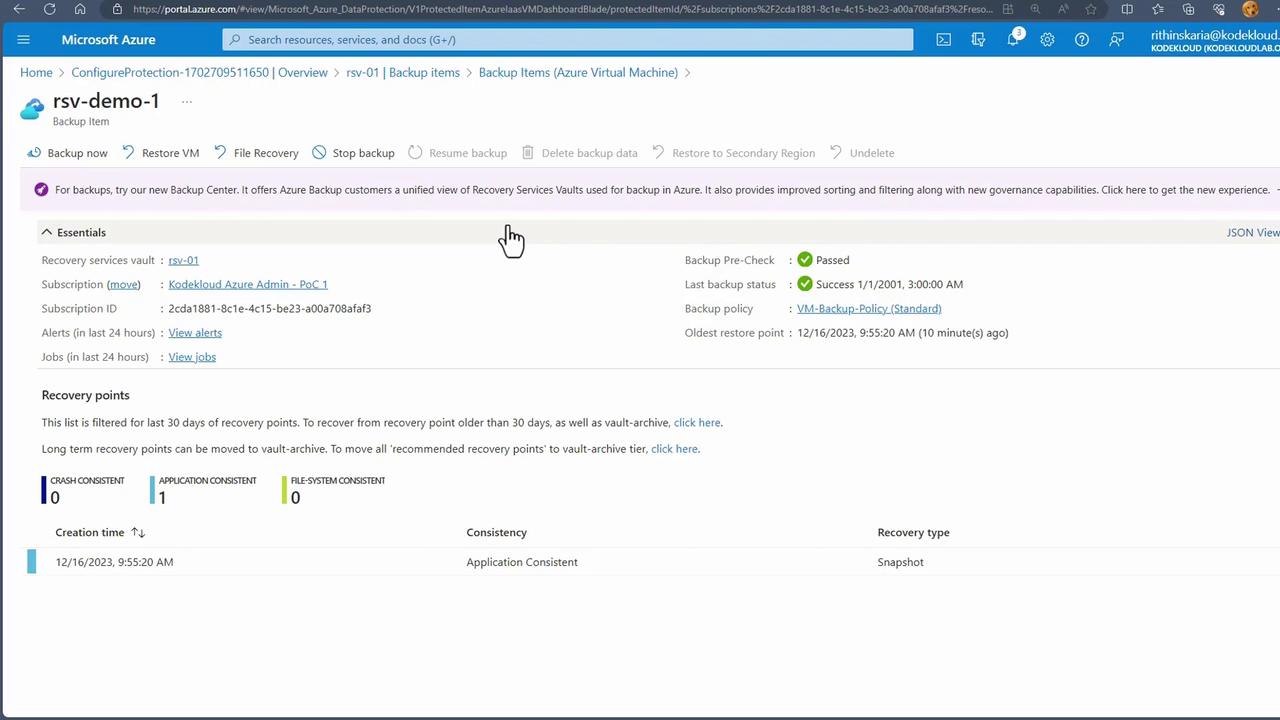
Restore Options
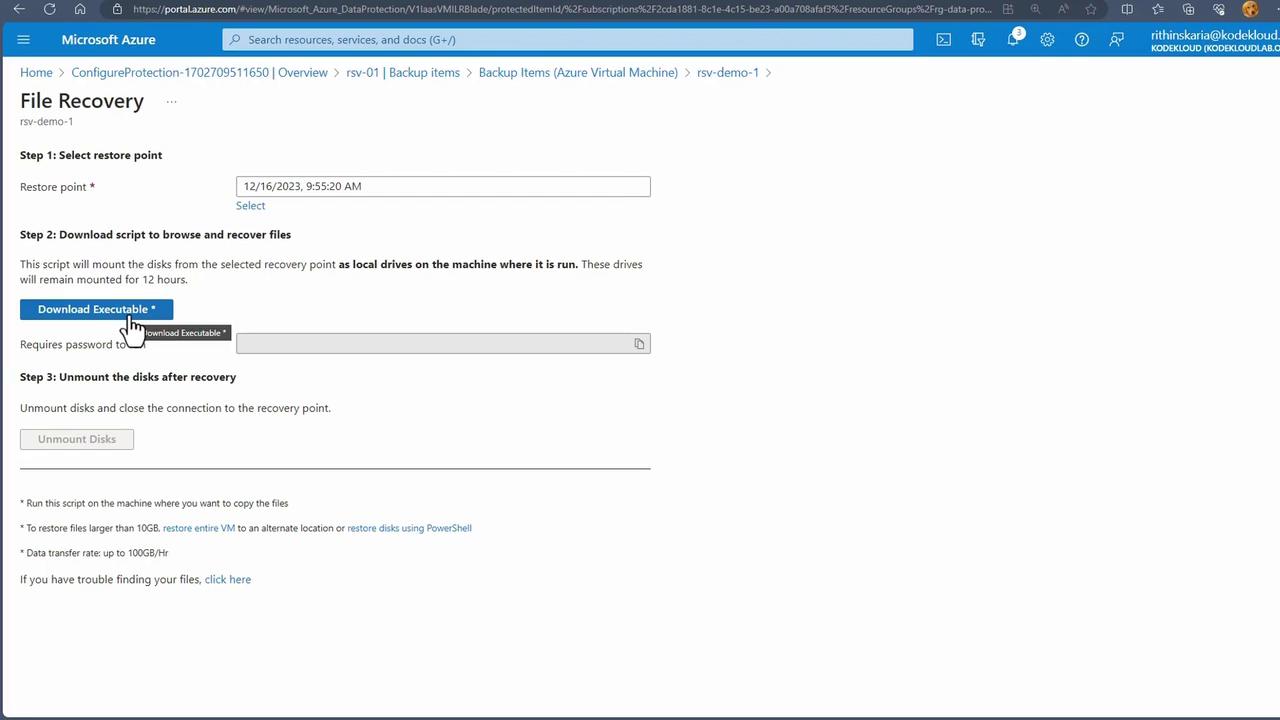
Azure Backup offers two primary restoration methods:1. File Recovery
Use this option to restore individual files:- Select the desired restore point.
- Download the file recovery executable.
- Run the executable to mount a recovery disk and extract the required files.
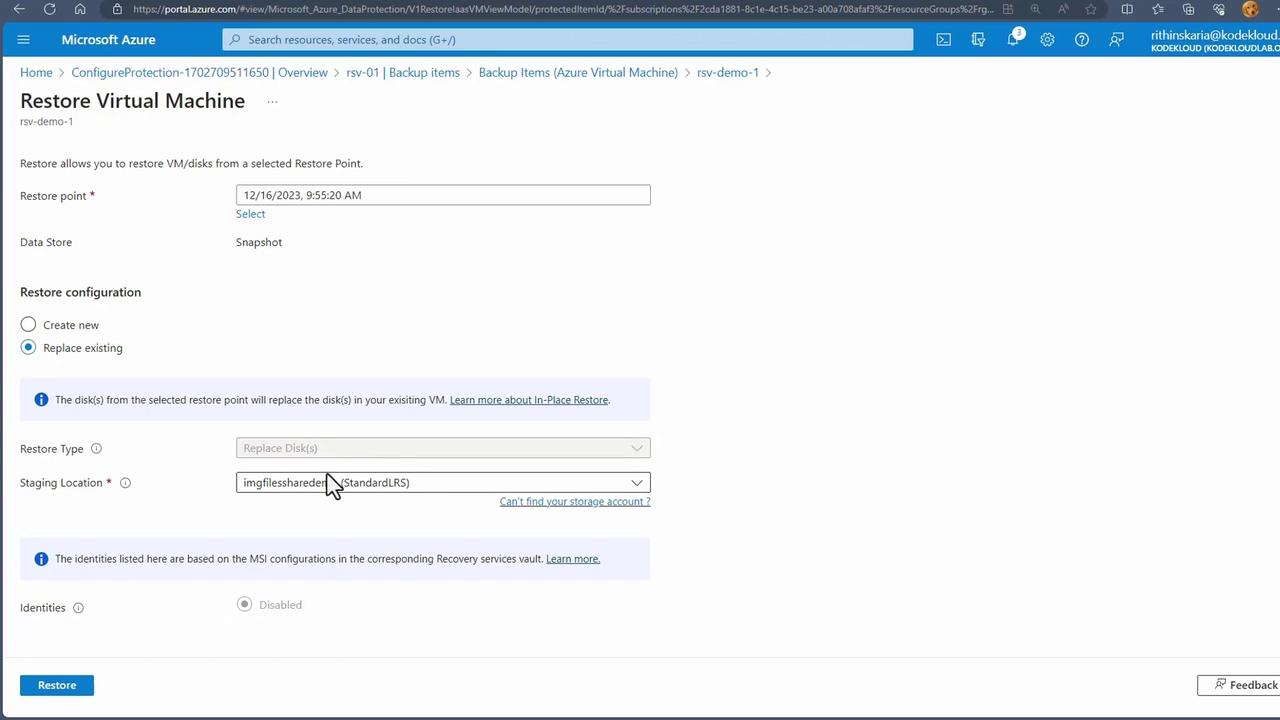
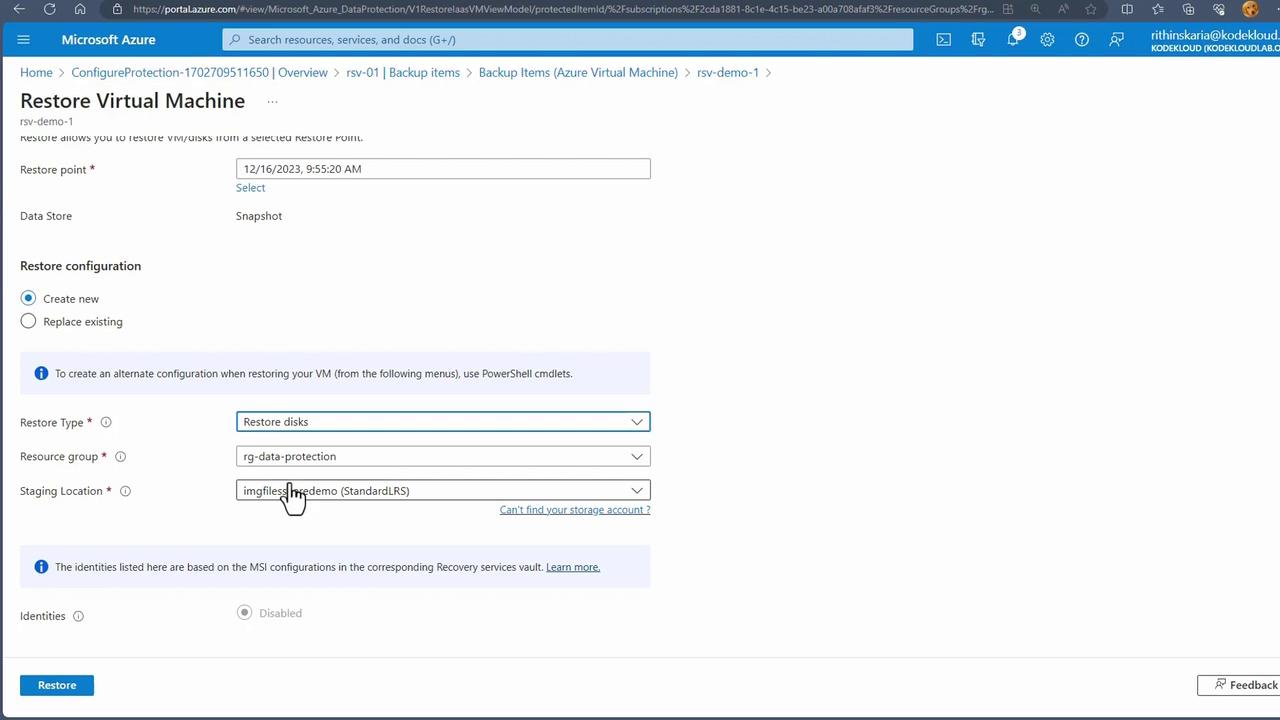
2. Virtual Machine Restore
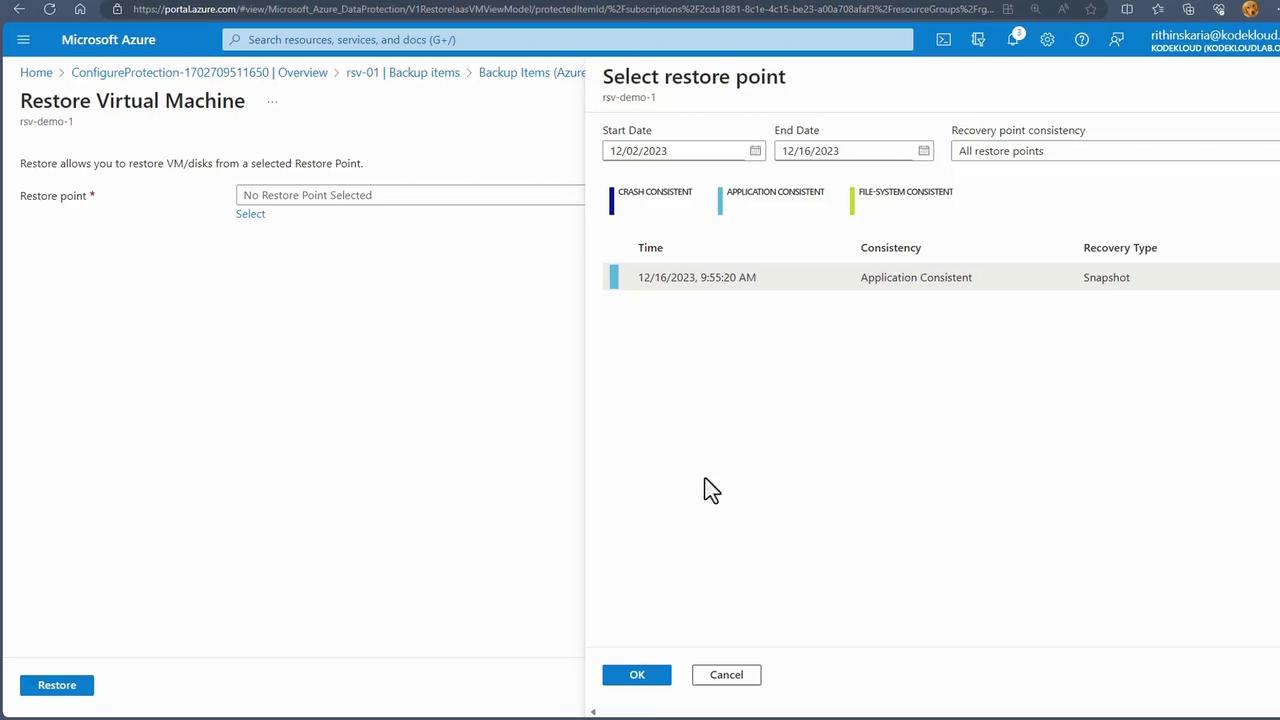
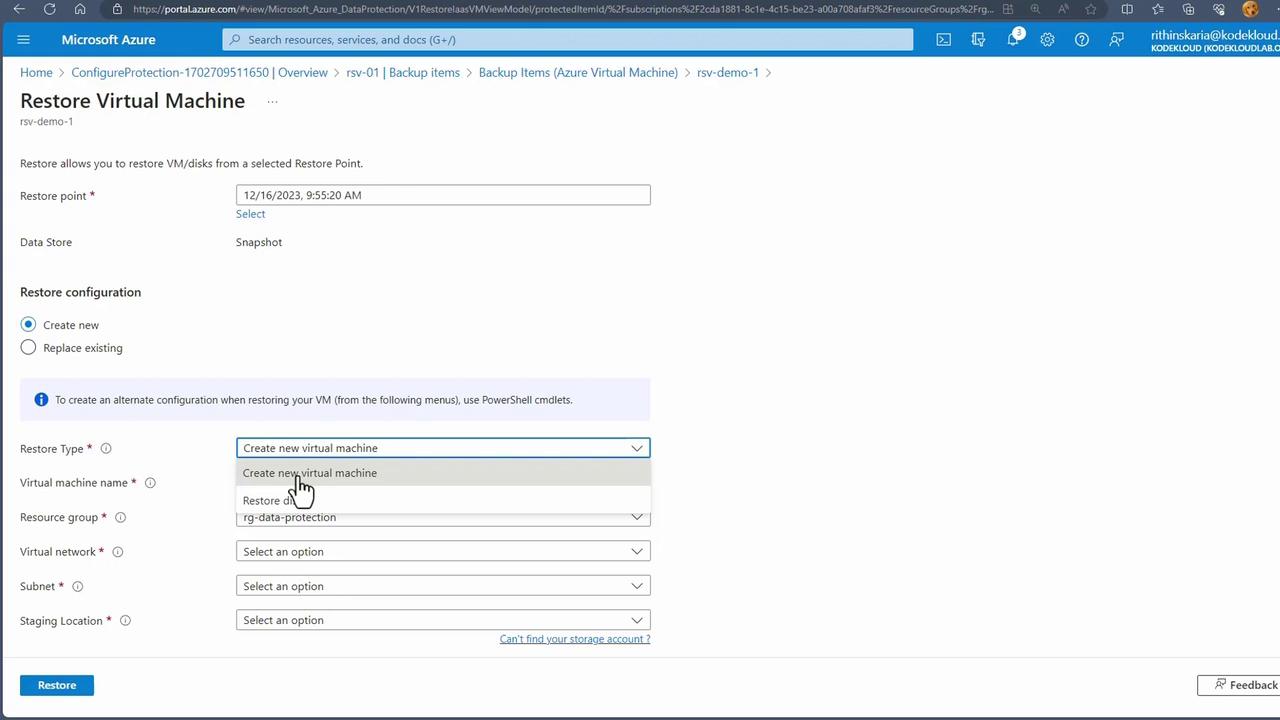
For full VM restoration, you have multiple options:- Create a new virtual machine from the chosen restore point. This option is ideal for testing recovery without affecting your production environment.
- Restore the disk to recover from corruption or issues. In this case, specify the resource group and location for a staging account; the restored disk appears as a VHD file in your storage account.
Conclusion
In this guide, you learned how to configure Azure VM backups using the Recovery Services vault and the backup extension deployed on your VM. We covered setting up backup policies, initiating backup operations, and exploring restore options for both file-level and full VM recoveries.Up next, explore how to back up and restore on-premises virtual machines to expand your data protection strategy.