Registered Devices
Registered Devices are primarily personal devices, such as smartphones or tablets, that users add to Microsoft Entra ID. These devices enable convenient access to organizational resources like emails and documents and support a bring-your-own-device (BYOD) strategy. Managed via Microsoft Intune, Registered Devices support various operating systems, including Windows 10, iOS, Android, and macOS.Joined Devices
Joined Devices are company-owned devices that are exclusively intended for work. They are directly joined to Microsoft Entra ID and require a company account for sign-in. By leveraging cloud-driven security features such as Conditional Access, these devices are ideal for cloud-centric organizations. Joined Devices are mainly compatible with Windows 10 and later operating systems.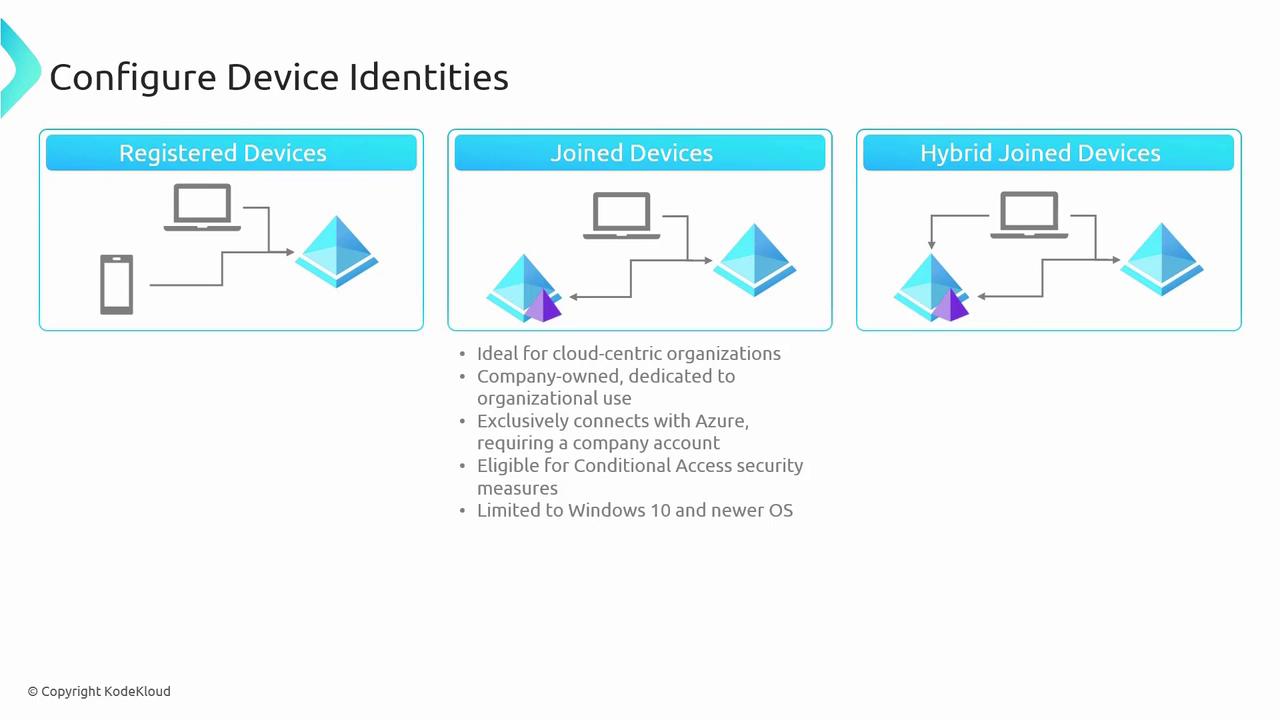
Hybrid Joined Devices
Hybrid Joined Devices serve organizations that blend cloud services with on-premises infrastructure. These devices are joined to both the local Active Directory and Microsoft Entra ID. This dual configuration supports environments that rely on legacy desktop applications and Group Policy management, and it is compatible with Windows 7 and later versions. Hybrid Joined Devices enable the deployment of preconfigured system images along with seamless integration.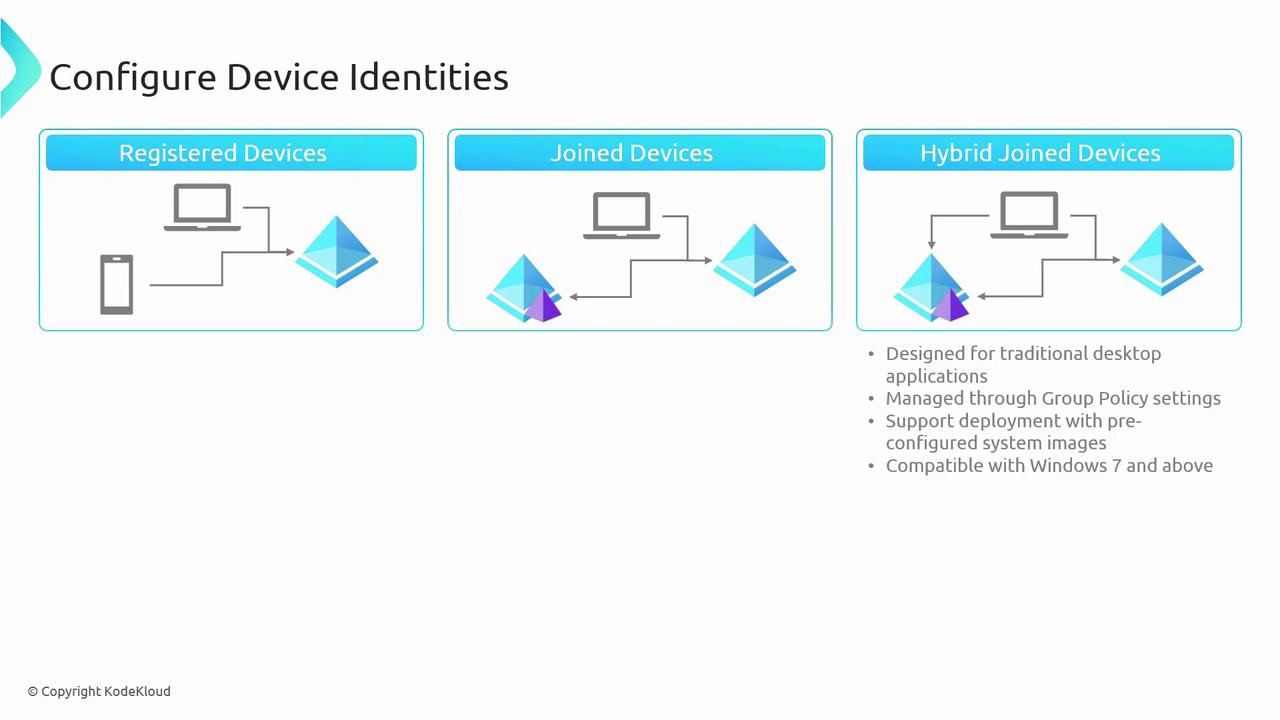
- Registered Devices: Flexibility with personal devices.
- Joined Devices: Enhanced security for company-owned machines.
- Hybrid Joined Devices: Seamless integration for mixed on-premises and cloud environments.
Viewing Devices in the Azure Portal
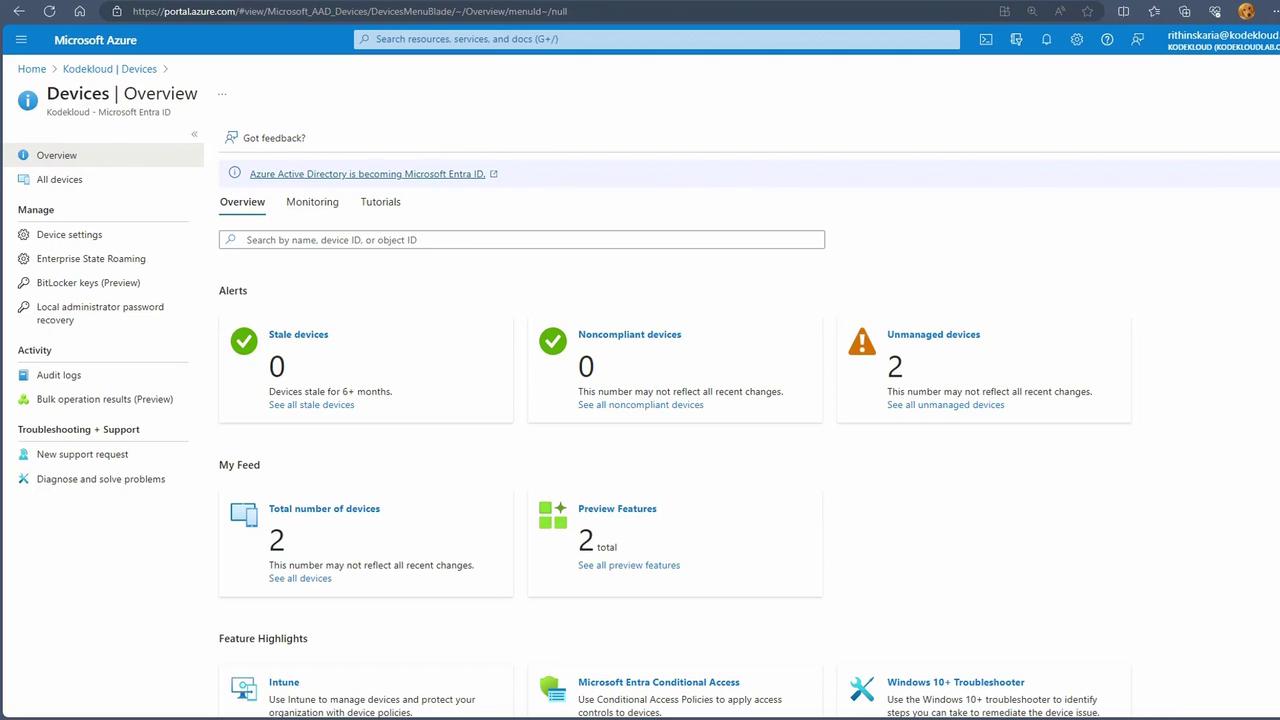
To view the configured devices, sign in to the Azure Portal and navigate to Microsoft Entra ID. Then select Devices to see the list of devices in your environment. In a demo environment, you may only notice a few unmanaged devices. These devices appear as unmanaged because they are not controlled by a device management solution like Intune, though they remain Entra-joined machines.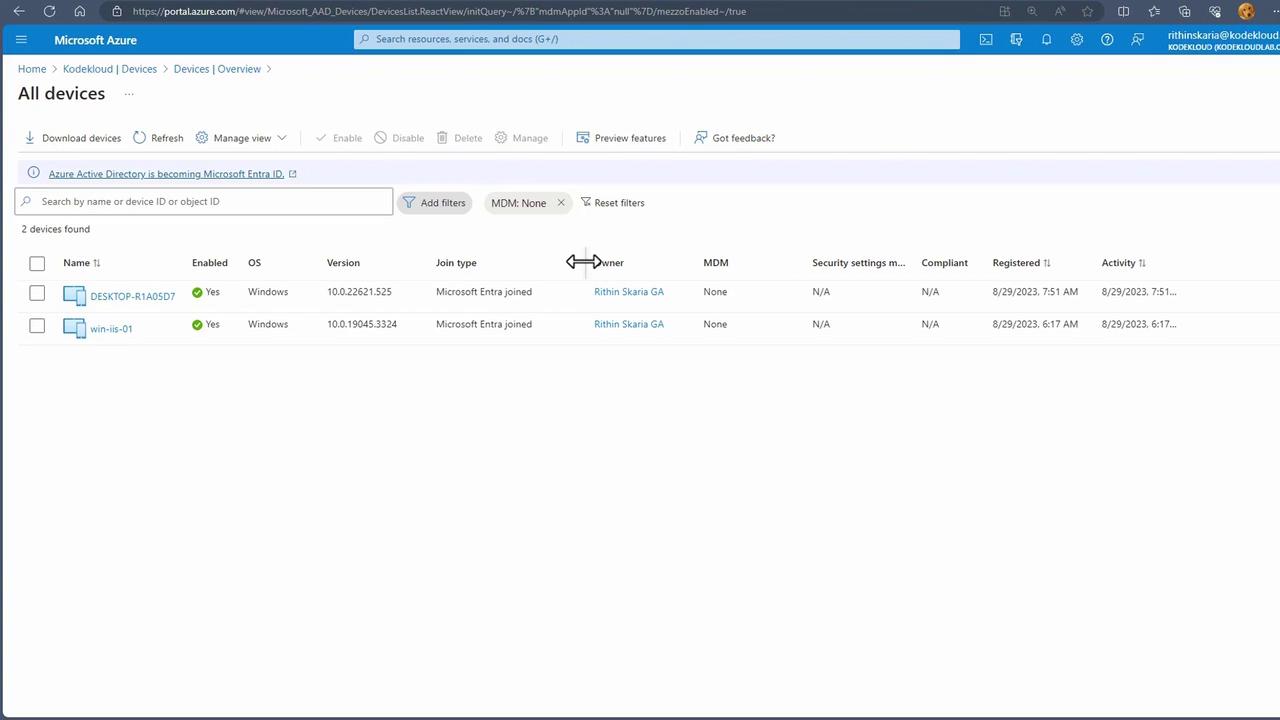
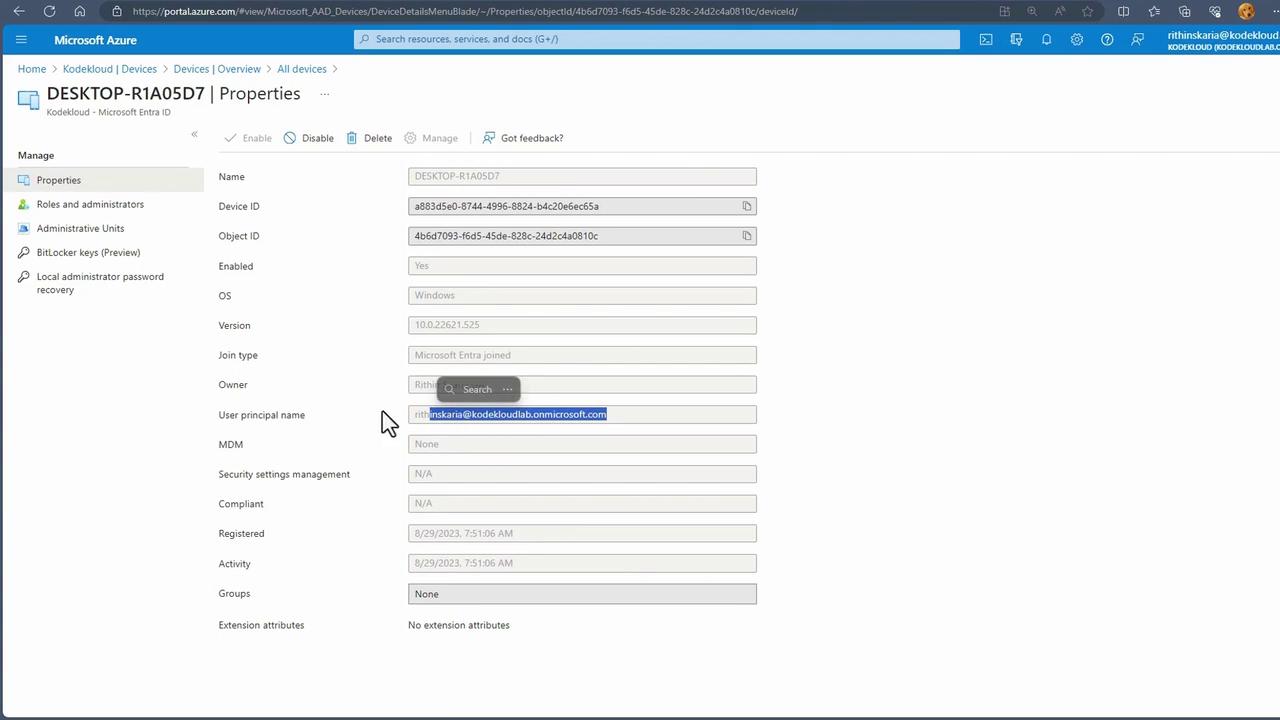
The Mobile Device Management (MDM) field may show “none,” indicating that the device is unmanaged. To test device joining, you can use a Windows 10 or Windows 11 machine.
Joining a Device to Microsoft Entra ID
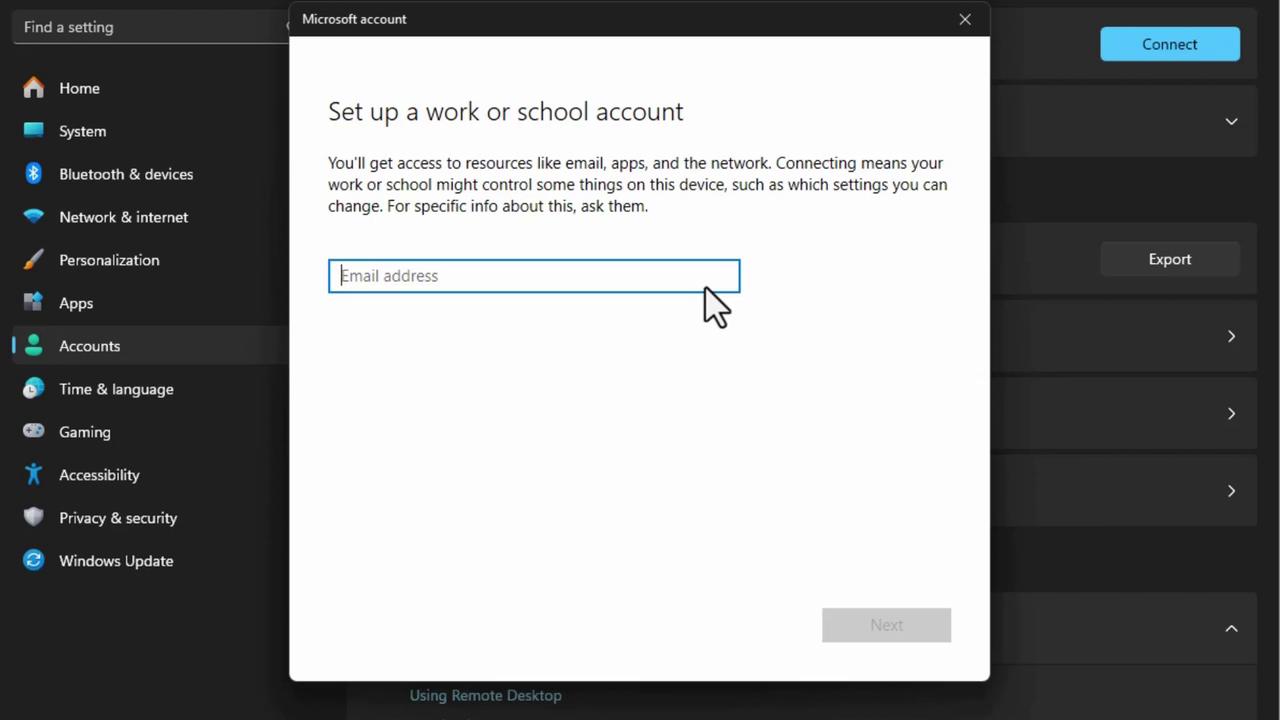
Follow these steps to join a device to Microsoft Entra ID:- Open Windows Settings.
- Navigate to Accounts and select Access work or school.
- Connect your work or school account to Microsoft Entra ID. (Note: You might also see Azure AD referenced interchangeably.)
- Enter your work or school email address when prompted, which redirects you to the sign-in page.