

Why this matters
- S2S: Connects entire networks (on-premises <=> Azure VNet) for hybrid networking, branch connectivity, or data center extension.
- P2S: Connects individual devices (laptops, workstations) to a VNet for remote access and administrative tasks.
Site-to-Site (S2S) VPN
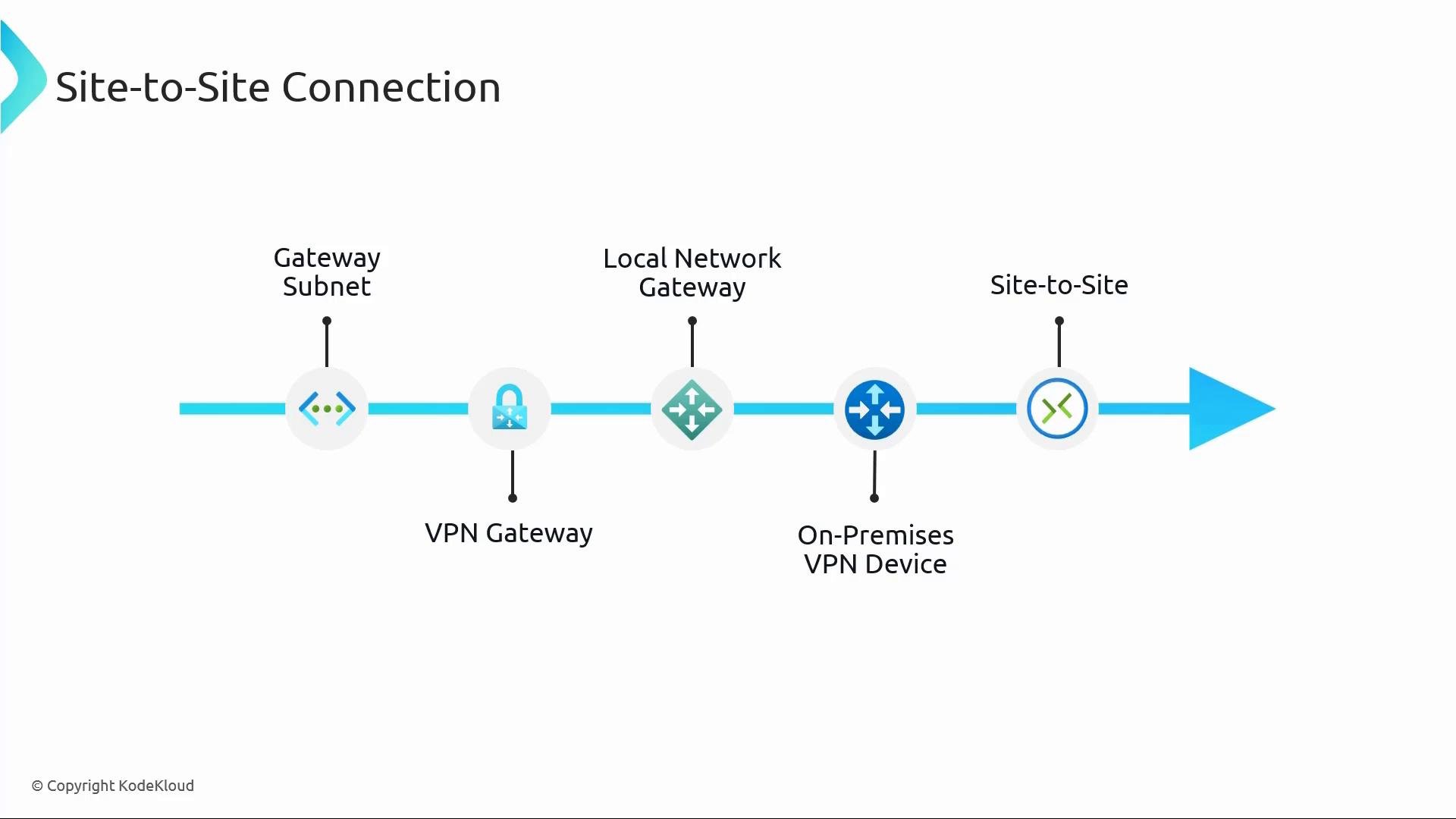
A site-to-site connection uses an IPsec/IKE tunnel between an on-premises VPN device and an Azure Virtual Network Gateway. Once established, the two networks communicate as if they were on the same local network. Key components and what they do:GatewaySubnet— a dedicated subnet in your VNet that hosts the Azure Virtual Network Gateway. It must be named exactlyGatewaySubnet.- Azure VPN Gateway (Virtual Network Gateway) — the Azure resource that terminates IPsec/IKE tunnels, performs encryption/decryption, and manages BGP if enabled.
- Local Network Gateway — an Azure configuration object that stores the on-premises VPN device public IP (or FQDN) and the on-premises address prefixes.
- On-premises VPN device — physical or virtual appliance configured to match the IPsec/IKE settings used by the Azure VPN gateway.
- Connection resource — binds the Azure VPN Gateway to the Local Network Gateway and contains the shared key (PSK) and connection options (e.g., BGP).
The
GatewaySubnet must be named exactly GatewaySubnet and must have an address range large enough for the gateway SKU you plan to deploy. If you size it too small the gateway deployment will fail.- Create the VNet and add a
GatewaySubnet. - Deploy the Virtual Network Gateway in the
GatewaySubnet. Note: gateway provisioning typically takes 20–45 minutes. - Create a Local Network Gateway in Azure with the on-premises VPN device public IP (or FQDN) and the on-premises address prefixes.
- Create a Connection resource that references the Virtual Network Gateway and the Local Network Gateway. Configure the pre-shared key (PSK), and optionally enable BGP or specify IKE/IPsec parameters.
- Configure the on-premises VPN device with matching PSK and IPsec/IKE settings so the tunnel can establish.
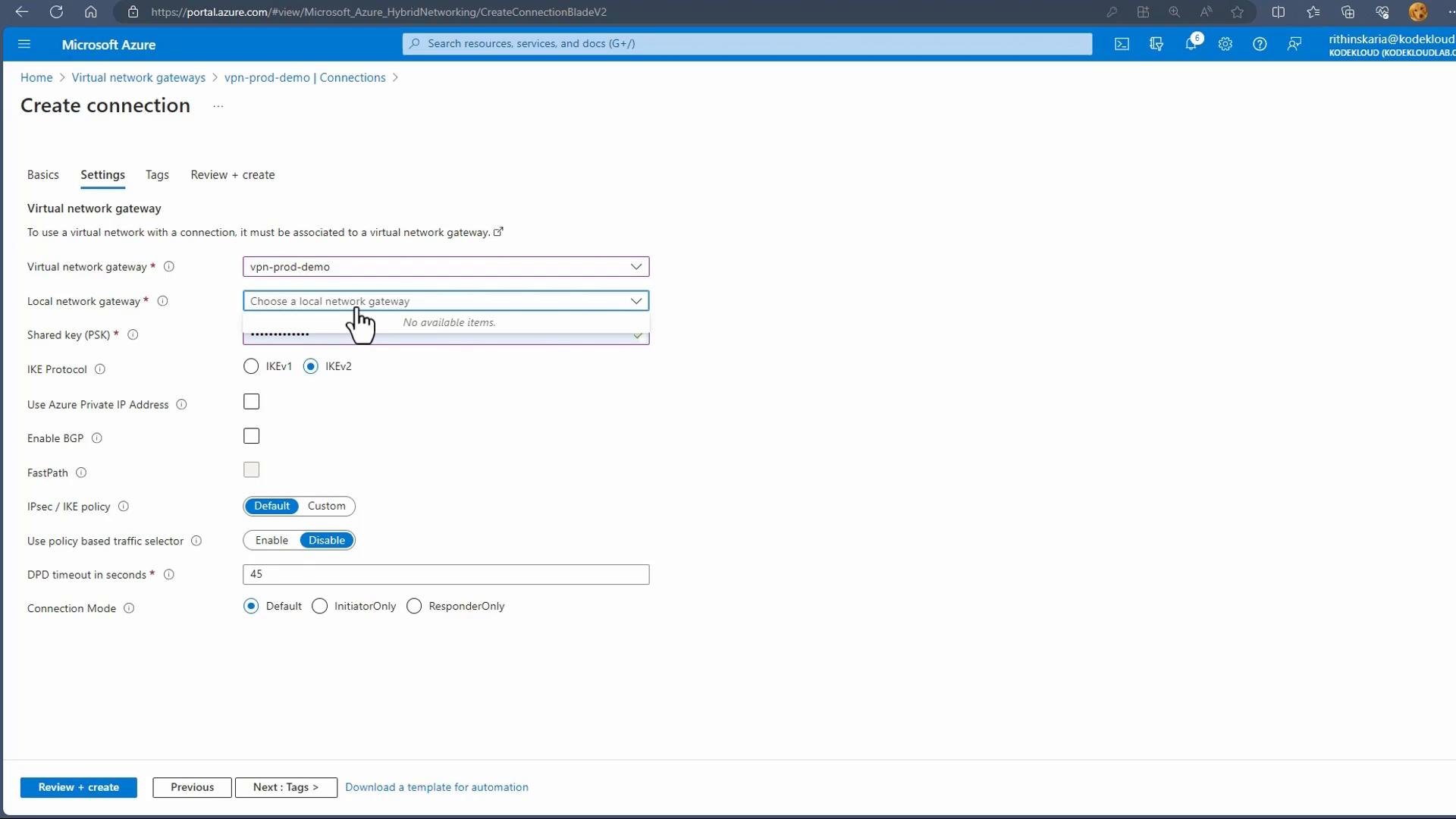
- When creating a Connection in the Azure portal, choose connection type (for S2S choose Site-to-Site (IPsec)), the Virtual Network Gateway, the Local Network Gateway, and specify the shared key (PSK).
- You can enable BGP and configure advanced options on the Connection blade.
on-prem-cisco), set the endpoint (public IP or FQDN) of your on-premises VPN device, and list the on-premises address space (one or more prefixes) that Azure should route to that device.
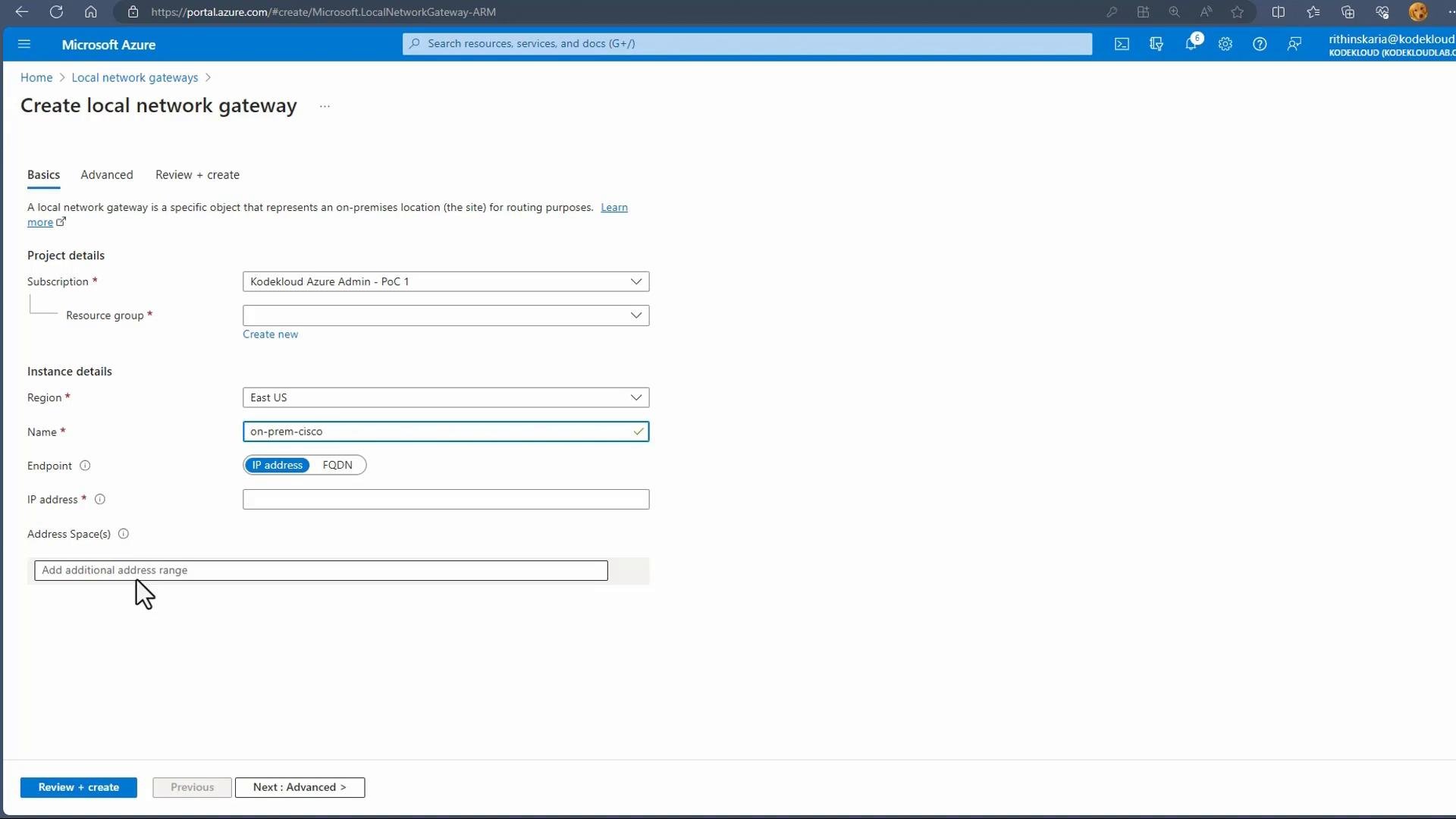
- Create a Local Network Gateway:
- Create a VPN connection (S2S) tying the VNet gateway to the Local Network Gateway:
- Confirm
GatewaySubnetexists and is correctly sized. - Ensure PSK and IKE/IPsec proposals match on both ends.
- Verify routes: check on-premises device and Azure UDRs/route tables.
- Check Network Security Group (NSG) or VM firewall rules that might block traffic.
- Use Azure portal connection diagnostics and on-premises device logs.
Point-to-Site (P2S) VPN
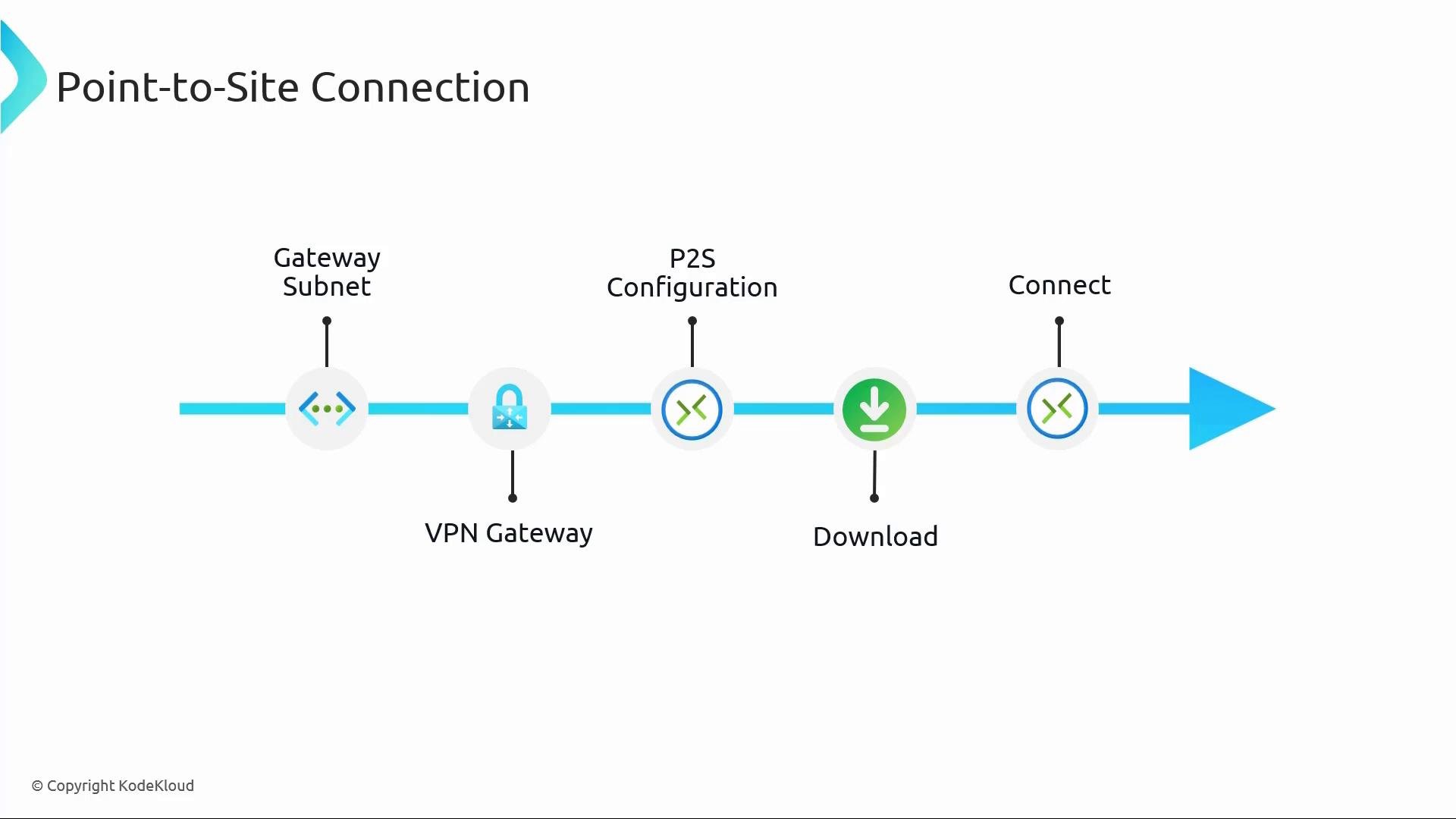
A point-to-site connection enables individual client devices to establish an encrypted VPN session to an Azure VNet. This is ideal for remote administrators, developers, or contractors who need secure on-demand access. High-level P2S configuration steps:- Confirm you have a VNet with a
GatewaySubnetand a deployed VPN gateway. - Open the VPN gateway’s Point-to-site configuration and define:
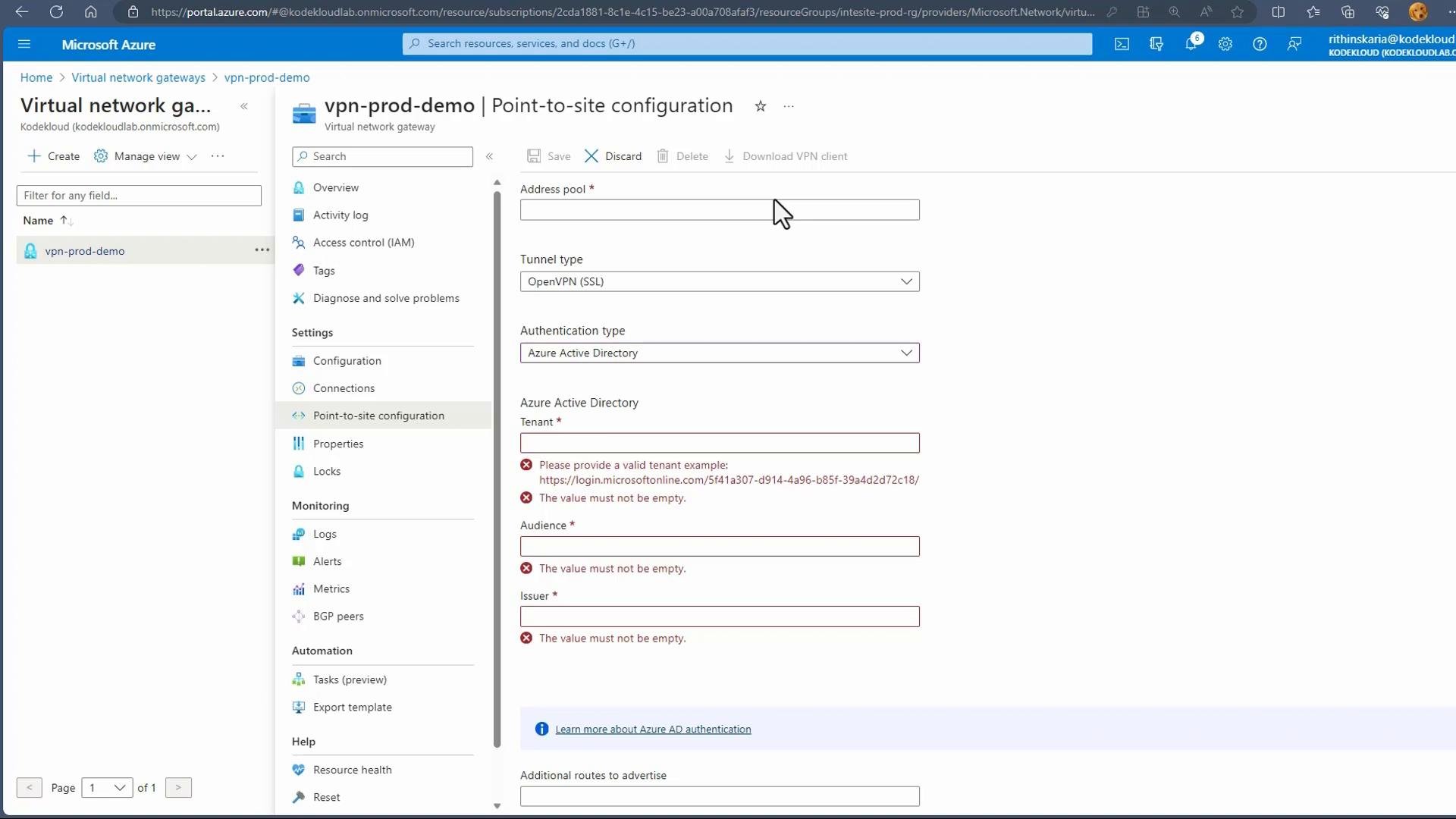
- Client IP address pool — the IP range allocated to connecting clients (must not overlap existing networks).
- Tunnel types — choose from
IKEv2,OpenVPN,SSTP(Windows), or combinations that meet client OS requirements. - Authentication method — certificates, RADIUS, or Microsoft Entra ID (Azure AD).
- Configure authentication:
- Certificates: upload root certificate public key to Azure and install client certificates on devices.
- RADIUS: point to a RADIUS server that validates username/password.
- Microsoft Entra ID: register apps and provide tenant and app details (tenant ID, audience, issuer).
- Generate/upload certificates or configure RADIUS/AAD as required, then download the VPN client package from the Azure portal.
- Install the client package (or Azure VPN Client from Microsoft Store for Windows), import client certificates where required, and connect.
- The Point-to-site configuration blade lets you set the address pool, choose tunnel protocols (OpenVPN, IKEv2, SSTP), and configure authentication.
- For Microsoft Entra ID authentication, provide tenant information and client app details as required by the Azure docs: Point-to-site VPN overview.
If you use certificate-based authentication, protect the root and client private keys. Do not distribute client private keys publicly and follow your organization’s certificate management policies.
Comparison: Site-to-Site vs Point-to-Site
Quick Checklist before you start
- Create
GatewaySubnetand ensure adequate size for gateway SKU. - Reserve a client IP pool (for P2S) that does not overlap your on-premises or VNet ranges.
- Choose authentication method early (certs vs RADIUS vs Azure AD).
- Prepare on-premises device configuration (matching PSK and IPsec settings) before creating the Connection.
- Allow time for VPN gateway provisioning (20–45 minutes).
Common terms to search while troubleshooting:
GatewaySubnet, Virtual Network Gateway, Local Network Gateway, vpn-connection diagnostics, and Azure VPN logs.Summary
- Site-to-site (S2S) VPNs connect an entire on-premises network to an Azure VNet via an IPsec/IKE tunnel using a Virtual Network Gateway and a Local Network Gateway object in Azure.
- Point-to-site (P2S) VPNs connect individual devices to a VNet using client packages and certificate/RADIUS/Azure AD authentication.
- Both require a correctly named and sized
GatewaySubnetand a deployed Virtual Network Gateway. Azure configuration must be mirrored by the peer device or client to establish the tunnels. - These patterns underpin hybrid connectivity scenarios such as hub-and-spoke, gateway transit, and multi-site topology.
- Azure VPN Gateway overview
- Point-to-Site VPN overview
- Configure site-to-site VPN in the Azure portal