

Why use Azure tags?
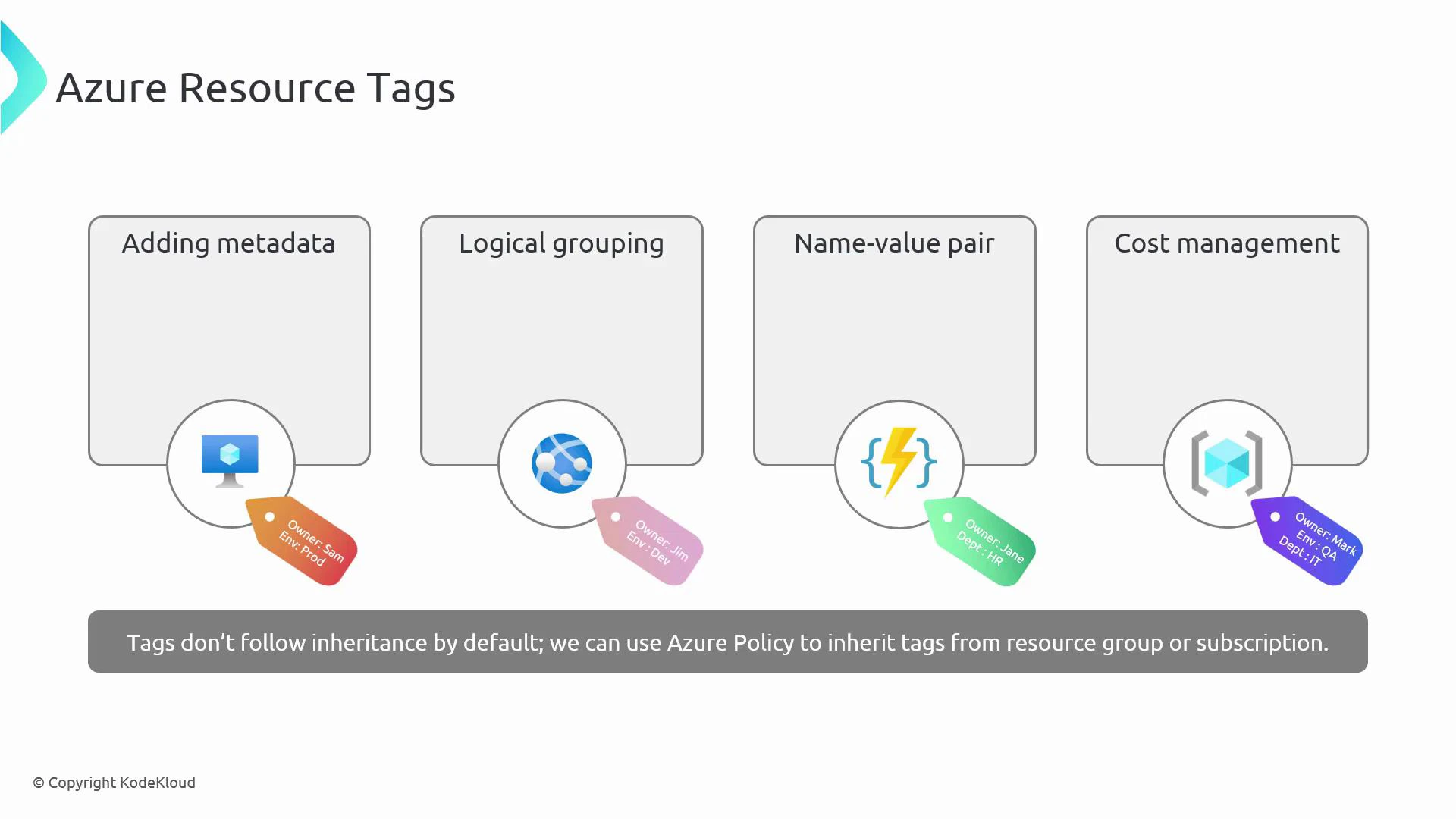
Use tags to add metadata, group cross-resource workloads, and track costs. Common scenarios include ownership, environment identification, project grouping, and cost center allocation.
Key points about scope and inheritance:
- Tags can be applied to subscriptions, resource groups, and individual resources.
- Billing and cost reporting are determined at the resource level—tags must be on the resource for accurate cost allocation.
- Tags do not automatically flow from a resource group or subscription to underlying resources unless you enforce that behavior (for example, through Azure Policy or supported preview features).
Tip: If you prefer tagging at the resource group level for human convenience, use policy enforcement to copy or inherit those tags onto resources so billing and automation tools see them at the resource level.
Preview features vs. production
Azure occasionally offers preview capabilities for tag inheritance. In production, rely on GA (generally available) features like Azure Policy to ensure consistent, auditable, and enforceable tag behavior.Warning: Avoid relying on preview features in production. Prefer policy enforcement to ensure tag inheritance and governance for stable, auditable behavior.
Managing tags in the Azure portal
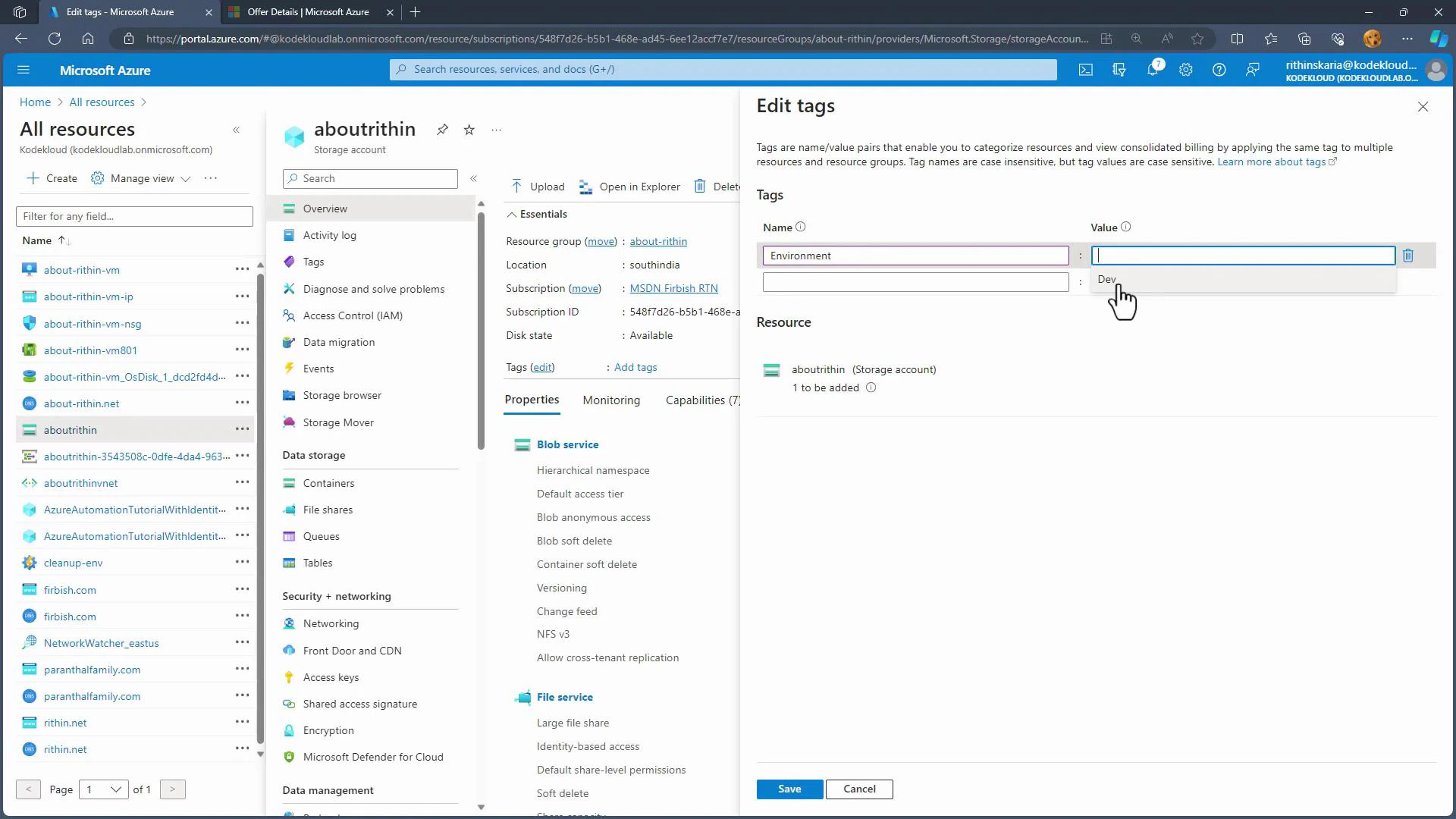
Follow these steps to add or edit tags on individual resources from the portal:- Open the Azure portal and go to All resources.
- Select a resource (for example, a virtual machine or storage account) and open the Tags pane.
- Add name-value pairs. Example:
- Name:
Owner— Value:Sam - Name:
Environment— Value:Dev - Name:
CostCenter— Value:1100
- Name:
- Save to apply the tags.
Filter, discover, and edit tagged resources
- Filtering: Use the filters in All resources to find resources by tag (for example, filter where
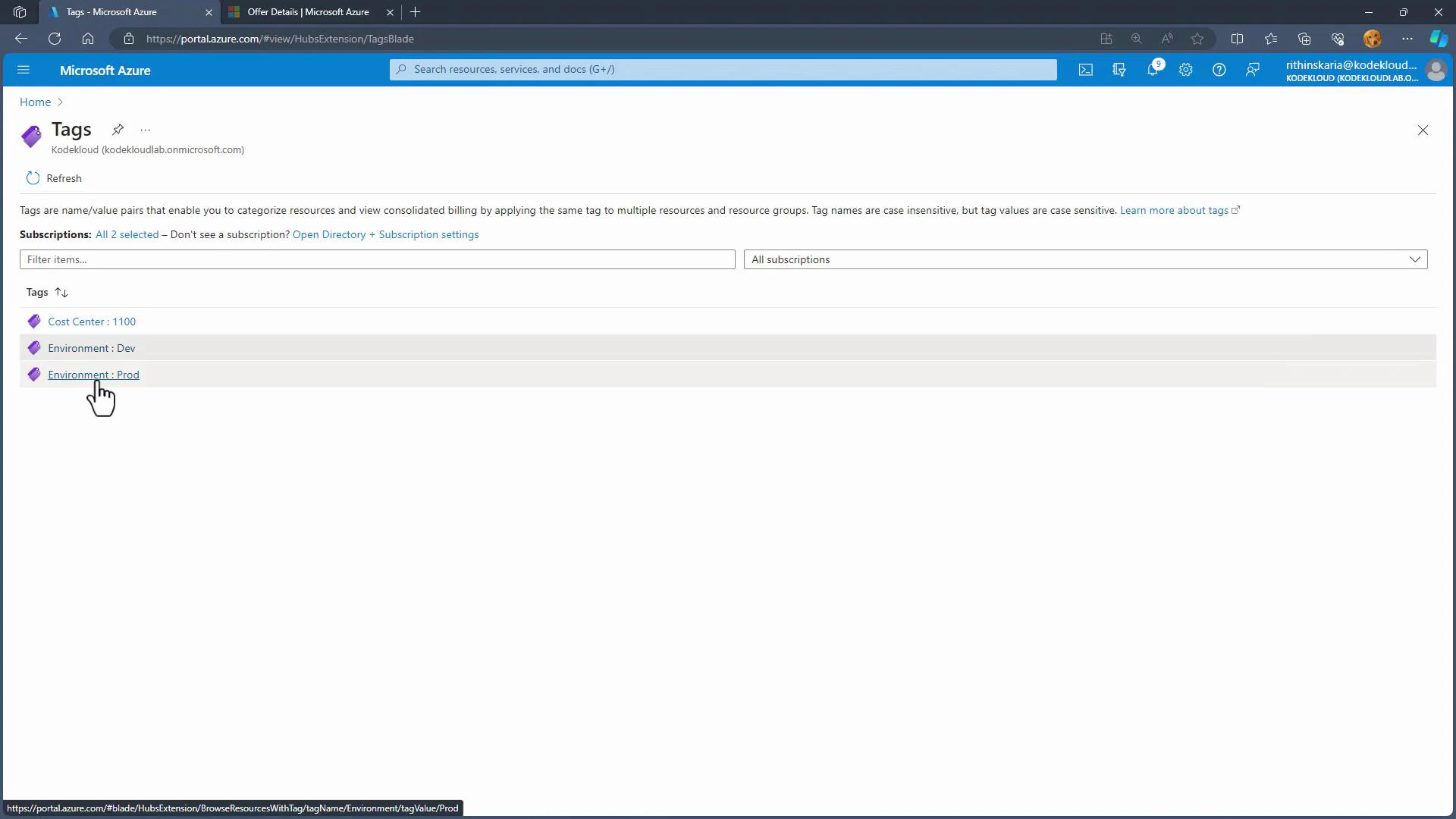
Environment=Devto show development resources). - Tag blade: The Tags blade lists all name-value combinations used across the subscription. Clicking an entry shows resources that use that tag.
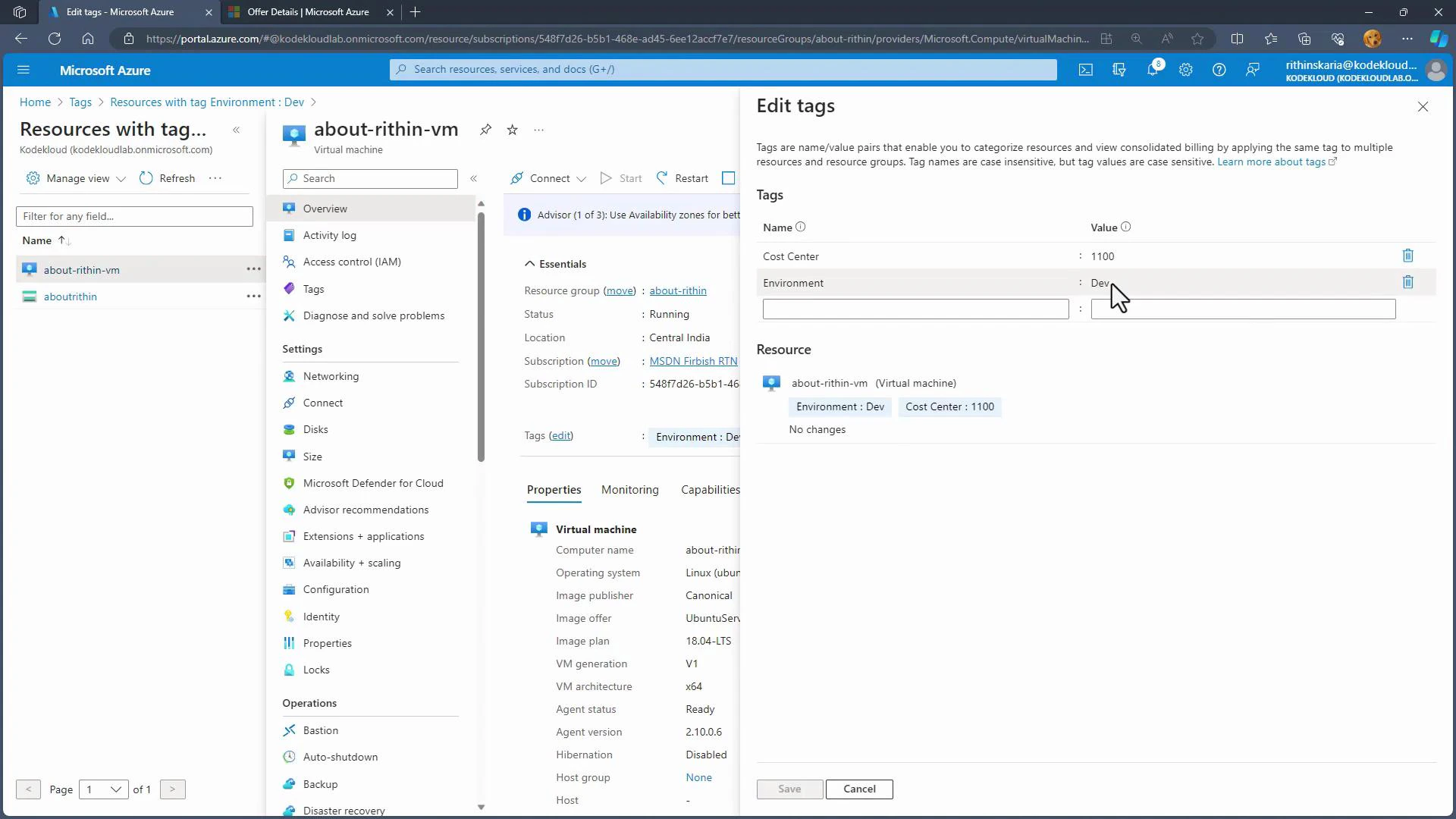
- Editing tags on a resource: Open the resource, click Edit tags, change the value or delete a tag using the trash icon, then save. Refresh the resource list or Tags view to see updates.
Tag listing and propagation
- The Tags blade provides a subscription-wide view of tag keys and values and enables quick navigation to tagged resources.
- You can add new keys or values directly from the Tags blade; newly added entries will appear across the portal after a refresh.
- To ensure tags exist on resources (important for billing and automation), use Azure Policy to enforce tag presence, copy tags from resource groups, or deny resource creation unless required tags are present.
Applying tags to resource groups
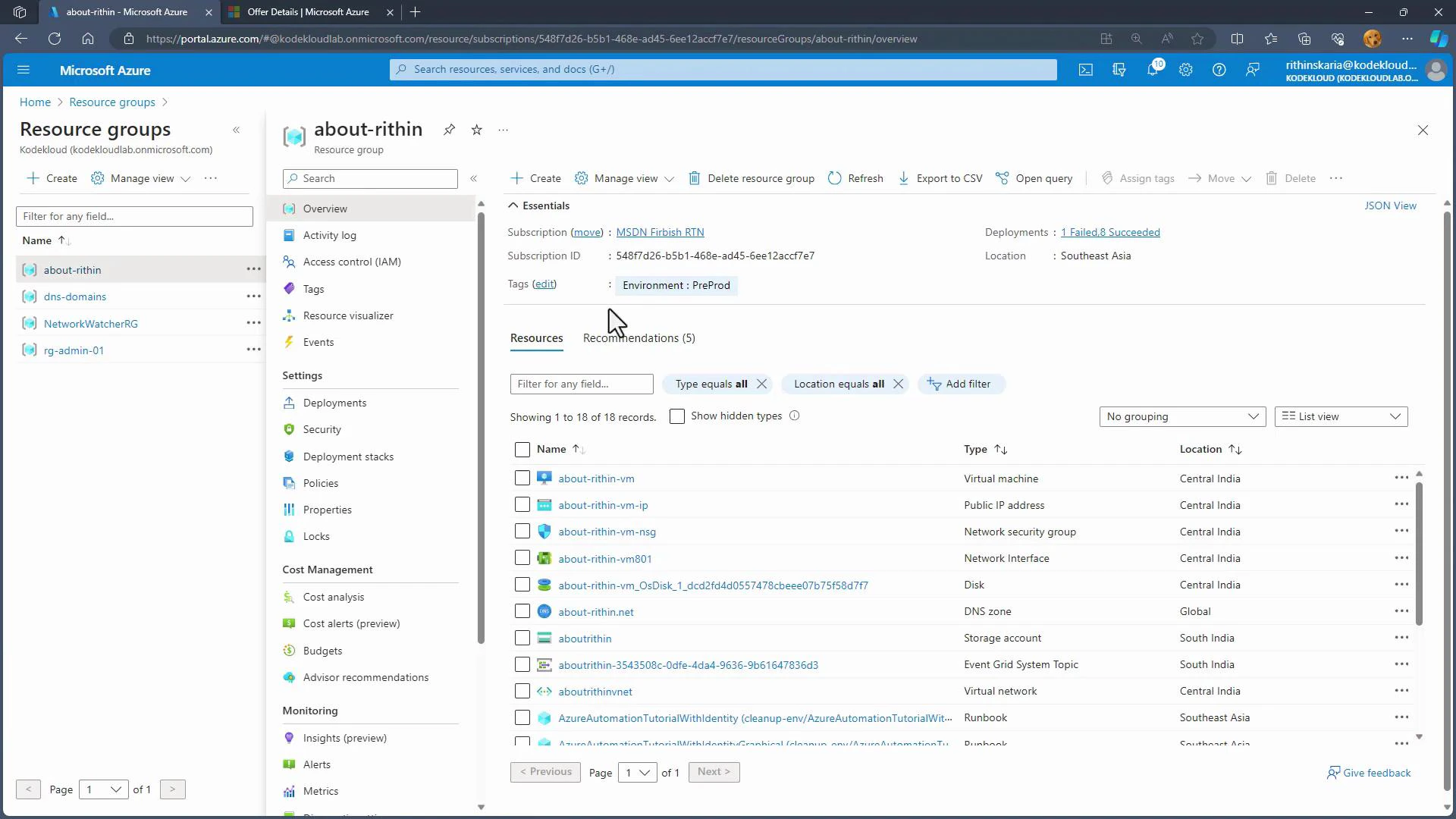
- Resource group tags help organization and discovery, especially for teams that think in terms of application boundaries.
- Resource group tags do not automatically propagate to underlying resources unless you deploy or enforce propagation (for example, with Azure Policy).
- For production governance, enforce tag standards and inheritance via Azure Policy to ensure consistent application across resources and accurate cost reporting.
Best practices for tagging
- Define a tagging taxonomy and publish it (keys, allowed values, conventions).
- Standardize on casing and separators (e.g., kebab-case or PascalCase) to avoid duplicates like
CostCentervscost-center. - Use a small, consistent set of keys (Owner, Environment, Project, CostCenter, Compliance) to reduce management overhead.
- Enforce mandatory tags at resource creation using Azure Policy and remediate noncompliant resources automatically where appropriate.
- Review and clean up unused tag keys periodically to keep the catalog manageable.
Summary
- Tags are name-value pairs used to label resources for management, billing, and organization.
- For billing and automation, tags must exist on the resource level—resource group or subscription tags won’t automatically apply to resources without enforcement.
- Use Azure Policy to enforce tagging standards, automate inheritance, and maintain consistent governance at scale.