

Security controls at a glance
Authentication
- App Service Authentication (“Easy Auth”) can be enabled to protect an application without changing its code. When enabled, App Service intercepts incoming requests and enforces authentication against a configured identity provider.
- Supported providers include Microsoft Entra ID (Azure AD), Apple, Facebook, GitHub, Google, and Twitter. For OpenID Connect providers, App Service uses OAuth 2.0 / OpenID Connect protocols.
- By default App Service allows anonymous access. To require sign-in, enable Authentication and add a provider.
When App Service Authentication is enabled, the platform can enforce sign-in for your entire app without modifying application code — ideal for quickly securing apps that lack built-in auth.
Transport encryption (SSL / TLS)
- Protect data in transit by enforcing HTTPS and provisioning certificates for your custom domains.
- Options: Azure-managed TLS certificates, purchase via Azure, upload your own certificate, or bring a third-party certificate.
- Configure TLS settings and minimum protocol versions in the TLS/SSL settings blade to meet compliance and security requirements.
Diagnostics and monitoring
- Enable diagnostic logs, HTTP request logging, and Application Insights to collect request traces, exceptions, performance counters, and custom telemetry.
- Use these signals to detect suspicious activity, analyze incidents, and troubleshoot performance issues.
- Consider exporting logs to a Storage Account or Log Analytics workspace for long-term retention and querying.
Network access controls
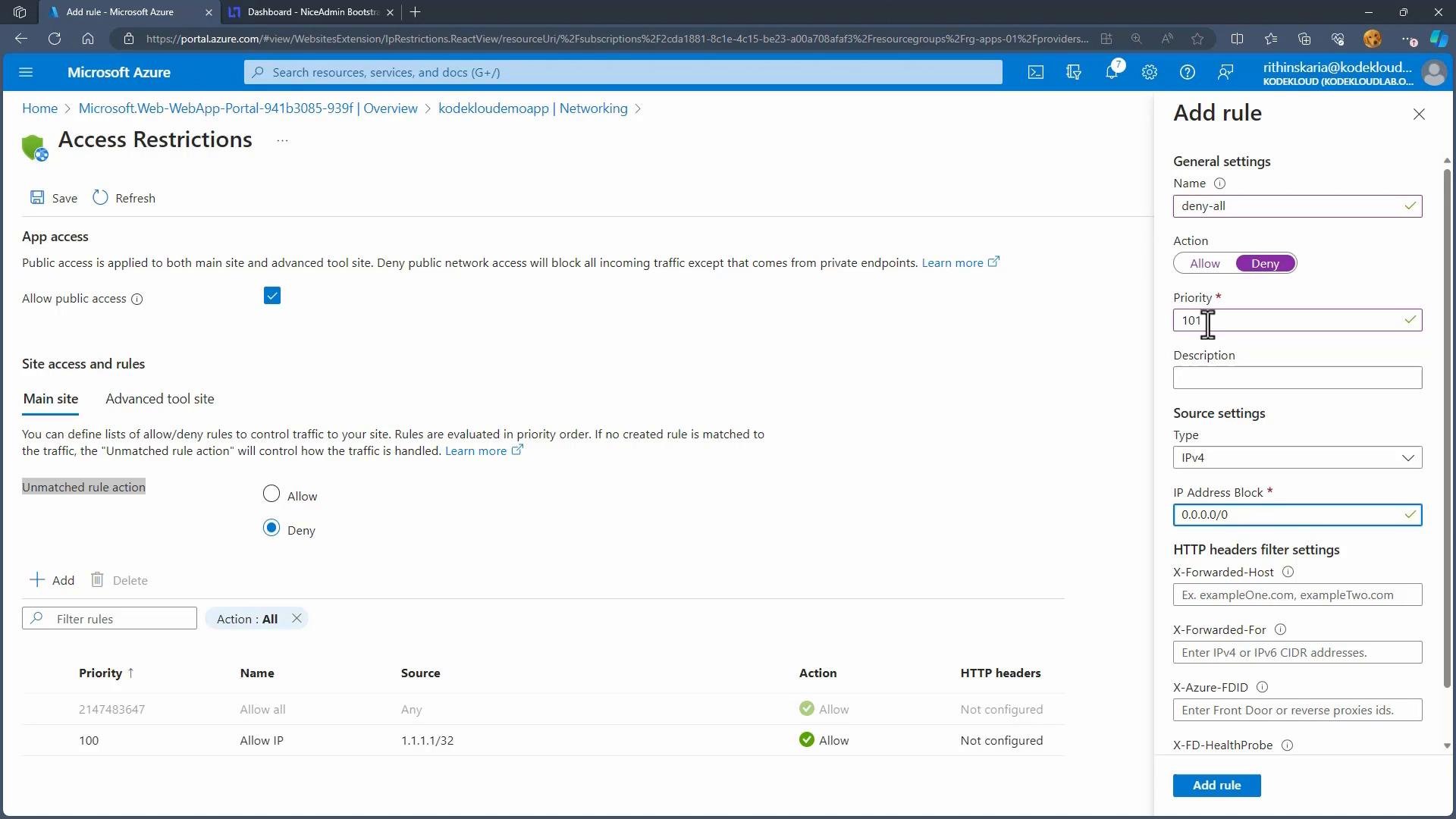
- Use Access Restrictions (Network ACLs) from the Networking blade to limit inbound traffic to specific IPv4/IPv6 ranges, virtual networks, or Azure service tags.
- Rules are evaluated by priority number (lower numeric value = higher precedence). Ensure allow rules have lower numeric priority values than your catch‑all deny rule.
- Common pattern: add explicit Allow rules for trusted IPs, then add a Deny rule that blocks all other traffic.
Be careful when applying deny-all rules. A misconfigured priority or missing allow rule can lock you out of your app or administrative tools. Test changes from a separate admin IP or use temporary rules during rollout.
- Create an Allow rule for the specific IP(s) you want to permit.
- Add a Deny rule named
deny-allwith an IP block of0.0.0.0/0and a numeric priority higher than the allow rules so it is evaluated after them.
Key Vault integration
- Store secrets, certificates, and connection strings in Azure Key Vault rather than embedding them in code or app settings.
- Configure App Service to access Key Vault at runtime using managed identities or service principals to retrieve secrets securely.
In-portal demonstration and quick deployment
In the Azure portal you can view an app’s overview and performance graphs to monitor CPU, memory, and network activity: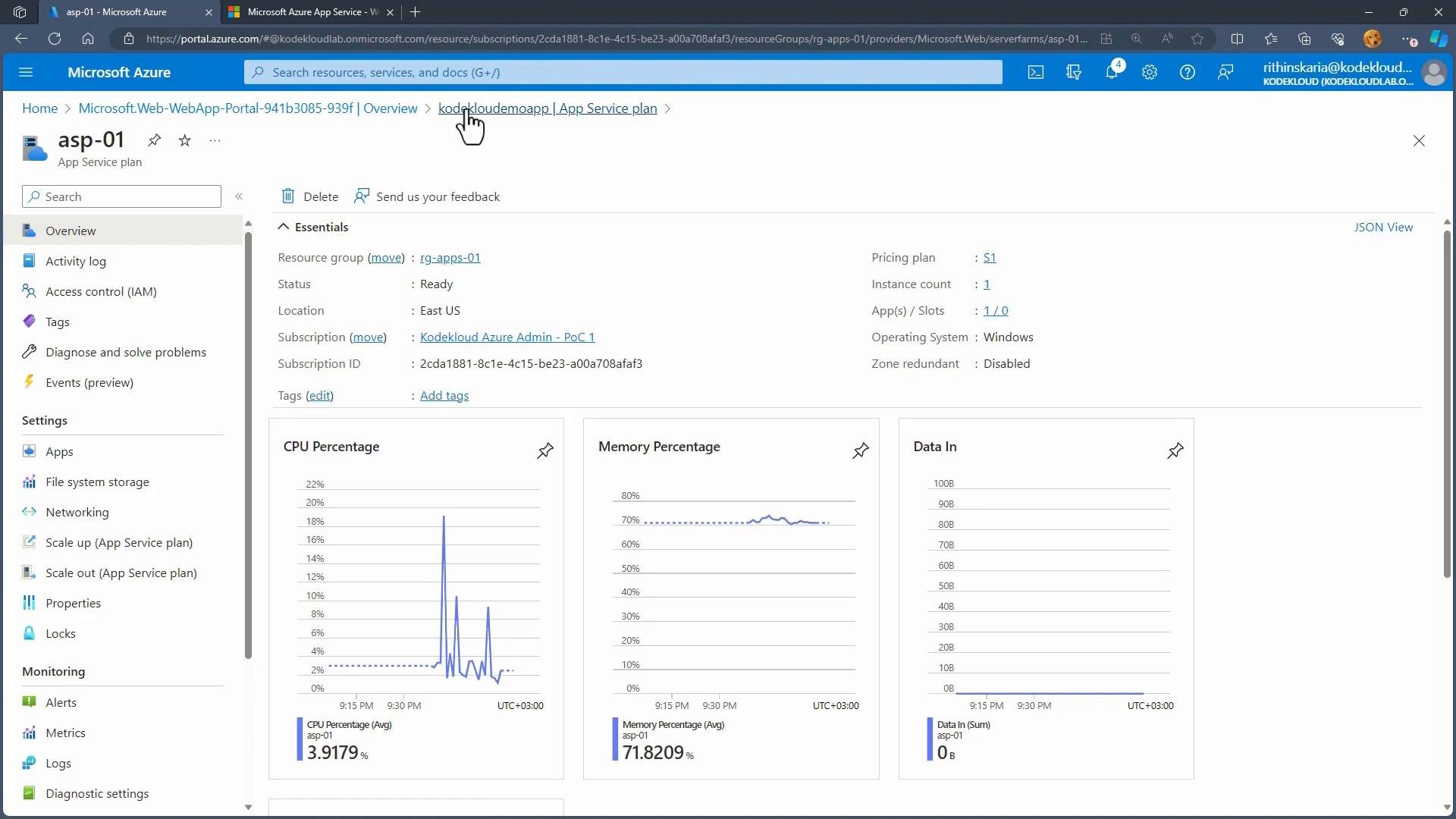
Deploying code to App Service
- Deployment options include Visual Studio Code, Visual Studio, FTP/FTPS, GitHub Actions, Azure DevOps, ZIP Deploy, and more. Choose the workflow that fits your organization’s CI/CD and security requirements.
- This guide uses Visual Studio Code’s “Deploy to Web App” command as a simple example.
Enabling authentication with Microsoft Entra ID
- Open the App Service in the Azure portal, select Authentication (or Authentication / Authorization), and add an identity provider.
- Choose Microsoft Entra ID to integrate with your tenant. App Service can create an app registration with default settings for you, or you can provide an existing registration.
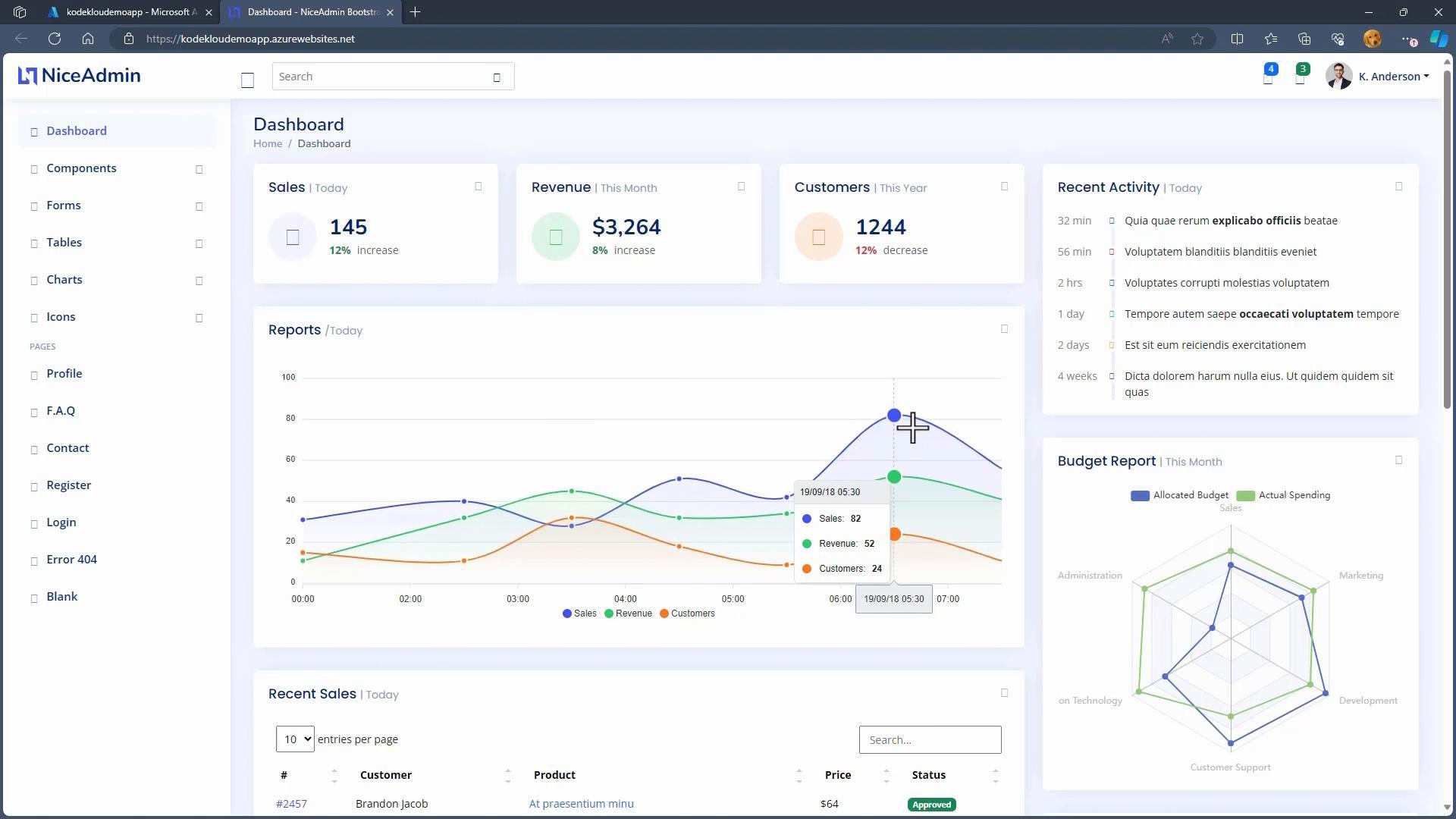
- After saving the configuration, the app will require sign-in. Verify behavior by opening the app URL in a private/incognito window:
Other deployment and management options
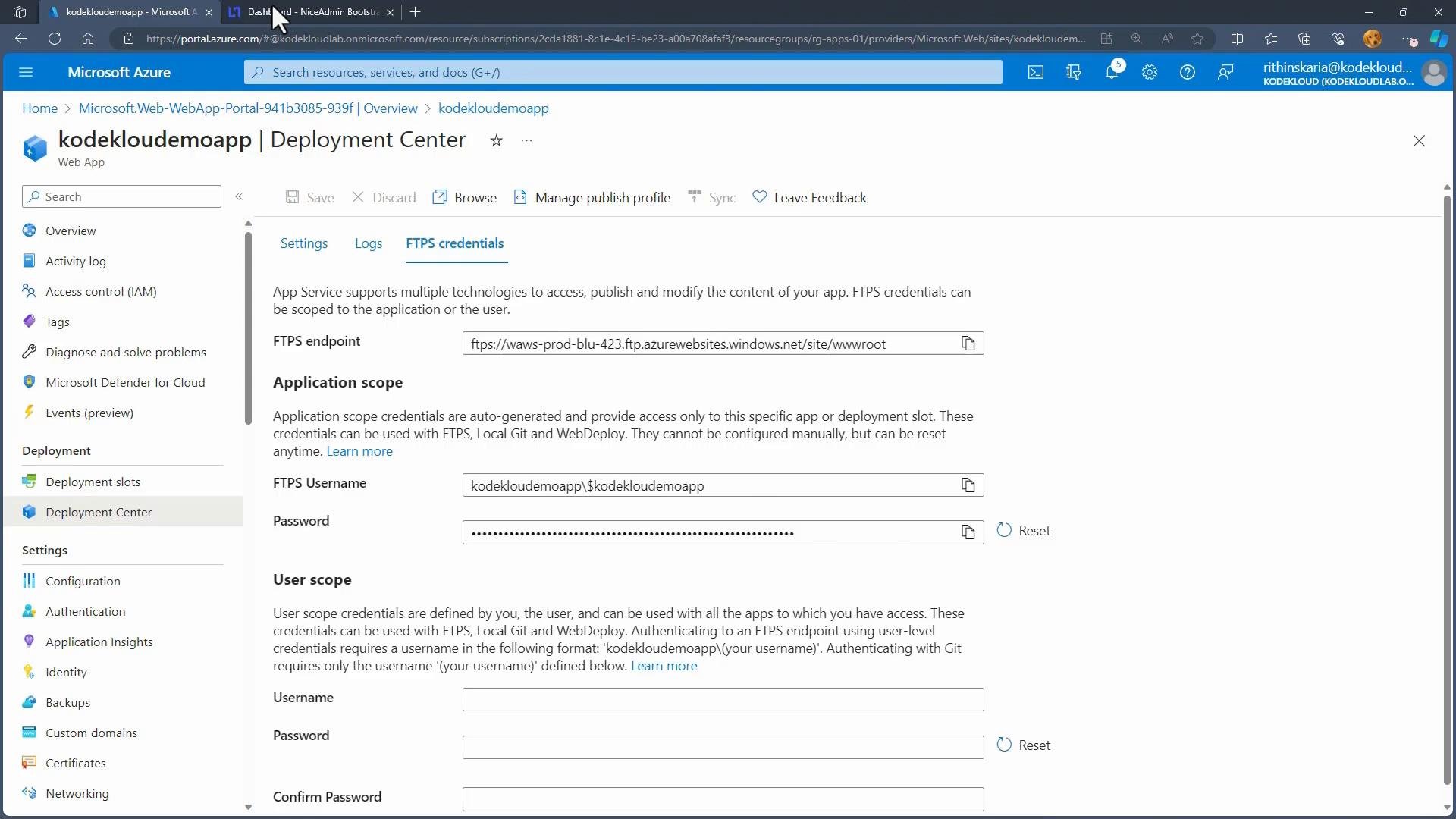
- Deployment Center provides CI/CD integrations (GitHub, Azure Repos, Bitbucket), FTPS credentials for manual uploads, and links to Kudu (Advanced Tools).
- Kudu lets you inspect files, run commands, and upload content directly from the portal.
- For TLS/SSL needs, use the TLS/SSL settings blade to request managed certificates or upload your own.
Restricting network access (Access Restrictions)
- Configure Access Restrictions from the Networking blade to limit exposure to the public internet.
- Add Allow rules for trusted IP ranges, virtual networks, or service tags, then add a Deny rule to block all other traffic.
- Ensure allow rules use lower priority numbers (higher precedence) than the catch-all deny rule.
- Create an Allow rule for specific IPs you need.
- Add a Deny rule with
IP Address/CIDR:0.0.0.0/0, name itdeny-all, and assign a priority value greater than the allow rules.
FTPS credentials and Deployment Center
- From Deployment Center you can retrieve FTPS credentials and endpoints for manual uploads via FTP clients.
- The Deployment Center also links to Kudu (Advanced Tools) for in-portal file and process management.
Summary and recommendations
- Use App Service Authentication to require sign-in via supported identity providers and protect your app immediately.
- Enforce HTTPS and manage TLS/SSL certificates through Azure-managed or uploaded certificates.
- Enable diagnostics (Application Insights, logs) to monitor and detect security or performance issues.
- Apply Access Restrictions to reduce public exposure; test rules carefully to avoid locking out administrators.
- Store secrets and certificates in Key Vault and use managed identities to retrieve them securely at runtime.
- Choose deployment workflows (VS Code, FTPS, Git/CI/CD) that align with your security and operational processes.
Links and references
- Azure App Service Authentication / Authorization documentation
- Azure App Service TLS/SSL documentation
- Azure Key Vault documentation
- Deployment Center overview