

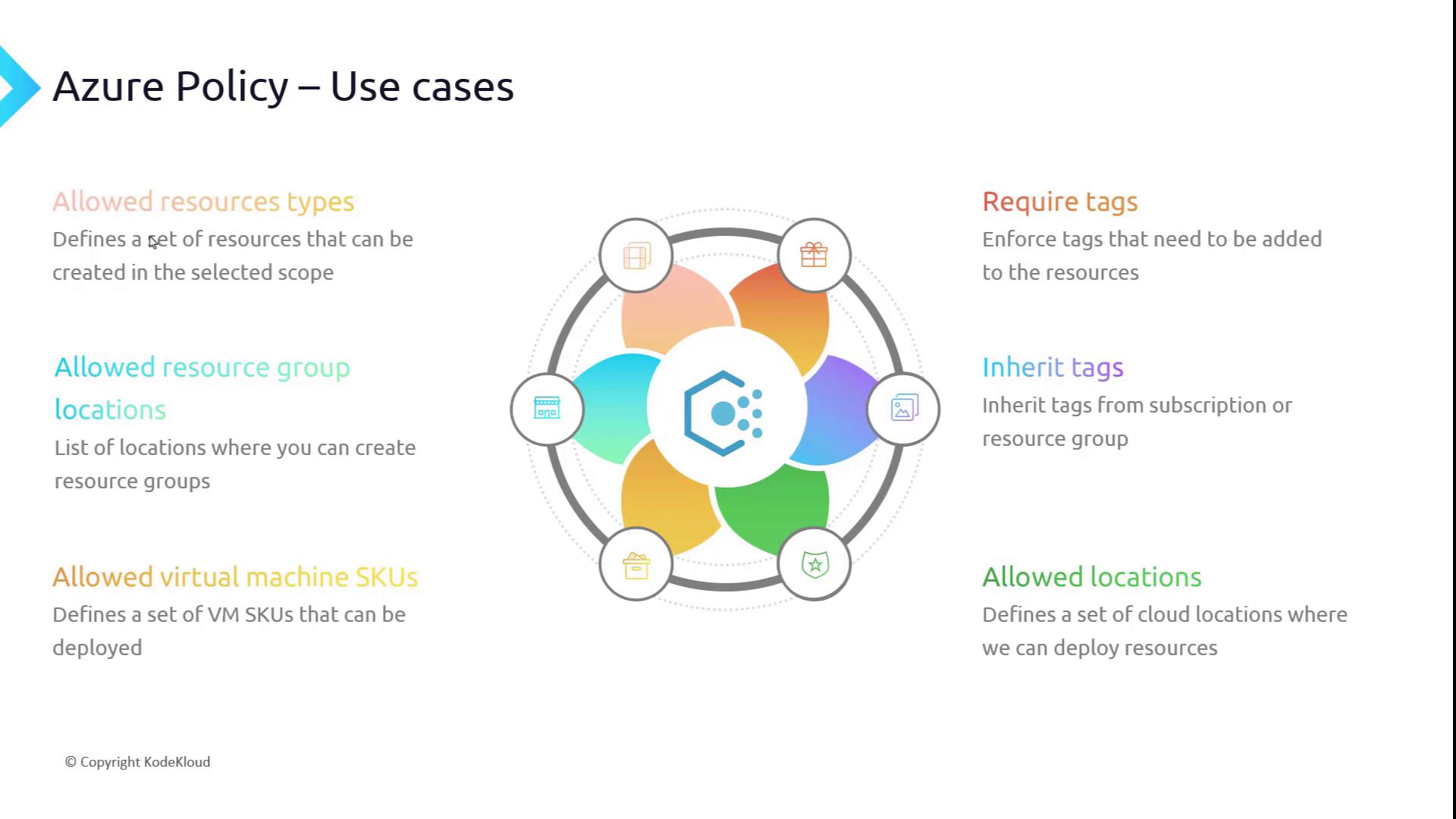
- Required Tags
- Inherited Tags
- Allowed Virtual Machine SKUs
- Allowed Resource Group Locations
- Allowed Resource Types
Creating an Initiative Definition
- Open the Azure portal and navigate to Policy Definitions.
- Choose to create a new initiative definition.
- For the location, select IT (or your preferred location). Set the name as “KodeKloud Standard Policies” to align with your organizational requirements.
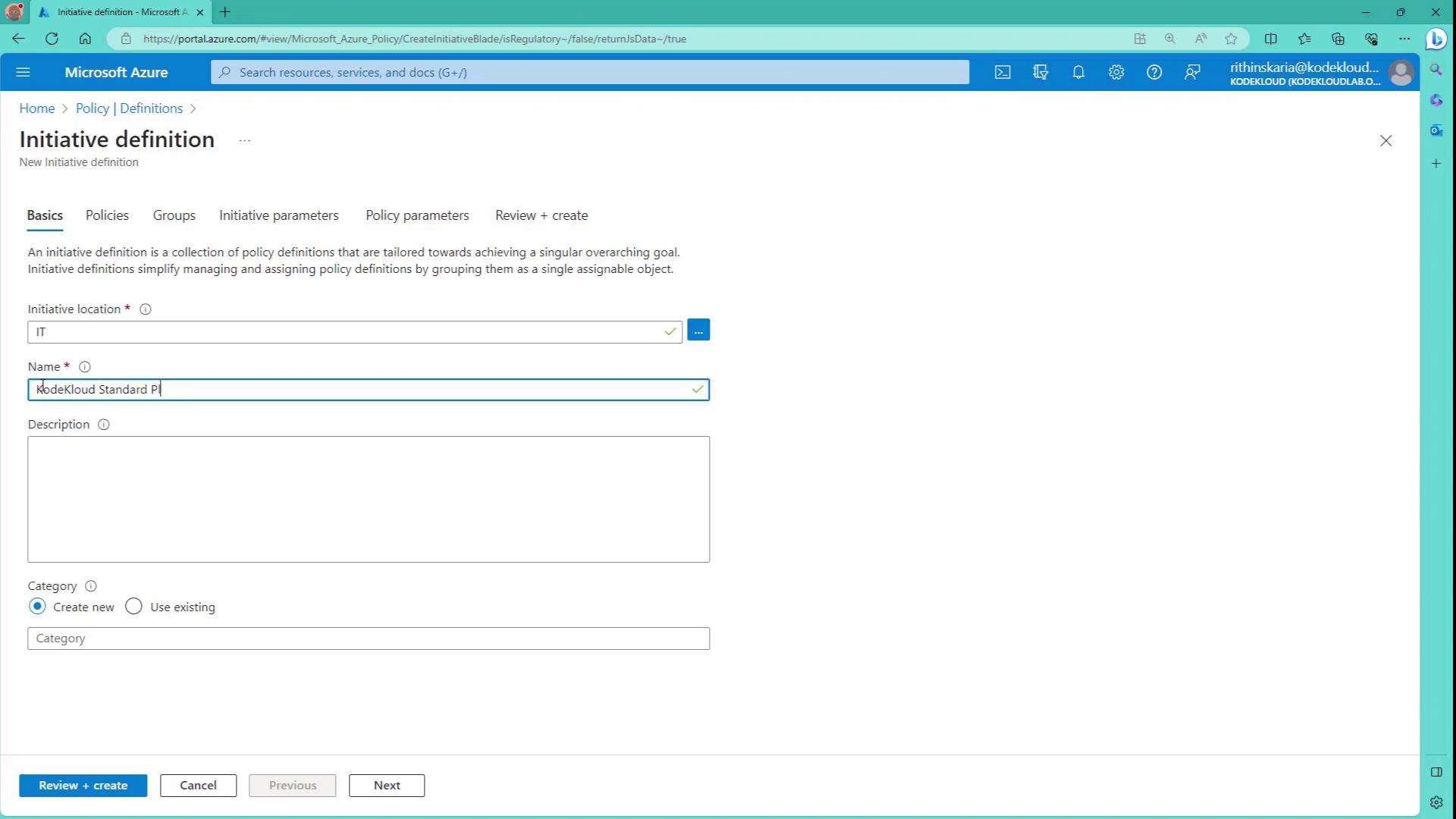
- Under Category, you can create a new category (e.g., “KodeKloud”) or use an existing one to group your policies.
- Add the necessary policy definitions to the initiative:
- Require a tag and its value on Resource Groups
- Allowed Virtual Machine SKUs
- Allowed Resource Types
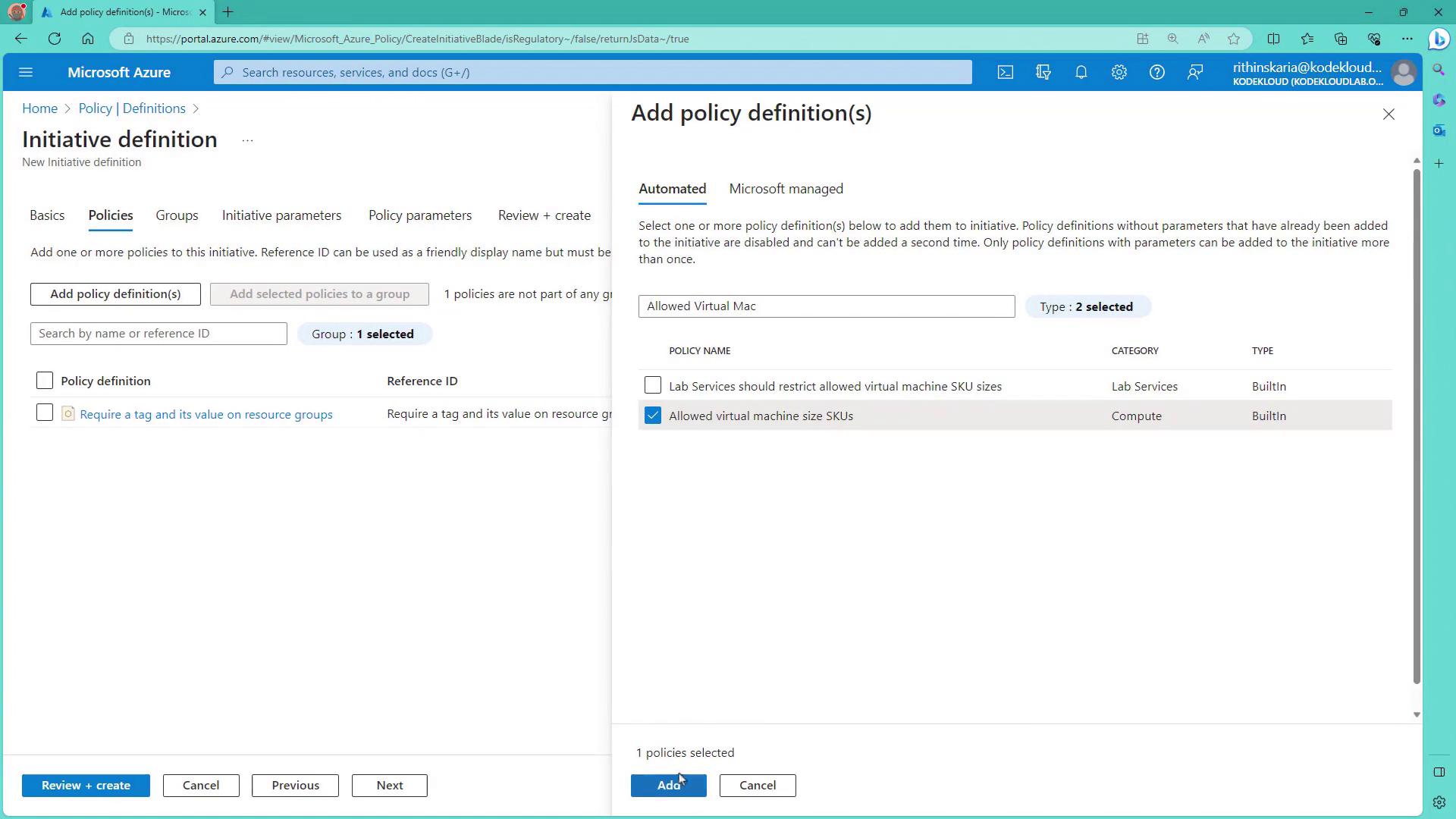
- Optionally, include the Inherit tags from Resource Groups policy. For better organization, you can create groups (e.g., “tags group” for tag-related policies and “resource types” for policies related to allowed resource types).
-
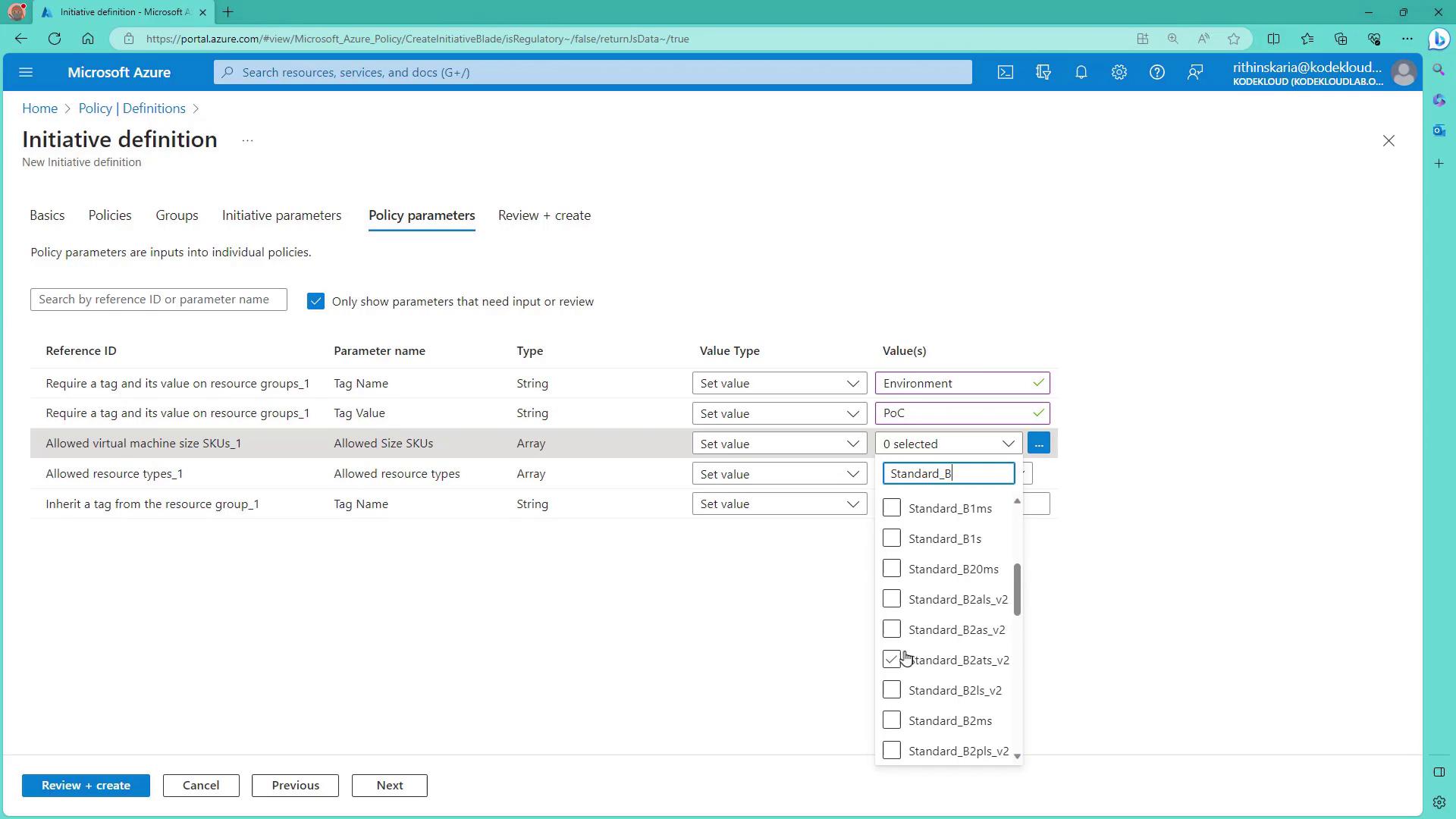
Configure the initiative parameters next. Although the initiative itself may not require parameters, individual policies do. For example:
- The tag policy requires a tag named “environment” with a fixed value of “POC”.
- The allowed VM sizes policy requires a set of approved sizes.
- The allowed resource types policy requires allowed resources (e.g., Virtual Machines under Microsoft.Compute and Storage accounts under Microsoft.Storage).
- The inherited tag policy ensures that resources inherit the environment tag from the resource group.
- Set the environment parameter value to “POC”.
- Limit the allowed virtual machine sizes to approved values such as B1S and B1MS.
-
For allowed resource types, specify:
- Virtual Machines (under Microsoft.Compute)
- Storage accounts (from Microsoft.Storage)
- For the inherited tag policy, ensure that the resource inherits the “environment” tag from the resource group.
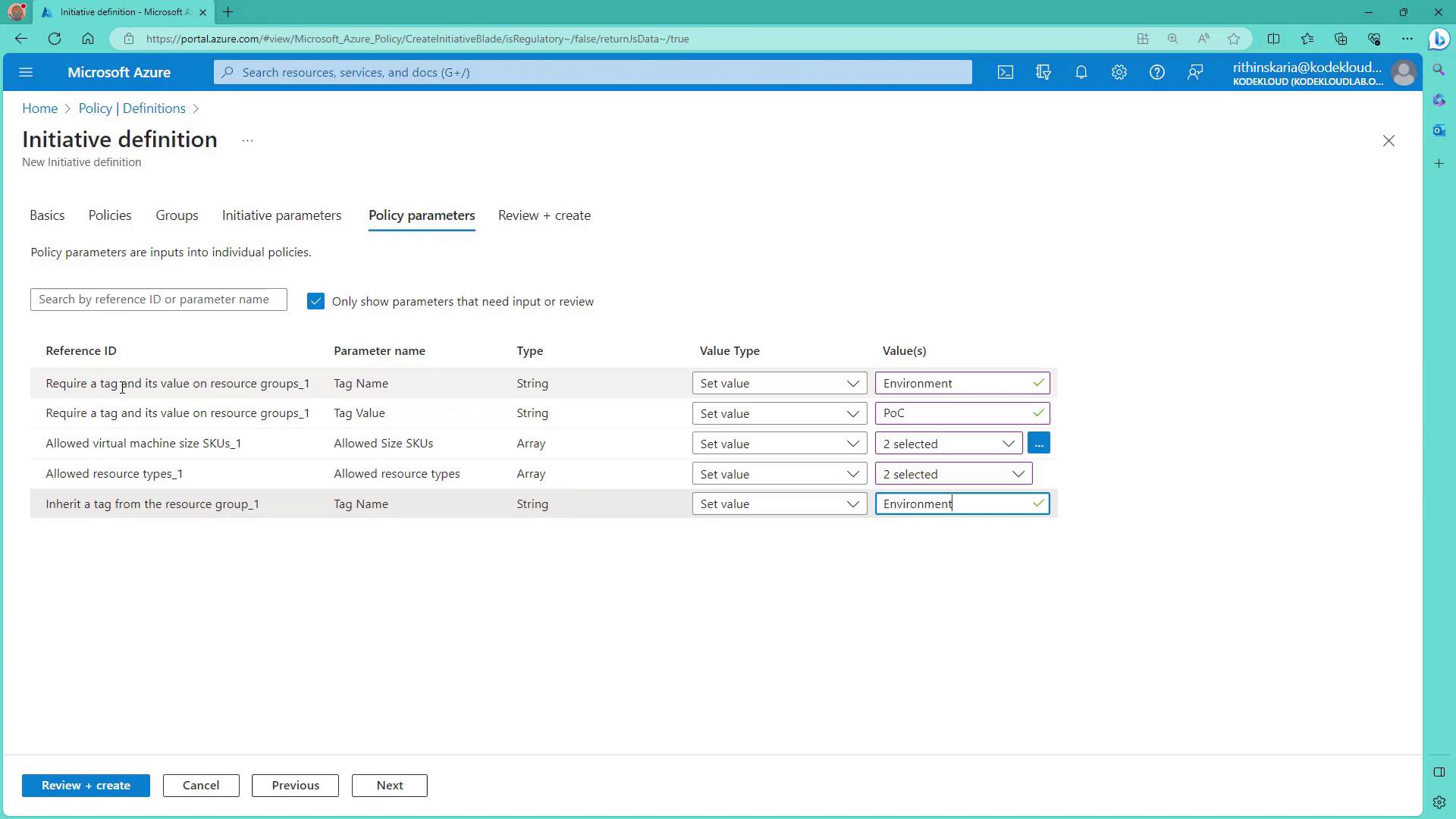
- Click Review and Create to save the initiative definition. This step only creates the definition; it does not assign it.
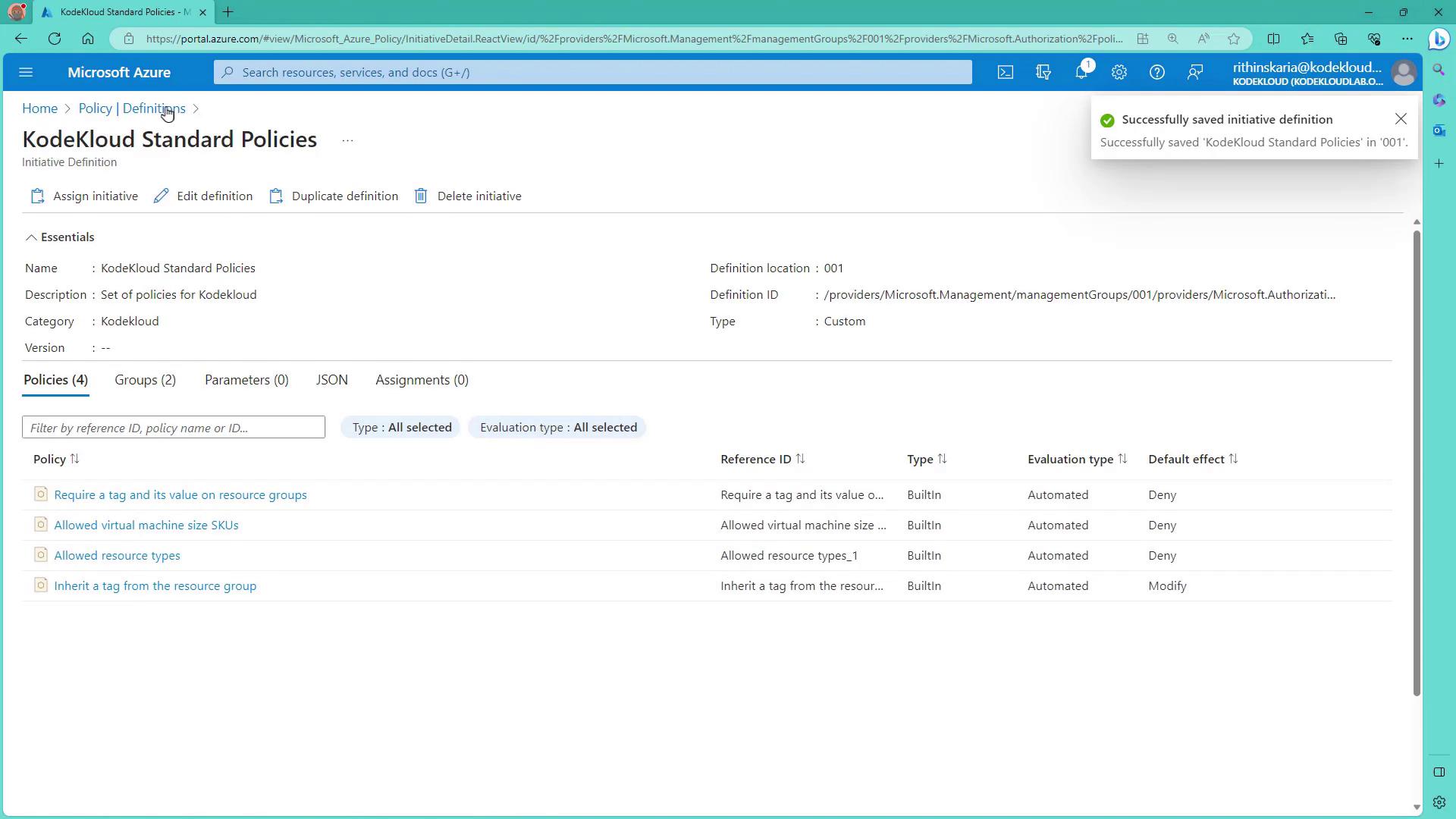
Assigning the Initiative
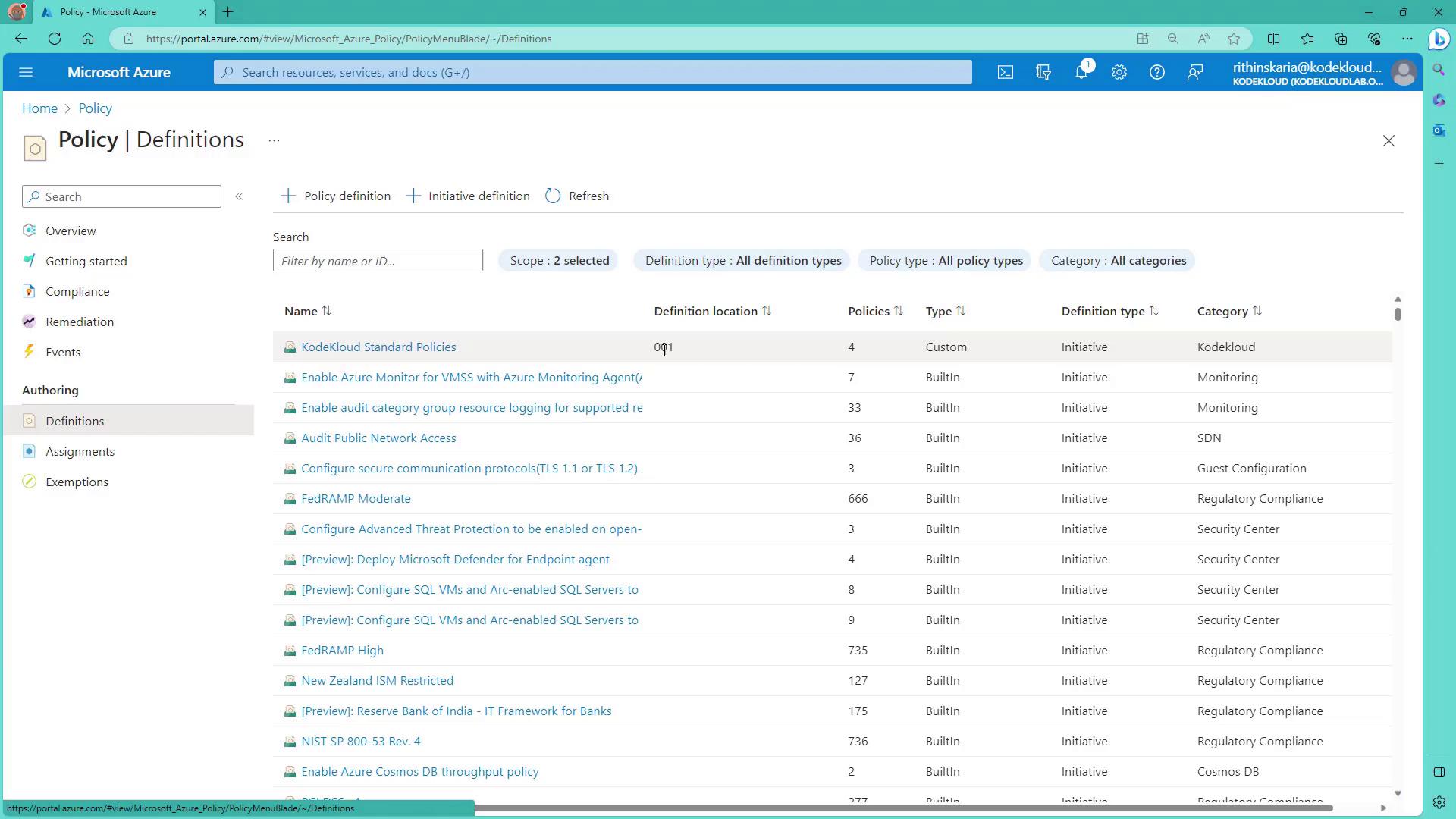
- Navigate to the initiative definitions and select the “KodeKloud Standard Policies” initiative.
- Click Assign Initiative. The defined scope (in this case, IT) will be applied. If the target subscription (e.g., POC2) is not within IT, it will not be visible. To assign the initiative at a broader scope, consider creating it at the tenant root level.
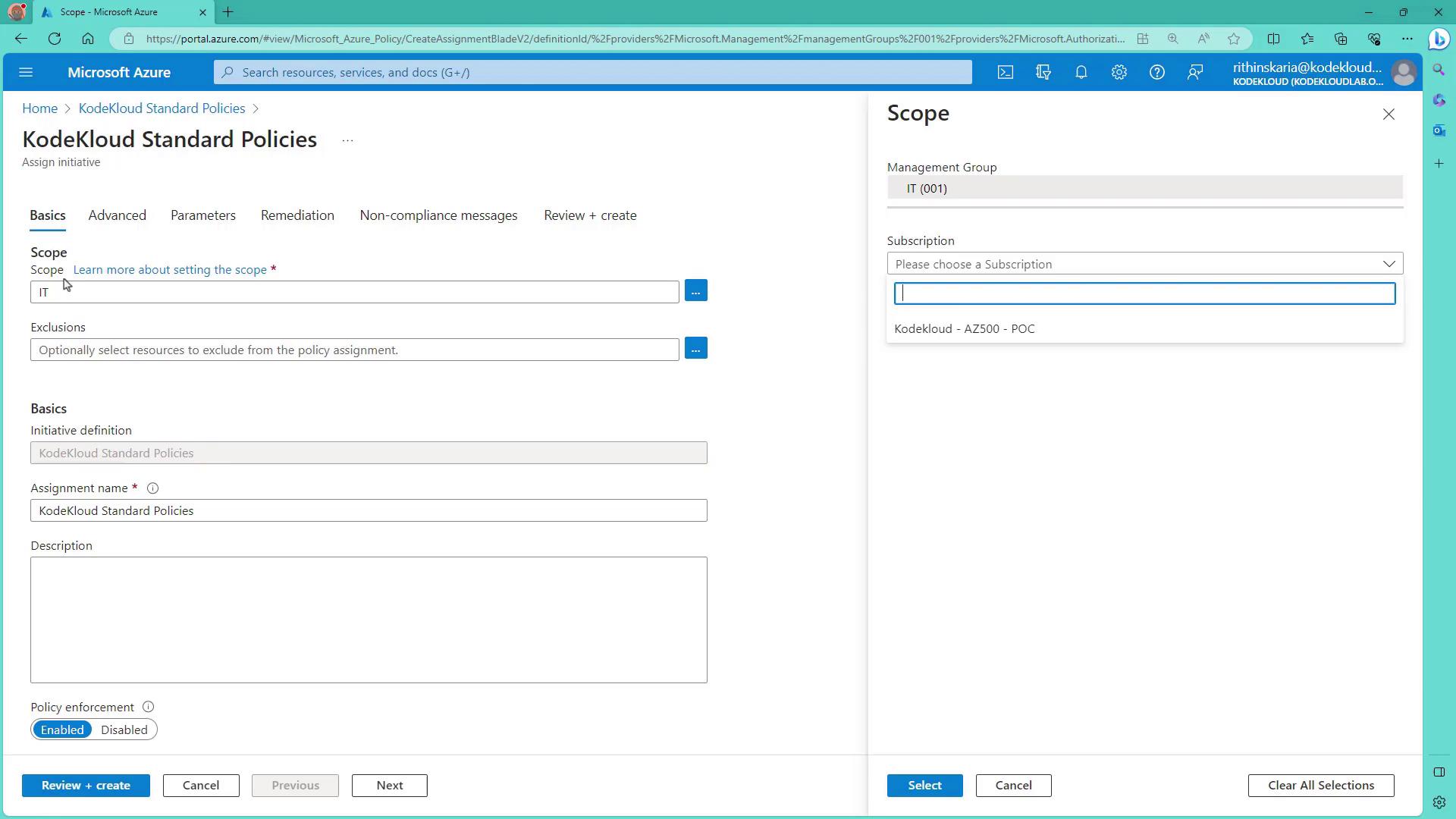
- If needed, move subscriptions between management groups (for example, moving the POC2 subscription to IT) to ensure the correct scope.
- Return to the policy definitions page to verify that the location is correctly set (e.g., 001 for IT). Then, assign the initiative to the desired subscription (e.g., POC2). You may also select a specific Resource Group; however, for demonstration purposes, leaving the Resource Group selection empty showcases how the policy (like the tag requirement) works at a broader level.
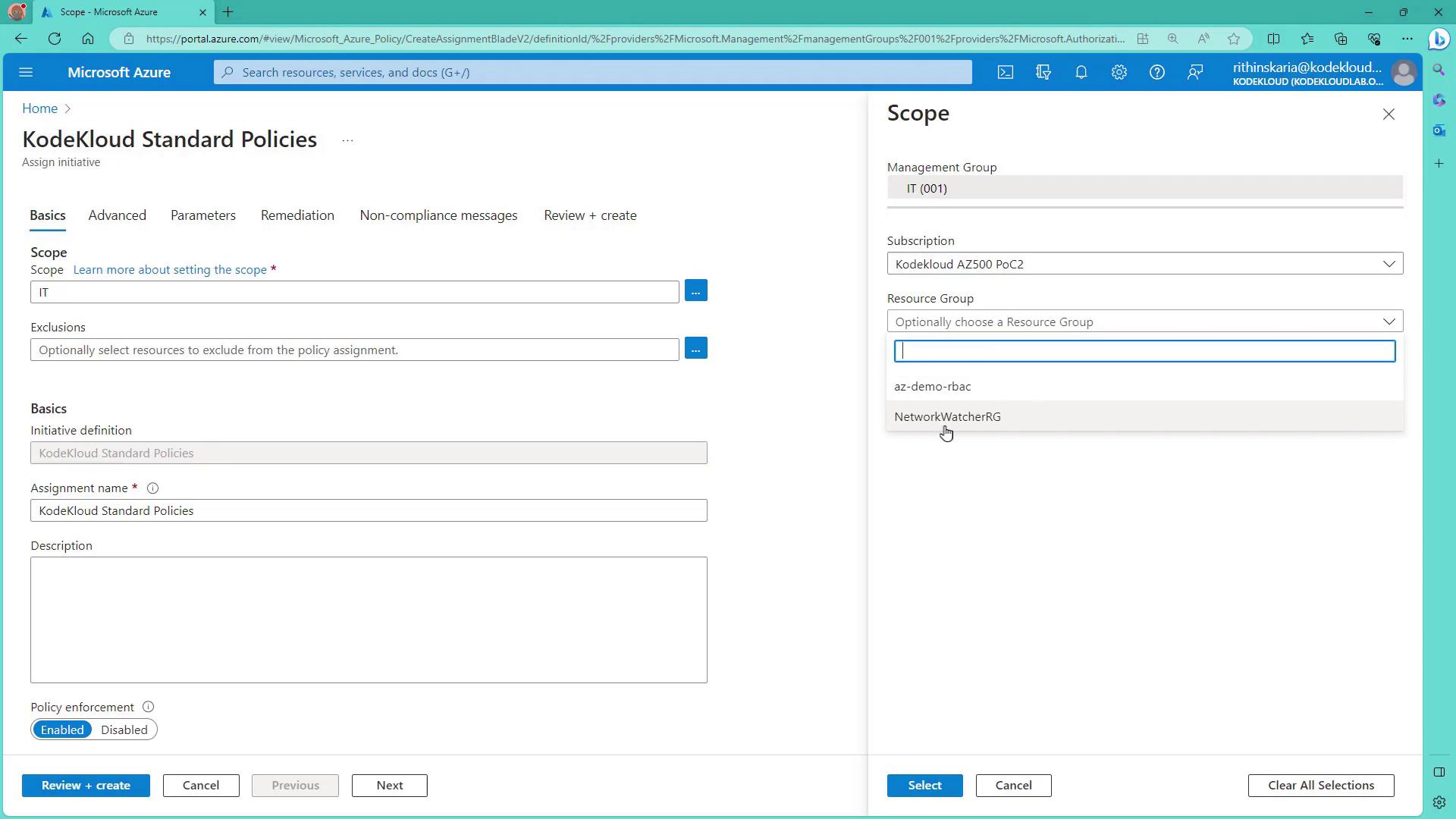
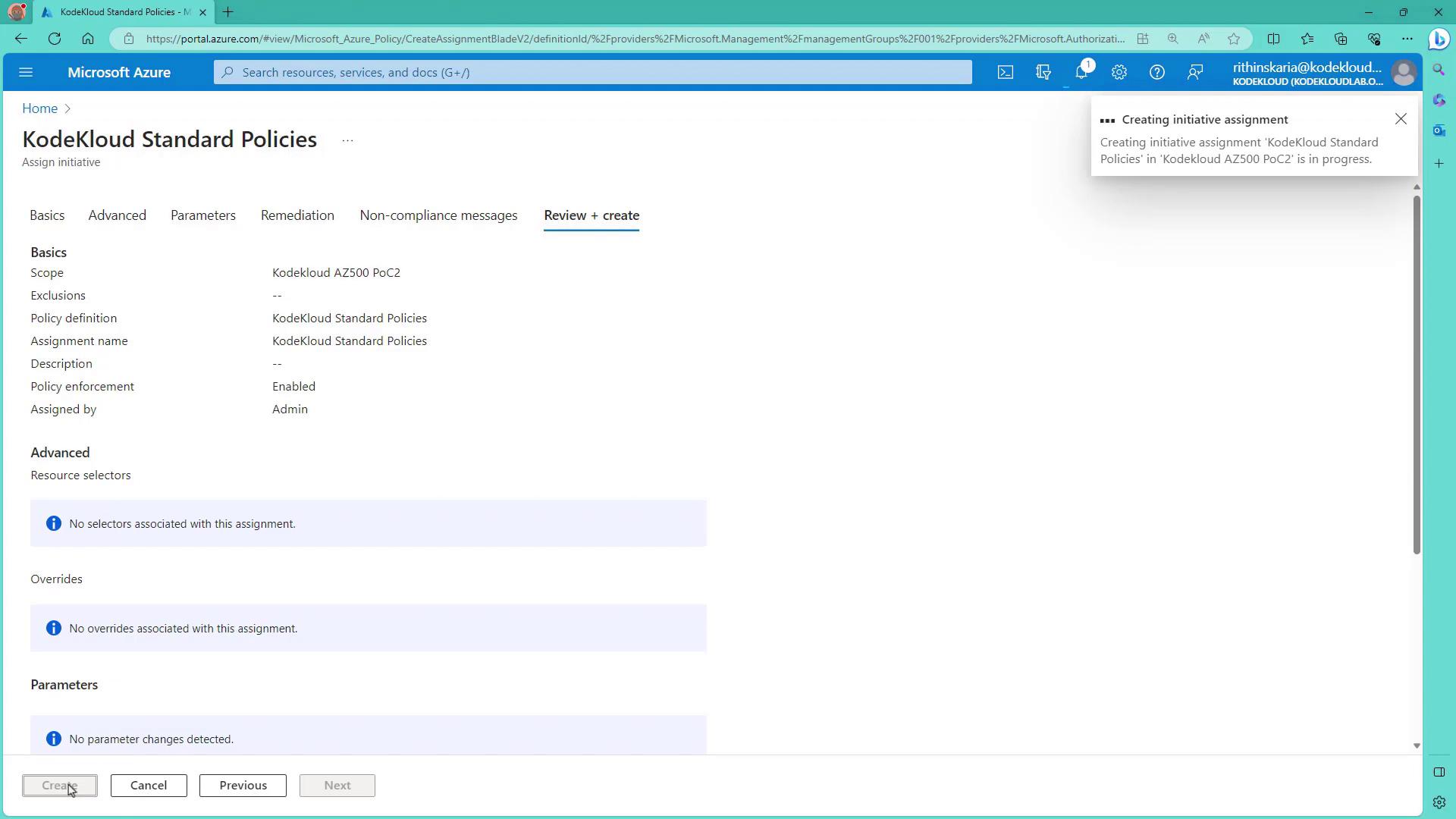
- Review the assignment and click Create. The assignment process will take a few moments, and a confirmation will appear once role assignments have succeeded. Note that the policy for inheriting tags requires a role (such as Tags Contributor) for the policy identity, which is why a role assignment is necessary.
Testing and Validating Policies
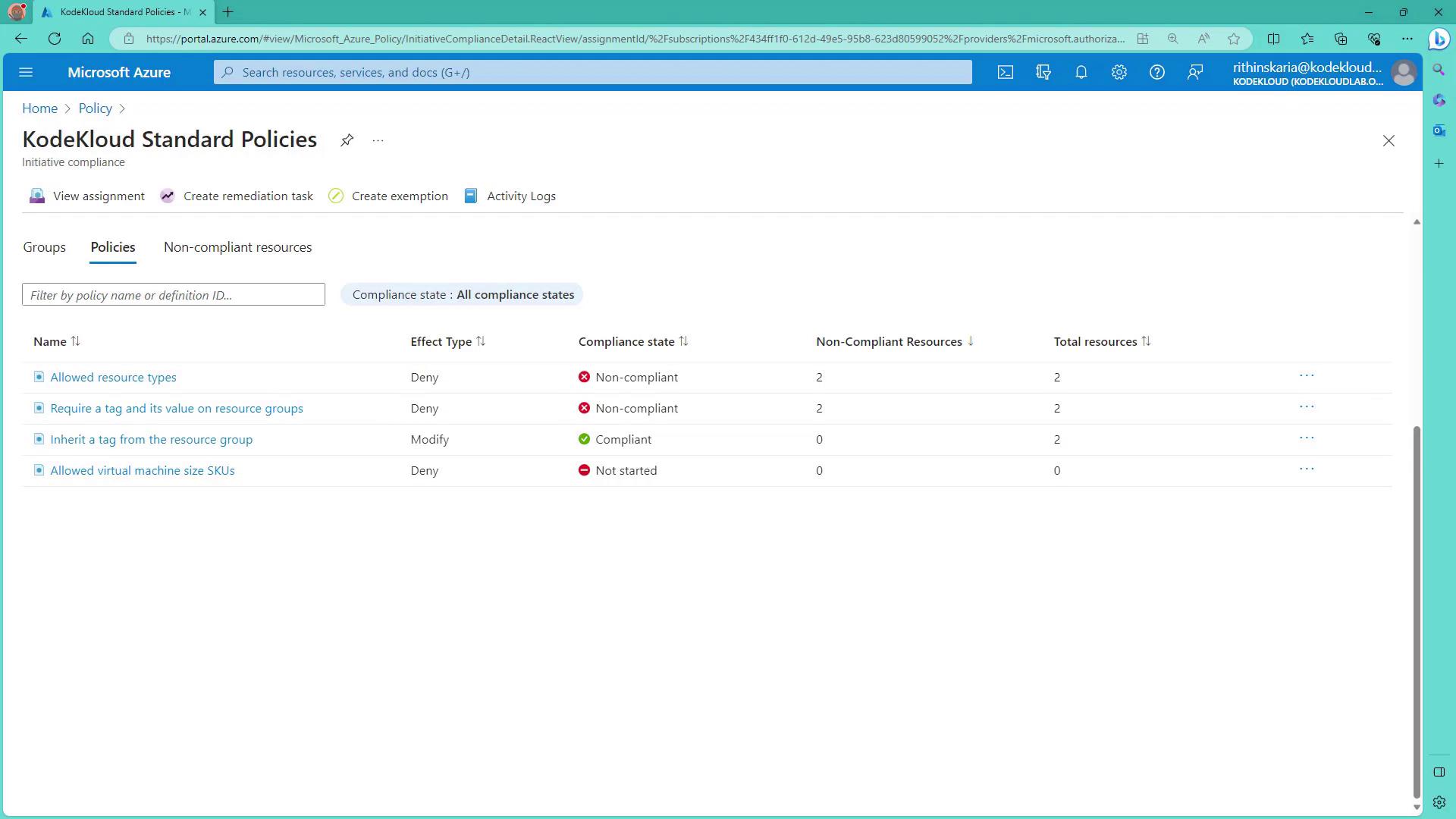
After assigning the initiative, the following policies are enforced:- Allowed Resource Types
- Require a Tag and Its Value on Resource Groups
- Inherit Tags from Resource Groups
- Allowed Virtual Machine Sizes
Testing the Tag Policy
- Navigate to Resource Groups.
- Attempt to create a new resource group without a tag. For example, create a Resource Group named “azpolicy-check-rg” in the approved region (e.g., East US), leaving the tags section empty.
- The creation process will fail with an error similar to:
- To fix the error, enter the tag “environment” with the value “POC.” Using a different value, such as “prod,” will result in a similar denial message:
- After setting the correct tag value (“POC”), the resource group creation will succeed.
Testing the Allowed Resource Types Policy
- Try creating a Virtual Network. With the allowed resource types policy only permitting virtual machines and storage accounts, the Virtual Network creation should be blocked.
- The resulting validation error will indicate that the resource type for virtual networks is not approved.
Testing the Allowed Virtual Machine Sizes Policy
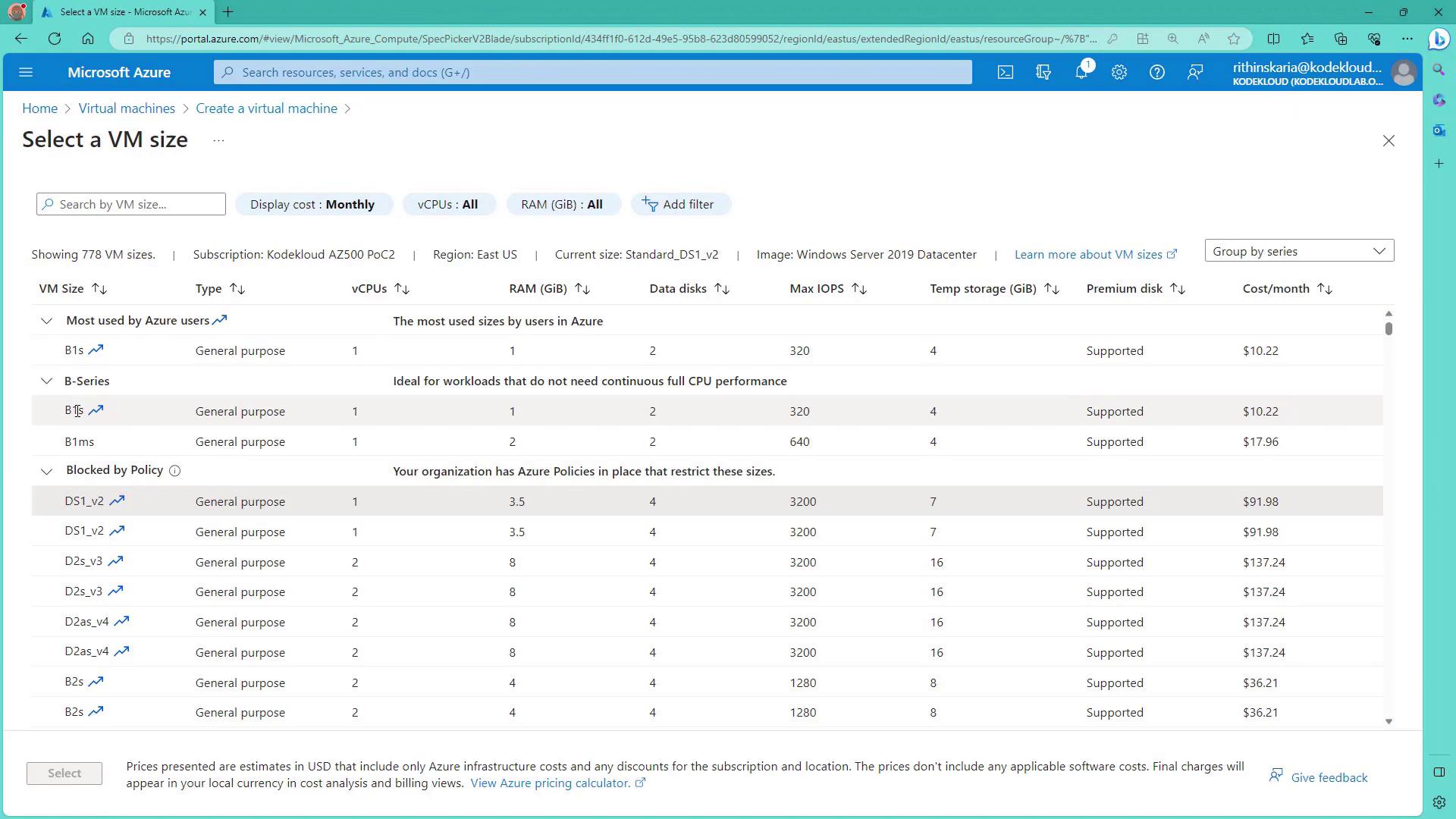
- Create a new Virtual Machine in the Resource Group “Azure Policy Check RG” in the approved region (East US).
- When selecting a VM size, the dropdown will restrict options to the approved sizes. Only B1S and B1MS will appear. Selecting any other size will not be allowed.
Testing the Storage Account Deployment and Inherited Tag Policy
- Create a Storage Account in the Resource Group “Azure Policy Check.” Use a valid name, select East US, and choose a cost-effective option like LRS.
- After deployment, verify that the storage account has automatically inherited the “environment: POC” tag from the Resource Group.
Summary
In this article, we demonstrated how to group multiple Azure policies into a single initiative to enforce compliance across your resources. The initiative covers policies for:- Enforcing a required tag and its value on resource groups.
- Restricting allowed resource types.
- Limiting allowed virtual machine sizes.
- Automatically inheriting tags from resource groups.