

Key distinction: use Azure RBAC to manage access to Azure resources (subscriptions, resource groups, resources) and use Microsoft Entra ID roles to manage directory and identity features at the tenant level.
Quick comparison
When to use which (decision flow)
- Need to manage VMs, storage, networking, or subscription billing visibility? Use Azure RBAC at the appropriate scope (subscription, resource group, resource).
- Need to create or manage users, register applications, or configure tenant-wide identity settings? Use Microsoft Entra ID roles.
- Need just-in-time or eligible elevated directory roles? Use Privileged Identity Management (PIM).
- Often you will need both: a directory admin role for identity tasks plus RBAC role(s) to access or manage the actual Azure resources.
Overview
- Azure RBAC: controls access to Azure resources — VMs, databases, storage accounts, networking, policies, and subscription/billing data. RBAC supports fine-grained role assignments at multiple hierarchical levels (management group → subscription → resource group → resource).
- Microsoft Entra ID roles: govern access to tenant-level identity and directory features — user and group management, application registration, PIM, and other Entra capabilities. Entra roles only operate at the tenant scope.
Management interfaces
Built-in roles (examples)
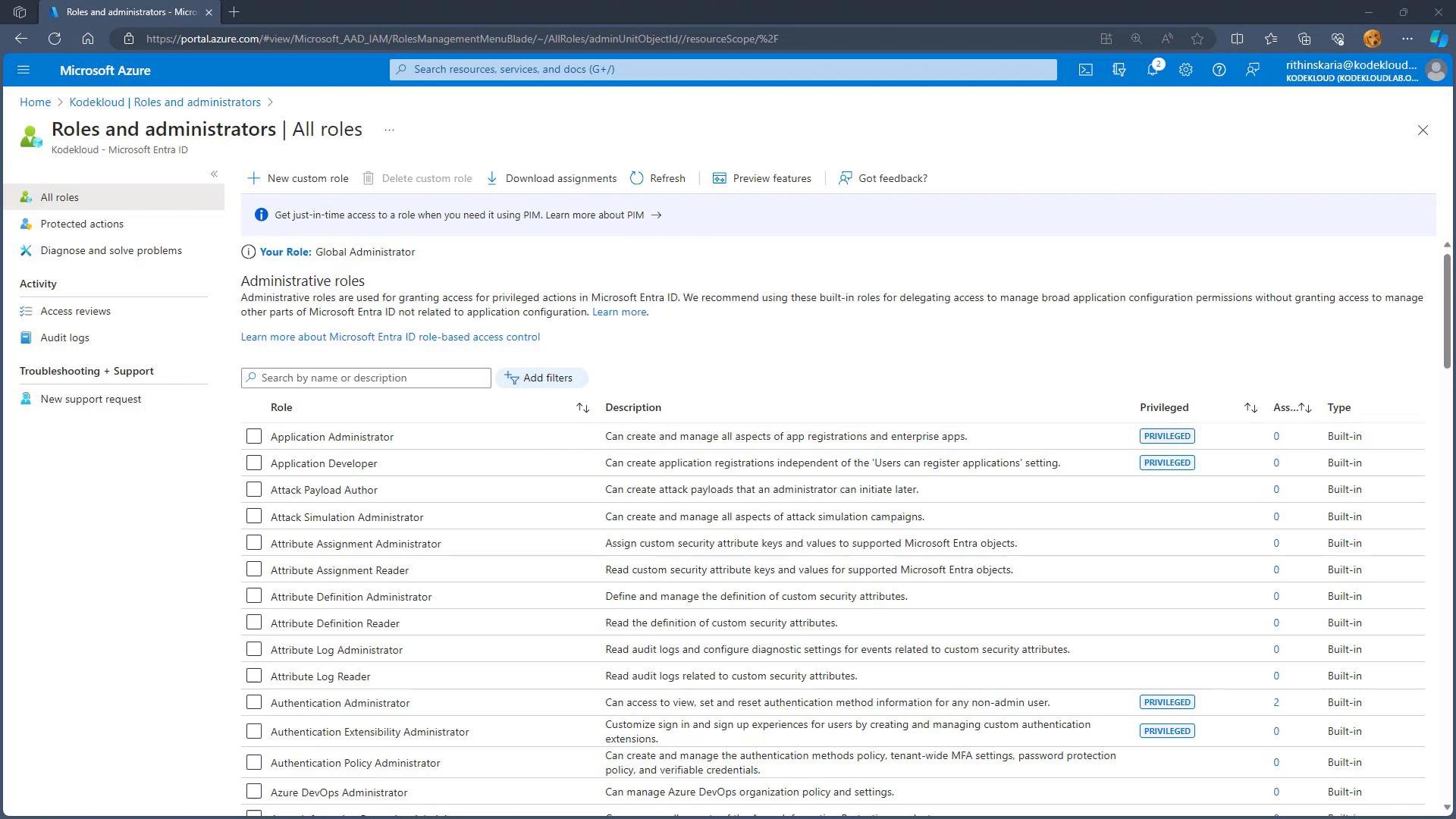
Navigating Entra ID roles in the portal
To view or manage Entra roles:- Sign in to the Azure portal.
- Open the Microsoft Entra (Entra ID) blade.
- Go to “Roles and administrators” to see built-in and custom roles, descriptions, and assignment counts.
Assigning an Entra ID role to a user (portal steps)
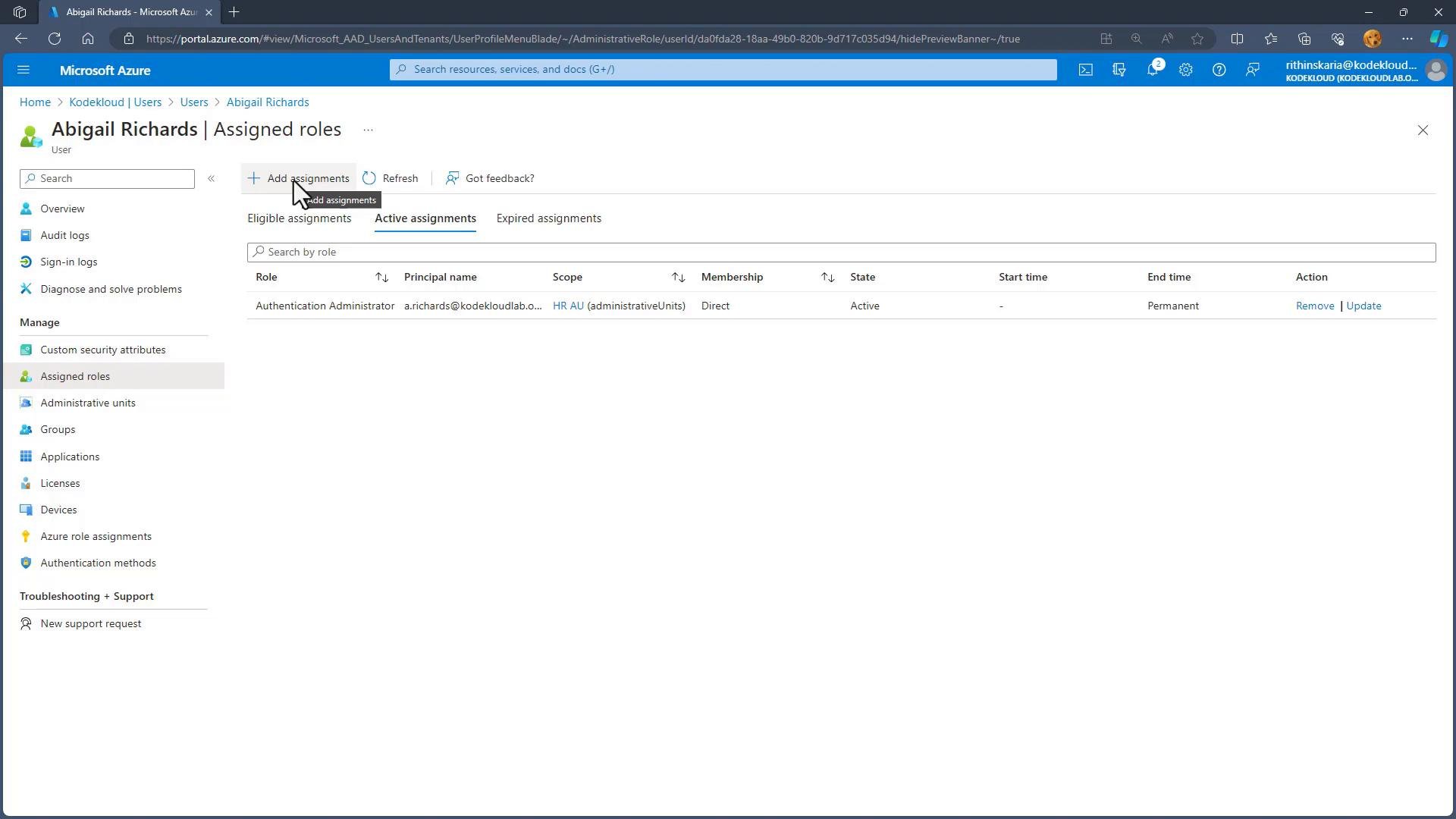
To assign a Microsoft Entra ID role via the portal:- Open Microsoft Entra ID → Users.
- Select the user (for example, Abigail).
- Choose “Assigned roles” and click “Add assignment”.
- Pick the desired role and confirm. If your tenant uses PIM, you may also see options for eligible assignments or expiration settings.
Remember: tenant-level roles (like Billing Administrator or Global Administrator) do not automatically grant access to subscription resources and billing details unless a corresponding RBAC role is assigned at the subscription or management group scope.
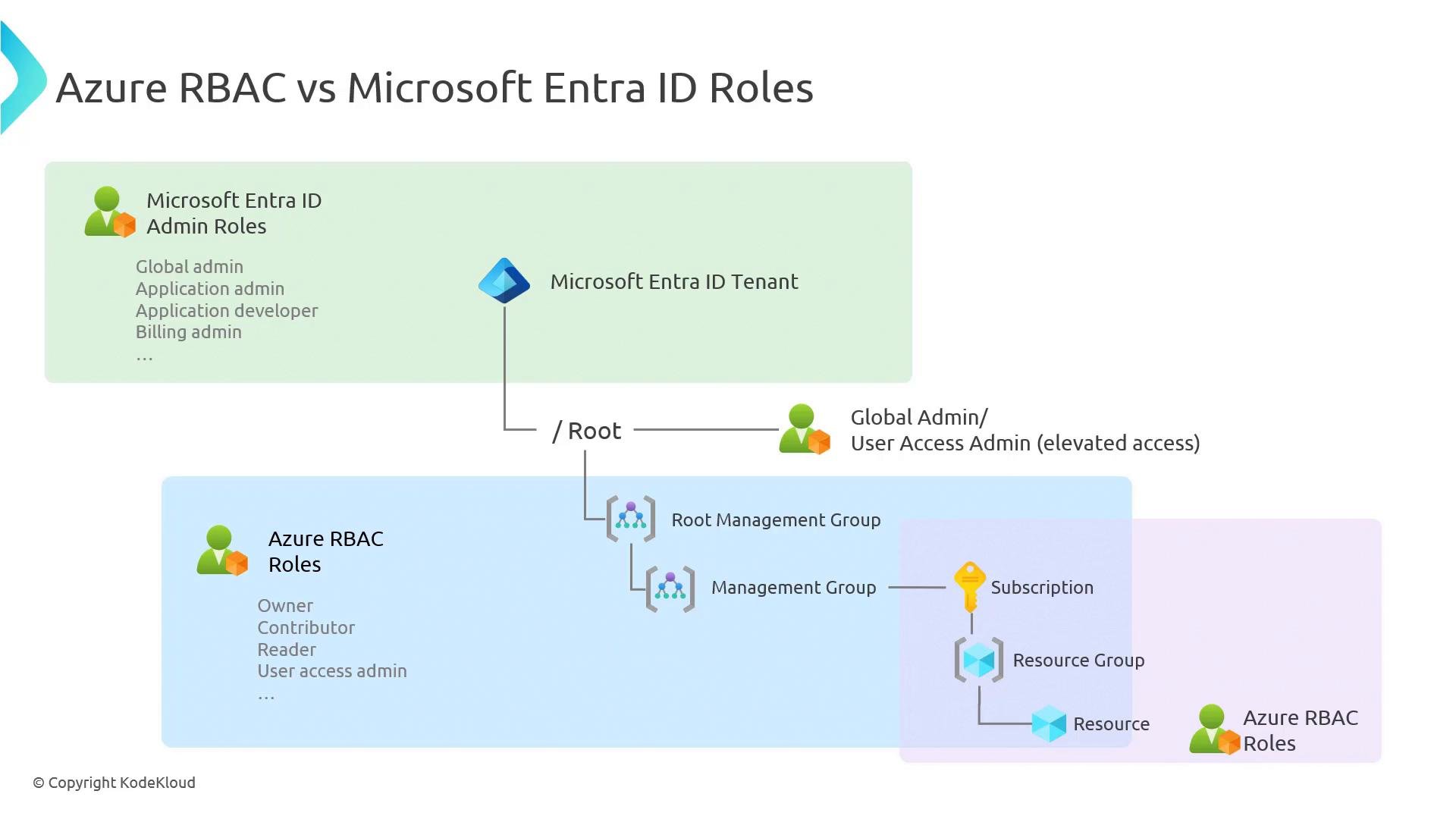
How the hierarchy fits together
Every Azure subscription is tied to a Microsoft Entra ID tenant — there is no subscription without a tenant. The tenant is the root for directory and identity management (Entra roles). Azure RBAC applies to the Azure management hierarchy (management groups → subscriptions → resource groups → resources).- Microsoft Entra ID (tenant root)
- Hosts tenant-scoped roles (Global Admin, Application Admin, Billing Admin for tenant billing).
- Global Administrators can enable features like “Access management for Azure resources” or use PIM for elevated access, but this is a directory-level capability and does not replace RBAC in routine resource operations.
- Azure RBAC
- Governs management groups, subscriptions, resource groups, and resources via RBAC role assignments (Owner, Contributor, Reader, etc.).
- To manage or view subscription-level resources or costs, a user must have the appropriate RBAC role at the subscription (or higher) scope in addition to any directory roles.
- A tenant-level Billing Administrator can manage tenant billing settings, but they will not see subscription-specific cost or resource details unless they are also assigned an RBAC role that grants that visibility at the subscription or management group level.
Practical guidance and best practices
- Principle of least privilege: Assign the minimum role necessary at the narrowest scope (resource group vs subscription) to reduce blast radius.
- Use role combinations when needed: directory admins for identity tasks + RBAC roles for resource tasks.
- Prefer built-in roles for common scenarios; create custom roles only when necessary and document them.
- Use PIM for privileged roles to enable Just-In-Time elevation and reduce standing privileged access.
- Audit and review role assignments regularly (Access reviews, activity logs).
Links and references
- Azure role-based access control (RBAC)
- Microsoft Entra ID roles and administrators
- Privileged Identity Management (PIM) overview
- Microsoft Graph API
- Azure Resource Manager templates and Bicep