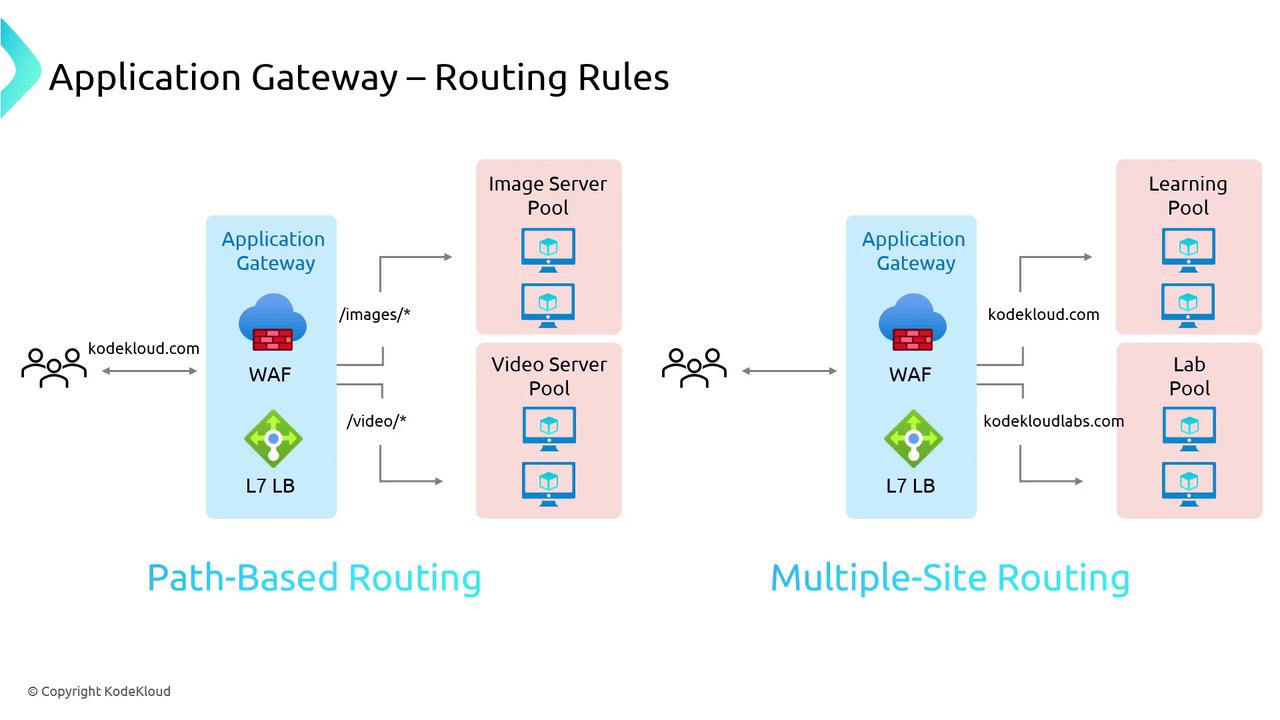
Path-Based Routing
Path-based routing directs incoming traffic to different backend pools based on the URL path. For example, when a user accesses a URL containing “/images,” the Application Gateway forwards the request to an image server pool optimized for image delivery. Similarly, if the URL includes “/video,” the gateway directs the request to a video server pool designed to efficiently handle video content. This approach is ideal for applications that serve specific content types from dedicated infrastructure components.Multiple-Site Routing
Multi-site routing allows a single Application Gateway to service multiple web applications by directing requests based on the domain name. For instance, traffic arriving at KodeKloud.com may be routed to a learning pool, while requests to KodeKloudLabs.com are sent to a lab pool. This consolidated approach simplifies infrastructure management and reduces costs by centralizing traffic management onto a single gateway. Both routing methodologies leverage Layer 7 load balancing to ensure that users receive responses from the correct backend resources.
Demonstration: Configuring Azure Application Gateway
In this demonstration, we deploy an Application Gateway that uses path-based routing. The deployment script named AppGatewayPrepInfra1 sets up the required infrastructure—including two red VMs, two blue VMs, and two green VMs. Initially, all requests are routed to the red servers. If the URL path offers a clue (e.g., containing “blue” or “green”), the traffic is directed to the blue or green servers as appropriate.Warning: Deployment Error If a deployment error occurs, you might see output similar to the following:Once the deployment completes, verify that the virtual machines (including blue, green, red, and the jumpbox VMs) are visible in the Azure Portal.
Deploying the Application Gateway via the Azure Portal
Step 1: Virtual Machines Overview
Access the Azure Portal and verify your list of virtual machines to ensure all instances are deployed correctly.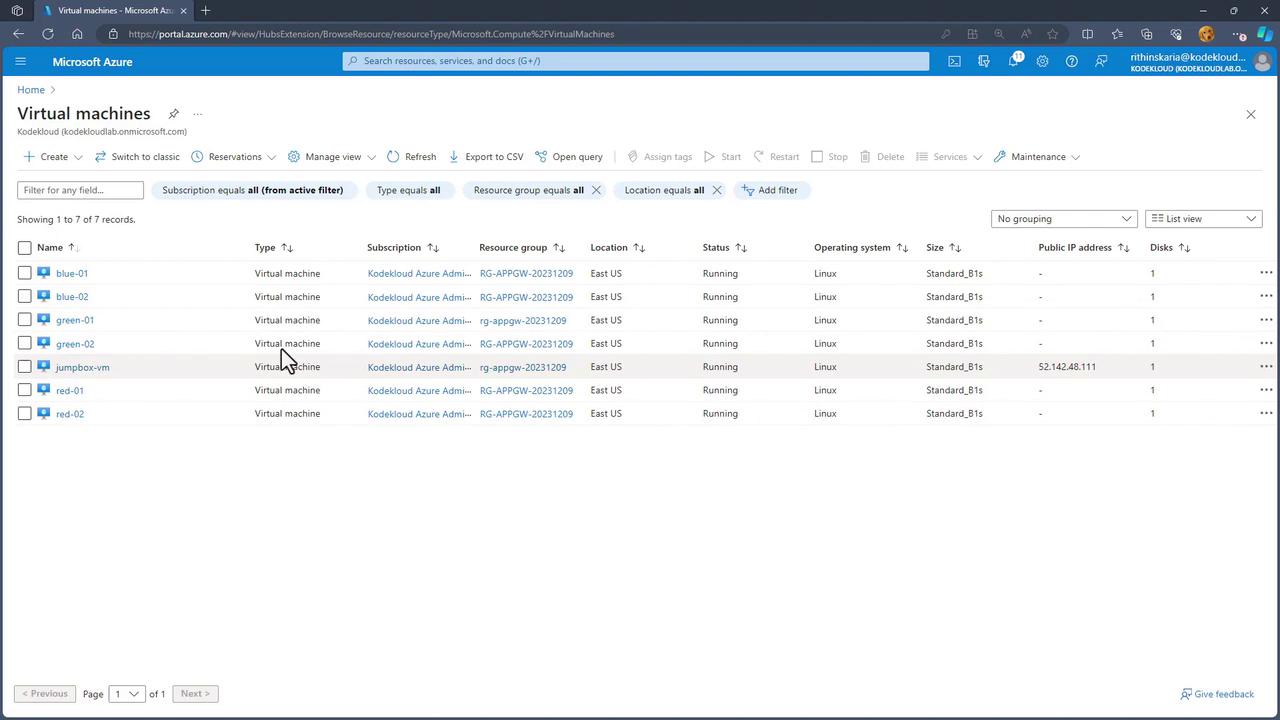
Step 2: Creating the Application Gateway
Click on “Create” and complete the configuration fields including subscription, resource group, Application Gateway name (e.g., APPGW Colors or H2S), and region.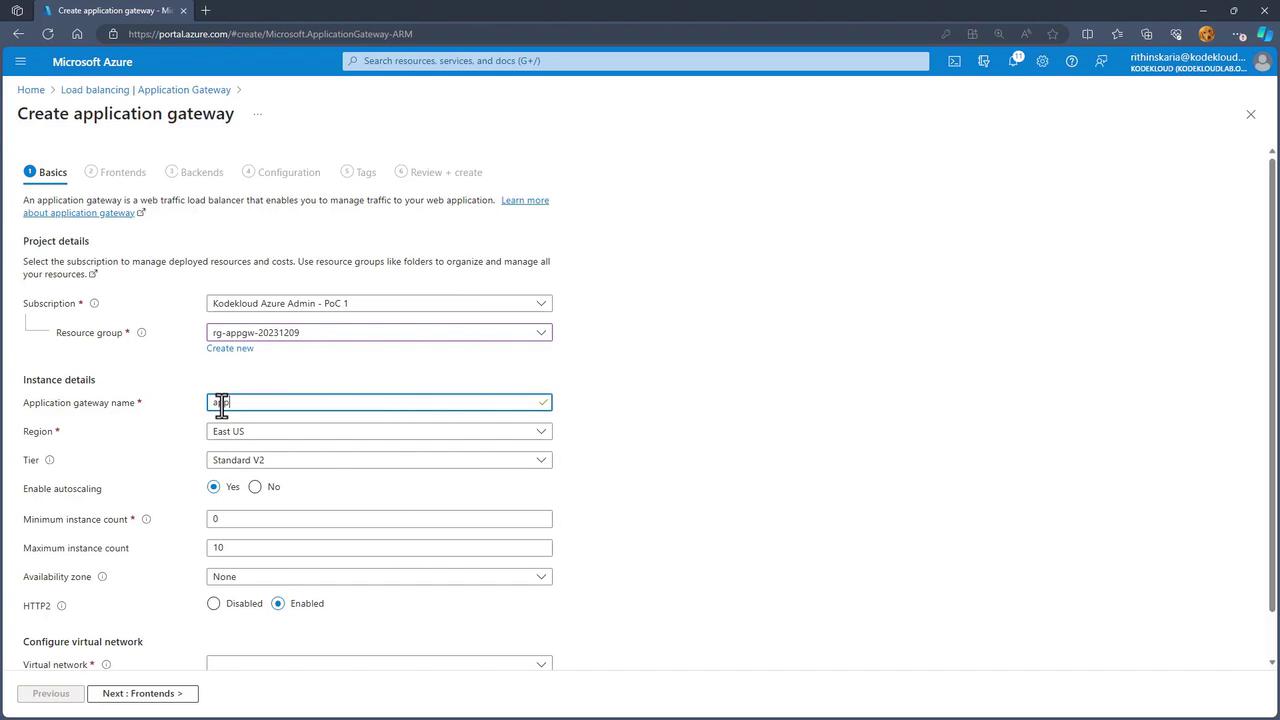
Step 3: Configuring the Virtual Network
The Application Gateway requires a dedicated subnet. Select your Virtual Network and click on “Manage subnet configuration” to add a new subnet specifically for the Application Gateway. With a large address space (e.g., /16), you can configure a subnet with a /24 CIDR.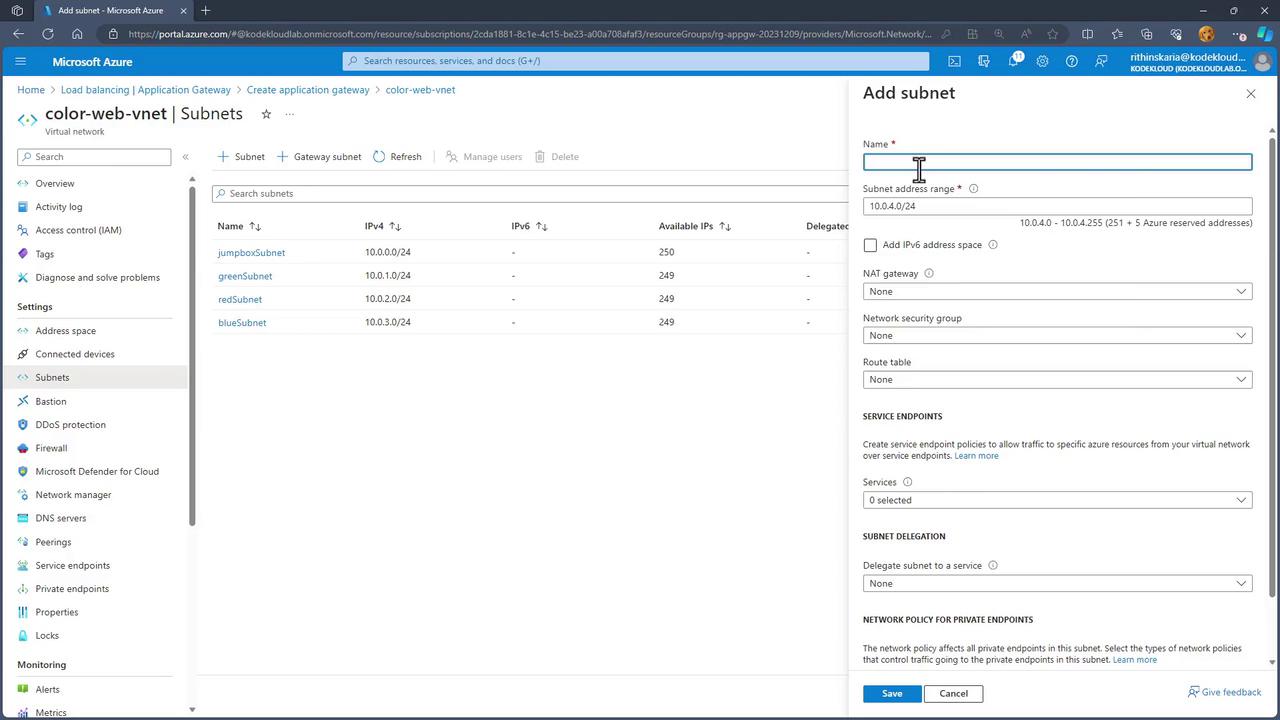
Step 4: Frontend Setup
For the frontend configuration, create a new public IP address (named “PIP”) for the public-facing gateway.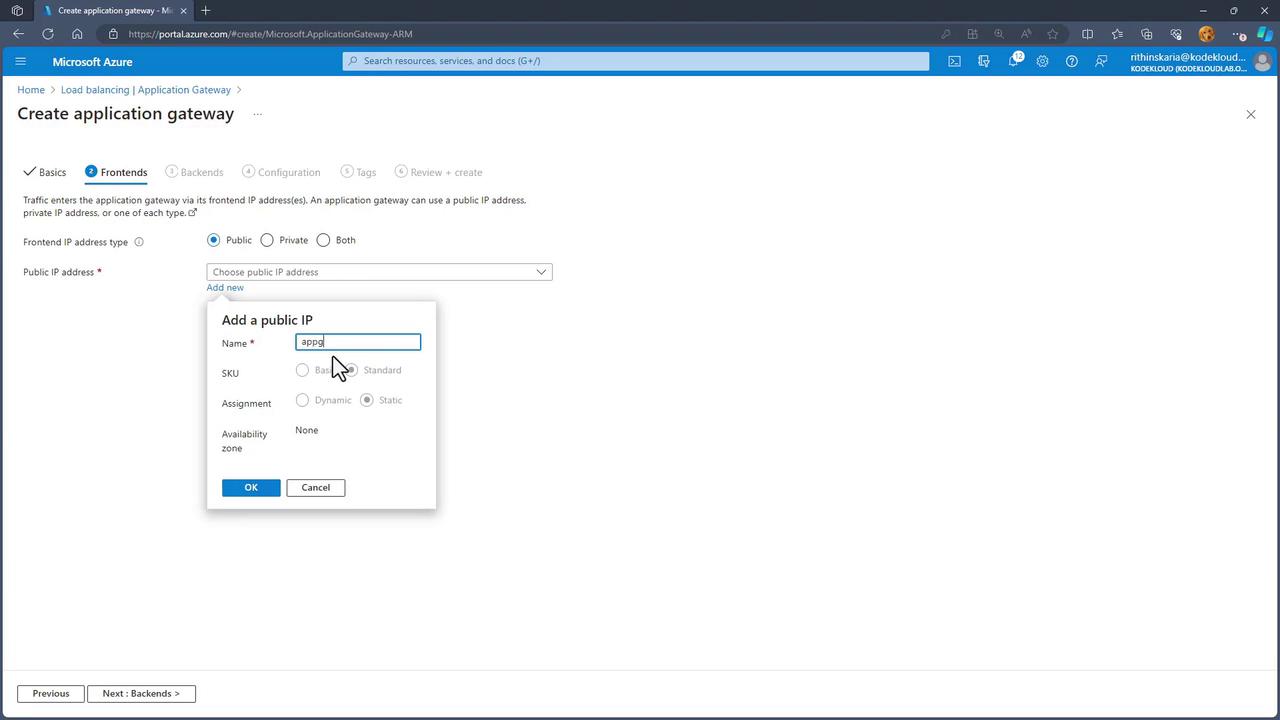
Step 5: Backend and Routing Rule Configuration
- Create backend pools for your server groups. Initially, define pools for red, blue, and green servers.
- Configure the routing rules:
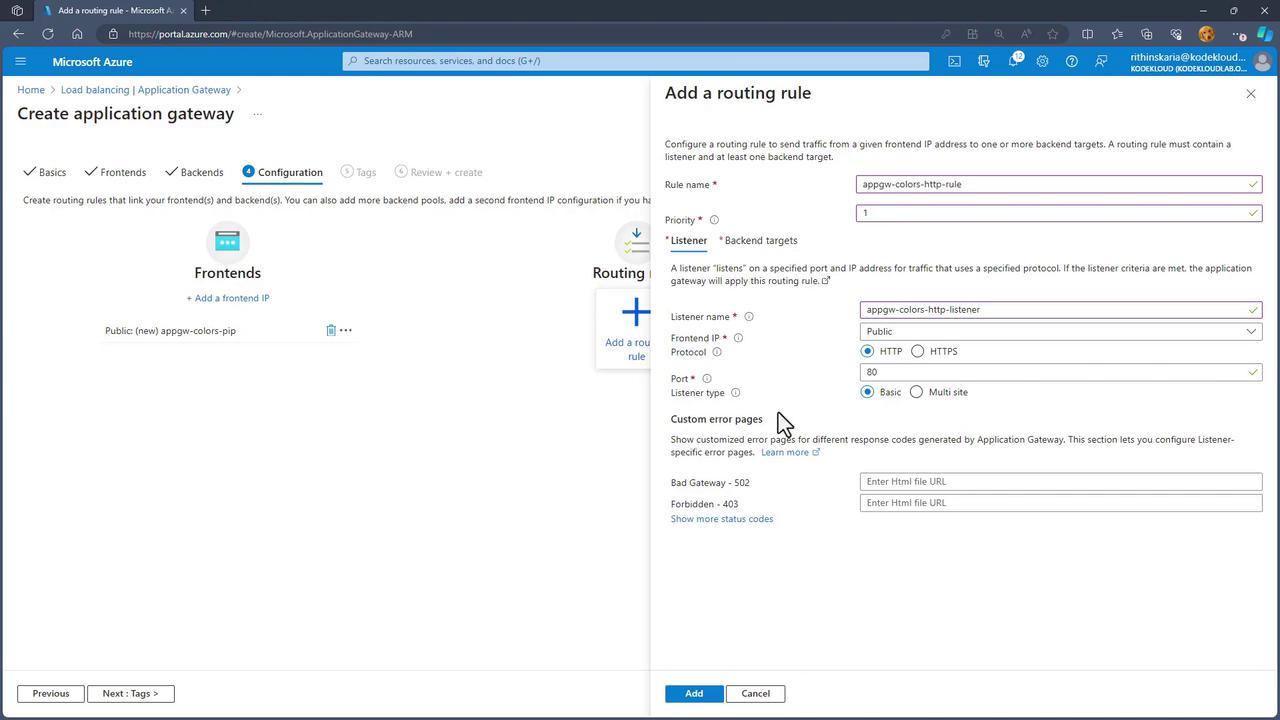
- Create a primary routing rule (e.g., “App GW Colors HTTP Route”) with a priority of 1.
- Set up a listener (e.g., “App Gateway Colors HTTP Listener”) with the following details:
- Frontend IP: Public
- Protocol: HTTP
- Port: 80
- Listener type: Basic (no multi-site configuration)
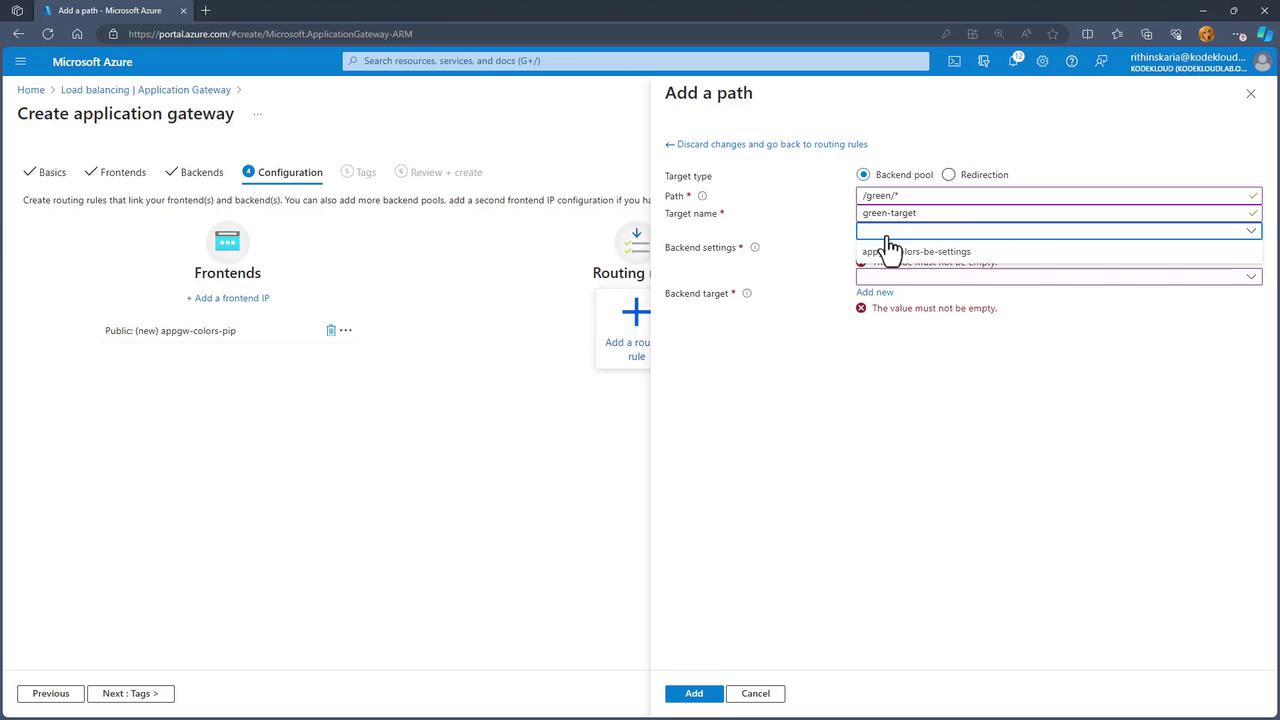
- For instance, create a rule such that when the URL path contains “blue/*”, traffic is forwarded to the blue pool.
- Similarly, configure a rule for “green” paths that directs traffic to the green pool.
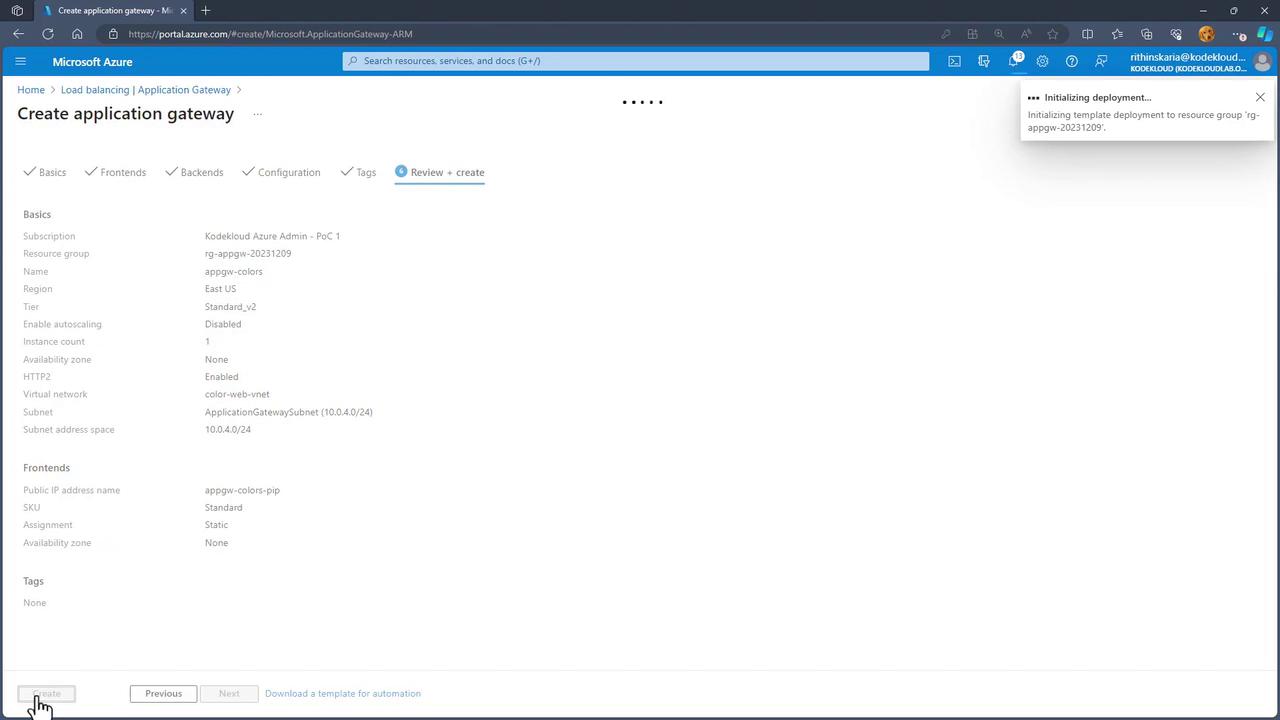
Step 6: Mapping Virtual Machines to Backend Pools
After successful deployment, navigate to the Resource Group to locate your Application Gateway. Since backend pools are empty initially, manually add virtual machines to the respective pools:- For the red pool, assign the “Red One” and “Red Two” VMs.
- Similarly, add the appropriate blue and green VMs to their designated pools.
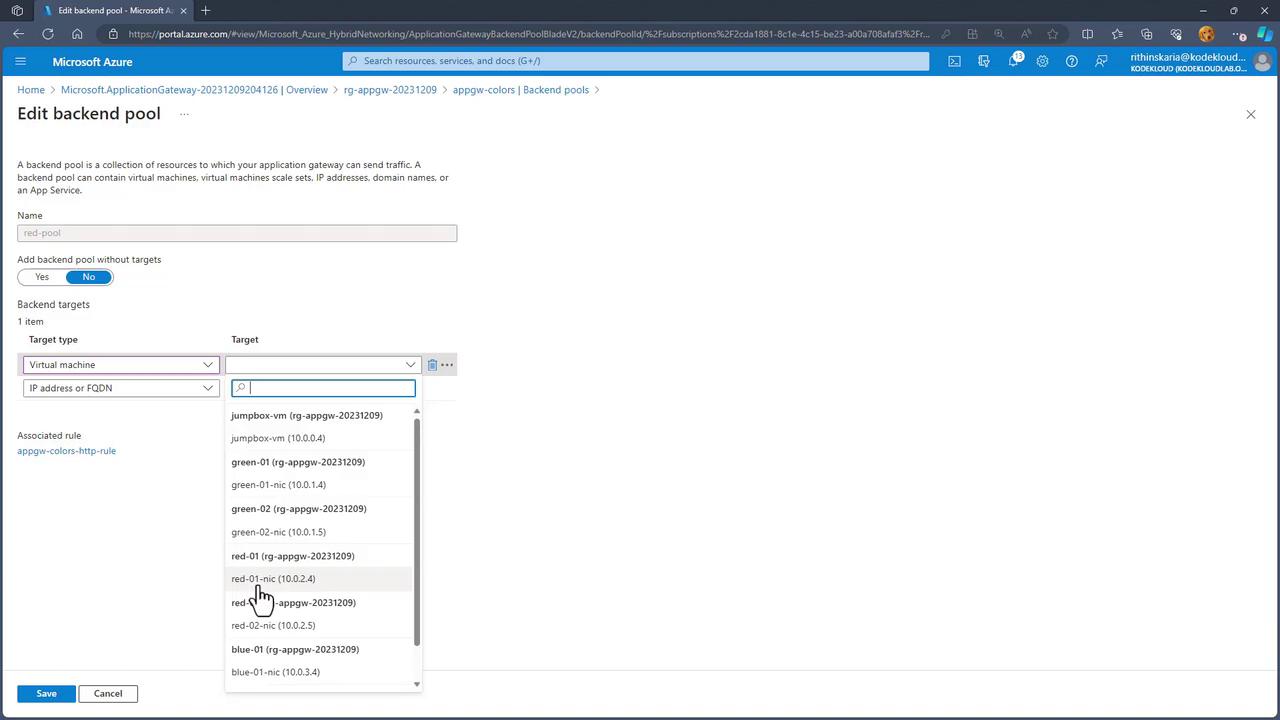
Testing the Application Gateway
After mapping the virtual machines, test the routing configuration:- Access the public IP of the Application Gateway to verify that traffic is, by default, routed to the red servers (using a round-robin distribution).
- Append the specific path (e.g., “/blue”) to the URL and confirm that the request is directed to the blue servers.
- Similarly, test a path corresponding to the green rules to ensure traffic is properly forwarded to the green pool.
Troubleshooting and Final Steps
If you encounter issues with the server setup or if the custom script extension becomes unresponsive, download and run the Gembox script from the jumpbox. This script will apply the necessary configuration changes to all machines.