

What Are Resource Locks?
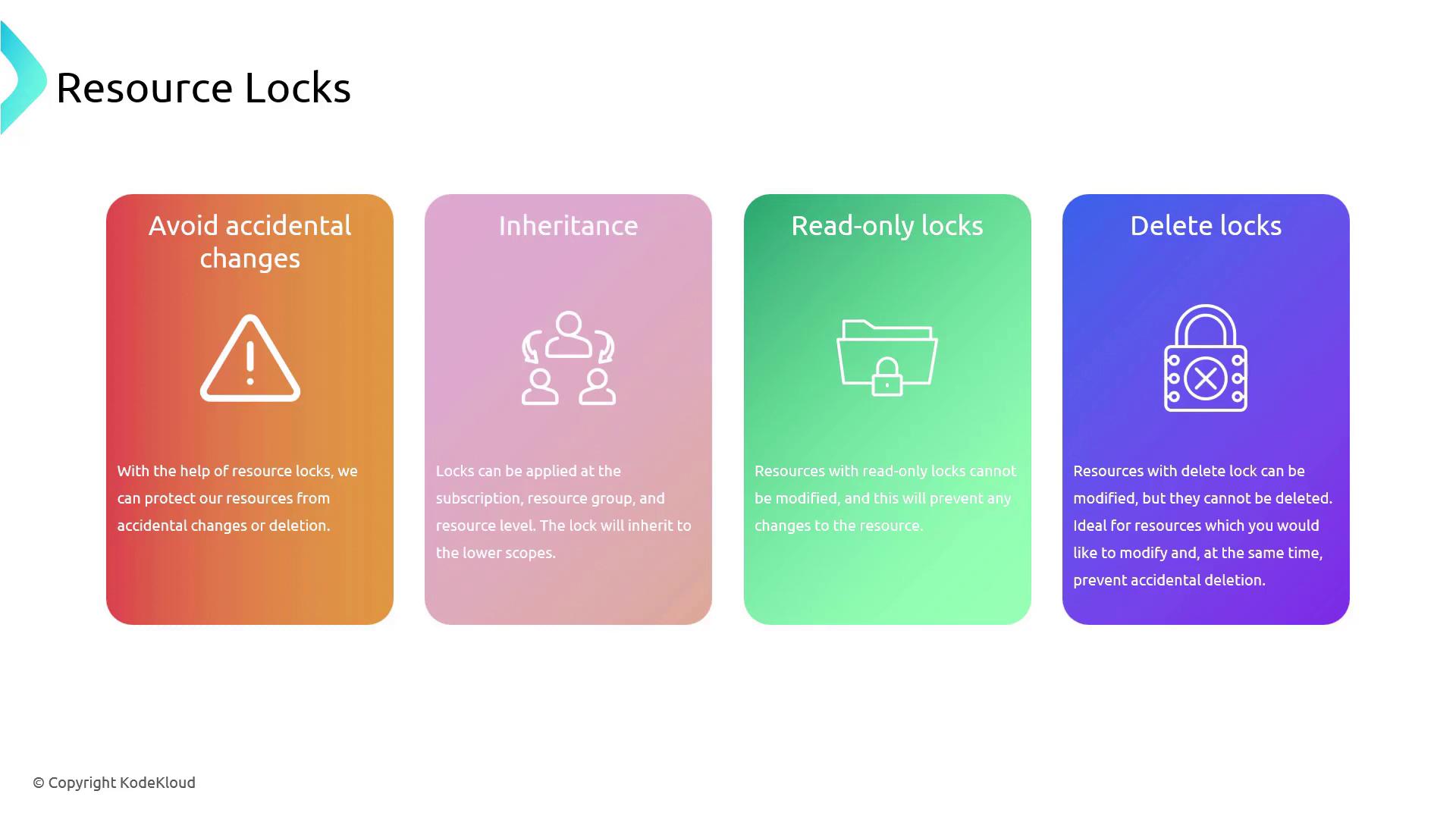
Resource locks are a critical feature designed to protect your Azure resources from unintended modifications. Think of them as a safety cover on a switch—ensuring that nothing is toggled accidentally. When enabled, these locks keep your resources unchanged during routine maintenance or while scripts are running. Azure allows you to apply locks at various scopes:- Subscription
- Resource Group
- Individual Resource
Types of Resource Locks
Azure provides two primary types of resource locks:-
Read-Only Locks
A read-only lock lets you view a resource without modifying or deleting it, much like placing valuable items in a display case—you can admire them but not alter them. -
Delete Locks
A delete lock allows modifications but prevents the complete removal of a resource. This is akin to writing with a pencil that does not have an eraser—you can adjust details, but the resource itself remains undeletable.
Implementing Resource Locks in the Azure Portal
Follow these steps to implement resource locks using the Azure portal:-
Navigate to the Resource Groups Section
Open the Azure portal and locate the Resource Group that contains the resource you wish to protect. For example, select a Resource Group that holds an automation account. -
Select the Resource
Within your chosen Resource Group, open the automation account. In the left-hand menu, click on the “Locks” option. -
Add a Delete Lock
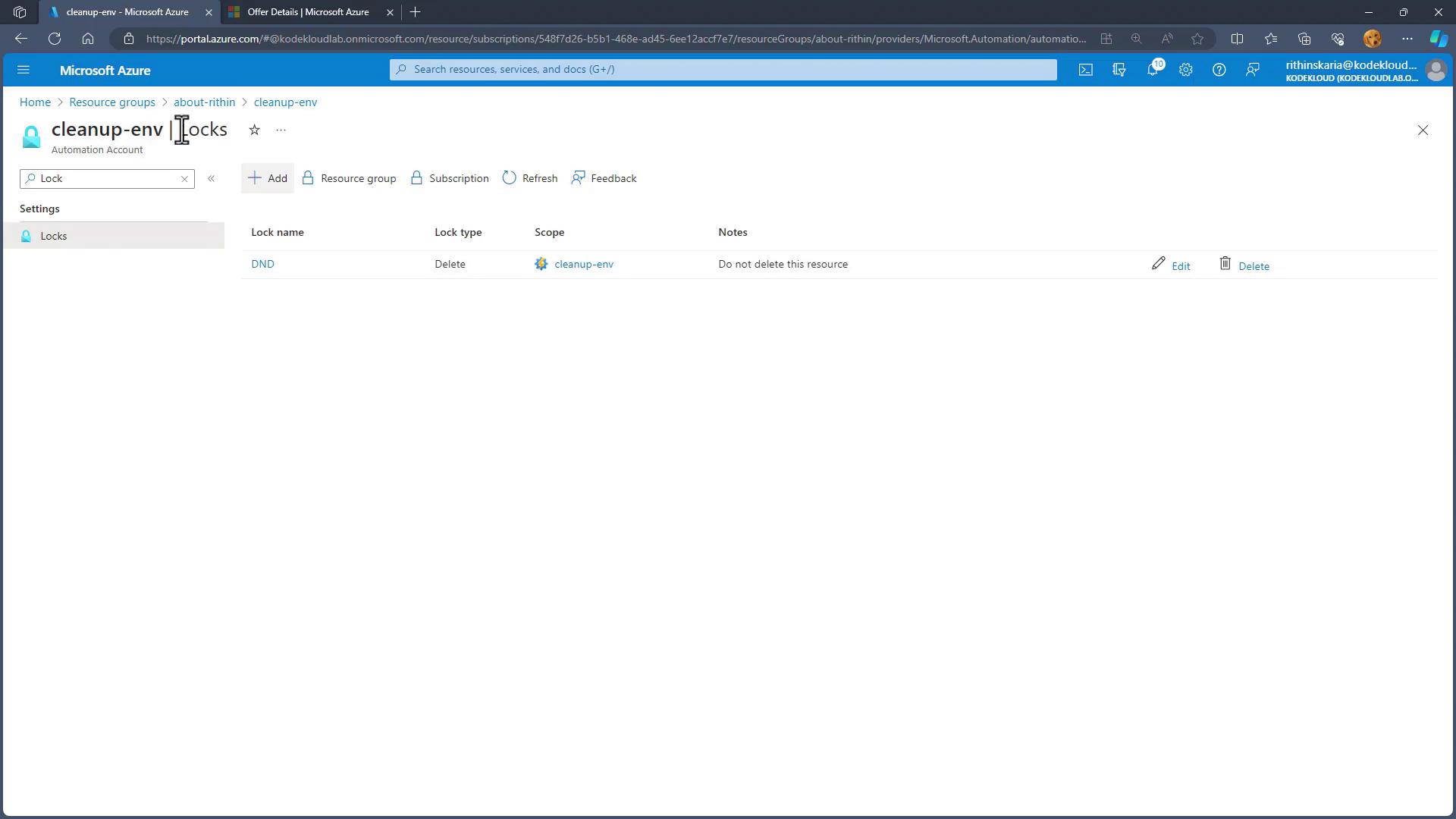
- Click on Add lock.
- Provide a name (e.g., “DND” for “Do Not Delete”).
- Set the lock type to Delete.
- Optionally, add a note for other users.
- Click Save.
- Switching to a Read-Only Lock
- Return to the “Locks” section in the automation account.
- Remove the existing delete lock.
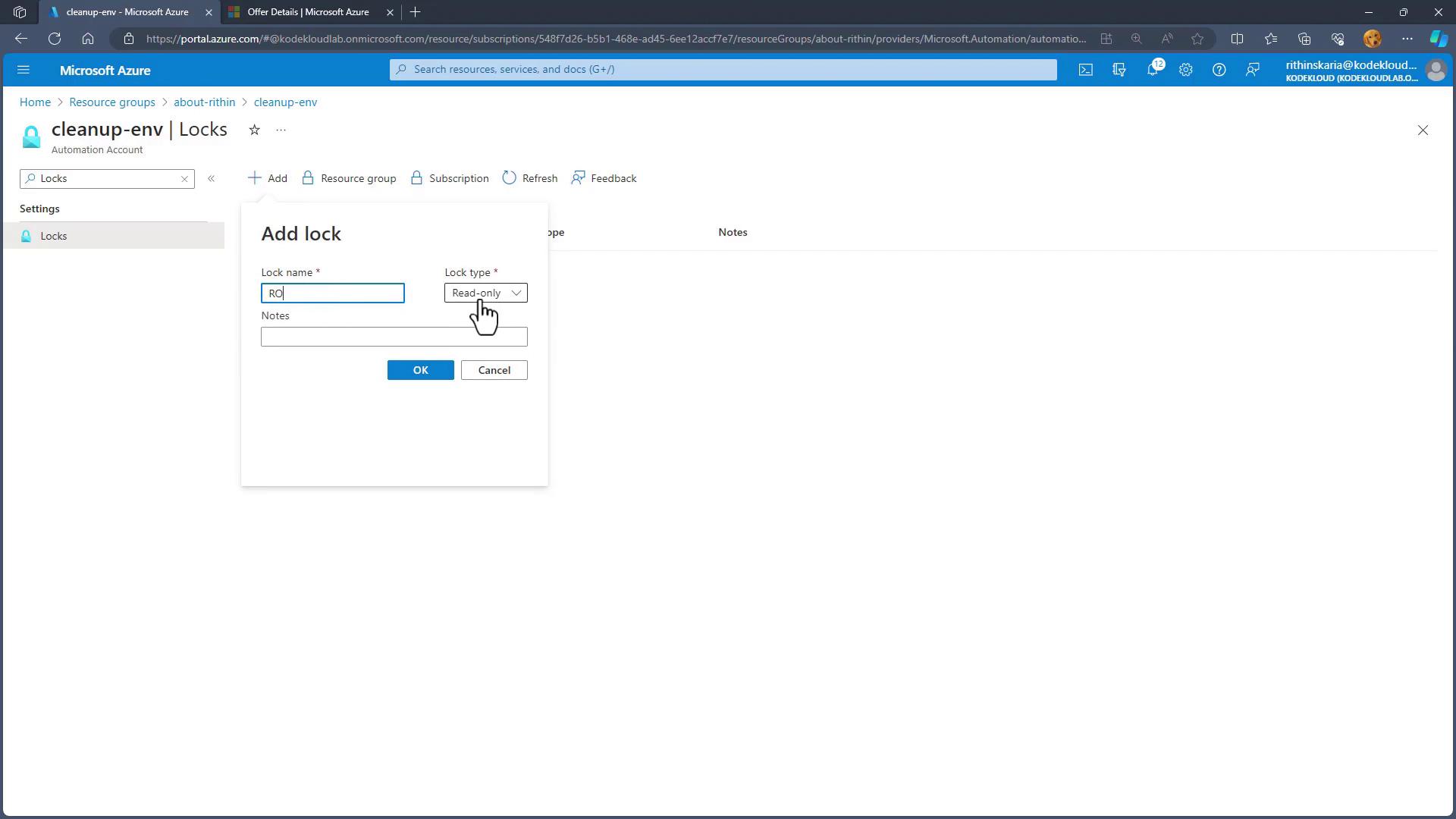
- Add a new lock, setting the type to Read-only.
- Name it “RO” and include any notes or descriptions.
- Click Save.
Applying Locks at the Resource Group Level
From the Resource Groups view, you can inspect any locks applied at that level. The locking mechanism works similarly at the subscription level, where every resource within the subscription inherits the lock. To further enhance protection, you can add an additional lock at the resource group level. For instance, add a delete lock named “RG lock” (or any custom name) to the Resource Group.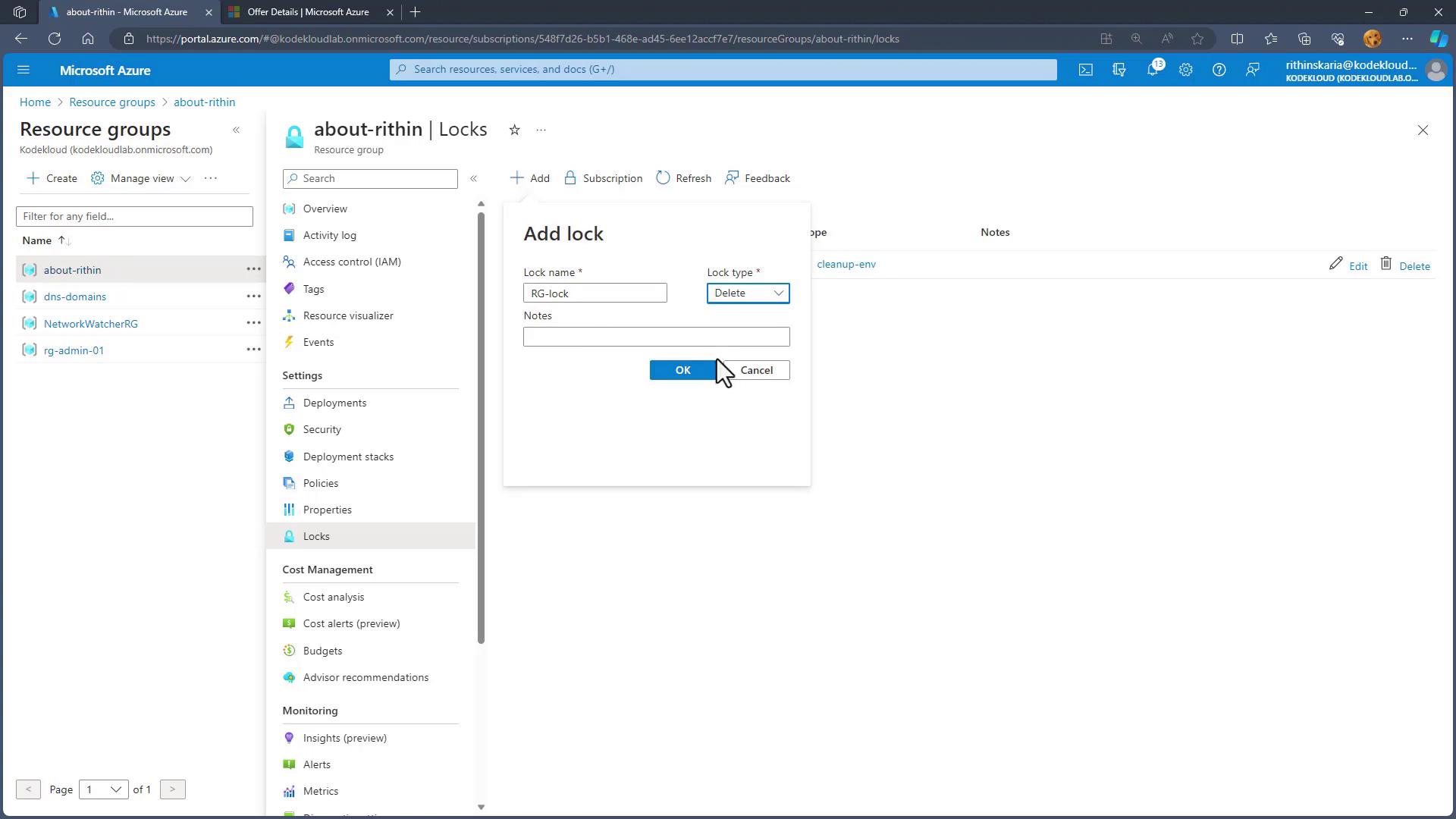
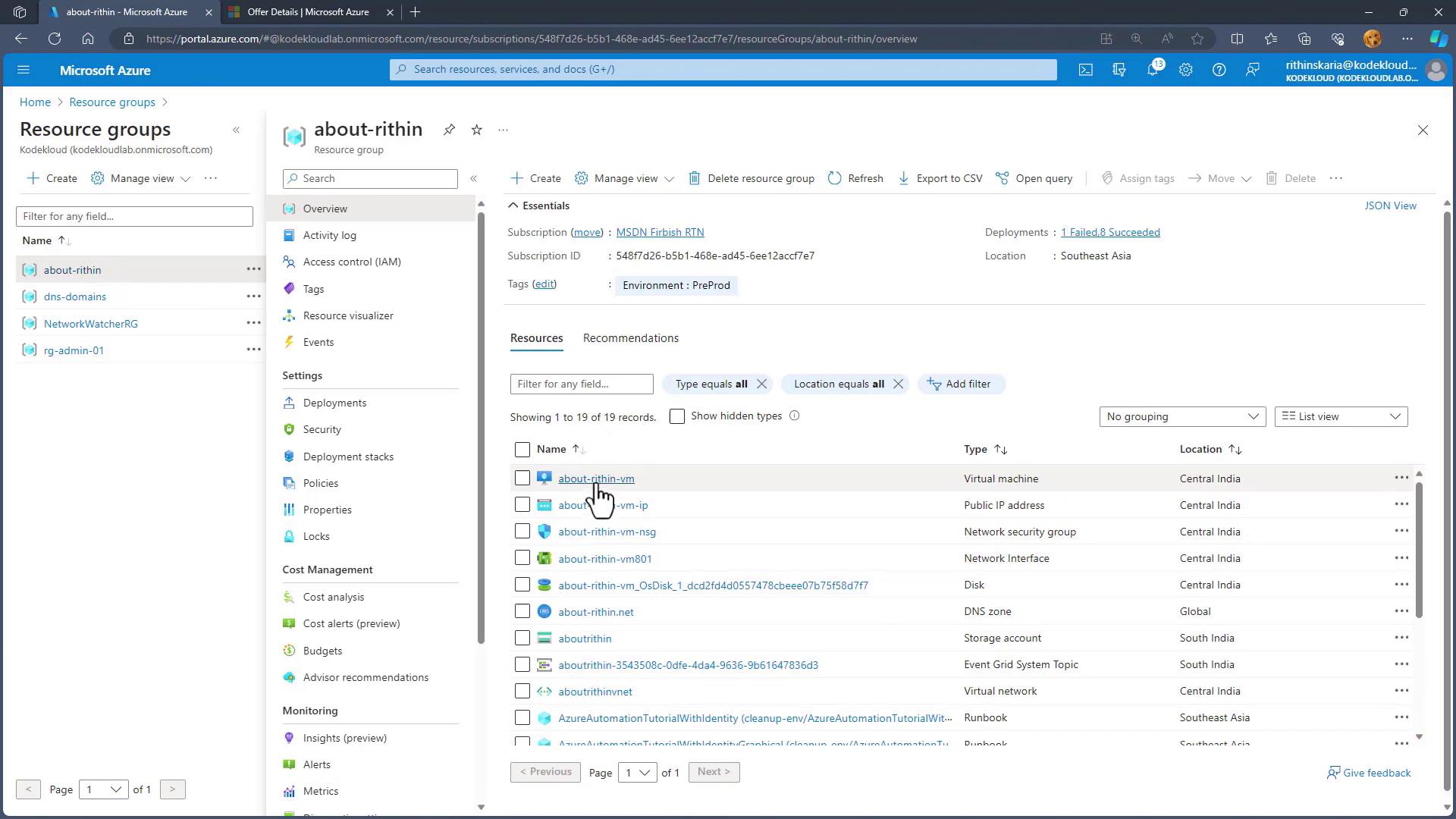
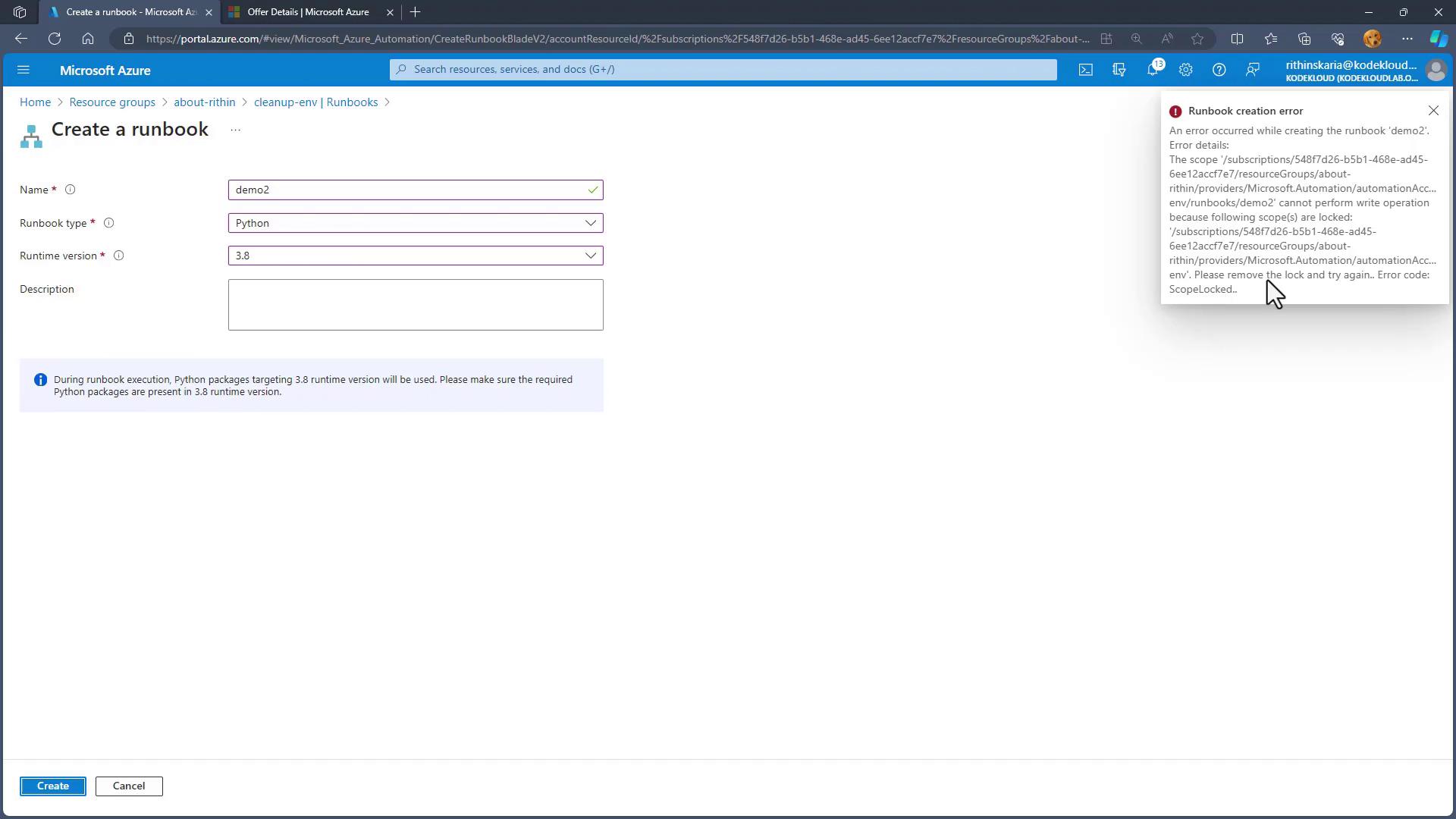
Remember, to make any change to a resource that is locked, you must first remove the active lock, perform the necessary updates, and then reapply the lock to maintain continuous protection.