This article provides a mock exam with hands-on Kubernetes tasks to enhance practical skills and understanding.
In this lesson, we will guide you through a mock exam consisting of 12 hands-on questions to be completed in approximately one hour. This exam is designed to be more straightforward than other mocks, with increased complexity in subsequent exams. Let’s dive in.
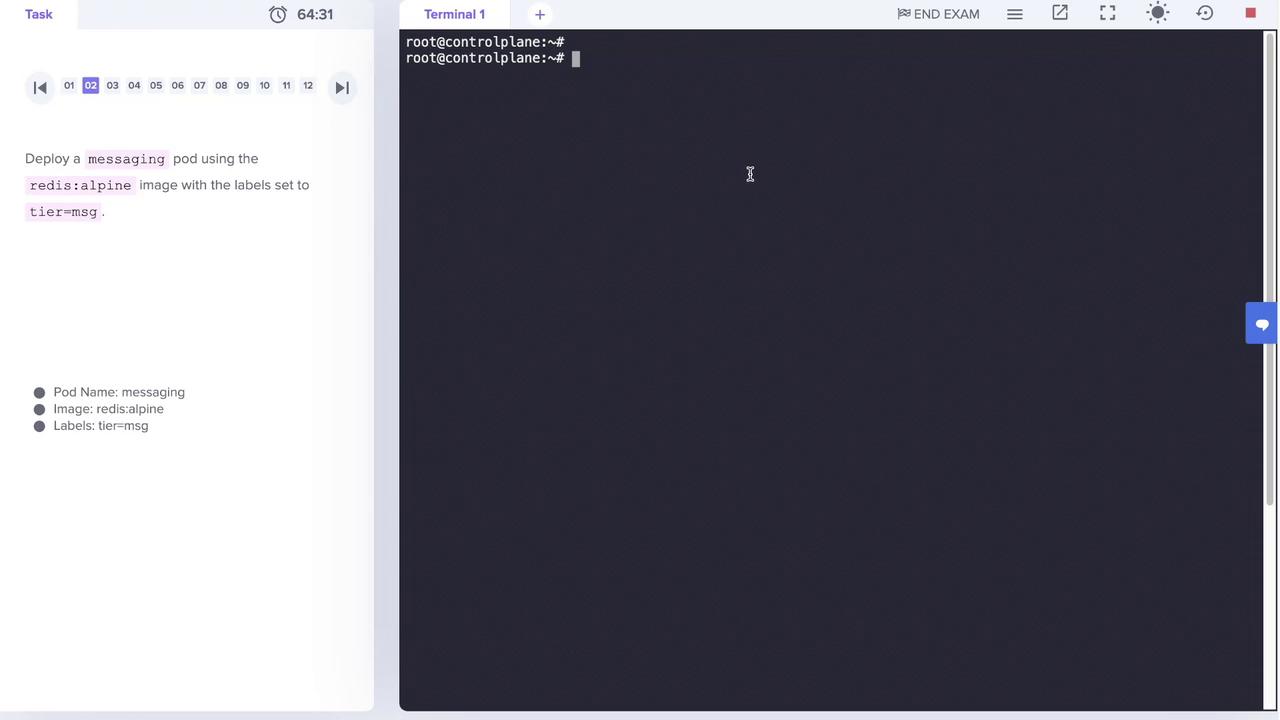
1. Deploy an NGINX Pod Using the NGINX Alpine Image
Before starting, ensure that your environment is properly set up. Check if the kubectl alias (k) is available and whether auto-completion is enabled:
root@controlplane:~# kbash: k: command not foundroot@controlplane:~# kubectl
If auto-completion is not enabled, set it up using the following commands.
For Bash, run:source <(kubectl completion bash) # sets up autocomplete in the current shell (requires bash-completion package)
echo “source <(kubectl completion bash)” >> ~/.bashrc # persists autocomplete permanentlyalias k=kubectl
complete -F __start_kubectl k
For Zsh, run:
source <(kubectl completion zsh) # sets up autocomplete in the current shellecho "[[ \$commands[kubectl] ]] && source <(kubectl completion zsh)" >> ~/.zshrc # persists autocomplete permanently
Even if auto-completion isn’t enabled, you can always refer to the official kubectl cheat sheet online.Deploy the pod named nginx-pod using the nginx:alpine image:
root@controlplane:~# k run nginx-pod --image=nginx:alpinepod/nginx-pod createdroot@controlplane:~# k get podNAME READY STATUS RESTARTS AGEnginx-pod 1/1 Running 0 4s
Verify that the pod is running and the correct image is in use before proceeding.
Create the namespace apx-x9984574 and verify its creation:
root@controlplane:~# k create namespace apx-x9984574namespace/apx-x9984574 createdroot@controlplane:~# k get nsNAME STATUS AGEapx-x9984574 Active 3sdefault Active 42mkube-node-lease Active 43mkube-public Active 43mkube-system Active 43m
Next, export the list of nodes in JSON format to a file:
root@controlplane:~# kubectl get nodes -o json > /path/to/nodes.json
Review the file to ensure that it includes all the node details.
6. Create a Static Pod Named “static-busybox” on the Control Plane Node
Static pods are managed directly by the kubelet. Generate a YAML definition for a static pod named static-busybox using the busybox image and the command sleep 1000:
root@controlplane:~# k run static-busybox --image=busybox --command -- sleep 1000 --dry-run=client -o yaml > static-busybox.yaml
Review the generated YAML file to ensure it contains the proper image and command, then move the file to your manifests directory (commonly located at /etc/kubernetes/manifests) so that the kubelet recognizes it as a static pod.After placing the file, verify the pod status:
An application named orange is failing with an Init:CrashLoopBackOff error. This error usually indicates an issue with the init container. Start by checking the pod status:
root@controlplane:~# k get podsNAME READY STATUS RESTARTS AGE...orange 0/1 Init:CrashLoopBackOff 5 4m14s...
Investigate the issue by describing the pod:
root@controlplane:~# k describe pod orange
In the description, you may notice that the init container’s command is incorrect (for example, it might show “sleeeep 2;” instead of “sleep 2;”). To fix it, edit the pod configuration:
root@controlplane:~# k edit pod orange
Update the init container command (e.g., change sleeeep 2; to sleep 2;) and save your changes. If you receive an immutability error during the edit, force a replacement:
root@controlplane:~# k replace --force -f /tmp/kubectl-edit-9wg48.yaml
Monitor the pod until it transitions to a running state:
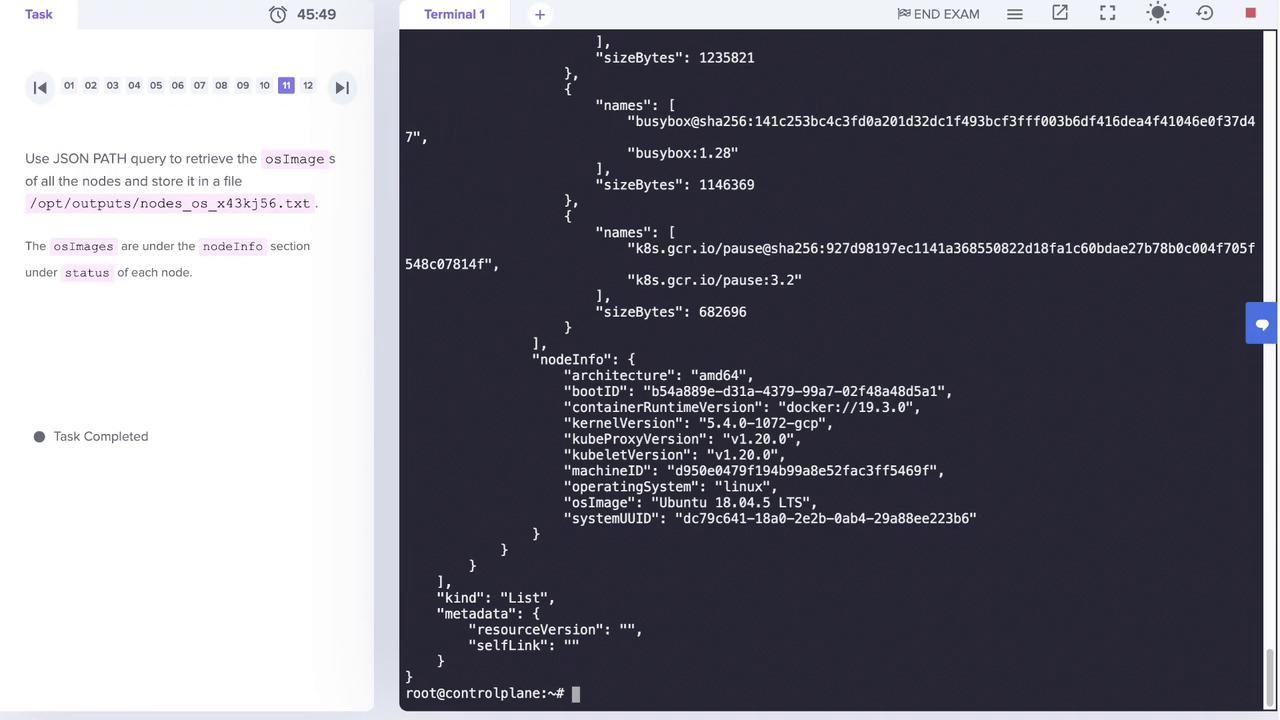
10. Retrieve OS Image Information of All Nodes Using JSONPath
Extract the operating system image from each node’s details using JSONPath. The relevant field is located at status.nodeInfo.osImage. Run the command below and save the output to a file:
root@controlplane:~# k get nodes -o jsonpath='{.items[*].status.nodeInfo.osImage}' > os-images.txt
Review the content of os-images.txt to confirm that it displays the OS image information (e.g., “Ubuntu 18.04.5 LTS”).
This configuration creates a persistent volume called pv-analytics with 100Mi of storage, using the ReadWriteMany access mode and a hostPath at /pv/data-analytics. Apply the configuration:
root@controlplane:~# k create -f pv.yamlpersistentvolume/pv-analytics created
Verify that the persistent volume is available:
root@controlplane:~# k get pvNAME CAPACITY ACCESS MODES RECLAIM POLICY STATUS CLAIM STORAGECLASS REASON AGEpv-analytics 100Mi RWX Retain Available 2s
After completing all the tasks and verifying each step, you have finished the exam. Congratulations on successfully addressing all the questions!Thank you for following along in this lesson.