

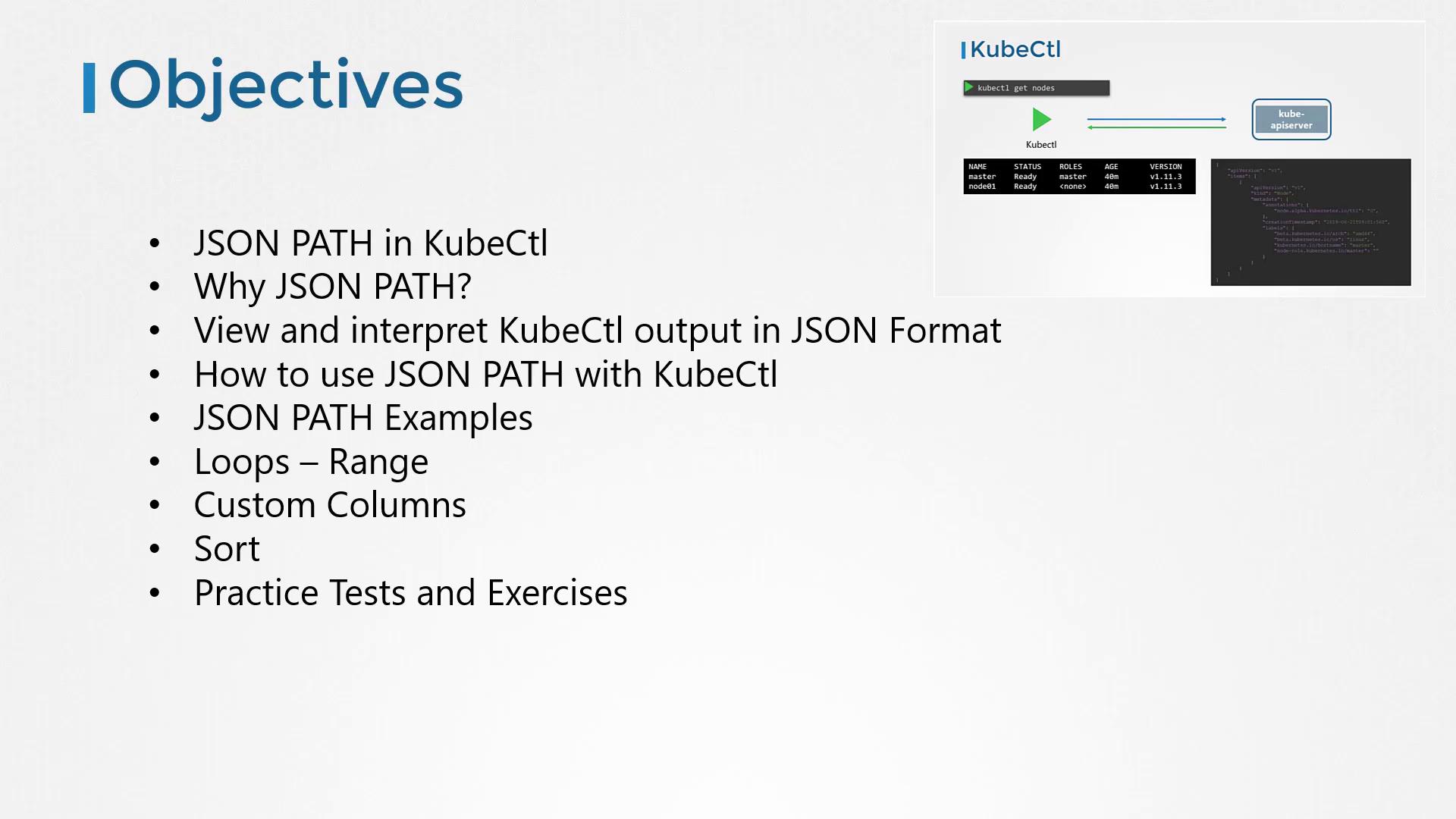
Experiment with JSONPath on a Kubernetes dataset to understand its structure before applying more complex queries with kubectl.
Why Use JSONPath?
In production environments with hundreds of nodes and thousands of objects—such as deployments, pods, ReplicaSets, services, and secrets—the standard kubectl output might not provide the precise data you need. While kubectl gives a quick summary, JSONPath queries let you filter and format large datasets with precision. This functionality enables you to generate customized reports tailored to your needs.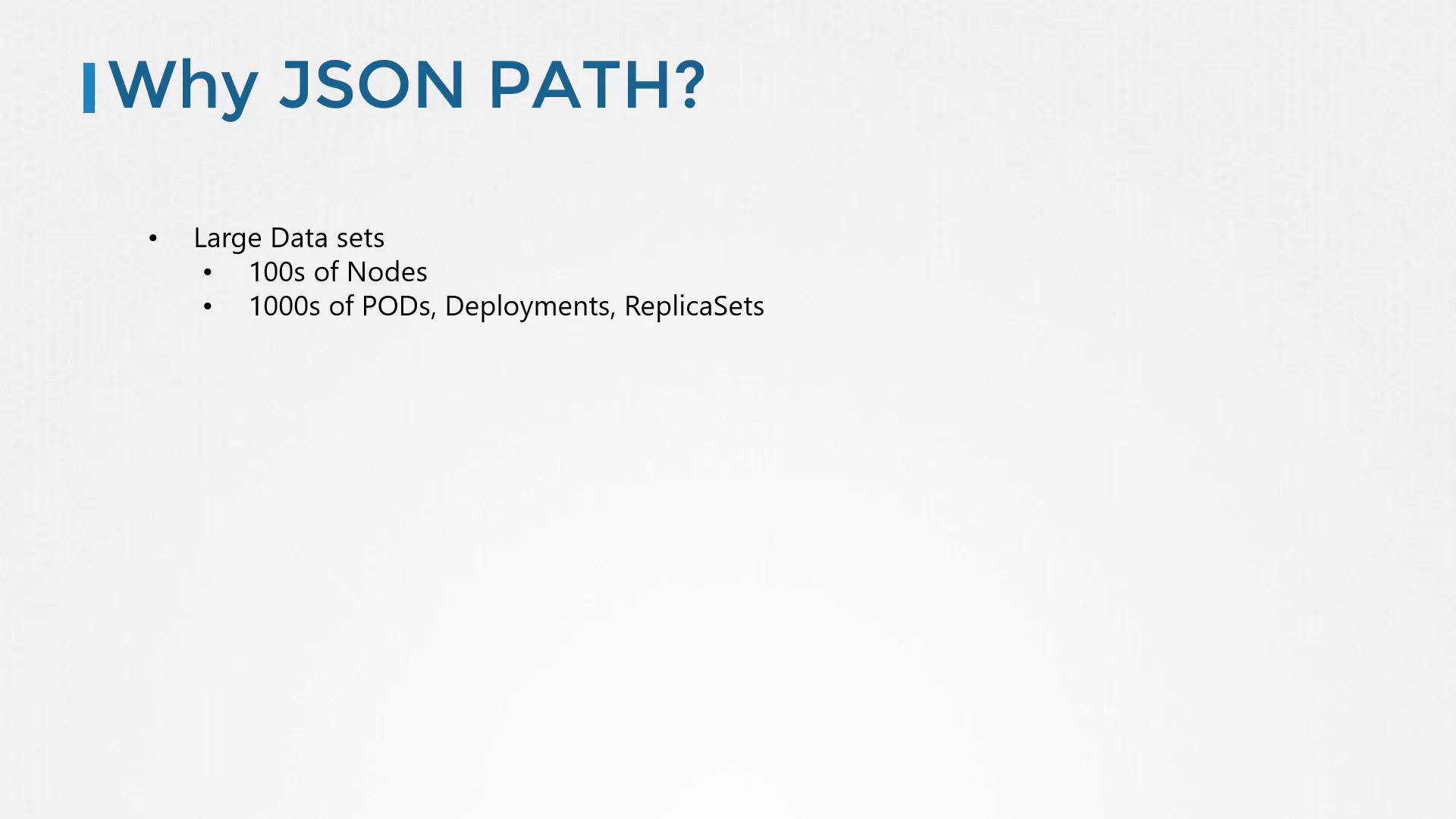
How Kubectl Works
Kubectl is the command-line interface for Kubernetes that communicates with the API server. Every command retrieves data in JSON format and converts it into a human-readable format. For example, the basic command to list nodes is:-o wide option:
kubectl describe or query the JSON directly.
Building a JSONPath Query
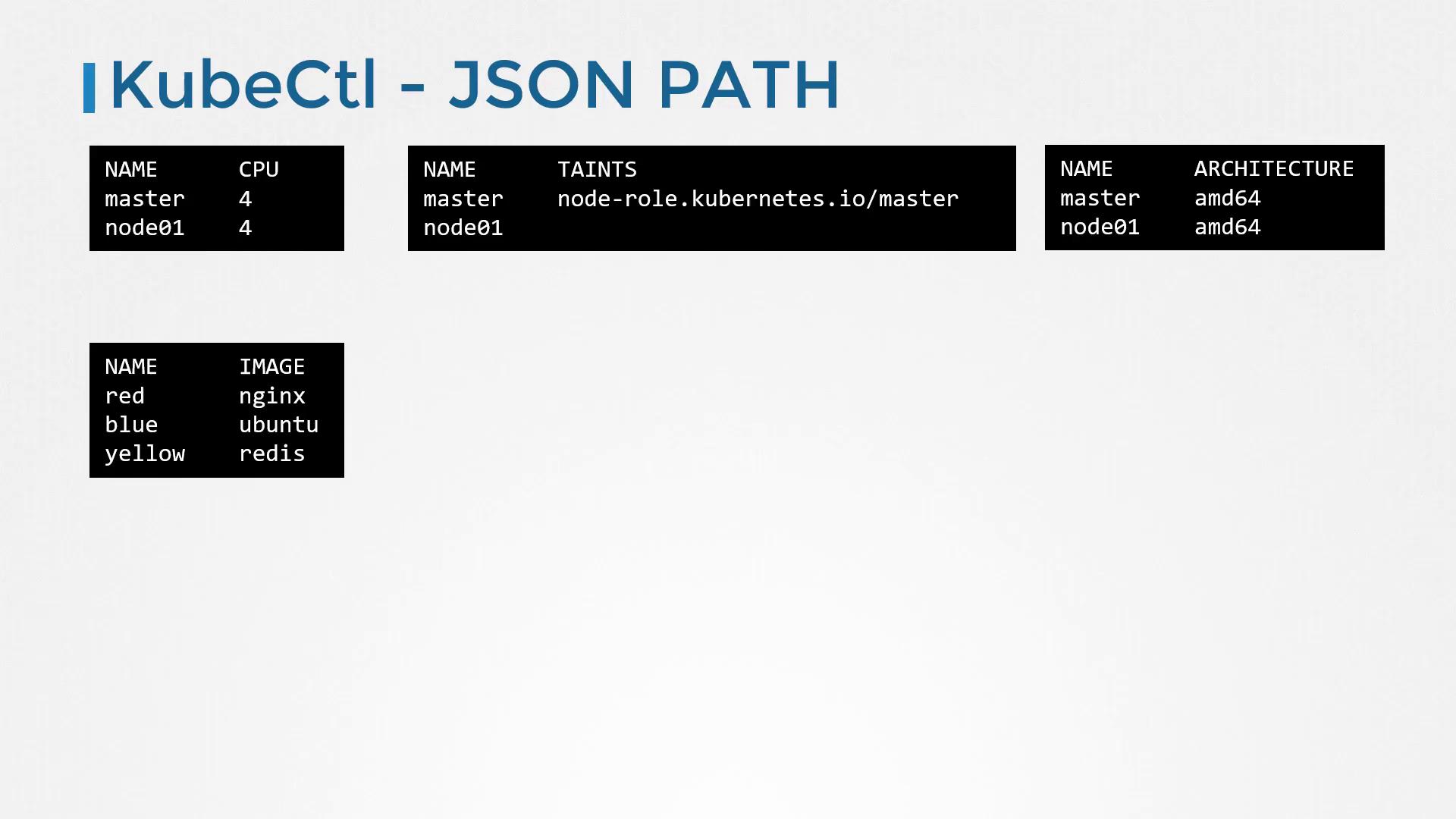
Imagine needing a report that displays specific fields, such as node names and CPU counts. No default command provides this directly—that’s where JSONPath shines. Follow these steps to build a JSONPath query with kubectl:-
Retrieve Raw Data
Start by retrieving the node details: -
View Full JSON Output
Add the-o jsonoption to see the complete data:For instance, a sample JSON output for pods might look like: -
Analyze the JSON Structure
For example, to extract the image from the first container in the first pod, the JSONPath query is:- Query:
.items[0].spec.containers[0].image
- Query:
-
Query with Kubectl
Embed your query in single quotes and curly braces:
If you’re new to JSONPath, try using online evaluators like jsonpath.com to experiment with and refine your queries.
{.items[*].metadata.name}returns all node names.{.items[*].status.nodeInfo.architecture}provides hardware architectures.{.items[*].status.capacity.cpu}shows CPU counts per node.
Advanced Formatting with Loops and Custom Columns
For a neatly formatted table, you can leverage JSONPath loops. Using therange keyword functions as an iterator over each node. For every node, you can print its name, followed by a tab (\t), its CPU count, and a newline (\n):
.items in your JSONPath query because kubectl automatically iterates through the list.
If you need to sort the output, use the --sort-by option. For example:
Final Thoughts
Mastering JSONPath queries with kubectl empowers you to extract and present detailed information from your Kubernetes environment accurately and efficiently. With practice, you’ll create powerful commands that display data in exactly the format you need. Below is a summary of key commands demonstrated in this lesson:
Now, explore the practice tests and exercises to further solidify your understanding of these advanced kubectl commands. Happy learning!