Step 1: Listing Service Accounts
Begin by checking how many service accounts exist in the default namespace. The shortened command below leverages “sa” as an abbreviation for service accounts:Step 2: Inspecting the Default Service Account Token
Next, verify the secret token associated with the default service account by running:The default service account may lack the permissions needed for certain operations. This is why a custom service account is often required.
Step 3: Inspecting the Web Dashboard Deployment
After deploying the Kubernetes Dashboard, inspect its deployment to understand the configuration:-
List the current deployments with:
-
Describe the specific web-dashboard deployment:
Step 4: Checking the Dashboard Pod Status
To ensure that the dashboard pod is running correctly, first verify the deployment status:Step 5: Identifying the Service Account Used by the Dashboard
Review the logs where you encounter the error message:Step 6: Verifying the Service Account Mounted on the Pod
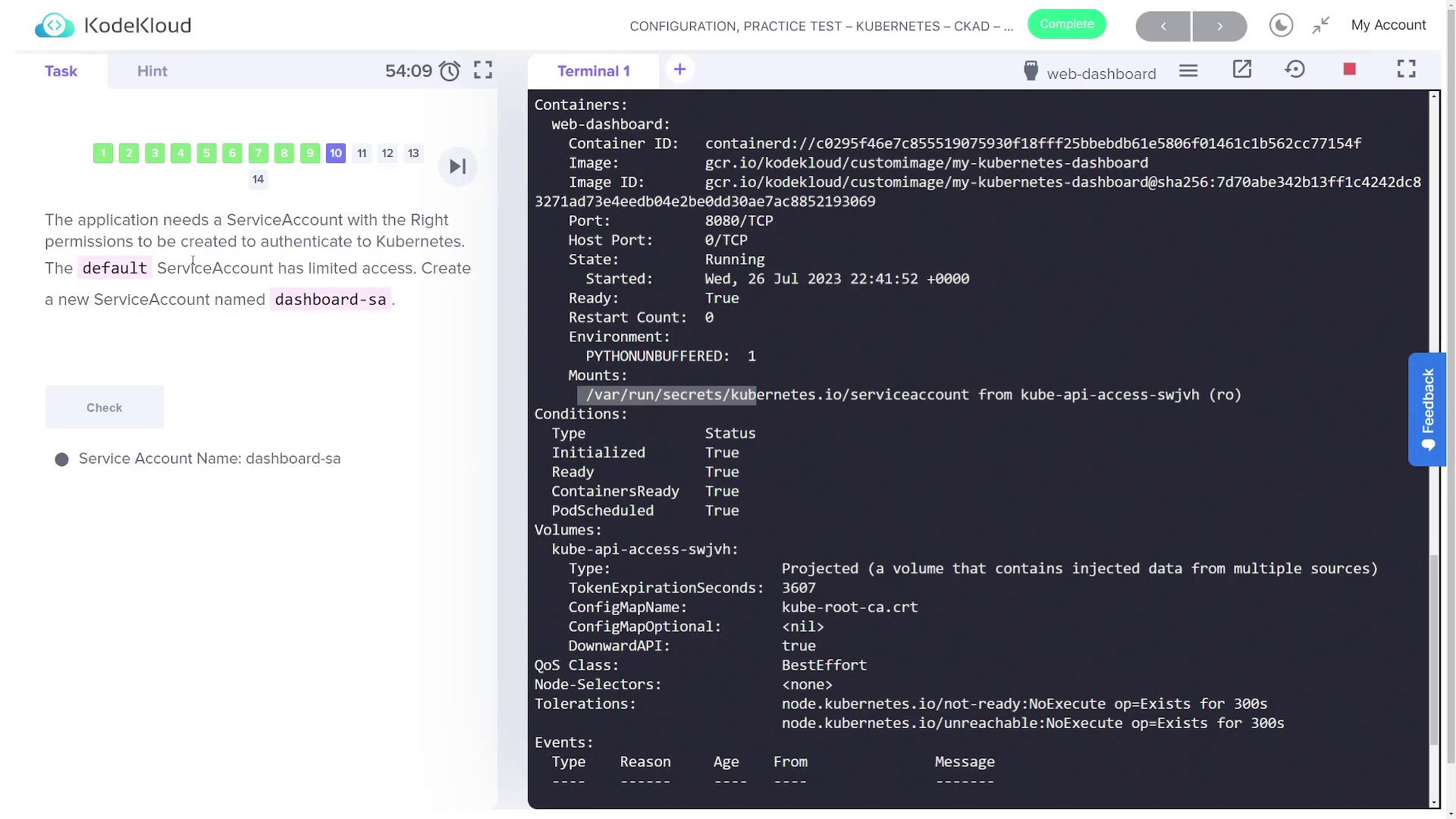
To check which service account is mounted on the dashboard pod:-
List your pods:
-
Describe the target pod (replace
<pod_name>with the actual pod name):
Step 7: Creating a New Service Account with Correct Permissions
Since the default service account has limited access, create a new service account called dashboard-sa with the proper permissions:/var/rbac directory:
Further RBAC details can be found in our additional materials. Ensure that the role binding is correctly configured to grant the required permissions.
Step 8: Generating a Token for the New Service Account
Generate a token for dashboard-sa for automated authentication with the Kubernetes API:Step 9: Updating the Deployment to Use the New Service Account
Instead of manually entering a token, update the Dashboard deployment to automatically use the new dashboard-sa service account.-
Export the current deployment configuration to a YAML file:
-
Edit the
dashboard.yamlfile. Locate the pod specification (under the pod template, not the Deployment spec) and add or update the field as follows: -
Save the file and apply the updated configuration:
Final Remarks
This guide demonstrated how to inspect and modify service accounts and their associated RBAC permissions for a Kubernetes Dashboard application. By creating a new dashboard-sa service account, generating a token, and updating deployment configurations, you can secure access and ensure that your Dashboard can communicate effectively with the Kubernetes API.