

1. Open GitHub account settings
- Sign in to GitHub and go to Settings → Access → Password and authentication.
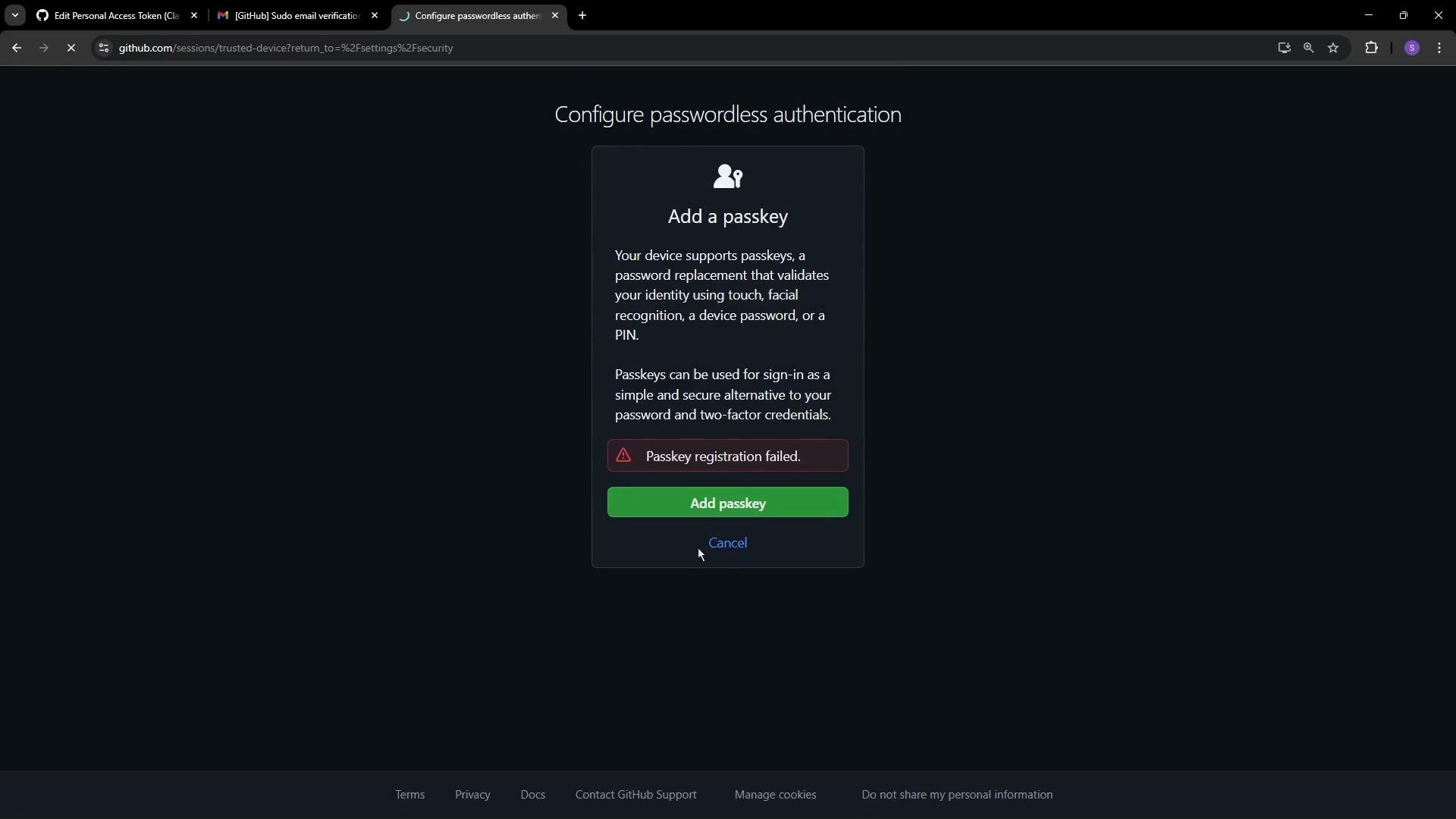
- This page lists the sign-in methods available to your account and what is already configured. For example, an account that uses Google single sign-on will show no local password configured but will list verified email addresses and other sign-in options such as Apple, passkeys, and biometric/passwordless sign-in.
2. Locate Two-factor authentication
Scroll to the Two-factor authentication section on the “Password and authentication” page. If you haven’t enabled 2FA for the account yet, you’ll see an option to enable it.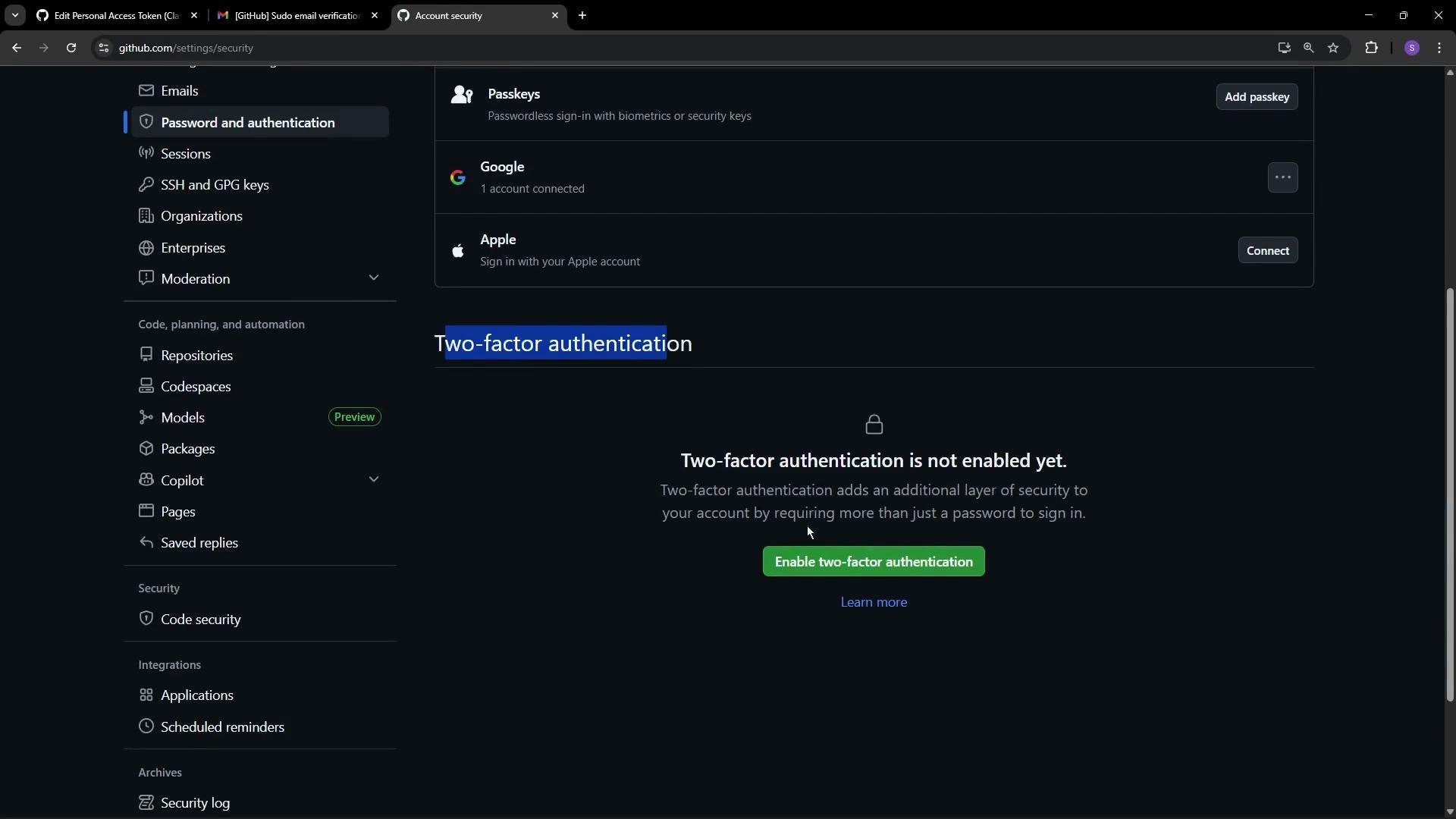
3. Choose an authenticator app (recommended)
GitHub recommends using an authenticator app to generate time-based one-time passwords (TOTP). Popular choices include: When you select to set up with an authenticator app, GitHub displays a QR code that your authenticator app can scan. The app will then generate a 6-digit code (TOTP) that you enter into GitHub to verify the setup.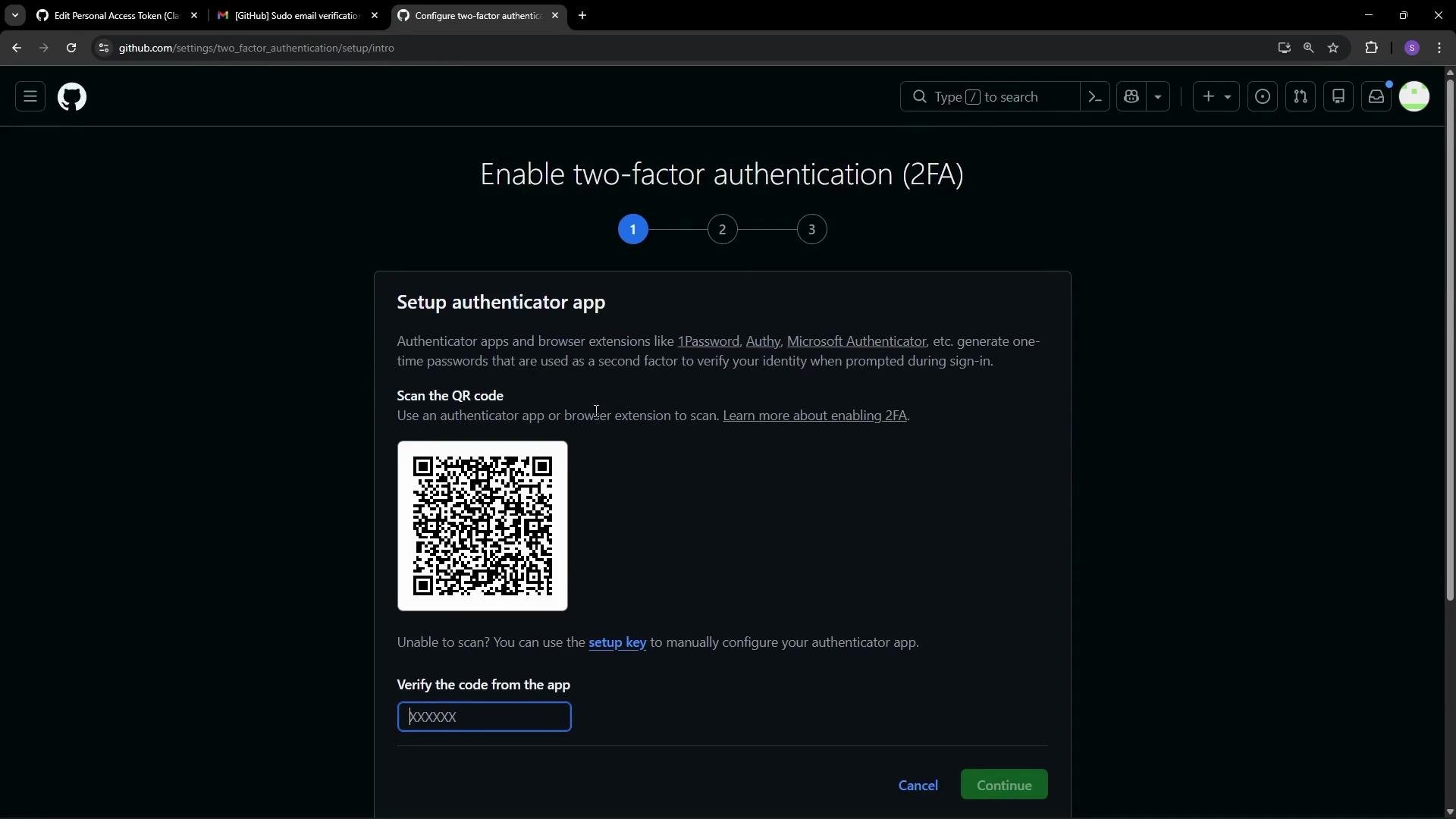
- Open your authenticator app on your mobile device (Google Authenticator, Microsoft Authenticator, 1Password, etc.).
- Scan the QR code displayed in GitHub or manually enter the provided secret.
- Enter the 6-digit code generated by the app into GitHub and submit.
- GitHub verifies the code and completes the setup.
4. Recovery codes and account recovery
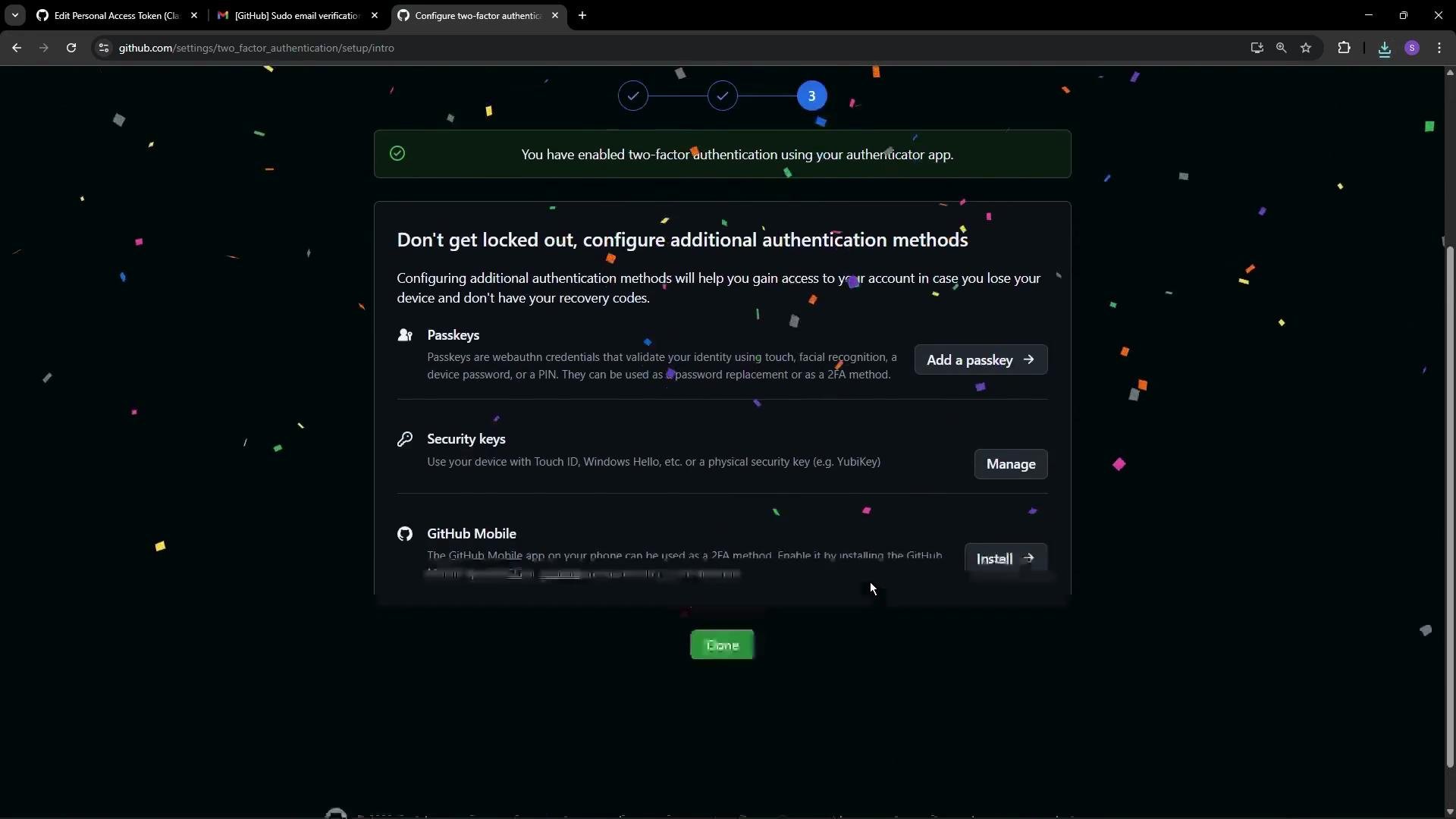
GitHub provides one-time recovery codes that allow access if you lose your authenticator device. Save these codes immediately after setup:- Store recovery codes in a reputable password manager (for example, 1Password).
- Consider using authenticator apps with encrypted cloud backup (for example, Authy) to make TOTP recovery easier—but do not rely solely on backup features in place of securely stored recovery codes.
- You can download or view recovery codes from the GitHub UI. See GitHub Docs: Managing two-factor authentication recovery codes.
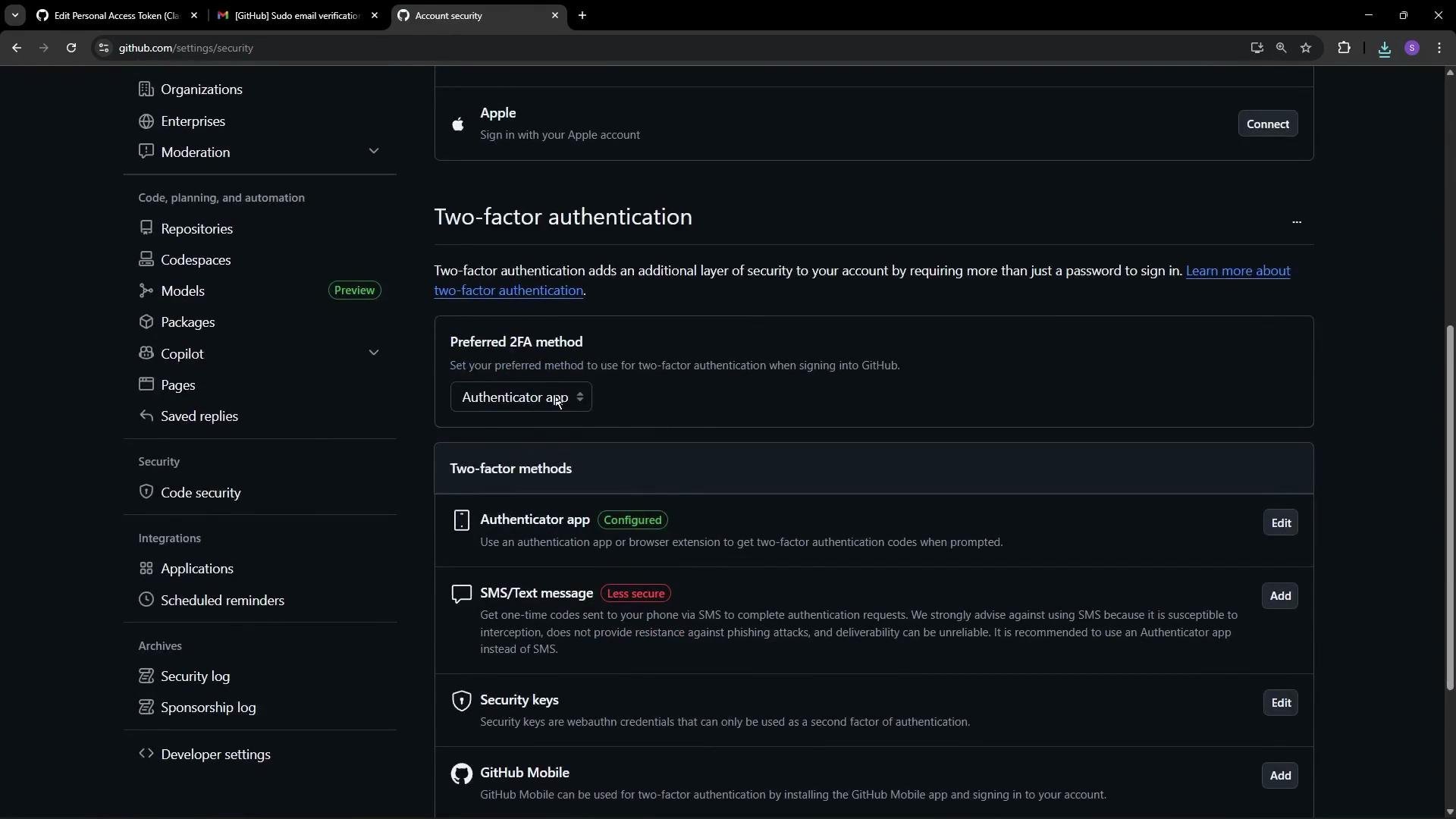
5. Compare available 2FA options
Final recommendations
- Prefer authenticator apps or hardware security keys over SMS.
- Save recovery codes to a secure location right after setup.
- Consider using a password manager that supports secure storage of recovery codes and passkeys.
Save recovery codes immediately after setup and store them in a secure place (for example, a reputable password manager). Avoid relying on SMS as your primary second factor when stronger options (authenticator apps or security keys) are available.
- GitHub Docs: Securing your account with two-factor authentication (2FA)
- 1Password: https://1password.com/
- Authy: https://authy.com/
- Microsoft Authenticator: https://www.microsoft.com/en-us/security/account-protection/microsoft-authenticator-app
- Google Authenticator: https://support.google.com/accounts/answer/1066447
- GitHub Mobile: https://github.com/mobile