

- Sign in to your GitHub account and open the Discussions tab in the repository (for example, the Block Buster repo).
- Browse the Q&A section to find unanswered questions. Any participant can reply—answers may include suggestions, workarounds, or debugging steps.
- In this example, one reply explains the high score is saved as a browser cookie and recommends clearing cookies and cache to reset it.
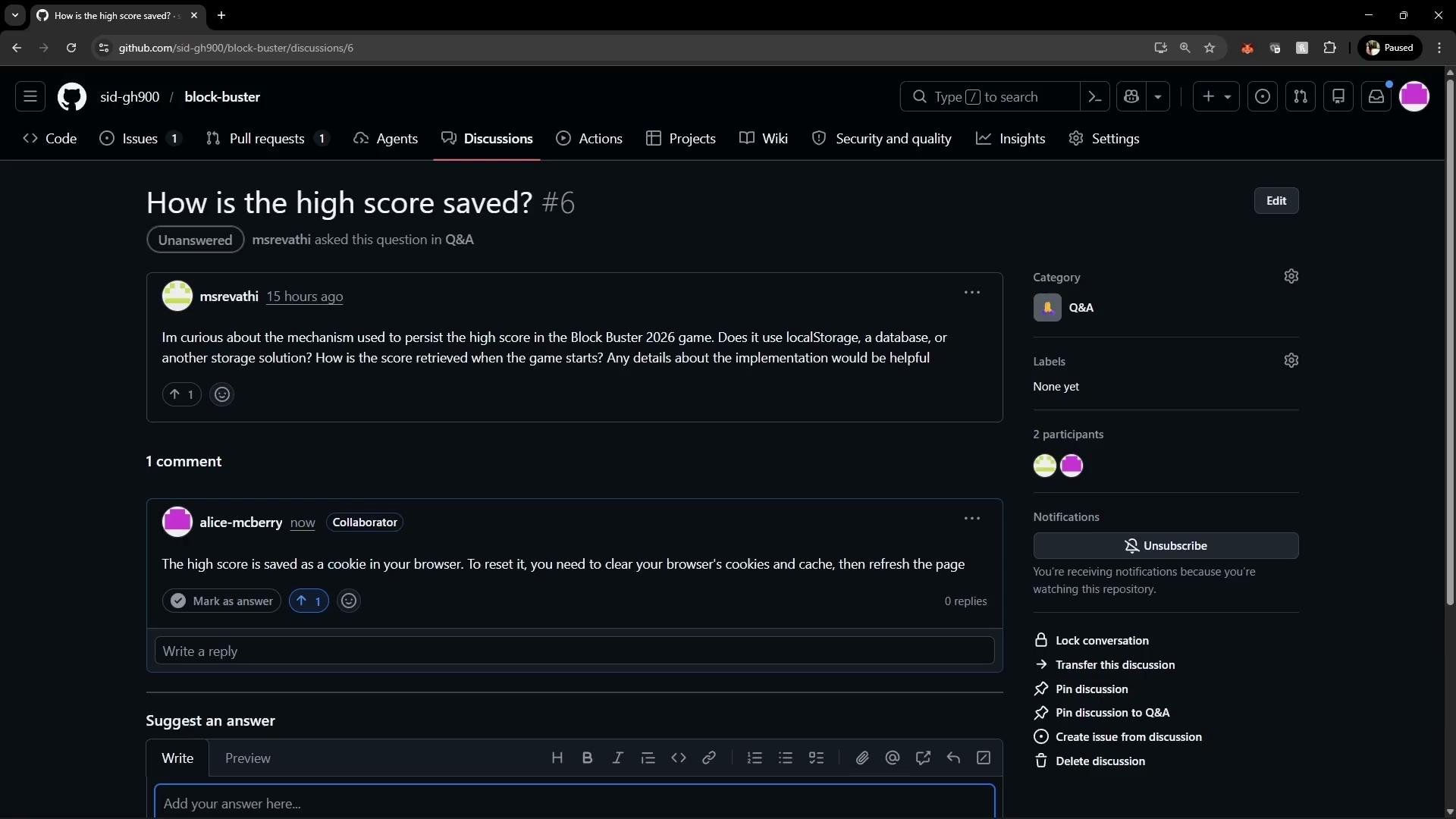
- Different contributors may answer the same question from their perspective. Sign out and sign in as another user to view other responses or contribute your own.
- For the same high-score question, another user suggested it’s stored in
localStorageand mentioned a reset button on the welcome screen. - Community members can upvote helpful answers to surface useful solutions.
- Collaborators and maintainers review answers and can mark one as the accepted/correct answer.
- Marking an answer accepted highlights it (green border) and places it directly under the question so readers can find the accepted solution quickly without scrolling through long threads.
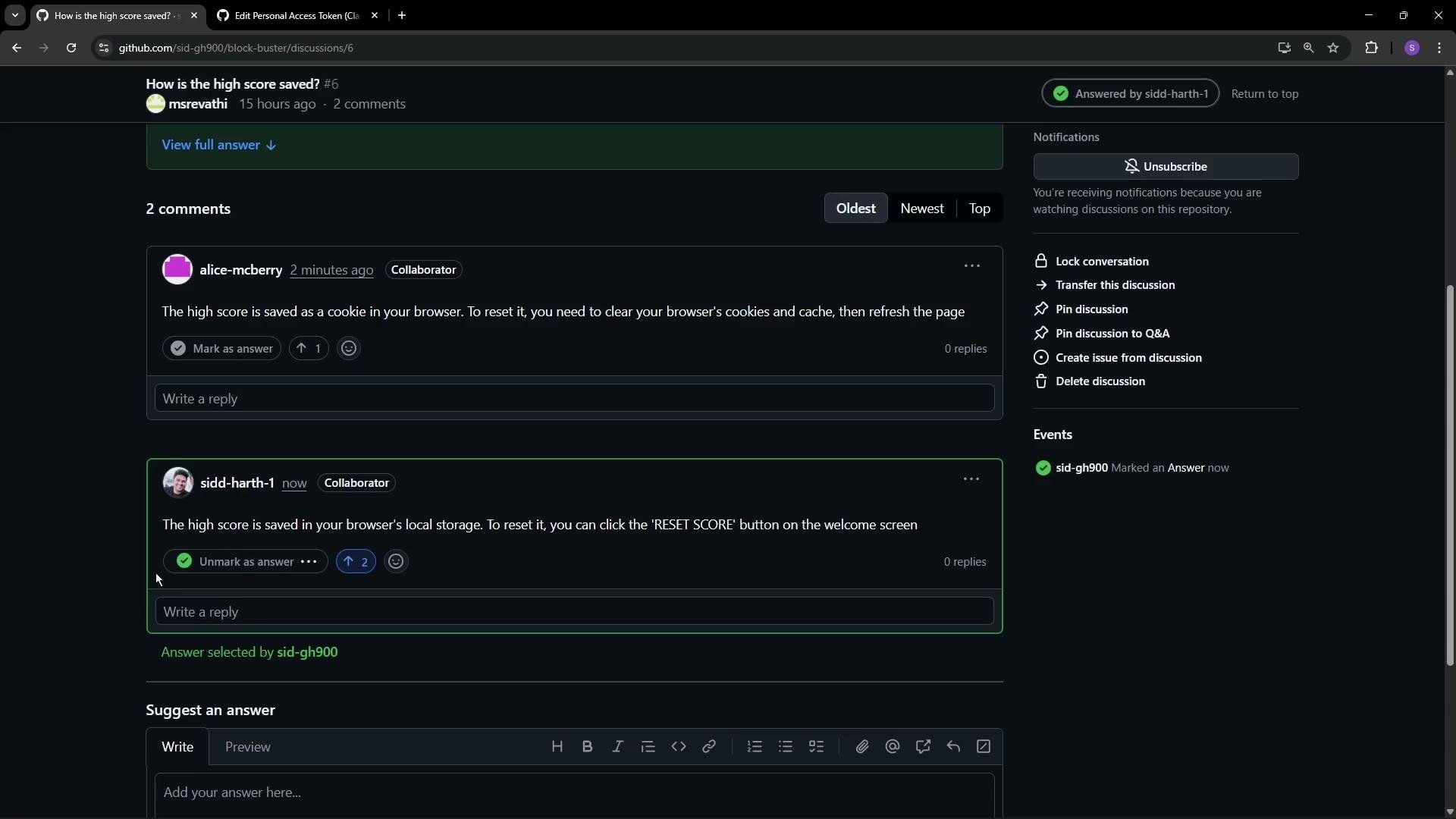
- Large threads can be time-consuming to read. Showing the accepted answer immediately under the question helps future readers find the solution fast and reduces duplicated effort from repeated replies.
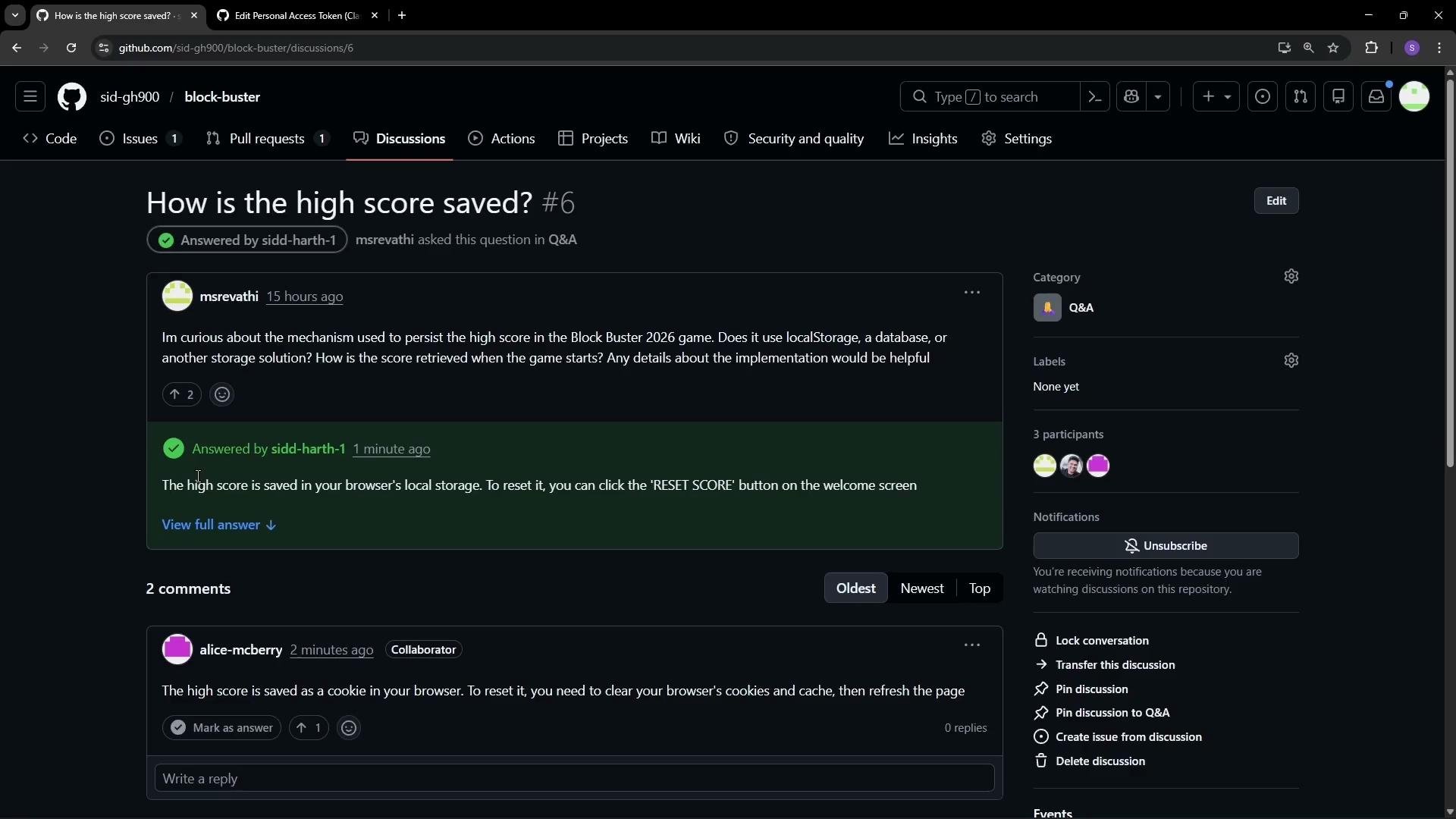
- Use the options on the right side of a discussion to pin or lock the conversation.
- Pin a discussion to surface it on the Discussions home page and choose an accent color when pinning.
- You may pin up to four discussions per repository to keep important topics visible.
- Lock a discussion to stop new replies when a thread is complete or becoming unproductive.
Pinned discussions make important topics easy to find. Remember the limit: you can pin up to four discussions per repository.
- If a discussion contains a reproducible bug, a clear feature request, or an actionable task, convert it into an issue using “Create issue from discussion.”
- GitHub pre-populates the new issue’s title and description, includes a link back to the original discussion, and records the user who posted the thread.
- The generated issue body references the discussion ID so the two remain linked for traceability and context.
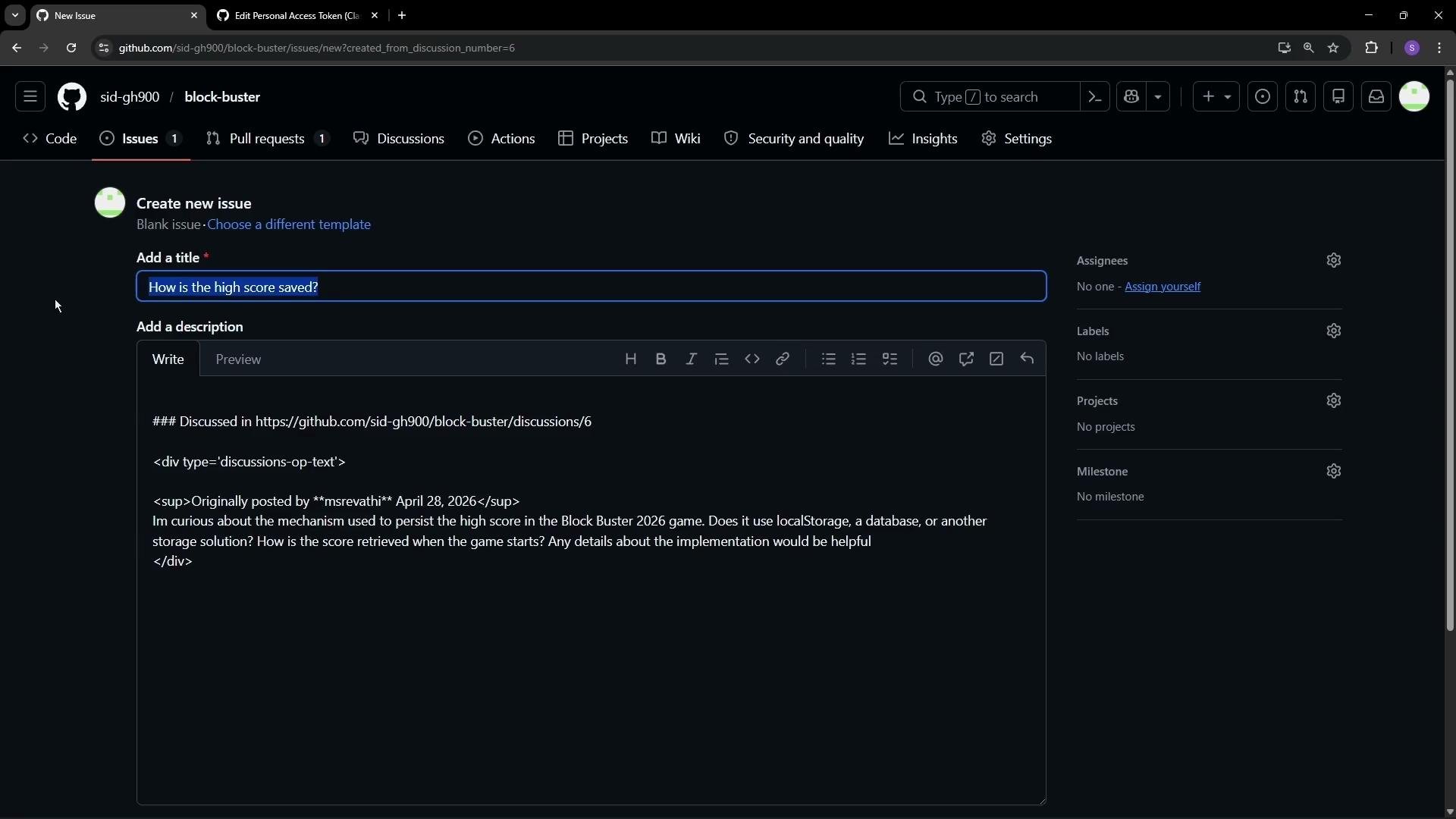
- The new issue links back to the discussion by ID, preserving the original conversation and attribution for maintainers and contributors.
- Continue using Discussions for community Q&A while tracking fixes and triage items in the Issues tab.
Creating an issue from a discussion preserves context and attribution while enabling maintainers to triage and track work in the Issues tab.
See also
- GitHub Discussions docs: https://docs.github.com/en/discussions
- GitHub Issues documentation: https://docs.github.com/en/issues