

index.html, style.css, and script.js, GitHub Pages can serve them so visitors can open a URL and run your site or web app in any browser.
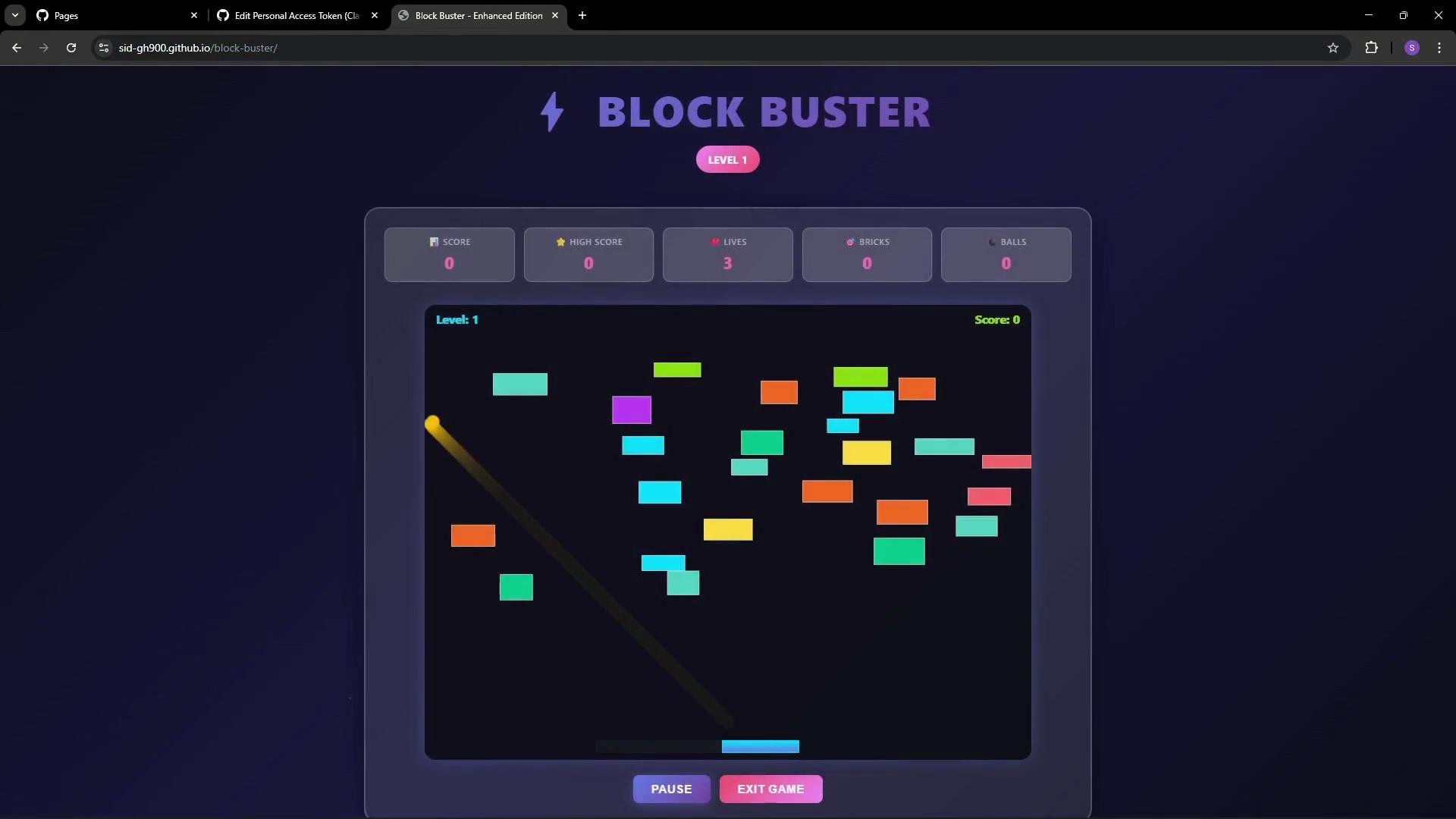
In this repository, index.html, style.css, and script.js combine to make the Block Buster game playable in the browser without downloading files.
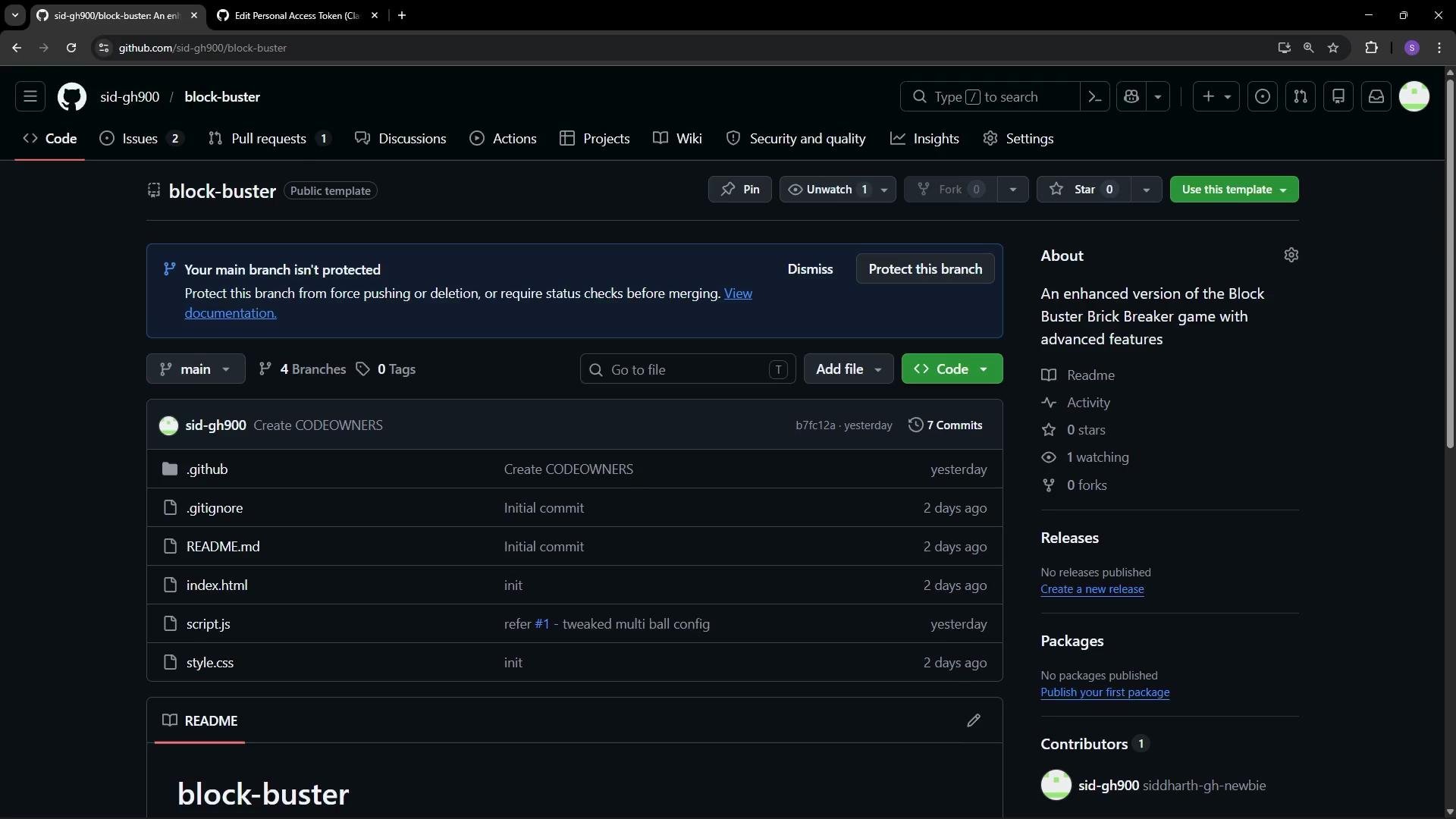
How to enable GitHub Pages for your repository
Follow these steps to publish the repository as a static site:- Open the repository on GitHub and select Settings.
- In the left sidebar, choose Pages under the “Code and automation” section.
- Under Build and deployment, choose a source for your site:
- Deploy from a branch — quick and simple for static project pages.
- Use GitHub Actions — useful when you need a build pipeline (for example, bundling, minification, or static site generators).
- If you choose Deploy from a branch, select the branch (e.g.,
main) and pick the folder to publish:- Root (
/) — use whenindex.htmlis in the repository root. /docs— use if you maintain site files inside adocsdirectory.
- Root (
- Save your settings. GitHub Pages will start building the site; this can take a few minutes.
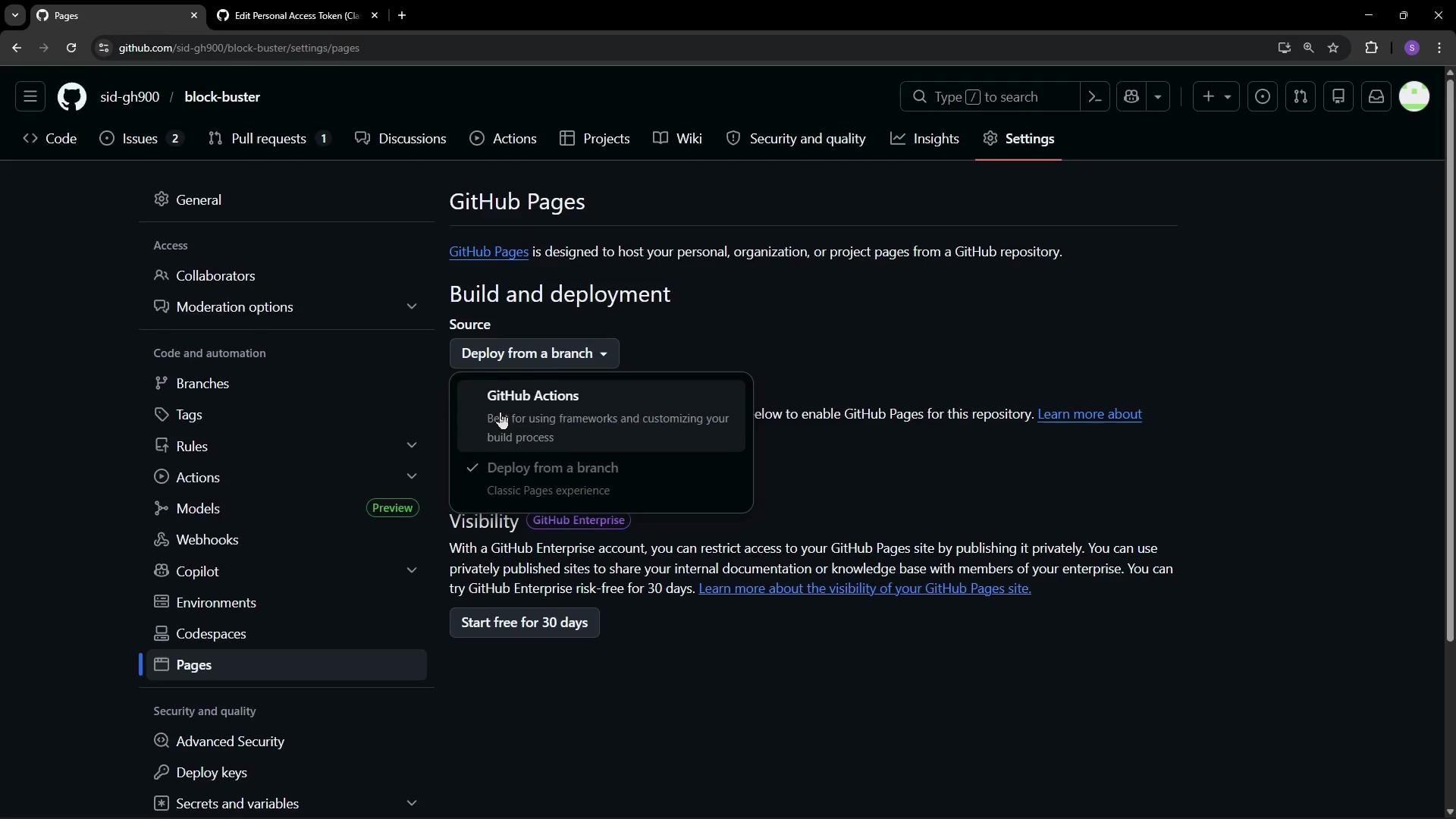
Quick reference: source options
Accessing your published site
After a successful build, GitHub Pages supplies the public URL for your site. For project pages the URL format is:index.html is in the selected publish folder (/ or /docs) and that the build completed successfully.
Ensure
index.html exists in the folder you selected to publish (root or docs). Without a valid index.html, GitHub Pages has no default file to serve and the site will return a 404.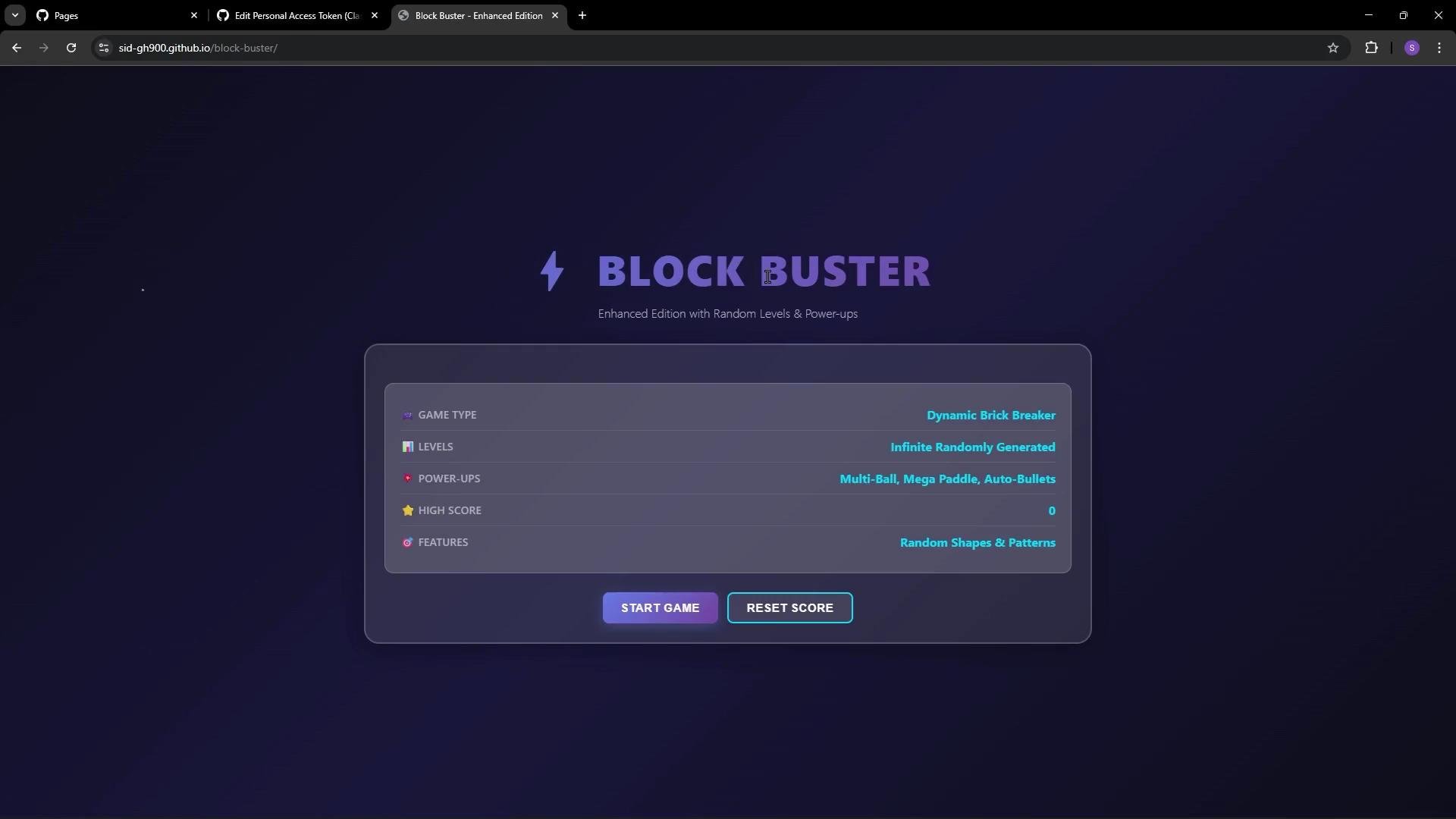
Additional configuration and troubleshooting
- Custom domain: Configure a custom domain from the Pages settings if you own a domain. GitHub provides DNS instructions and will create a
CNAMEfile for you. - Themes: For content sites, you can apply a theme (Jekyll themes are available) via the repository settings or a static site generator.
- Common issues:
- 404 after build: Verify
index.htmllocation and successful build logs. - Changes not visible: Clear browser cache or force-refresh (Ctrl/⌘+Shift+R).
- HTTPS not enabled: Pages provides HTTPS by default; verify the certificate is active in Pages settings.
- 404 after build: Verify