

Review pending invitations and members
From your organization page, open the People tab to inspect pending invitations and current members. This view shows outstanding invites and active organization members.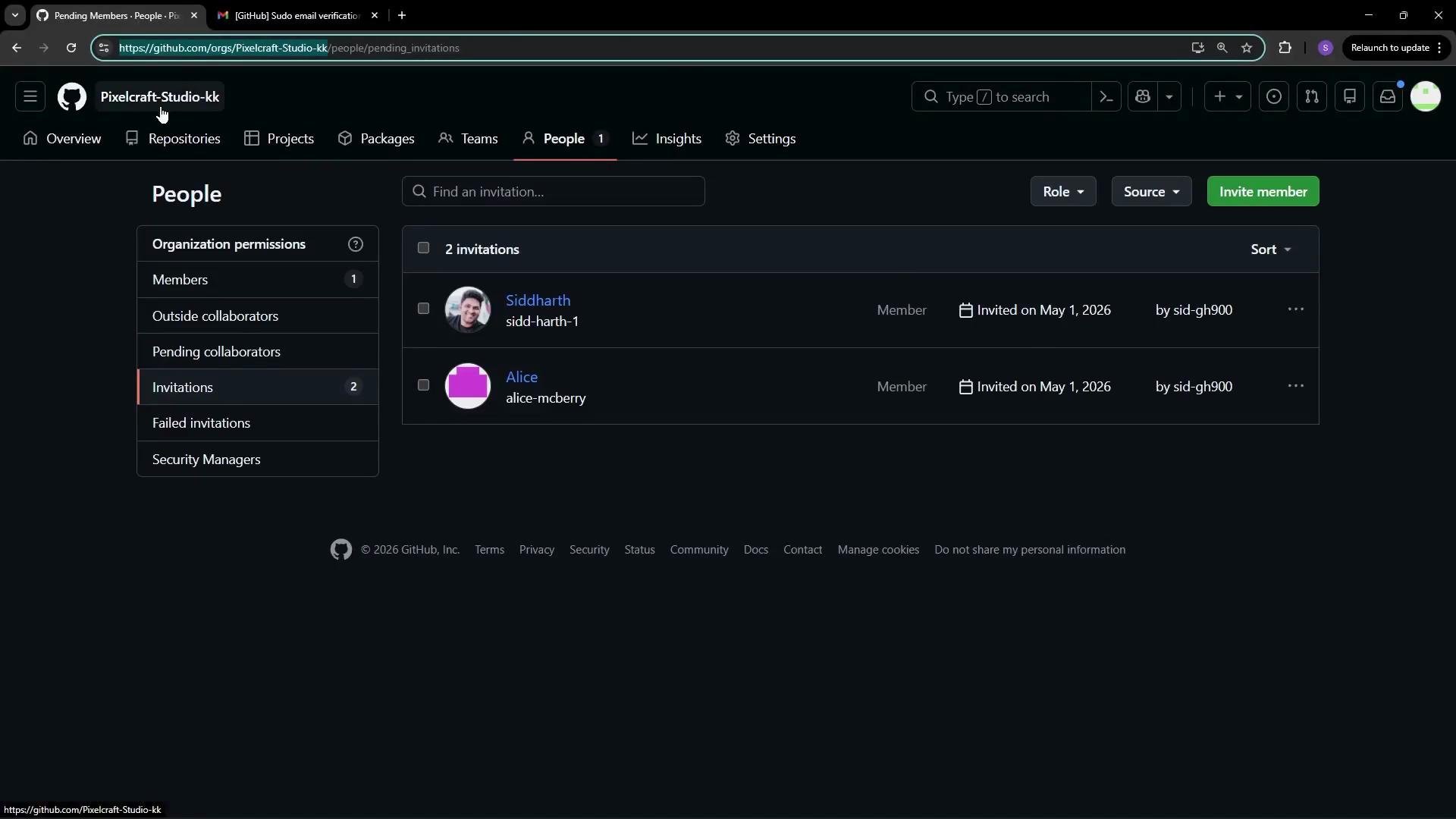
How invitations are accepted
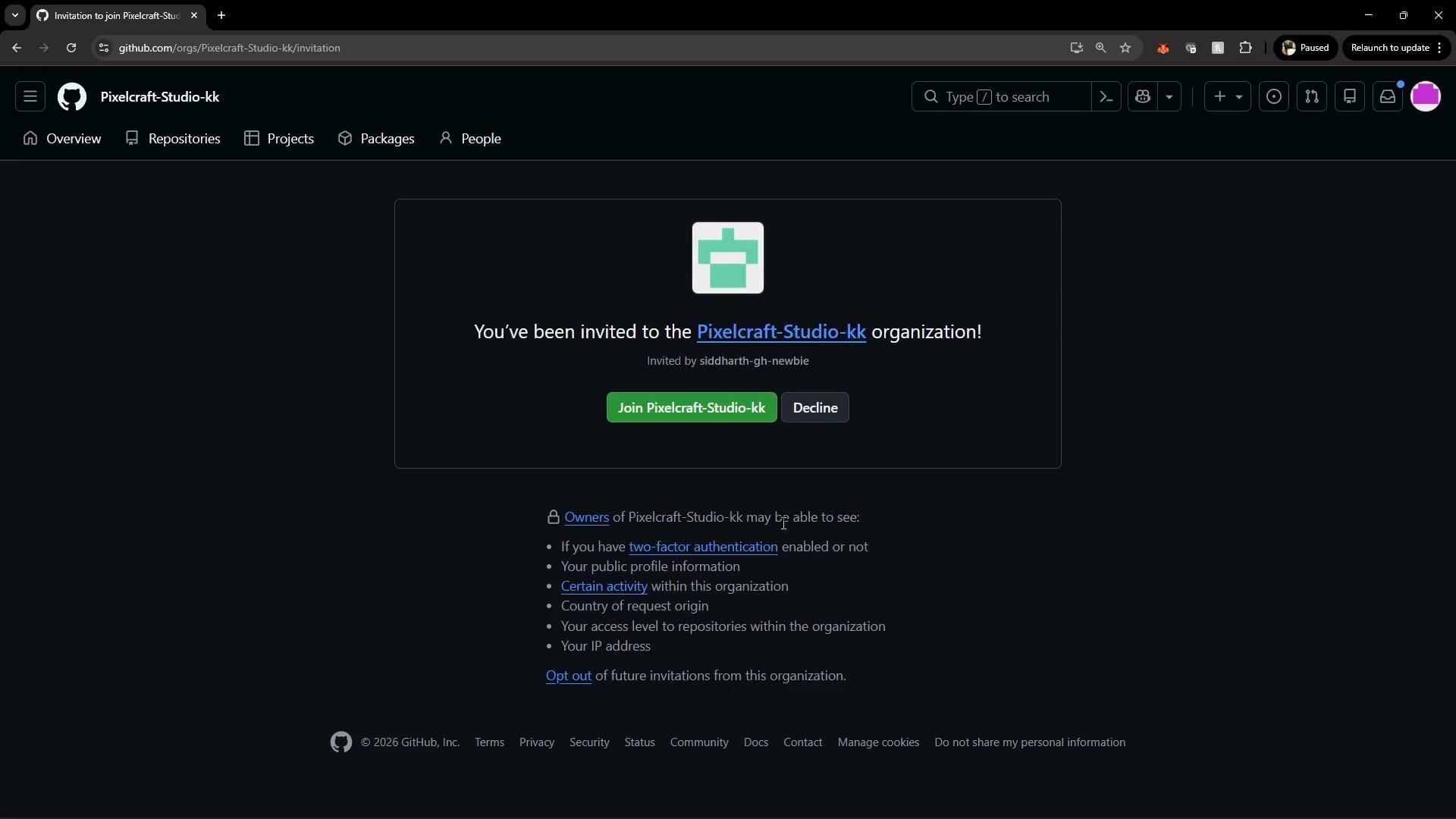
Invited users will receive an invitation they can accept or decline from their GitHub account. The invitation may include metadata (for example, whether two-factor authentication is enabled and the invitation source). GitHub also surfaces controls to manage or limit future invitations within the invitation page and the user’s account settings.Invitations show security metadata such as two-factor authentication status. If your organization requires 2FA, an invitee must enable it before joining. See GitHub’s 2FA documentation for setup steps.
Creating or transferring repositories to an organization
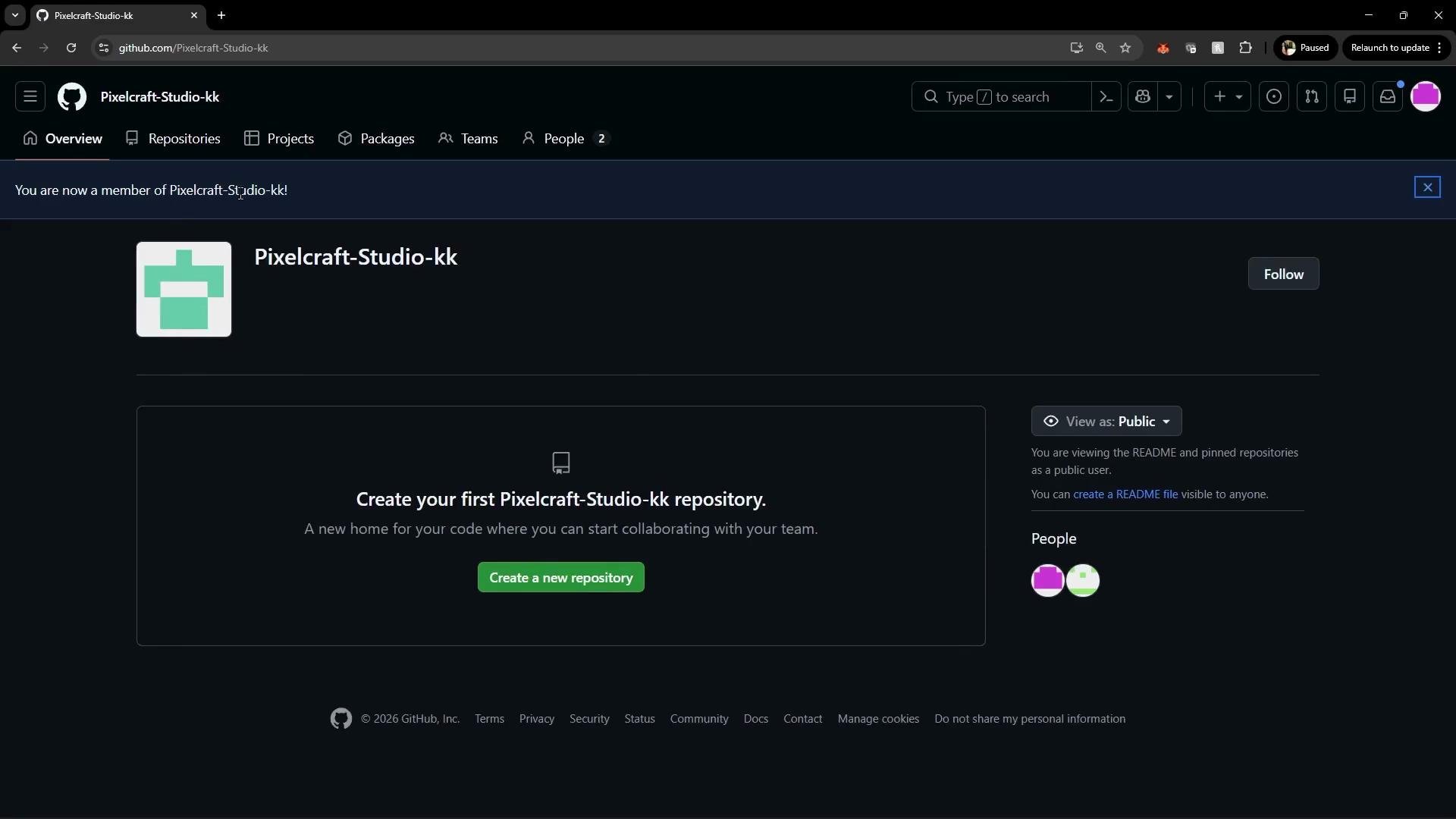
If your organization has no repositories yet, you can either create a new repository inside the organization or transfer repositories from a personal account.- Create a new repo under the organization.
- Transfer one or more repositories from a personal account into the organization. Transfers preserve the commit history, issues, pull requests, and metadata.
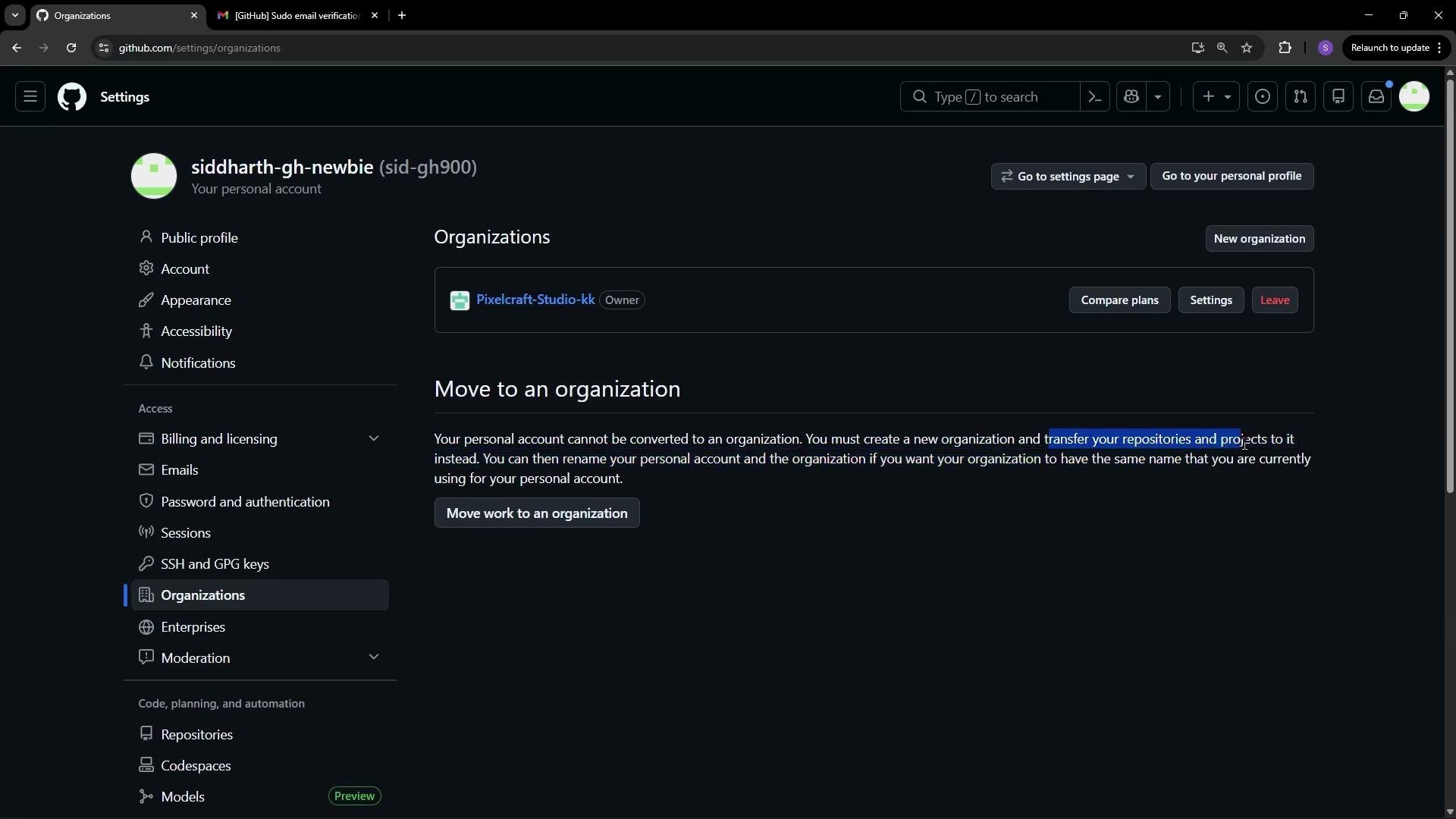
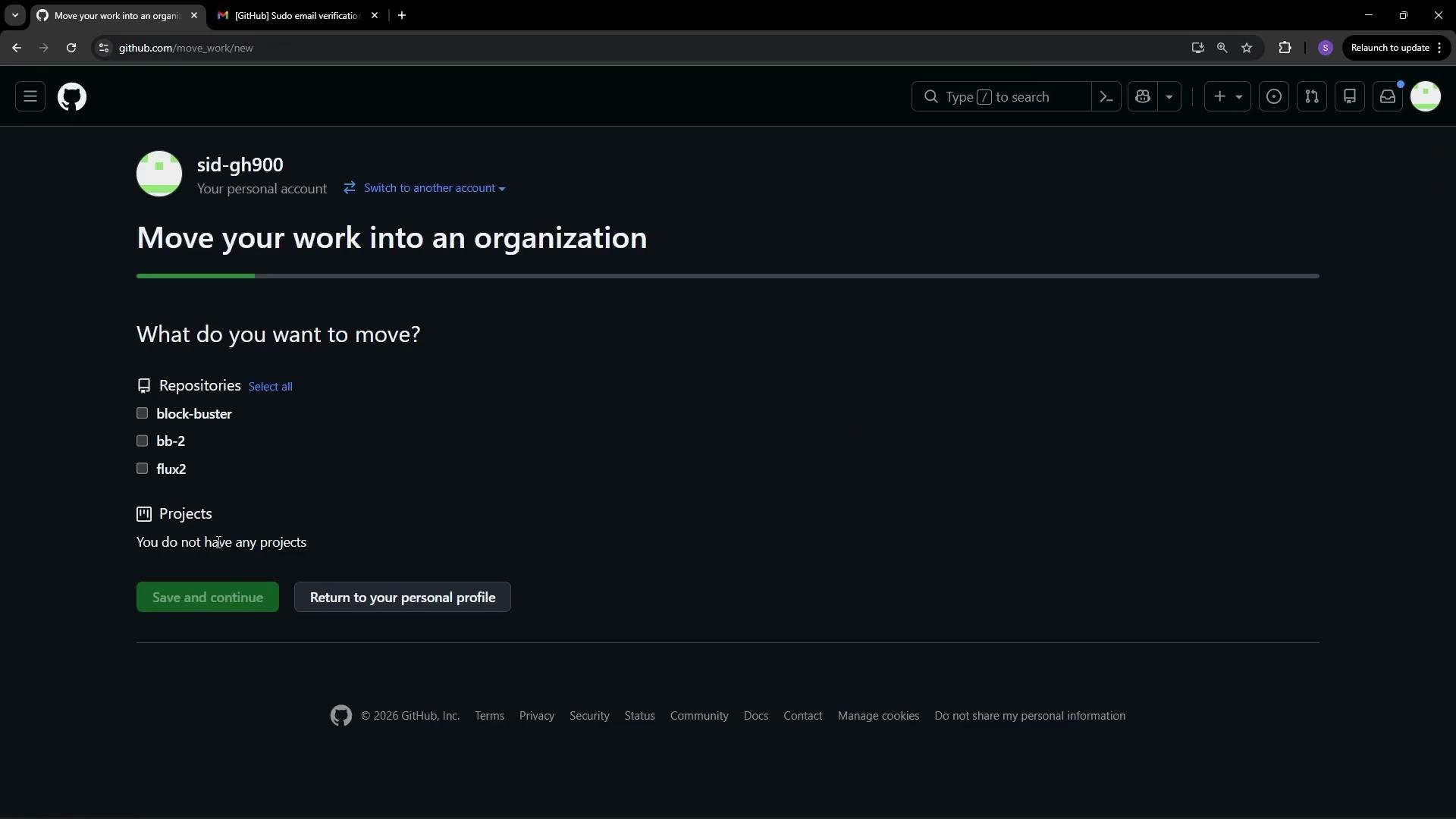
Repository transfers retain issues, pull requests, and commit history. If you plan to consolidate many repos, consider communicating with contributors about timing and access changes.
Managing repository access and collaborator roles
Inside each repository, go to Settings → Collaborators & teams (or Manage access) to add users directly or grant access through organization teams. Direct access assignments let you select a role for each user, typically: Read, Triage, Write, Maintain, or Admin. Enterprise accounts can also create custom roles. Below is an example repository page showing users who have access to the “block-buster” repository. Users with Write access can edit files directly in the GitHub web UI.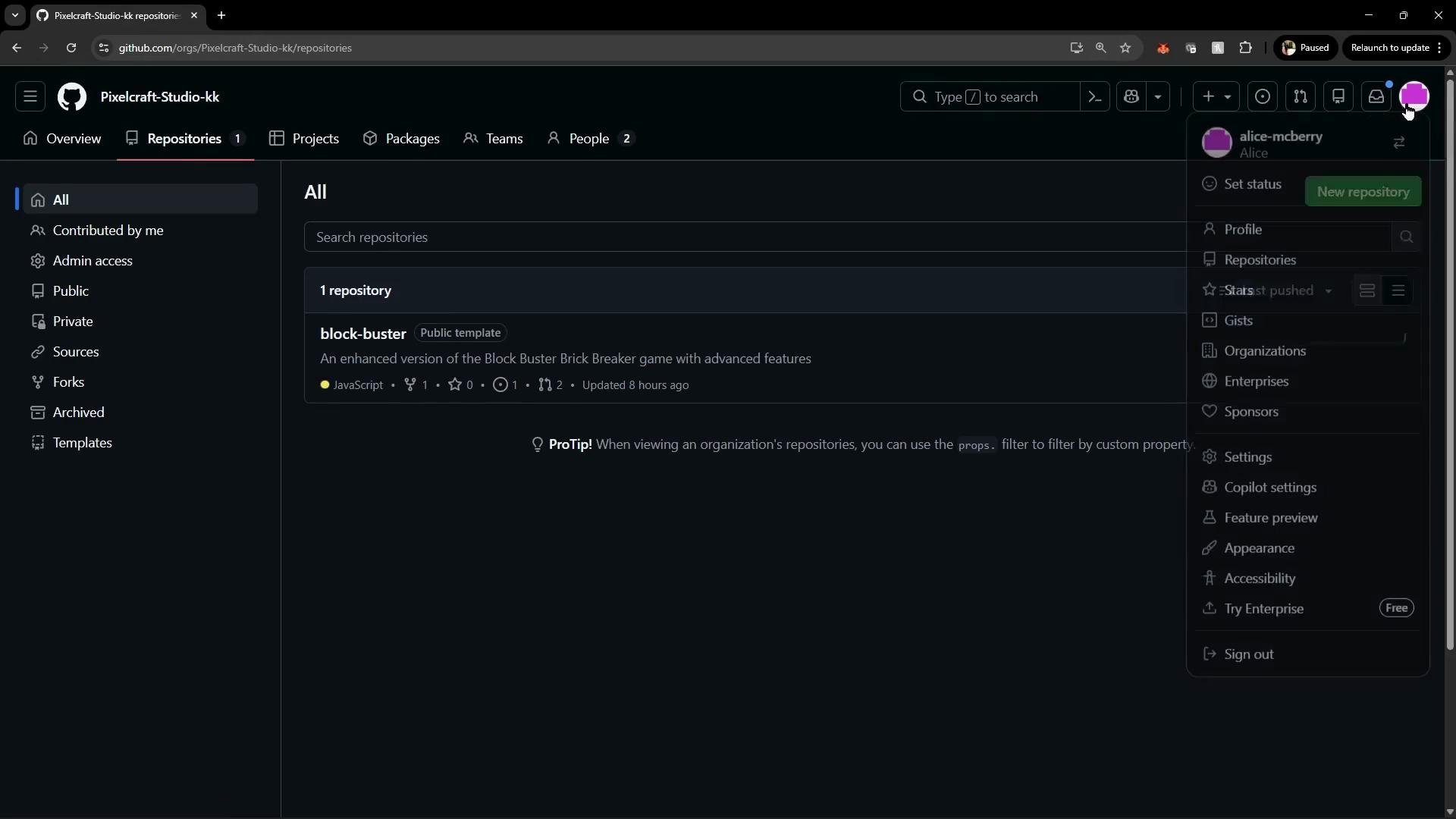
index.html directly in the repository. Below is a sample HTML file demonstrating an editable front-end file:
Quick reference: roles and capabilities
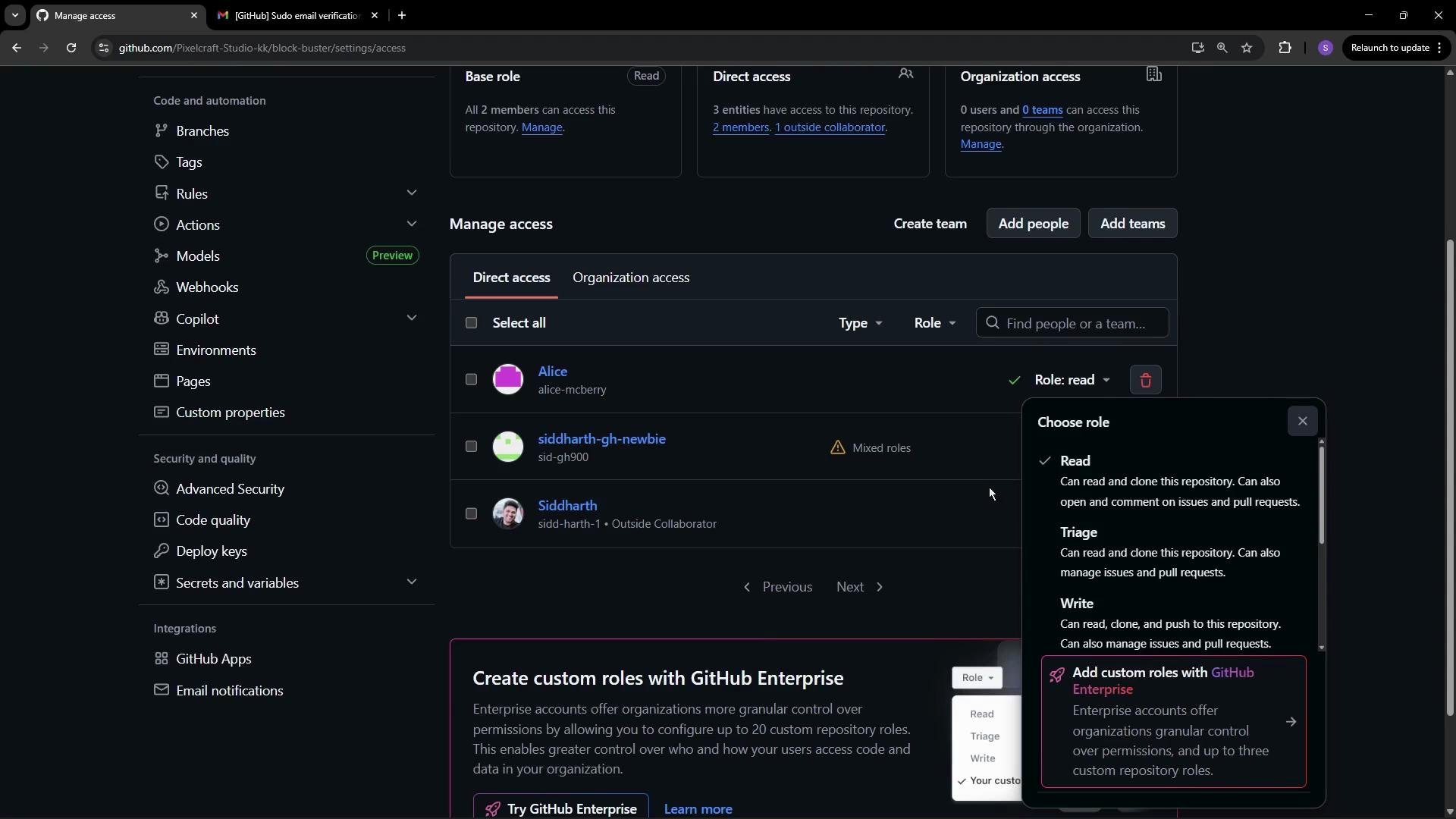
Grant Admin or Maintain roles only to trusted users. Admin access allows repository settings changes, including collaborator management and potentially destructive actions (like deletion).
Best practices
- Assign the least privilege required: prefer Read or Triage where possible and escalate to Write/Maintain only when needed.
- Use teams to manage permissions at scale — assign access to teams instead of individual users when multiple repos or many users are involved.
- Require 2FA and consider organizational policies to protect sensitive repositories.
- Communicate transfers and permission changes with contributors to avoid confusion.
Links and references
- Managing repository access on GitHub
- Transfer a repository
- Converting a personal account to an organization
- About two-factor authentication (2FA)