

Repository-level watch settings
Repository watch settings let you control the overall scope of events you receive from a repository. Choose one of the built-in levels or select a custom set of events.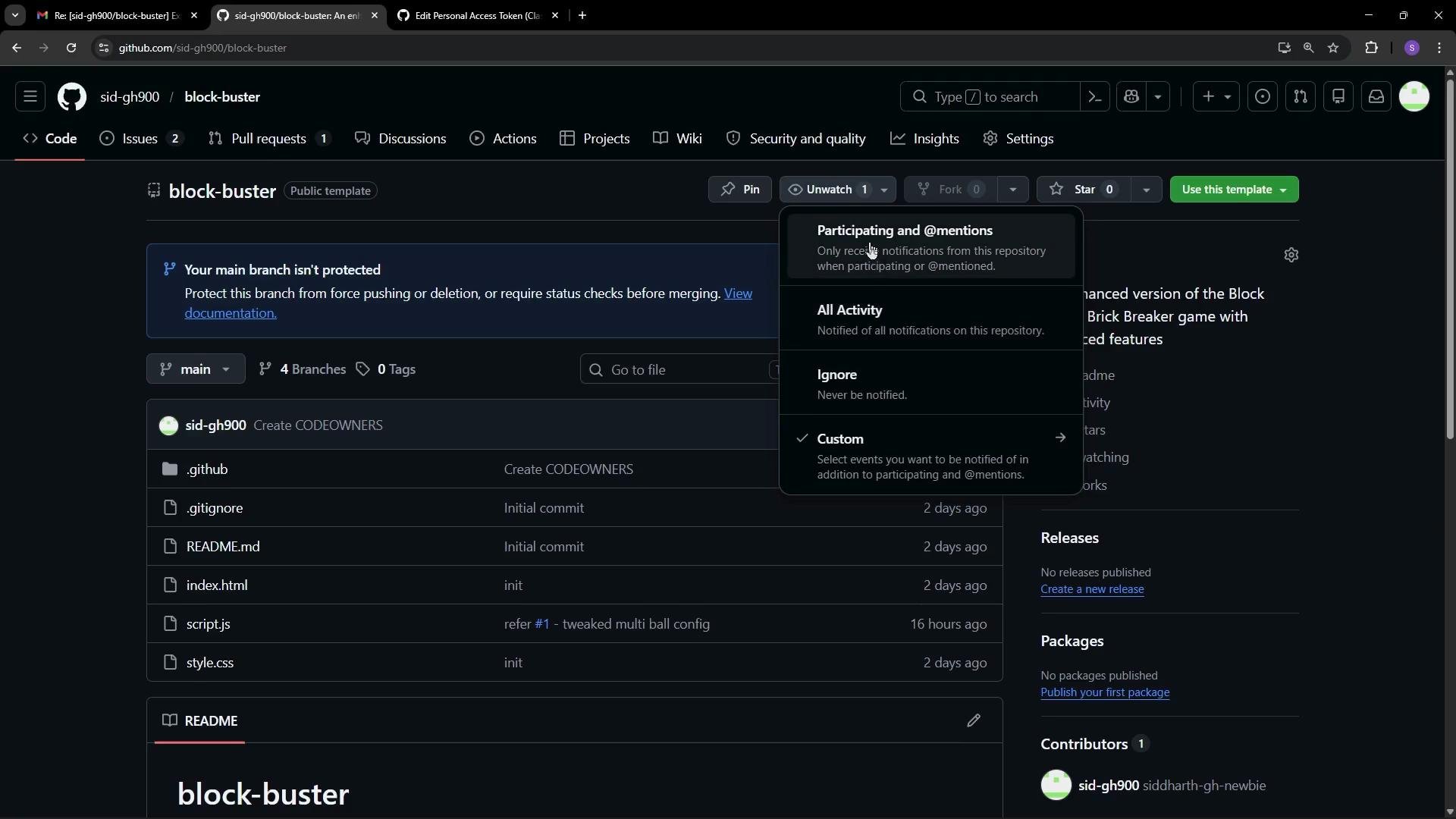
You can also choose a custom subscription to follow only particular event types for a repository (issues, pull requests, releases, discussions, etc.). This gives finer control than the global watch levels.
Subscribe to specific repository events
The repository subscription popup provides granular selection of event types so you only receive the notifications you need.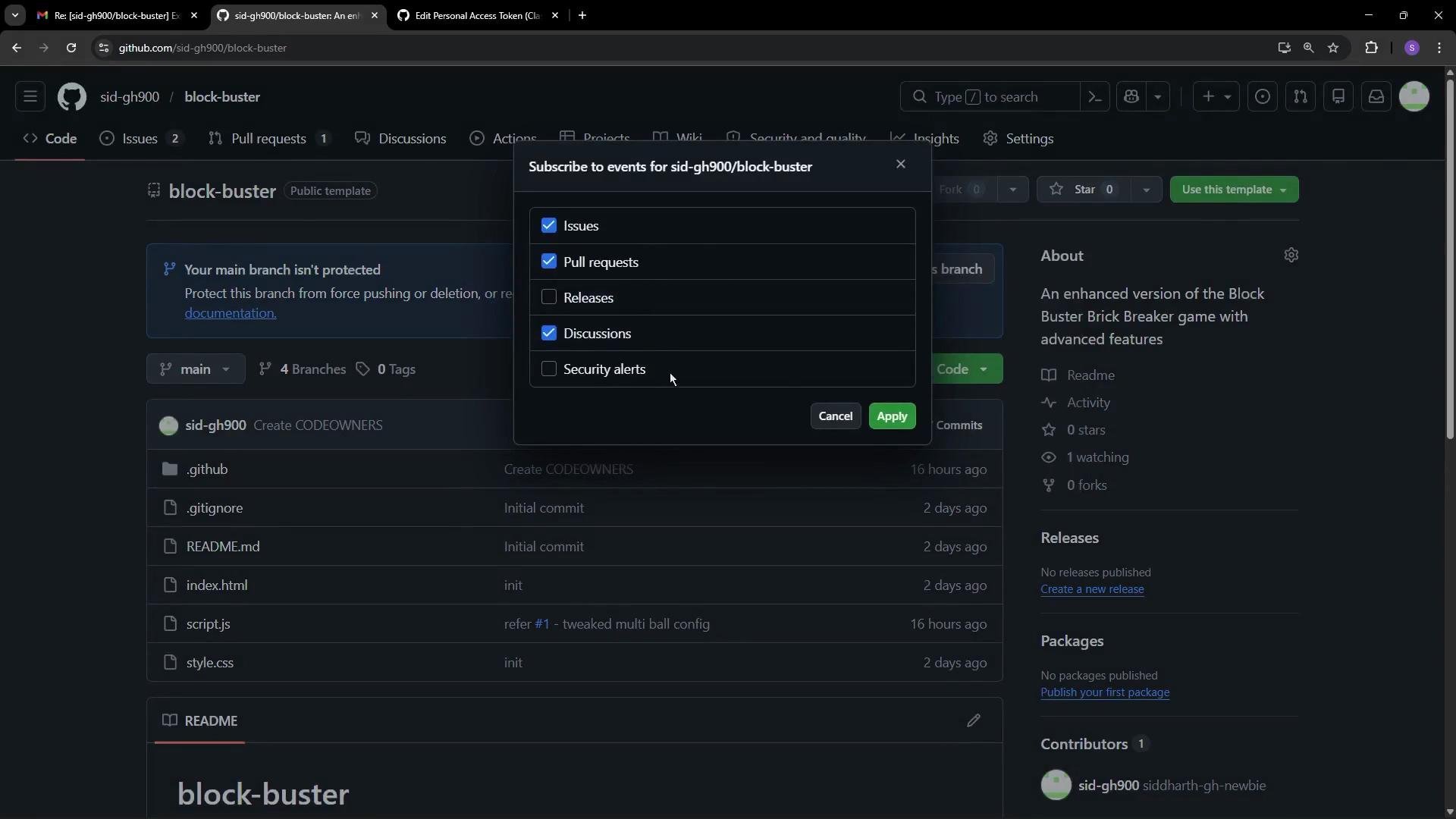
- Issue-only updates for triage teams.
- Pull request notifications for reviewers.
- Release alerts for product managers.
- Discussion updates for community leads.
Account-level settings and email verification
Account-level settings determine where notifications are delivered. The first step is to add and verify the email addresses you want GitHub to use.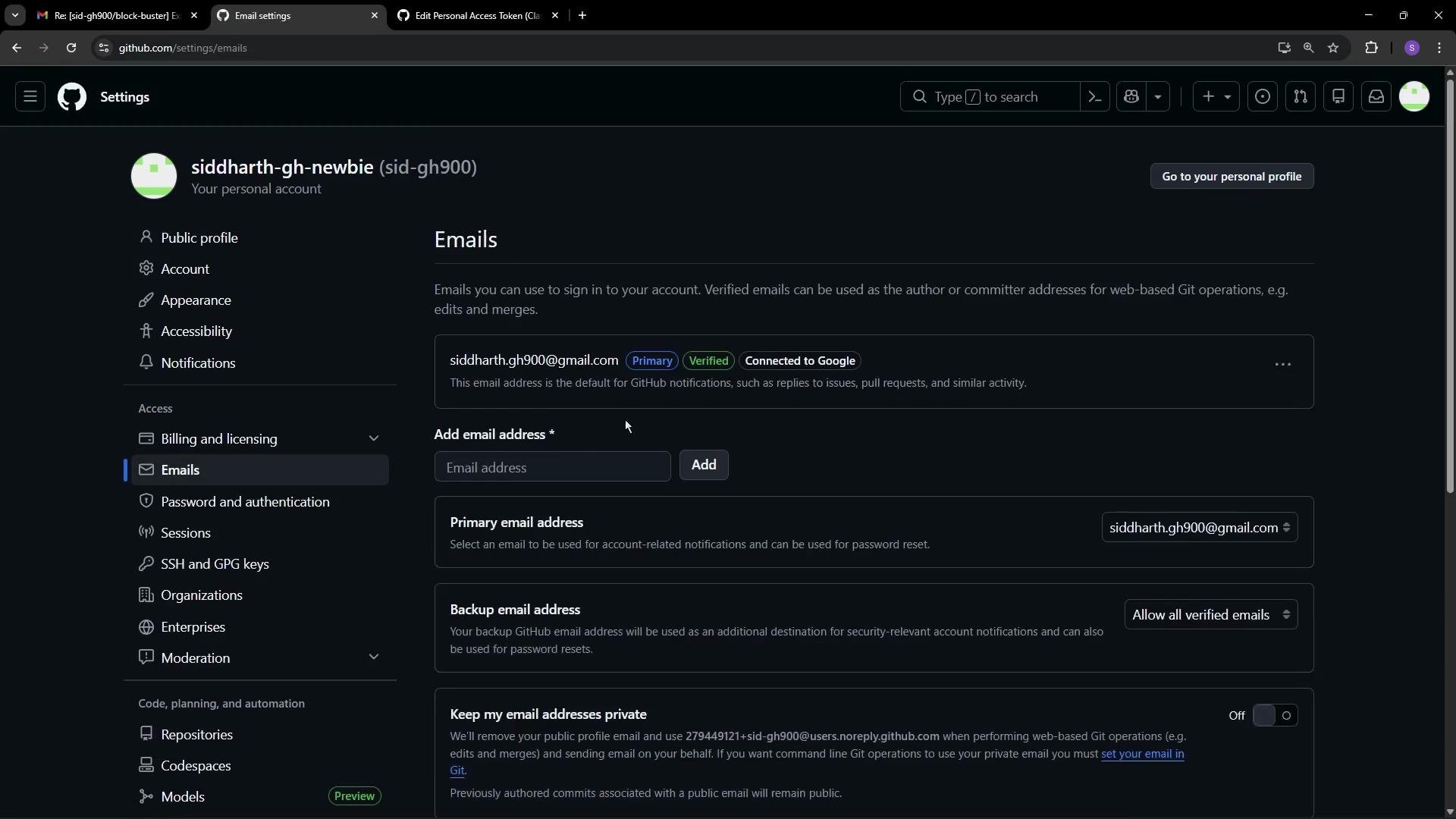
Default notification delivery and preferences
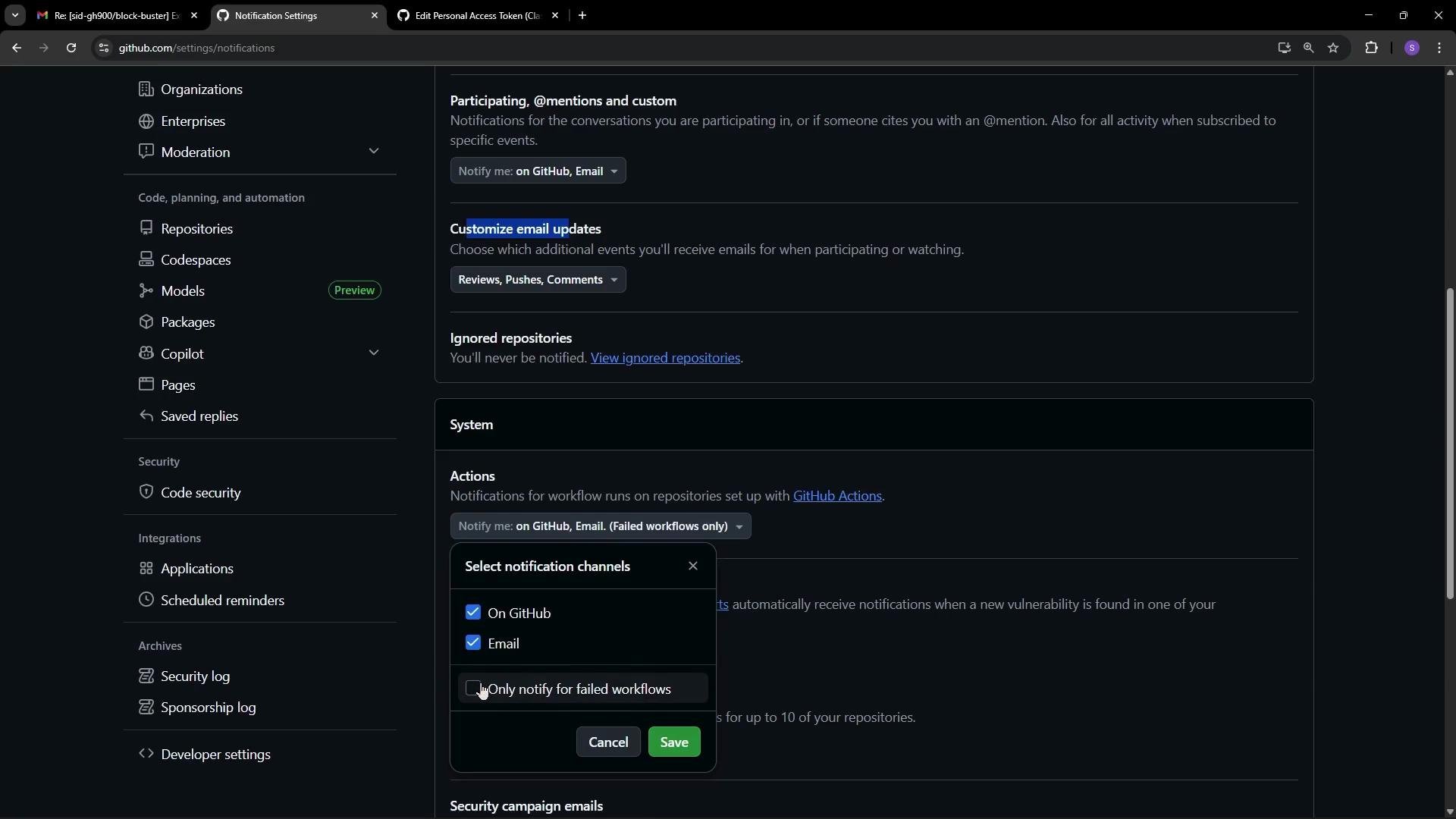
The Notifications settings page controls the default delivery channel and other preferences—whether notifications go to your primary email, to the GitHub web UI (the bell icon), or both.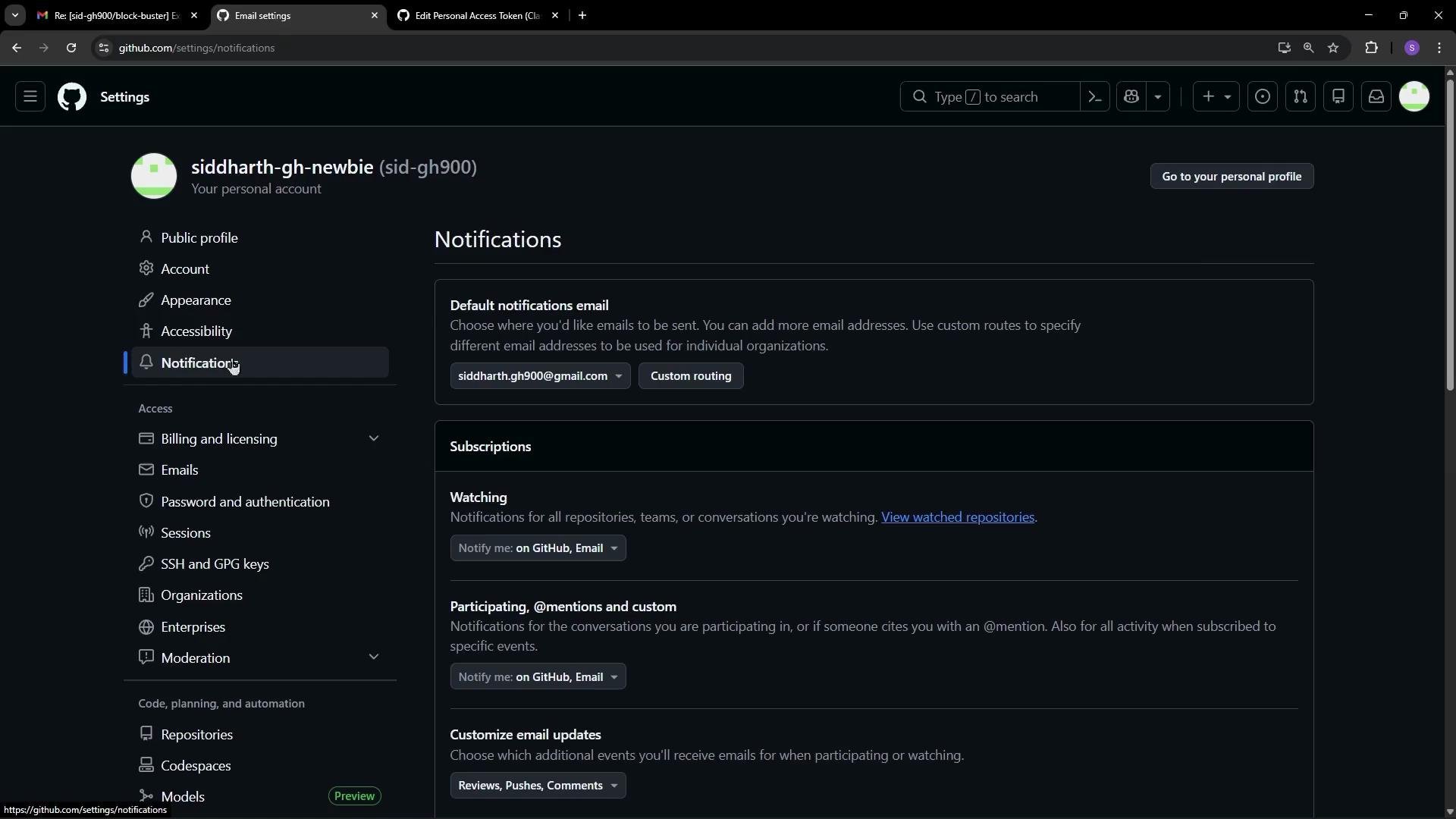
- Default delivery method: email, web, or both.
- Automatically apply participating subscriptions.
- Which notification types send email vs. only web alerts.
- Notification frequency and batching options (if available).
Custom routing for organizations and advanced recipients
If you’re part of multiple organizations or need different addresses for different notification sources, use custom routing rules. These allow you to send notifications from specific organizations or repositories to different emails.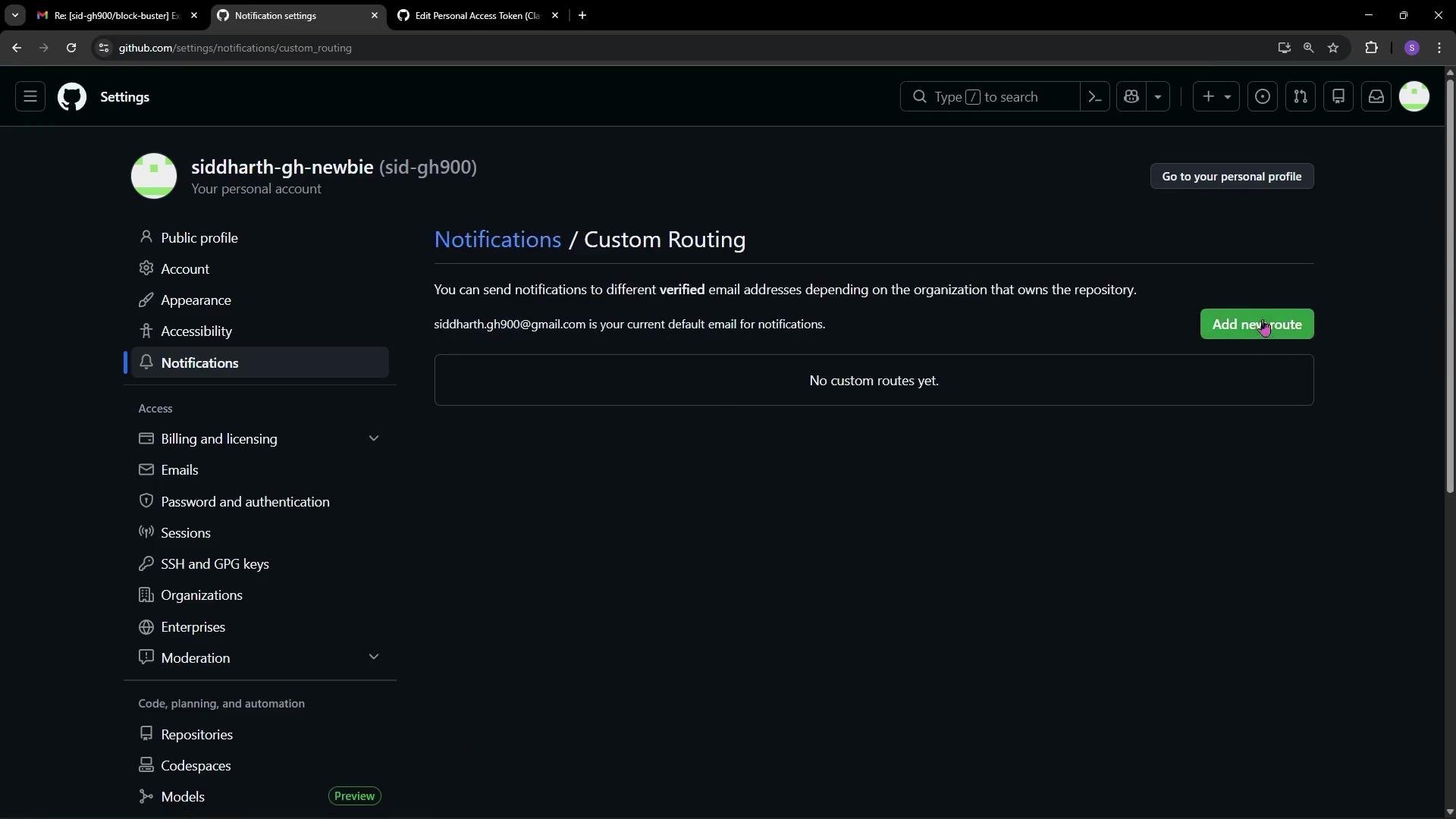
- Route Organization A to
eng-notifications@example.com. - Route Organization B to
security-alerts@example.com. - Keep personal project notifications on your primary email.
Verify any email addresses you add to your account. Only verified emails can be used as notification targets or custom routing destinations.
Other important notification settings
- Subscription defaults for repositories and teams: choose whether new repositories you join default to GitHub, email, or both.
- Participating subscriptions: enable or disable auto-application when you participate in conversations.
- GitHub Actions notifications: choose between receiving status updates for all workflow runs or only failed runs.
- Dependabot and security alerts: enable email/web alerts for dependency and security findings.
- Sessions and audit-related alerts: available for organizations or accounts with audit logging.
What notification emails contain
- Repository notifications: who opened or commented on an issue/PR, assignment changes, labels, and links to view the full conversation.
- Pull request emails: PR title and description, key comments (including inline review comments), status checks, and direct links to the PR and changed files.
- Actions notifications: workflow run status (success, failure), links to logs and the specific workflow run for debugging.
- Security/Dependabot alerts: vulnerability details, affected package, severity, and recommended fixes or PRs.
Quick checklist
- Review repository watch settings for active repos.
- Verify every email you want to use for notifications.
- Set default delivery on the Notifications settings page.
- Create custom routing rules per organization when necessary.
- Configure GitHub Actions and Dependabot alerts to avoid missing critical failures.
Links and references
- GitHub Notifications documentation
- Watching and unwatching a repository
- Configuring notification routing