

- Transfer issue
Move an issue from one repository to another (for example, if a front-end bug was mistakenly opened in a back-end repo). The transfer moves the issue body, comments, and assignees. Labels and milestones are transferred only if the destination repository already has labels or milestones with the exact same names.
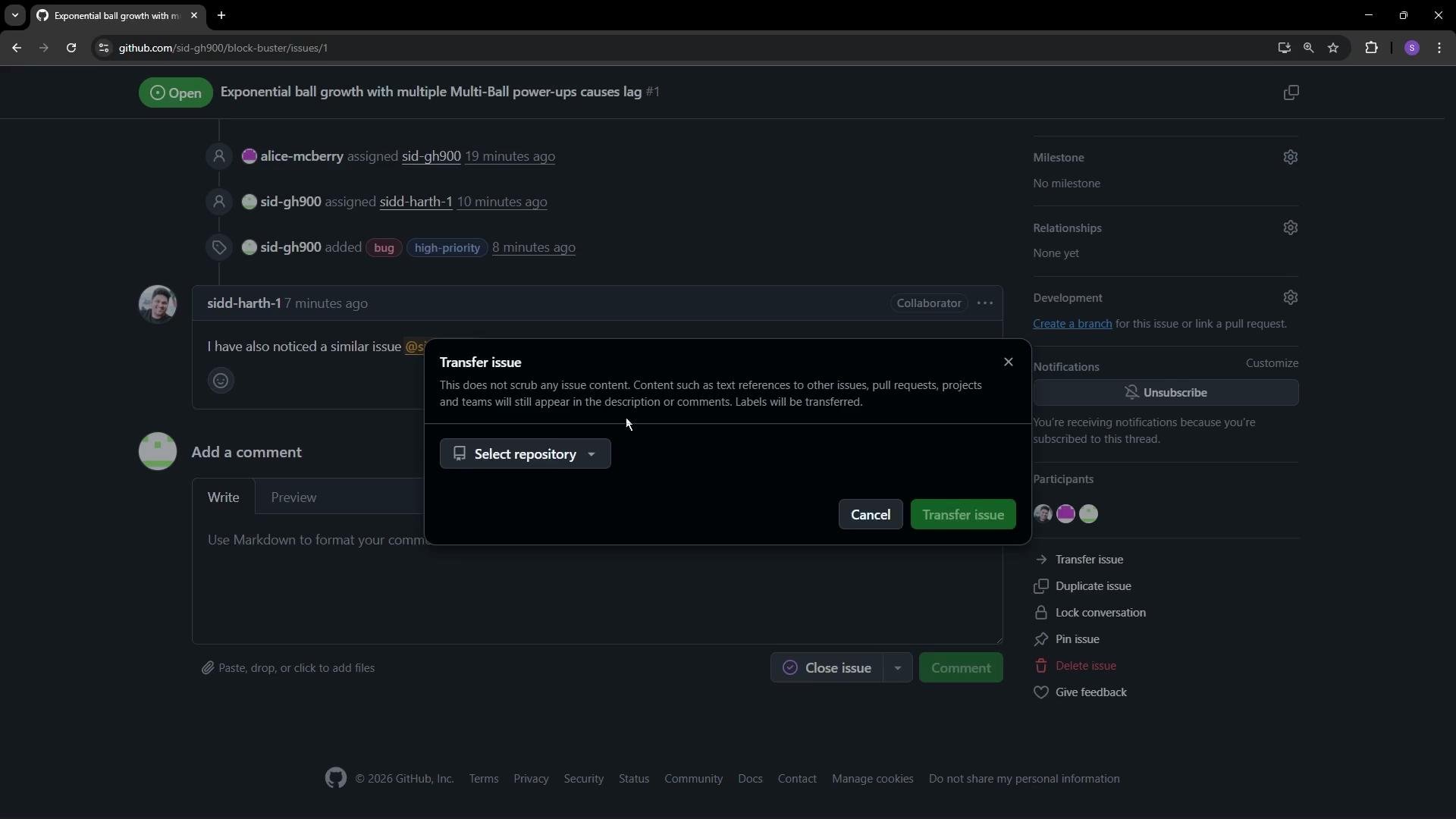
-
Duplicate issue
Create a new issue pre-filled with the current issue’s details. Useful for splitting a large task into smaller issues or creating a similar task without retyping the content. -
Lock conversation
Prevent new comments, reactions, or votes on the issue. Use this to stop spam, conclude an unproductive debate, or indicate a discussion has ended. You can include a short reason when locking. -
Pin issue
Pinning places the issue at the top of the repository’s Issues list so it’s visible to all visitors. Ideal for high-priority bugs, important announcements, or tasks you want to surface above other issues. Each repository can have up to three pinned issues.
A repository can have a maximum of three pinned issues at any time. Use pins for the most important items you want contributors and visitors to see first.
-
Delete issue
Permanently removes the issue from the repository. This action is irreversible and should be used with caution. -
Give feedback
Opens a shortcut to submit feedback directly to GitHub about the Issues experience.
How to pin an issue — quick steps
- Open the issue you want to highlight.
- Click the issue menu (•••) in the issue header.
- Choose the “Pin issue” option from the dropdown.
- The pinned issue will appear at the top of the repository’s Issues tab for all visitors.
Deleting an issue is permanent. If you might need the conversation or context later, consider locking or transferring the issue instead of deleting it.