

Headings
Create headings with the hash symbol#. The number of hashes defines the level (one # = H1, six ###### = H6). Use H1 for the main document title and subsections with H2–H4 to keep content scannable for readers and search engines.
Use only one
# (H1) per document when possible and structure content with H2/H3 for accessibility and SEO.Emphasis
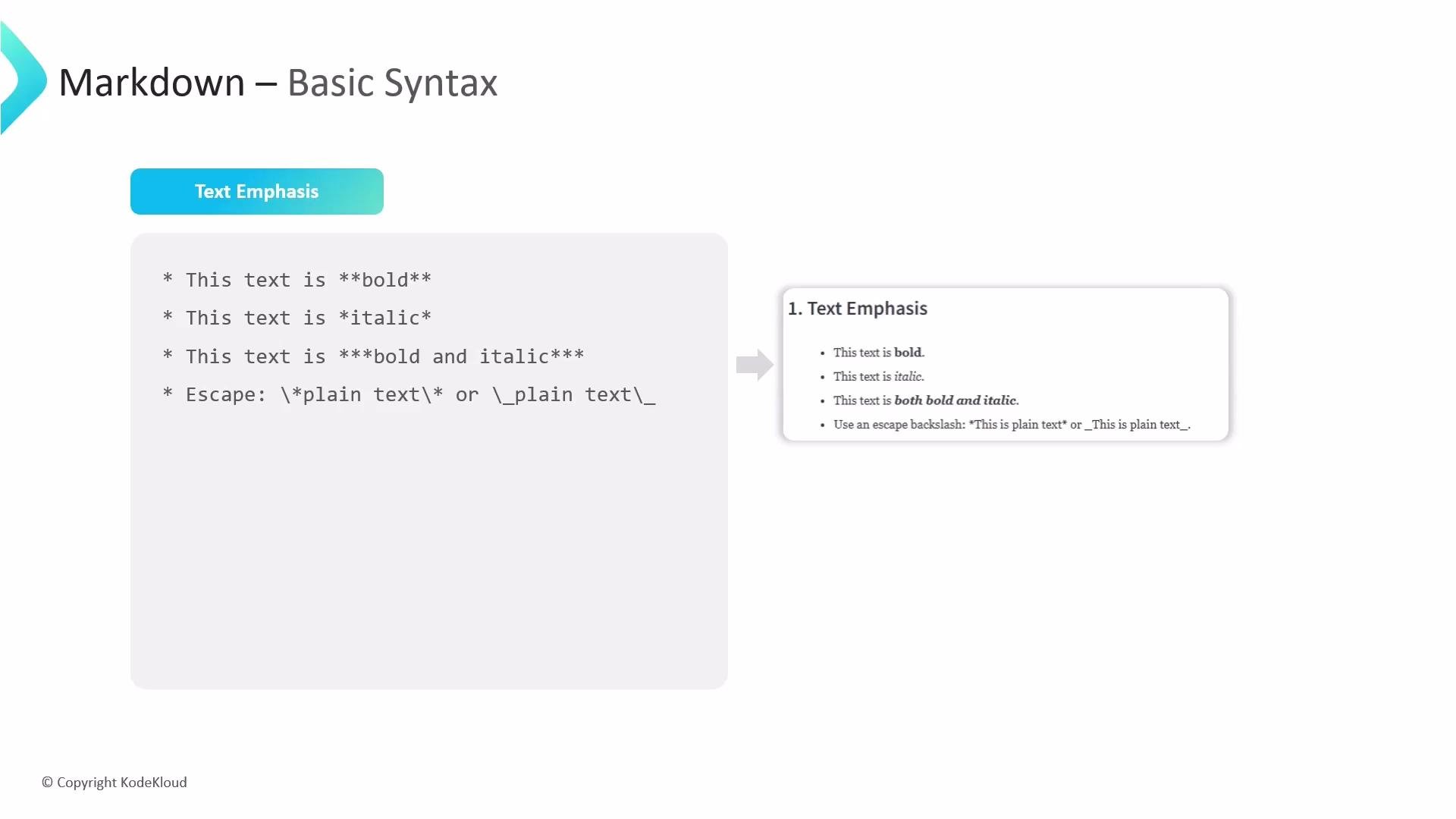
Use asterisks* or underscores _ to emphasize text.
- One
*or_for italic - Two
**or__for bold - Three
***or___for bold + italic
Escaping Markdown Characters
If you need to show literal Markdown characters (for example, an asterisk) without rendering them, escape with a backslash\.
Links and Images
Links and images share a similar syntax. Put the link text in square brackets and the URL in parentheses; prefix with! to embed an image.
- Use clear link text that describes the destination.
- Add descriptive alt text for images to improve accessibility and SEO.
- For local images in docs, use relative paths.
Lists
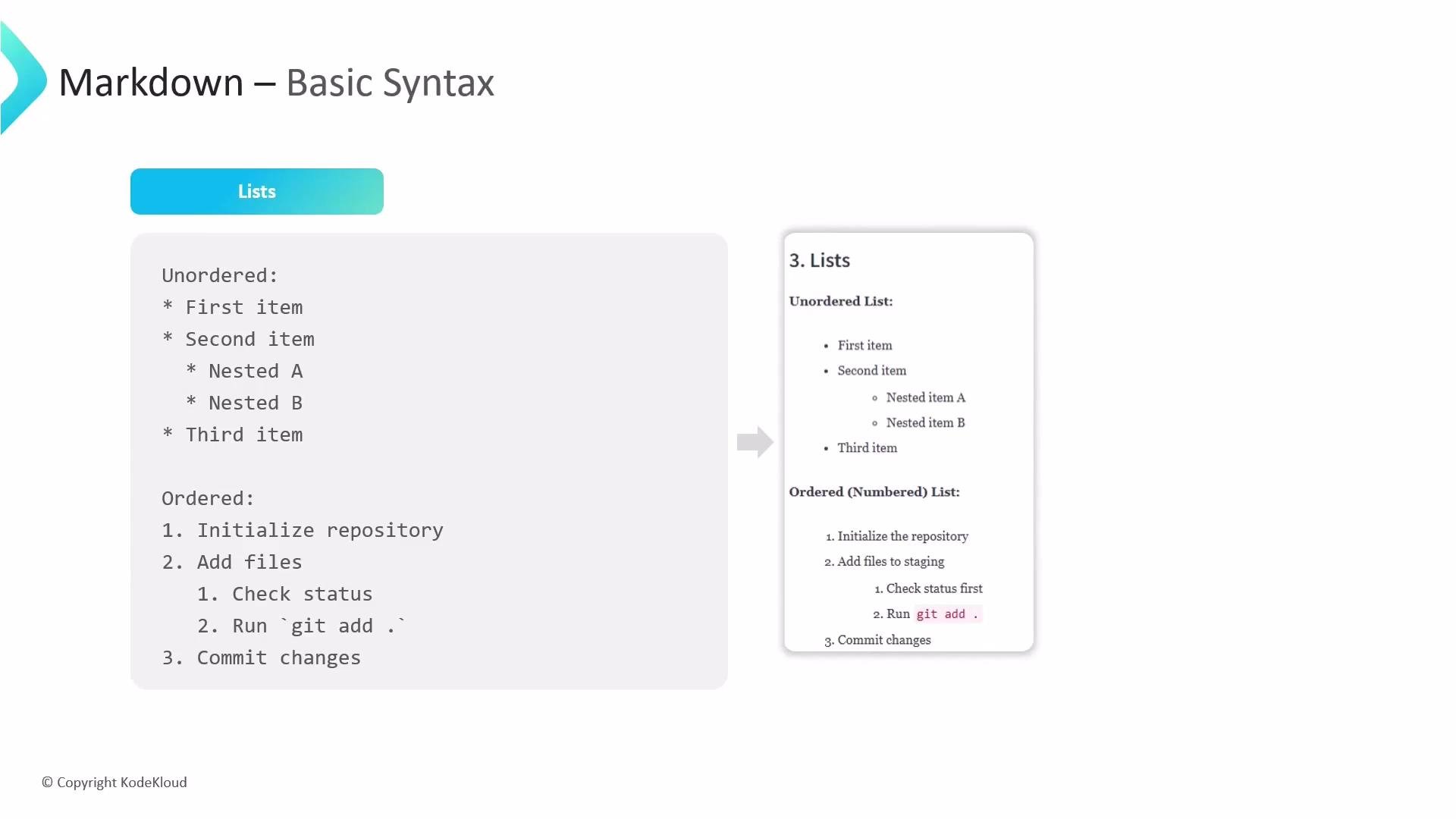
Use unordered or ordered lists to break down steps or items. Unordered lists accept-, *, or +. For ordered lists, use numbers followed by a period. Indent to create nested lists (2–4 spaces is common).
Tables
Markdown tables use pipes| to separate columns and dashes - to separate headers from rows. Put inline code in backticks when table cells contain snippets or commands.
- To compare features or commands.
- To present structured data clearly for readers and search engines.
Blockquotes
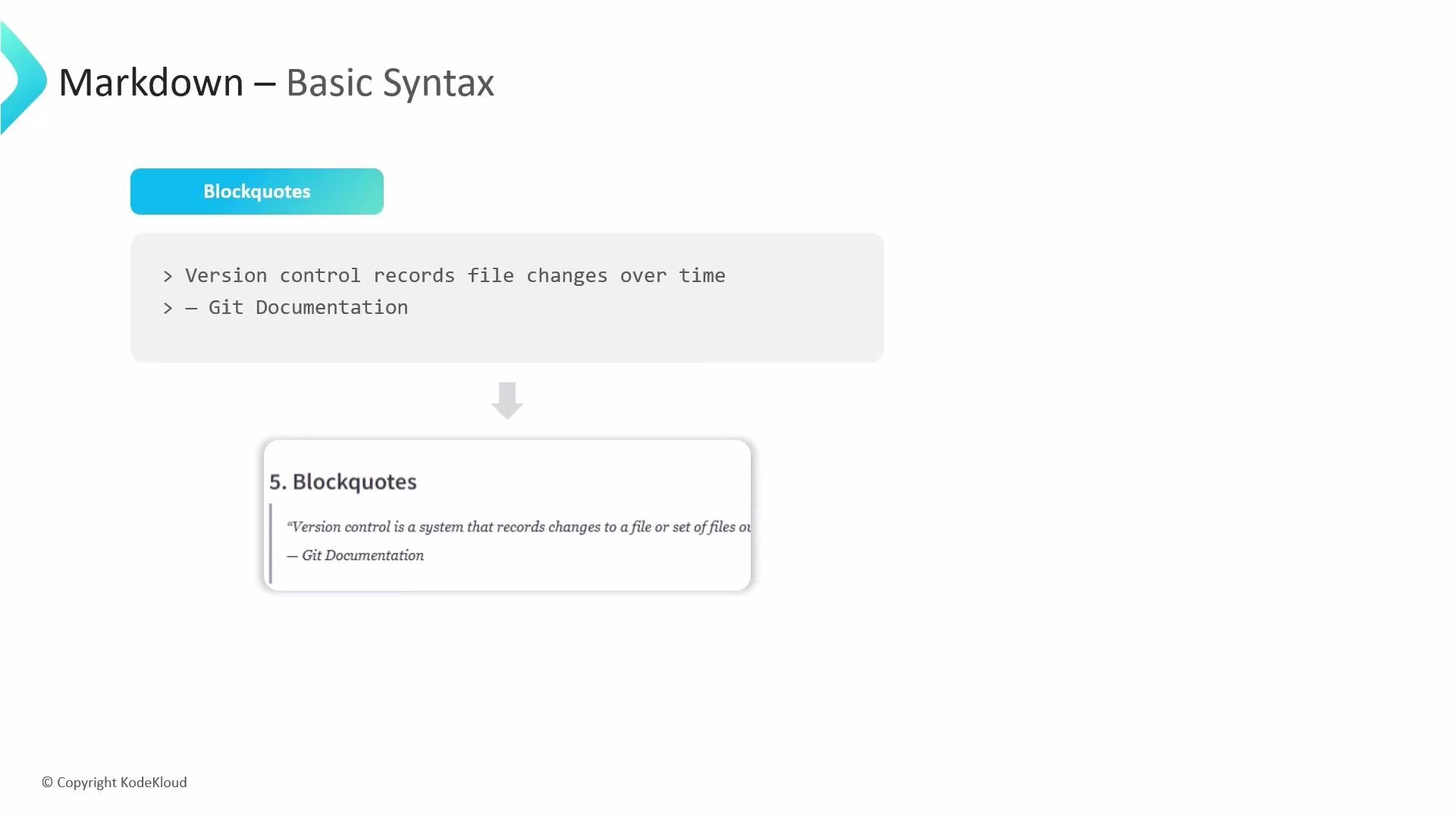
Blockquotes start with> and are useful for highlighting tips, notes, or quoted text.
Inline Code and Fenced Code Blocks
Use single backticks for inline code and triple backticks for fenced code blocks. Specify the language immediately after the opening triple backticks to enable syntax highlighting. Inline:Always specify the language after the opening triple backticks (for example,
python) so renderers can apply proper syntax highlighting.Quick SEO & Accessibility Tips
- Use descriptive headings and alt text for images.
- Keep link text meaningful (avoid “click here”).
- Use code fences and language tags for better indexing and readability.