

Slash commands work in Issues, Pull Requests, and Discussions. They are not available in static README Markdown editors.
- Create a new issue, a pull request body, or a discussion comment.
- Type a forward slash (
/) to open the slash menu. The editor will display quick inserts such as Alerts, Code block, Details, Saved replies, Templates, and Table. - Choose an item from the menu to insert a fully-formed snippet you can edit.
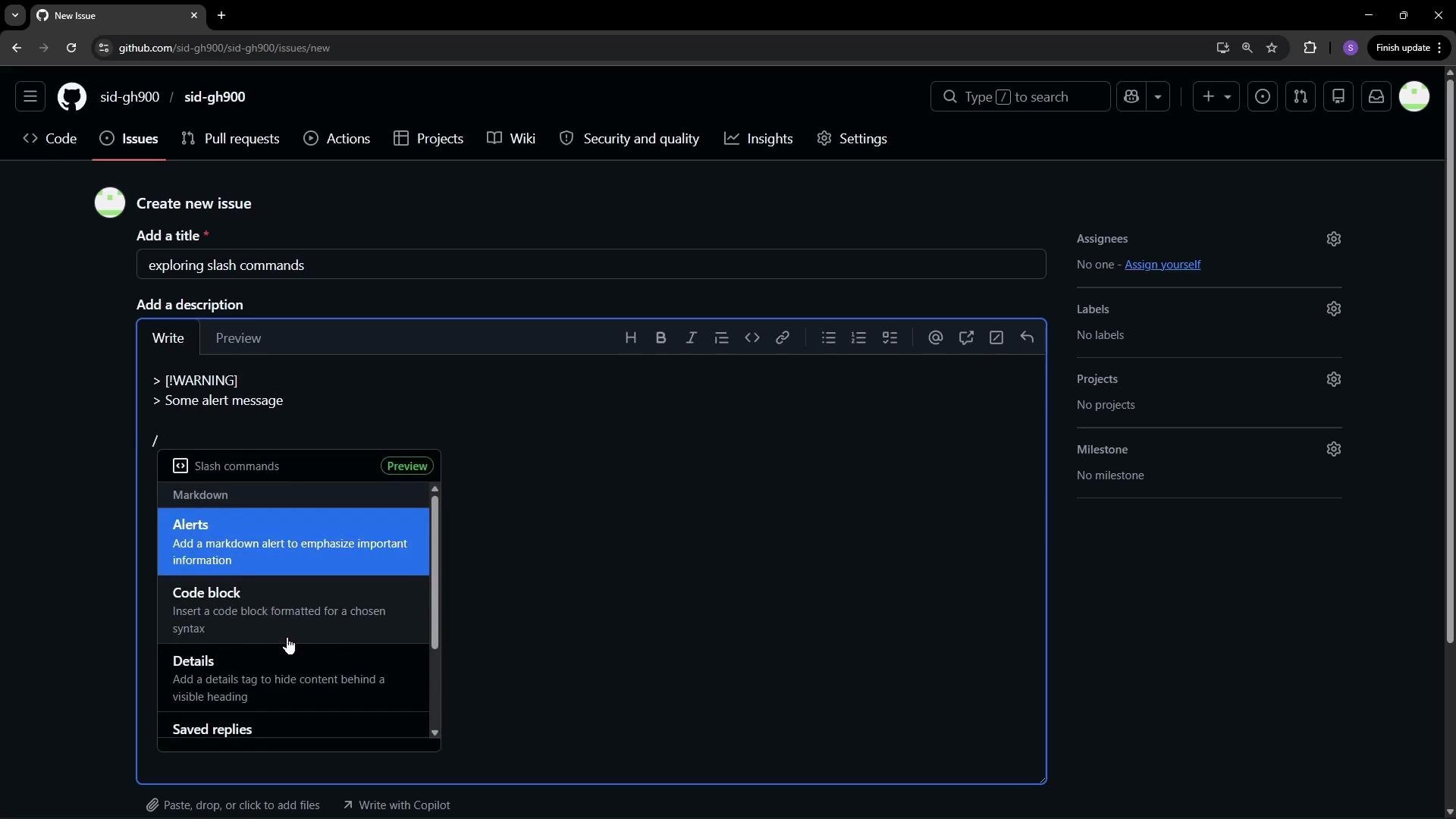
Examples
Alerts
- The Alerts insert creates a prominent message block. A portable Markdown pattern for a warning is a blockquote with bold text and an emoji:
- The Code block insert produces a fenced code block with a language option so the editor can highlight syntax. Example JavaScript:
- The Details insert adds an HTML
<details>block. This is supported in GitHub-flavored Markdown and is useful for hiding long sections until the reader expands them:
- The Table insert prompts you for the number of columns and rows, then inserts a Markdown table skeleton. Replace headers and cells with your values. Example 4×4 table:
- Saved replies and Templates let you quickly reuse structured content across issues, PRs, and discussions—helpful for maintaining consistent responses and reducing repetitive typing.
- Use the slash menu to avoid manually typing fences, alignment pipes, or HTML tags.
- Combine inserts: for example, put a code block inside a Details block to hide long examples.
- Review and edit the inserted snippet—slash commands provide a starting point that you can tailor to your needs.