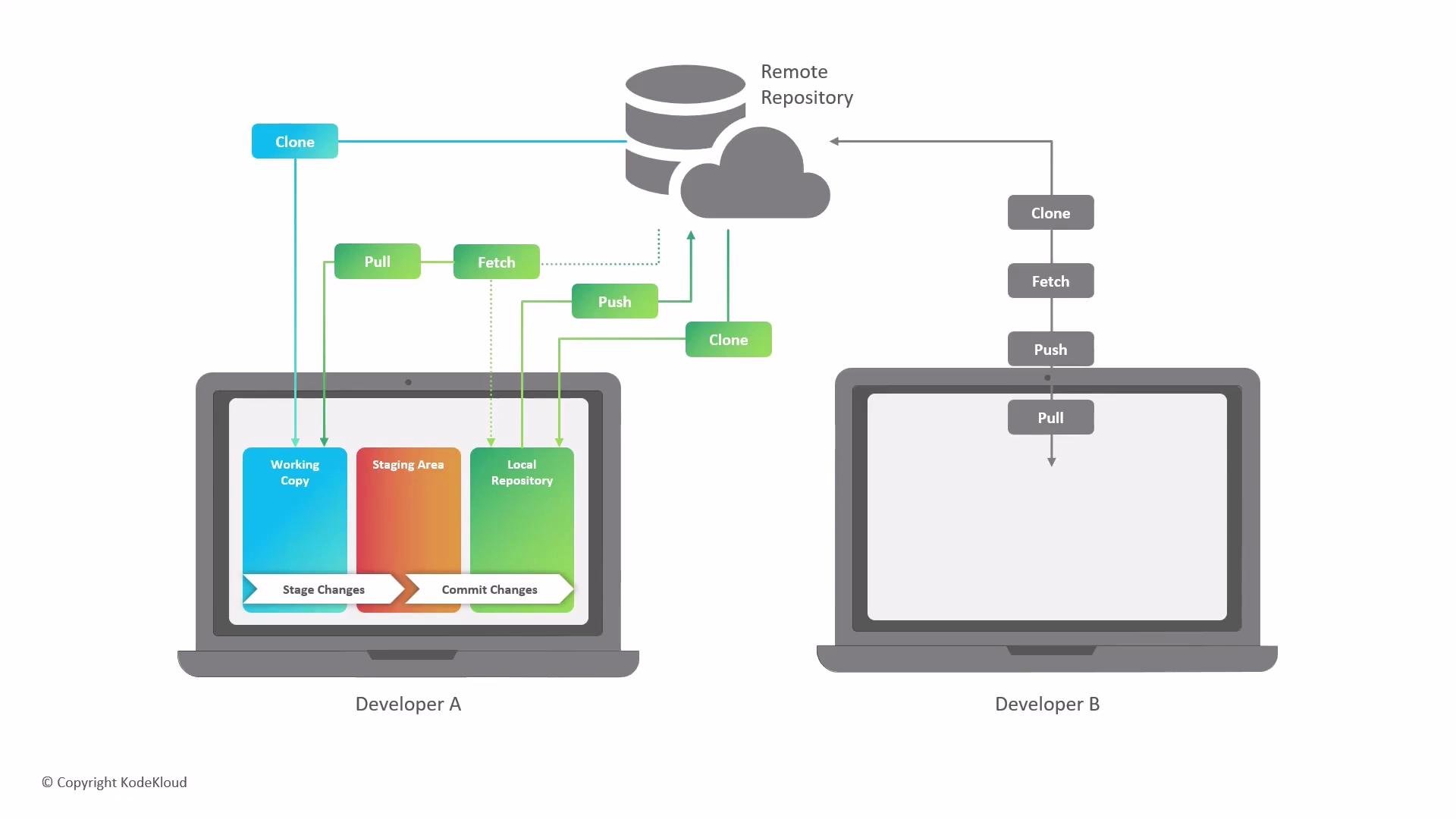
A remote in Git is a network-accessible copy of your repository hosted on a server (for example, GitHub, GitLab, or Bitbucket). Remotes provide a shared, centralized source of truth so multiple contributors can exchange code, coordinate changes, and recover history if a local machine fails.
The image displays a diagram explaining Git workflows, showing how developers interact with remote and local repositories using commands like clone, fetch, push, and pull. Developer A's workflow includes a working copy, staging area, and local repository, while Developer B interacts directly with the remote repository.
Why remotes matter (core functions)
  • Data redundancy: The remote keeps a complete, independent copy of the repository history so projects can be restored if a local machine is lost.
  • Centralized collaboration: Developers push finished work to the remote and pull others’ changes to integrate them locally.
  • History synchronization: Remotes help maintain a single timeline across contributors, reducing drift and merge conflicts.
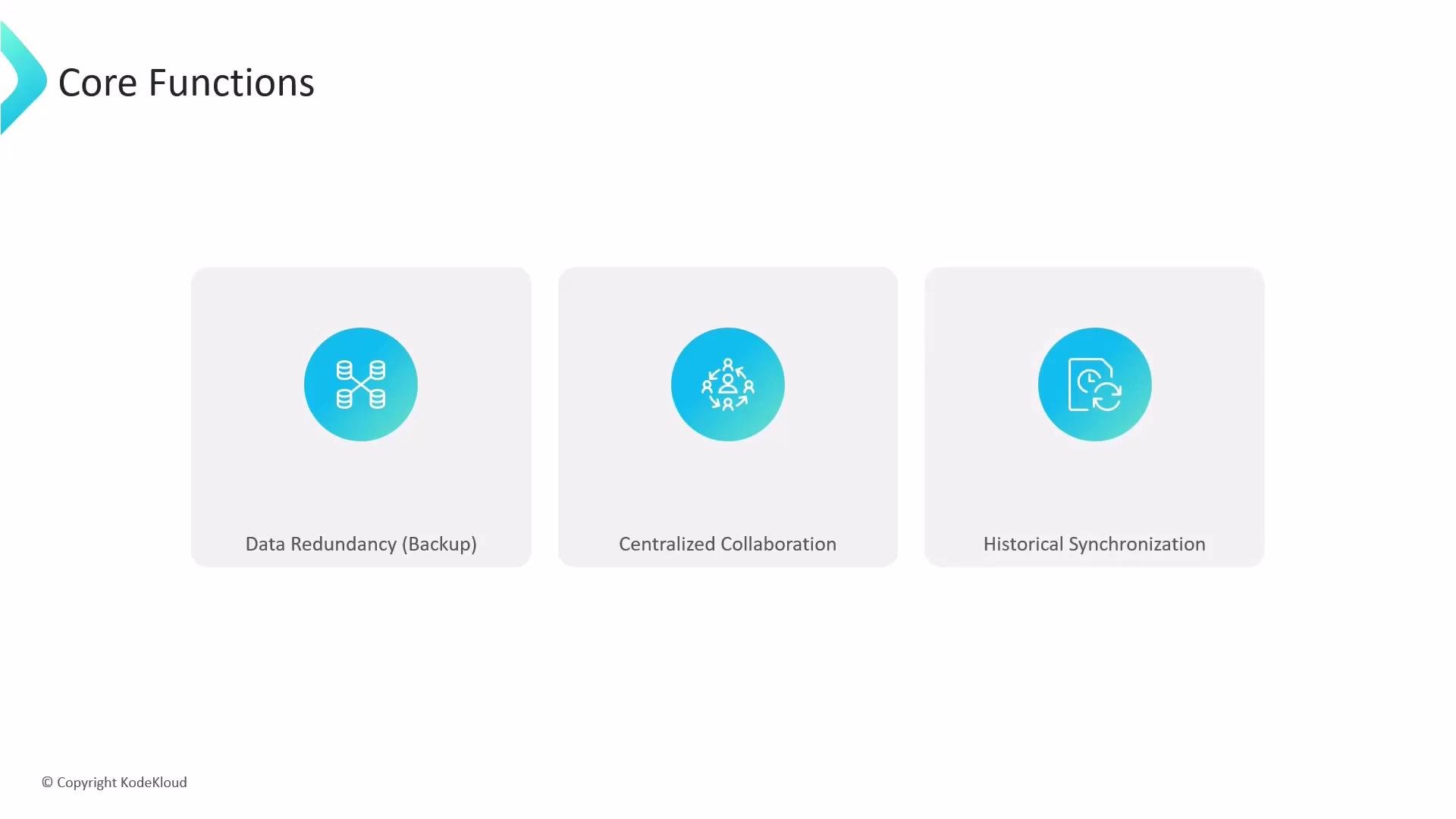
The image illustrates three core functions: Data Redundancy (Backup), Centralized Collaboration, and Historical Synchronization, each represented by icons within blue circles. Copyright is attributed to KodeKloud.
“Origin” is the default alias Git assigns to the primary remote when you clone a repository. You can add additional remotes with custom names to track forks or other repositories.
How Git and GitHub fit into the developer workflow You work across two environments:
  • Local environment — your computer, where you edit files and make commits.
  • Remote environment — the hosted repository on GitHub (or another service) that other team members access.
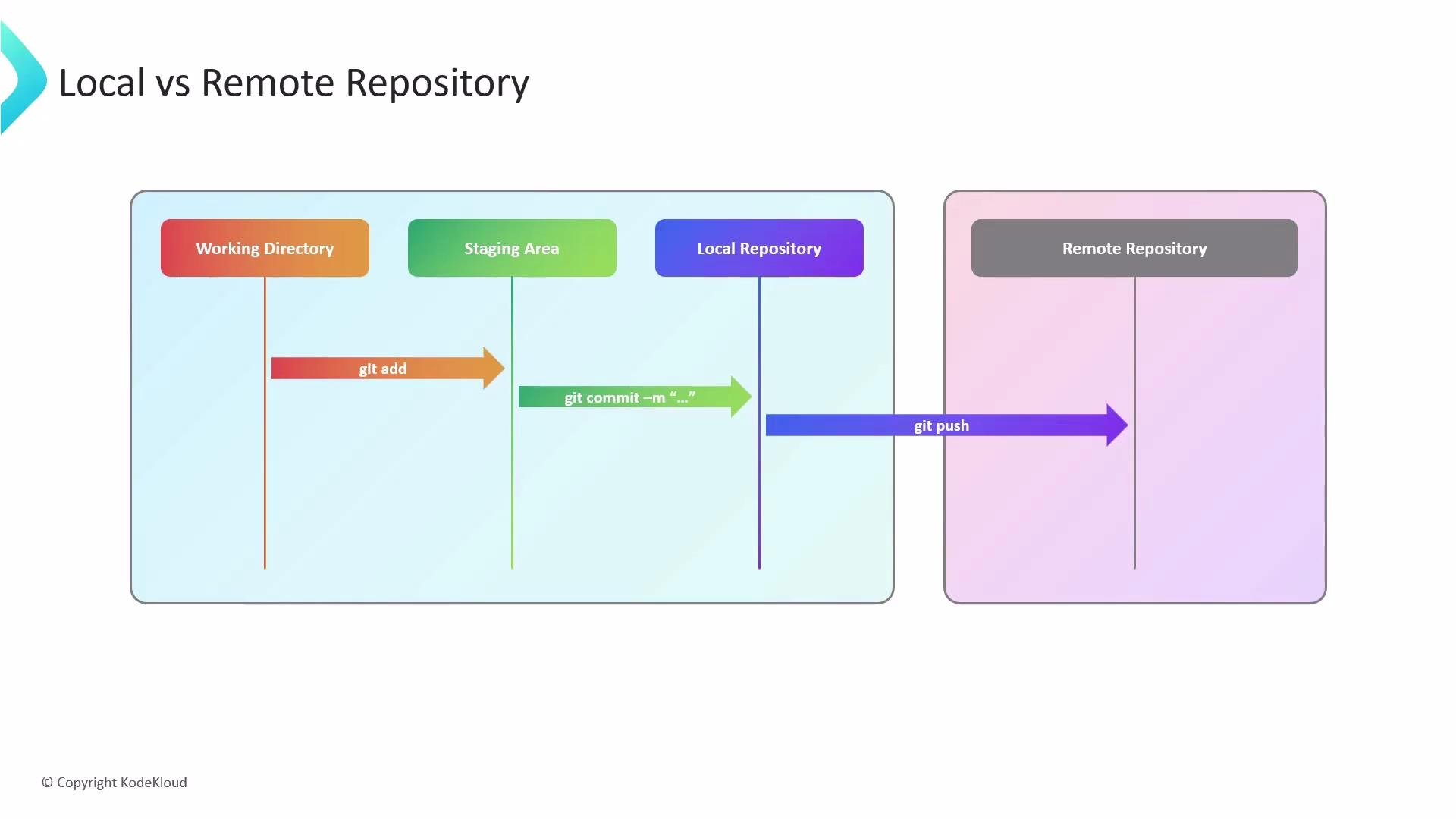
Locally, Git divides your workspace into three zones:
  1. Working directory — where you create and modify files.
  2. Staging area (index) — where you place changes you want to include in the next commit (git add).
  3. Local repository — where commits are recorded as immutable snapshots (git commit).
When ready to share, you push commits from your local repository to the remote. When teammates push changes to the remote, you fetch or pull those updates into your local workspace.
The image is a flowchart showing the process of moving code from a working directory to a remote repository using Git commands: git add, git commit, and git push.
Essential Git commands and when to use them Quick example sequence
Workflow summary
  • Edit files in the working directory.
  • Stage changes with git add.
  • Commit staged changes with git commit.
  • Share commits with git push.
  • Incorporate others’ work with git fetch/git pull.
This cycle—add, commit, push, and pull—is the core of collaborative development with Git and remote repositories. For more details on remote management, see the Git documentation: https://git-scm.com/docs.

Watch Video