

- Public gists are discoverable and indexed by GitHub.
- Secret gists are unlisted (not indexed) but accessible by anyone with the URL — they are not private.
- Every gist is a Git repository, so you can clone, edit, and push changes locally.
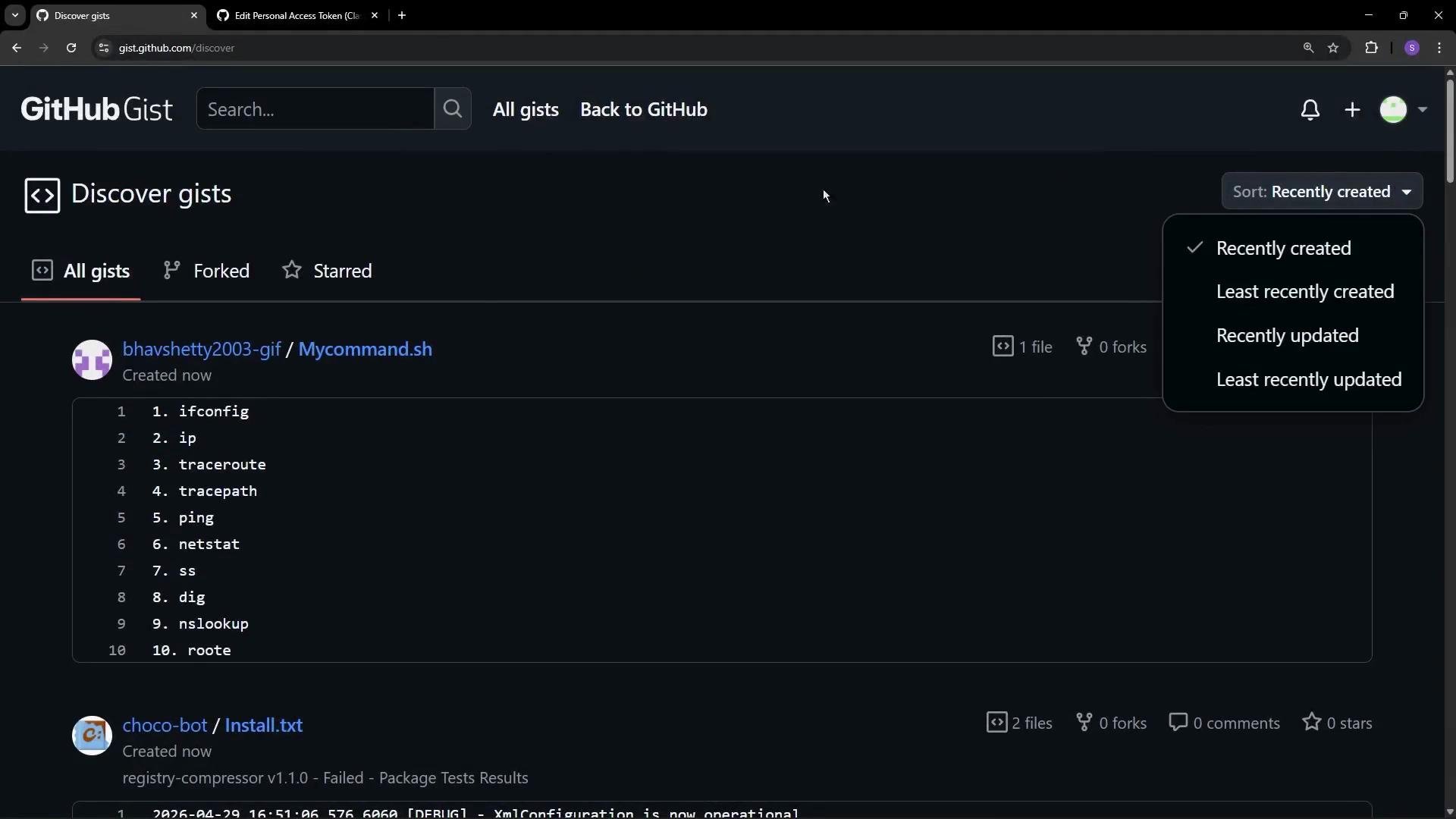
- Click the plus icon → “New gist”.
- Add a filename (for example,
collision.js) and paste your snippet. - Optionally add a description and additional files.
- Select Create public gist to make it discoverable.
Secret gists are not discoverable through GitHub search or public gist listings, but they are not private. Anyone with the direct URL can access them. Never store API keys, passwords, or other sensitive credentials in gists.
- Every edit you save creates a new revision for that gist.
- From the gist page you can view the revision history, compare changes, and revert to an earlier revision if needed.
- Use this when you want lightweight version control for single-file examples or small multi-file snippets.
- Any public gist can be forked to create an independent copy under your account.
- Forks keep provenance metadata so you can track the original source.
- Forking is useful for adding features, instrumentation, or examples without modifying the original gist.
git clone:
- Star a gist you find useful.
- Edit your gist online or push changes after cloning locally.
- Delete a gist you no longer want to keep.
- Embed a gist in a webpage using the embed snippet GitHub provides.
- Share the gist URL (for secret gists, share only with intended collaborators).
- Create a gist on GitHub
- Gist home
- GitHub documentation
- Best practices: avoid storing secrets or credentials in gists — prefer encrypted vaults or private repositories for sensitive data.