

How to start a pull request
If you want to merge changes from one branch into another, you typically have two common options:- Use the “Compare and pull request” banner that appears when you’ve recently pushed a branch.
- Manually create a PR from the “Pull requests” tab when the banner is not present.
feature-branch into main). The UI will also indicate whether the branch is mergeable—repository protection rules and required checks (such as mandatory reviewers or CI) may prevent merging until they pass.
You can configure branch protection rules to require reviews or passing CI workflows before a pull request can be merged. This helps ensure code quality and prevents accidental merges.
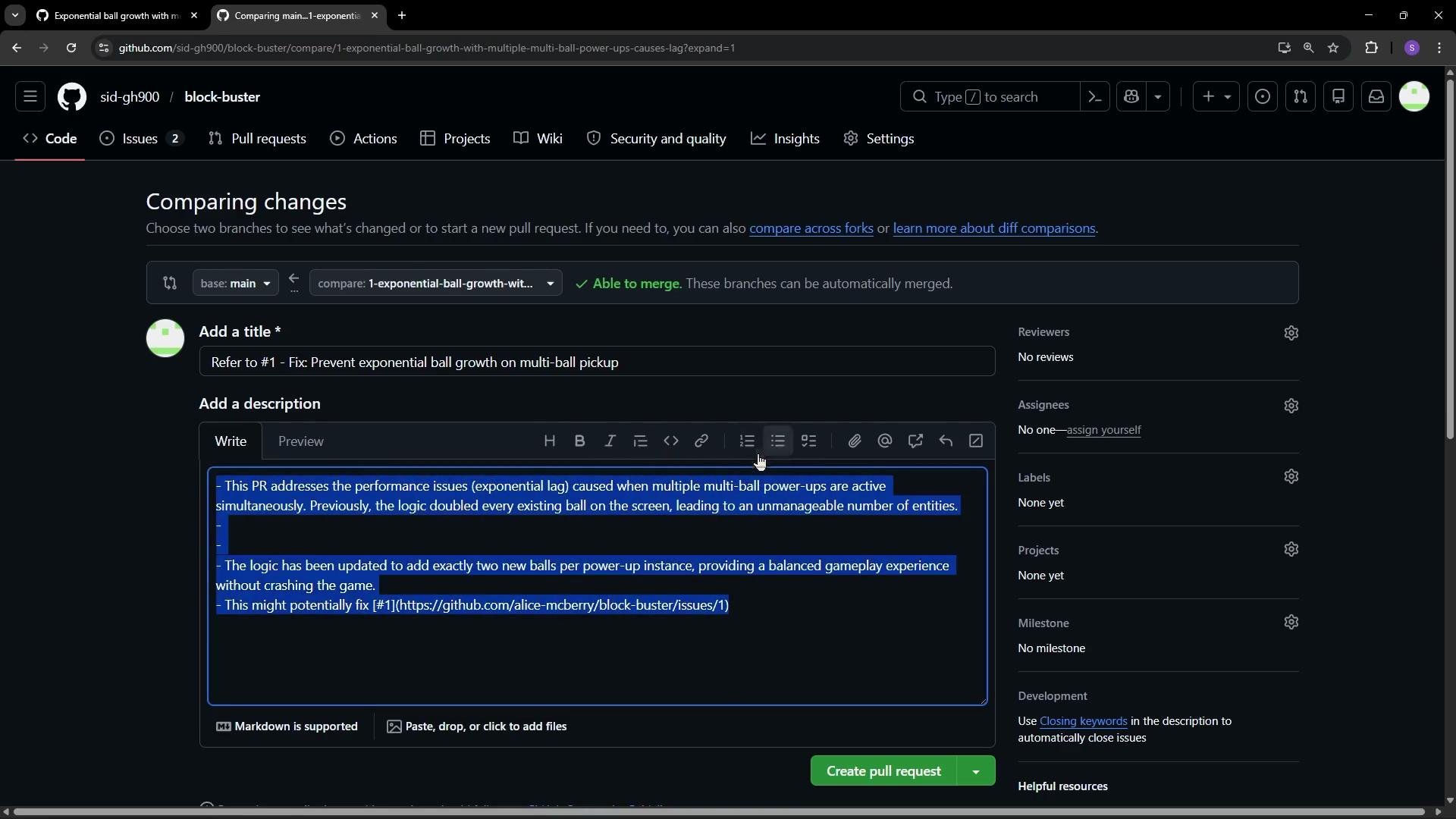
Fill in title, description, and metadata
- Title: Defaults to the last commit message but should be concise and descriptive (e.g., “Fix multi-ball performance by capping clones”).
- Description: Supports Markdown, slash commands, attachments, mentions, and issue references. Use a clear summary, include rationale, and add reproduction steps if applicable.
- Metadata: Add reviewers, assignees, labels, and projects. You can set these before or after creating the PR.
- Drafts: If the work is in progress, create a draft pull request to indicate that it’s not yet ready for review.
Assign reviewers and check PR details
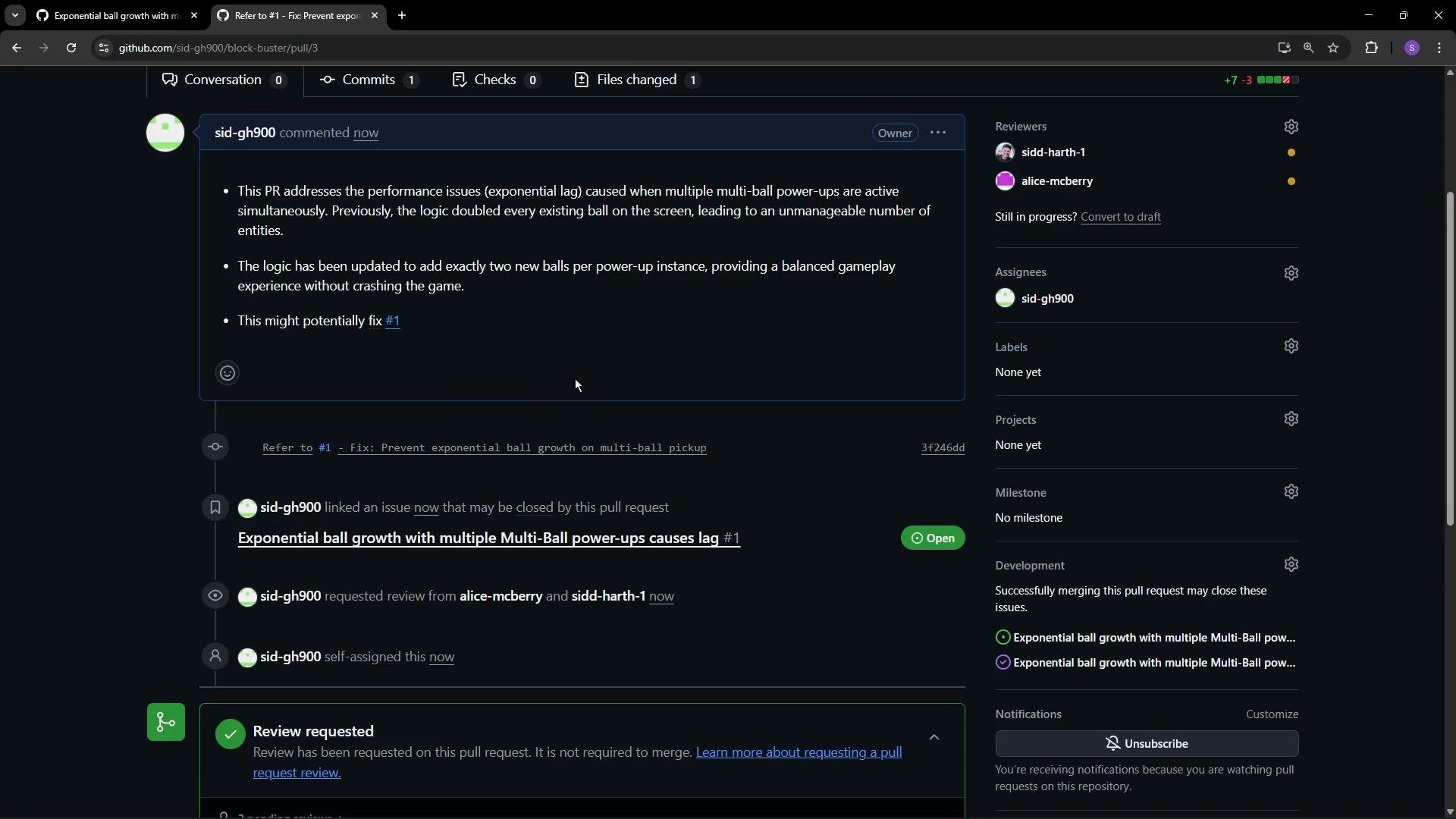
After creating the pull request:- A PR receives a unique ID in the repository’s sequence (issues and PRs share the same numbering).
- Assign reviewers (up to 15 per PR), or assign the PR to yourself to track progress.
- View commits and file changes on the PR page to confirm what’s included. This lets reviewers focus on the diff and commit history.
- Use labels and milestones to categorize and schedule work.
Example: Fixing exponential duplication in a multi-ball power-up
The following corrected logic prevents exponential ball duplication in a game power-up by:- Capping the total number of balls.
- Creating new balls from a single base ball rather than duplicating the entire array while iterating.
- Only adding as many balls as allowed by the cap.
- Avoids mutating
gameState.ballswhile iterating over it. - Prevents exponential replication by enforcing a hard
maxBalls. - Uses a consistent base object to derive clones, making clone behavior predictable.
If you rely on CI or protected branch rules, a PR may be blocked until required checks pass or required reviewers approve. Make sure your branch meets repository guidelines before requesting a merge.