Saved replies let you convert repetitive issue and pull request responses into reusable snippets you can insert in a couple of clicks. This speeds up triage, onboarding messages, duplicate issue responses, and standard troubleshooting guidance across repositories. In this guide you’ll learn how to:
  • Create saved replies in your personal settings
  • Insert saved replies into issue and PR comment boxes
  • Edit and delete saved replies when they are no longer needed
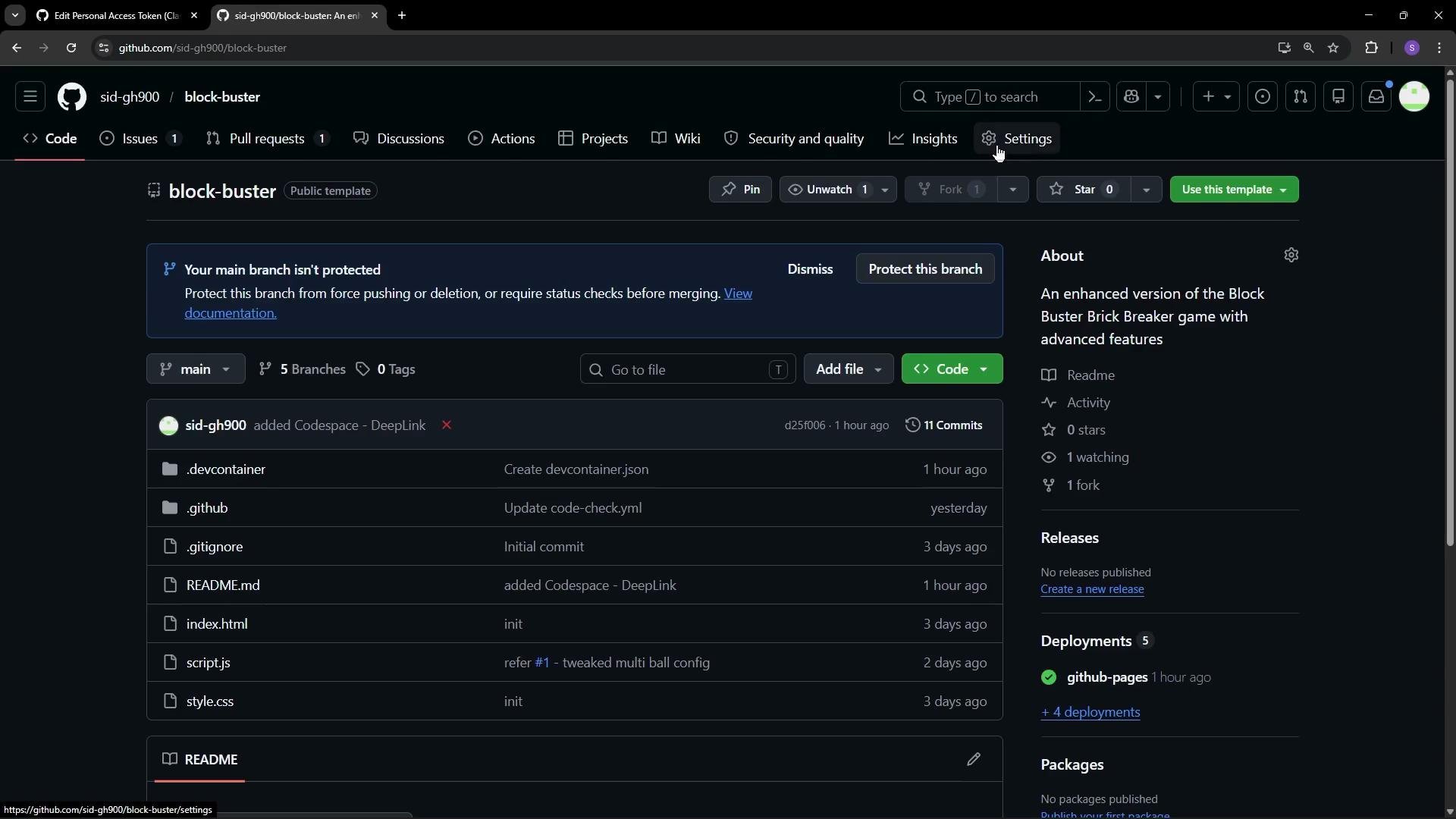
Repository view (starting point)
The image shows a GitHub repository page for a project called "block-buster," which appears to be an enhanced version of a Brick Breaker game. The page lists several files, including index.html, script.js, and style.css, and mentions recent commits.
When to use saved replies
  • Use saved replies for routine acknowledgements (e.g., “thanks for the contribution”), standard next steps, or links to common resources.
  • Saved replies reduce typing and help ensure consistent wording across team members who share an account.
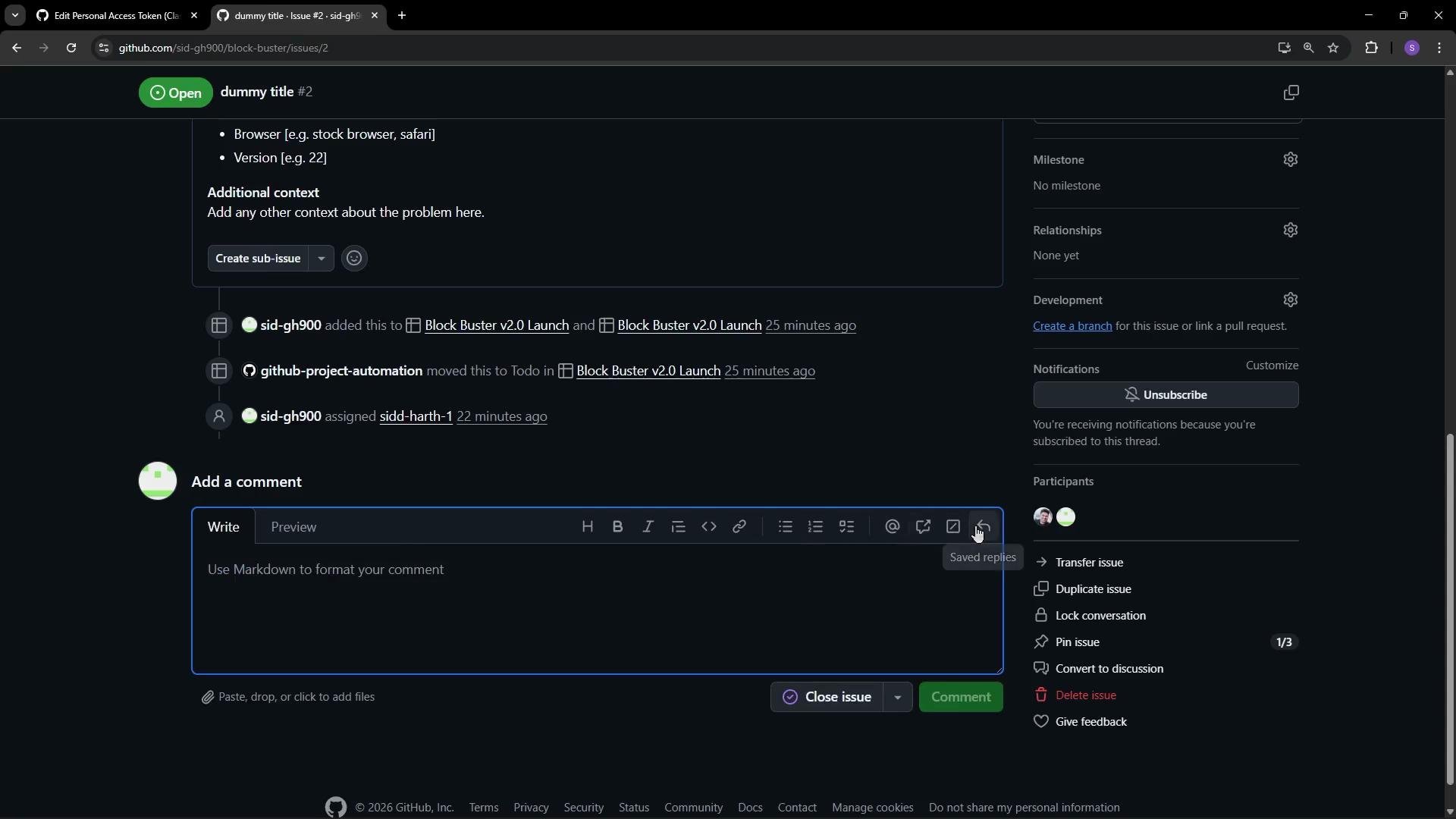
Using saved replies in Issues and Pull Requests You can insert saved replies directly from any issue or pull request comment box. Open a comment box, choose the “Saved replies” option (or the slash command if available), and pick the reply you want; it will be inserted into the editor so you can post it immediately or edit it first. Example issue view showing where to add a comment:
This image shows a GitHub issue page titled "dummy title #2," with options to add a comment, manage notifications, and track related activity. The interface includes buttons for editing and managing the issue.
Where to create saved replies Saved replies are created and managed in your personal GitHub settings. They are tied to your account, not to a specific repository.
Saved replies are personal to your GitHub account. After you create them, they will appear whenever you write comments on issues and pull requests for repositories you can access with that account.
Create (example) — Settings view To add a saved reply:
  1. Open GitHub and go to Settings → Codes & automation → Saved replies (or open the Saved replies section from your account settings).
  2. Click Add saved reply (or a similar button).
  3. Enter a short title and the response text you want to reuse.
  4. Save it. The reply is now available in comment boxes.
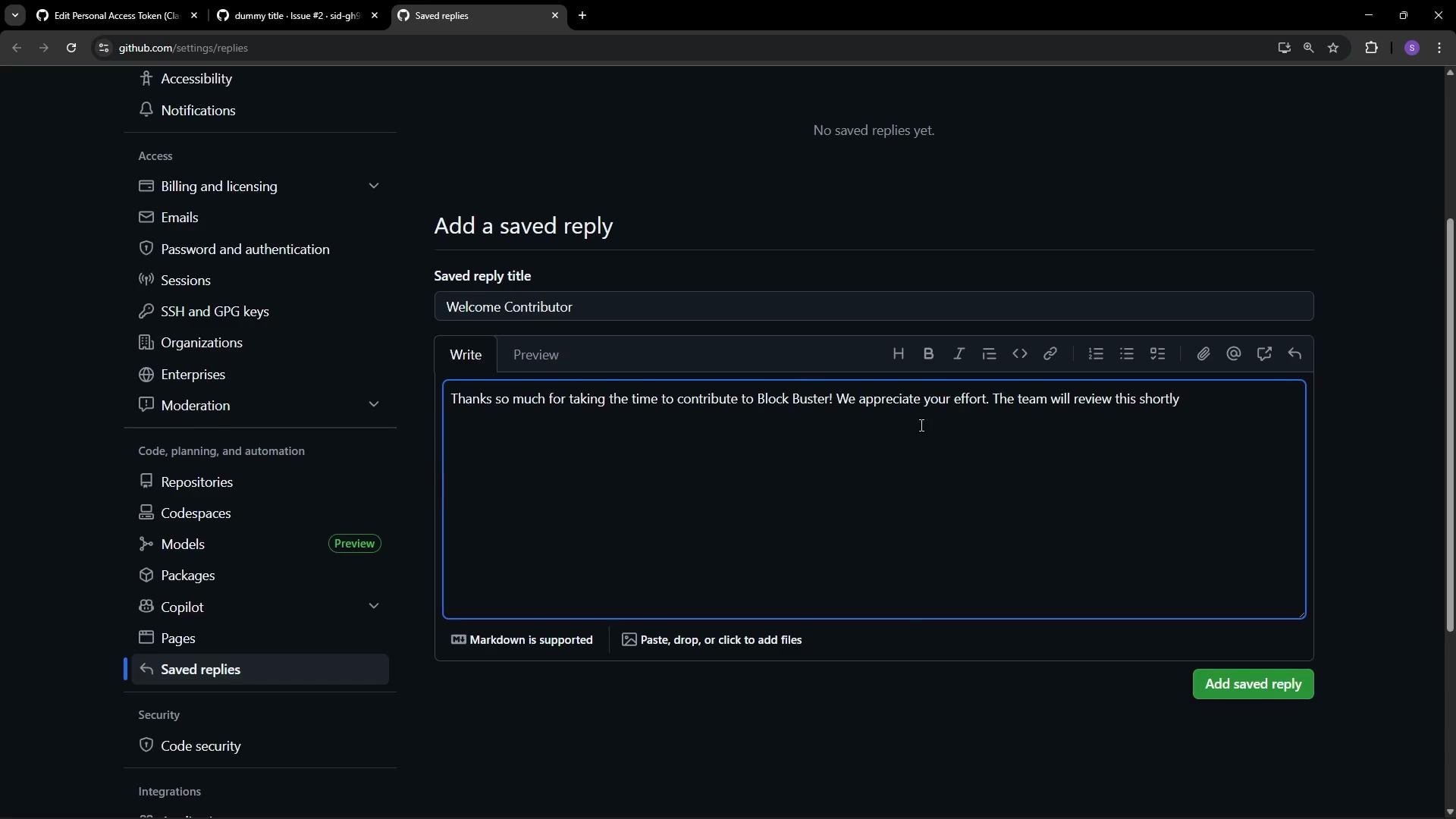
Screenshot of adding a saved reply:
The image shows a GitHub settings page where a user is adding a "Saved Reply" with the title "Welcome Contributor." The text box includes a thank-you message for contributors.
Example saved reply content
Quick reference table How to insert a saved reply in a comment
  • Click into the comment box on an issue or PR.
  • Select the “Saved replies” menu (or open the slash command menu /).
  • Choose the saved reply; its text will populate the editor.
  • Optionally edit the text to include issue-specific context, then submit the comment.
Edit and delete saved replies
  • Edit: Open Settings → Saved replies, choose the saved reply, make changes, and save.
  • Delete: Open Settings → Saved replies and click the delete option next to the reply you want to remove. Deleted replies are removed from your personal list and no longer appear in the saved replies menu.
Avoid storing sensitive or account-specific data (like credentials or private links) in saved replies, since they are easily inserted into public issues or PRs by mistake.
Additional resources Summary Saved replies are a small change that yields large time savings for maintainers: create concise, reusable responses in Settings, insert them from any issue or PR comment box, and keep them fresh by editing or deleting as your workflow evolves.

Watch Video

Practice Lab