

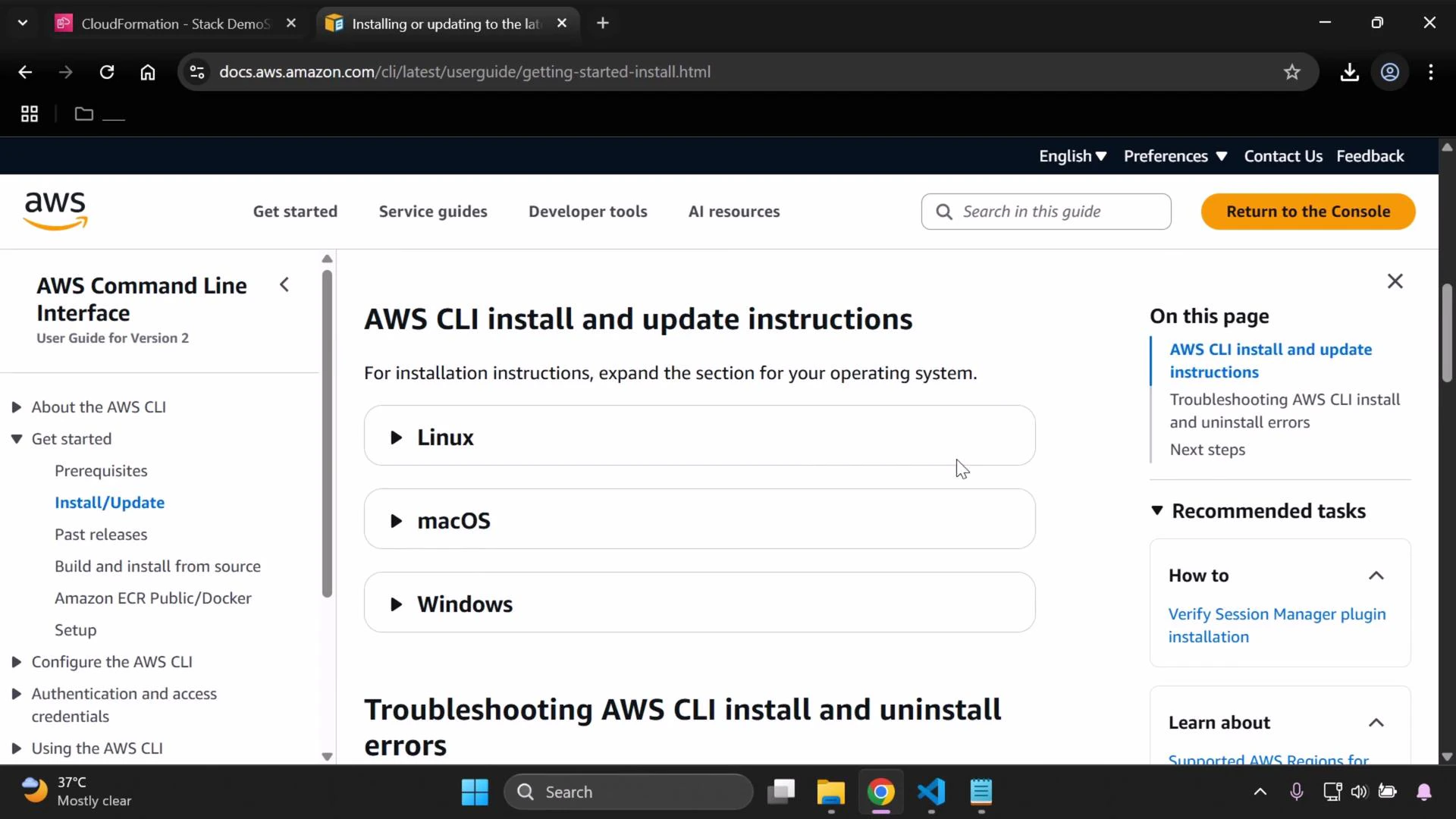
Quick installer summary (by OS)
macOS installation (recommended approach)
Download the official macOS installer package (.pkg) from the AWS docs or from: https://awscli.amazonaws.com/AWSCLIV2.pkg Typical macOS installation locations:- /usr/local/aws-cli
- /usr/local/bin/aws
- Download AWSCLIV2.pkg.
- Double-click the .pkg and follow the installer prompts (Authenticate when prompted).
- After installation, verify with aws —version.
Windows installation (MSI)
You can install interactively (GUI) or from the command line. An elevated Administrator Command Prompt or PowerShell is required for system-wide installs. Interactive:- Download the MSI and double-click it.
- Follow the setup wizard (Accept terms → Next → Install), handle any UAC prompts, and finish.
Verify the installation
Open a terminal (macOS/Linux) or Command Prompt / PowerShell (Windows) and run:Create access keys (IAM user)
To authenticate CLI requests, create access keys for an IAM user with the appropriate permissions:- Sign in to the AWS Management Console and open the IAM console: https://console.aws.amazon.com/iam/.
- Select “Users” and choose the user you will use for CLI access.
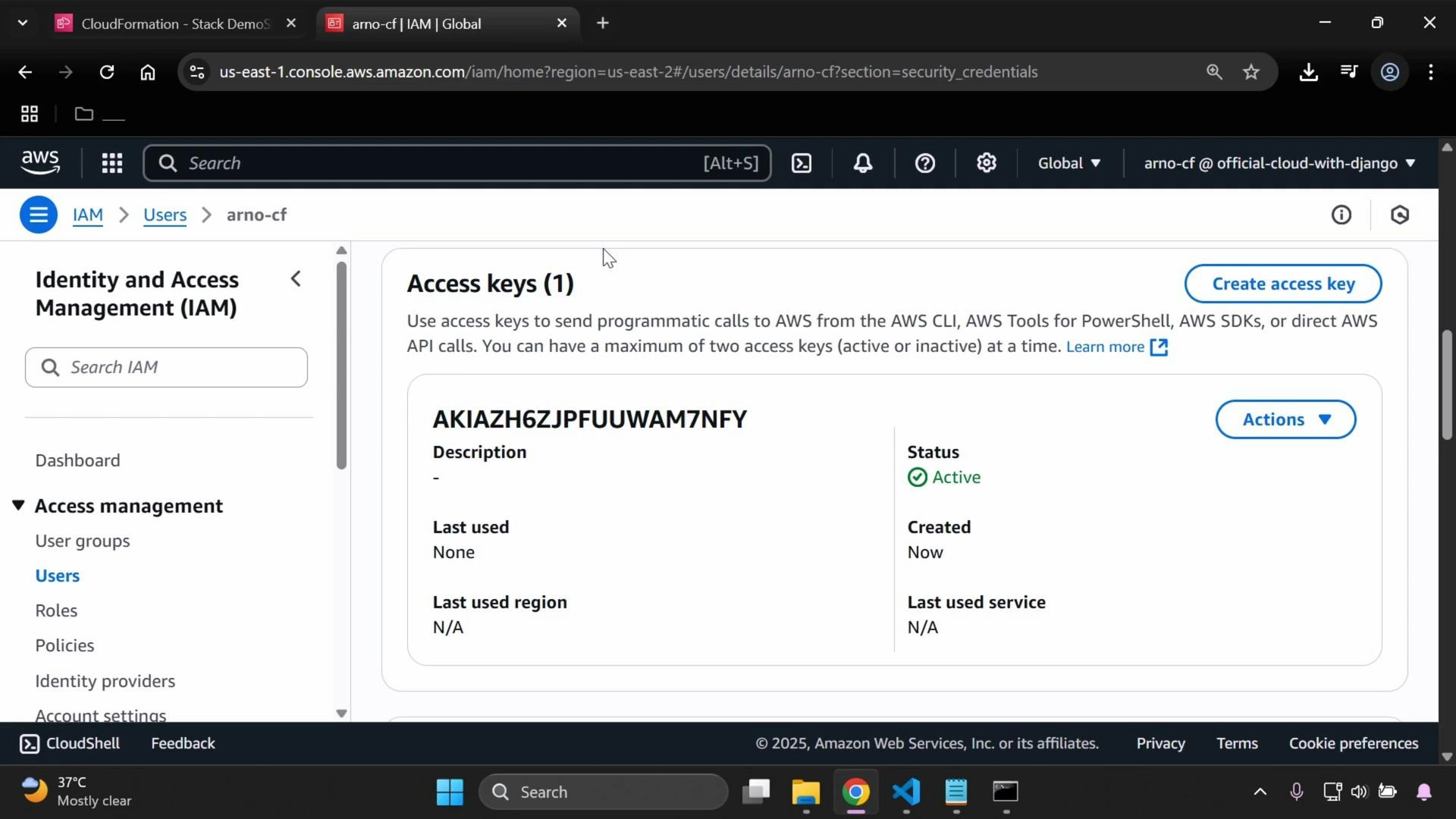
- Open the “Security credentials” tab and create a new access key.
- Immediately copy or download the Access Key ID and Secret Access Key — you will not be able to view the secret again after closing the creation dialog.
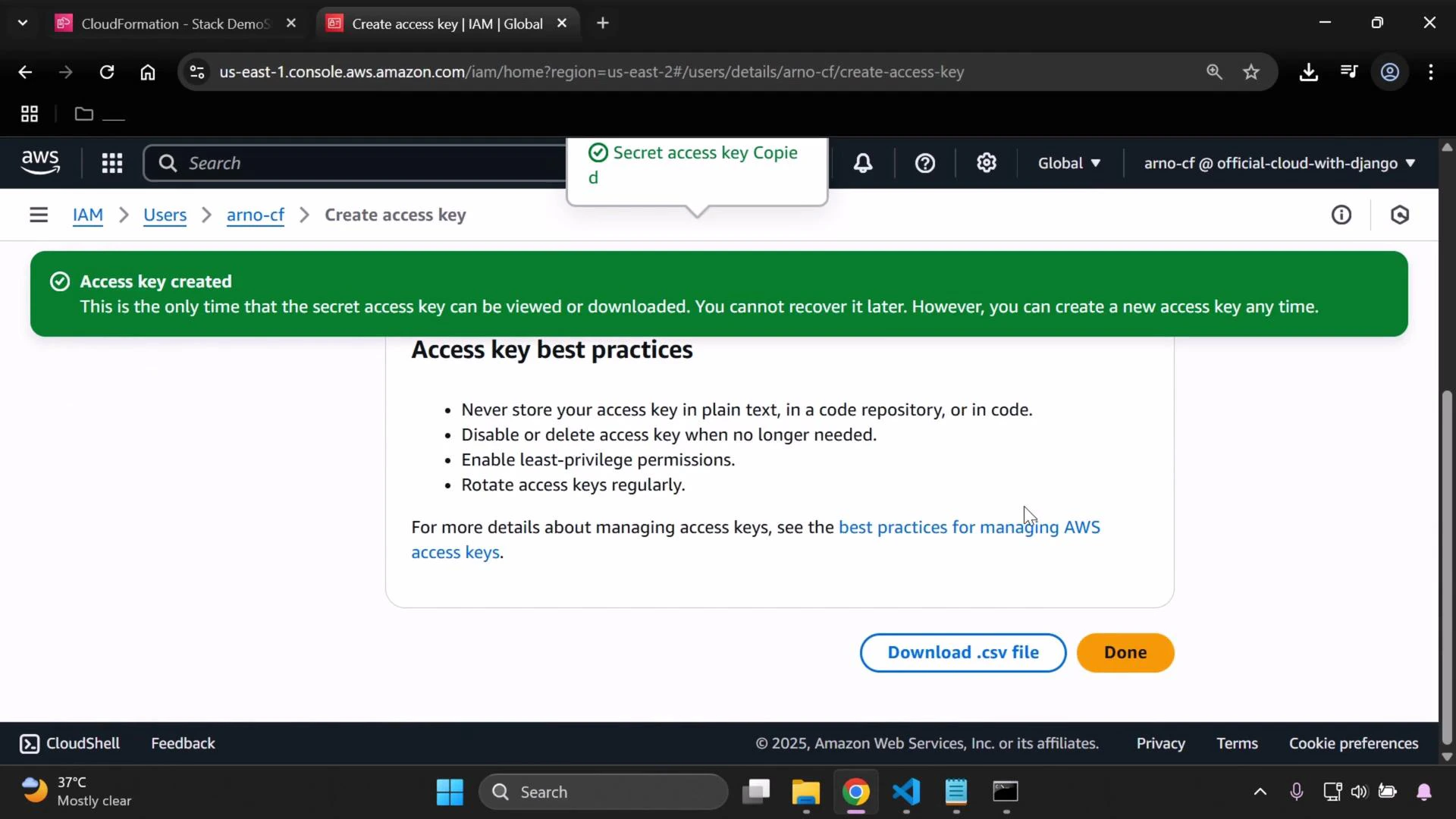
Never commit or share your Access Key ID and Secret Access Key publicly. Treat them like passwords. If an access key is accidentally exposed, delete it immediately and create a new one.
Configure the AWS CLI
With your Access Key ID and Secret Access Key ready, run the interactive configuration command:- macOS / Linux:
- ~/.aws/credentials
- ~/.aws/config
- Windows:
- %USERPROFILE%.aws\credentials
- %USERPROFILE%.aws\config
Working with multiple profiles
If you manage multiple AWS accounts or roles, create named profiles:- The —profile option: aws s3 ls —profile <profile-name>
- Environment variable: export AWS_PROFILE=<profile-name> (macOS/Linux) or setx AWS_PROFILE “<profile-name>” (Windows)
If you work with multiple AWS accounts or roles, consider creating named profiles with:
aws configure —profile <profile-name>
Then use that profile with —profile <profile-name> or set AWS_PROFILE in your environment.
Quick tips and housekeeping
- Clear the terminal:
- macOS/Linux: clear
- Windows Command Prompt: CLS
- Rotate and remove keys you no longer need.
- Prefer IAM roles (EC2/ECS/STS) where possible for temporary credentials and improved security.
- Follow the principle of least privilege when assigning IAM permissions.
Links and references
- AWS CLI official docs: https://docs.aws.amazon.com/cli/latest/userguide/getting-started-install.html
- IAM console: https://console.aws.amazon.com/iam/
- IAM best practices: https://docs.aws.amazon.com/IAM/latest/UserGuide/best-practices.html
- CloudFormation (for examples and further lessons): https://learn.kodekloud.com/user/courses/aws-cloud-formation