

- Download the macOS installer from the official Python website.
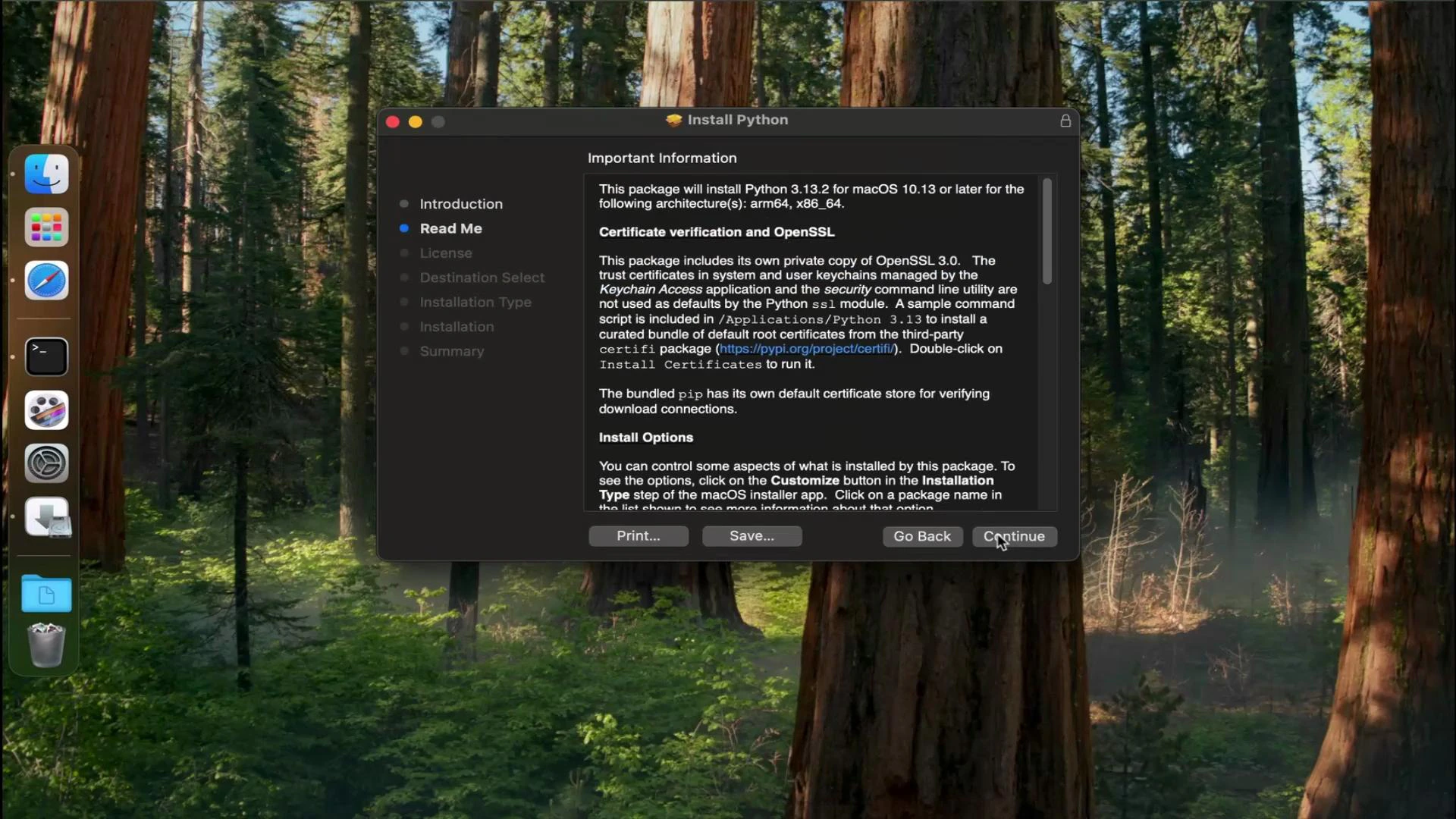
- Run the installer and follow the prompts.
- Restart macOS (recommended) or open a new Terminal window.
- Verify the installed Python version from Terminal.
- Download the installer
- Open your web browser and go to: https://python.org/downloads/
- Click the download button for the latest Python 3 release for macOS. This downloads the macOS installer package (.pkg).
- Run the installer
- Open the downloaded .pkg file.
- Continue through the installer prompts and accept the license/agreement.
- When prompted, authenticate with your macOS password so the installer can place files in the system locations.
- Click Install and enter your password if requested.
- When the installer finishes, click Close. You can choose Keep or Move to Trash for the installer package as you prefer.
A restart is recommended after installation to ensure the PATH and any environment changes from the installer are fully applied. If you prefer not to restart immediately, open a new Terminal window after installation to pick up changes.
- Open Terminal and confirm the installation
- Open Launchpad and search for Terminal, or open Terminal from Applications → Utilities.
- Run the following command to confirm the installed Python 3 version:
Use
python3 when running Python 3 on macOS to avoid confusion with any system-provided python command. On some macOS versions, python may point to an older system Python or be undefined.- If
python3is not found after installation, try opening a new Terminal window or restarting macOS. - If the installer didn’t update your PATH as expected, check
/usr/local/binor the installer log for where the binaries were placed. - To manage multiple Python versions, consider using pyenv (https://github.com/pyenv/pyenv) or virtual environments (
python3 -m venv <env>).
- Official Python downloads: https://python.org/downloads/
- Python documentation: https://docs.python.org/
- pyenv (version management): https://github.com/pyenv/pyenv