This guide walks through creating an AWS CloudFormation StackSet that deploys an S3 bucket across multiple accounts and regions. You’ll create a minimal CloudFormation template, prepare the required IAM roles (administration + execution), update the execution role’s trust policy, and deploy the StackSet. This is ideal for multi-account, multi-region resource provisioning with consistent naming via CloudFormation intrinsics. Table of contents
    1. Create the CloudFormation template
    1. Prepare the IAM roles required by StackSets
    1. Create the StackSet in CloudFormation
    1. Monitor progress and verify
  • Summary and references

1) Create the CloudFormation template

Create a new file in your project named stackset.yaml and add a simple S3 bucket resource. Use the !Sub intrinsic with pseudo-parameters to ensure uniqueness across regions and accounts:
Resources:
  MyBucket:
    Type: AWS::S3::Bucket
    Properties:
      BucketName: !Sub "stackset-bucket-${AWS::Region}-${AWS::AccountId}"
This uses AWS::Region and AWS::AccountId to generate a unique bucket name for every account+region deployment.

2) Prepare the IAM roles required by StackSets

CloudFormation StackSets require two specific IAM roles with exact names so the StackSet controller can perform deployments:
Role namePurposeWhere to create
AWSCloudFormationStackSetAdministrationRoleAdministration role — created in the account where you create the StackSet (the StackSet controller)Admin account
AWSCloudFormationStackSetExecutionRoleExecution role — created in each target account (or the same account if deploying locally) that allows CloudFormation to create resources thereTarget accounts
Create the administration role in the admin account:
  • In the AWS console go to IAM > Roles > Create role.
  • Select AWS service → CloudFormation.
  • Attach AdministratorAccess or a scoped policy granting sufficient CloudFormation and resource permissions.
  • Name the role exactly: AWSCloudFormationStackSetAdministrationRole
  • Add a helpful description like: “This role starts the StackSet process and tells CloudFormation where and what to deploy.”
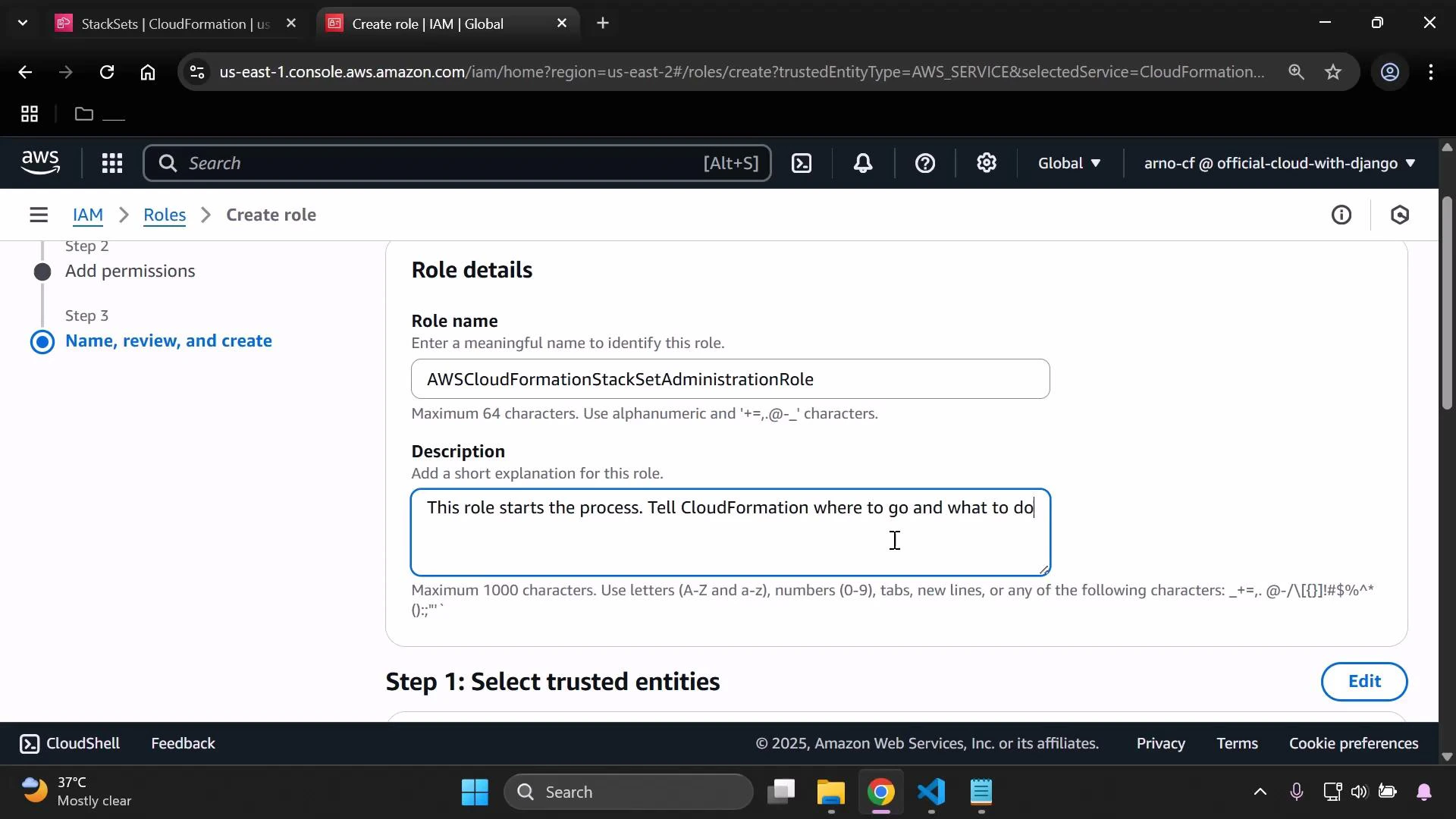
A screenshot of the AWS IAM "Create role" page showing Role details with the role name "AWSCloudFormationStackSetAdministrationRole" and a description being entered ("This role starts the process. Tell CloudFormation where to go and what to do"). The left sidebar shows the setup steps and the browser window and taskbar are visible.
Create the execution role in each target account (or in the same account if you only deploy locally):
  • In IAM > Roles > Create role, choose AWS service → CloudFormation.
  • Attach AdministratorAccess or a policy granting the permissions needed by the resources in your template.
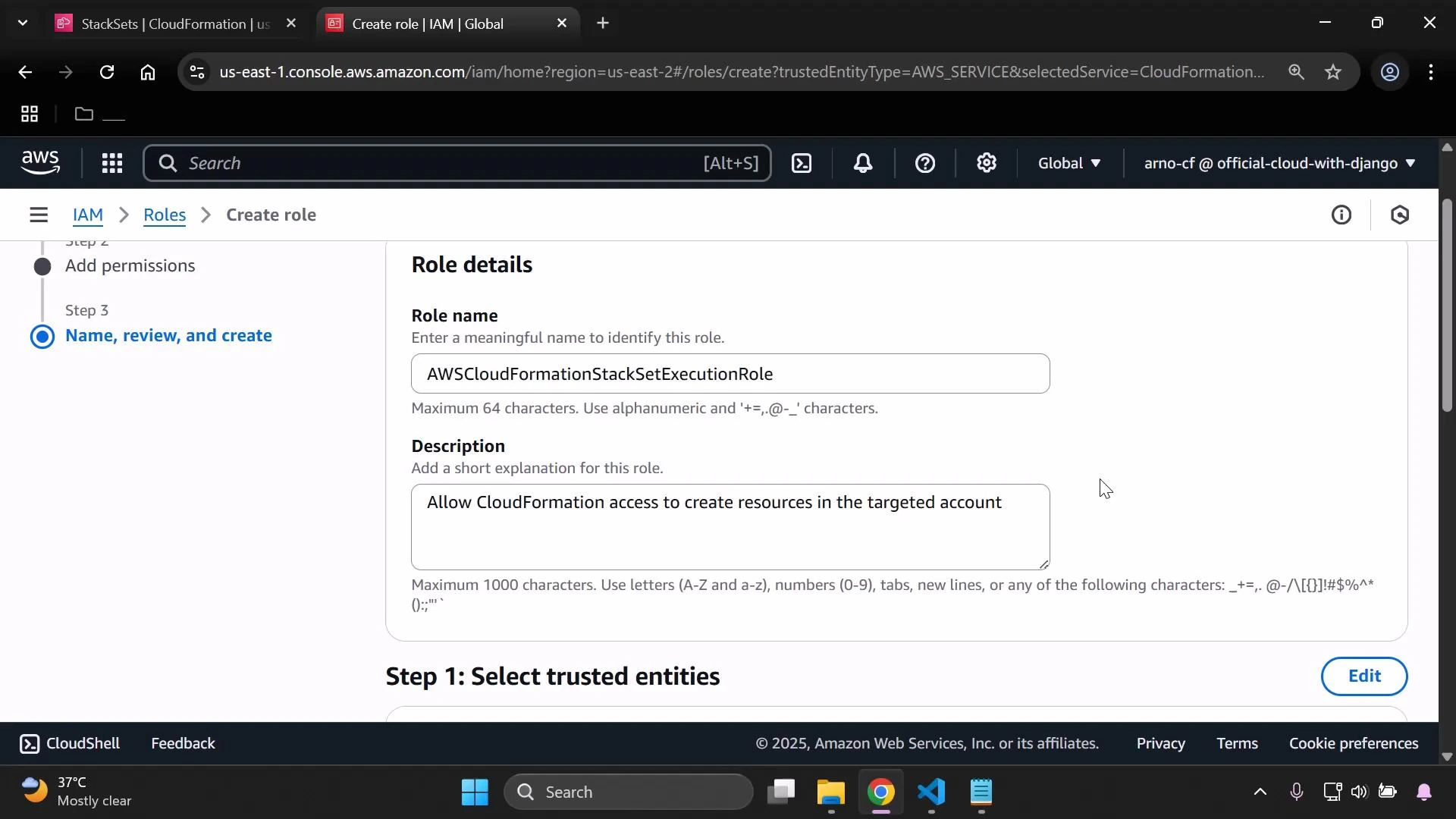
  • Set the role name exactly to: AWSCloudFormationStackSetExecutionRole
  • Add a description such as: “Allows CloudFormation to create resources in the target account.”
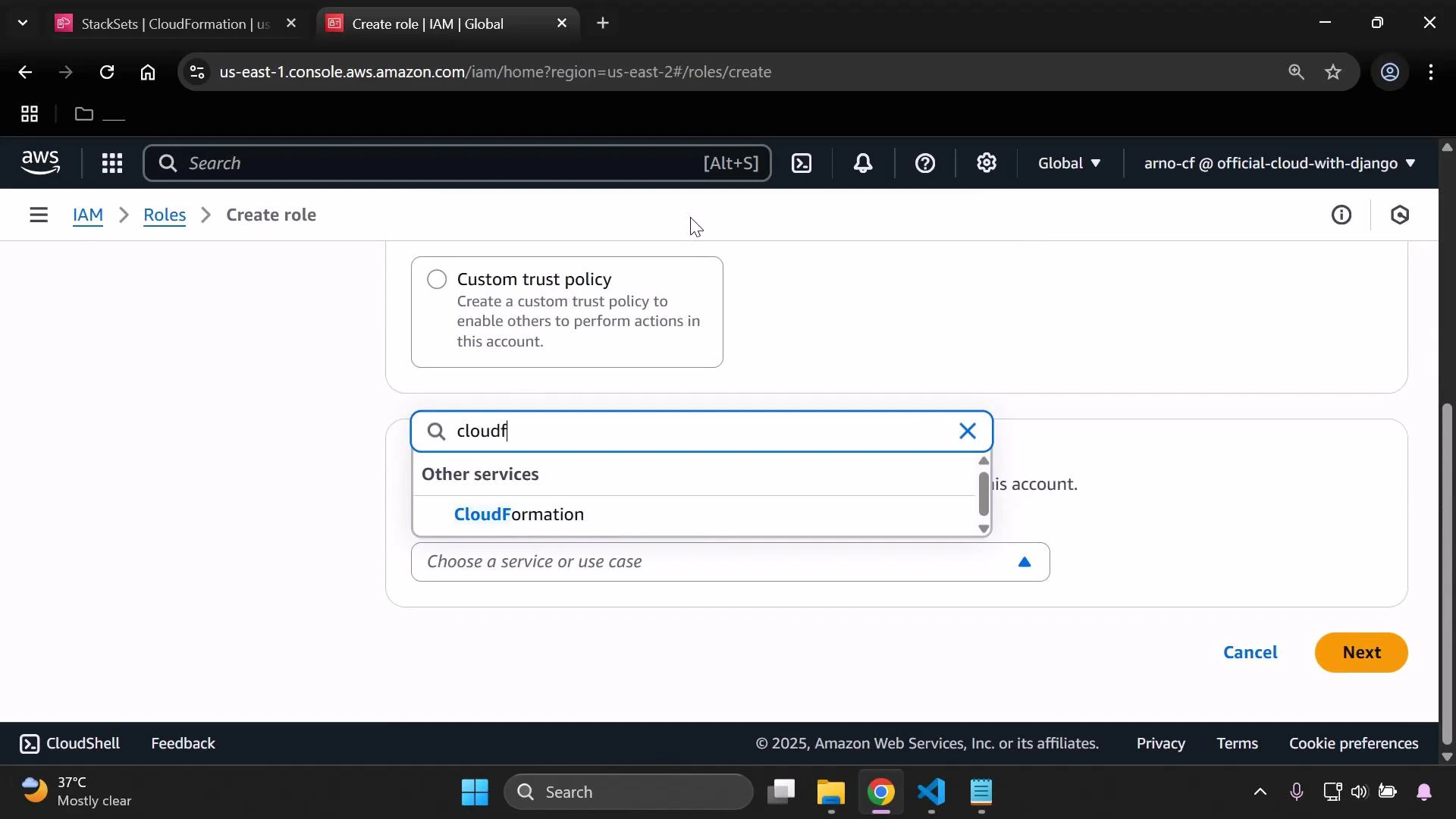
A screenshot of the AWS IAM console on the "Create role" page showing a service search box with "cloudf" typed and "CloudFormation" suggested. The browser window also shows tabs, the Next/Cancel buttons, and the bottom Windows taskbar.
A screenshot of the AWS IAM console on the "Create role" page showing Role details. The role name is set to "AWSCloudFormationStackSetExecutionRole" with a description allowing CloudFormation to create resources in the target account.
Be sure to use the exact role names: AWSCloudFormationStackSetAdministrationRole and AWSCloudFormationStackSetExecutionRole. StackSets expect these names; mismatches will prevent deployments.
After creating the execution role, update its trust relationship so the administration role can assume it. By default, the execution role trust policy allows the CloudFormation service principal. You must add an AWS principal that references the administration role’s ARN. Default trust policy (service principal for CloudFormation):
{
  "Version": "2012-10-17",
  "Statement": [
    {
      "Effect": "Allow",
      "Principal": {
        "Service": "cloudformation.amazonaws.com"
      },
      "Action": "sts:AssumeRole"
    }
  ]
}
Modify the trust policy to allow the administration role to assume the execution role. Replace <ADMIN_ACCOUNT_ID> with your administration account ID:
{
  "Version": "2012-10-17",
  "Statement": [
    {
      "Effect": "Allow",
      "Principal": {
        "AWS": "arn:aws:iam::<ADMIN_ACCOUNT_ID>:role/AWSCloudFormationStackSetAdministrationRole"
      },
      "Action": "sts:AssumeRole"
    },
    {
      "Effect": "Allow",
      "Principal": {
        "Service": "cloudformation.amazonaws.com"
      },
      "Action": "sts:AssumeRole"
    }
  ]
}
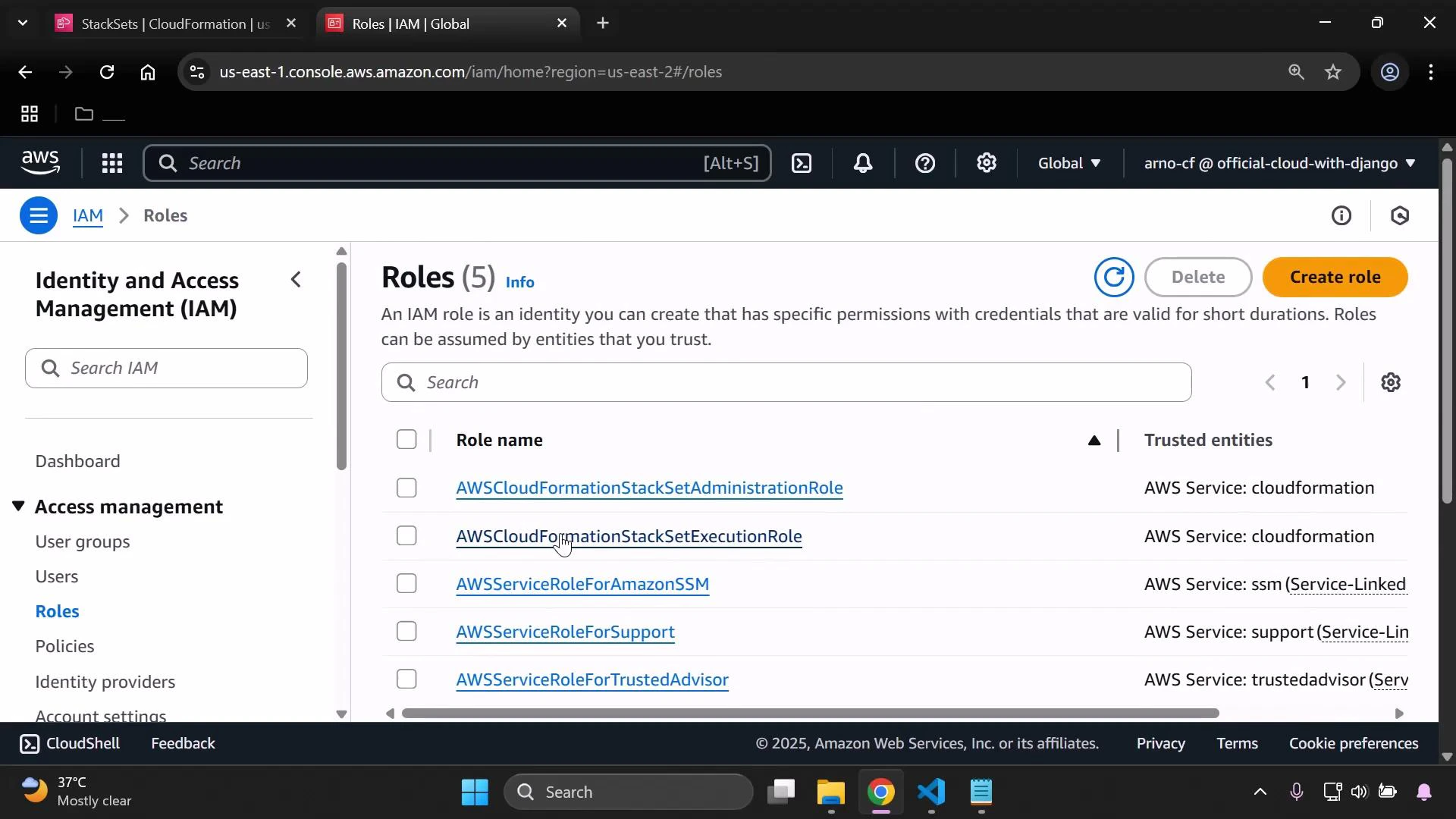
This trust policy ensures the StackSet controller (running under the administration role) can assume the execution role in the target account and perform stack creations. You can confirm both roles appear in the IAM Roles console.
A screenshot of the AWS Identity and Access Management (IAM) console showing the Roles page with a list of roles (e.g., AWSCloudFormationStackSetAdministrationRole, AWSCloudFormationStackSetExecutionRole, AWSServiceRoleForAmazonSSM). The UI shows a search bar, Create role and Delete buttons, and the left-hand Access management navigation.
Be careful when granting AdministratorAccess in execution roles. Prefer least-privilege policies tailored to the resources in your template. Granting full administrative rights increases attack surface across target accounts.

3) Create the StackSet in CloudFormation

  1. Open the CloudFormation console and choose Create StackSet.
  2. Upload your stackset.yaml file or provide a template URL.
  3. For the administration role, select AWSCloudFormationStackSetAdministrationRole.
  4. For the execution role name, enter AWSCloudFormationStackSetExecutionRole — CloudFormation will look for this role name in each target account.
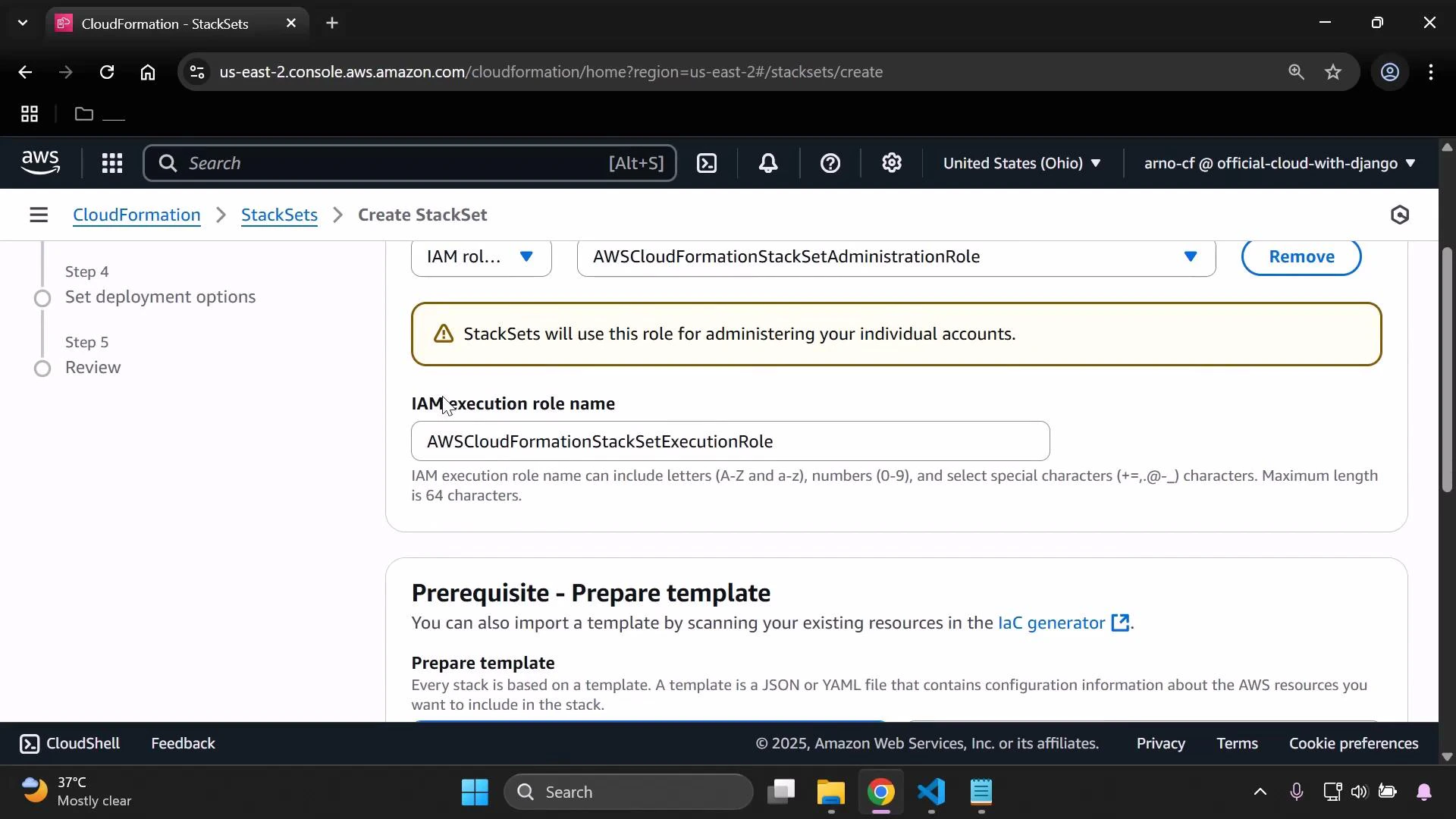
Screenshot of the AWS CloudFormation "Create StackSet" console. It shows IAM role selection with the execution role name filled as "AWSCloudFormationStackSetExecutionRole" and a "Prerequisite - Prepare template" section below.
  1. Enter a StackSet name and optional description.
  2. Specify the target accounts by entering 12-digit AWS account numbers (or upload a CSV of account IDs). If deploying into the same account, include that account ID.
  3. Choose the regions for deployment. Each account+region combination becomes a stack instance.
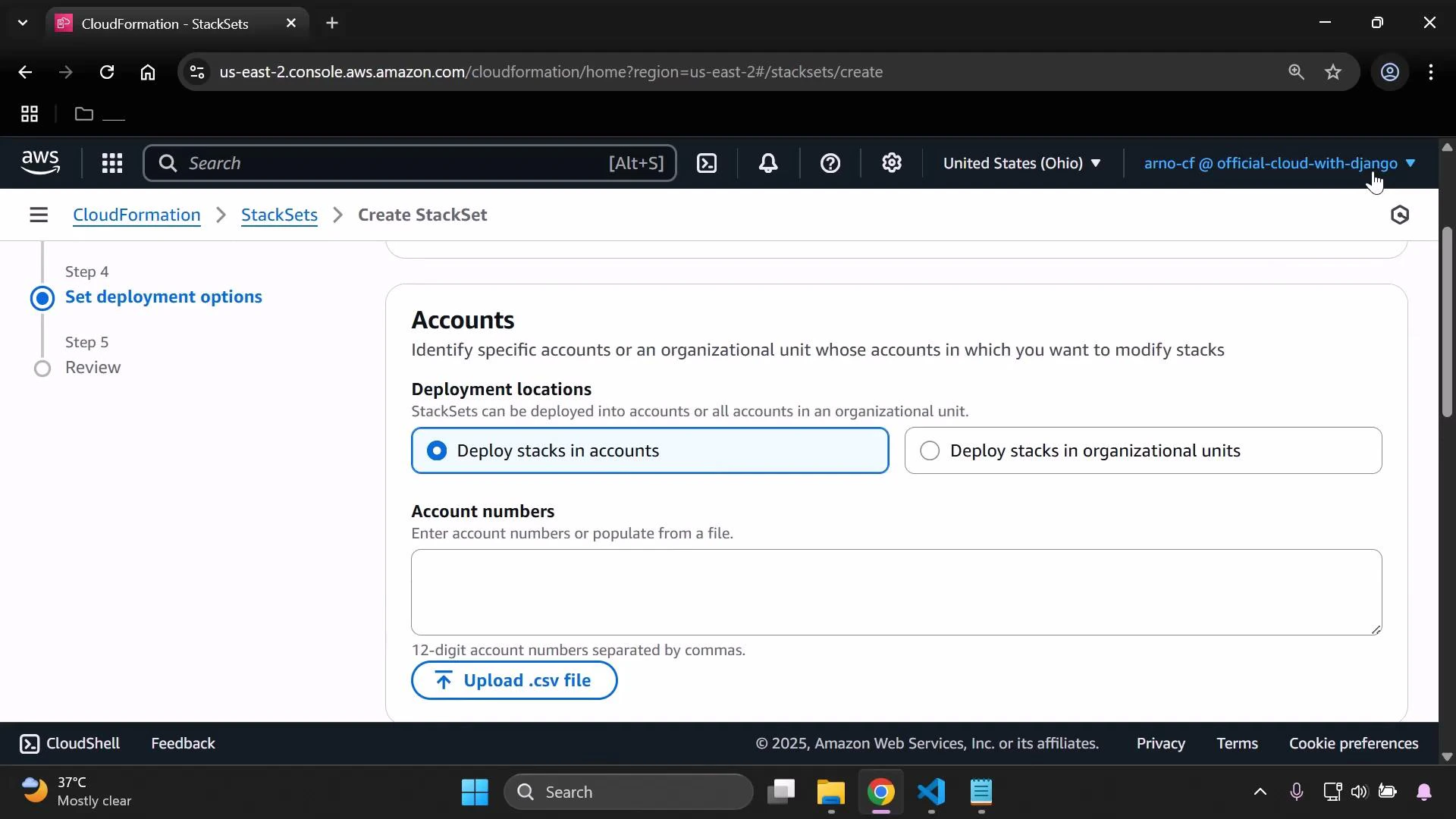
A screenshot of the AWS CloudFormation console on the Create StackSet page, showing the "Accounts" step with deployment options. It highlights the choice to deploy stacks in accounts, an input box for 12-digit account numbers, and an "Upload .csv file" button.
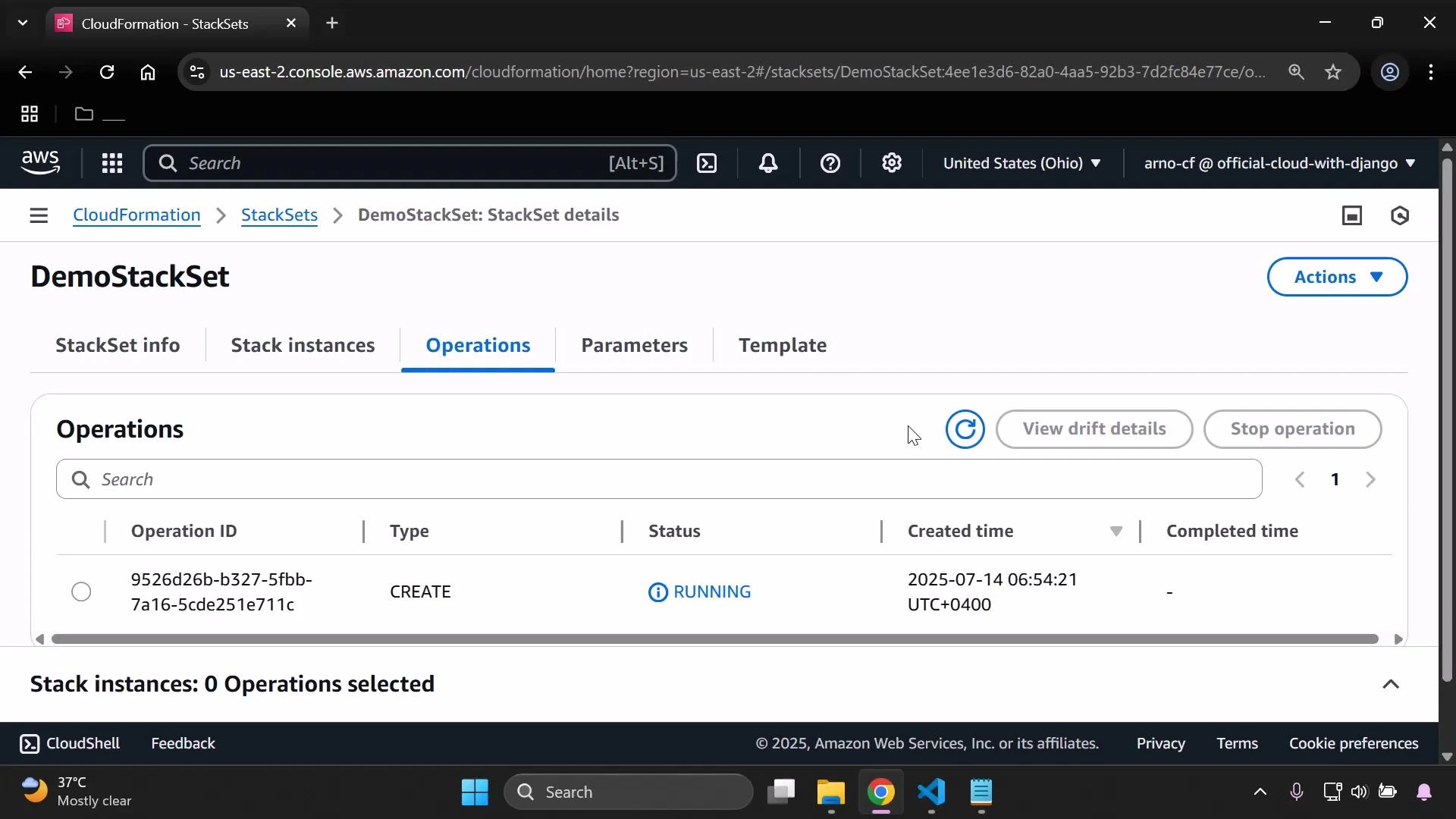
Submit the StackSet creation. CloudFormation will first create the StackSet and then create stack instances in the specified accounts and regions. You can monitor the operation in the StackSet’s Operations tab.
A screenshot of the AWS CloudFormation StackSets console showing the "DemoStackSet" Operations tab. It lists a CREATE operation marked RUNNING with its operation ID and created timestamp.

4) Monitor progress and verify

  • Open the StackSet and view the Stack instances pane to monitor each stack instance’s status across regions and accounts.
  • When operations finish, each Stack instance should be in CREATE_COMPLETE. For deeper inspection, open CloudFormation stacks in the target account/region and review events and resources.
Use the CloudFormation console and CloudWatch logs (if configured) to troubleshoot failures. The Operations tab also provides operation-level status and error details.

Summary

  • Create a CloudFormation template (example: S3 bucket using AWS::Region and AWS::AccountId for unique naming).
  • Create two IAM roles with exact names:
    • AWSCloudFormationStackSetAdministrationRole (admin account)
    • AWSCloudFormationStackSetExecutionRole (target accounts)
  • Update the execution role trust policy to allow assumption by the administration role.
  • Create the StackSet, specify target accounts and regions, and monitor stack instance creation via the CloudFormation console.
Links and references

Watch Video