

- Add a Tag to the S3 bucket resource in the StackSet template.
- Upload the updated template to the StackSet.
- Confirm and submit the update so it is deployed to each stack instance.
Status: Active tag to the bucket):
When you update a StackSet template you re-submit the template and confirm the target accounts/regions and deployment options. The update is then pushed to each stack instance based on the StackSet’s concurrency and failure tolerance settings.
Step-by-step
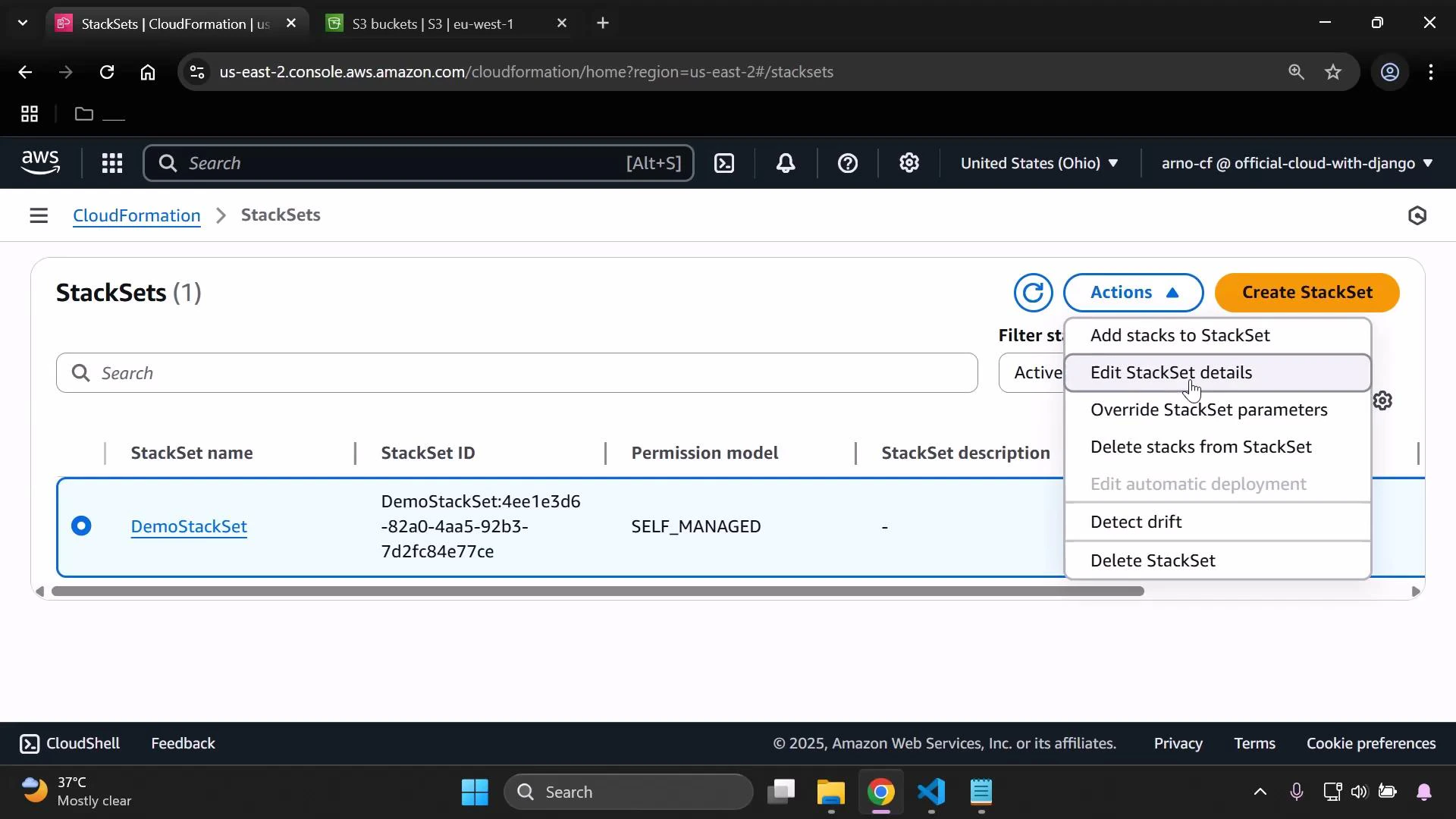
- Open the StackSet you want to update, select it, and choose Actions → Edit StackSet details. Keep the existing configuration unless you need to change it. Choose the option to replace the current template by uploading your updated template file.
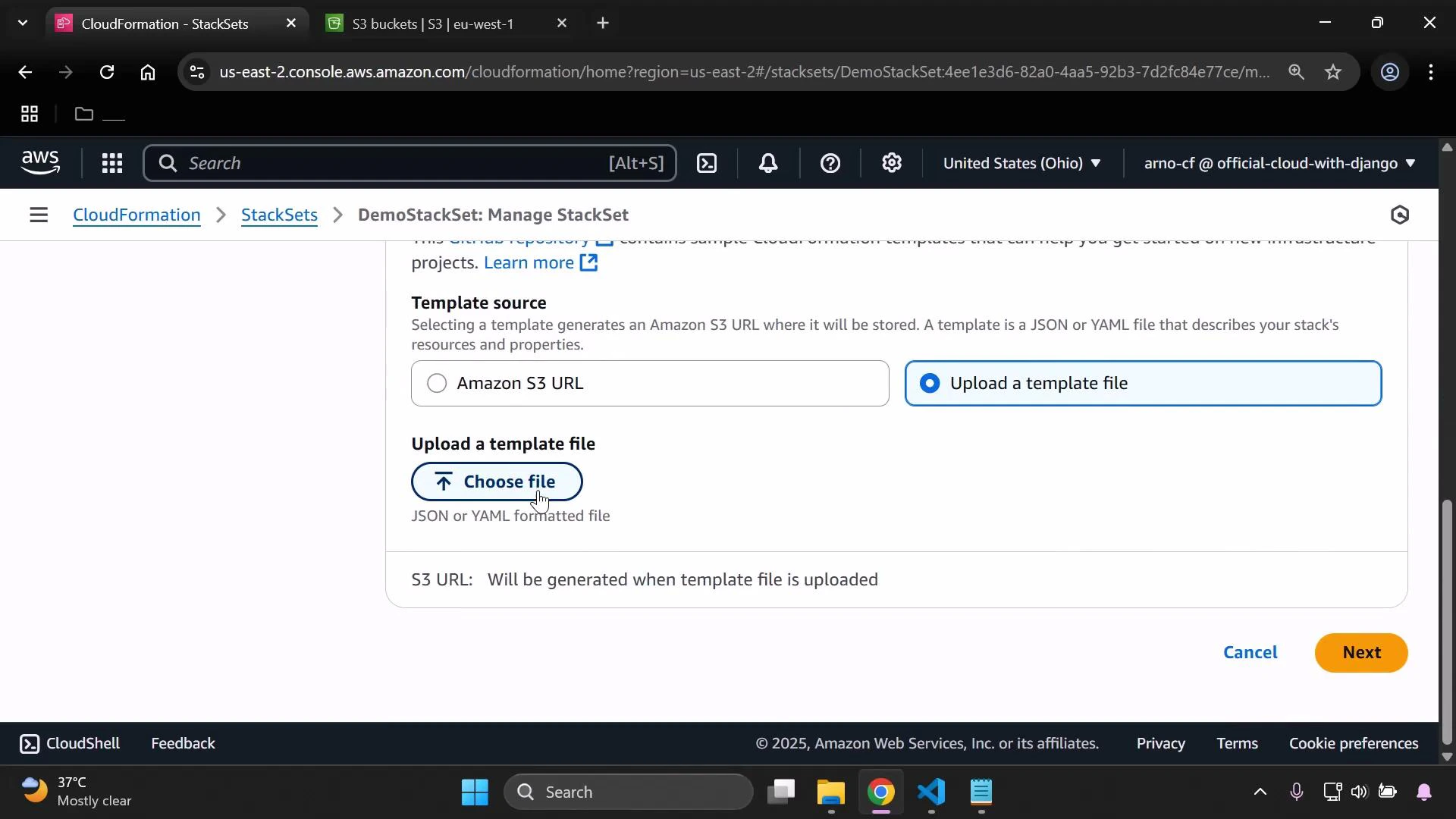
- Select “Upload a template file” then choose the updated template file (the file that contains the new tag). Click Next to continue.
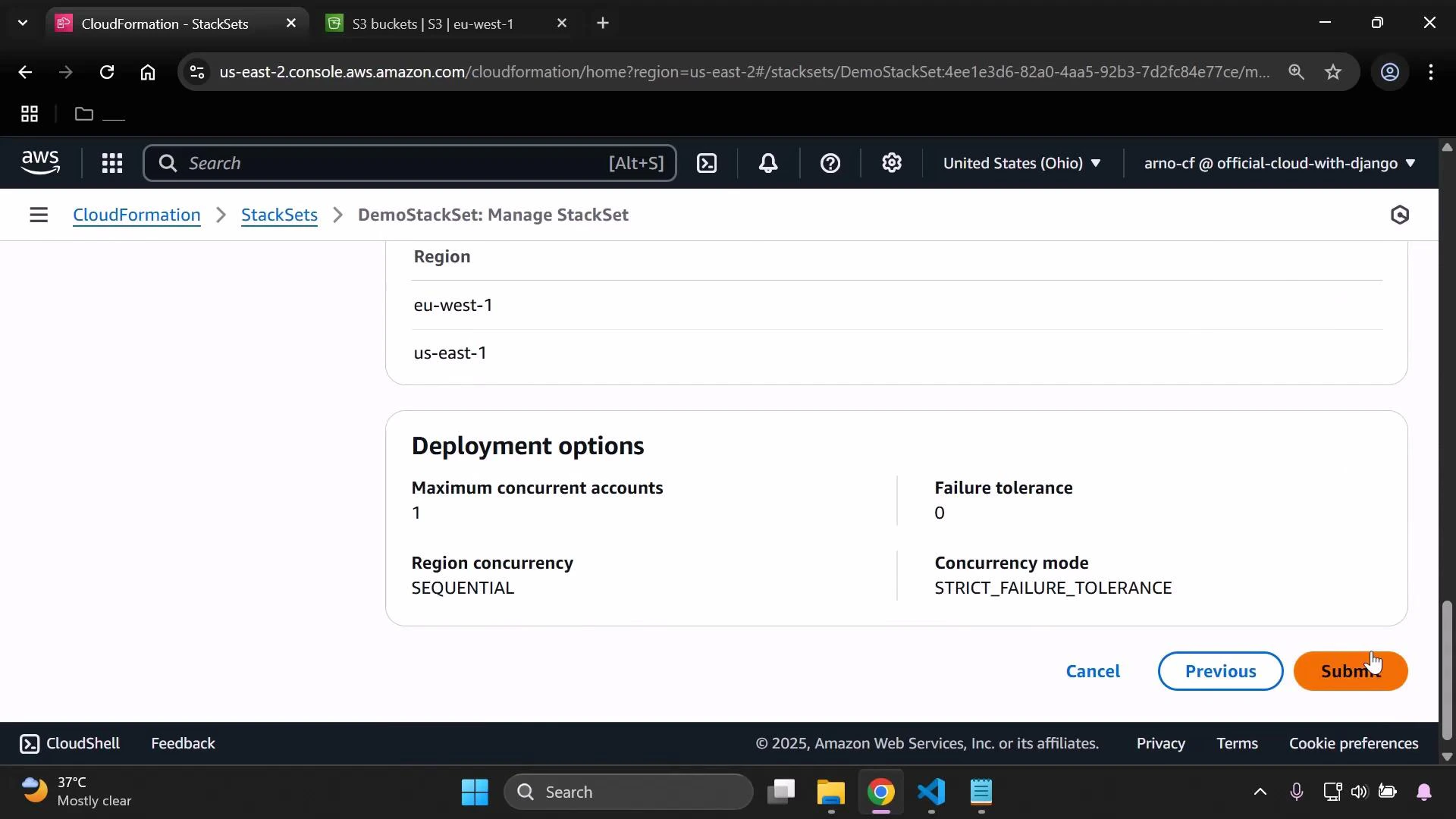
- On the next page confirm the target accounts and regions. For an existing StackSet these are usually pre-selected; keep them unless you intentionally want to change the scope. Review and set deployment options (maximum concurrent accounts, failure tolerance, region concurrency) as required, then submit the update.
- The StackSet update operation will start. The StackSet status will show the operation in progress. Monitor the operation until it completes successfully — the console will show success for the StackSet and each stack instance when finished.
-
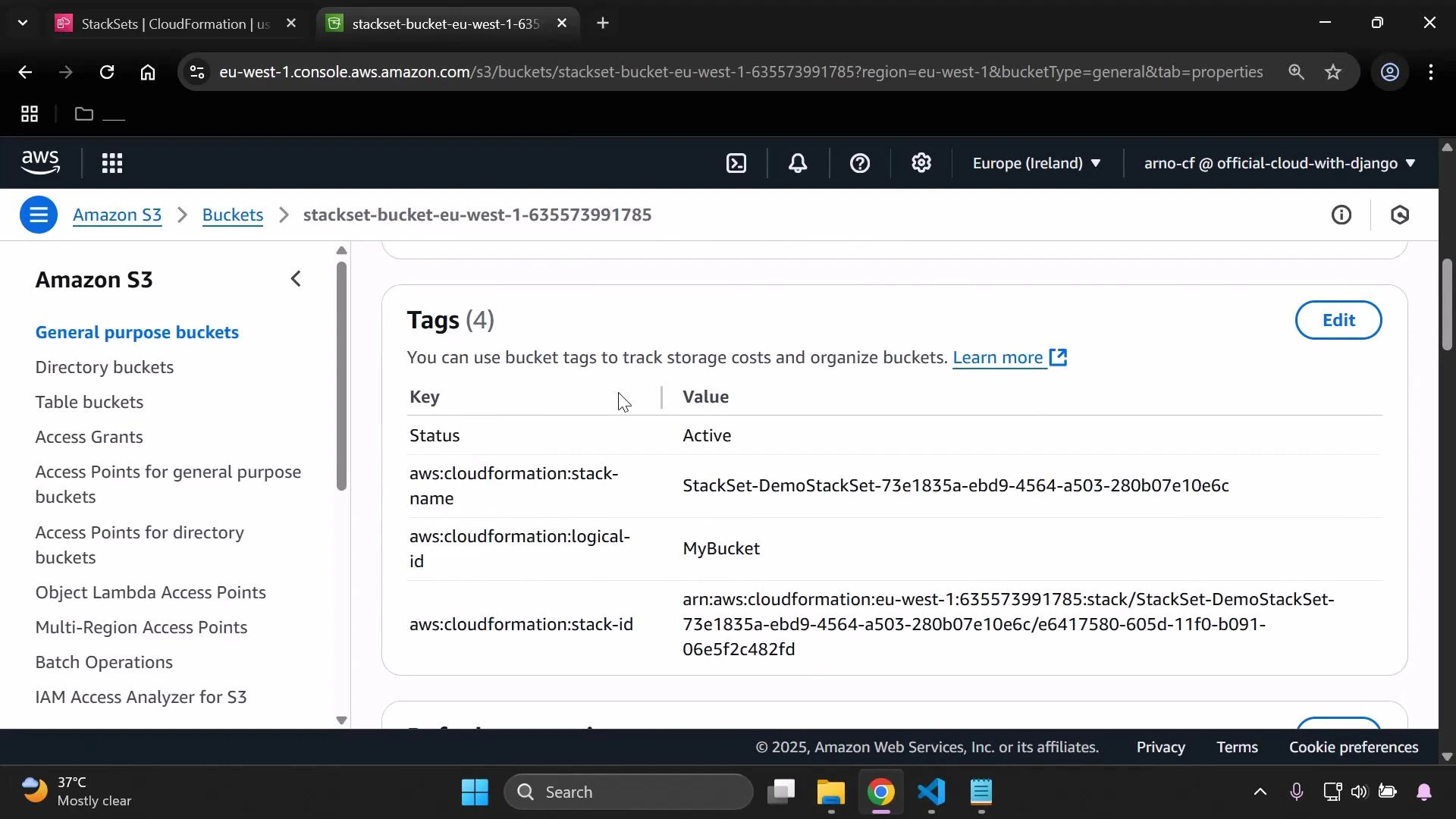
Verify the change was applied to your resources. For this example, open the S3 console in each target region/account that contains a stack instance, view the bucket properties, and confirm the new tag
Status: Activeis present.
StackSet updates can modify resources across multiple accounts and regions. Ensure you have valid backups or change control in place, and that you have the necessary permissions to update all target accounts/regions. A failed update may trigger rollbacks depending on your deployment settings.
- Modify the CloudFormation template (add or change resources/tags).
- Upload the updated template to the existing StackSet.
- Confirm accounts/regions and deployment options, then submit.
- Monitor the update and verify resource changes in each target region/account.
- AWS CloudFormation StackSets documentation
- AWS CloudFormation documentation
- Amazon S3 documentation
- CloudFormation template anatomy