In this lesson we’ll learn how to retrieve values from a CloudFormation Mappings block using the !FindInMap intrinsic function. Mappings are useful for storing static lookup data (for example, environment-specific settings or role-to-profession mappings) and then referencing those values elsewhere in your template. Mappings example
Mappings:
  DevMap:
    Arno:
      Field: Quality assurance
    Alice:
      Field: Backend developer
!FindInMap — the three parts
ArgumentPurposeExample
Mapping nameThe Mappings block name to searchDevMap
Top-level keyThe first-level key inside the mappingArno or Alice
Second-level keyThe nested key whose value you wantField
Using the mapping in a resource tag Below is a simplified Resources snippet that adds tags to an S3 bucket. The Profession tag pulls its value from the mapping using !FindInMap.
Resources:
  MyS3Bucket:
    Type: AWS::S3::Bucket
    Properties:
      BucketName: !Ref InputBucketName
      Tags:
        - Key: Developer
          Value: !Ref InputDeveloperName
        - Key: Environment
          Value: "Development"
        - Key: Profession
          Value: !FindInMap [DevMap, "Arno", "Field"]

    Metadata:
      Purpose: "Creating an s3 bucket"
      Reviewed: "02-07-2025"
Notes on the example
  • The !FindInMap invocation returns the value at Mappings → DevMap → Arno → Field, which is “Quality assurance”.
  • The Developer tag is populated from the InputDeveloperName parameter so the developer name appears in the S3 console; Profession is taken from the mapping instead of being hard-coded in the Tags list.
  • You can make the top-level key dynamic (for example, by referencing a parameter instead of hard-coding “Arno”) to select different mapped values at stack creation or update time.
Putting the top-level key in quotes (for example, “Arno”) is optional in YAML, but quoting can prevent parsing ambiguity and improve readability.
Full compact template The compact template below combines Mappings, Parameters, and the S3 resource shown above—use this as a minimal working example.
Mappings:
  DevMap:
    Arno:
      Field: Quality assurance
    Alice:
      Field: Backend developer

Parameters:
  InputBucketName:
    Type: String
    Description: Please enter your desired S3 bucket name
  InputDeveloperName:
    Type: String
    Description: Please enter the developer name

Resources:
  MyS3Bucket:
    Type: AWS::S3::Bucket
    Properties:
      BucketName: !Ref InputBucketName
      Tags:
        - Key: Developer
          Value: !Ref InputDeveloperName
        - Key: Environment
          Value: "Development"
        - Key: Profession
          Value: !FindInMap [DevMap, "Arno", "Field"]

Metadata:
  Purpose: "Creating an s3 bucket"
  Reviewed: "02-07-2025"
  Owner: "John Doe"
Redeploying the template To update a stack with this template:
  1. In the CloudFormation console choose Update stack → Replace current template → Upload a template file → Choose file.
  2. Proceed to the Specify stack details page and fill parameters such as InputBucketName and InputDeveloperName.
  3. Complete the update and wait for the stack update to finish.
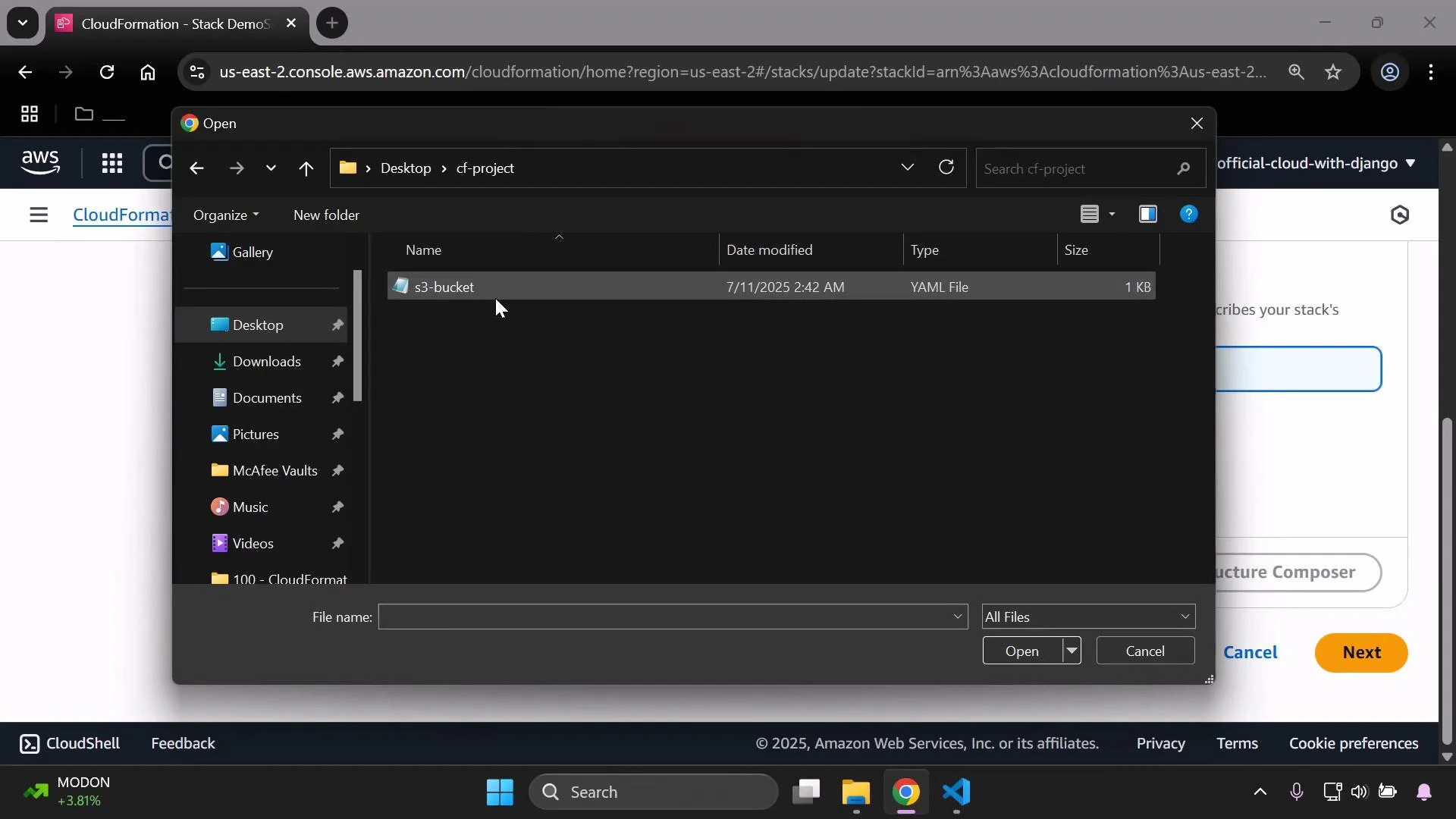
A screenshot of the AWS CloudFormation console with a Windows file-open dialog overlaid, showing a "cf-project" folder and a selected "s3-bucket" YAML file. The browser window in the background displays the CloudFormation stack creation UI.
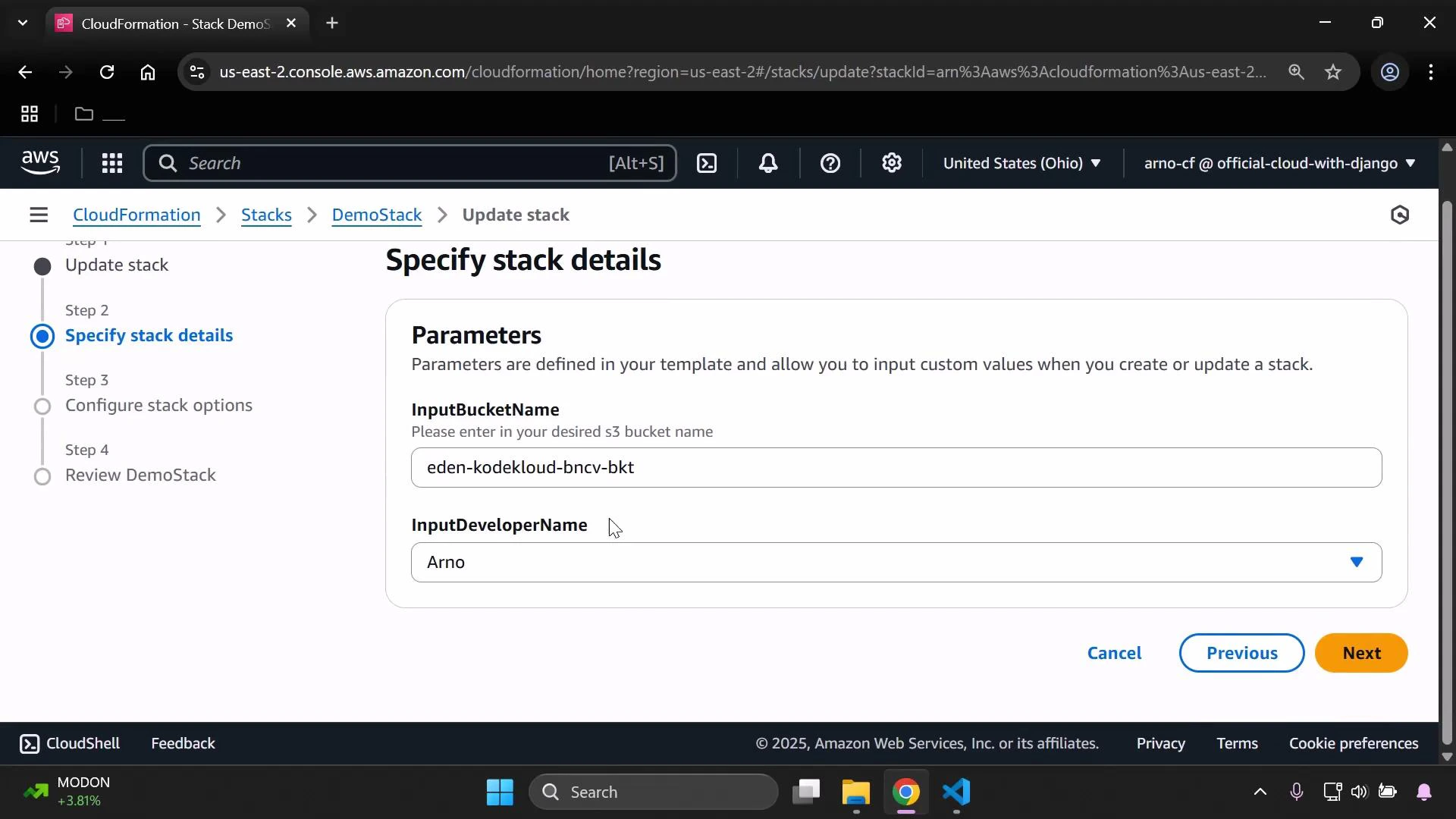
On the Specify stack details page, set parameters such as InputBucketName and InputDeveloperName (for this demo we selected “Arno” for the developer).
A screenshot of the AWS CloudFormation "Specify stack details" page for updating a stack, showing parameters including InputBucketName set to "eden-kodekloud-bncv-bkt" and InputDeveloperName set to "Arno." The left sidebar shows the multi-step progress with "Specify stack details" highlighted and navigation buttons (Previous, Next) appear at the bottom.
Verifying the mapped value After the stack update completes, open the S3 bucket in the S3 console and navigate to Properties → Tags to confirm the mapping was applied. In this example:
  • Developer tag shows the parameter value “Arno”.
  • Profession tag shows “Quality assurance” (the value resolved from DevMap → Arno → Field).
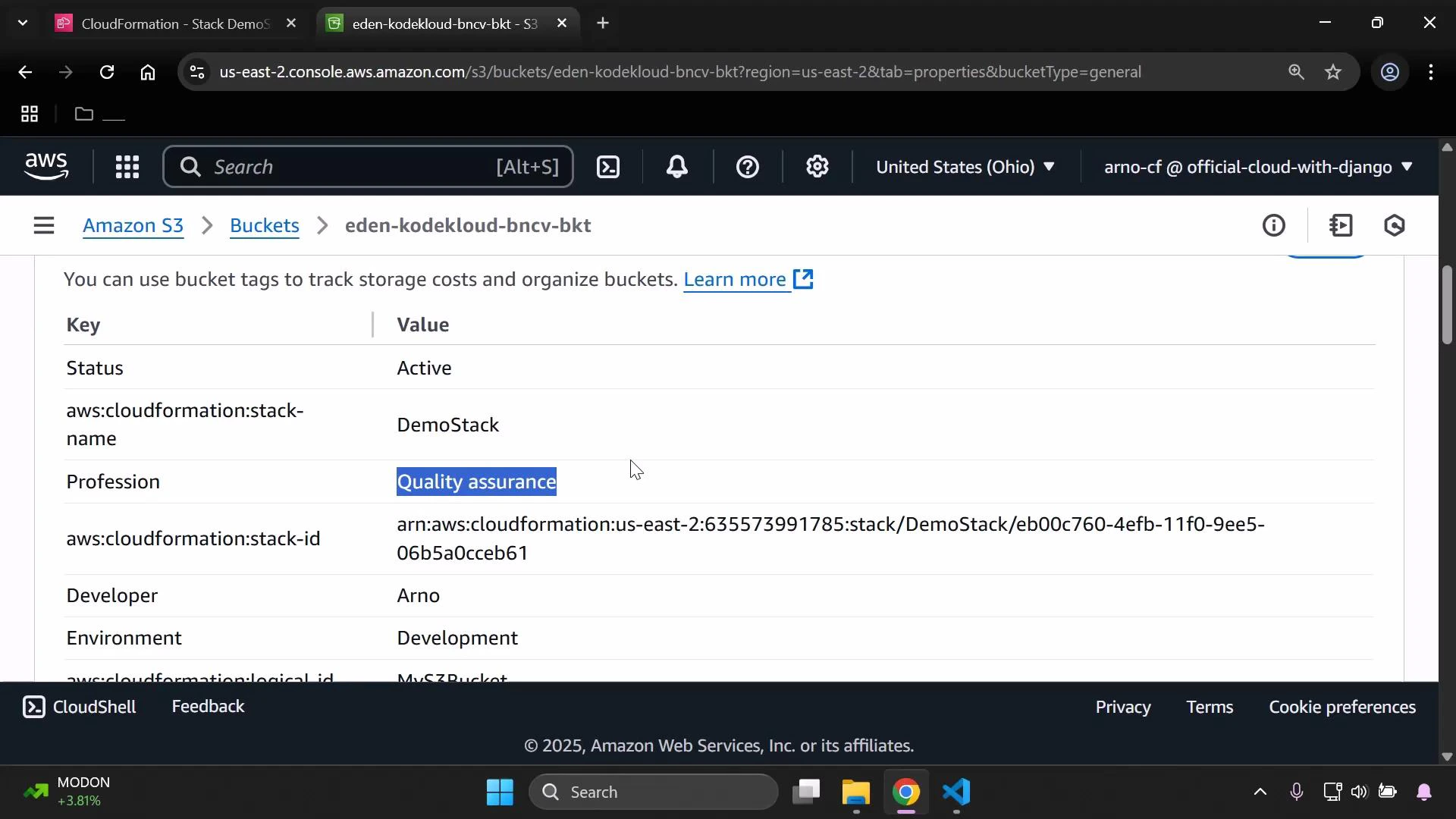
A screenshot of the AWS S3 console showing the properties/tags for a bucket (keys like Status: Active, aws:cloudformation:stack-name: DemoStack, Developer: Arno, Environment: Development). The "Profession" tag ("Quality assurance") is highlighted.
Summary
  • !FindInMap requires three arguments: mapping name, top-level key, and second-level key.
  • Use Mappings to centralize static lookup data and avoid duplication across your template.
  • Combine Parameters and Mappings to let users control keys (top-level lookup) while still resolving other values from a central mapping.
Links and references

Watch Video