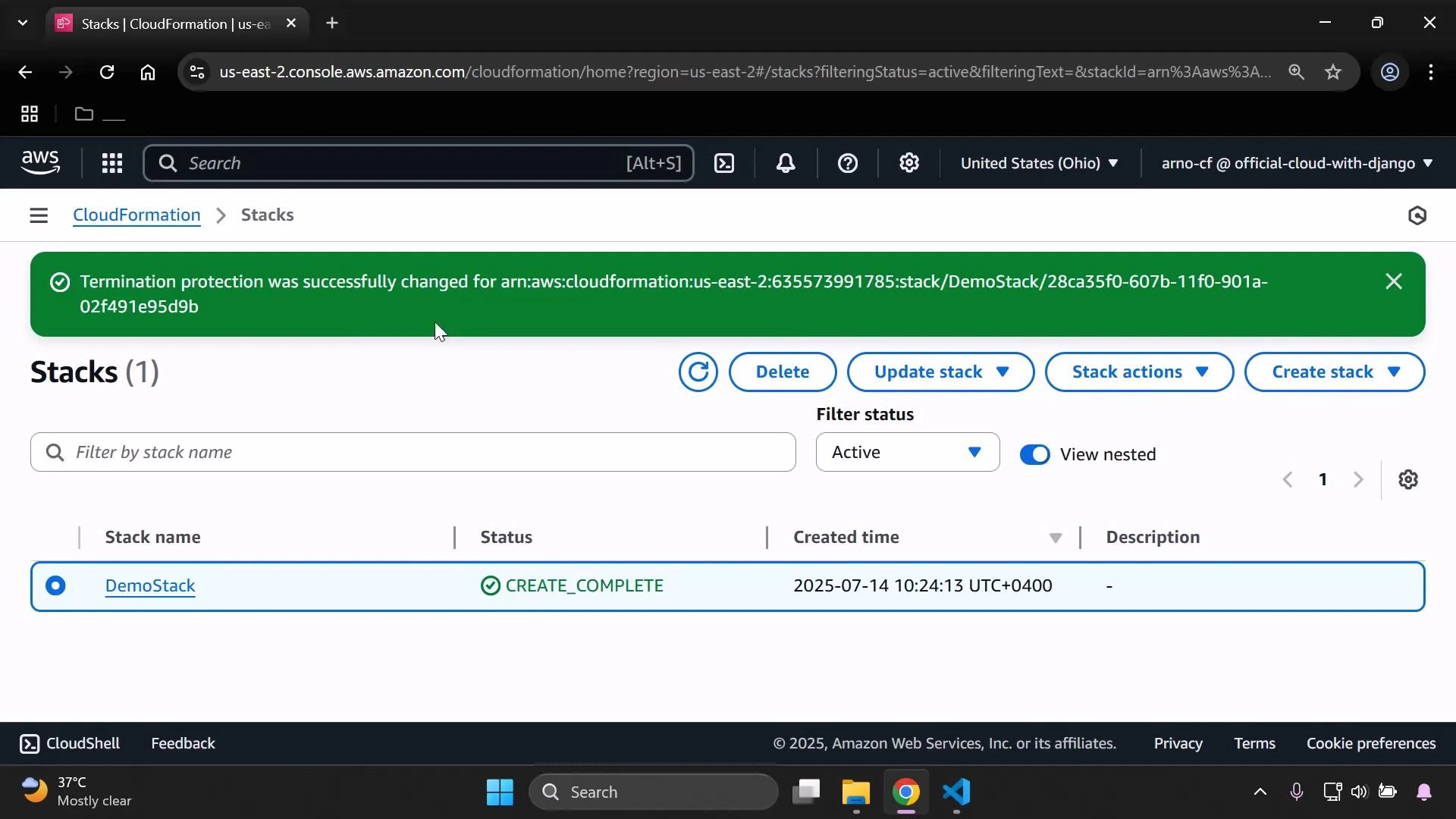
In this short demo we’ll enable termination protection on an AWS CloudFormation stack so it cannot be deleted accidentally. The example uses a simple S3-backed template created from the CloudFormation console. Follow these steps to create the stack and enable termination protection.
  1. Create the stack
    • In the CloudFormation console choose Create stack and upload your template (for example, a basic S3 template).
    • Click Next, enter a stack name, continue through the wizard, and create the stack.
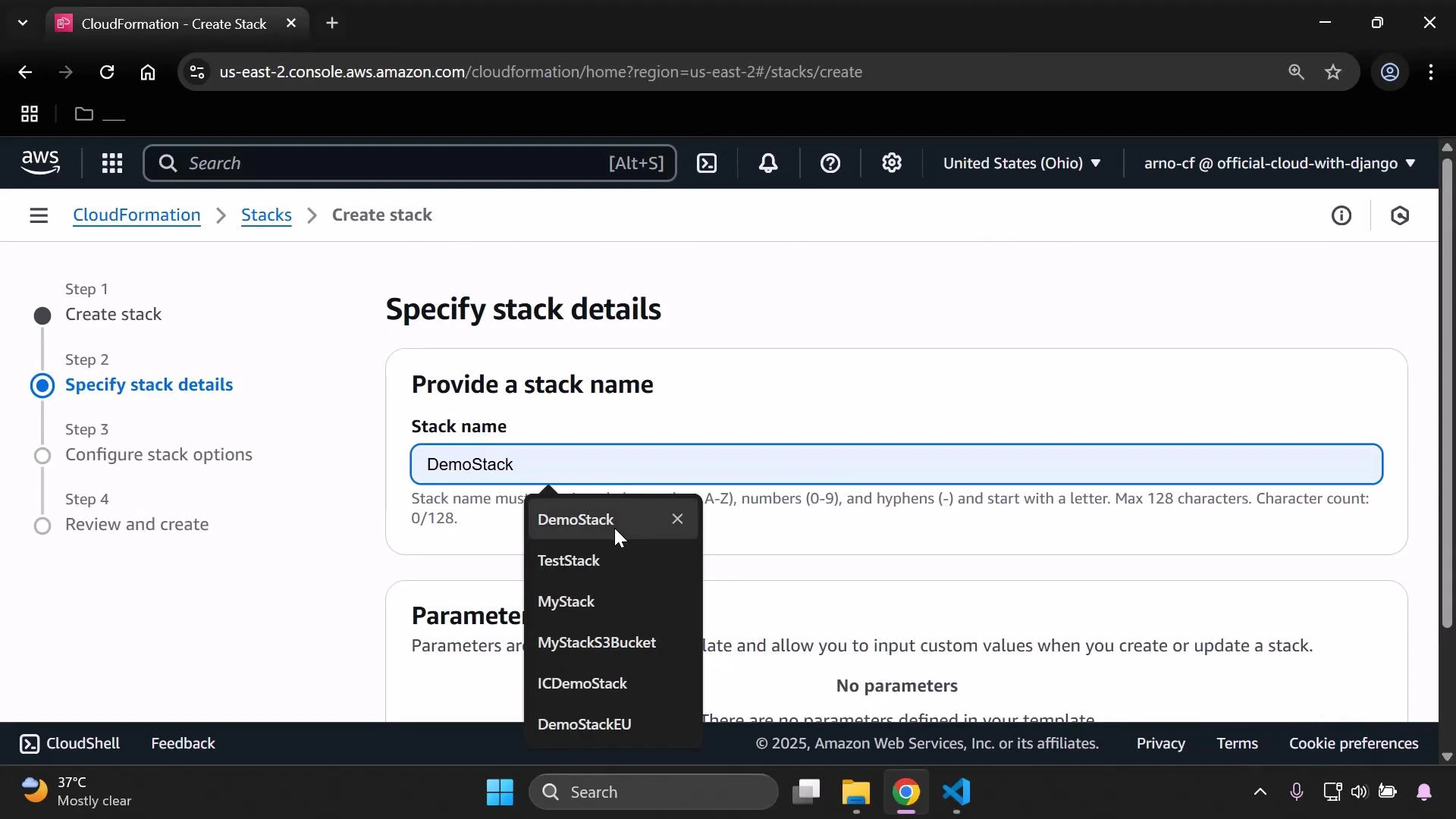
A screenshot of the AWS CloudFormation console on the "Specify stack details" step, showing the "Stack name" field filled with "DemoStack" and an open suggestion list of other stack names. The left sidebar shows the multi-step wizard (Create stack → Specify stack details → Configure stack options → Review and create).
  1. Wait for the stack to reach CREATE_COMPLETE
    • After the stack reaches CREATE_COMPLETE (or any active state), select it in the Stacks list.
    • From the “Stack actions” menu choose Edit termination protection to change the setting.
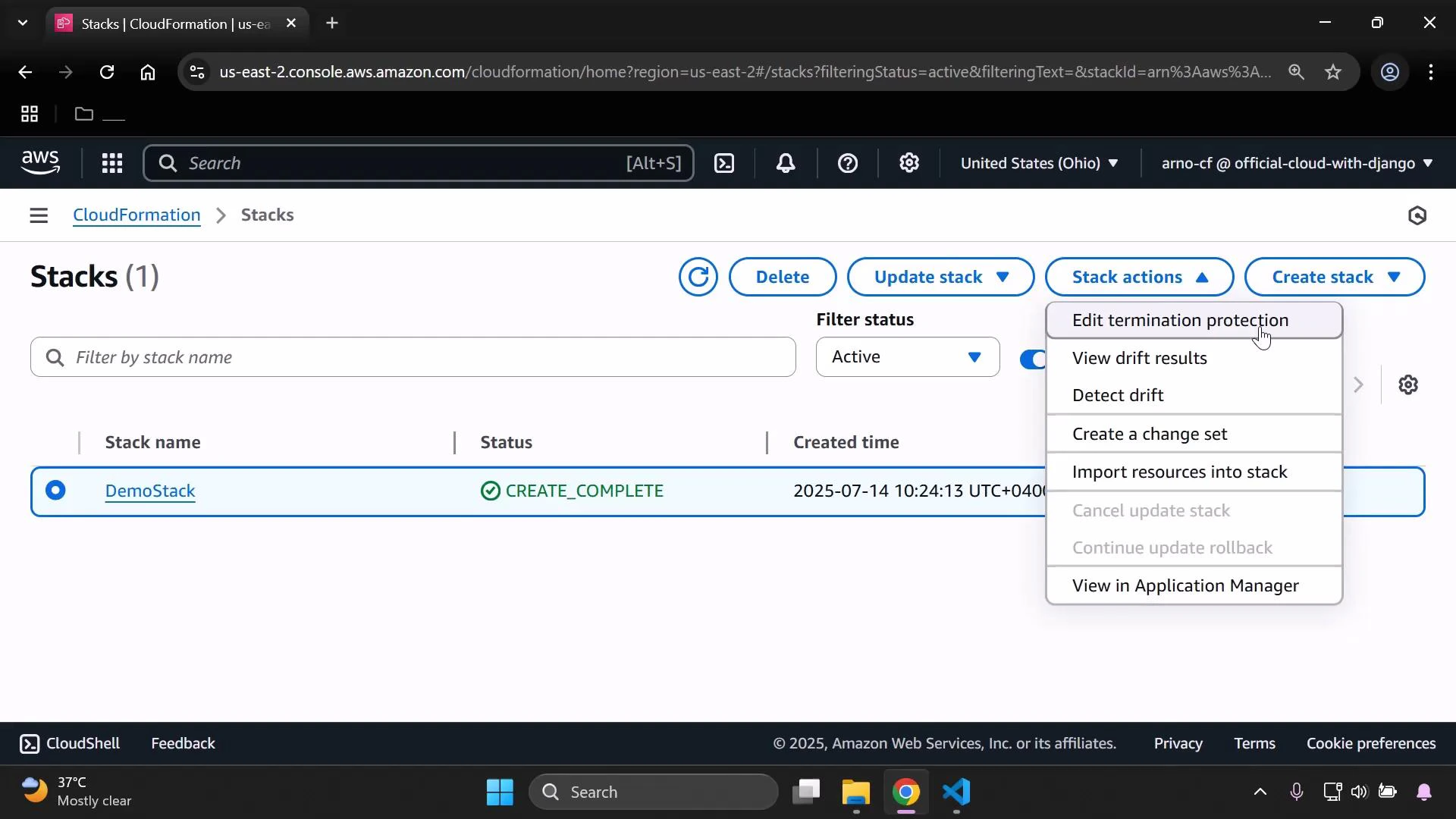
A screenshot of the AWS CloudFormation "Stacks" console showing one stack named "DemoStack" with status CREATE_COMPLETE and its created time. The "Stack actions" dropdown is open, listing options like "Edit termination protection," "View drift results," and "Detect drift."
Termination protection prevents deletion of the entire CloudFormation stack through CloudFormation until you explicitly disable it. It does not block stack updates, nor does it stop direct modifications to individual resources made outside CloudFormation (those actions can still cause drift).
  1. What happens when you try to delete a protected stack
    • If termination protection is enabled and you attempt to delete the stack, the console prevents the deletion and asks you to disable termination protection first.
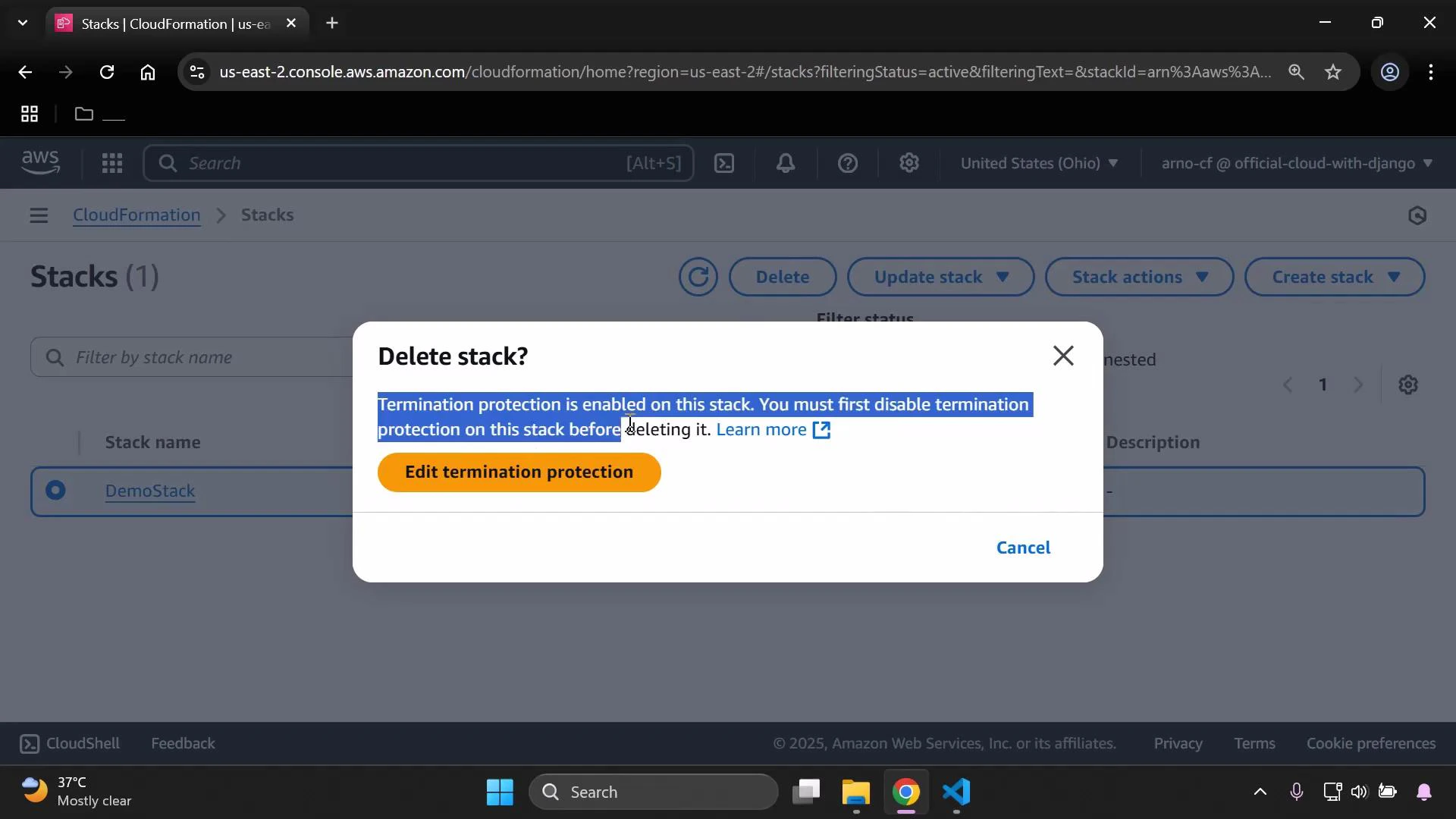
A screenshot of the AWS CloudFormation console showing a "Delete stack?" dialog that warns termination protection is enabled and prompts you to disable it first. The background shows a stack named "DemoStack" and an orange "Edit termination protection" button.
To delete a protected stack you must first turn off termination protection and save the change. Deleting without disabling termination protection via CloudFormation is blocked by the service.
  1. Disable termination protection (if you want to delete)
    • Re-open Stack actions → Edit termination protection, set the option to Deactivated, and click Save.
    • After saving, refresh the stack list — you will be able to delete the stack normally.
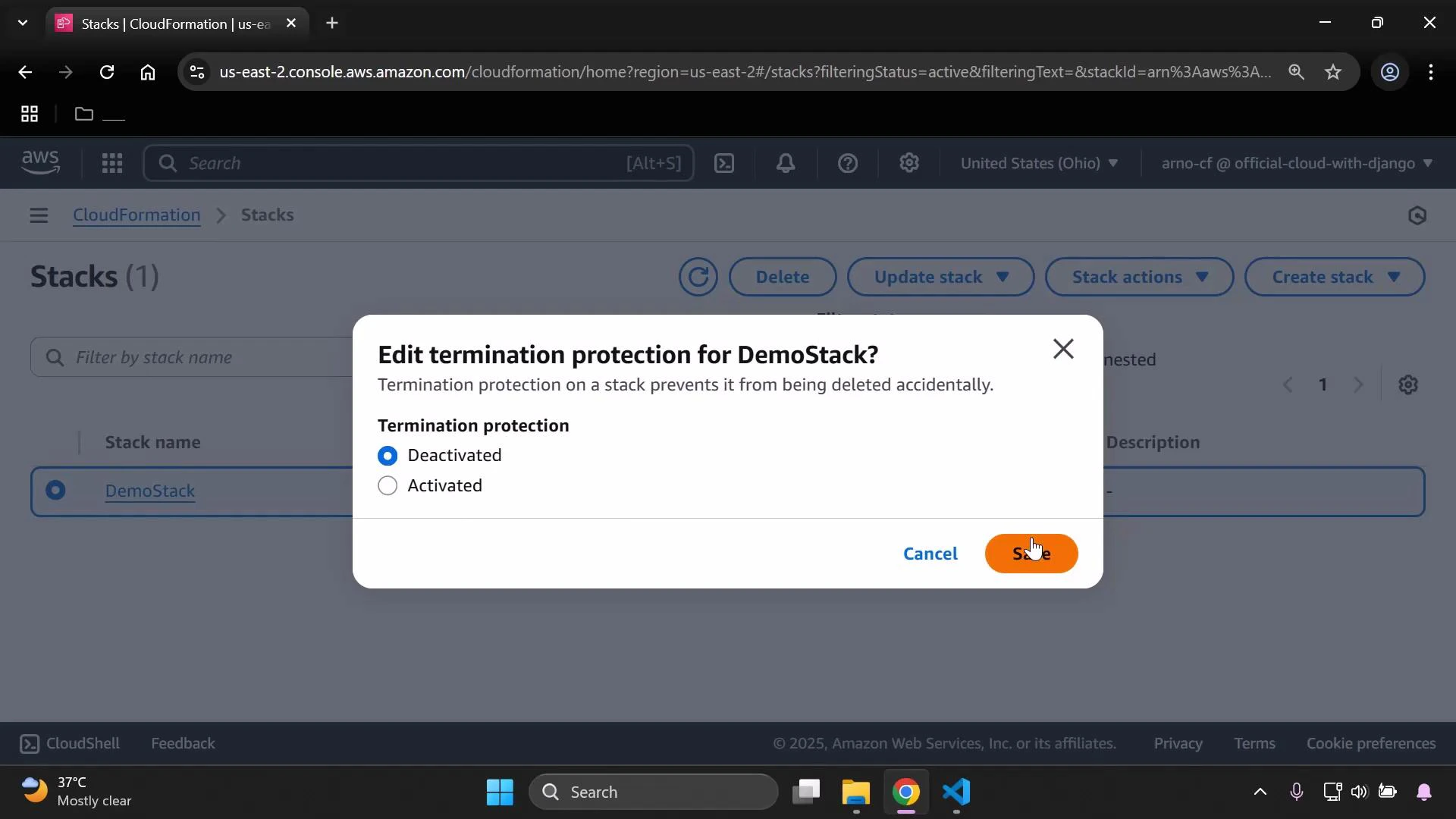
A screenshot of the AWS CloudFormation console showing a dialog titled "Edit termination protection for DemoStack?" with radio options for Deactivated (selected) and Activated. The modal explains termination protection prevents accidental deletion and the Save button is being clicked.
A screenshot of the AWS CloudFormation "Stacks" console with a green success banner saying termination protection was changed. The page shows one stack named "DemoStack" with status CREATE_COMPLETE and its creation timestamp.
Quick reference
ActionConsole pathCLI / API
Enable termination protectionStack actions → Edit termination protection → Activated → SaveUse the UpdateTerminationProtection API. See AWS docs for the exact CLI parameters.
Disable termination protectionStack actions → Edit termination protection → Deactivated → SaveUse the UpdateTerminationProtection API (set EnableTerminationProtection to false).
Delete stackStacks list → Select stack → DeleteStack deletion is blocked while termination protection is enabled. Disable protection first.
Further reading Summary
  • Enable termination protection from Stack actions → Edit termination protection to guard against accidental stack deletion.
  • To delete a stack, you must first deactivate termination protection and save the change.
  • Termination protection prevents deletion via CloudFormation; it does not block updates or direct modifications to resources outside CloudFormation.

Watch Video