

- Metadata is free-form, machine-readable information you can attach to a template or a resource for documentation, tooling, or processing.
- Tags are key/value labels attached to supported resources at provisioning time to help with organization, automation, cost allocation, and policy enforcement.
Resource-level Metadata example
PlaceMetadata under a specific resource to annotate that resource only:
Template-level Metadata example
For template-wide annotations, use the top-levelMetadata section (not nested under Resources):
Adding Tags to a resource
Tags must be declared under a resource’sProperties as a YAML list of Key/Value pairs. Make sure Tags aligns with other properties.
Example — S3 bucket with tags:
- Use
KeyandValuewith the exact casing (Key:andValue:) as shown. - You can include intrinsic functions (e.g.,
!Ref,!Sub) inside tag values for dynamic content. - Save your template file before uploading it in the CloudFormation console or using the CLI.
Quick comparison: Metadata vs Tags
Update a stack to apply template changes (CloudFormation console)
- In the AWS CloudFormation console, choose the stack you want to update and select Update.
- Choose Replace current template → Upload a template file, then select your saved YAML file and continue through the wizard.
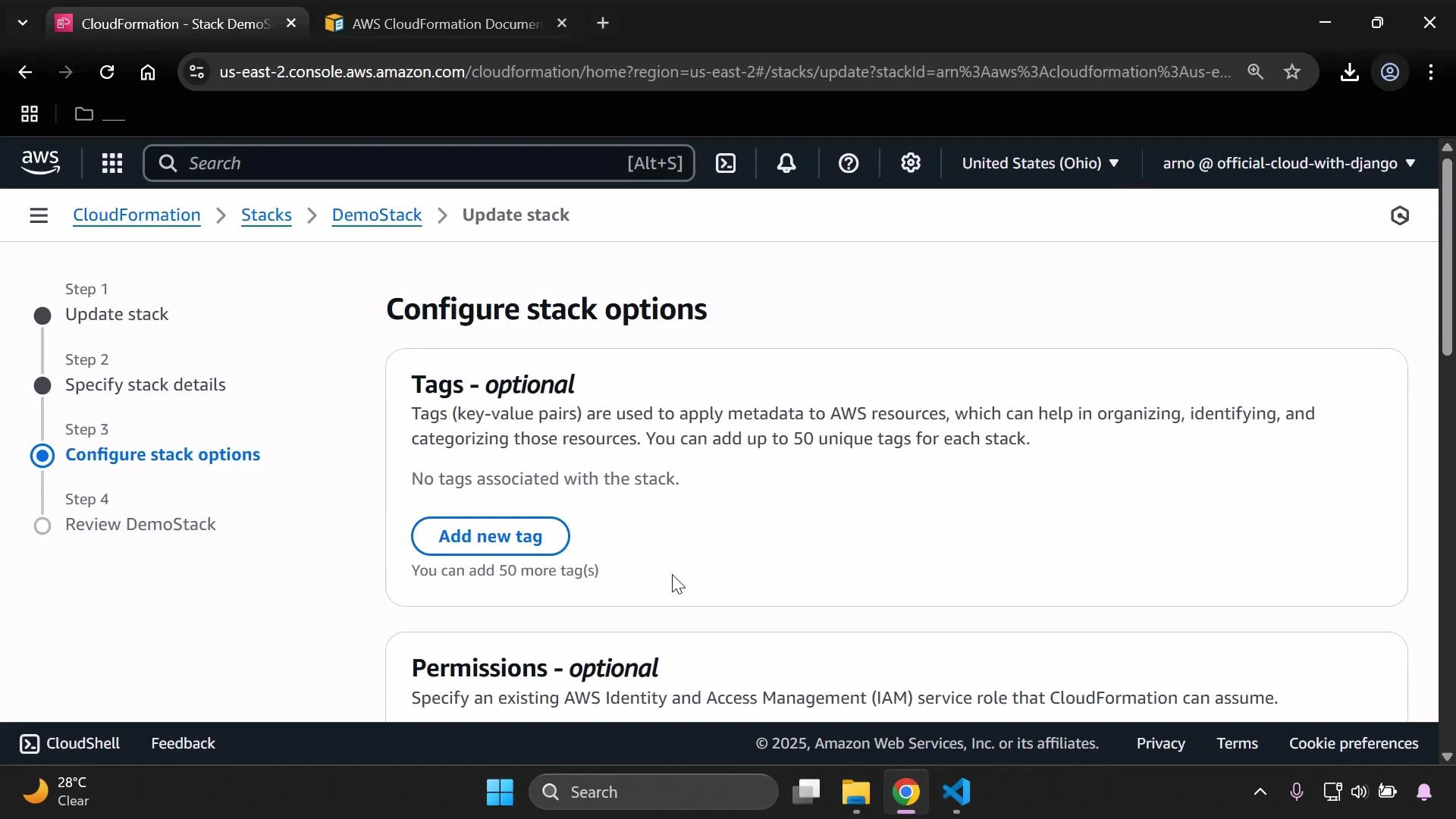
- In the Configure stack options step you can add or edit tags directly in the console before submitting the update.
Verify tags on the S3 bucket
- Open the Amazon S3 console and locate the bucket created by the stack (example:
eden-kodekloud-xcvt-bkt). - Open the bucket and view the Tags section in the Properties tab to confirm tags defined in the template are present.
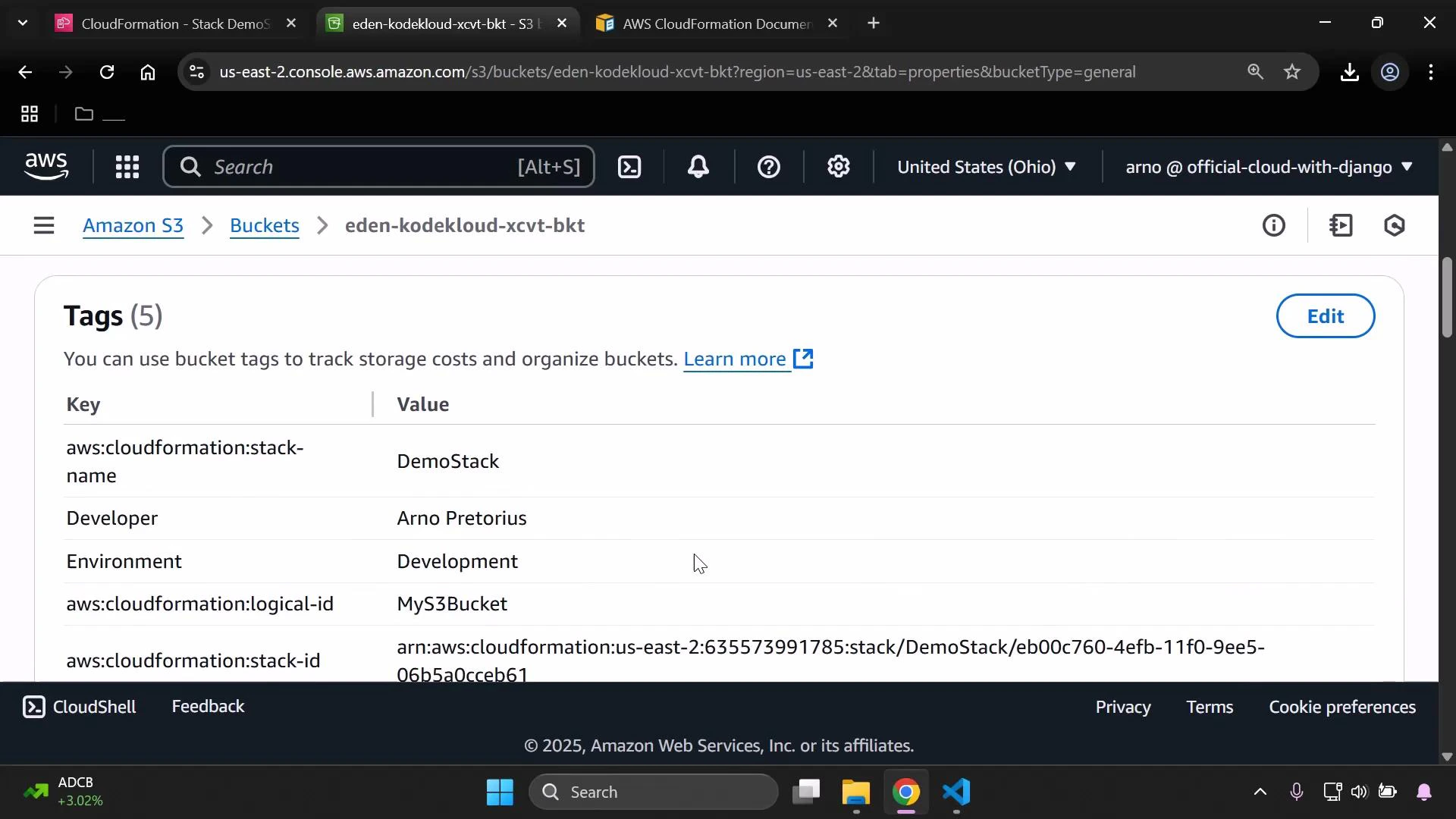
aws:cloudformation:stack-nameaws:cloudformation:logical-idaws:cloudformation:stack-id
CloudFormation automatically attaches stack-identifying tags (such as aws:cloudformation:stack-name, aws:cloudformation:logical-id, and aws:cloudformation:stack-id) to supported resources when the stack is created or updated. This is expected behavior and helps with resource tracking and cost allocation.
Practical tips
- If you want consistent tags across all resources in a stack, consider adding tags in the CloudFormation console during stack creation/update or use a stack-level tagging strategy supported by some resource types.
- To programmatically validate tags after deployment, use the AWS CLI or SDKs (for example,
aws s3api get-bucket-taggingfor S3). - Remember that some services may not support tag propagation from CloudFormation; check the resource documentation.
Summary
- Use
Metadatafor descriptive, template- or resource-level machine-readable notes. - Use
TagsunderPropertiesto label resources for organization, automation, and cost allocation. - Save and upload your template when updating a stack and verify tags in the target service console after the update completes.
Links and references
- AWS CloudFormation documentation — Template anatomy
- AWS CloudFormation documentation — Resource metadata
- Tagging best practices (AWS)