In this lesson we’ll update an AWS CloudFormation template to allow SSH access in addition to HTTP. This is a common requirement when you need shell access to an EC2 instance for debugging or administration. We’ll show the minimal CloudFormation changes, how to validate the update in the console, and a checklist to avoid common pitfalls.
Before you begin, confirm which VPC you’re using (for example, the default VPC in the us-east-2 Ohio region). You can verify the VPC when launching an Amazon Elastic Compute Cloud (EC2) instance or by checking the VPC console. Also ensure you have the CloudFormation stack and template file ready to modify.
Start by making the security group description explicit so its intent is clear (for example: “Allow HTTP and SSH access”). Remember:
  • Each dash (-) under SecurityGroupIngress defines a single inbound rule.
  • In this example we used the region default VPC; replace the VpcId with the correct VPC for your environment.
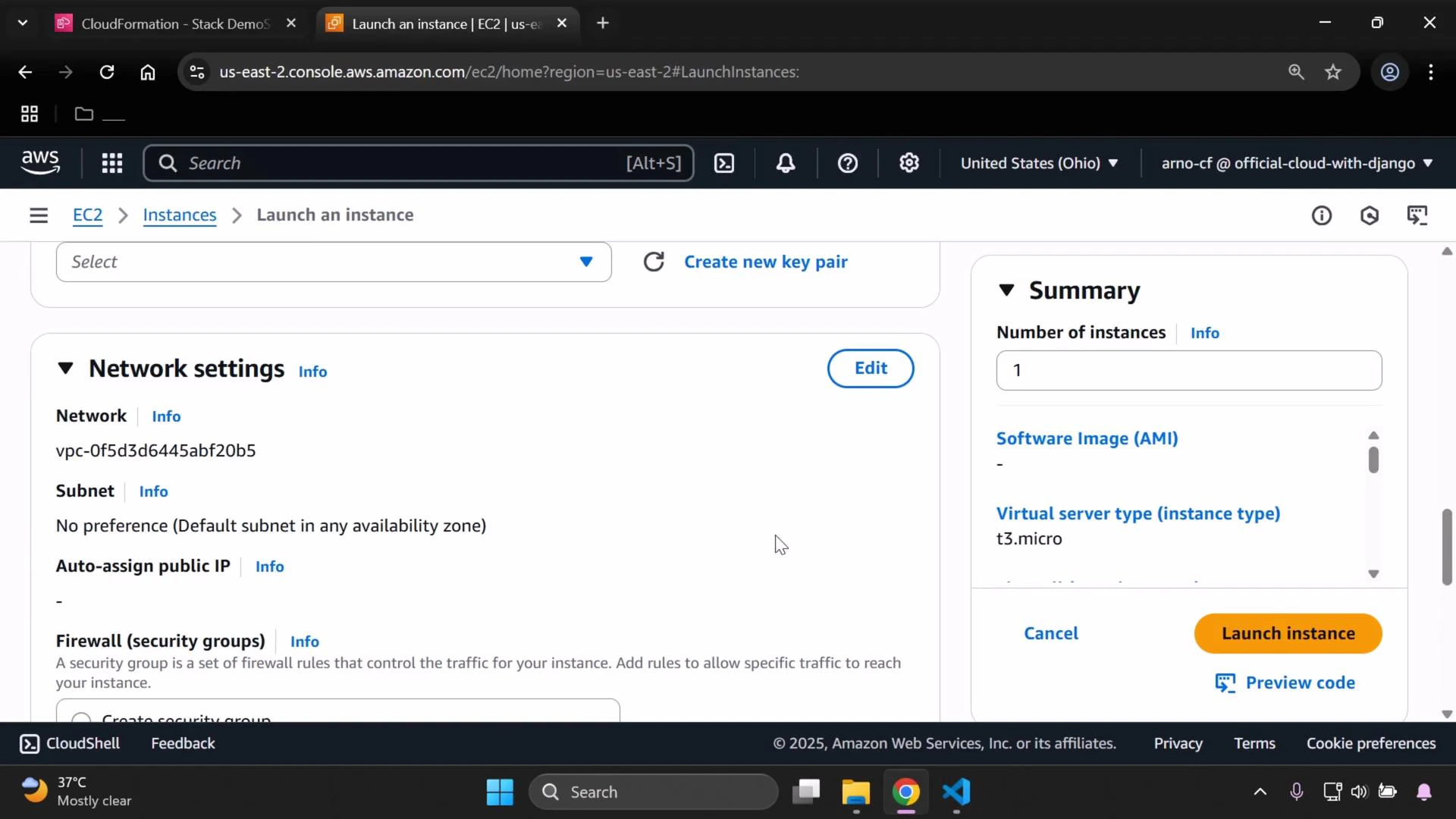
You can confirm the default VPC while launching an EC2 instance in the console:
A screenshot of the AWS EC2 "Launch an instance" console. The left side shows Network settings with a VPC ID and subnet info, and the right summary panel shows one t3.micro instance with a "Launch instance" button.
To permit SSH, add a second SecurityGroupIngress entry that allows TCP traffic on port 22. Key fields for an ingress rule:
FieldPurposeExample
IpProtocolProtocol for the ruletcp
FromPortStarting port of range22
ToPortEnding port of range22
CidrIpSource CIDR allowed to connect0.0.0.0/0 (open to the Internet)
Here is a minimal CloudFormation snippet that creates an EC2 instance and a security group with both HTTP and SSH ingress rules. Replace the VpcId and ImageId with values appropriate to your account and region:
Resources:
  MyInstance:
    Type: AWS::EC2::Instance
    Properties:
      InstanceType: t3.micro
      ImageId: ami-0eb9d6fc9fab44d24
      SecurityGroupIds:
        - !Ref MySecurityGroup

  MySecurityGroup:
    Type: AWS::EC2::SecurityGroup
    Properties:
      GroupDescription: Allow HTTP and SSH access
      VpcId: vpc-0f5d3d6445abf20b5
      SecurityGroupIngress:
        - IpProtocol: tcp
          FromPort: 80
          ToPort: 80
          CidrIp: 0.0.0.0/0
        - IpProtocol: tcp
          FromPort: 22
          ToPort: 22
          CidrIp: 0.0.0.0/0
Allowing SSH from 0.0.0.0/0 exposes port 22 to the entire Internet. Do not use this for production. Instead, restrict CidrIp to a known IP range (your office/home IP) or use a more secure pattern such as a bastion host or AWS Systems Manager Session Manager for secure access.
After saving the modified template:
  1. Open the AWS CloudFormation console and select your stack.
  2. Choose “Update” and upload the modified template (replacing the existing template).
  3. Proceed through the update steps. The update may take a few minutes to complete.
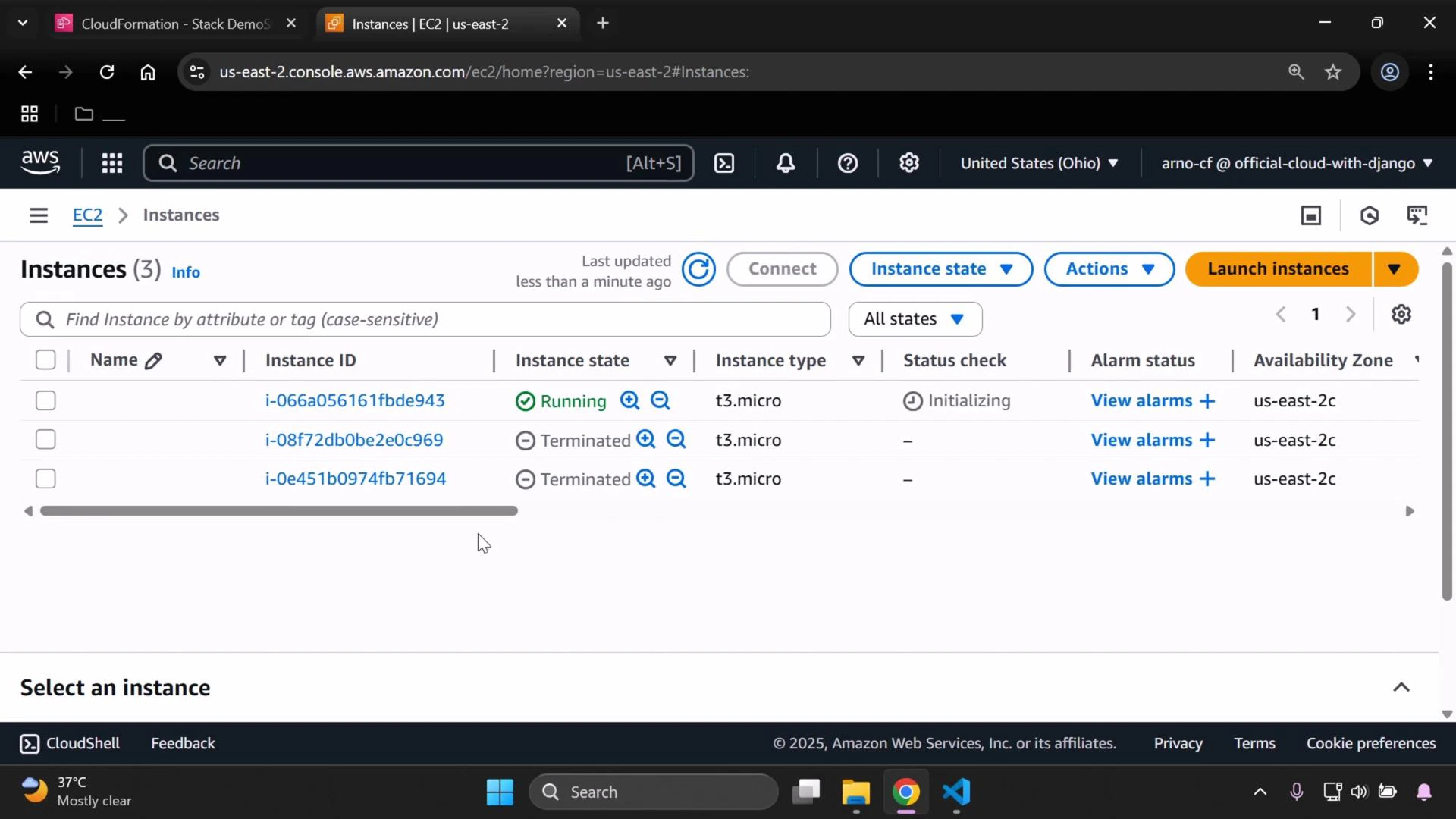
When the update finishes, view your EC2 instances in the console. If CloudFormation replaced the instance, the previous instance may show as terminated while a new instance initializes:
A screenshot of the AWS EC2 Instances console showing three instances in the us-east-2 region: one t3.micro instance is running (status initializing) and two t3.micro instances are terminated. The page shows instance IDs, status checks, alarm links, and the Launch instances/Actions controls.
Verify the security group rules:
  1. In the EC2 console, select the running instance.
  2. Scroll down to the Security groups section and click the security group link.
  3. Under the Inbound rules tab, confirm there are two rules: HTTP (port 80) and SSH (port 22), with the expected source CIDR ranges.
Quick troubleshooting checklist if you cannot SSH:
CheckHow to verify
Public IP assignedConfirm instance has a public IPv4 address or an Elastic IP
Security groupVerify inbound rule for port 22 and correct CidrIp
Network ACLsEnsure NACLs on the subnet allow inbound/outbound traffic
Instance OS firewallCheck iptables/ufw settings on the VM
Key pair & SSH clientConfirm correct private key and SSH command (ssh -i key.pem ec2-user@public-ip)
Replacement instanceIf CloudFormation replaced the instance, use the new instance’s public IP
You should now be able to connect to the instance on ports 80 and 22 according to the rules you defined. For production environments, follow best practices for access control and monitoring. For more details on CloudFormation and EC2, see the AWS CloudFormation course and the Amazon EC2 course.

Watch Video