Welcome — in this lesson we’ll install and configure cfn-lint so Visual Studio Code can validate your AWS CloudFormation templates (YAML or JSON). cfn-lint detects syntax errors, invalid resource/property names, deprecated properties, and many best-practice suggestions so you catch problems before deploying stacks. What you’ll accomplish
  1. Install the VS Code extension for CloudFormation linting.
  2. Install the cfn-lint CLI (required by the extension).
  3. Verify linting works from both VS Code and the command line.
Prerequisites
  • Visual Studio Code
  • Python 3.8+ (for the pip install method) or Homebrew / Docker (optional)
  • Basic familiarity with CloudFormation templates
  1. Install the CloudFormation Linter extension in VS Code
  • Open Visual Studio Code and go to the Extensions view (use the sidebar icon or the three-dot/grid icon if your sidebar is narrow).
  • Search for “CFN-Lint” or “CloudFormation Linter”.
  • Install the extension titled “CloudFormation Linter” (vscode-cfn-lint). When prompted, trust and install the publisher.
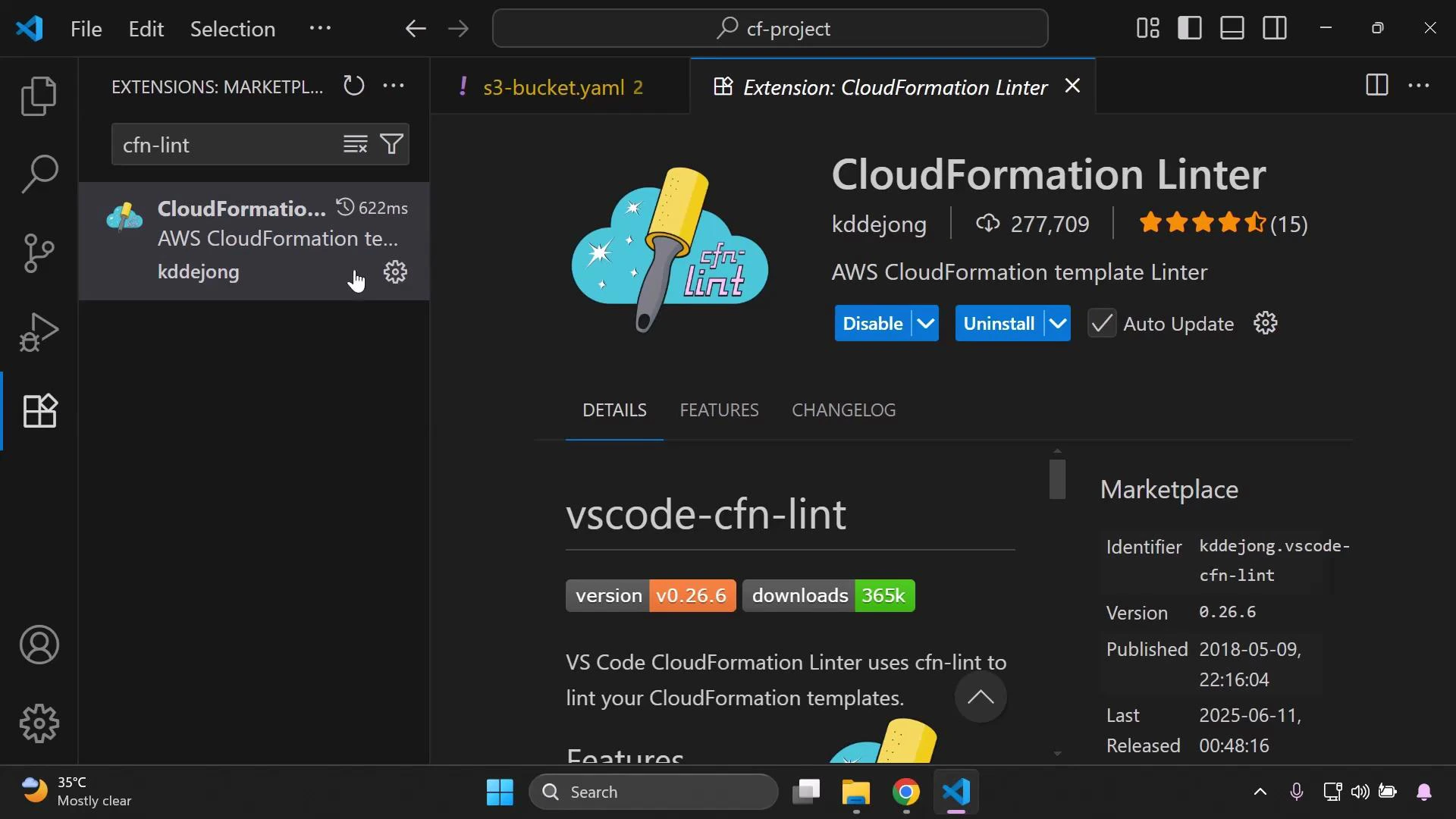
After installing the extension you should see it listed in the sidebar.
A screenshot of Visual Studio Code's Extensions view showing the "CloudFormation Linter" (vscode-cfn-lint) extension page, with install/disable buttons, ratings, version (v0.26.6) and download info. The left pane shows the extension listed in the sidebar.
  1. Open a template to test the extension Open any CloudFormation template (YAML or JSON) in VS Code. Example minimal YAML:
Resources:
  MyS3Bucket:
    Type: AWS::S3::Bucket
If the extension shows a warning or indicates cfn-lint is not found, that’s expected until you install the cfn-lint CLI. The VS Code extension uses the cfn-lint executable under the hood to perform checks.
  1. Install the cfn-lint CLI The extension requires the Python-based cfn-lint executable. Below are common installation methods. Use the method that fits your platform and environment.
Recommended: pip (Python)
# Ensure pip is up-to-date
python3 -m pip install --upgrade pip

# Install the core linter
python3 -m pip install cfn-lint

# Optional extras for additional features
python3 -m pip install "cfn-lint[full]"
python3 -m pip install "cfn-lint[graph]"
python3 -m pip install "cfn-lint[junit]"
python3 -m pip install "cfn-lint[sarif]"
Alternative: macOS Homebrew
brew install cfn-lint
Alternative: Build or run from source with Docker
git clone https://github.com/aws-cloudformation/cfn-lint.git
cd cfn-lint
docker build --tag cfn-lint:latest .
# or use the repository's instructions to run the container directly
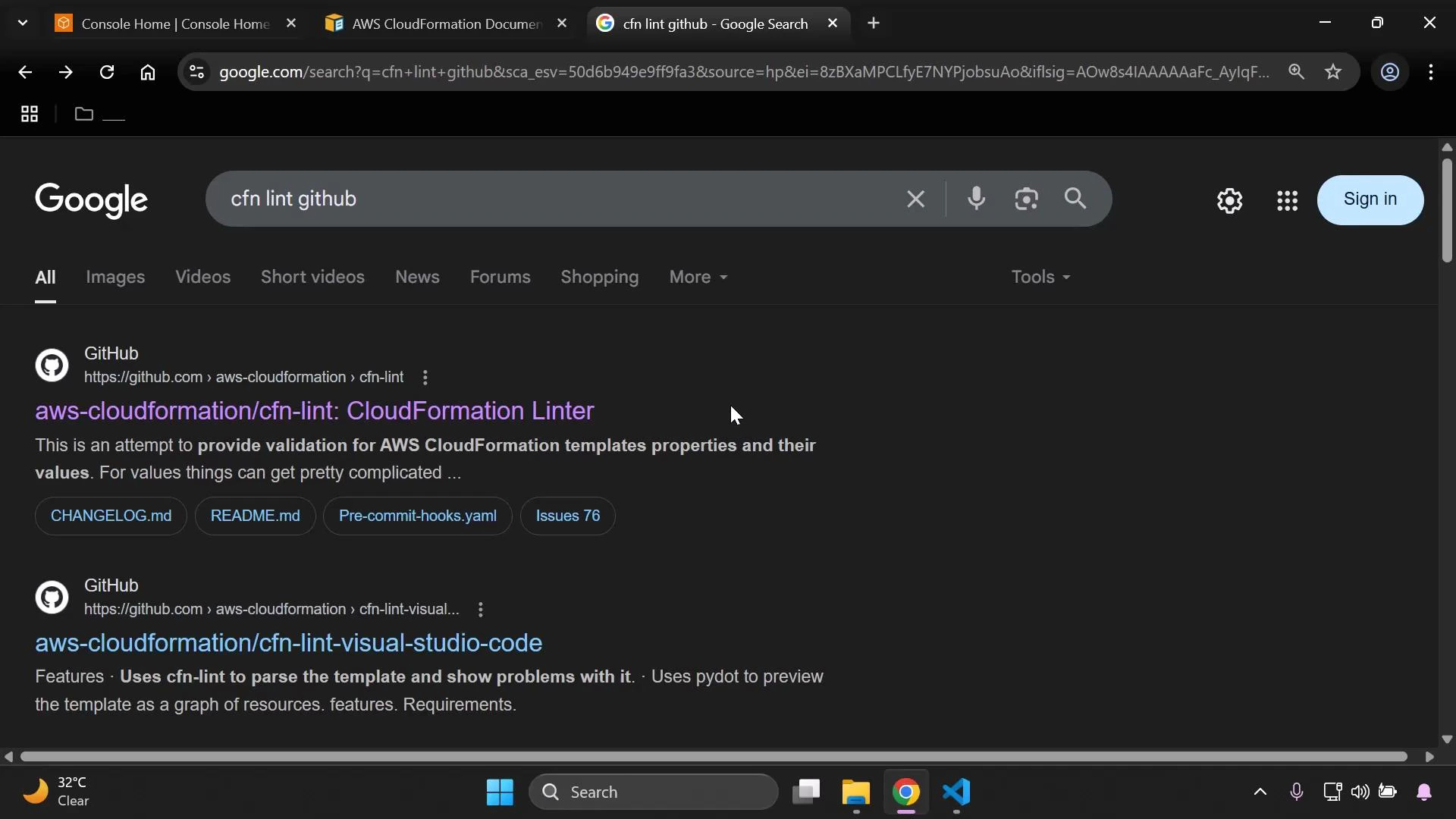
For detailed platform-specific instructions and the latest release, see the cfn-lint repository on GitHub.
A dark-mode Google search results page in a browser for "cfn lint github," showing GitHub links to aws-cloudformation/cfn-lint and cfn-lint-visual-studio-code. The screenshot also shows browser tabs at the top and a Windows taskbar across the bottom.
Quick reference: installation options
MethodPlatformInstall commandNotes
pipLinux / macOS / Windows (Python)python3 -m pip install cfn-lintUse extras for full feature set (graph, junit, sarif).
HomebrewmacOSbrew install cfn-lintSimple macOS install; kept up-to-date via brew.
Docker / SourceAny (with Docker)docker build . (from repo)Useful in environments where installing Python packages is restricted.
After installing Python and cfn-lint, restart VS Code so the extension can detect the installed cfn-lint executable. If VS Code still cannot find the executable, set the path to the cfn-lint binary in the extension settings or ensure the binary is on your system PATH.
  1. Run cfn-lint from the command line Once installed, verify the linter from your terminal:
# Lint a single template
cfn-lint template.yaml
You will see any warnings or errors with file/line references. Use this output to update your template and re-run the linter. Troubleshooting tips
  • If the extension does not detect the cfn-lint executable:
    • Confirm the CLI runs from your terminal (run cfn-lint --version).
    • Ensure the terminal shell used by VS Code has the same PATH as your interactive shell.
    • Configure the extension setting for the cfn-lint executable path if necessary.
  • If you need dependency isolation, install cfn-lint in a virtual environment (venv) and point VS Code to that venv’s binary.
Links and references Next steps In the next demo we’ll run cfn-lint against several real templates, interpret common rule violations, and apply fixes to meet best-practice guidance. Follow along and you’ll have a reproducible linting workflow for every CloudFormation template you create.

Watch Video