

- Delete all stack instances from the StackSet (across target accounts and regions).
- Verify all stack resources were removed (S3 buckets, IAM roles, etc.).
- Delete the StackSet itself once instances are gone.
- Remove stack instances from the StackSet (specify target account(s) and region(s)).
- Monitor the StackSet operations until the delete operation completes for each instance.
- Confirm external resources (for example, S3 buckets) were deleted or handled.
- Delete the StackSet record from the CloudFormation console.
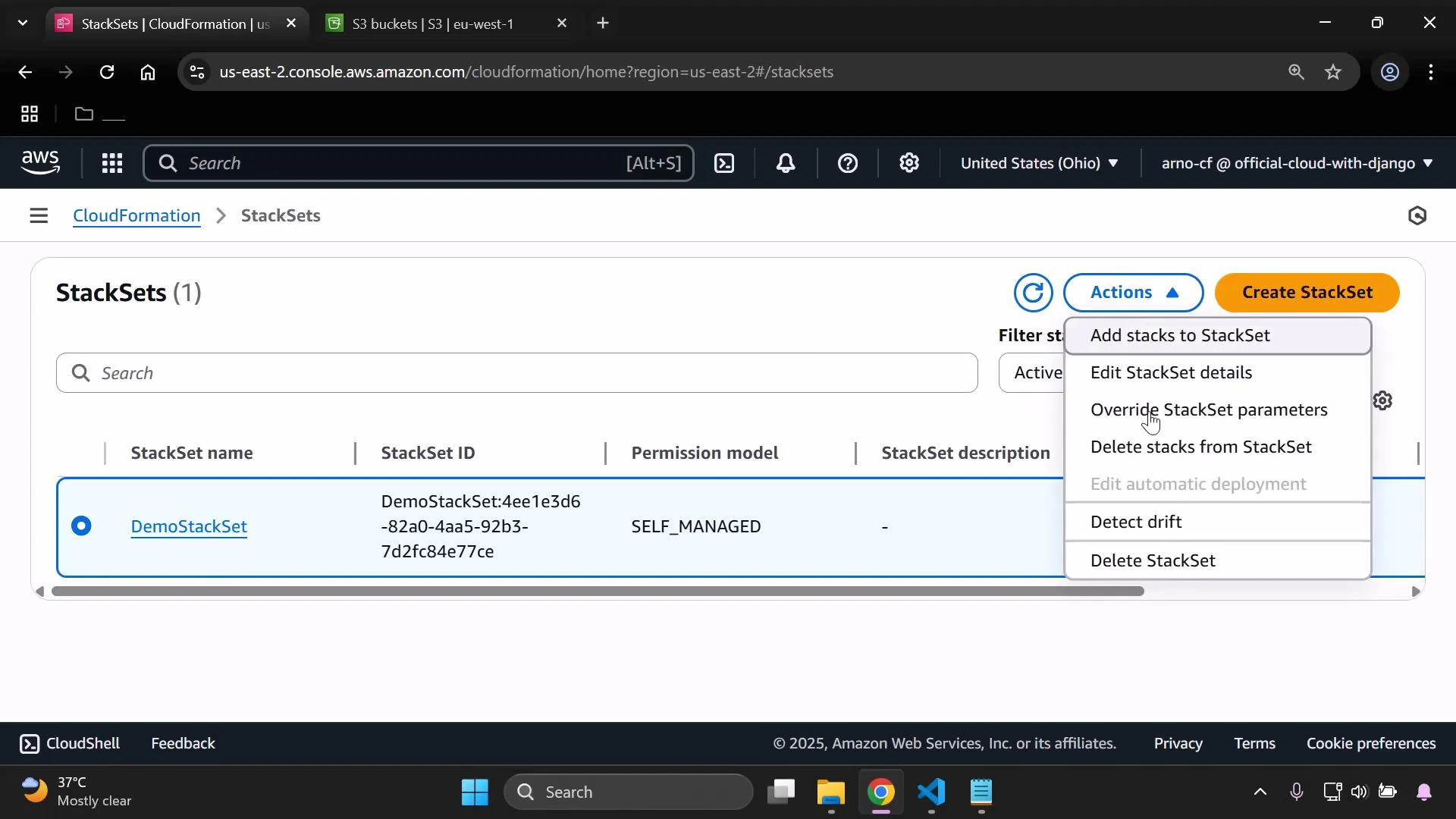
- Open the StackSet in the CloudFormation console, select the StackSet you want to remove, open the Actions menu, and choose “Delete stacks from stack set”. Provide the target account number(s) and select the region(s) that contain the stack instances you want to delete (for example, eu-west-1 and us-east-1). Confirm and submit the deletion.
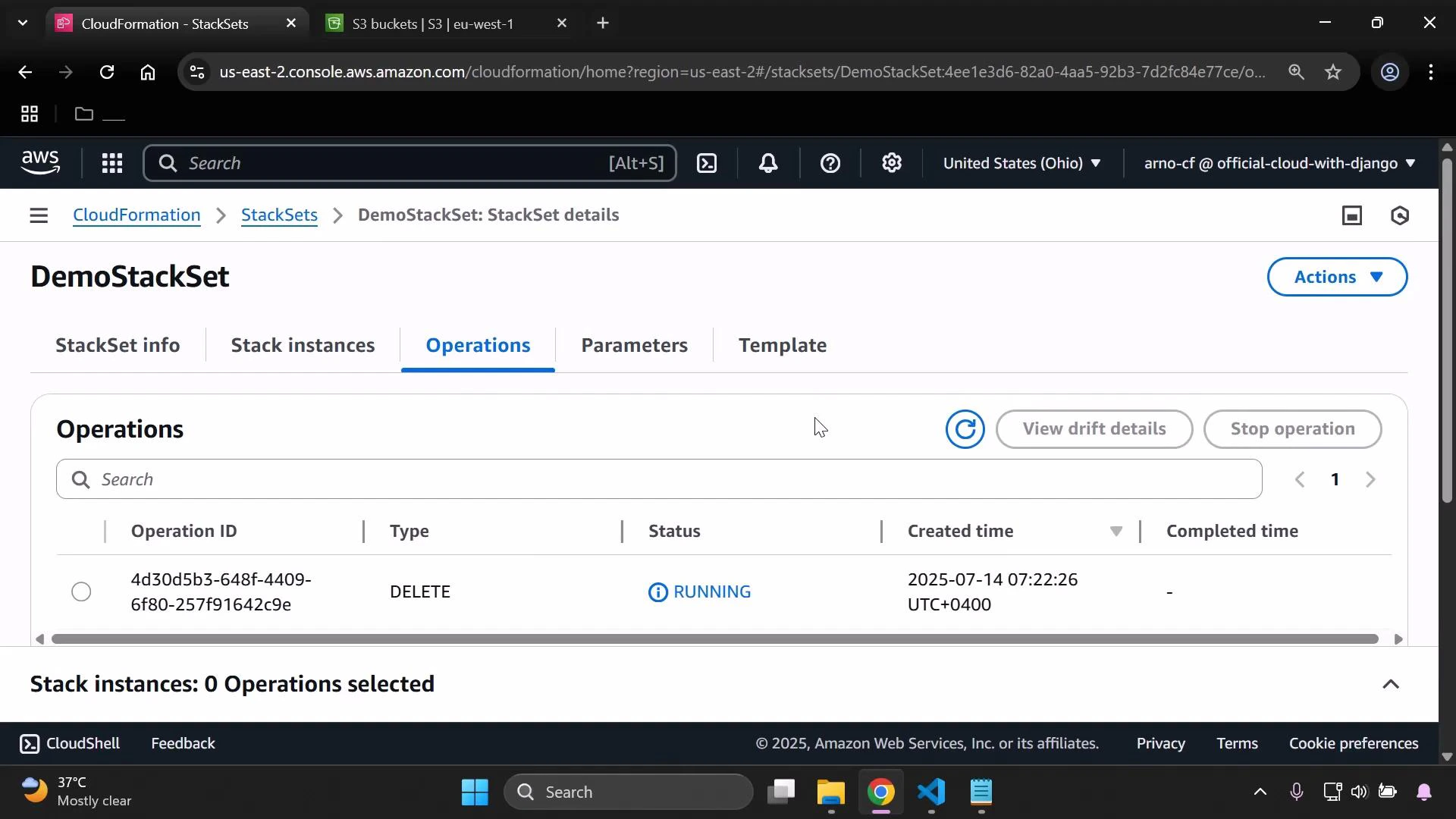
- After submitting the delete request, monitor operations for progress. The delete operation appears under the Operations tab and shows statuses such as RUNNING while in progress, then SUCCEEDED or FAILED once complete.
- Watch the Stack instances tab to follow progress for each instance. Instances may show PENDING or IN_PROGRESS while being removed. When deletion finishes successfully, instance entries will disappear from the list.
- Verify external resources created by the stacks were removed in the regions you targeted. For example, CloudFormation cannot delete S3 buckets that still contain objects — if a bucket is not empty, the stack delete for that resource will fail. You will need to empty or delete the bucket manually, or design your stack to remove bucket contents during deletion. In this demo, the stacks created buckets in eu-west-1 and us-east-1; after deleting the stack instances those buckets were removed because they were empty.
- Once all stack instances are removed, the StackSet remains in the console until you explicitly delete it. To finish, select the StackSet, open Actions, choose “Delete stack set”, and confirm. After this, the StackSet will no longer appear in your StackSets list.
Best practices
- Always delete stack instances before deleting the StackSet record.
- Review stack templates for resources that require manual cleanup (S3, EBS snapshots, RDS snapshots).
- Use the Operations and Stack instances tabs to monitor progress and retrieve error details.
- For automation, you can script StackSet deletes via the AWS CLI or SDKs, but ensure you handle non-deletable resources and permissions in advance.
- AWS CloudFormation StackSets concepts
- AWS CloudFormation User Guide
- Amazon S3 documentation
- CloudFormation course on KodeKloud
- Amazon S3 course on KodeKloud
Always delete stack instances before attempting to delete a StackSet. Deleting instances first ensures that the resources created by those stacks are removed cleanly and avoids operation failures.