

1. Starting point — minimal EC2 instance
Here is the minimal EC2 Instance resource already in the template:2. Define a Security Group with an ingress rule for HTTP
Add a Security Group resource that allows inbound HTTP traffic. SecurityGroup ingress rules are defined in the SecurityGroupIngress list; each rule is an object with fields describing protocol, ports, and source.A security group is a virtual firewall for your instance. Use SecurityGroupIngress to open inbound ports (like HTTP) and SecurityGroupEgress to restrict or allow outbound traffic.
3. Attach the Security Group to the EC2 instance
Reference the security group logical name using intrinsic function !Ref and add it to the EC2 instance via SecurityGroupIds:4. Common error: security group and instance must be in the same VPC
If CloudFormation reports an error about the security group reference format or the instance update fails, the most common cause is that the Security Group is being created in a different VPC than the instance. To ensure the Security Group is created in the correct VPC, add the VpcId property to the security group (copy the VPC ID from your EC2 instance details):5. Combined minimal template
A minimal combined snippet that creates the instance and the security group in the same VPC: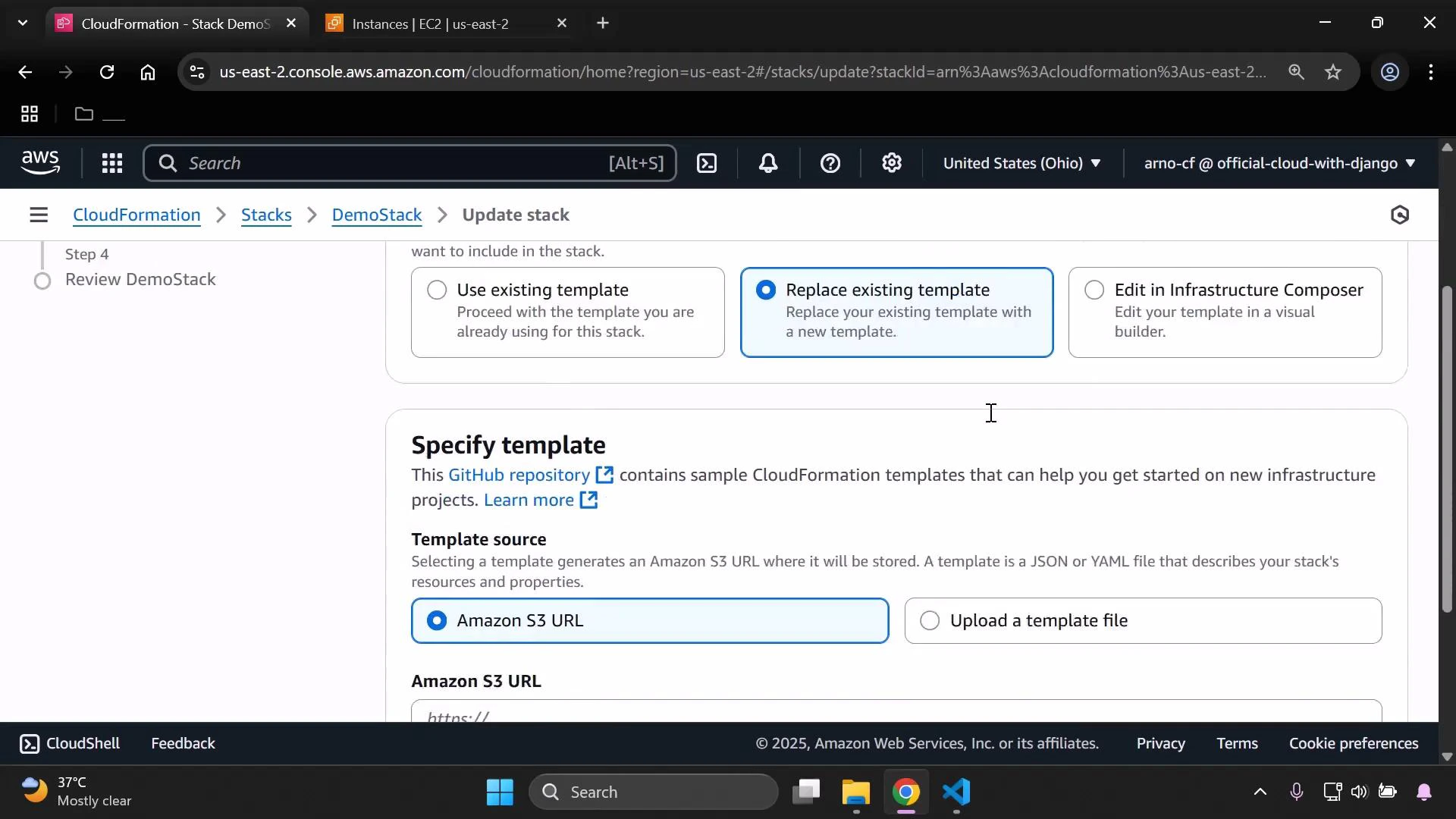
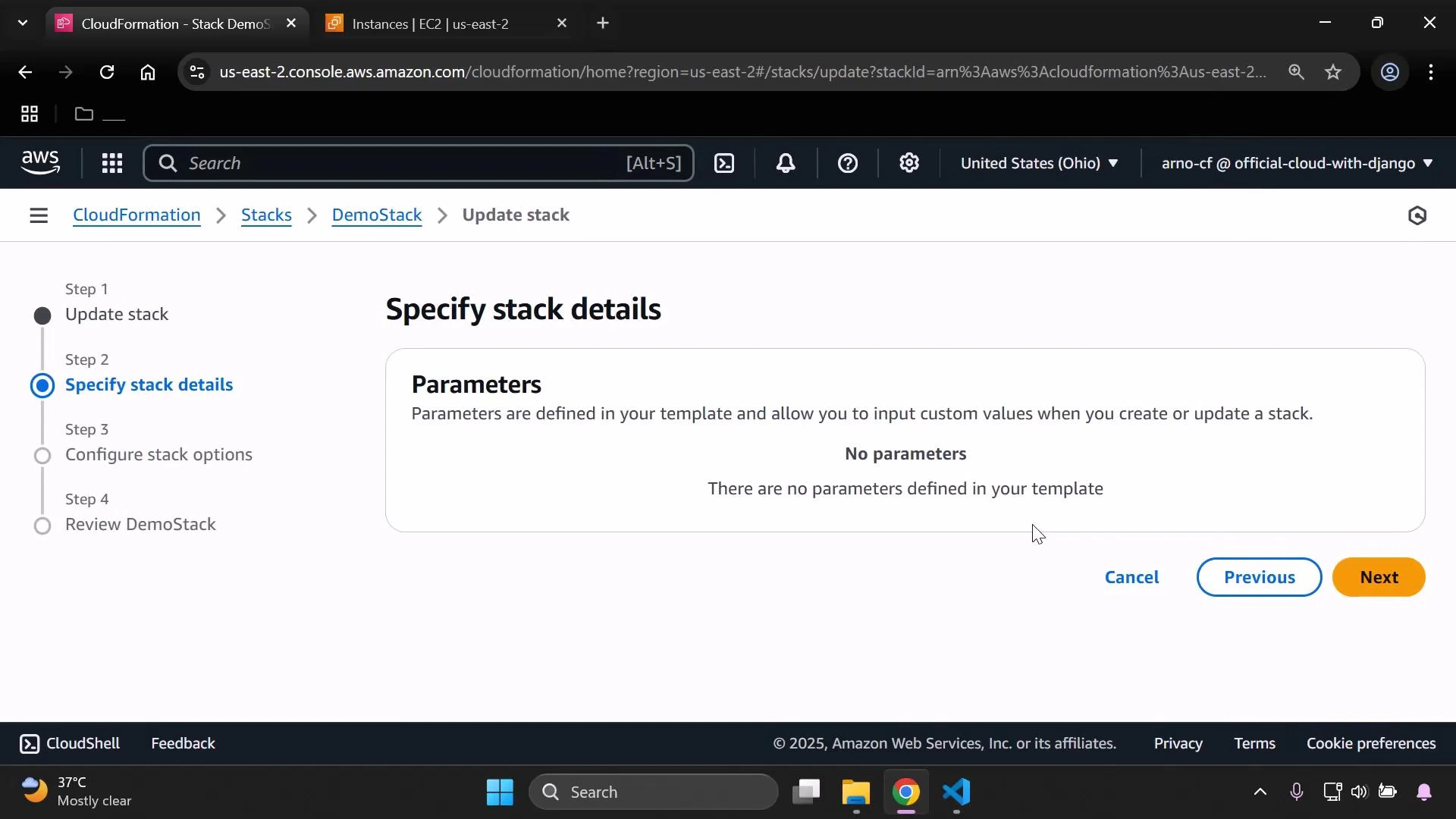
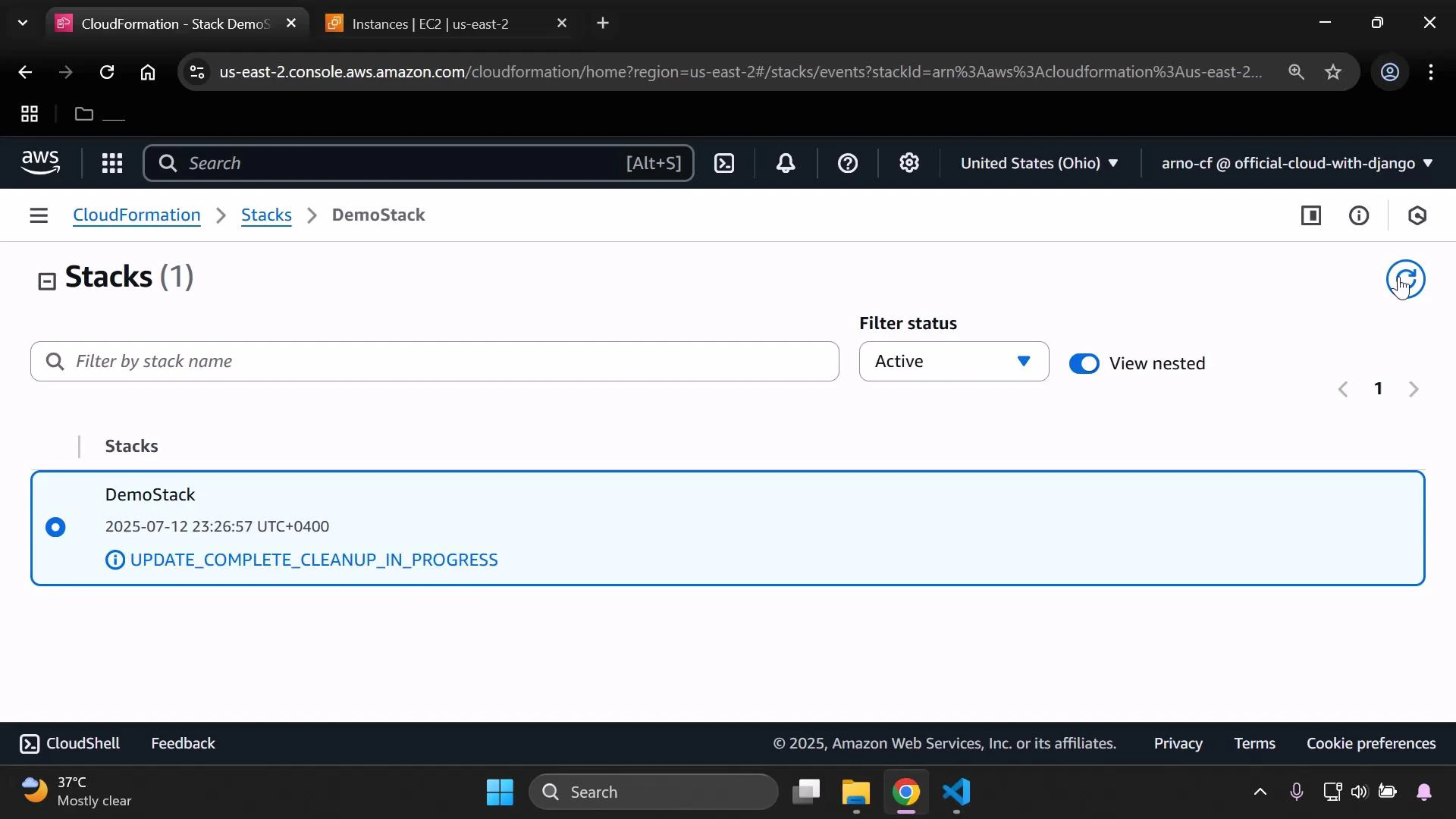
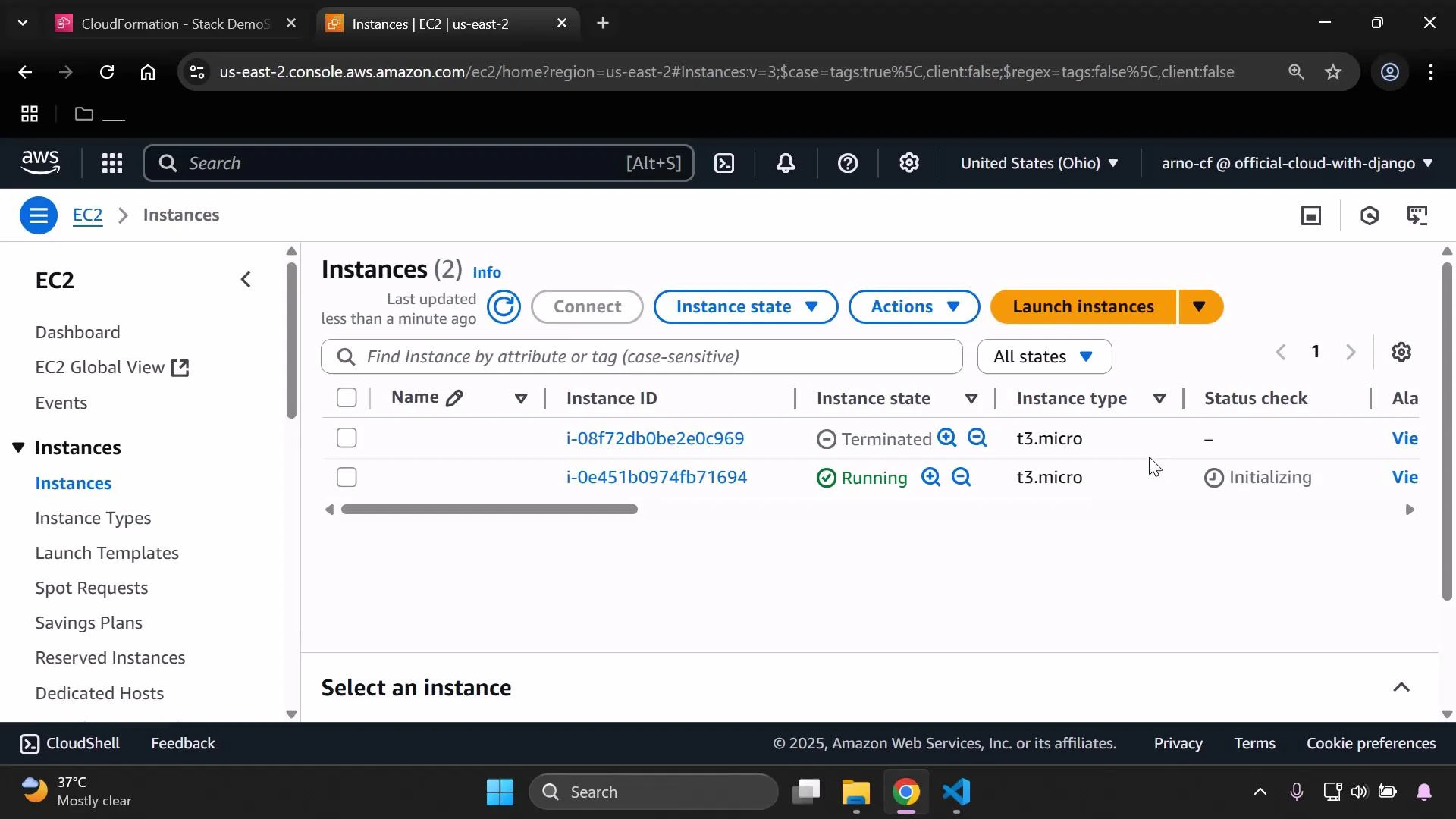
6. Verify the Security Group inbound rule
Open the EC2 console → Network & Security → Security Groups, locate the security group created by the stack, and inspect the Inbound rules. You should see an IPv4 HTTP rule (TCP port 80) with source 0.0.0.0/0.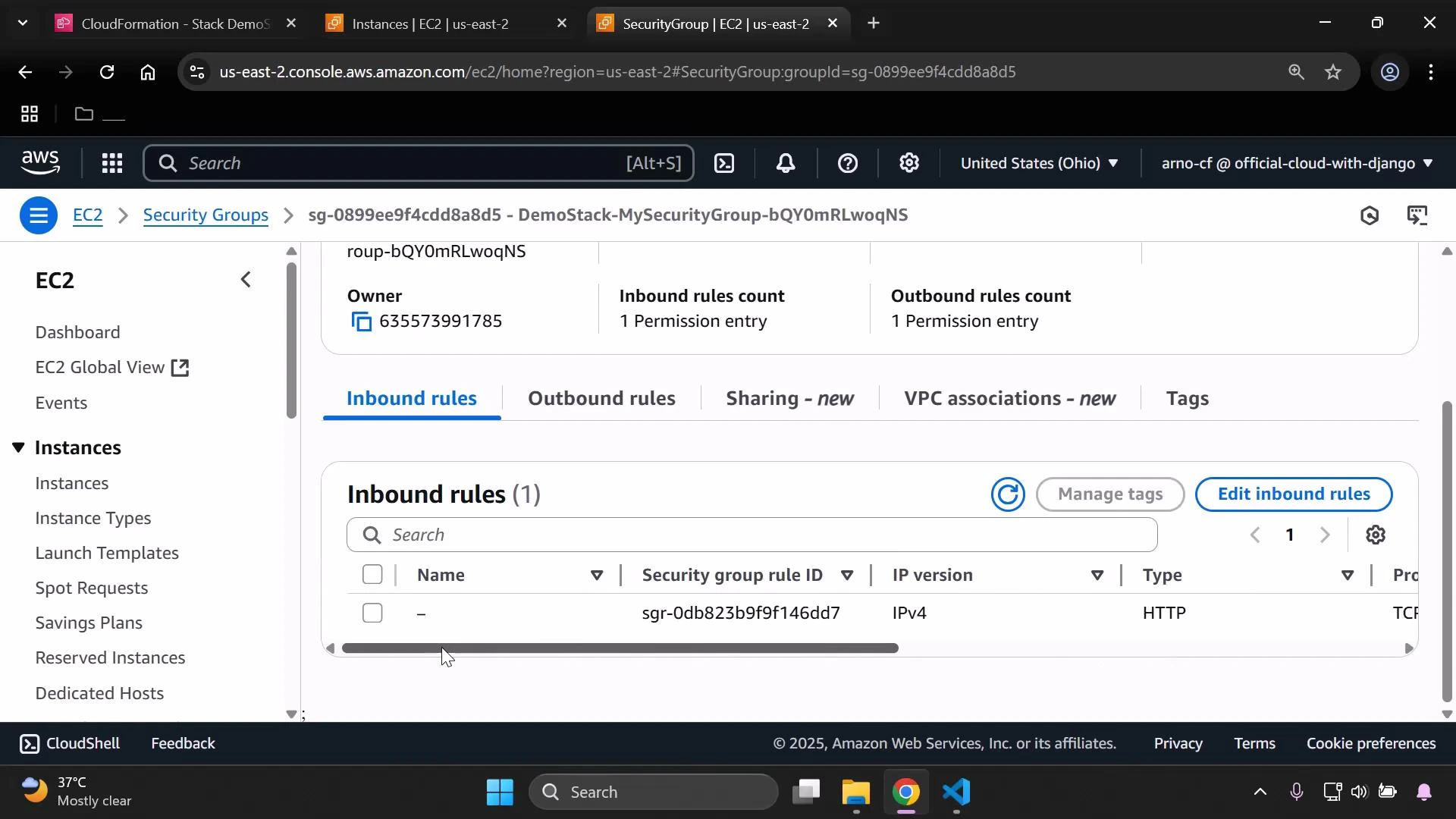
- Add additional ingress rules (HTTPS on 443, SSH on 22 with a restricted CIDR).
- Define SecurityGroupEgress rules to restrict outbound traffic.
- Use CloudFormation parameters or mappings to make the VpcId and CIDR ranges configurable.