This lesson finishes the walkthrough for managing AWS CloudFormation stacks across regions. You’ll switch the CloudFormation console to EU (Ireland), upload and launch a stack from a local template, verify the resources created in that region, test the instance’s web server, and then clean up — including removing the temporary S3 template bucket.

1. Switch the console to the target region

Before creating a stack, set the CloudFormation console to the region where you want resources deployed — here, EU (Ireland) (eu-west-1).
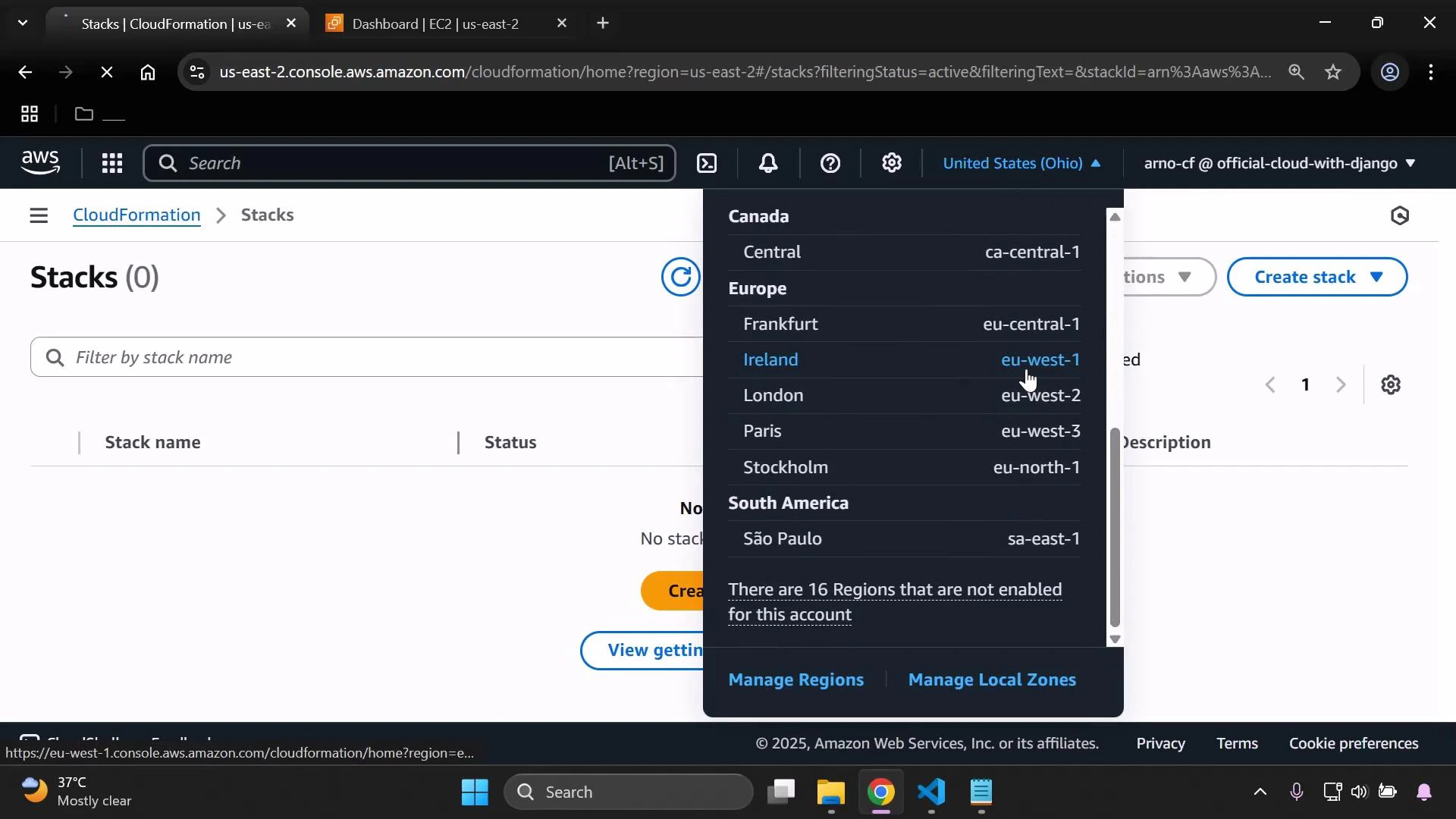
A screenshot of the AWS CloudFormation console showing "Stacks (0)" and an empty stack list. A region selector dropdown is open, listing multiple regions (Europe, South America, etc.) with Ireland (eu-west-1) highlighted.

2. Create the stack from an uploaded template

  • Choose Create stack → Choose an existing template → Upload a template file.
  • Upload your CloudFormation template (for example, ec2-instance.yaml). CloudFormation uploads the template to an S3 bucket in the selected region to use during stack creation.
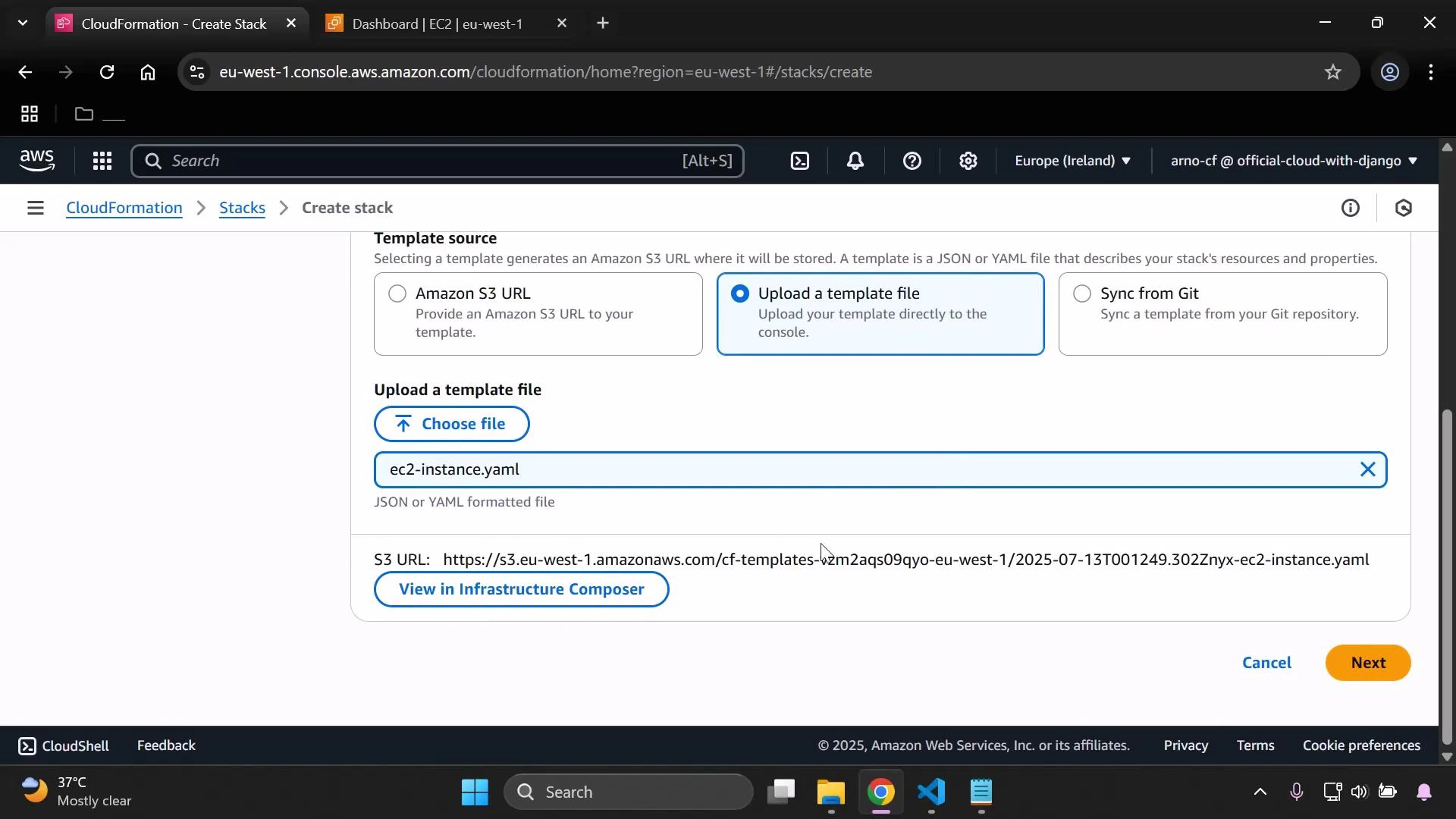
A screenshot of the AWS CloudFormation "Create stack" page with the "Upload a template file" option selected and the file "ec2-instance.yaml" chosen. An S3 URL for the uploaded template and the "Next" button are visible.

3. Specify stack details and parameters

Provide a stack name (for example, DemoStackEU) and choose parameter values such as instance type and subnet (we use the default VPC subnet in Ireland in this demo).
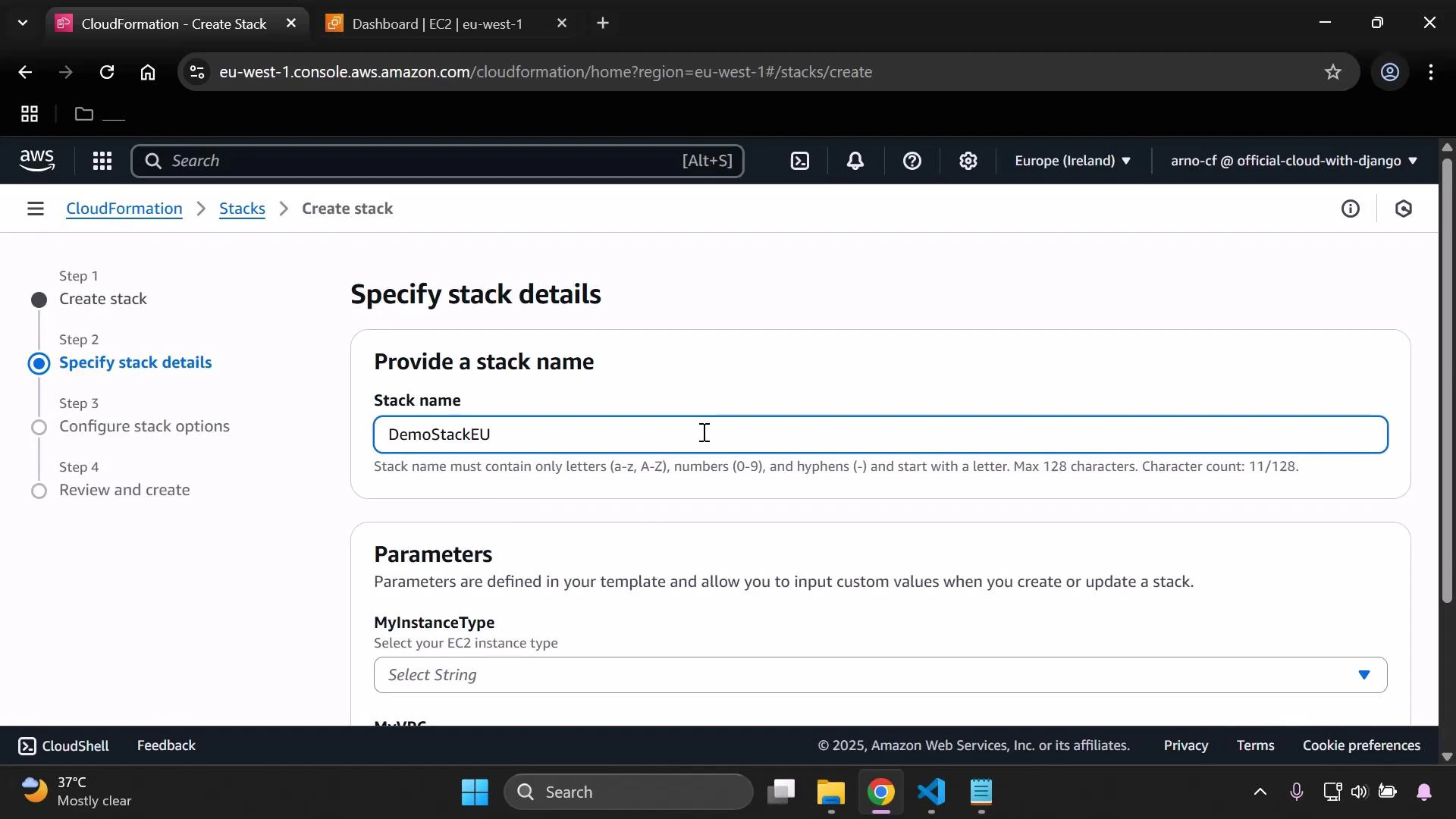
A screenshot of the AWS CloudFormation "Create stack" page showing the "Specify stack details" step with the stack name "DemoStackEU" entered. The left progress pane lists the workflow steps and a Parameters section is visible below.

4. CloudFormation creates the resources in the selected region

While the stack is being created you can already observe resources being provisioned — for example, the security group created by the template appears in the EC2 console.
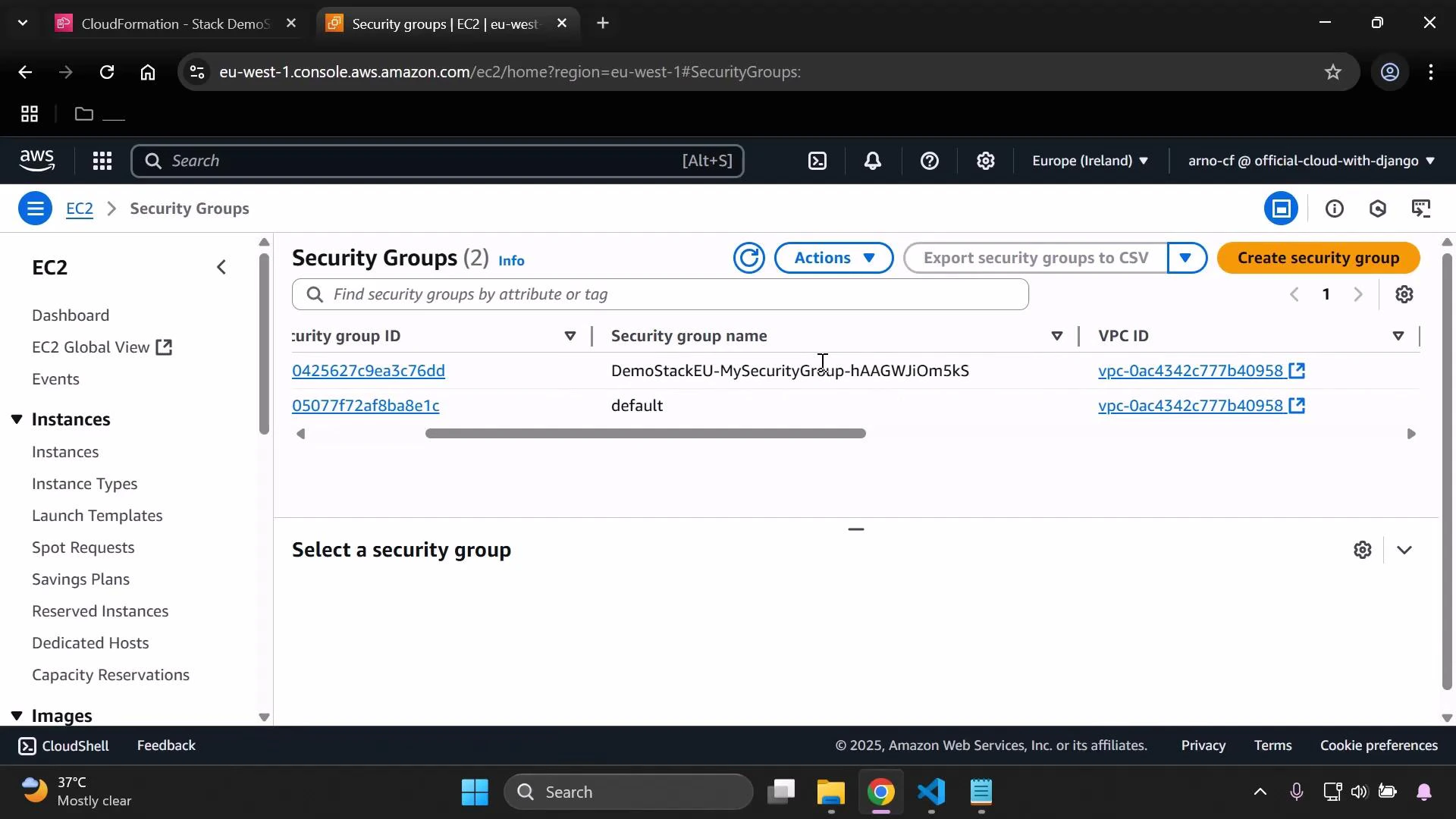
Screenshot of the AWS EC2 console on the Security Groups page, showing two security groups listed — "DemoStackEU-MySecurityGroup-..." and "default" — with their security group IDs and VPC IDs. The left navigation shows EC2 sections (Instances, Images) and the top bar indicates the Europe (Ireland) region.
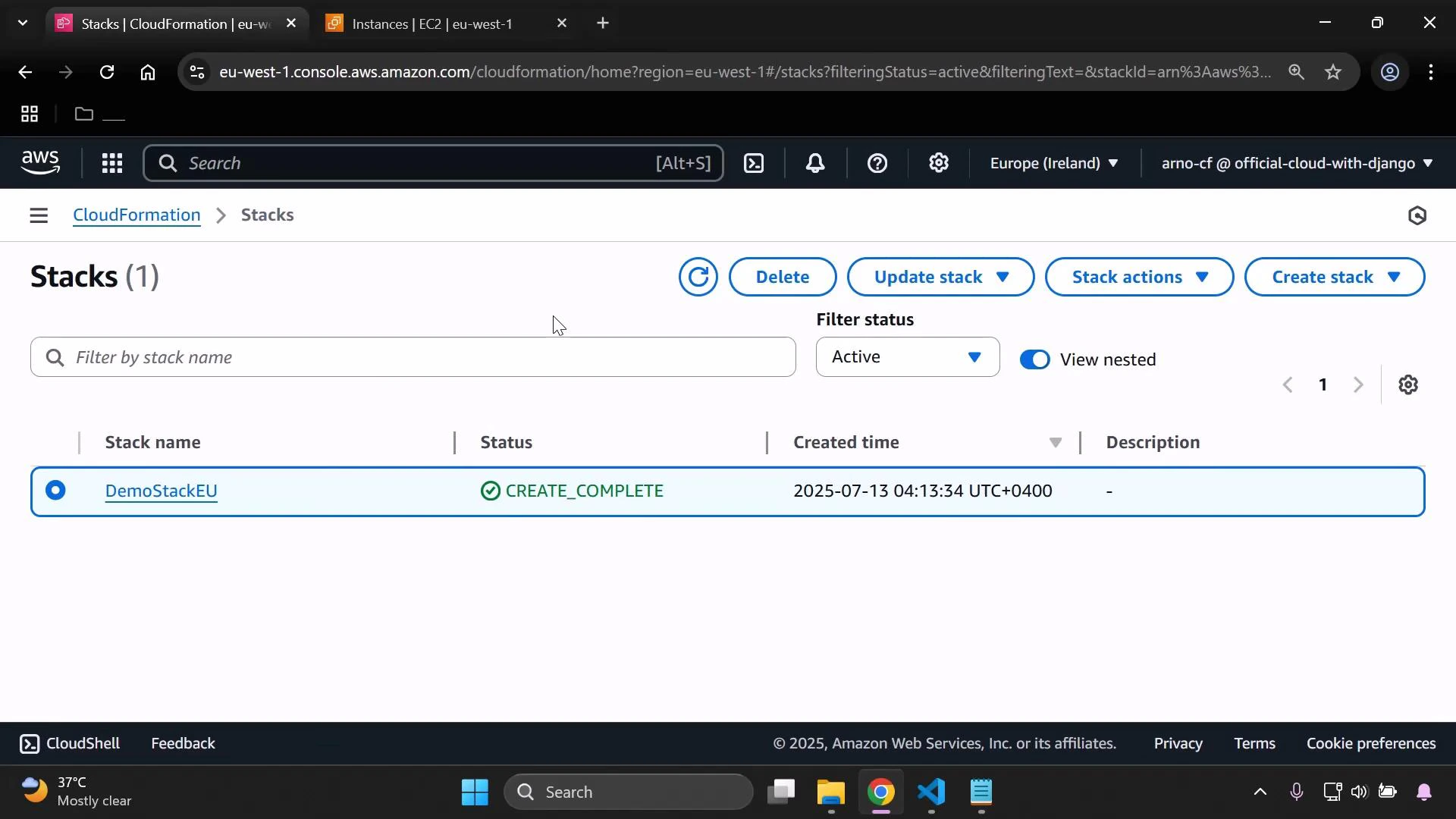
When the stack completes, CloudFormation shows the status CREATE_COMPLETE.
A screenshot of the AWS CloudFormation Stacks console showing one stack named "DemoStackEU" with status "CREATE_COMPLETE" and a creation timestamp. The top toolbar shows action buttons like Delete, Update stack, Stack actions and Create stack.

5. Template technique: selecting AMIs per region

This template demonstrates how to select the correct AMI per region using a Mappings section and the AWS::Region pseudo parameter. The instance resource uses FindInMap to pick the AMI that corresponds to the region where the stack is created. The template also defines a security group resource named MySecurityGroup, which the instance references.
Metadata:
  Purpose: Basic EC2 instance with HTTP and SSH access

Mappings:
  RegionMap:
    us-east-2:
      AMI: ami-0eb9d6fc9fab44d24
    eu-west-1:
      AMI: ami-0b3e7dd7b2a99b08d
    us-east-1:
      AMI: ami-0150ccaf51ab55a51

Parameters:
  MyInstanceType:
    Type: String
    Description: Select your EC2 instance type
    AllowedValues:
      - t3.micro
      - t3.small
  MySubnet:
    Type: AWS::EC2::Subnet::Id
    Description: Select the subnet to launch the EC2 instance in

Resources:
  MyInstance:
    Type: AWS::EC2::Instance
    Properties:
      InstanceType: !Ref MyInstanceType
      ImageId: !FindInMap [RegionMap, !Ref "AWS::Region", AMI]
      SubnetId: !Ref MySubnet
      SecurityGroupIds:
        - !Ref MySecurityGroup
      Tags:
        - Key: Name
          Value: SimpleWebServer
      UserData:
        Fn::Base64: |
          #!/bin/bash
          yum update -y
          yum install -y httpd
          systemctl enable httpd
          systemctl start httpd
          echo "It works!" > /var/www/html/index.html
How it works:
  • CloudFormation evaluates the pseudo parameter AWS::Region at stack creation time to detect the region (example: eu-west-1).
  • !FindInMap [RegionMap, !Ref "AWS::Region", AMI] looks up the AMI that corresponds to that region.
  • Instance properties (InstanceType, ImageId, SubnetId, SecurityGroupIds) are resolved and the EC2 instance is launched in the selected region.
The pseudo parameter AWS::Region resolves to the region where the stack is created. Use a RegionMap with Fn::FindInMap to select region-specific values (such as AMI IDs) without maintaining multiple templates.

6. Verify the instance and test the web server

After the instance is running, view its details in the EC2 console to confirm the VPC, AMI ID, and public IP. The instance name in this demo is SimpleWebServer.
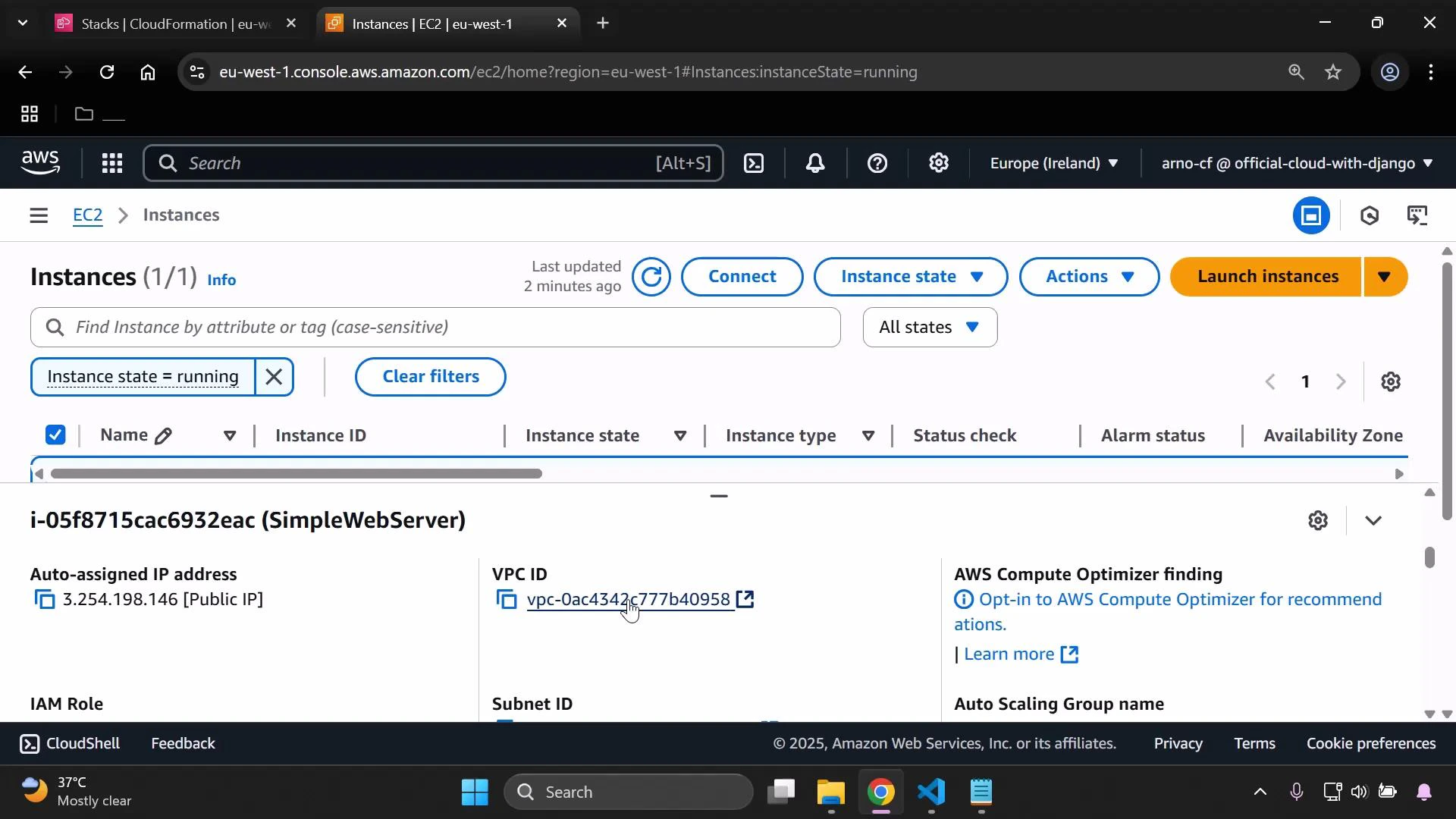
A browser screenshot of the AWS EC2 Instances console showing one running instance (named SimpleWebServer) with its auto-assigned public IP and VPC ID visible. The page includes controls for connecting, instance state, actions, and a "Launch instances" button.
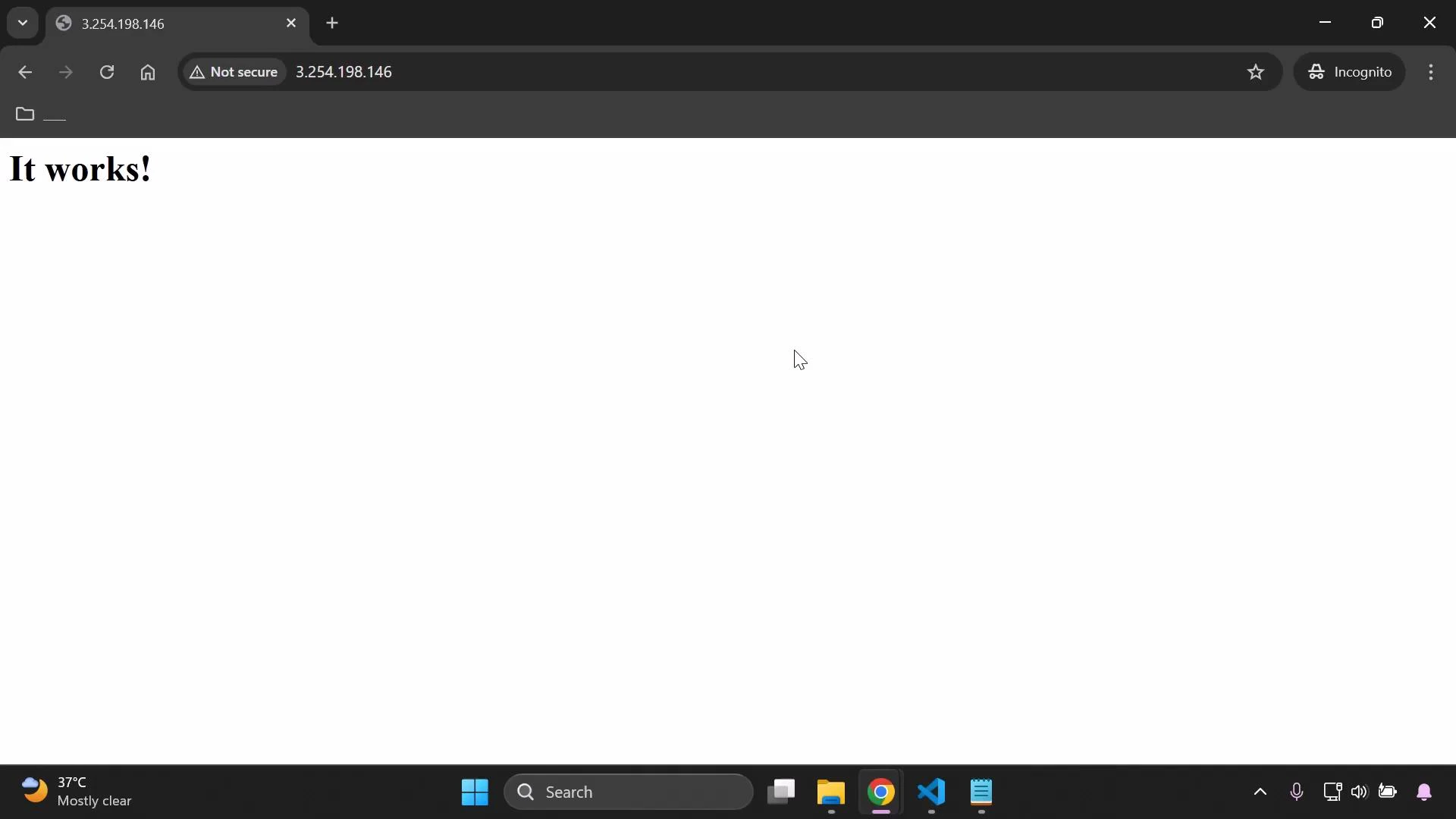
Open the instance’s public IPv4 address in a browser to verify the HTTP server works — the user data script installs httpd and writes a simple page that displays “It works!“.
A web browser window displaying a minimal webpage with the large text "It works!" and the address bar showing the IP 3.254.198.146 marked "Not secure." The Windows desktop taskbar is visible at the bottom with app icons and a weather indicator.

7. Clean up — delete the stack and remove temporary S3 templates

To remove the resources created by the stack, delete the CloudFormation stack. Deleting the stack removes the EC2 instance, security group, and all resources the template created.
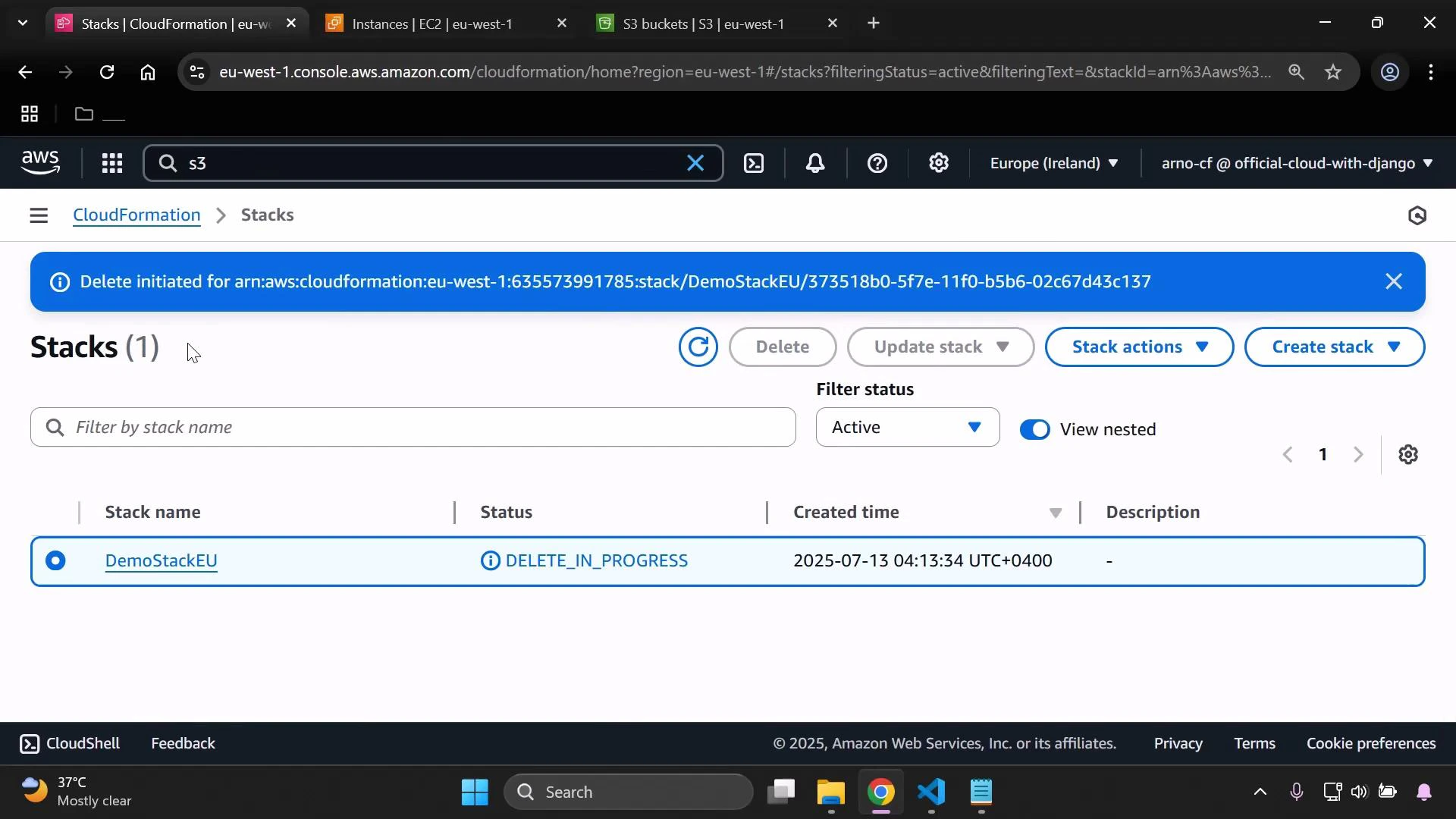
A screenshot of the AWS CloudFormation console showing one stack named "DemoStackEU" with status "DELETE_IN_PROGRESS" and a blue banner that says delete initiated. The page is in the eu-west-1 (Europe — Ireland) region.
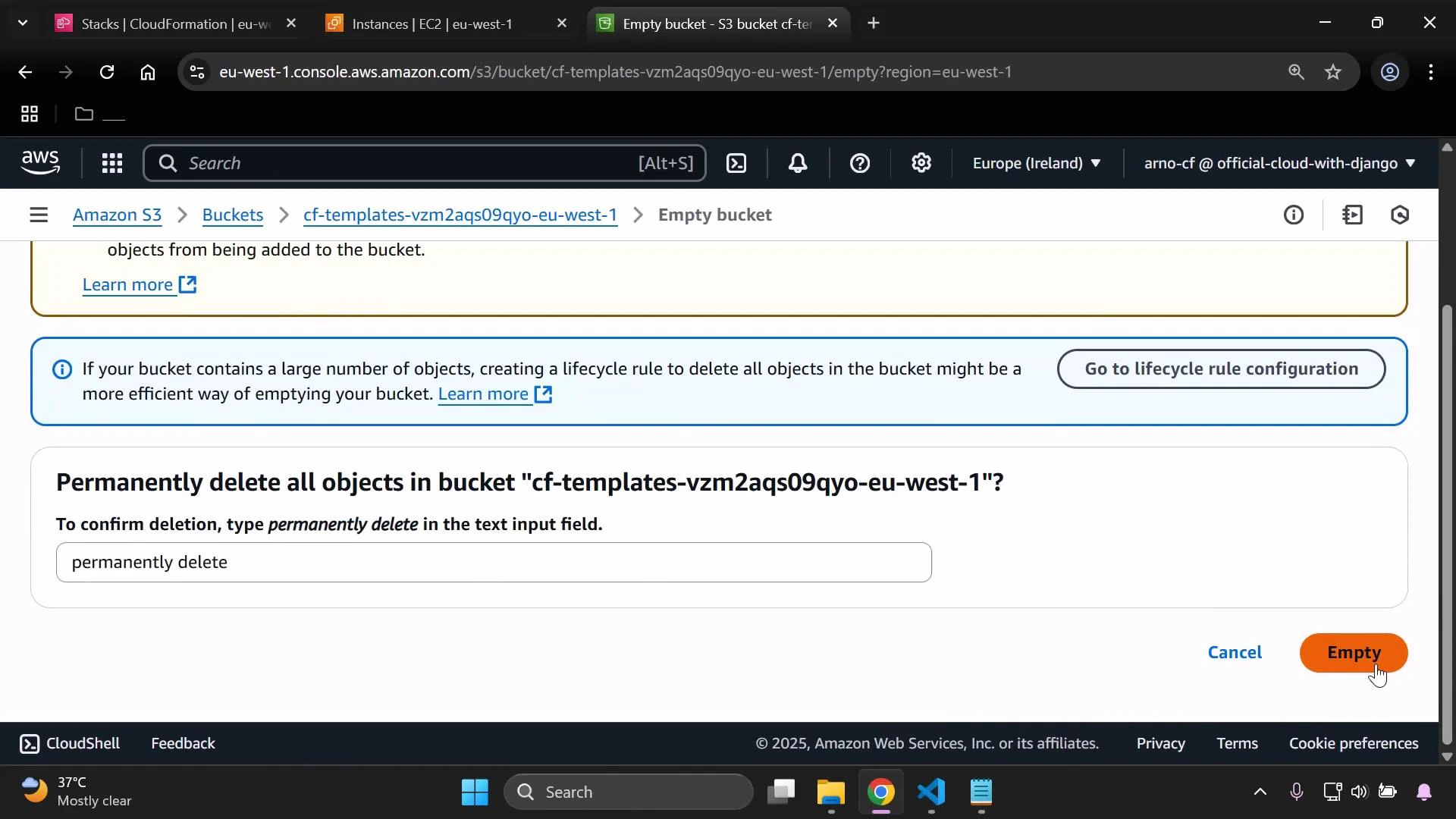
CloudFormation copies uploaded templates to a regional S3 bucket during stack creation. If you no longer need that temporary bucket, empty and delete it after stack deletion.
A screenshot of the AWS S3 console showing a confirmation dialog to permanently delete all objects in the bucket "cf-templates-vzm2aqs09qyo-eu-west-1", with a text field requiring you to type "permanently delete". The dialog includes Cancel and Empty buttons and a suggestion to use a lifecycle rule for large numbers of objects.
Be careful when emptying and deleting S3 buckets. Ensure the bucket only contains temporary CloudFormation templates and no important data before permanently deleting objects.
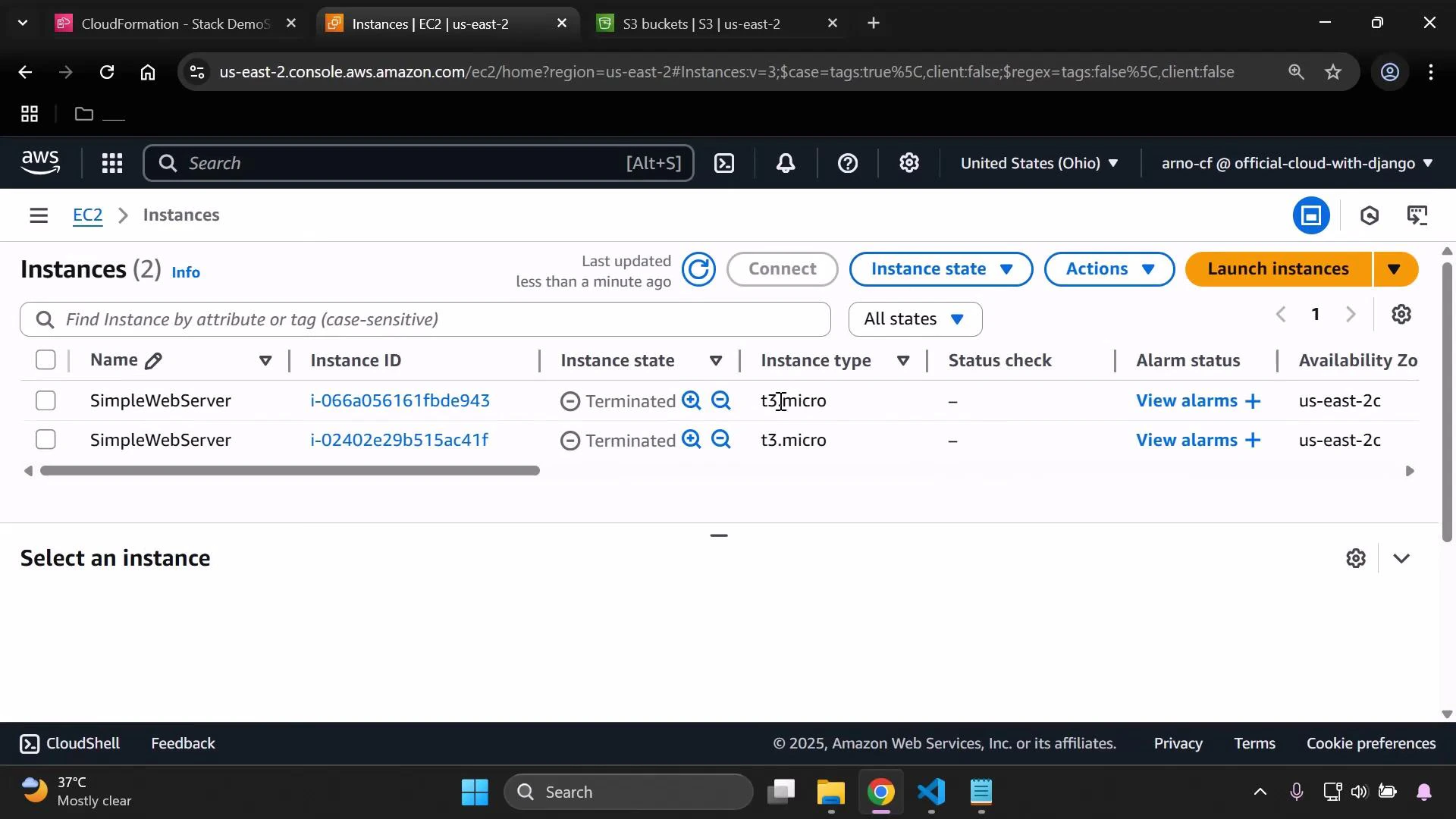
Once deletion finishes, instances are terminated. Verify in the EC2 console (and switch through other regions you use) to ensure there are no leftover stacks or resources.
A screenshot of the AWS EC2 Instances console showing two instances named "SimpleWebServer" (both listed as Terminated) with t3.micro instance types and their instance IDs visible. The page shows controls like Connect and Launch instances and indicates the region is us-east-2 (Ohio).
StepActionNotes
1Switch CloudFormation console to target regionExample: eu-west-1 (Ireland)
2Create stack → Upload templateCloudFormation uploads the template to a regional S3 bucket
3Specify stack name and parametersChoose instance type and subnet in the region
4Verify resources in EC2 and other consolesSecurity groups, instances, public IPs
5Test the applicationVisit instance public IP (HTTP)
6Delete stack and remove S3 templatesEmpty and delete temporary S3 bucket if not needed

Summary

  • Always switch the CloudFormation console to the target region before creating a stack.
  • Use a RegionMap mapping plus the AWS::Region pseudo parameter and Fn::FindInMap to select region-specific values (like AMI IDs) without modifying templates per region.
  • Deleting a CloudFormation stack removes the resources it created in that region.
  • Clean up any temporary S3 template buckets created during stack creation unless you need to preserve them.
That concludes this demo on managing CloudFormation stacks across multiple regions.

Watch Video

Practice Lab