This lesson demonstrates how to create and apply an AWS CloudFormation stack policy that prevents updates to a specific resource in your template. You’ll create a stack policy file, attach it during stack creation, attempt an update to a protected resource, and observe CloudFormation deny the update and roll back the change. Tools and references: Step 1 — Create the stack policy file
  1. Open your project in Visual Studio Code.
  2. In Explorer, create a new file named stack-policy.json.
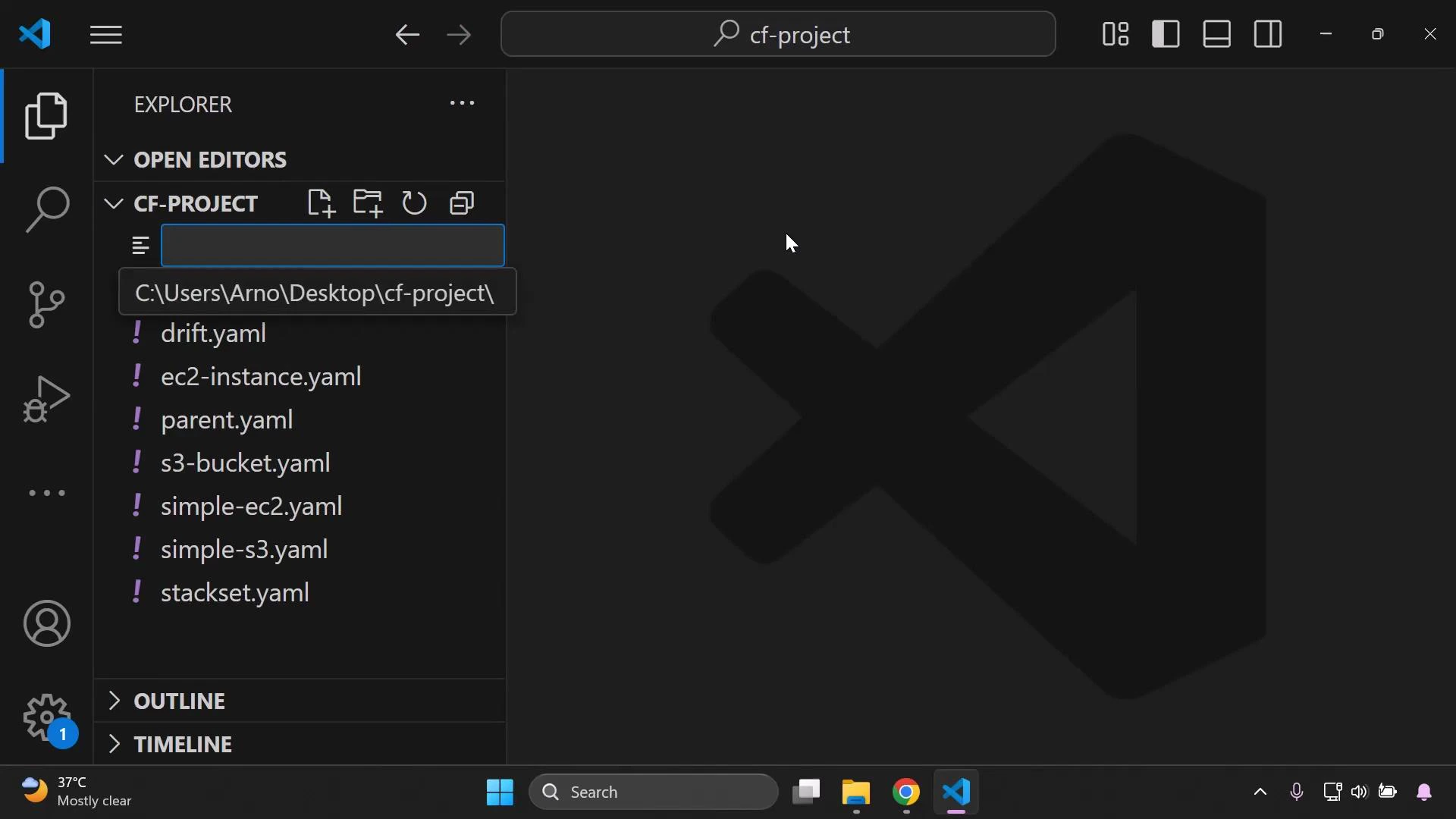
A screenshot of Visual Studio Code with the Explorer open showing a "cf-project" folder listing several YAML files (drift.yaml, ec2-instance.yaml, parent.yaml, s3-bucket.yaml, simple-ec2.yaml, simple-s3.yaml, stackset.yaml). The editor uses a dark theme and the large VS Code logo is visible in the main area.
Step 2 — Define a stack policy that denies updates to a logical resource Place the following JSON into stack-policy.json. This policy explicitly denies any update actions on the resource whose logical ID is MyBucket:
{
  "Statement": [
    {
      "Effect": "Deny",
      "Action": "Update:*",
      "Principal": "*",
      "Resource": "LogicalResourceId/MyBucket"
    }
  ]
}
What each field means:
FieldPurposeExample in this policy
EffectWhether to allow or deny matching actions”Deny”
ActionAction or actions the policy covers”Update:*” (all update operations)
PrincipalWho the policy applies to”*” (all principals)
ResourceTarget resource, referenced by logical ID”LogicalResourceId/MyBucket”
Stack policies refer to the resource’s logical ID defined in the template (for example, MyBucket under Resources). They do not refer to the physical resource name, ARN, or bucket name.
Step 3 — Prepare the CloudFormation template (initial deployment) Ensure you have a simple S3 bucket template that uses the logical ID MyBucket. Example initial template to deploy the stack:
Resources:
  MyBucket:
    Type: AWS::S3::Bucket
    Properties:
      Tags:
        - Key: Developer
          Value: John
Step 4 — Create the stack and attach the stack policy
  1. In the CloudFormation console, begin creating your stack using the template above.
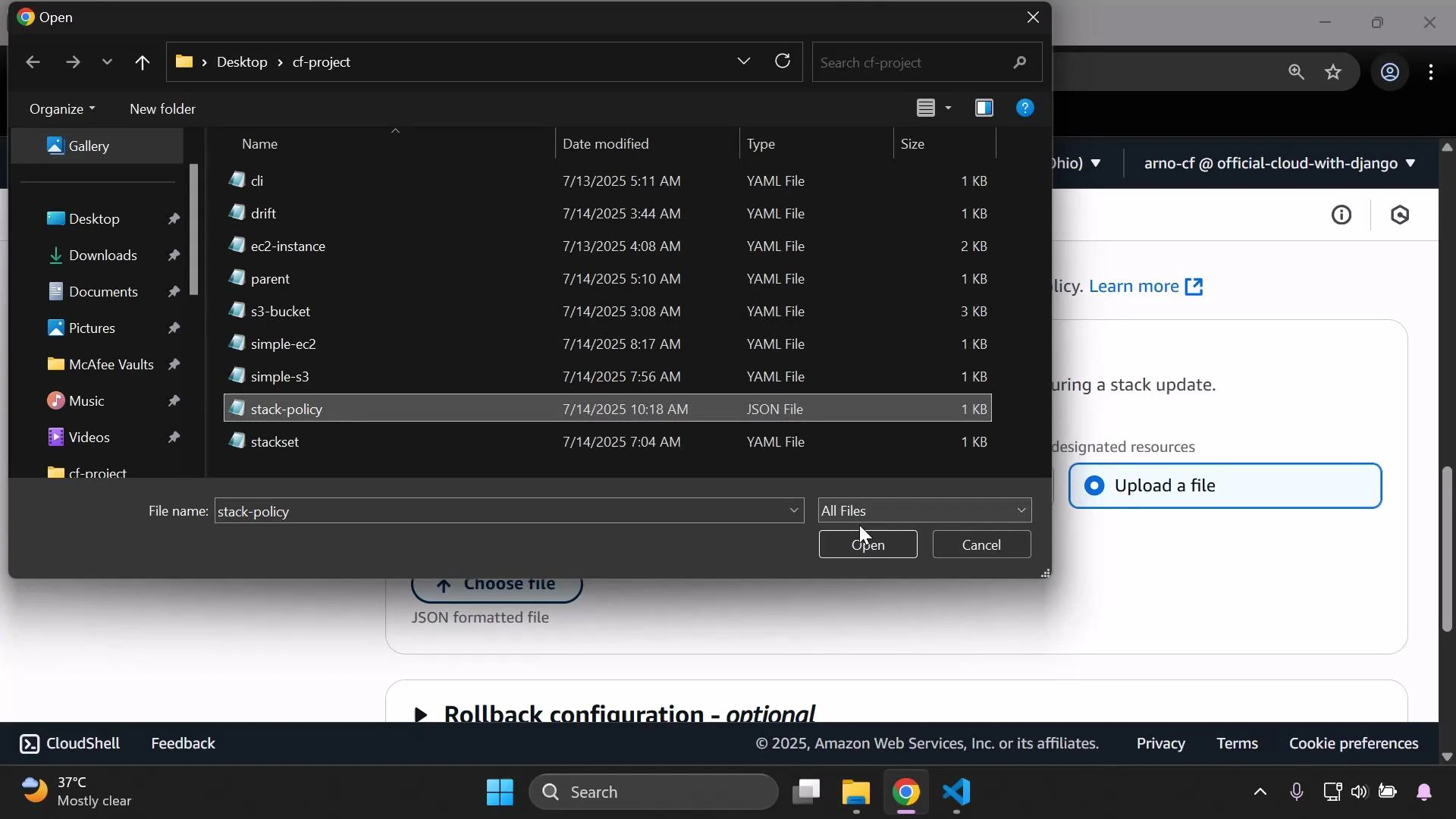
  2. When prompted for a stack policy, upload the stack-policy.json file you created.
A Windows file-open dialog displays a "cf-project" folder with several YAML files and a highlighted "stack-policy" JSON file. In the background an AWS CloudFormation page is visible with the "Upload a file" option.
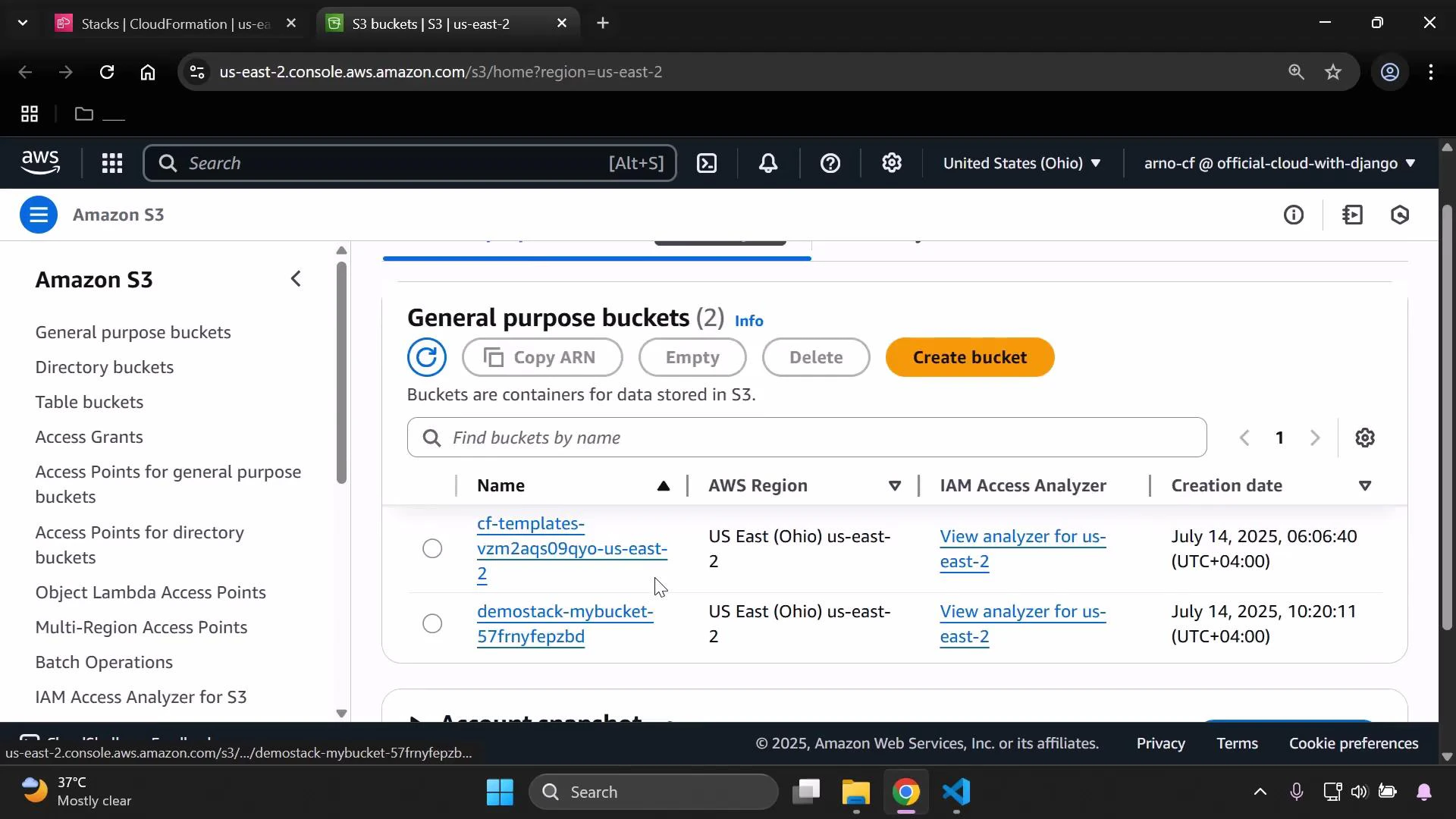
Submit the stack creation. The stack should create successfully and the S3 bucket will be visible in the S3 console.
A screenshot of the Amazon S3 console showing the "General purpose buckets" view with two buckets listed (cf-templates-... and demostack-mybucket-...), both in the US East (Ohio) us-east-2 region with creation dates. The left sidebar displays S3 navigation options and there's a prominent "Create bucket" button at the top.
Step 5 — Attempt an update that modifies the protected resource Now modify the stack template to attempt an update to MyBucket. For example, add an additional Tag and submit a stack update:
Resources:
  MyBucket:
    Type: AWS::S3::Bucket
    Properties:
      Tags:
        - Key: Developer
          Value: John
        - Key: Status
          Value: Active
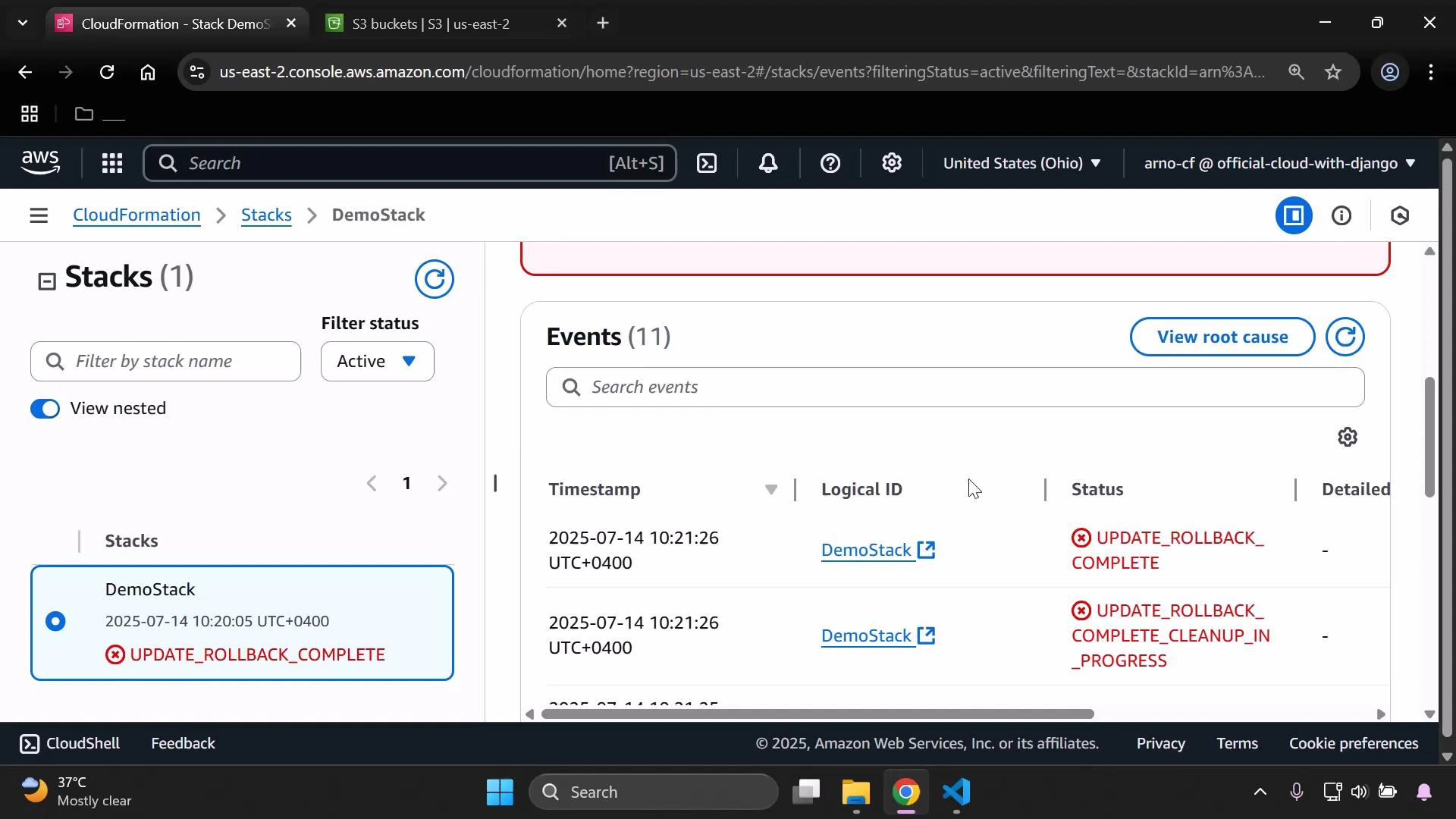
Because the stack policy explicitly denies update actions on the logical resource MyBucket, CloudFormation will block the update, report UPDATE_FAILED for that resource, and the stack will roll back the attempted change.
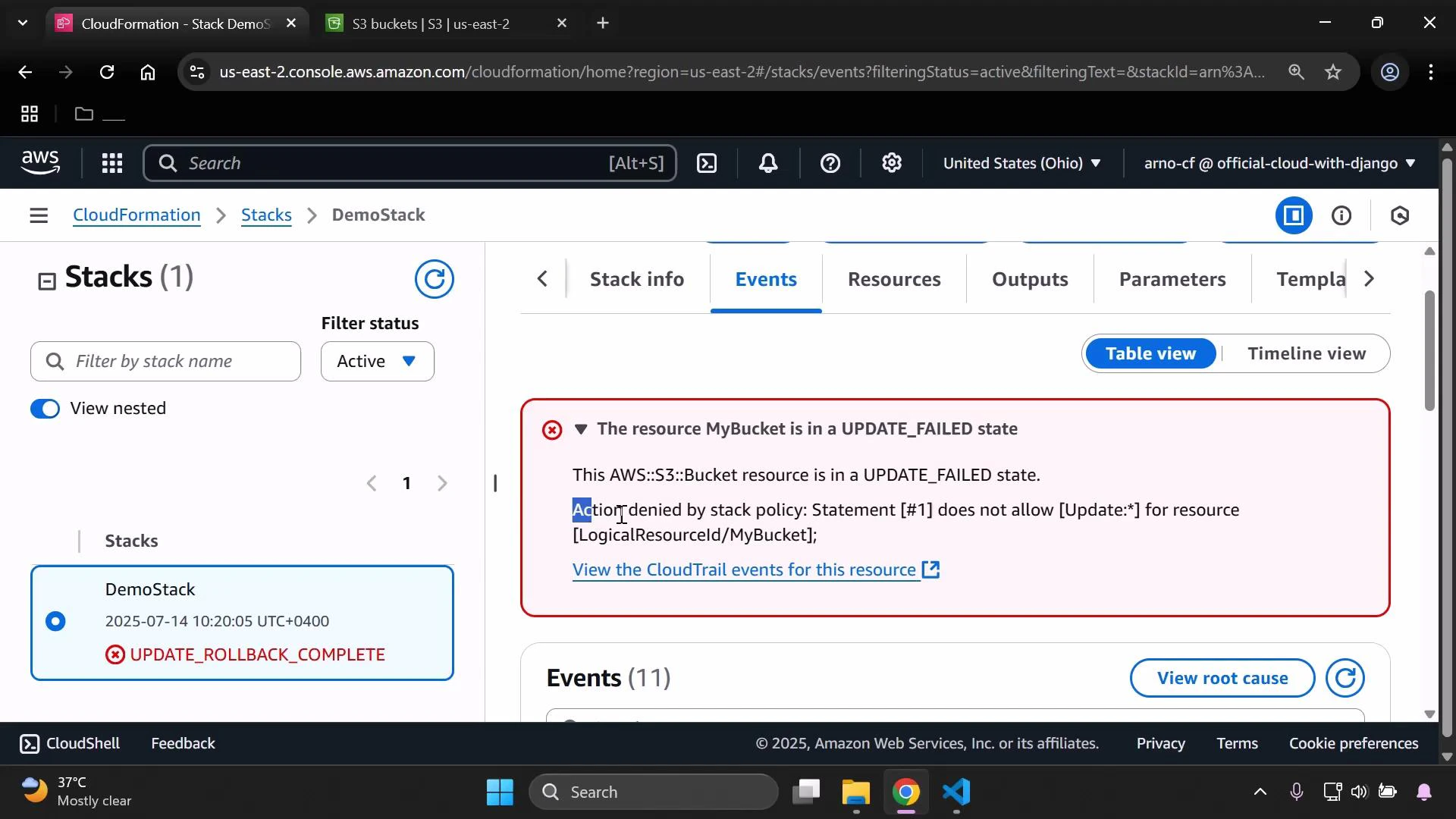
A screenshot of the AWS CloudFormation console showing a stack named "DemoStack" with an ERROR: the S3 bucket resource "MyBucket" is in an UPDATE_FAILED state (update denied by stack policy), and the stack status shows UPDATE_ROLLBACK_COMPLETE.
You can review the stack events to confirm CloudFormation denied the update and performed an update rollback.
Screenshot of the AWS CloudFormation console showing a stack named "DemoStack" marked as UPDATE_ROLLBACK_COMPLETE. The Events panel on the right lists timestamps and rollback-related status entries.
Summary
  • Stack policies protect resources by logical ID from specific actions (for example, updates).
  • In this walkthrough, the policy denied all updates to the logical resource MyBucket, preventing the Tag modification and causing an update rollback.
  • Use stack policies when you need to prevent accidental or unauthorized changes to critical resources in a CloudFormation stack.
Additional resources and links:
When you delete a stack, CloudFormation removes the stack’s resources depending on their DeletionPolicy. If a resource is set to be deleted, removing the stack will also delete that resource (for example, an S3 bucket). Make sure you no longer need the data before deleting the stack.

Watch Video