

Type and Properties. The following example shows an AWS::S3::Bucket resource that includes a Metadata block:
- Purpose: short description of why this resource exists.
- Reviewed: date the template or resource was last reviewed (use ISO format YYYY-MM-DD).
- Owner / Contact: person or team responsible for the resource.
Metadata entries are arbitrary key/value pairs defined by you. They are stored in the template and do not, by themselves, change how CloudFormation creates or manages resources; tools or helper scripts (for example, cfn-init) can read metadata to affect instance configuration.
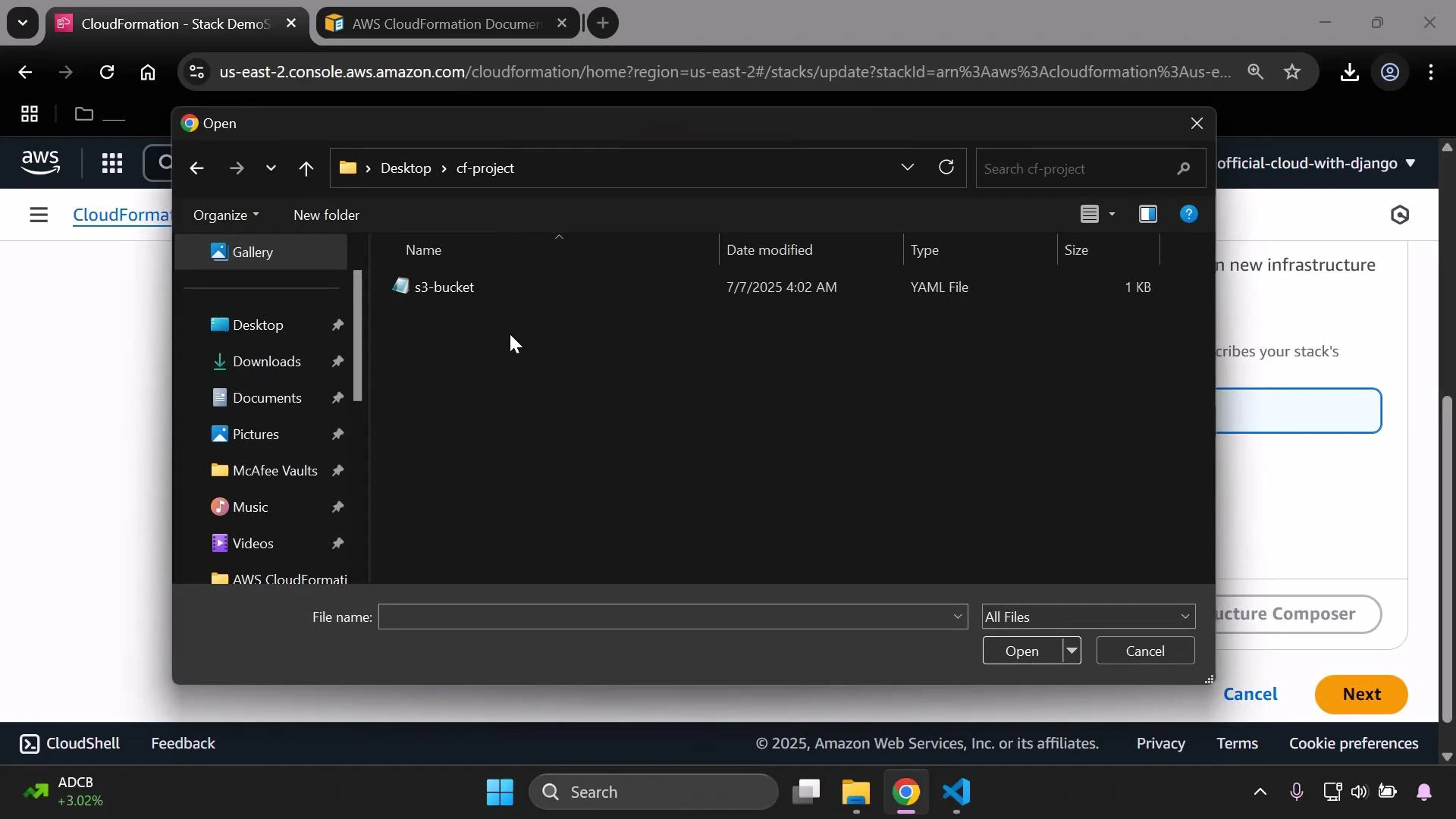
s3-bucket.yaml), update the CloudFormation stack using the console or CLI. In the console the flow looks like this:
- In the CloudFormation console, select the stack you want to update and choose Update stack.
- Choose Replace current template (Direct update) and upload your edited template file (Choose file).
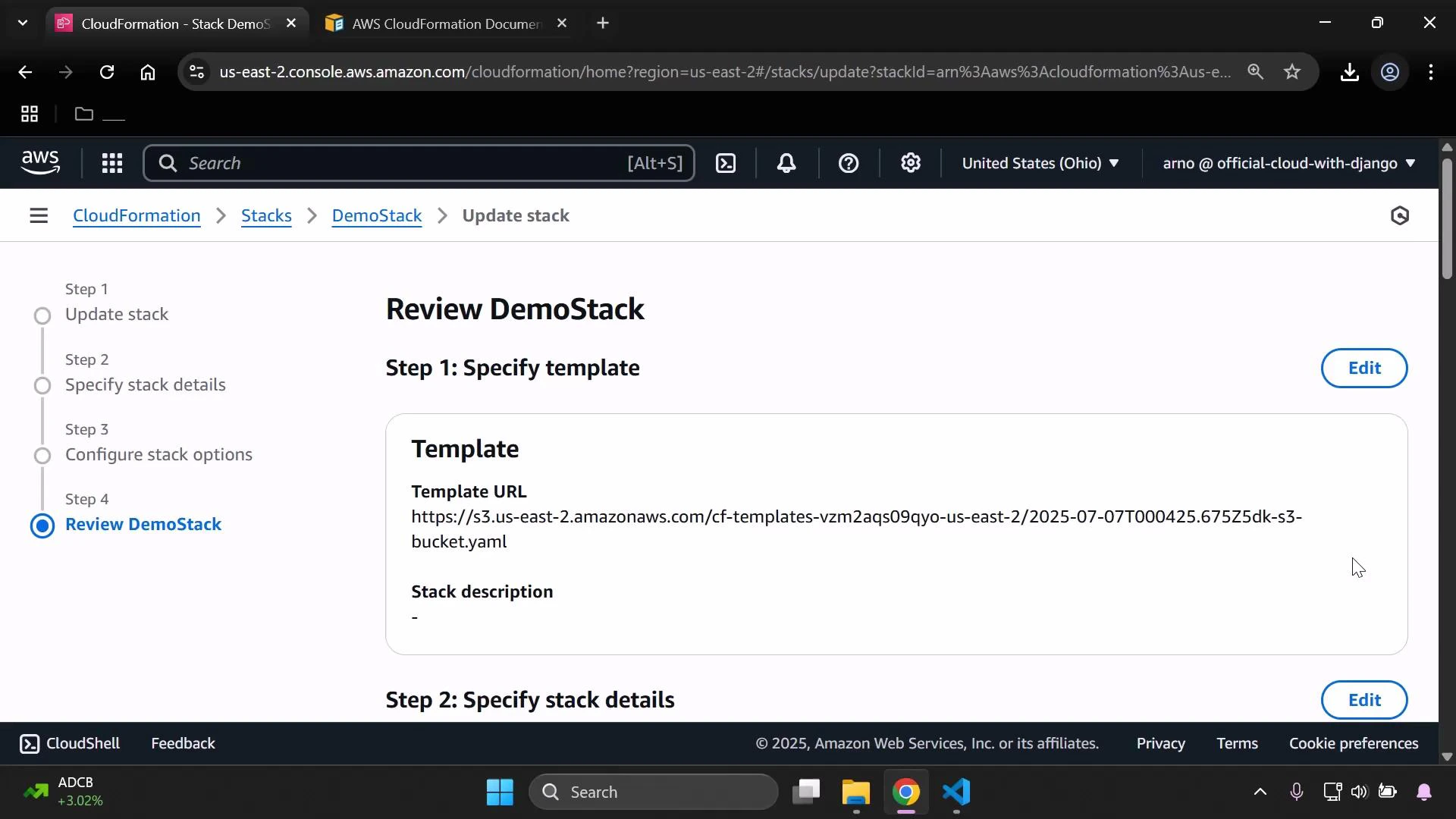
- Continue through the update steps. If your stack has no parameters, you can skip parameter changes.
- Optionally review or edit Tags on the stack (Tags are different from Metadata — see the comparison table below).
- Submit the update and monitor the stack Events for progress.
Metadata block is present — the metadata you included remains in the template and is visible to anyone who inspects the stack.
Best practices
- Use Metadata for template bookkeeping: ownership, review dates, build/configuration hints for tools.
- Use Tags for operational grouping and billing — Tags are recognized by AWS services.
- Keep metadata keys consistent across templates to enable automated tooling and searches.
- CloudFormation Metadata (concepts): https://docs.aws.amazon.com/AWSCloudFormation/latest/UserGuide/aws-template-metadata.html
- CloudFormation Tags: https://docs.aws.amazon.com/AWSCloudFormation/latest/UserGuide/aws-properties-resource-tags.html
- cfn-init (example tool that reads Metadata): https://docs.aws.amazon.com/AWSCloudFormation/latest/UserGuide/cfn-init.html