In this demo you’ll learn how to create an IAM role and instance profile so an EC2 instance running cfn-init can retrieve CloudFormation stack metadata and configuration. This is a short, practical guide covering why the role is needed, what permissions to attach, and how to create the role using the AWS Console. Why this matters
  • cfn-init runs on the EC2 instance and must call CloudFormation APIs to fetch metadata and configuration.
  • EC2 instances cannot store IAM credentials directly. Instead, an instance assumes an IAM role that is associated with the instance through an instance profile.
  • Without the correct IAM role/instance profile, cfn-init will not be able to retrieve configuration data and therefore cannot install or configure software as defined in your CloudFormation template.
What we’ll create
  • An IAM role trusted by the EC2 service (ec2.amazonaws.com).
  • A permissions policy allowing read access to CloudFormation stack metadata (AWSCloudFormationReadOnlyAccess).
  • (Console note) The AWS Console creates a matching instance profile for the role automatically. If you use CloudFormation or the CLI to create your role, you might need to create an AWS::IAM::InstanceProfile resource explicitly.
Step-by-step (Console)
  1. Open the IAM console, choose Roles → Create role. Select the trusted entity type “AWS service” and choose EC2 as the use case.
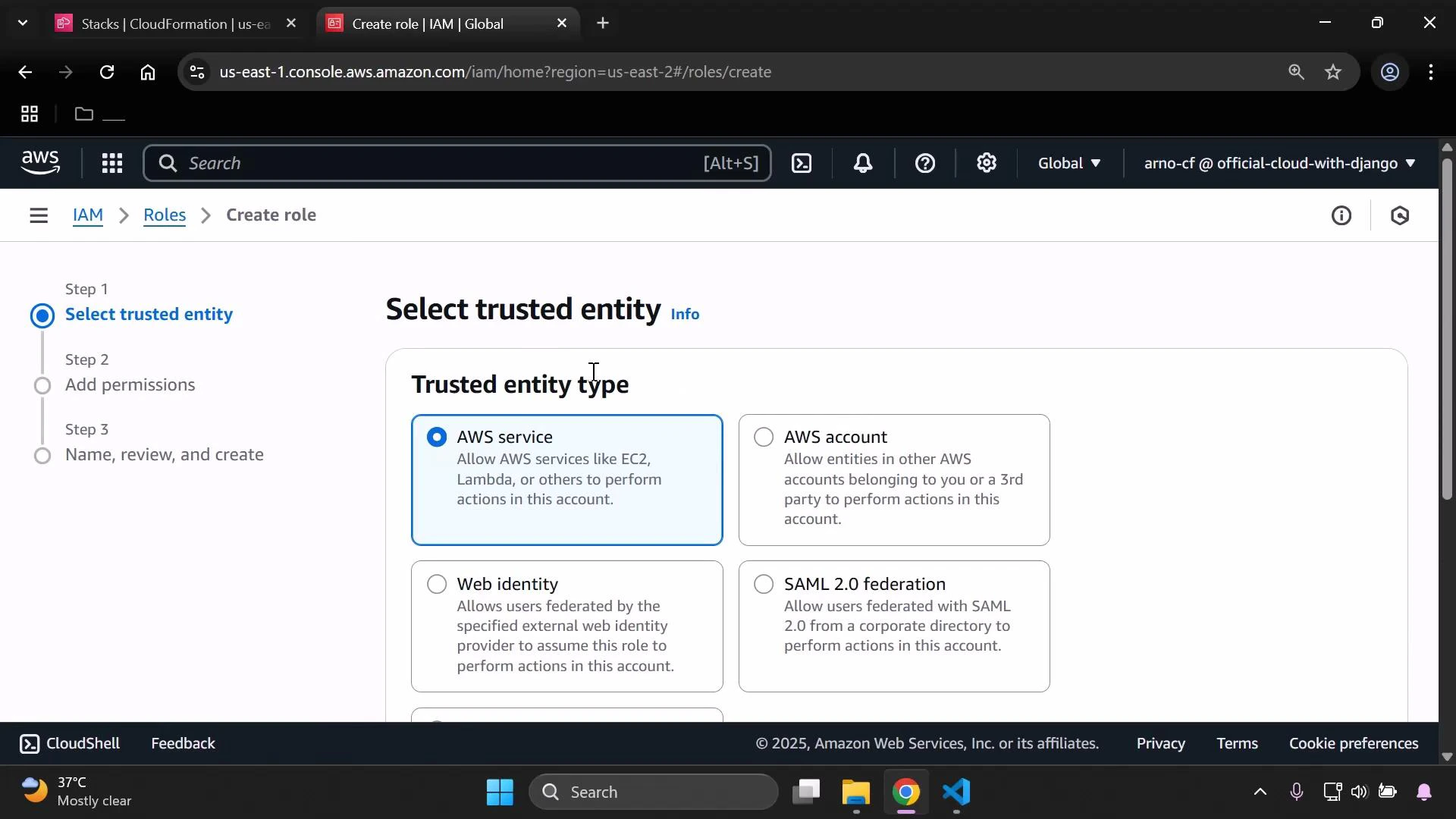
A screenshot of the AWS IAM "Create role" page on the "Select trusted entity" step, with the "AWS service" option selected among other choices like AWS account, Web identity, and SAML 2.0. The browser window and system taskbar are also visible.
  1. Click Next to open the Permissions step. For cfn-init’s typical needs, attach the managed policy AWSCloudFormationReadOnlyAccess so the instance can read stack metadata from CloudFormation.
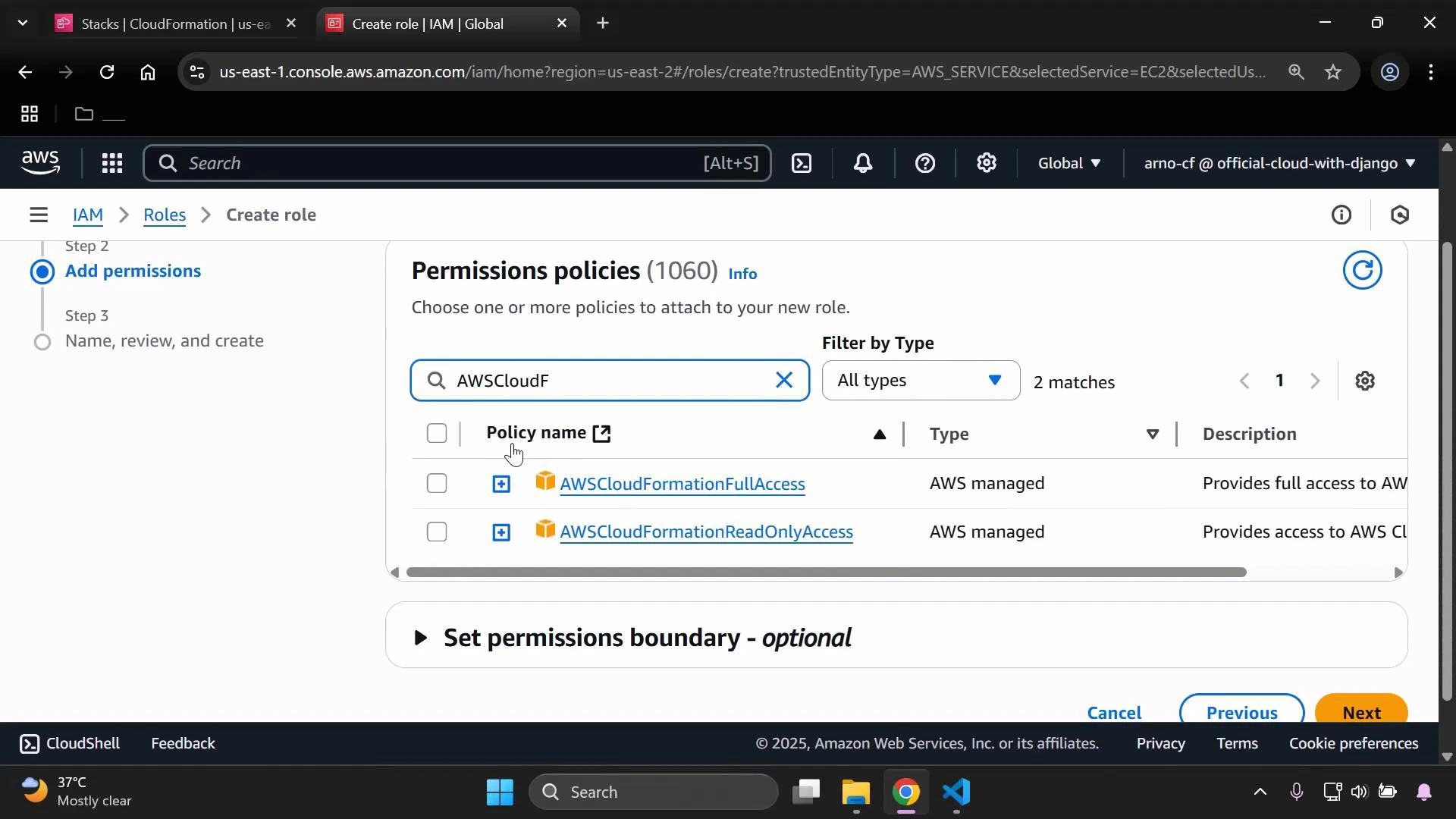
A screenshot of the AWS IAM "Create role" console focused on the "Permissions policies" step, showing a search for "AWSCloudF" and two matching AWS-managed policies: AWSCloudFormationFullAccess and AWSCloudFormationReadOnlyAccess. The UI includes navigation steps, filter options, and Next/Previous buttons.
  1. Click Next, then give the role a descriptive name (for example: MyCFN or MyCFNInstanceRole) and an optional description. Click Create role.
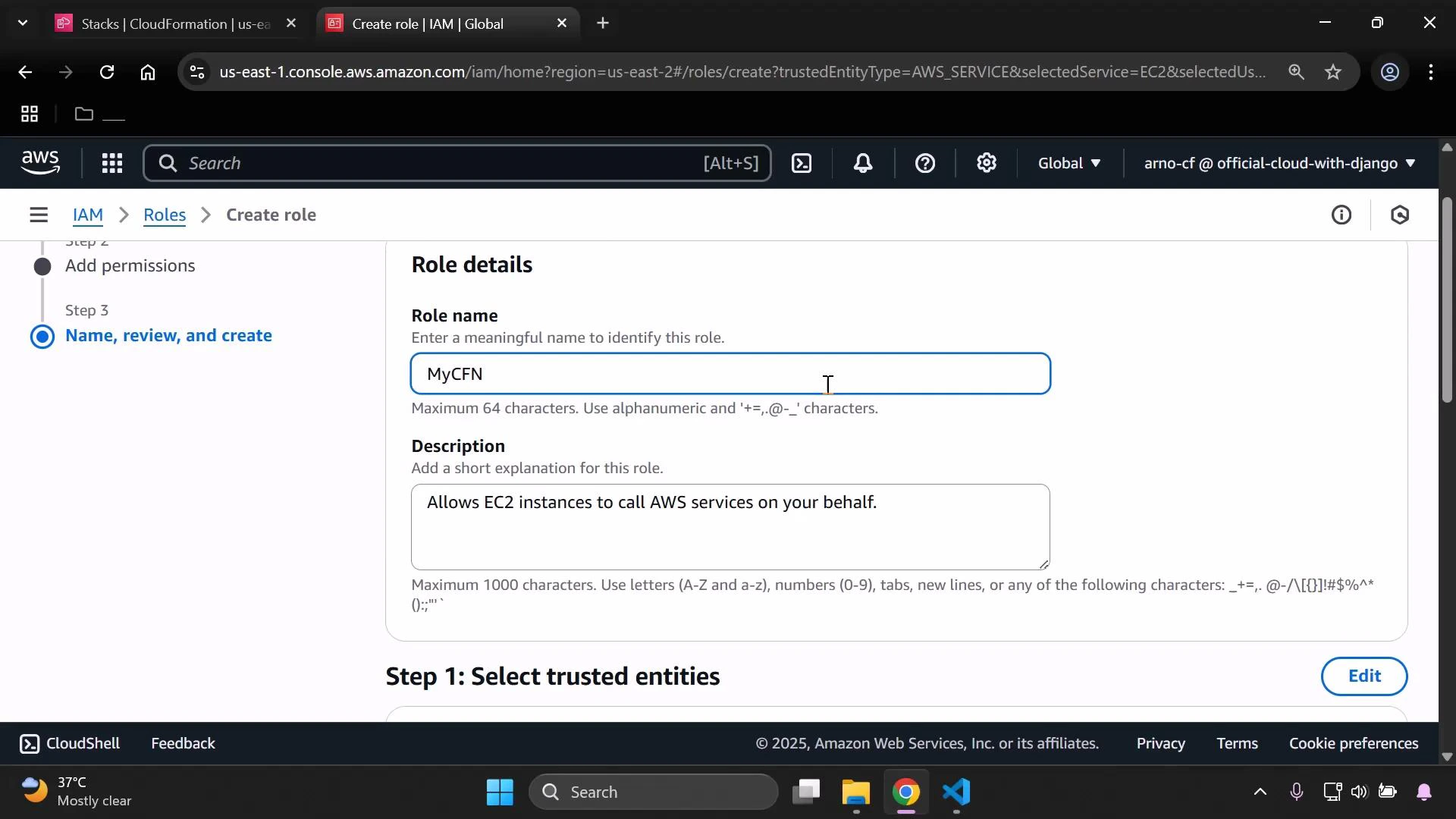
A screenshot of the AWS IAM console on the "Create role" page showing Role details with the role name "MyCFN" and a description that says "Allows EC2 instances to call AWS services on your behalf." The left sidebar highlights Step 3: "Name, review, and create."
  1. After creation, verify the success message and note the exact role name. You will reference this role when attaching it to EC2 instances (via the console, API, or CloudFormation).
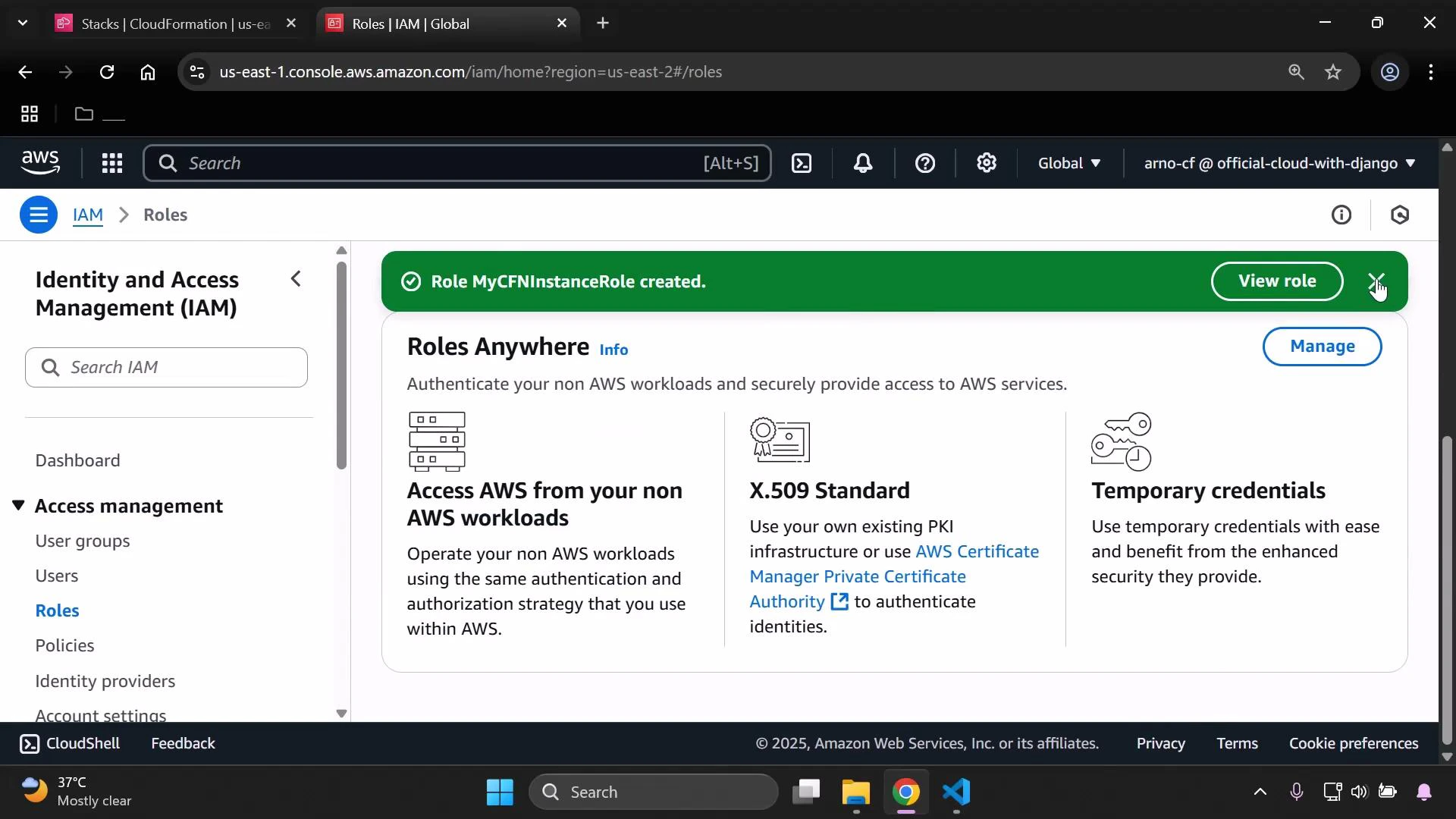
A browser screenshot of the AWS Identity and Access Management (IAM) console on the Roles page showing a green success banner "Role MyCFNInstanceRole created." The main panel highlights "Roles Anywhere" features like accessing AWS from non-AWS workloads, X.509 standard, and temporary credentials.
Quick reference
ItemPurposeExample
Trusted entityAllows EC2 to assume the roleec2.amazonaws.com
Managed policyGrants CloudFormation read accessAWSCloudFormationReadOnlyAccess
Role nameReference when attaching to instanceMyCFNInstanceRole
Instance profileAllows EC2 to use the roleCreated automatically by Console
Notes and common additions
The AWS Console will create an instance profile with the same name as the role automatically when you create a role for EC2. If you create roles programmatically or with CloudFormation, you may need to create an AWS::IAM::InstanceProfile resource and associate the role explicitly.
AWSCloudFormationReadOnlyAccess allows cfn-init to read CloudFormation metadata. If your cfn-init configuration needs to download artifacts from S3 or access other AWS services, add the appropriate S3 or service-specific permissions to the role (least-privilege principle recommended).
Conclusion You now have an IAM role and instance profile that EC2 instances can assume for cfn-init to fetch CloudFormation metadata and perform instance setup. Keep the role name noted so you can attach it to your EC2 instance or reference it from your CloudFormation template. Links and references

Watch Video