In this lesson we’ll cover how to manage EC2 AMI selection across multiple AWS regions using a CloudFormation mapping. Instead of hard-coding an ImageId in your template, define a Mappings section keyed by AWS region codes and use Fn::FindInMap (short form: !FindInMap) with the AWS::Region pseudo parameter so CloudFormation automatically picks the correct AMI for the region where the stack is created. Problem: a template that hard-codes an AMI (region-specific)
Resources:
  MyInstance:
    Type: AWS::EC2::Instance
    Properties:
      InstanceType: !Ref MyInstanceType
      ImageId: ami-0eb9d6fc9fab44d24
      SecurityGroupIds:
        - !Ref MySecurityGroup
      Tags:
        - Key: Name
          Value: SimpleWebServer
      UserData:
        Fn::Base64: |
          #!/bin/bash
          yum update -y
Hard-coding an AMI prevents the template from working across regions because AMI IDs differ between regions. The solution is to maintain a mapping of region → AMI and look up the AMI at stack creation time. Step 1 — Create a region-to-AMI mapping (near top of the template)
Mappings:
  RegionMap:
    us-east-2:
      AMI: ami-0eb9d6fc9fab44d24
    eu-west-1:
      AMI: ami-0b3e7dd7b2a99b08d
    us-east-1:
      AMI: ami-0150ccaf51ab55a51
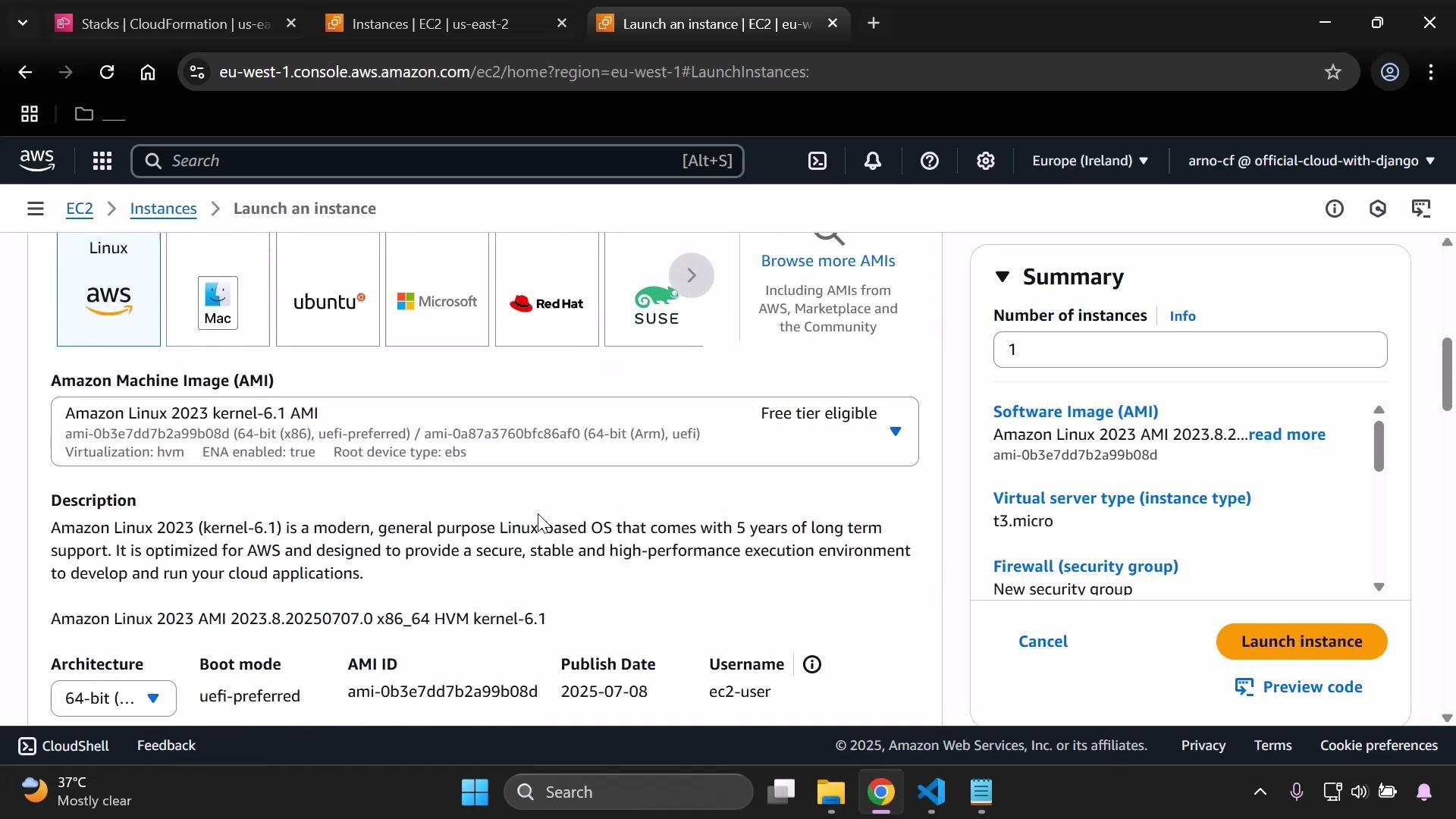
To collect the AMI values, switch the EC2 console to each target region (for example, eu-west-1, us-east-1, etc.) and copy the AMI ID for the Amazon Linux or other base image you intend to use.
A browser screenshot of the AWS EC2 "Launch an instance" console with the Amazon Linux 2023 AMI selected, showing AMI details (architecture, boot mode, AMI ID) and description. The right-hand Summary panel lists the instance count, instance type (t3.micro), security group and a "Launch instance" button.
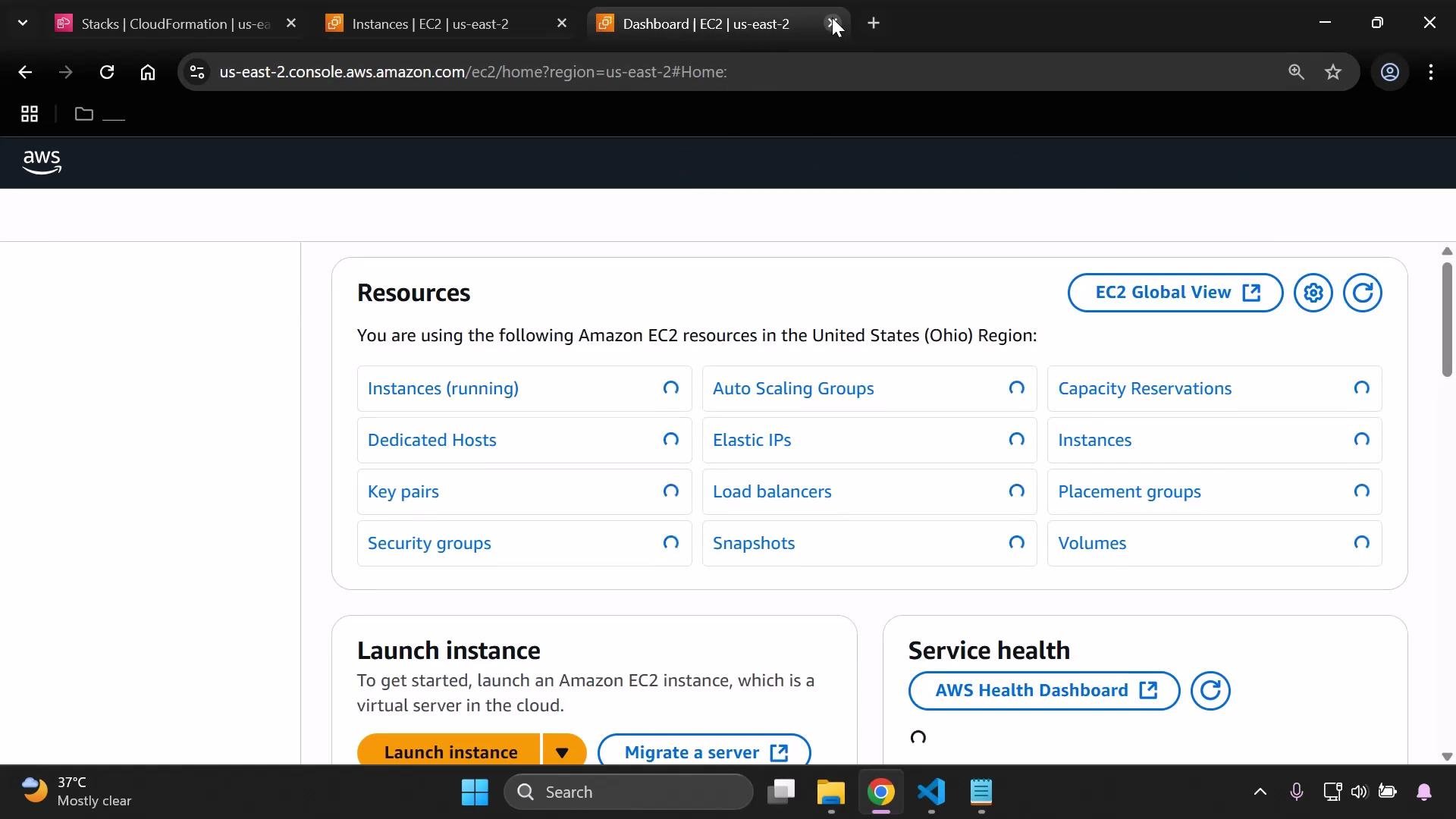
Repeat this for each region you want to support so your mapping contains one entry per region, keyed by the exact AWS region code (for example, us-east-2, eu-west-1, us-east-1).
A web browser screenshot of the Amazon Web Services EC2 dashboard showing the "Resources" panel listing EC2 items (Instances, Security groups, Elastic IPs, Load balancers, etc.) for the US-East-2 (Ohio) region. The lower panels show "Launch instance" and "Service health" options.
Step 2 — Use Fn::FindInMap with the AWS::Region pseudo parameter Replace the ImageId property with a FindInMap lookup so CloudFormation uses the mapping keyed by the current region:
Resources:
  MyInstance:
    Type: AWS::EC2::Instance
    Properties:
      InstanceType: !Ref MyInstanceType
      ImageId: !FindInMap [RegionMap, !Ref "AWS::Region", AMI]
      SecurityGroupIds:
        - !Ref MySecurityGroup
      Tags:
        - Key: Name
          Value: SimpleWebServer
      UserData:
        Fn::Base64: |
          #!/bin/bash
          yum update -y
CloudFormation evaluates !Ref “AWS::Region” at stack creation, finds the matching top-level key in RegionMap, and returns the AMI value. Keys must exactly match the region codes returned by AWS::Region (case-sensitive and lowercase). Consolidated example template
Metadata:
  Purpose: Basic EC2 instance with HTTP and SSH access

Mappings:
  RegionMap:
    us-east-2:
      AMI: ami-0eb9d6fc9fab44d24
    eu-west-1:
      AMI: ami-0b3e7dd7b2a99b08d
    us-east-1:
      AMI: ami-0150ccaf51ab55a51

Parameters:
  MyInstanceType:
    Type: String
    Description: Select your EC2 instance type
    AllowedValues:
      - t3.micro
      - t3.small
  MyVPC:
    Type: AWS::EC2::VPC::Id
    Description: Select the VPC to launch the EC2 instance in
  MySecurityGroup:
    Type: AWS::EC2::SecurityGroup::Id
    Description: Select a Security Group to attach to the instance

Resources:
  MyInstance:
    Type: AWS::EC2::Instance
    Properties:
      InstanceType: !Ref MyInstanceType
      ImageId: !FindInMap [RegionMap, !Ref "AWS::Region", AMI]
      SecurityGroupIds:
        - !Ref MySecurityGroup
      Tags:
        - Key: Name
          Value: SimpleWebServer
      UserData:
        Fn::Base64: |
          #!/bin/bash
          yum update -y
          yum install -y httpd
          systemctl enable --now httpd
          echo "Hello from $(hostname -f)" > /var/www/html/index.html
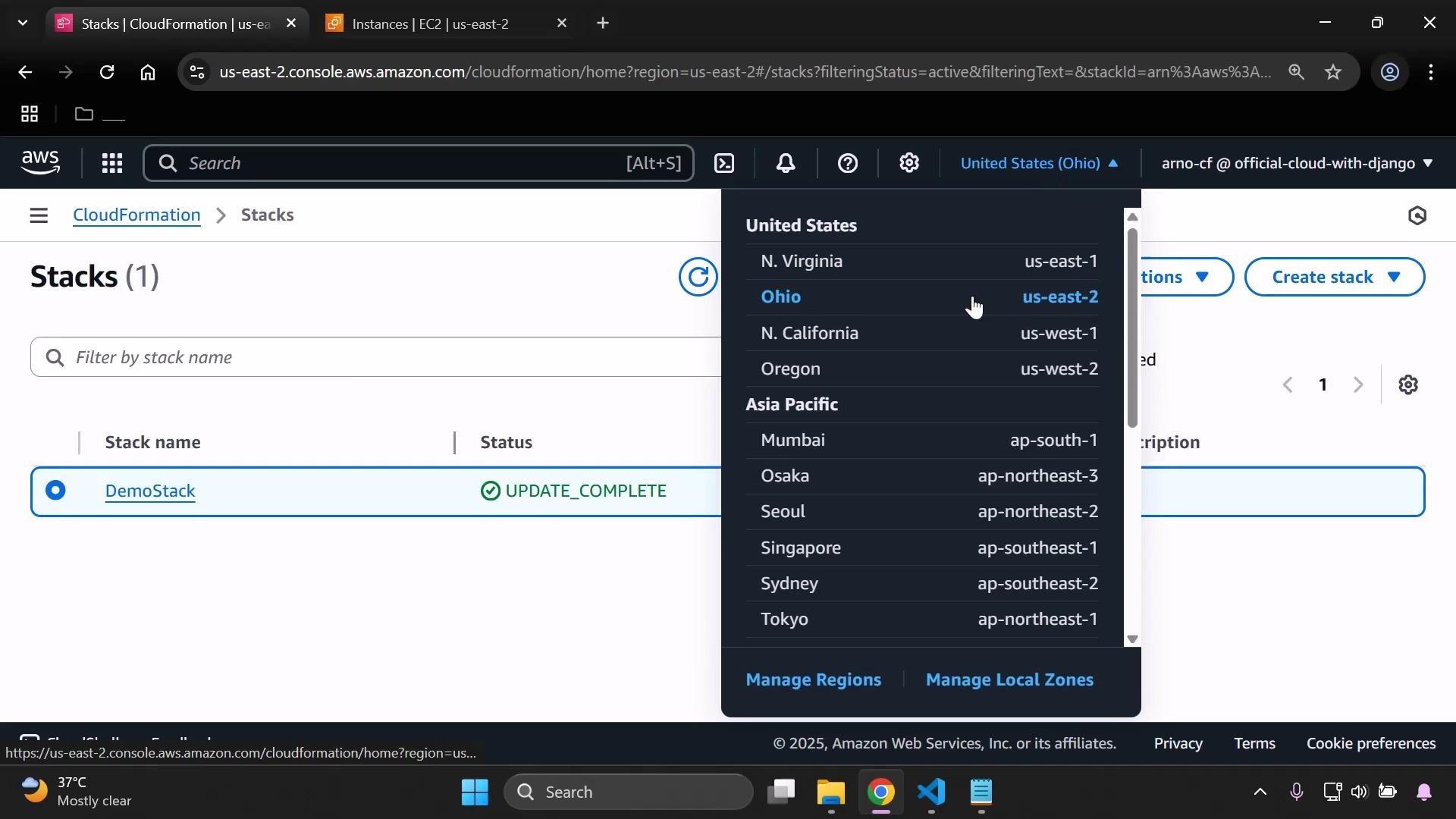
A screenshot of the AWS Management Console showing the CloudFormation "Stacks" page with one stack named "DemoStack" marked UPDATE_COMPLETE. The region selector is open and highlights the United States (Ohio) us-east-2 region.
Deployment notes and best practices
  • If you change the mapping or the AMI used by an instance, you will usually need to delete and recreate the instance (or perform a stack update that replaces the instance) for the new AMI to be used.
  • Keep the Mappings section near the top of the template for easier maintenance.
  • Validate that mapping keys exactly match the AWS::Region values (e.g., us-east-2, eu-west-1).
  • Periodically refresh the AMI IDs in your mapping to pick up updated OS images or security fixes.
Quick reference: mapping usage
ConceptPurposeExample
Mappings sectionStore per-region configuration values (e.g., AMI IDs)RegionMap: us-east-2 → AMI
Fn::FindInMap / !FindInMapRetrieve a mapped value at runtime!FindInMap [RegionMap, !Ref “AWS::Region”, AMI]
AWS::Region (pseudo parameter)Returns the region where the stack is created!Ref “AWS::Region”
When maintaining mappings, periodically verify AMI IDs in each region — AMI IDs differ between regions and may change with new OS releases. Ensure mapping keys are exact region codes (lowercase).
Links and references

Watch Video