In this lesson we remove resources created during previous demos so the next lesson begins with a clean environment. The primary objective is to empty and remove the demo S3 bucket, then delete the CloudFormation stack that created it. This ensures no orphaned resources remain and that stack state is consistent.

Overview — why this matters

  • AWS CloudFormation cannot delete S3 buckets that contain objects.
  • If a stack-managed bucket is non-empty, stack deletion will fail and leave resources in an inconsistent state.
  • Cleaning up via CloudFormation (when possible) preserves the stack lifecycle and avoids manual drift.

Step 1 — Empty the demo S3 bucket

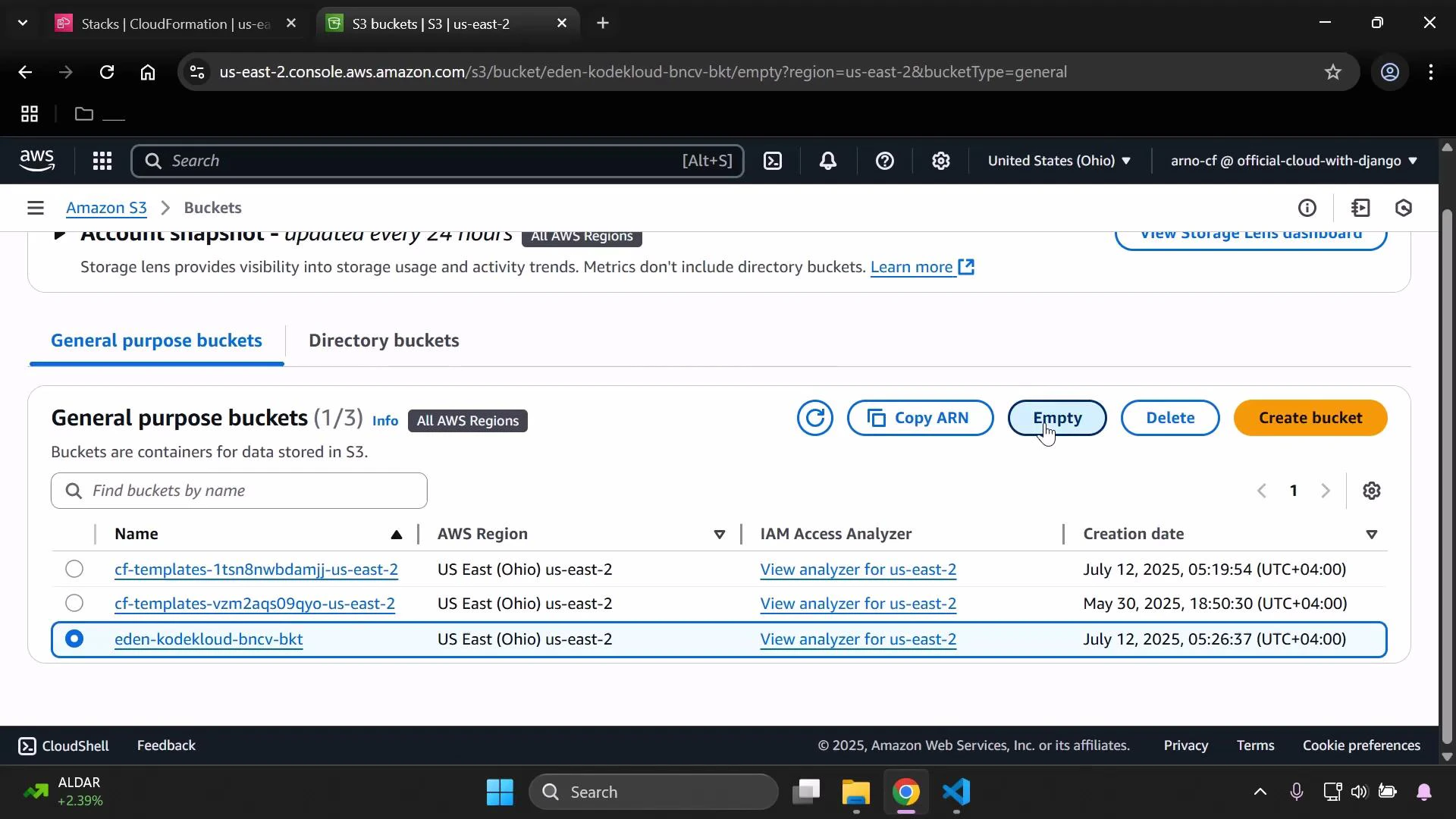
  1. Open the Amazon Simple Storage Service (Amazon S3) console and find the bucket created by the demo stack. (Ignore any CloudFormation template buckets; focus on the demo bucket you used.)
  2. Select the bucket.
  3. Click the “Empty” action to remove all objects.
  4. Confirm by typing permanently delete when prompted.
A screenshot of the AWS S3 console showing the "General purpose buckets" list with three buckets (one selected: eden-kodekloud-bncv-bkt) and action buttons like Copy ARN, Empty, Delete, and Create bucket. The table shows bucket names, region (US East Ohio), IAM Access Analyzer links, and creation dates.
If the bucket has versioning enabled, simply emptying the bucket may not remove prior object versions. You must remove all versions (or suspend versioning and delete versions) before CloudFormation can delete the bucket. Attempting to delete a stack with a versioned, non-empty bucket will fail.
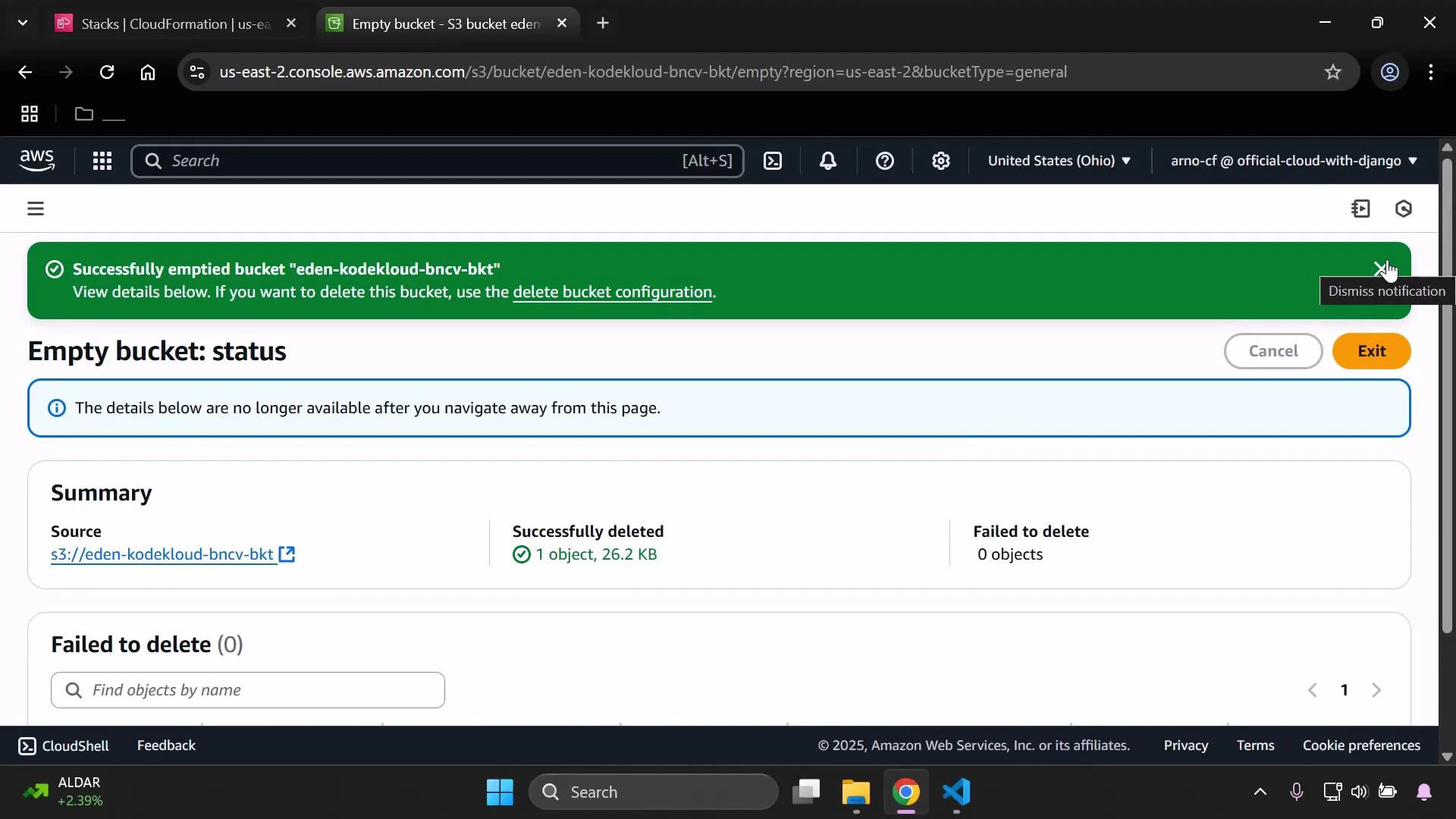
After emptying the bucket you should see a success notification showing how many objects were removed.
A screenshot of the AWS S3 console showing the "Empty bucket: status" page with a green notification saying the bucket "eden-kodekloud-bncv-bkt" was successfully emptied. The summary shows 1 object (26.2 KB) deleted and 0 failures.

Step 2 — Delete the CloudFormation stack

With the S3 bucket empty, remove the CloudFormation stack that created the demo resources:
  • Open the AWS CloudFormation console.
  • Select the stack you want to delete (for example, DemoStack).
  • Click “Delete” to initiate the deletion process.
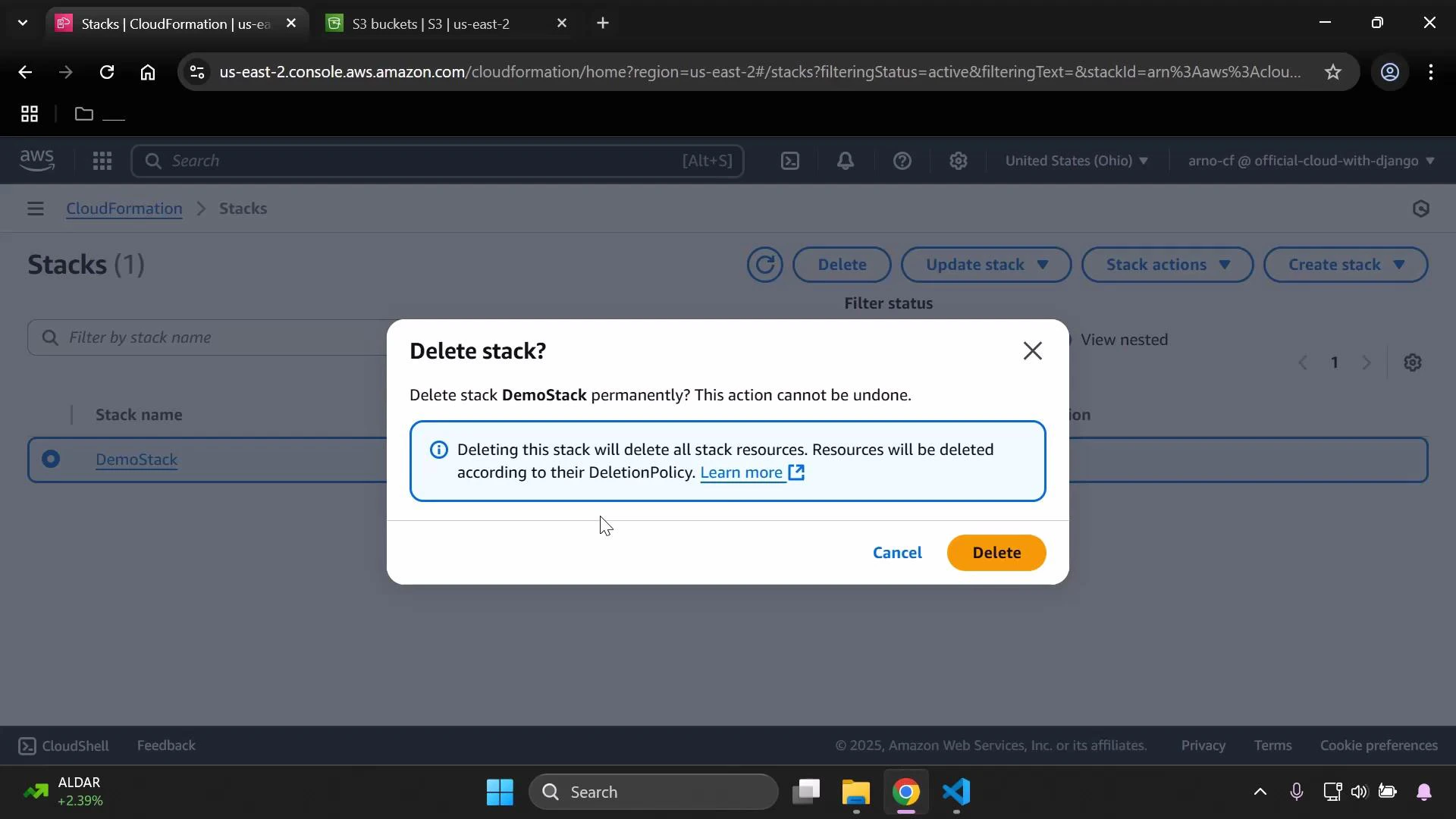
  • Confirm the deletion in the modal.
A screenshot of the AWS CloudFormation console showing a "Delete stack?" confirmation dialog for a stack named "DemoStack," warning that the deletion is permanent and will remove all stack resources. The modal shows options to cancel or proceed with deletion.
Click “Delete” to start stack teardown. The deletion may take a short while—refresh the CloudFormation console to monitor progress. Once deletion completes, verify the demo S3 bucket no longer appears in the S3 console.
Tip: You can delete an empty bucket directly from the S3 console, but preferring CloudFormation-driven deletion for stack-managed resources keeps the stack status accurate and reduces manual cleanup steps.

Quick checklist

ResourceActionExpected result
Demo S3 bucketEmpty all objects (and delete versions if enabled)Bucket becomes empty and displays success notification
CloudFormation stackDelete stack from consoleStack transitions to DELETE_IN_PROGRESS then is removed
S3 console verificationConfirm bucket absenceDemo bucket is no longer listed

Troubleshooting

  • If stack deletion fails due to the S3 bucket, confirm there are no remaining objects or versions in the bucket.
  • For cross-account or permission issues, ensure your IAM user/role has S3 and CloudFormation delete permissions.
  • For automated cleanup, consider scripting removal with the AWS CLI (aws s3 rm —recursive and aws cloudformation delete-stack).

References

That’s it — demo resources are cleaned up and you’re ready for the next lesson.

Watch Video