

1) Download the Windows installer
Open your browser and go to the official downloads page: https://python.org/downloads/ You should see the Windows downloads page with a prominent installer button similar to the example below: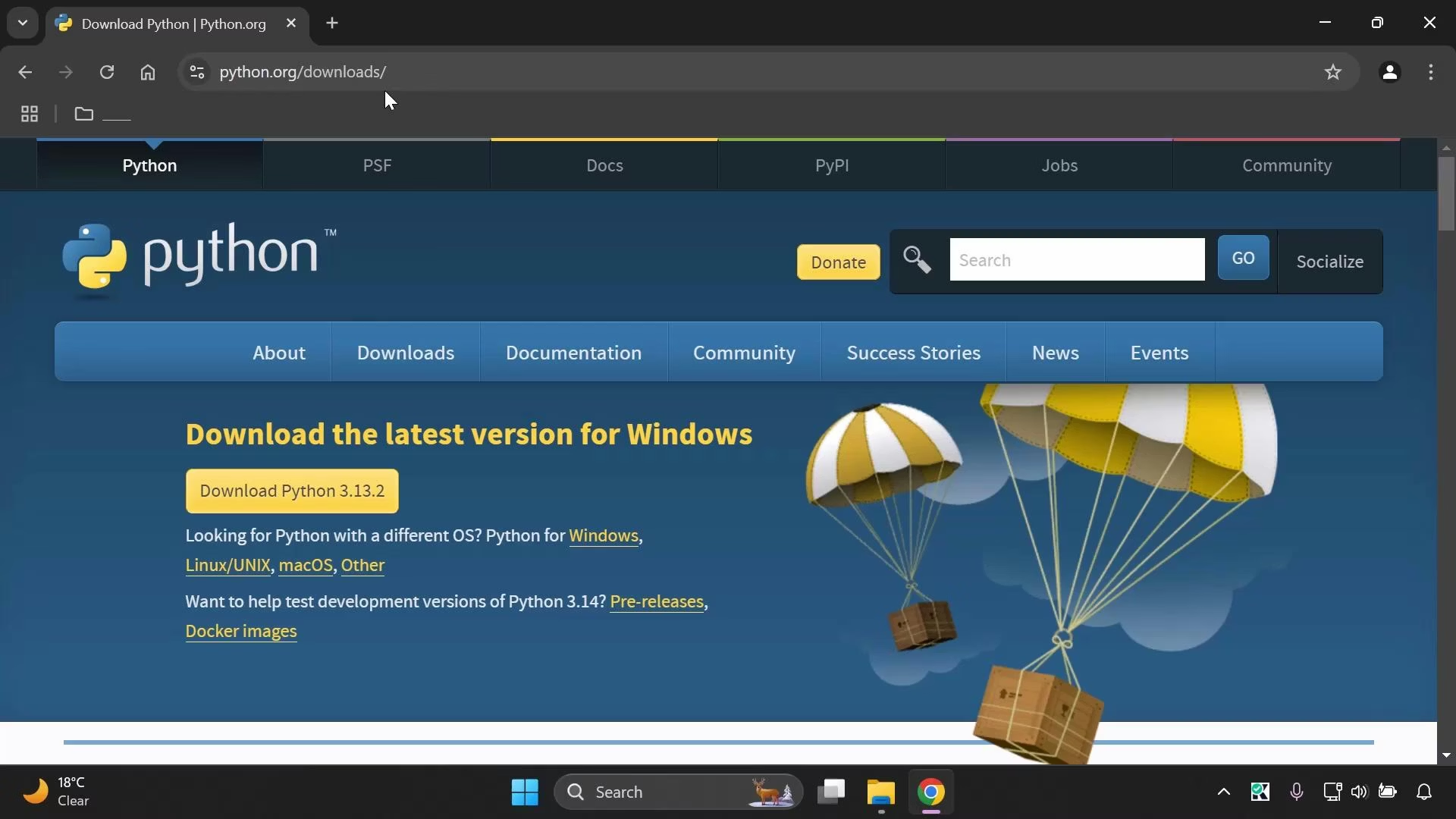
- The exact minor/patch version on the downloads page may differ (e.g., Python 3.13.x). Installing any recent Python 3 release is fine.
- Download the Windows installer (an executable .exe).
2) Run the installer (recommended options)
Launch the downloaded installer to start the setup wizard and follow these recommended choices:- On the initial screen:
- Enable Add Python to PATH (checkbox at the bottom of the window).
- Optionally enable Install launcher for all users (recommended).
- If you want Python available to every account on the PC:
- Choose “Customize installation” → then select “Install for all users”. This will typically require administrator privileges and installs Python into Program Files.
- Ensure pip is selected (it is selected by default).
- Click Install and approve any Windows security prompt (UAC) by clicking Yes.
The installer will show progress while configuring Python. When it finishes, click Close.
3) Verify the installation
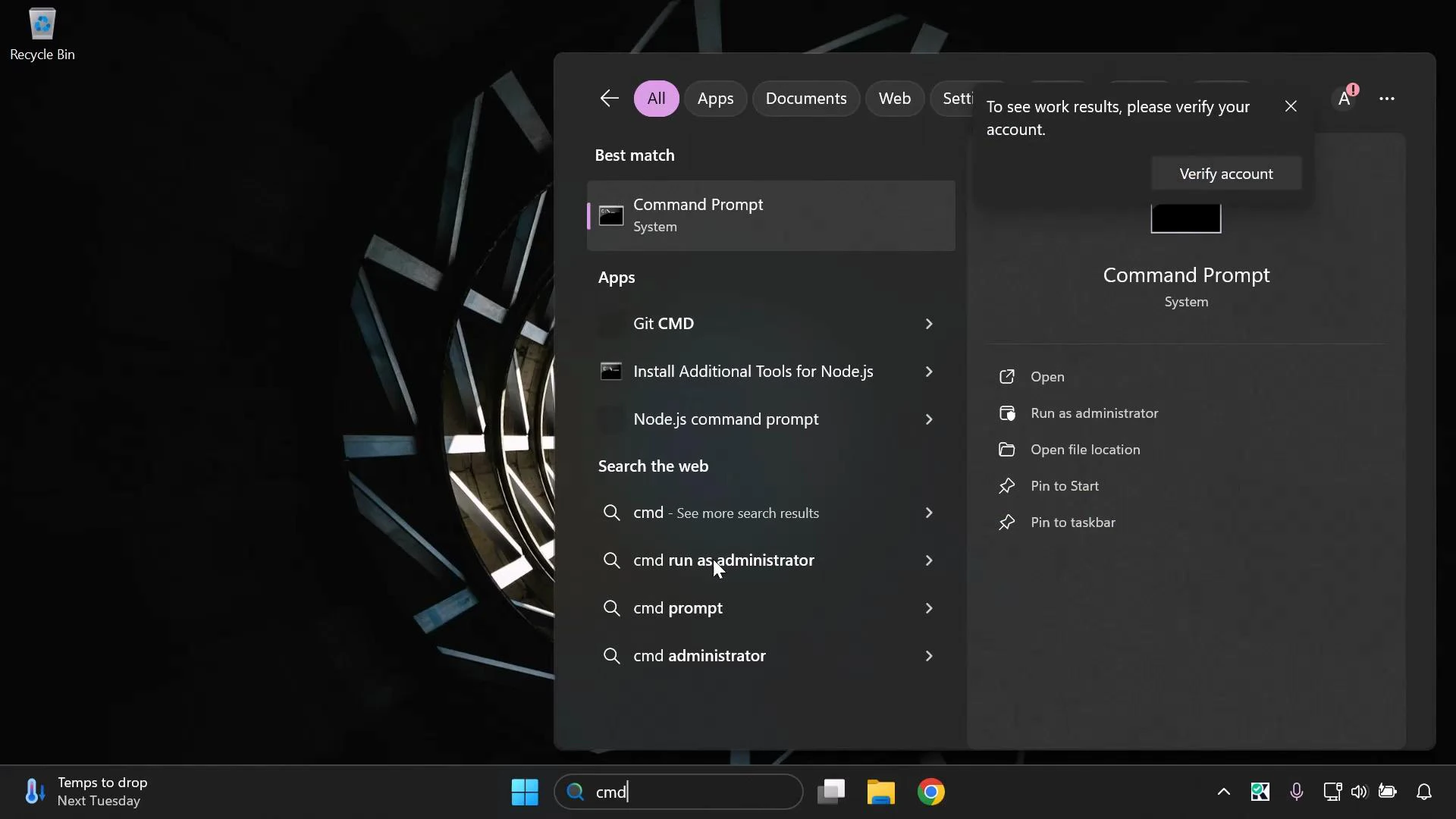
You can either restart your PC to refresh system environment variables or open a new Command Prompt window (a new process picks up the updated PATH). Then verify with the following command:A restart is not strictly necessary in most cases—opening a new Command Prompt is usually sufficient for the updated PATH to be available. Restarting is a safe step if you encounter PATH-related issues.
Quick troubleshooting tips
- If
python --versionshows an error or a different Python version:- Close and reopen the Command Prompt, or log out/in.
- Confirm you selected Add Python to PATH during installation.
- Use the full path (e.g., “C:\Program Files\Python313\python.exe”) to confirm installation location.
- If pip is missing, rerun the installer and ensure the pip option is selected.