This demo shows how to store an AMI ID in AWS Systems Manager (SSM) Parameter Store and reference it from an AWS CloudFormation template so an EC2 instance uses the value at stack creation. You will:
  • Create an SSM parameter to hold an AMI ID.
  • Use the special CloudFormation parameter type to fetch and validate the AMI ID from Parameter Store.
  • Launch a CloudFormation stack that provisions an EC2 instance using the SSM-stored AMI.
Useful references:

1) Create an SSM parameter

Open the AWS Console and go to Systems Manager → Parameter Store (search “SSM” to find Systems Manager). Create a new parameter and choose a descriptive path name such as /myapp/dev/ami-id. Optionally provide a description.
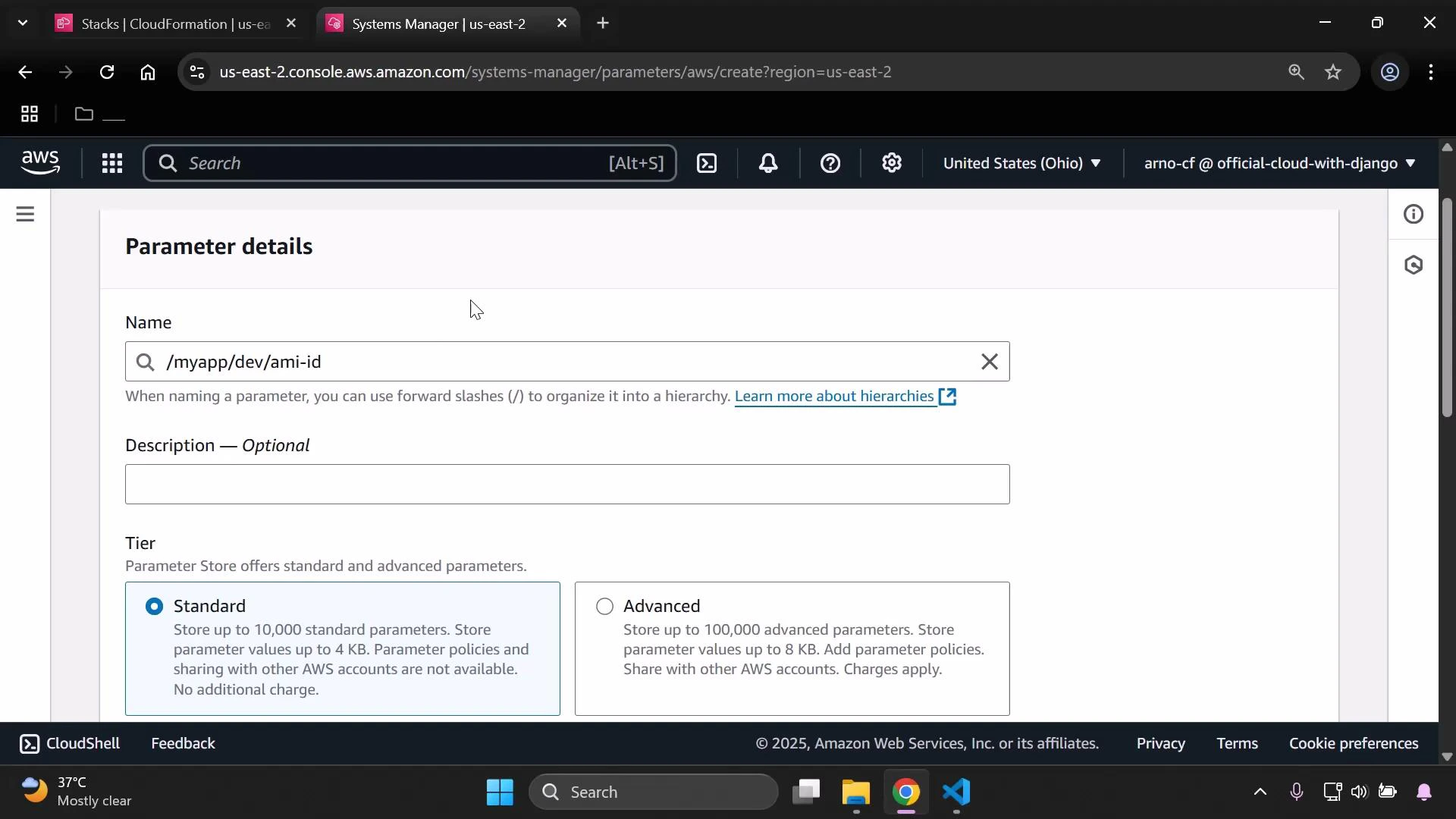
A screenshot of the AWS Systems Manager Parameter Store "Parameter details" page showing a parameter named "/myapp/dev/ami-id". The form shows an optional description field and the Tier selection with "Standard" chosen.
Choose Tier: Standard (use Advanced only when you need larger size, policies, or higher throughput). For Type choose one of the following:
TypeUse CaseNotes
StringSingle configuration valueSimple, unencrypted text
StringListComma-separated listUseful for storing lists such as subnets
SecureStringSecrets or credentialsEncrypted with KMS; recommended for secrets
If you choose SecureString, a KMS key is required. Select either an AWS-managed key or a customer-managed key. SecureString ensures values are encrypted at rest and access is controlled through KMS policies.
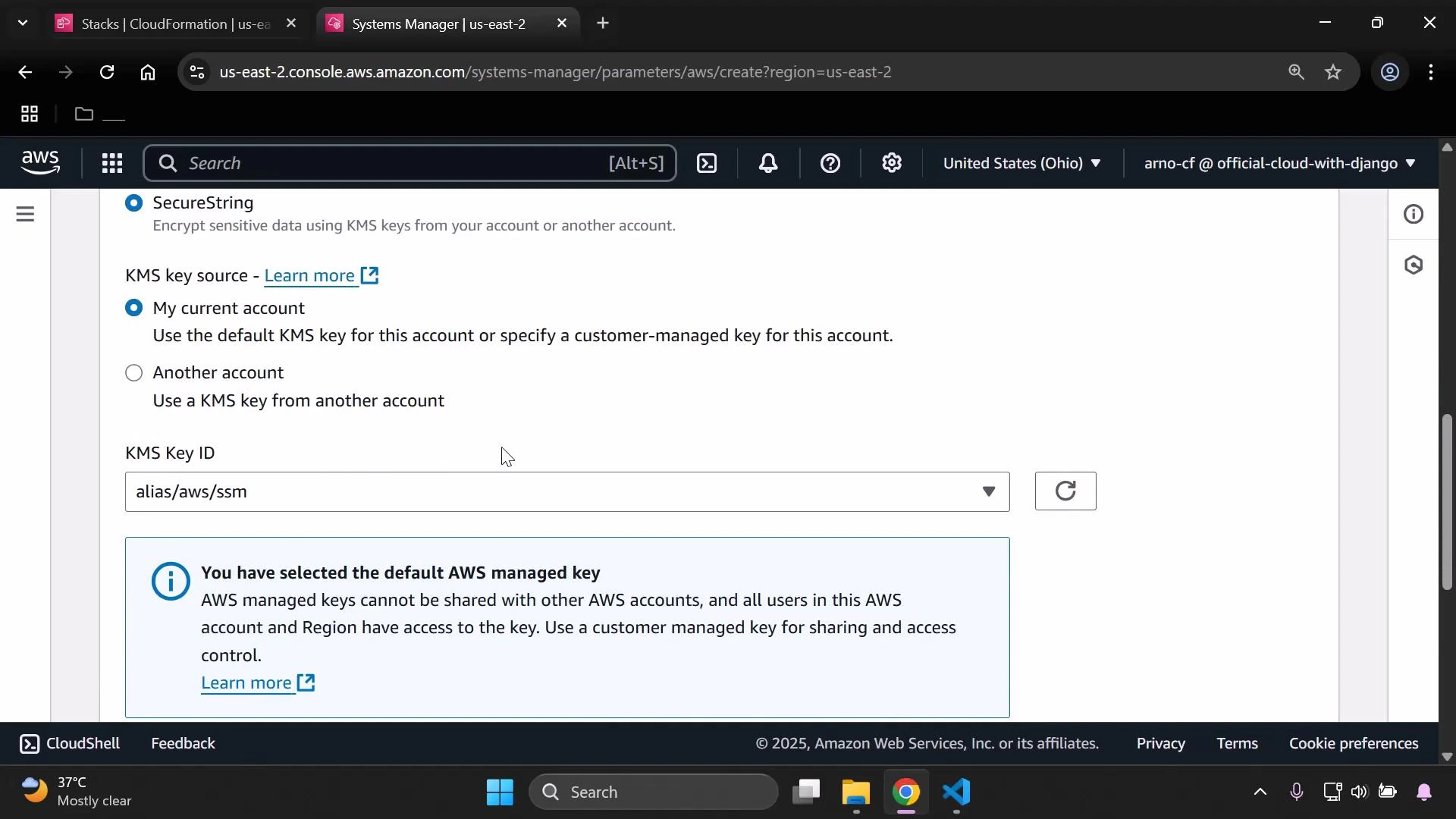
A screenshot of the AWS Systems Manager console showing the SecureString KMS key source selection with "My current account" chosen and the KMS Key ID set to alias/aws/ssm. A blue info box warns the default AWS managed key cannot be shared; browser tabs and the Windows taskbar are visible.
SecureString is recommended for secrets. If you use SecureString, make sure the principal that creates or deploys the stack (for example, CloudFormation’s service role or the IAM user) has kms:Decrypt permissions on the KMS key used to encrypt the parameter.
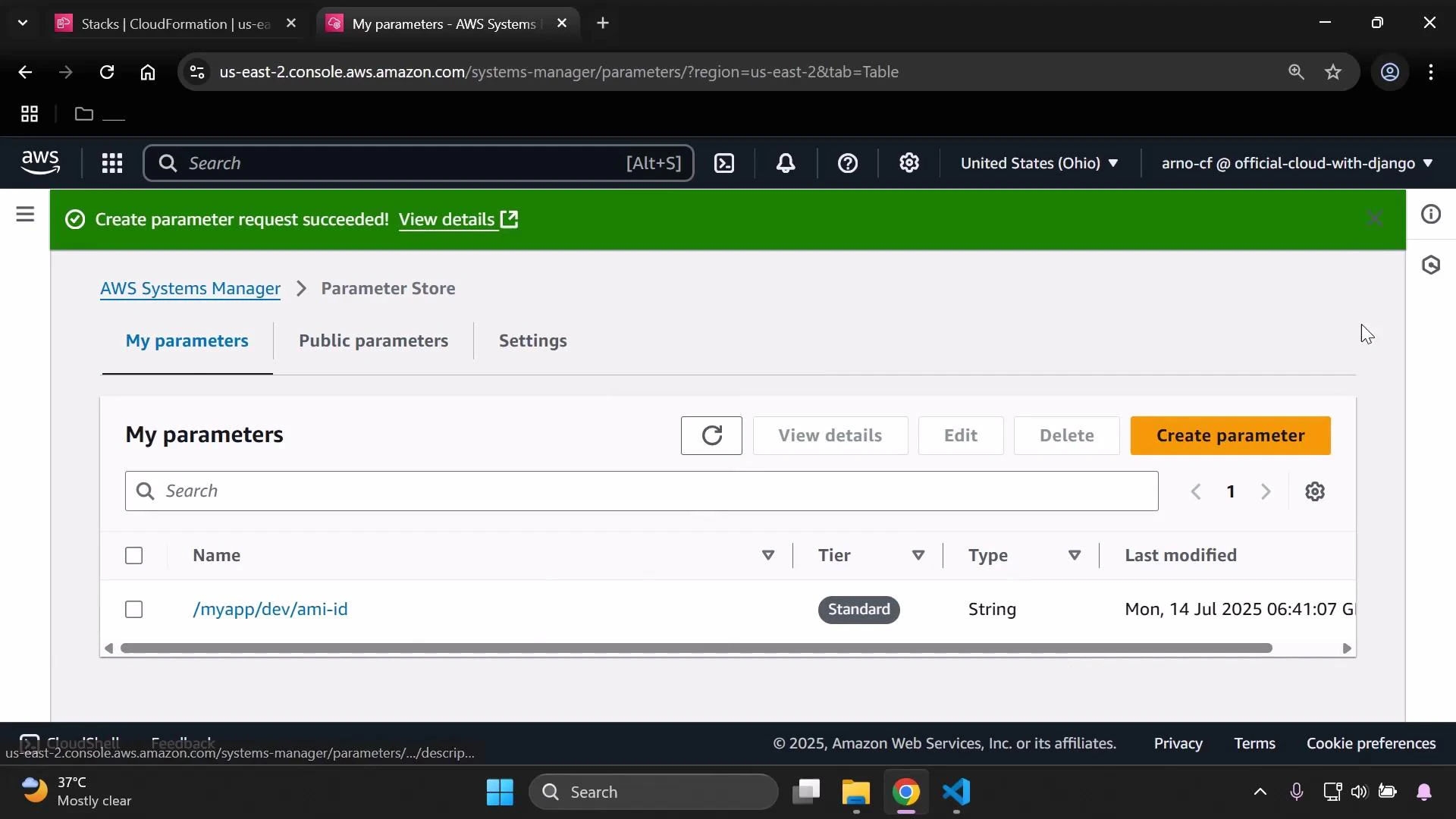
Set the parameter value to the desired AMI ID (this demo used an AMI from the us-east-2 region) and click Create parameter. You should see a success banner and the new parameter listed.
Screenshot of the AWS Systems Manager Parameter Store console with a green "Create parameter request succeeded!" banner and one parameter (/myapp/dev/ami-id) listed under "My parameters." The toolbar shows buttons like View details, Edit, Delete, and Create parameter.

2) Reference the SSM parameter from CloudFormation

CloudFormation supports SSM-backed parameters using a special parameter Type that both retrieves the SSM value and validates its format. For AMI IDs use: Type: AWS::SSM::Parameter::Value<AWS::EC2::Image::Id> Save the example template below as ssm.yaml and upload it when creating the stack. The template demonstrates a simple EC2 instance that uses the SSM parameter for ImageId.
Metadata:
  Purpose: Basic EC2 instance with HTTP and SSH access

Mappings:
  RegionMap:
    us-east-2:
      AMI: ami-0eb9d6fc9fab44d24
    eu-west-1:
      AMI: ami-0b3e7dd7b2a99b08d
    us-east-1:
      AMI: ami-0150ccaf51ab55a51

Parameters:
  AmiId:
    Type: AWS::SSM::Parameter::Value<AWS::EC2::Image::Id>
    Default: /myapp/dev/ami-id

Resources:
  MyInstance:
    Type: AWS::EC2::Instance
    Properties:
      InstanceType: t3.micro
      ImageId: !Ref AmiId
How it works:
  • The parameter AmiId is declared with CloudFormation type AWS::SSM::Parameter::Value<AWS::EC2::Image::Id>, so CloudFormation will fetch the value from SSM Parameter Store and validate it as an EC2 AMI ID.
  • Default points to the Parameter Store path /myapp/dev/ami-id. If the stack creator does not override this parameter, CloudFormation uses that SSM parameter.
  • The EC2 instance property ImageId references the parameter with !Ref AmiId, applying the fetched AMI to the instance.
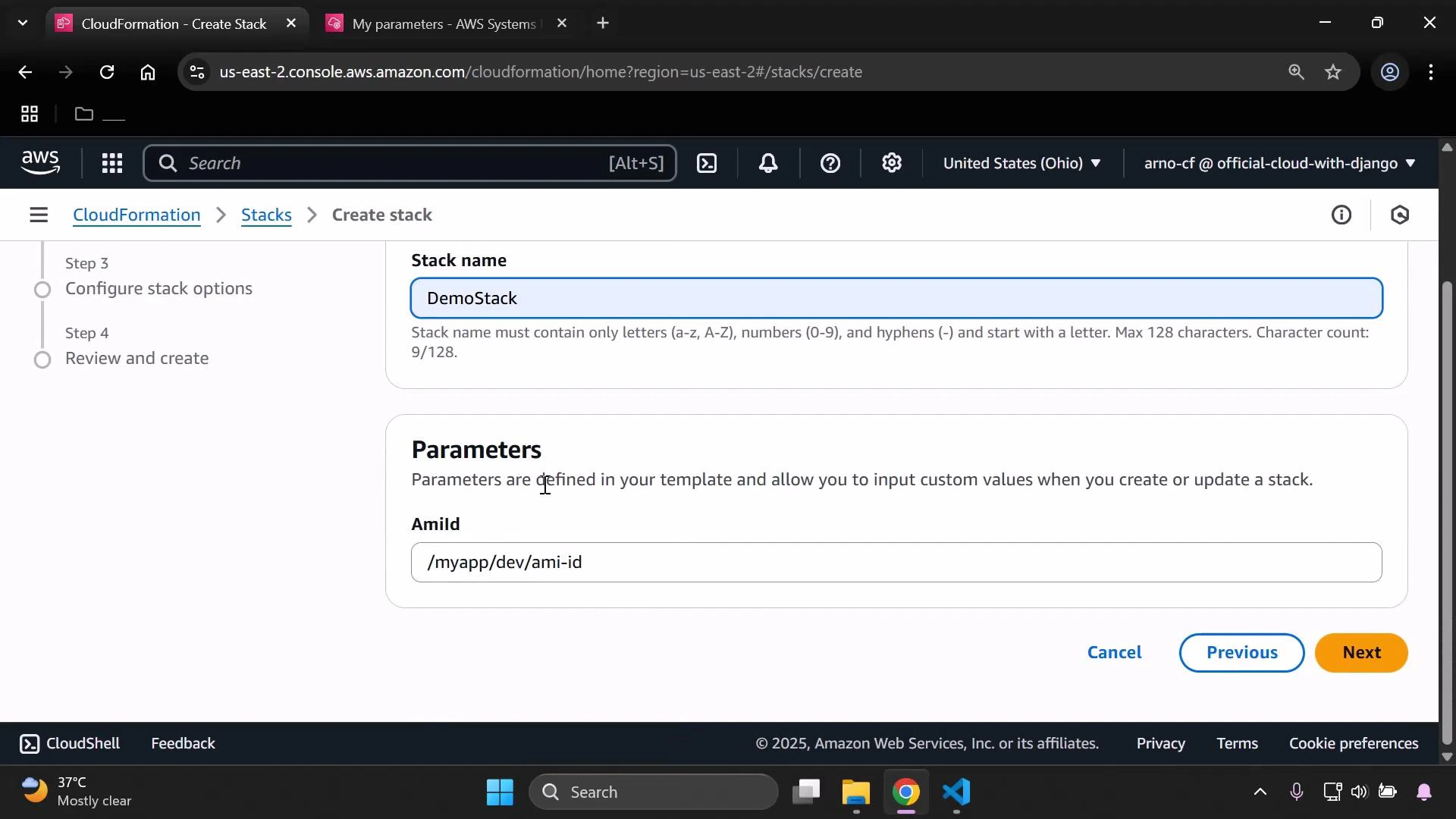
When uploading the template in the CloudFormation console, you will see the parameter value reference populated (the console shows the parameter name rather than the raw AMI value).
A screenshot of the AWS CloudFormation "Create stack" page showing the Stack name set to "DemoStack" and a Parameters section with an AmiId value of "/myapp/dev/ami-id". Navigation buttons "Previous" and "Next" are visible at the bottom.

3) Verify resources

After stack creation starts, verify the EC2 instance is launched in the expected region and that it enters the Running state.
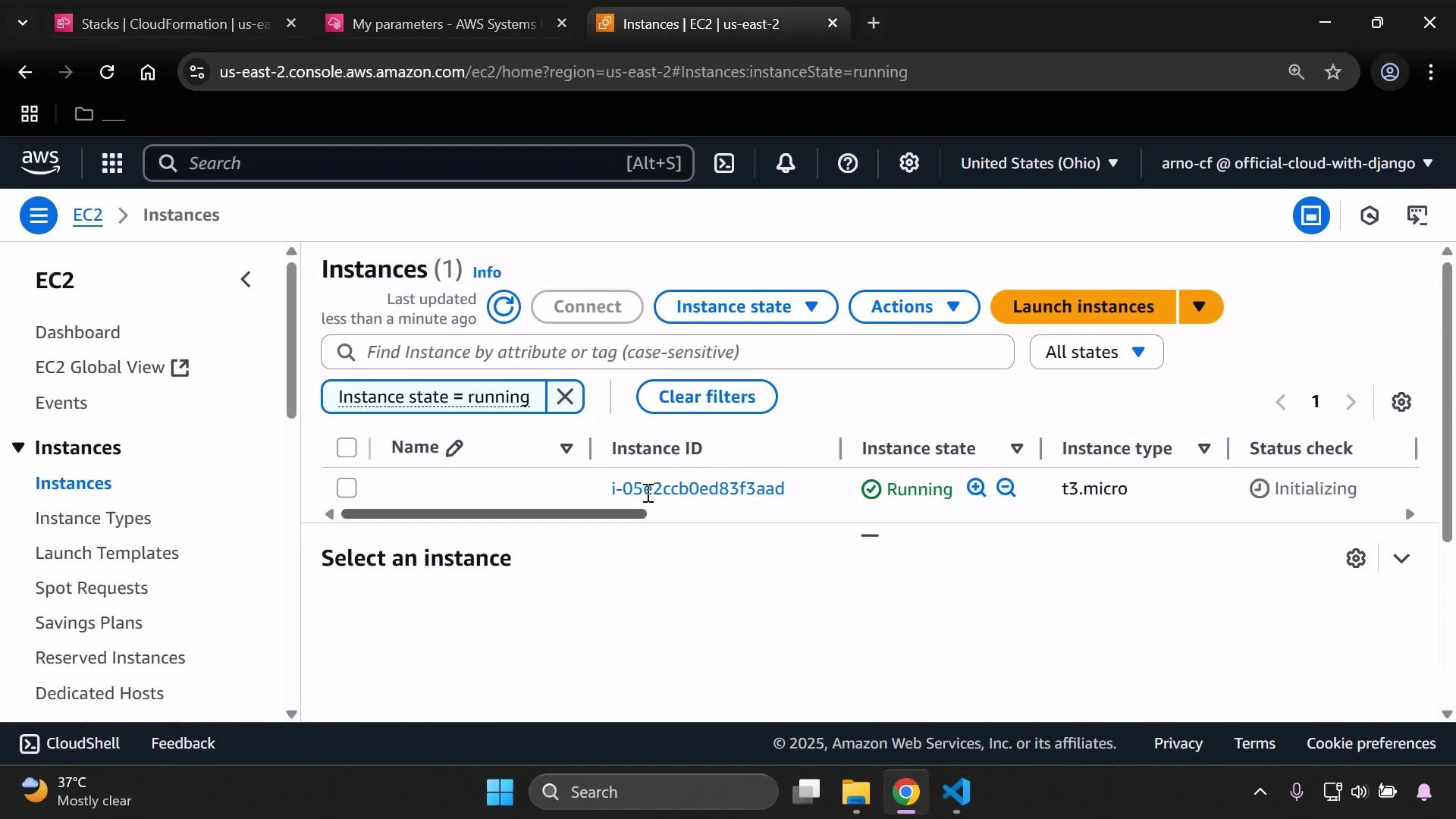
A screenshot of the AWS EC2 Instances dashboard showing one instance filtered to "Instance state = running" — instance i-05e2ccb0ed83f3aad of type t3.micro with its status check showing "Initializing." The top bar also shows the region (United States (Ohio)) and the "Launch instances" button.
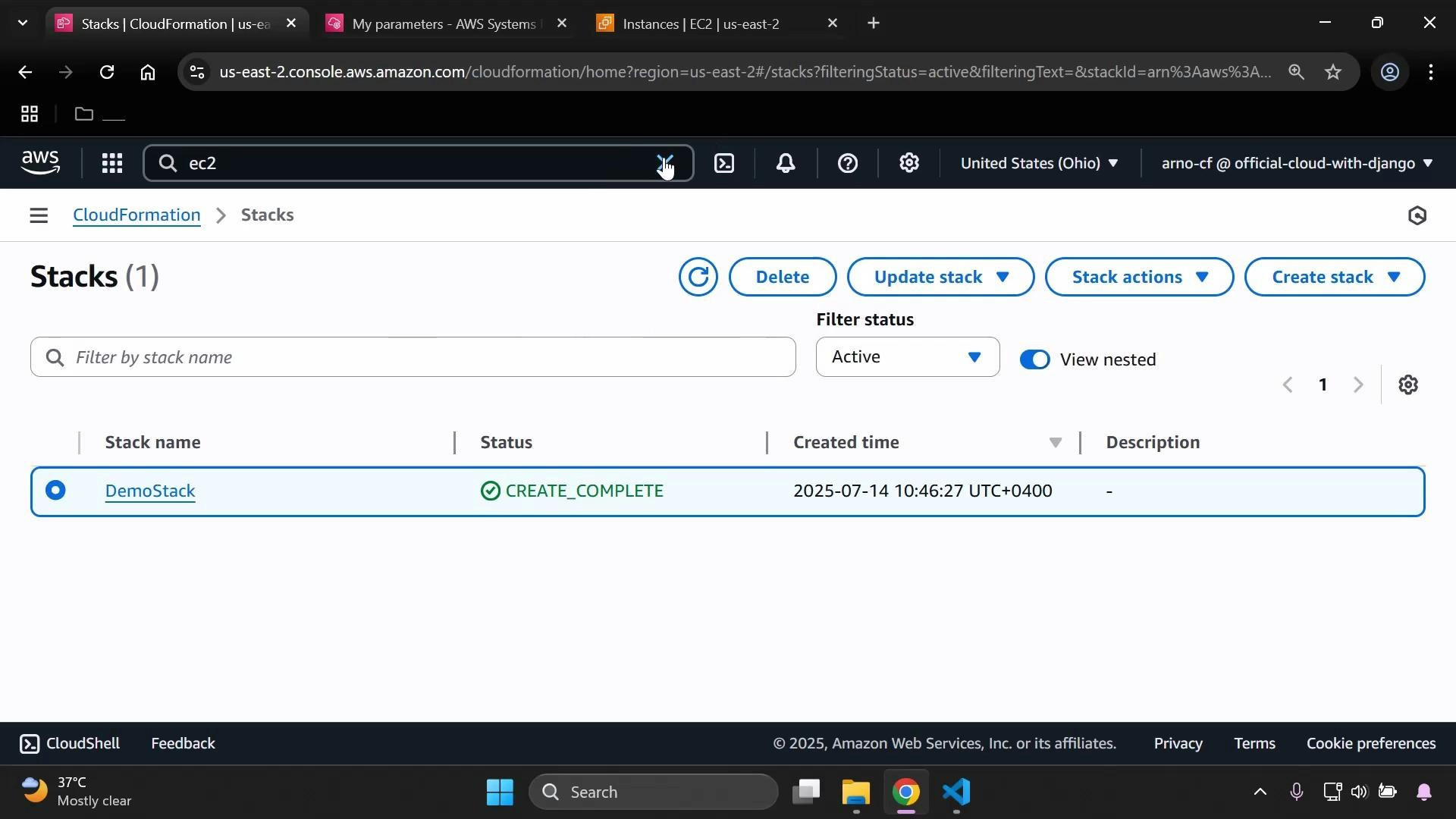
When provisioning completes, the CloudFormation stack status should change to CREATE_COMPLETE.
A screenshot of the AWS CloudFormation console showing one stack named "DemoStack" with status "CREATE_COMPLETE" and a created time of 2025-07-14 10:46:27 UTC+0400. The interface also displays control buttons (Delete, Update stack, Stack actions, Create stack) and filter/search options.

Cleanup

  • Delete the CloudFormation stack to remove provisioned resources (this terminates the EC2 instance).
  • If the SSM parameter is no longer needed, delete it from Parameter Store.
Parameter Store path example:
/myapp/dev/ami-id
If you used SecureString, ensure the principals performing read, update, or deletion operations have the necessary KMS permissions (kms:Decrypt and kms:DescribeKey). Deleting or rotating keys without proper permissions can make SecureString values unrecoverable.
That completes the demo on using SSM Parameter Store with CloudFormation to supply an AMI ID for an EC2 instance.

Watch Video

Practice Lab