

- Create a limited IAM user for testing.
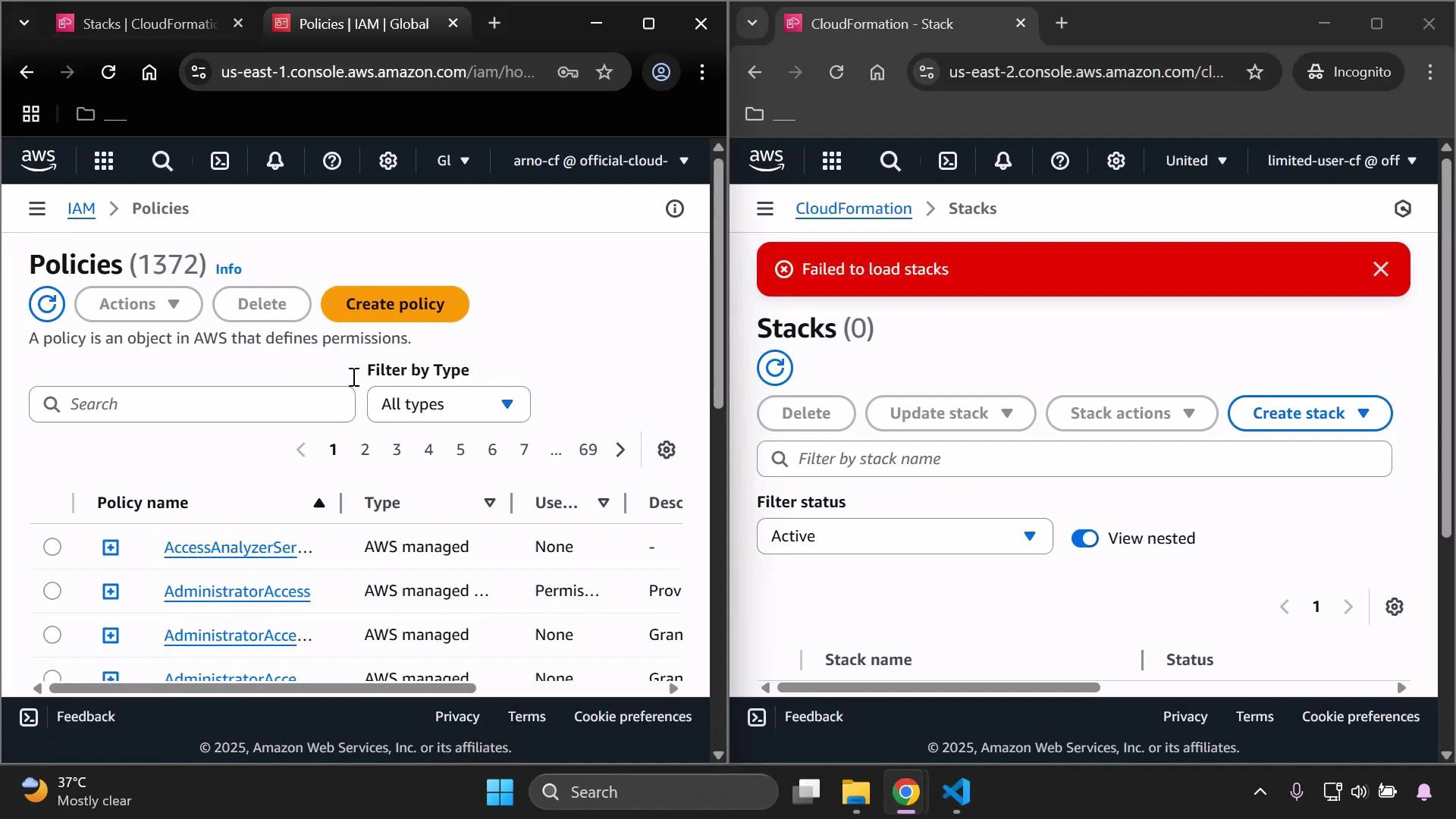
- Sign in as that limited user (use an incognito window) to confirm initial lack of permissions.
- Create a simple CloudFormation stack with an administrator account.
- Build and attach a minimal custom IAM policy to allow listing and describing stacks.
- Administrator access to the AWS account (in this lesson: Arno Pretorius).
- A second browser (or an incognito window) to sign in as the limited user for side-by-side verification.
1 — Create the limited IAM user
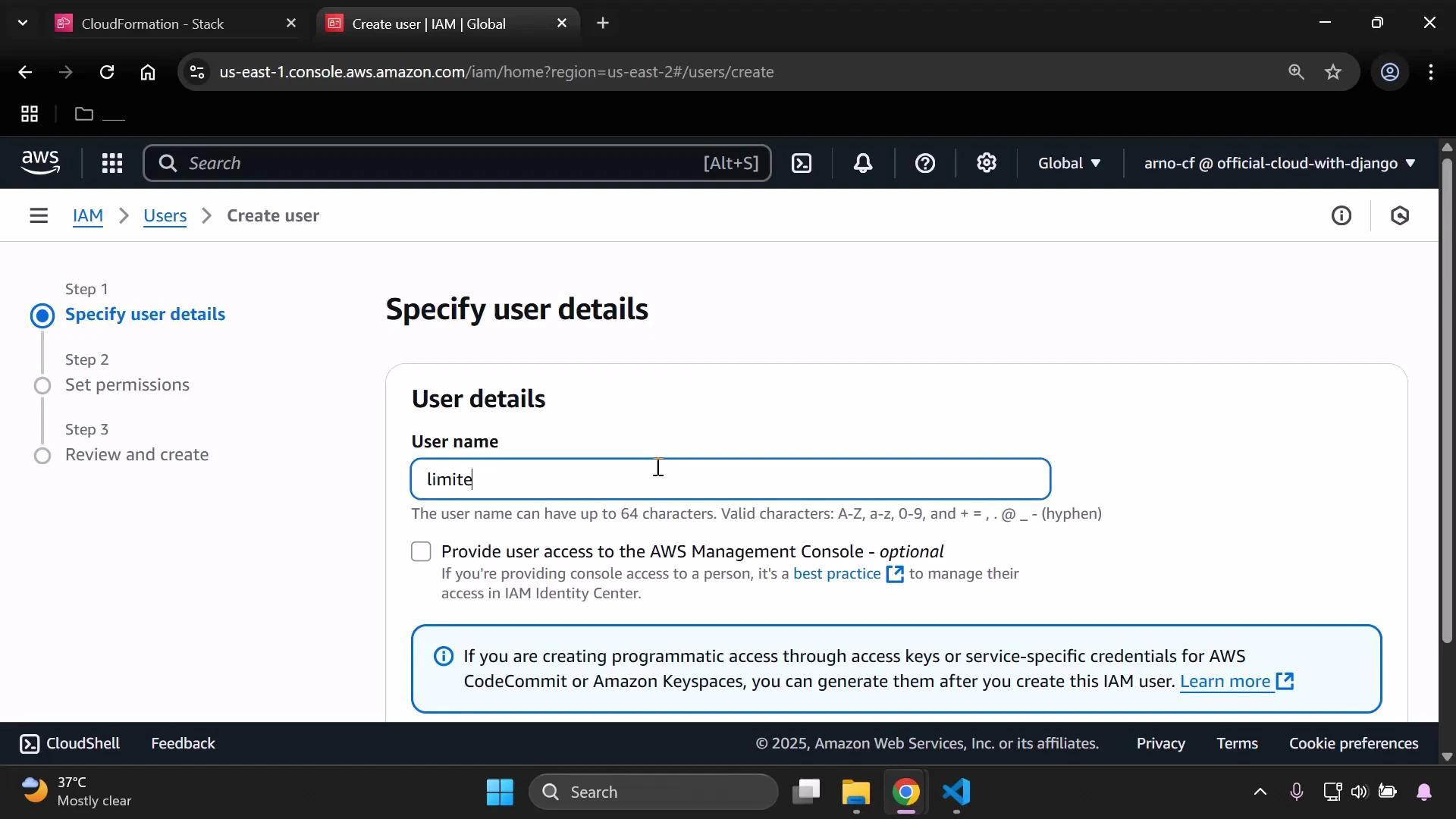
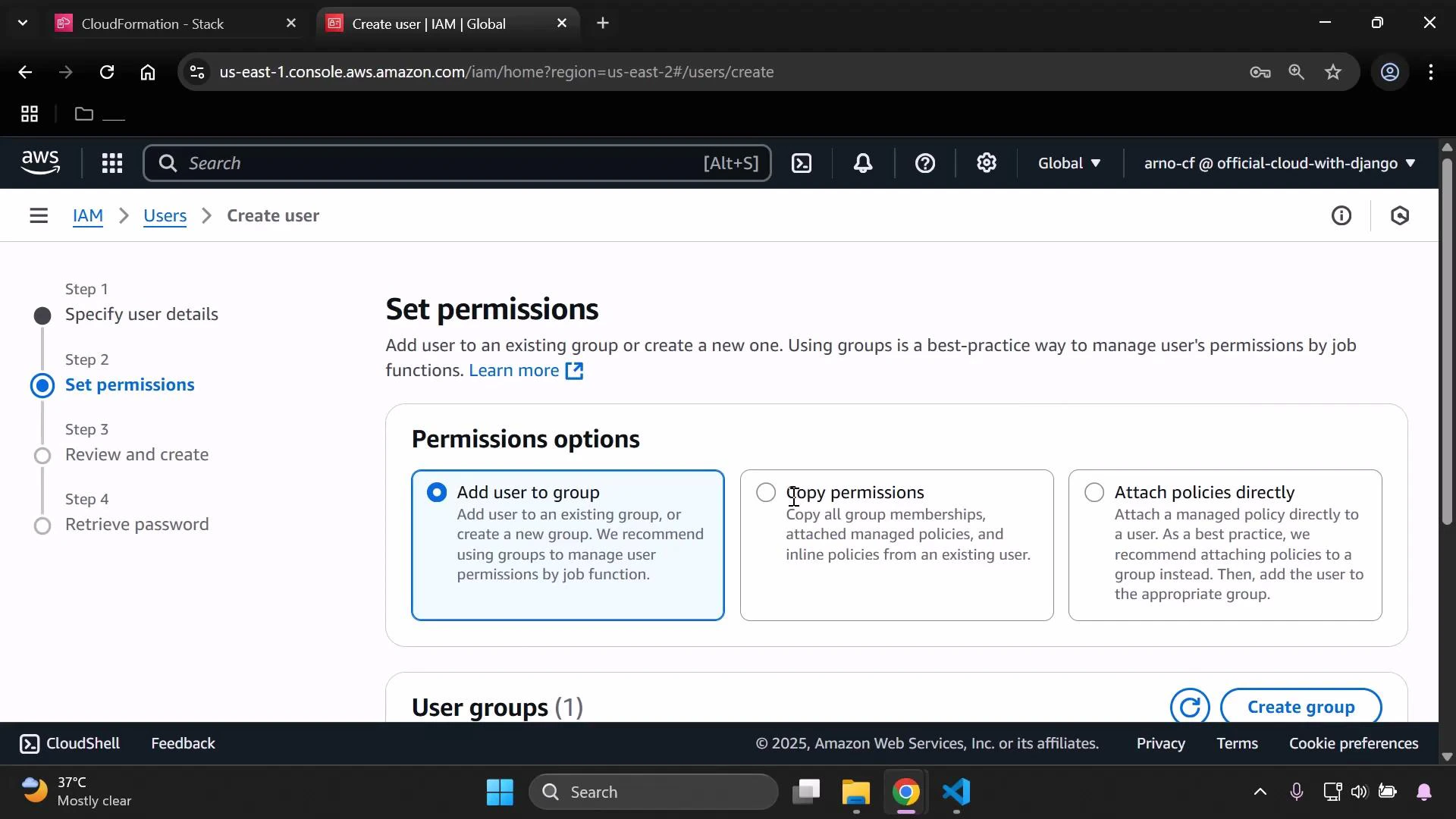
Sign in as the administrator (Arno Pretorius) and create a test user calledlimited-user-cfn. Grant AWS Management Console access and set a password; do not attach any permissions yet — we’ll attach a custom policy later.
2 — Sign in as the limited user (verify no permissions)
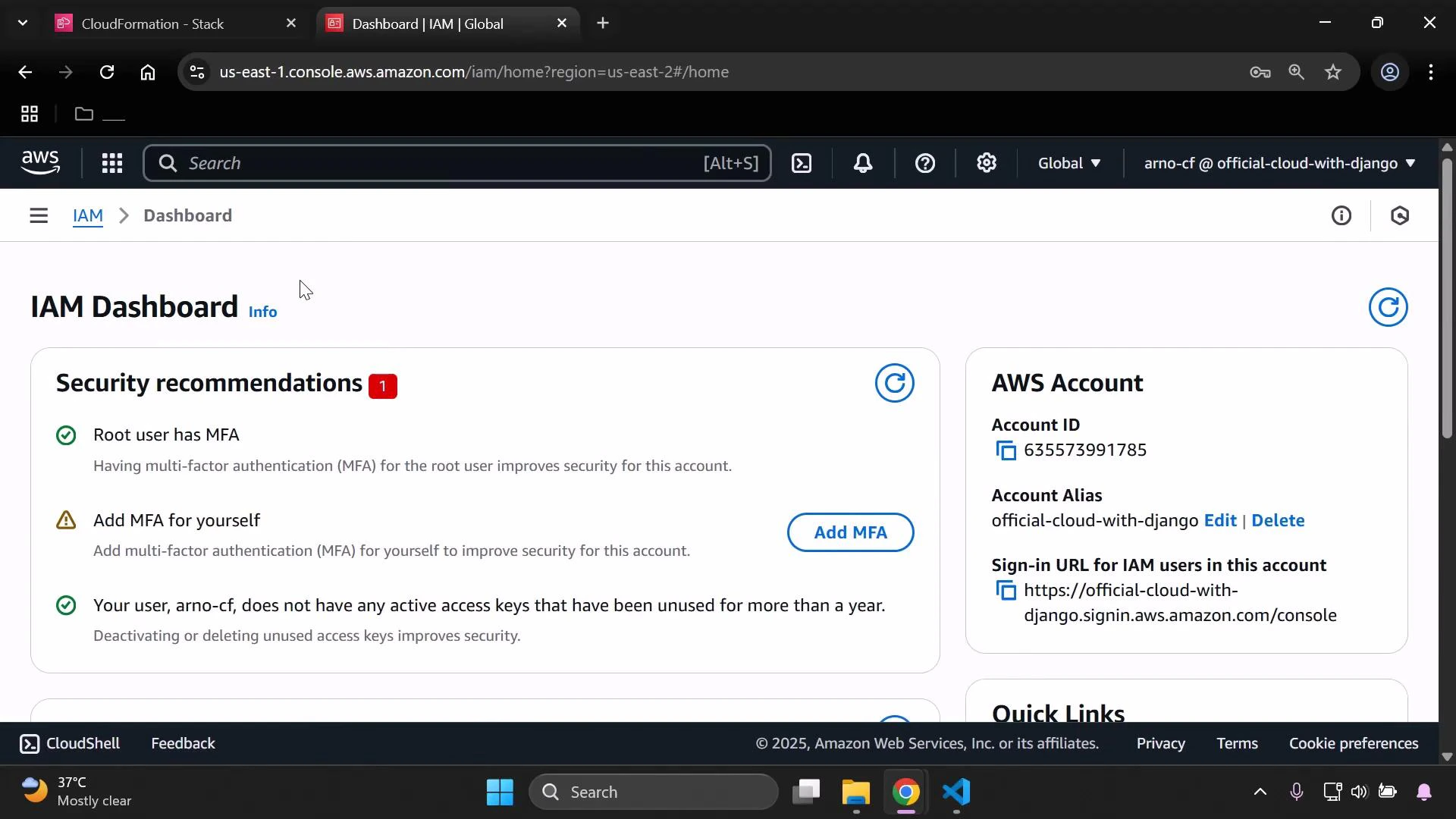
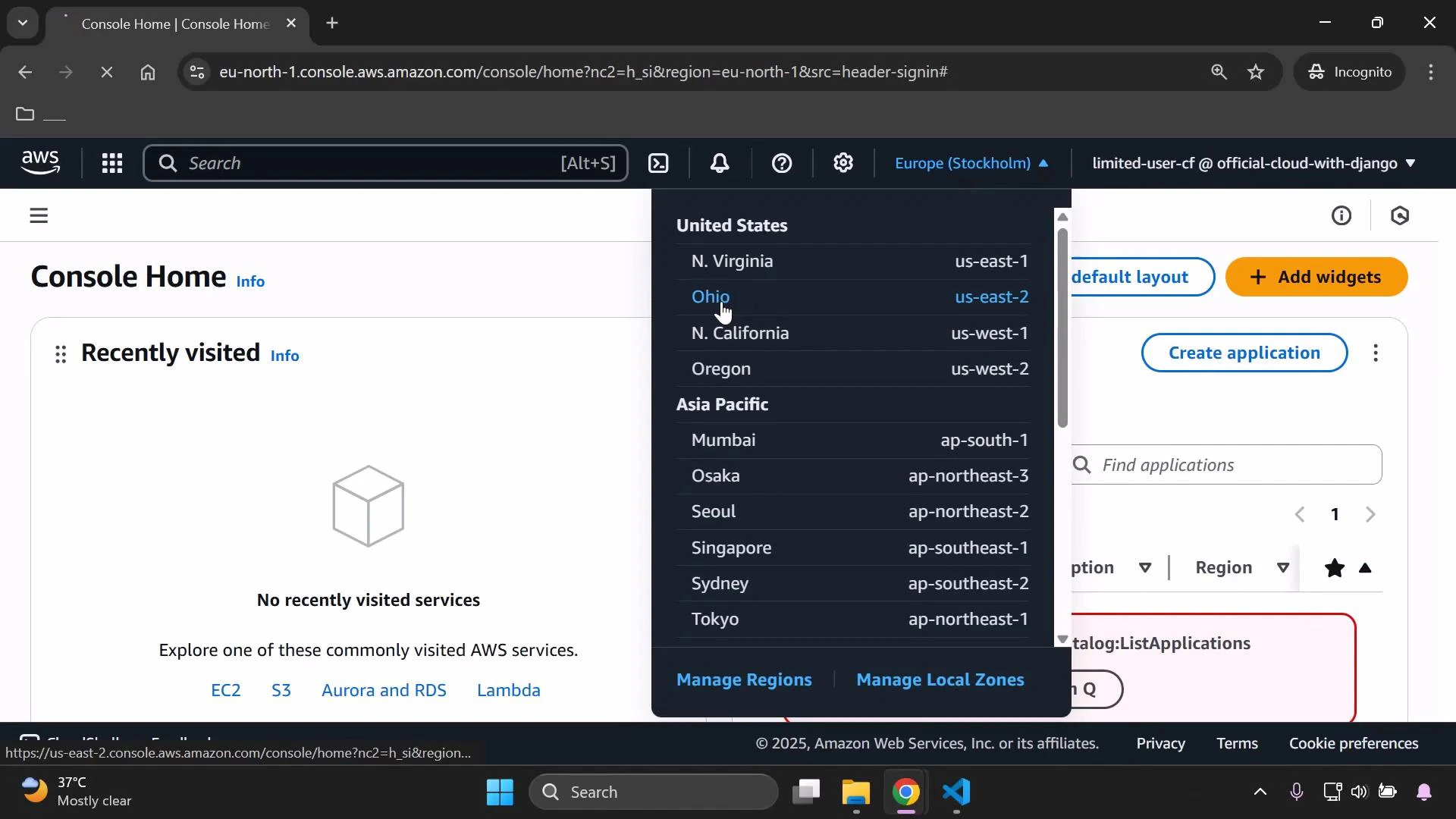
Open an incognito/private browser window and sign in aslimited-user-cfn using your account alias or account ID. From the IAM dashboard you can confirm the account details (account ID, alias, sign-in URL).
3 — Create a simple CloudFormation stack (as admin)
Back in the administrator session, create a simple stack that the limited user will later try to view. From the CloudFormation console choose “Create stack → With new resources (standard)” and upload a small template. Example (S3 bucket):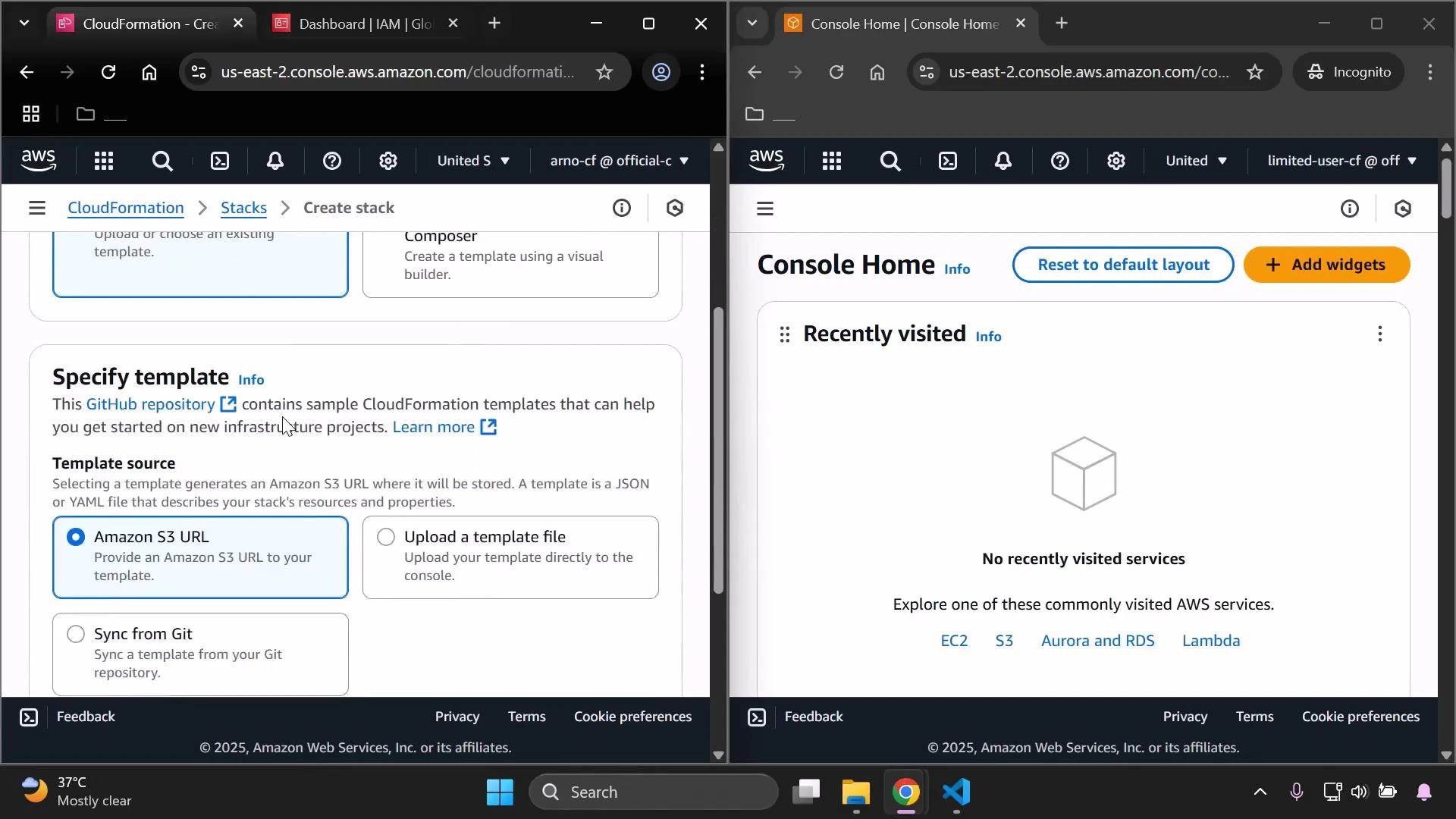
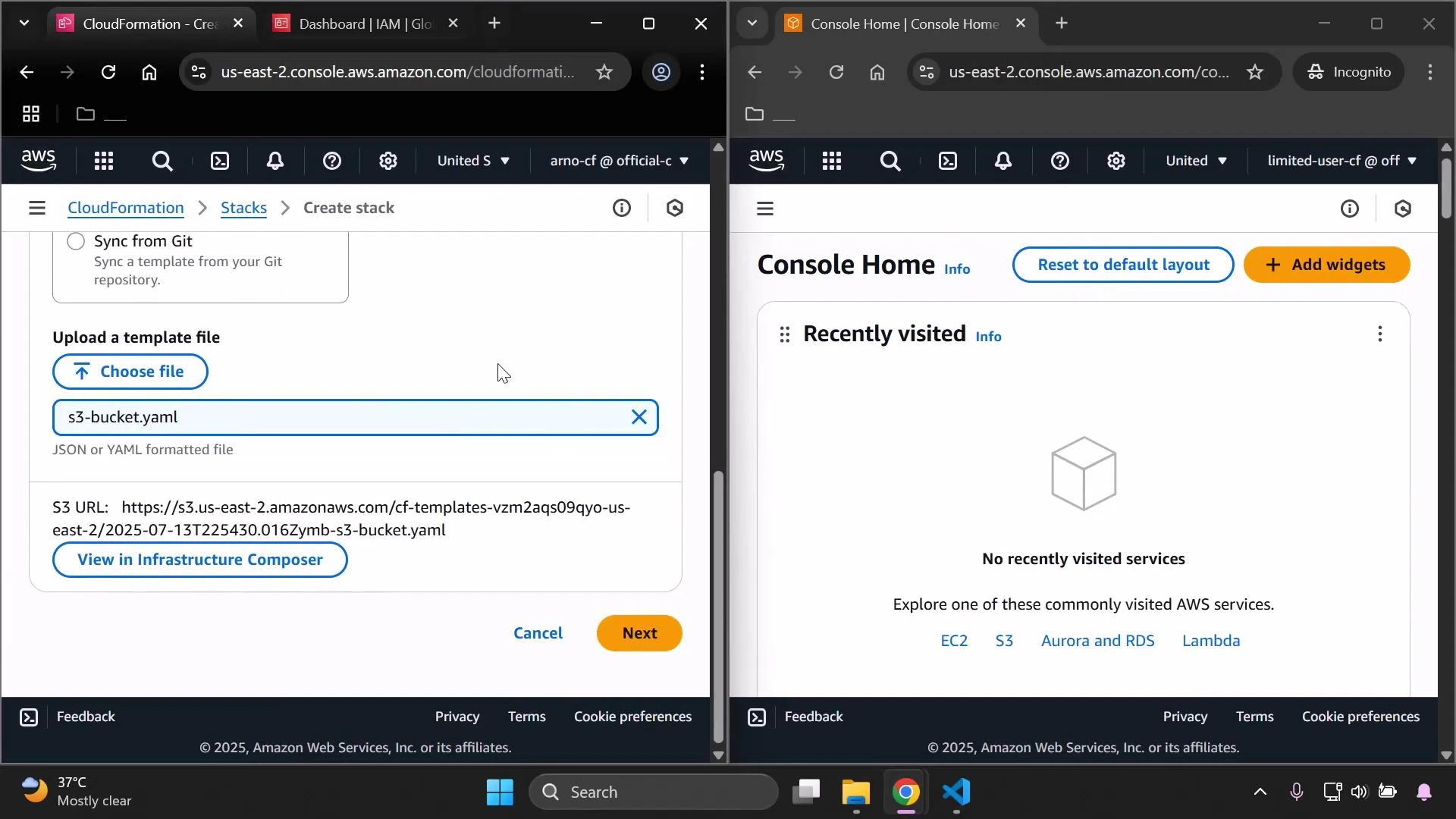
demo-stack) and fill the InputBucketName parameter with a globally unique value (for example arno-pretorius-kodekloud-kljk-pkt) before creating the stack.
4 — Build a minimal custom policy to view stacks
Next, create a minimal IAM policy that grants permissions to list and describe CloudFormation stacks. In the administrator session go to IAM → Policies → Create policy → JSON editor and enter:- cloudformation:ListStacks — list stacks in the account (required for the console stacks table).
- cloudformation:DescribeStacks — read details for a specific stack (status, outputs, parameters).
- Resource: ”*” — CloudFormation list/describe operations are account/stack-level and typically require account-wide resource access.
Note: Some CloudFormation actions require Resource: ”*” (account-level access). When later granting update or delete permissions, add actions such as
cloudformation:UpdateStack, cloudformation:DeleteStack, and change-set actions. Scope permissions to specific stacks or use IAM conditions where possible to follow least privilege.Warning: S3 bucket names must be globally unique. Never publish real credentials or sensitive data in templates. Keep your administrator session secure and avoid leaving admin-level access open in long-lived browser windows during testing.
5 — Attach the policy and verify access
Attach the newly created policy tolimited-user-cfn (IAM → Users → limited-user-cfn → Add permissions → Attach policies). Then sign in as the limited user (or refresh the session). The CloudFormation console should now load the stacks list and allow viewing stack details.
From here you can:
- Extend the policy to allow updates (e.g.,
cloudformation:UpdateStack,cloudformation:CreateChangeSet,cloudformation:ExecuteChangeSet) and scope it to specific stack ARNs. - Use IAM conditions (such as
aws:ResourceTag) to restrict which stacks a user can modify. - Test changes in the limited-user session to verify least-privilege behavior.
Links and references
- AWS CloudFormation Documentation
- IAM User Guide — Policies and Permissions
- IAM JSON Policy Elements: Principal, Action, Resource, Condition