

- IAM user used in this demo: arno-cf
- Sign in to the AWS root account (in an incognito/private window) to change permissions, and keep a separate browser window signed in as arno-cf to observe the effect.
For safety: avoid using the root account for daily tasks. Use the root account only when necessary (for example, to modify IAM user policies), and ensure MFA is enabled on the root account.
- Open an incognito/private browser session and sign in with your AWS root credentials.
- In a regular browser session, sign in with the IAM user arno-cf.
- This allows you to change the IAM user’s permissions from the root account and immediately observe the effect from the IAM user’s session.
- In this demo the IAM user originally had the AWS managed policy AdministratorAccess attached, allowing all actions.
- From the root account: navigate to IAM → Users → select arno-cf (arn:aws:iam::635573991785:user/arno-cf) → Permissions.
- For the demo, remove the AdministratorAccess policy to simulate a least-privilege configuration and see how service access is affected.
- After removing AdministratorAccess, switch to the IAM user’s session (or reload their AWS Management Console) and try to open CloudFormation and upload a template.
- You will typically see CloudFormation fail to load stacks or produce permission errors when uploading templates.
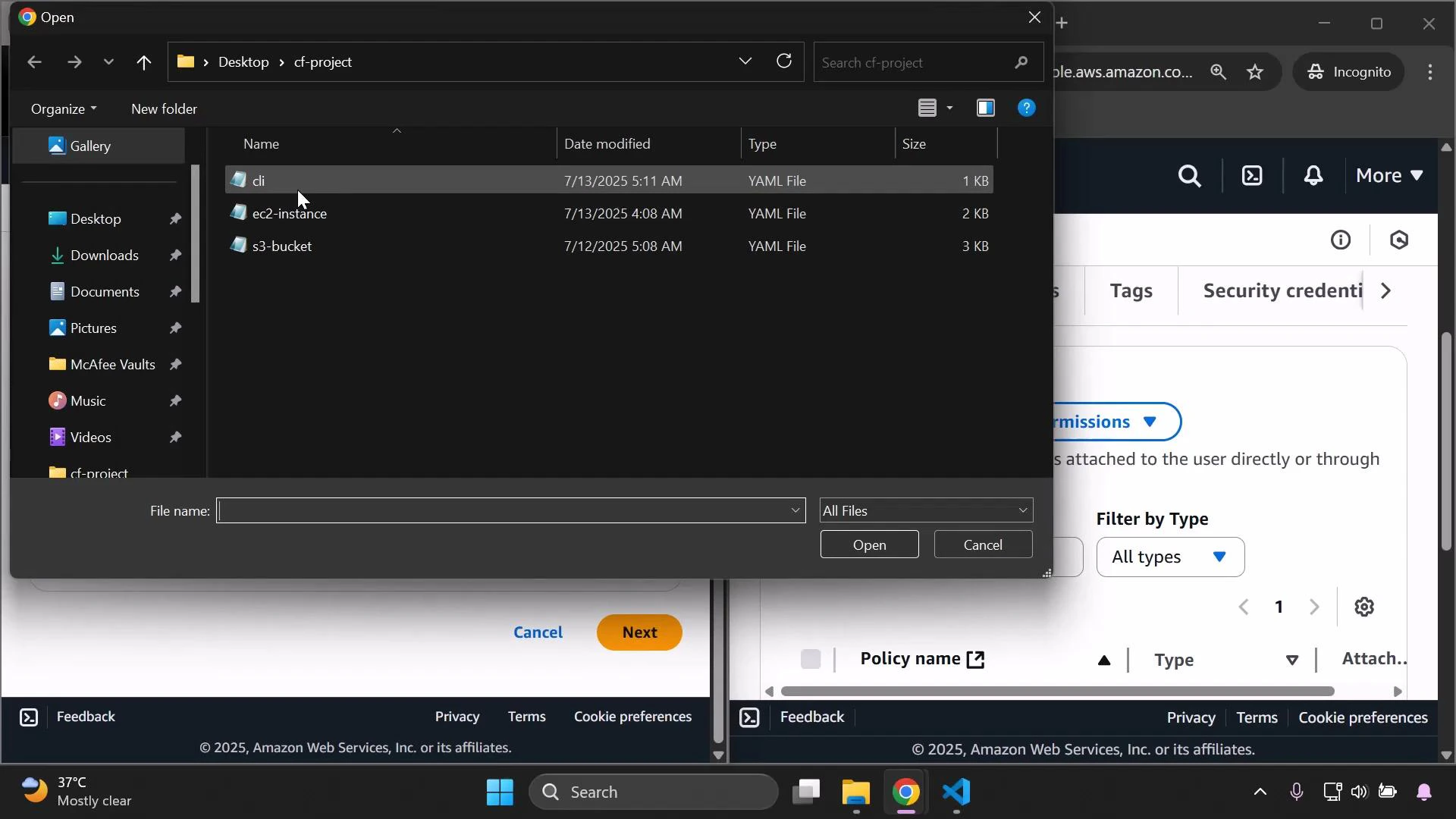
- CloudFormation needs the cloudformation:CreateUploadBucket permission to prepare a template upload (it often creates a temporary S3 upload bucket).
- In addition to the CloudFormation permission, you may also need S3 permissions (for example, s3:CreateBucket and s3:PutObject) for the bucket used to store the template.
- From the root account, add the AWS managed policy AWSCloudFormationFullAccess to the arno-cf user.
- AWSCloudFormationFullAccess grants full control over CloudFormation stack operations (create/update/delete). It does not automatically grant permissions for the underlying AWS services that your templates create (for example, EC2 or S3). You must also grant those service permissions separately.
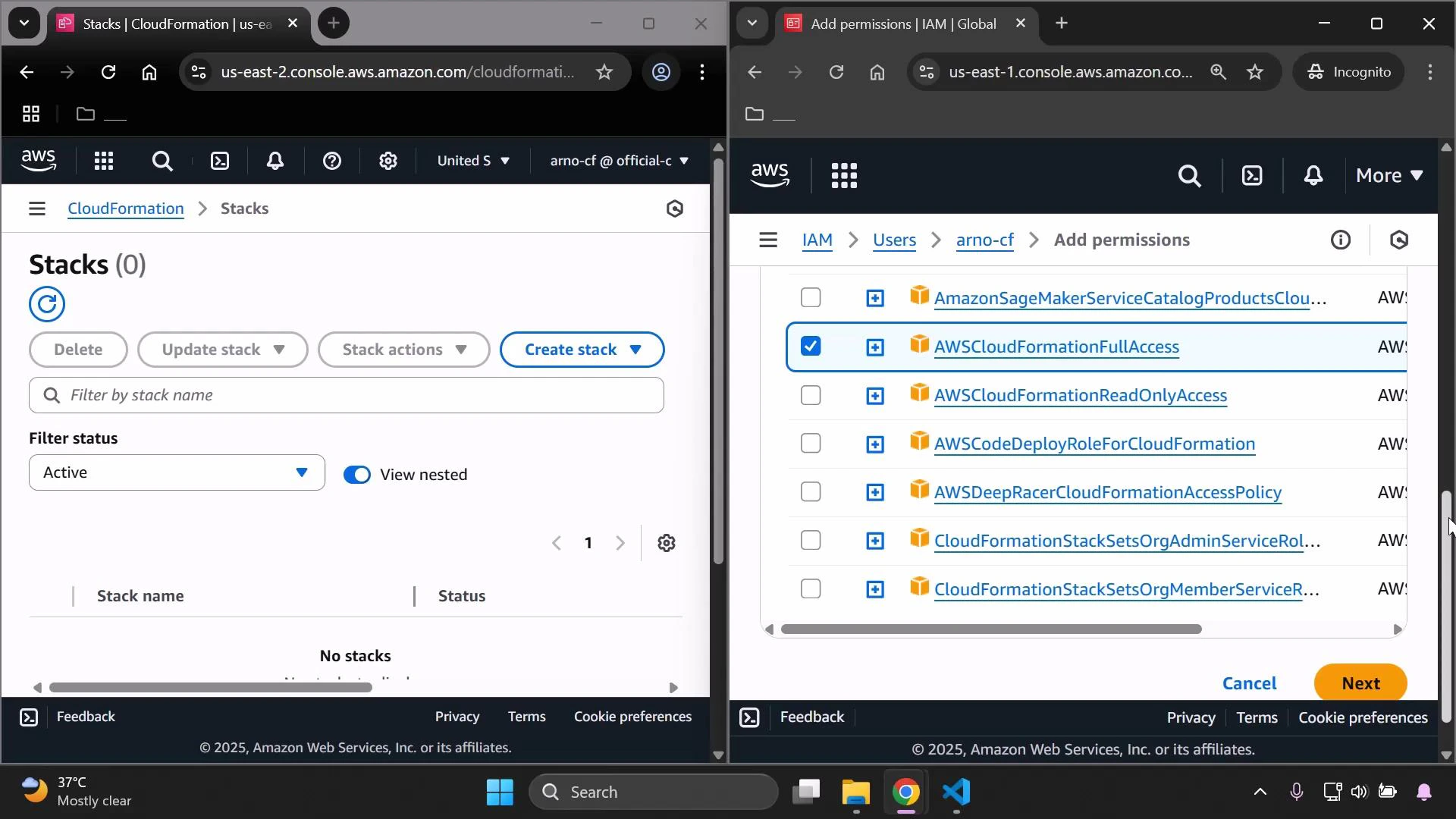
- Reload the IAM user’s CloudFormation console. The “Failed to load stacks” error should be resolved and the user can view and manage stacks.
- Uploading a template can still fail if the user lacks S3 permissions to create or write to the upload bucket.
- From the root account, attach the managed policy AmazonS3FullAccess to the IAM user, or better: grant narrowly scoped S3 permissions (least-privilege) such as s3:CreateBucket and s3:PutObject limited to a specific bucket ARN or region.
- With CloudFormation and the appropriate S3 permissions, the console should succeed in creating the upload bucket and return a template URL similar to:
- CloudFormation permissions allow you to manage stacks, but resource creation still depends on permissions for each AWS service referenced by the template (e.g., EC2, RDS, Lambda). If the IAM user lacks those resource-level permissions, stack operations will fail during create/update.
Best practice: follow the principle of least privilege. Grant only the actions and specific resources required—e.g., CloudFormation access plus targeted S3 upload permissions, and any resource-specific privileges (EC2, RDS) only when needed.
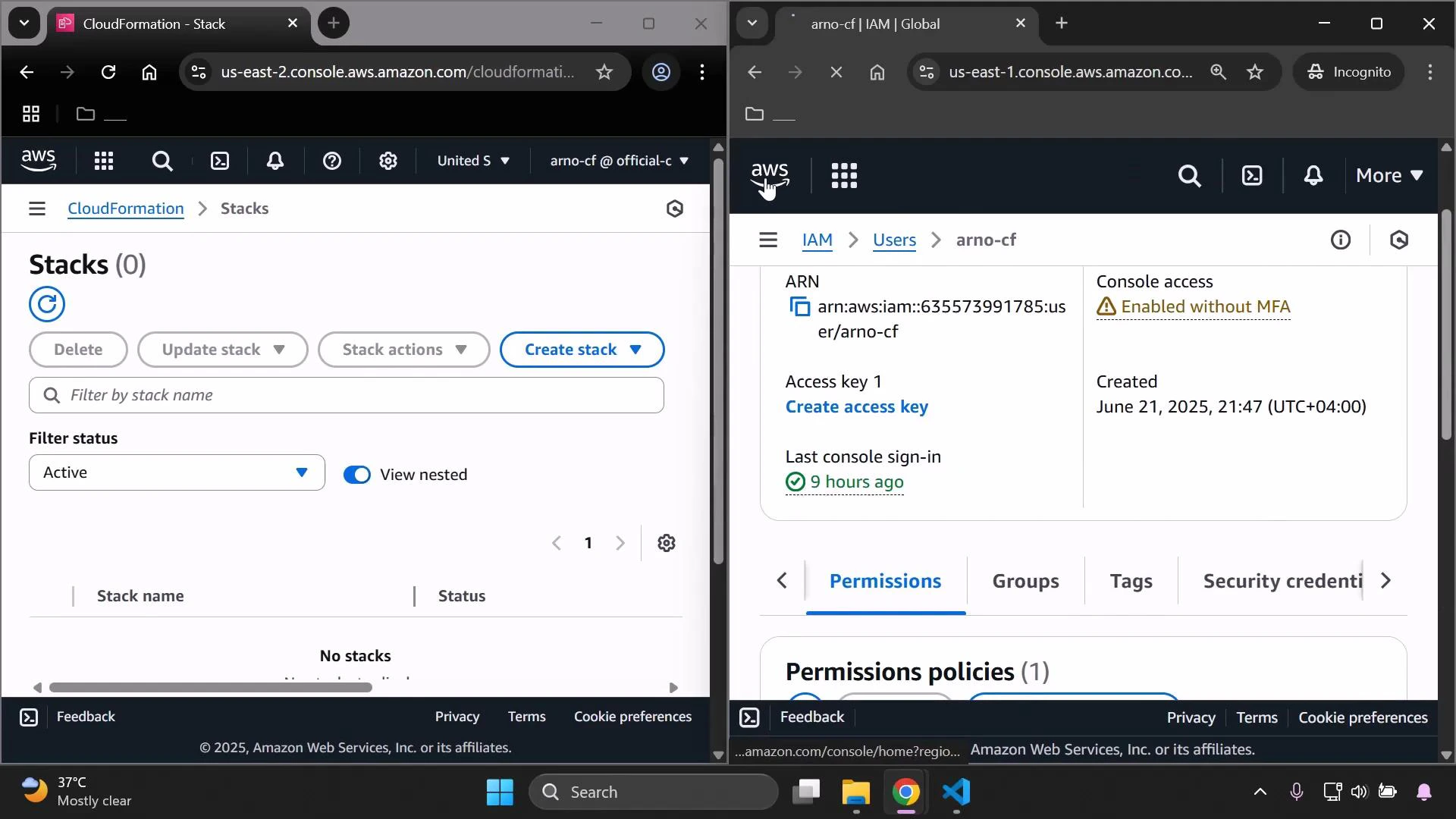
- If you need to return arno-cf to its previous elevated state for testing, re-attach the AdministratorAccess managed policy from the root account.
- After re-attaching, reload the IAM user’s console session to ensure the new permissions take effect.
Troubleshooting checklist
- If CloudFormation shows “Failed to load stacks”: confirm cloudformation:* permissions are present.
- If template upload fails with CreateUploadBucket error: ensure cloudformation:CreateUploadBucket and S3 permissions (s3:CreateBucket, s3:PutObject) exist.
- If stack creation fails while provisioning resources: check permissions for each service referenced by the template (EC2, RDS, IAM, Lambda, etc.).
- Removing AdministratorAccess prevents many actions for the IAM user; attaching service-specific managed policies (for example, AWSCloudFormationFullAccess and AmazonS3FullAccess) restores the ability to use those services.
- CloudFormation requires both CloudFormation API permissions and permissions for any AWS resources the template creates.
- Always apply least-privilege principles: grant CloudFormation and minimal S3 access for template uploads, and add resource-specific permissions only when template actions require them.