In this lesson we build a minimal, customer-managed IAM policy that allows a restricted user to inspect and update an existing AWS CloudFormation stack. We’ll:
  • Create a minimal CloudFormation policy
  • Attach it to a user
  • Attempt a stack update, observe authorization errors
  • Iteratively add the CloudFormation (and S3) actions required to complete an update
  • Verify the update and review best practices
This walkthrough focuses on the CloudFormation IAM actions commonly needed for the console update flow (Describe, GetTemplateSummary, CreateUploadBucket, UpdateStack) and the S3 actions used when templates are uploaded to a staging bucket.

Step 1 — Create a minimal custom CloudFormation policy

Start with a very small policy that allows the user to list and describe stacks so they can see stacks and basic stack metadata.
{
  "Version": "2012-10-17",
  "Statement": [
    {
      "Sid": "Statement1",
      "Effect": "Allow",
      "Action": [
        "cloudformation:ListStacks",
        "cloudformation:DescribeStacks"
      ],
      "Resource": "*"
    }
  ]
}
Attach this policy to the test user (for example, limited-user-cf). After attaching, confirm the policy appears in IAM.
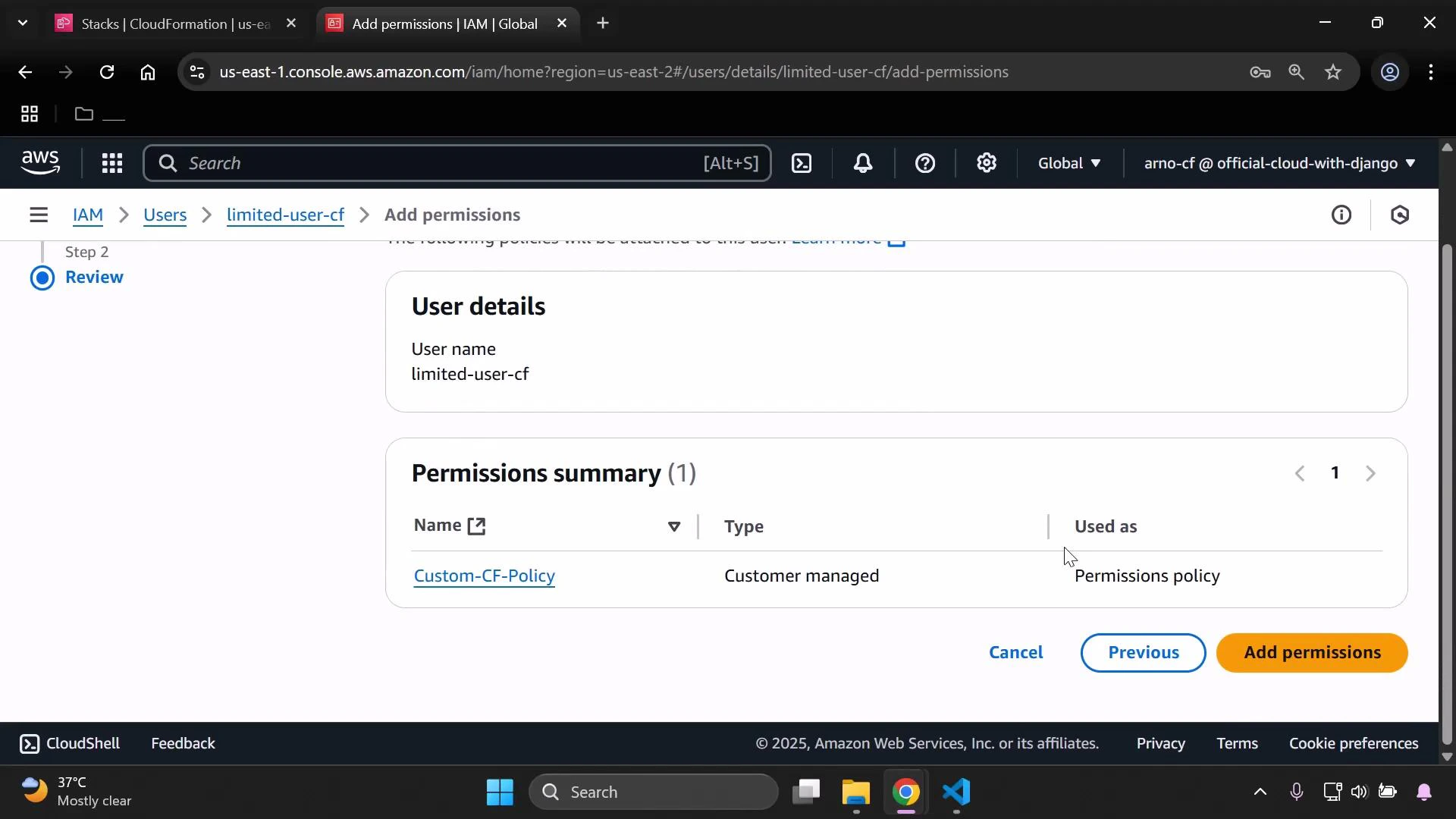
A screenshot of the AWS IAM console on the "Add permissions" review step showing user details for "limited-user-cf" and a Permissions summary listing a customer-managed policy named "Custom-CF-Policy." Buttons at the bottom include Cancel, Previous, and Add permissions.
Open the policy details to verify the policy content and metadata.
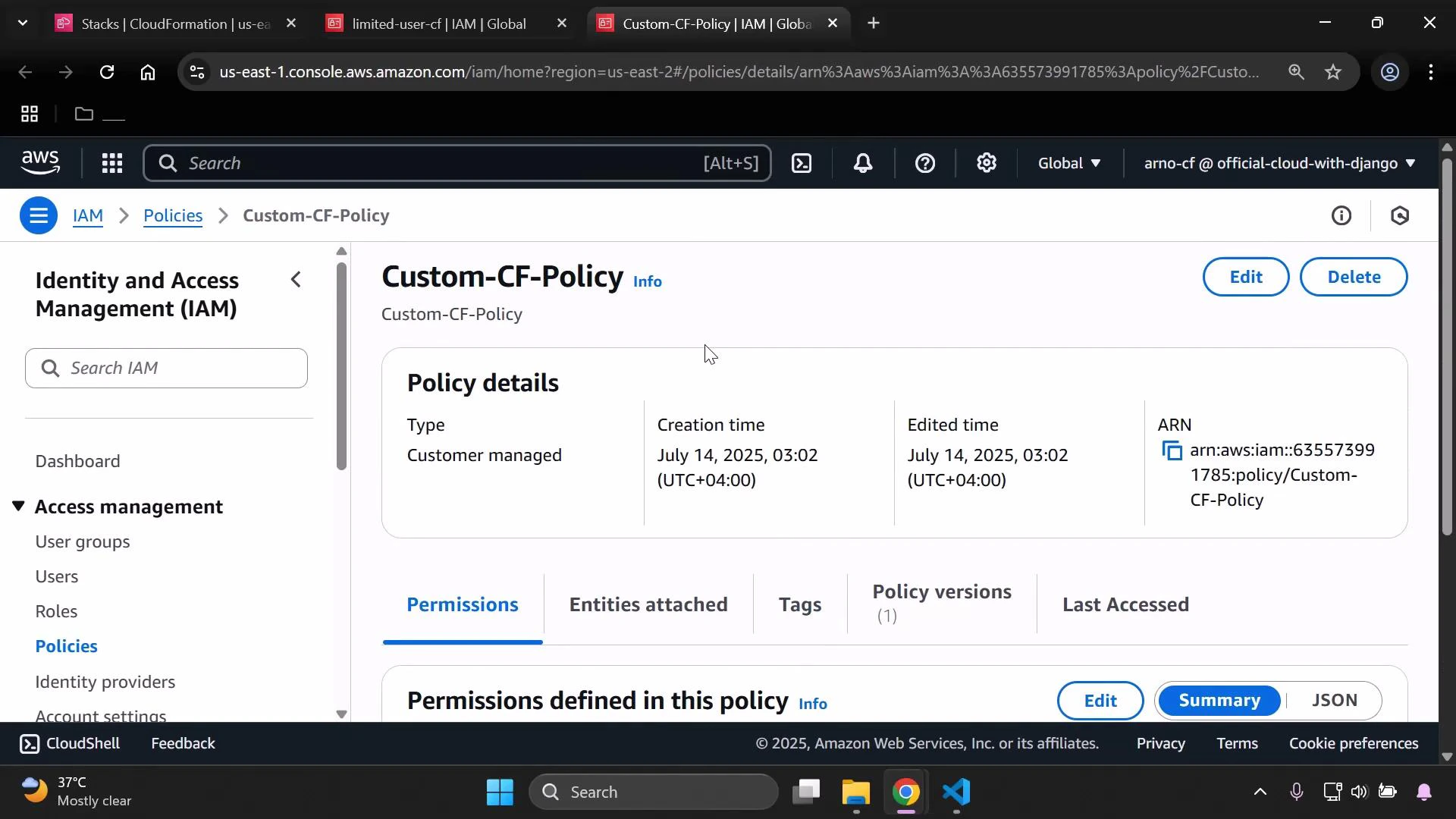
A screenshot of the AWS Identity and Access Management (IAM) console showing a custom policy named "Custom-CF-Policy" with policy details (type: Customer managed, creation/edited time, ARN) and tabs for Permissions, Entities attached, Tags, and Policy versions. The left sidebar shows IAM navigation (Access management → Policies) and the top-right has Edit and Delete buttons.
Permission changes can take a few moments to propagate in the console. If the limited user cannot see stacks right away, refresh the CloudFormation or IAM pages.

Step 2 — Attempt to update a stack and identify missing actions

When the limited user attempts to update a stack (Update stack → Make a direct update → Replace existing template), CloudFormation will try to load the stack policy and other metadata. If the user lacks required actions, the console will show errors such as “Failed to load stack policy.”
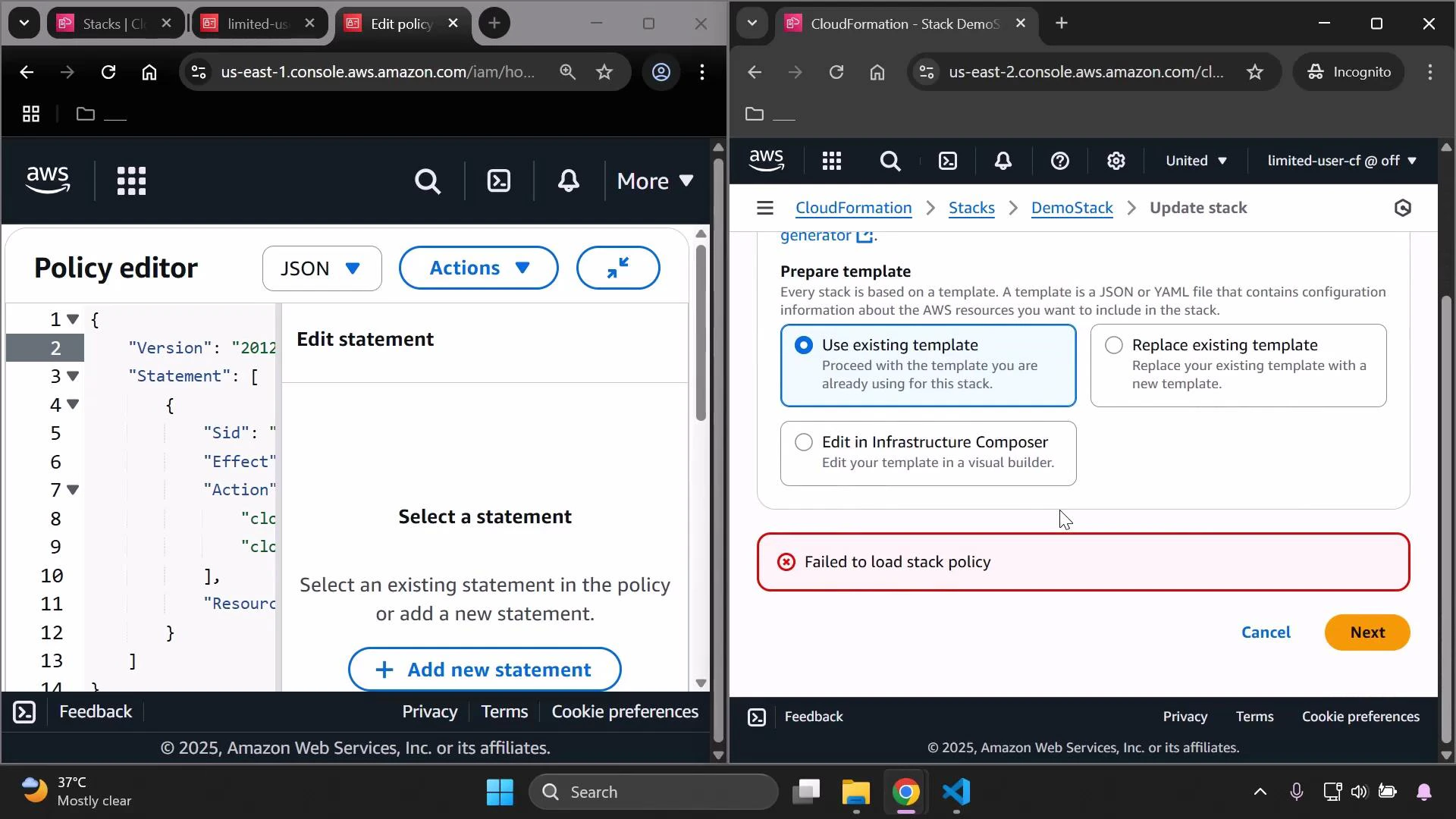
A screenshot of two side-by-side AWS Console pages: the left pane shows the IAM Policy editor with JSON and an "Edit statement" panel, and the right pane shows CloudFormation's Update Stack template options with a red "Failed to load stack policy" error. Browser tabs and the Windows taskbar are also visible.
CloudFormation needs the following action to retrieve the stack policy:
  • cloudformation:GetStackPolicy
Add it to the policy and save. Updated policy (added GetStackPolicy):
{
  "Version": "2012-10-17",
  "Statement": [
    {
      "Sid": "Statement1",
      "Effect": "Allow",
      "Action": [
        "cloudformation:ListStacks",
        "cloudformation:DescribeStacks",
        "cloudformation:GetStackPolicy"
      ],
      "Resource": "*"
    }
  ]
}
Reload the CloudFormation update dialog — the “Failed to load stack policy” error should disappear.

Step 3 — Uploading templates: CreateUploadBucket and S3 access

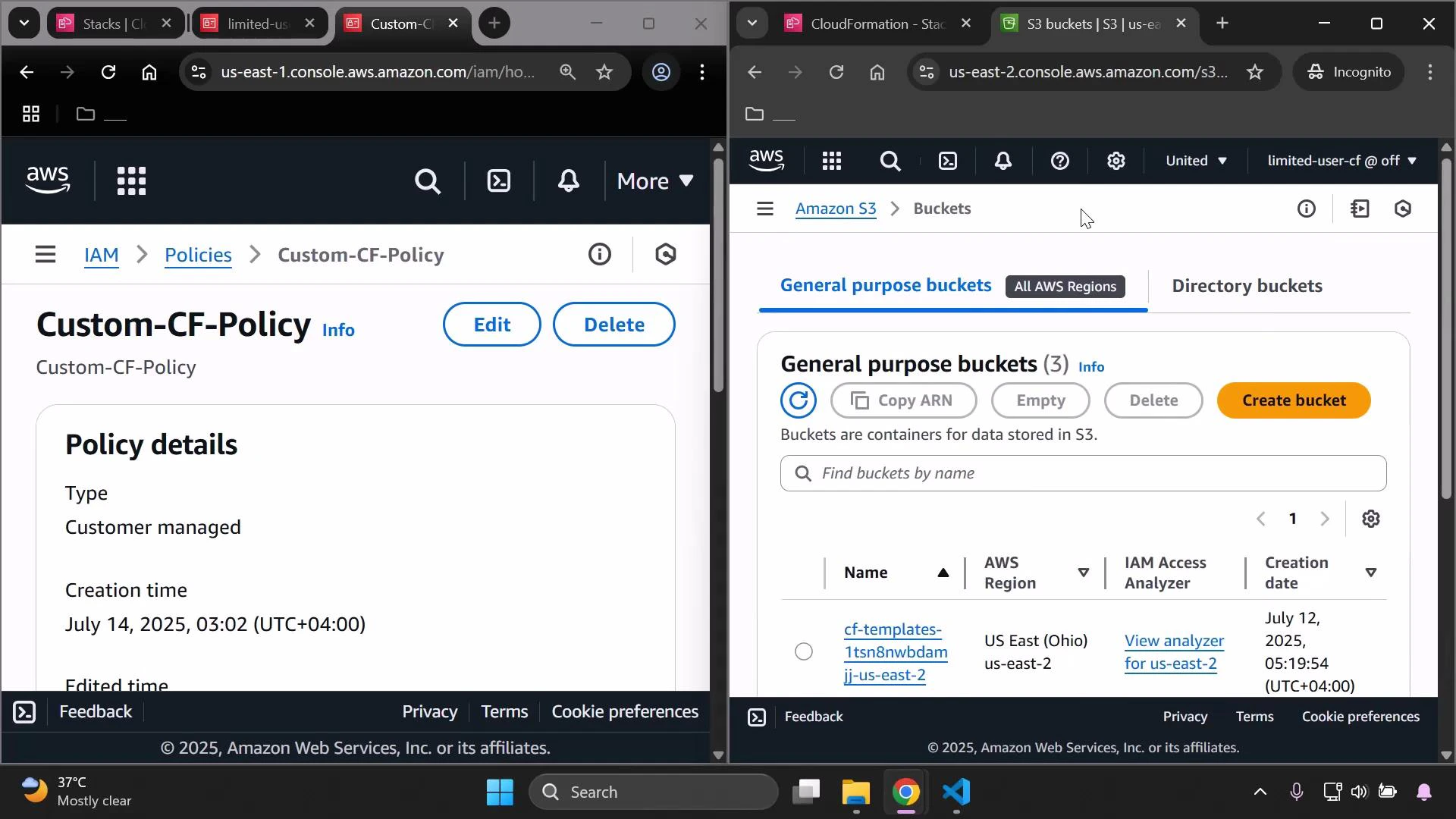
If you choose “Upload a template file” or CloudFormation needs to stage a large template, CloudFormation may try to create a temporary S3 upload bucket. If the user lacks this permission, you’ll see: User is not authorized to perform: cloudformation:CreateUploadBucket Add cloudformation:CreateUploadBucket. In addition, CloudFormation uses S3 APIs (for example, to put the template object into a bucket). If S3 permissions are missing, uploads will fail. For the demo we allow all S3 actions; in production you should scope these to specific buckets and actions. Add CreateUploadBucket and S3 full access:
{
  "Version": "2012-10-17",
  "Statement": [
    {
      "Sid": "Statement1",
      "Effect": "Allow",
      "Action": [
        "cloudformation:ListStacks",
        "cloudformation:DescribeStacks",
        "cloudformation:GetStackPolicy",
        "cloudformation:CreateUploadBucket",
        "s3:*"
      ],
      "Resource": "*"
    }
  ]
}
After saving, the limited user should be able to interact with S3 in the console.
Screenshot of two side-by-side AWS Console pages: the left pane shows IAM policy details for "Custom-CF-Policy" and the right pane shows the Amazon S3 "General purpose buckets" listing with a bucket entry. A browser window frame and the Windows taskbar are visible at the bottom.

Step 4 — Add GetTemplateSummary for template inspection

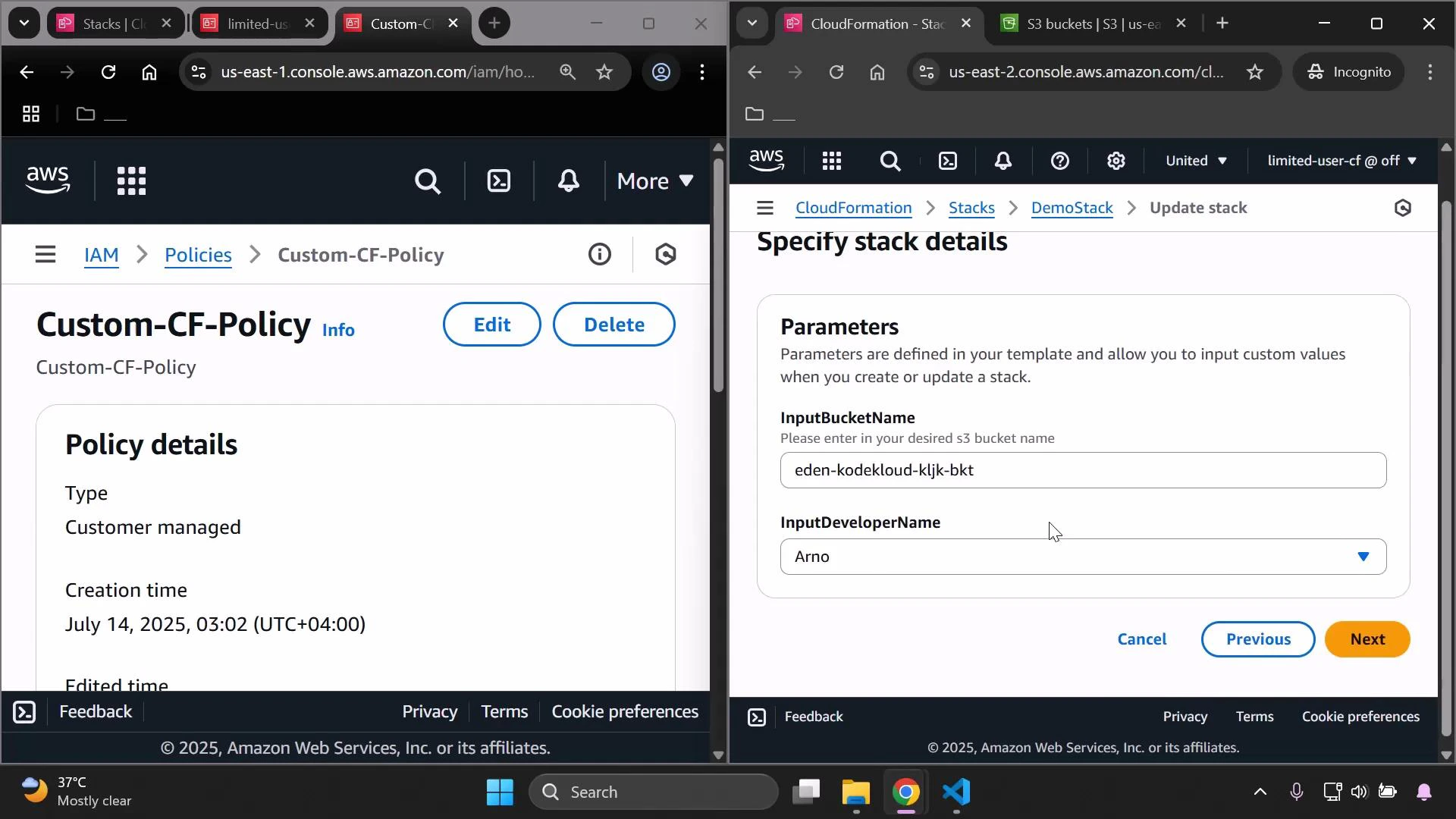
When you upload or reference a template URL, the console calls cloudformation:GetTemplateSummary to parse the template and display parameters, defaults, and metadata. If this action is missing, you’ll receive: User is not authorized to perform: cloudformation:GetTemplateSummary Add cloudformation:GetTemplateSummary to the policy. Policy after adding GetTemplateSummary:
{
  "Version": "2012-10-17",
  "Statement": [
    {
      "Sid": "Statement1",
      "Effect": "Allow",
      "Action": [
        "cloudformation:ListStacks",
        "cloudformation:DescribeStacks",
        "cloudformation:GetStackPolicy",
        "cloudformation:CreateUploadBucket",
        "cloudformation:GetTemplateSummary",
        "s3:*"
      ],
      "Resource": "*"
    }
  ]
}
With that permission in place, the console can display parameters and defaults when you specify a template:
A split-screen screenshot of two AWS Console pages: the left shows an IAM customer-managed policy named "Custom-CF-Policy" with policy details, and the right shows a CloudFormation "Specify stack details" form with parameters like InputBucketName ("eden-kodekloud-kljk-bkt") and InputDeveloperName ("Arno").

Step 5 — Grant UpdateStack to perform the update

To actually submit an update, include cloudformation:UpdateStack. Without this action, you can walk through the update wizard, but the final submission will be rejected. Final example policy for the demo (consolidated):
{
  "Version": "2012-10-17",
  "Statement": [
    {
      "Sid": "Statement1",
      "Effect": "Allow",
      "Action": [
        "cloudformation:ListStacks",
        "cloudformation:DescribeStacks",
        "cloudformation:GetStackPolicy",
        "cloudformation:CreateUploadBucket",
        "cloudformation:GetTemplateSummary",
        "cloudformation:UpdateStack",
        "s3:*"
      ],
      "Resource": "*"
    }
  ]
}
After granting UpdateStack, proceed through the CloudFormation update wizard (Specify template, parameters, review) and submit. The console will show stack events and outputs.

Common CloudFormation + S3 actions and why they’re needed

ActionResourcePurpose / When the console/API needs it
cloudformation:ListStacks*Show stack list in the console
cloudformation:DescribeStacks*View stack details and status
cloudformation:GetStackPolicy*Retrieve the stack policy to load during updates
cloudformation:CreateUploadBucket*Allow CloudFormation to create a temporary S3 bucket for uploads
cloudformation:GetTemplateSummary*Parse template to list parameters and metadata
cloudformation:UpdateStack*Submit the actual stack update
s3:PutObject, s3:GetObject, s3:ListBucket (or s3:*)specific bucket ARNsUpload templates to staging buckets and read uploaded templates
The examples above use broad S3 permissions (s3:* and Resource ”*”) purely for demonstration. In production, follow the principle of least privilege: limit S3 actions and resources to only the buckets and operations required (for example, s3:PutObject, s3:GetObject, s3:ListBucket on specific bucket ARNs).

Troubleshooting UI authorization errors

While testing, the console UI may still show “not authorized” banners for specific read actions if those actions are not allowed (for example, DescribeStackEvents). If a console view is missing data, add the corresponding read actions to your policy:
  • cloudformation:DescribeStackEvents
  • cloudformation:DescribeChangeSet
  • cloudformation:GetTemplate
  • cloudformation:ListChangeSets
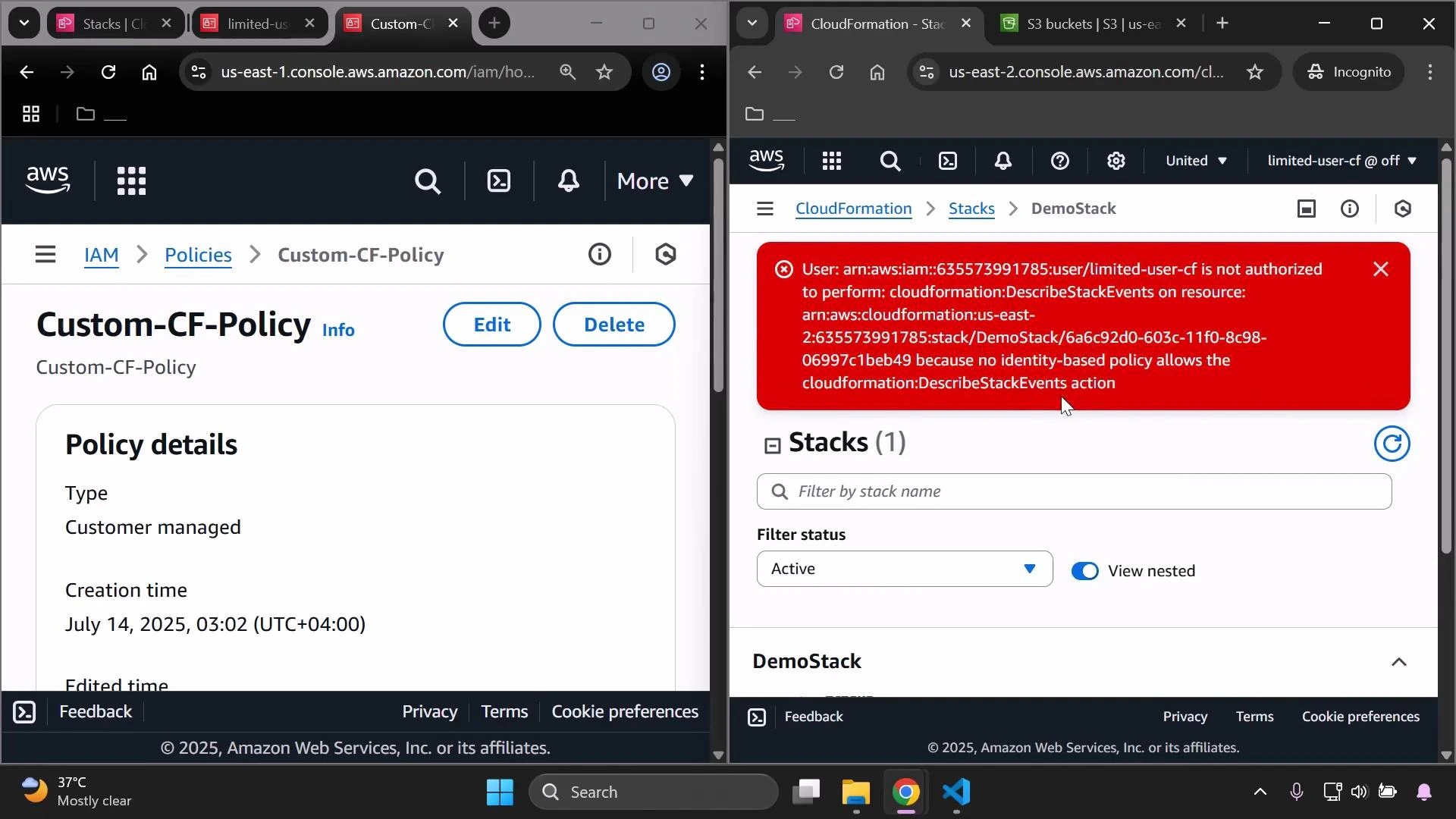
An example unauthorized banner when DescribeStackEvents is missing:
A split-screen screenshot of the AWS Console: the left pane shows an IAM customer-managed policy named "Custom-CF-Policy" with its details, and the right pane shows the CloudFormation Stacks page with a red error banner stating a user (limited-user-cf) is not authorized to perform cloudformation:DescribeStackEvents.
Add the missing actions as needed and re-test the flow.

Confirming the update and validating resource changes

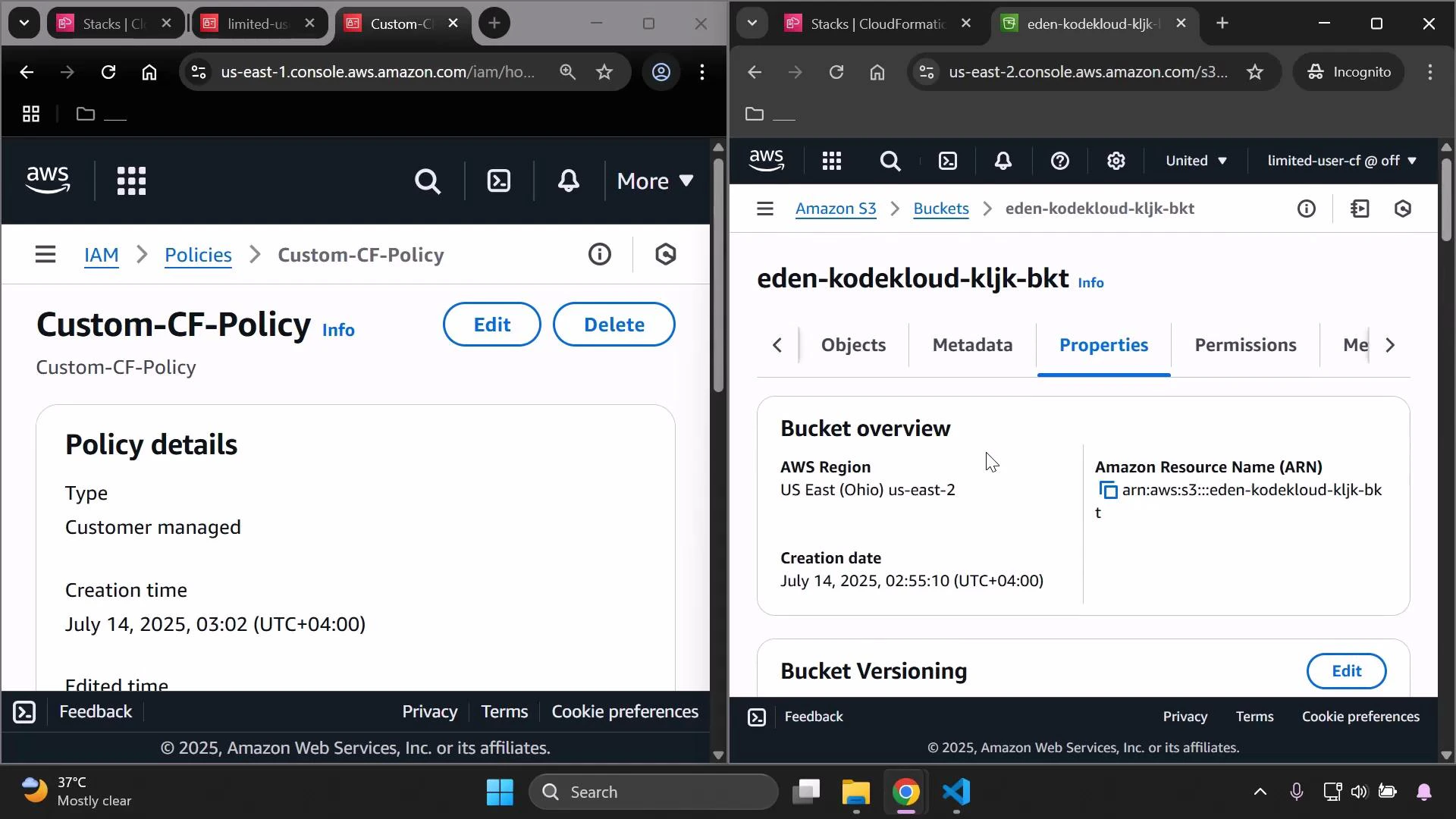
After a successful update, verify any expected resource changes in the service consoles (for example, S3 bucket tags or properties).
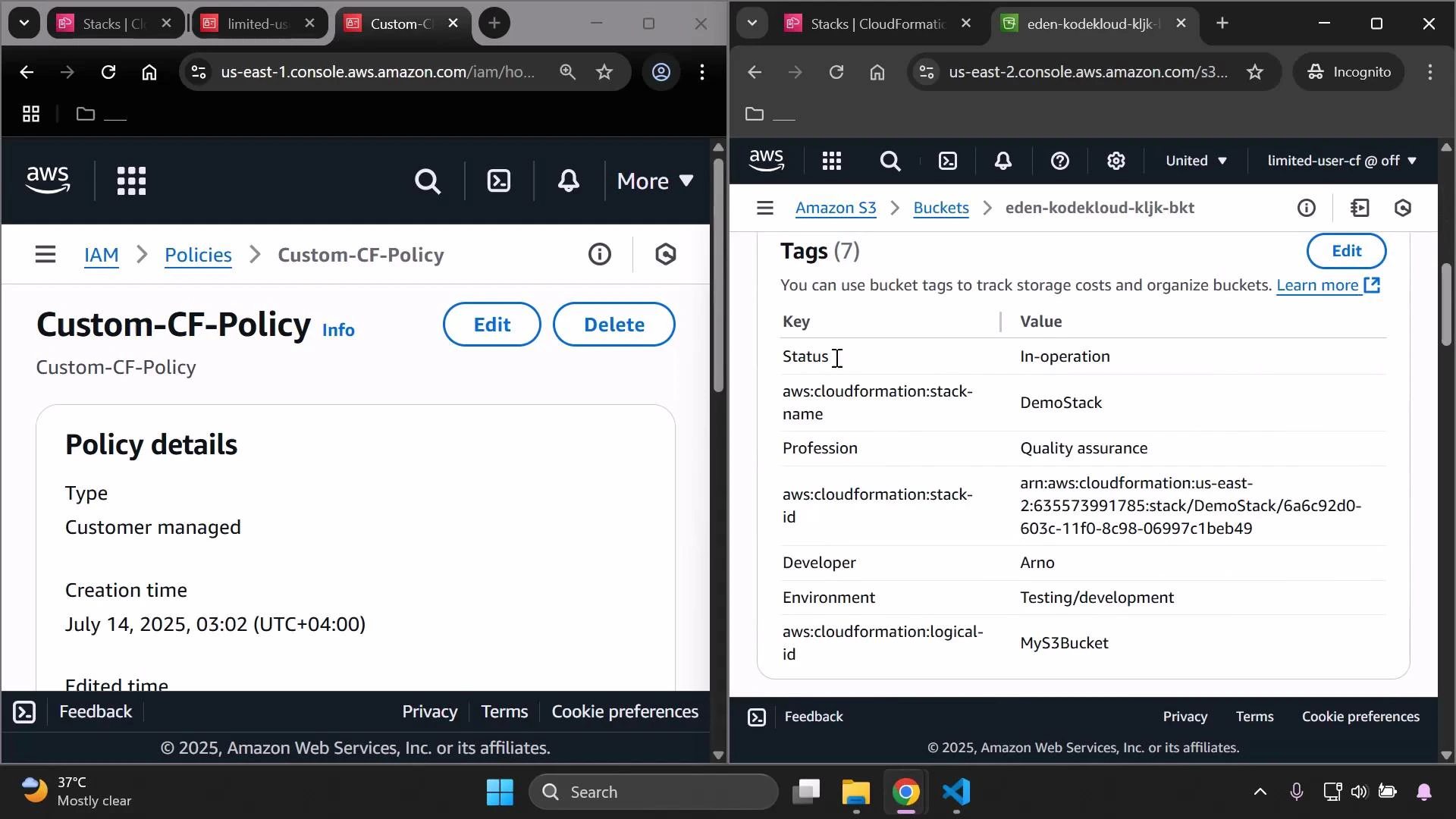
A dual-pane screenshot of the AWS Management Console: the left side shows an IAM policy page for "Custom-CF-Policy" with policy details and Edit/Delete buttons, and the right side shows an S3 bucket's Tags panel listing tag keys and values (e.g., Status, aws:cloudformation:stack-name, Profession, Developer).
A split-screen screenshot of the AWS Management Console: the left side shows an IAM policy page titled "Custom-CF-Policy" with policy details, and the right side shows an Amazon S3 bucket properties page for "eden-kodekloud-kljk-bkt" with its bucket overview and ARN.

Best practices and next steps

  • Principle of least privilege: narrow S3 and CloudFormation permissions to only what is necessary (bucket ARNs and specific S3 actions such as s3:PutObject, s3:GetObject, s3:ListBucket).
  • Iteratively add actions: observe the console/API errors, then add only the actions required for your workflow.
  • To fully populate the CloudFormation UI (events, change sets, templates), grant the relevant read actions (for example: cloudformation:DescribeStackEvents, cloudformation:DescribeChangeSet, cloudformation:GetTemplate).
  • Audit and version your customer-managed policies and use IAM Access Analyzer or simulate policies to validate expected behavior.
This completes the step-by-step process of iteratively creating and extending a custom IAM policy to allow a restricted user to view and update a CloudFormation stack.

Watch Video