This lesson continues the walkthrough for applying cfn-lint to AWS CloudFormation templates. By now you should have Python installed on your machine. We’ll install cfn-lint, run it against a minimal template, and review common errors it detects so you can fix templates before deployment.

Example minimal CloudFormation template (s3-bucket.yaml)

Resources:
  MyS3Bucket:
    Type: AWS::S3::Bucket

Install cfn-lint

  • Open Visual Studio Code and open the integrated terminal (View → Terminal or the toggle panel icon).
  • Install cfn-lint using pip:
pip install cfn-lint
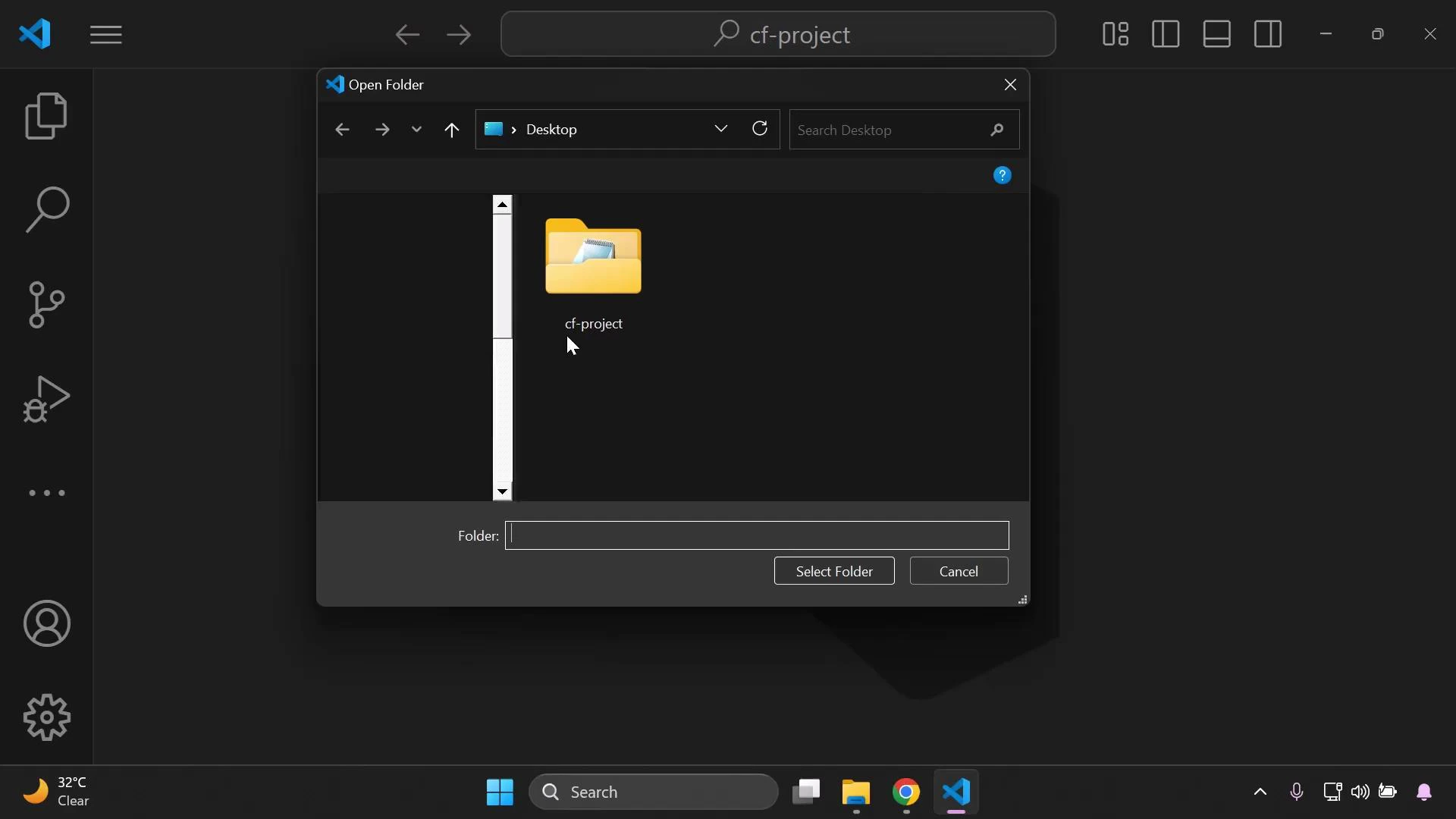
The installer will fetch cfn-lint and its dependencies; this may take a minute. After installation, restart Visual Studio Code to ensure the editor picks up newly installed tools and any language extensions. If you need to re-open your project folder in VS Code:
A dark-themed Visual Studio Code window with an "Open Folder" dialog open showing a Desktop folder named "cf-project." The Windows taskbar and system tray are visible along the bottom of the screen.

Validate a template with cfn-lint

With your S3 template file open (s3-bucket.yaml), run cfn-lint from the terminal:
cfn-lint s3-bucket.yaml
  • A successful run produces no error output — cfn-lint returns without printing errors or warnings.
  • If it finds issues, cfn-lint prints descriptive error codes and locations so you can quickly correct the template.

Common errors cfn-lint catches (examples and fixes)

Below are several typical mistakes and how cfn-lint helps identify them.
  1. Indentation / YAML structure errors
    Incorrect YAML indentation can cause the parser to miss required top-level keys such as Resources. Example malformed YAML (no indentation):
Resources:
MyS3Bucket:
Type: AWS::S3::Bucket
Running cfn-lint reports schema errors like:
E1001 'Resources' is a required property
s3-bucket.yaml:1:1

E3001 None is not of type 'object'
s3-bucket.yaml:1:1

E1001 Additional properties are not allowed ('MyS3Bucket' was unexpected)
s3-bucket.yaml:2:1

E1001 Additional properties are not allowed ('Type' was unexpected)
s3-bucket.yaml:3:1
Explanation: Because the nested resource names and Type values are not correctly indented under the Resources mapping, the linter interprets them as unexpected top-level properties. Correcting indentation to:
Resources:
  MyS3Bucket:
    Type: AWS::S3::Bucket
resolves these errors.
  1. Simple spelling / key name mistakes
    Using an incorrect key such as Resource (singular) instead of Resources (plural) triggers clear messages:
Example incorrect key:
Resource:
  MyS3Bucket:
    Type: AWS::S3::Bucket
cfn-lint output may include:
E1001 Additional properties are not allowed ('Resource' was unexpected. Did you mean 'Resources'?)
s3-bucket.yaml:1:1

E1001 'Resources' is a required property
s3-bucket.yaml:1:1
Fixing the key to Resources and re-running cfn-lint returns no errors:
Resources:
  MyS3Bucket:
    Type: AWS::S3::Bucket
Use cfn-lint on every CloudFormation template you author. It catches YAML formatting issues, schema problems, misspelled keys, and provides actionable error messages so templates are ready for deployment.

Quick reference — Common lint error types

Error typeSymptomTypical fix
Schema / required property errors (E1001, E3001)Missing top-level keys or wrong YAML structureFix YAML indentation and required key names (e.g., Resources)
Unknown resource propertyProperty name misspelled or not valid for the resourceCorrect the property name or consult the resource schema
Type mismatchValue type not expected (string vs object)Provide the correct data type in the template
Property validationProperty value out of allowed set or formatAdjust value to match the CloudFormation resource specification

Best practices

  • Run cfn-lint as part of your local development workflow and CI pipelines to catch issues early.
  • Combine cfn-lint with template formatting tools (like prettier for YAML or an editor extension) to keep templates consistent.
  • Refer to the CloudFormation resource specification when a property is unclear.

Summary

  • Install cfn-lint via pip in your development environment.
  • Restart VS Code after installation if needed.
  • Run cfn-lint against each template (example: cfn-lint s3-bucket.yaml).
  • Fix indentation, spelling, and schema issues the linter reports.
  • Repeat linting until the command completes without errors, indicating the template is valid and ready for CloudFormation.

Watch Video