

- Create a Mappings block (DevMap) that stores developer-specific metadata (profession and environment).
- Define Parameters for the S3 bucket name and the developer selection.
- Use !FindInMap together with !Ref to dynamically select mapping entries based on the chosen developer.
- Tag the S3 bucket with Developer, Environment and Profession values derived from the mapping.
Ensure the top-level keys in Mappings (for example: Arno, Alice) exactly match the AllowedValues for the InputDeveloperName parameter (case-sensitive). The mapping keys are referenced dynamically via
!Ref InputDeveloperName.- Mappings are static name/value pairs inside the template. They are ideal for mapping environment- or user-specific values without embedding conditional logic in many places.
- !Ref InputDeveloperName returns the parameter value selected by the user.
- !FindInMap accepts the mapping name, a top-level key (here provided by
!Ref InputDeveloperName), and a sub-key to return the correct value.
- Define a Mappings block (DevMap) with top-level keys for each developer (Arno, Alice). Each key contains attributes such as Field and Env.
- Add an InputDeveloperName parameter constrained by AllowedValues to the same keys used in the mapping to ensure valid lookups.
- In the resource tags:
- Use
!Ref InputDeveloperNameto set the Developer tag directly. - Use
!FindInMap [ DevMap, !Ref InputDeveloperName, Env ]to obtain the Environment value for the selected developer. - Use
!FindInMap [ DevMap, !Ref InputDeveloperName, Field ]to obtain the Profession/Field value.
- Use
- When the stack is updated with a different InputDeveloperName, CloudFormation evaluates
!Refand!FindInMapand applies the mapped values to the resource properties.
Testing the template (update flow)
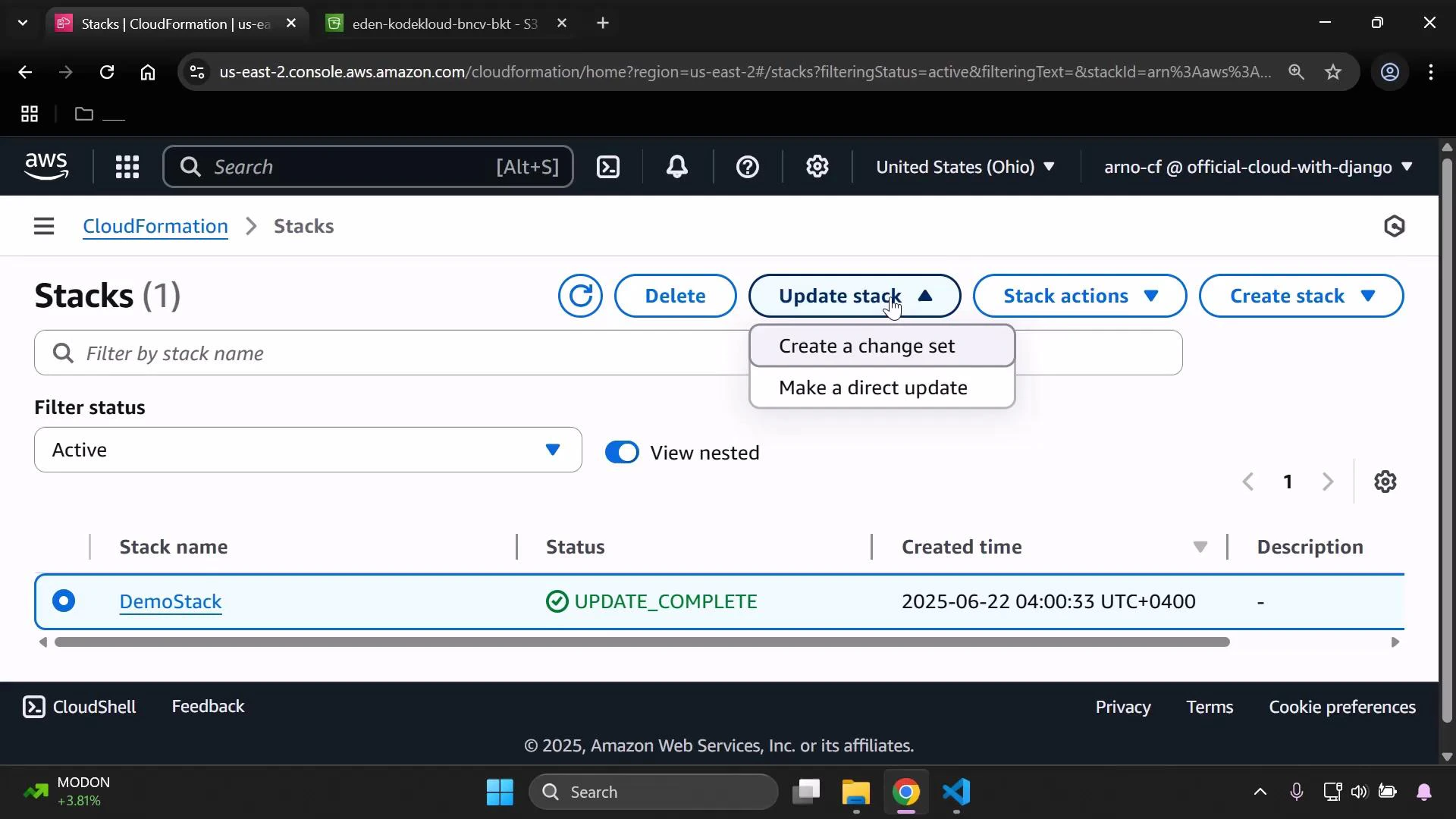
- Update the existing stack in the CloudFormation console.
- Choose “Make a direct update” and replace the template with the updated version above.
- Set the parameters:
- InputBucketName: your desired bucket name (e.g., eden-kodekloud-bncv-bkt)
- InputDeveloperName: choose Arno or Alice
- Submit the update. CloudFormation will apply tags derived from the mapping for the selected developer.

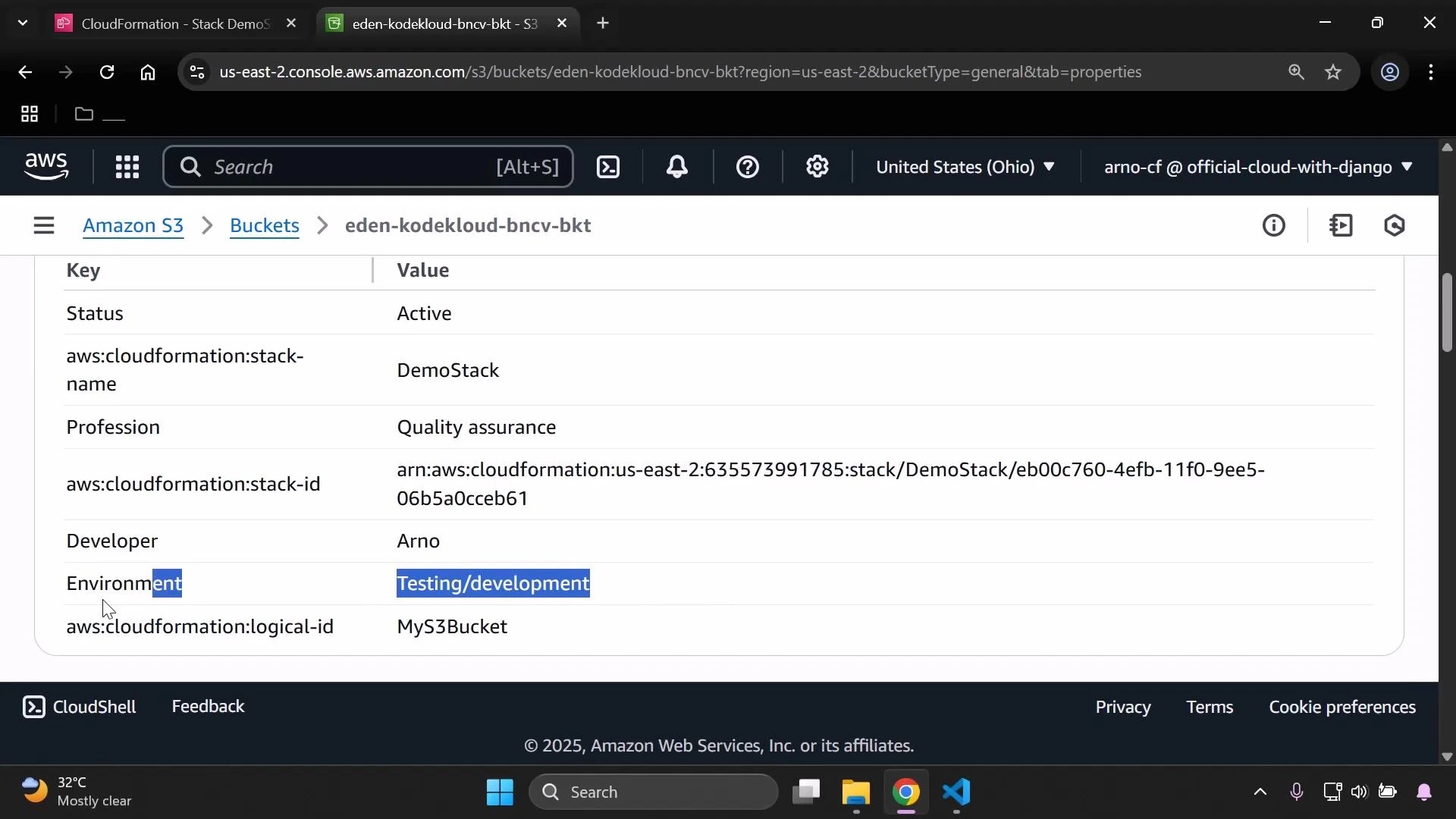
- Developer: the selected parameter (Alice or Arno)
- Environment: value from the mapping via
!FindInMap - Profession: value from the mapping via
!FindInMap
- Keep mapping keys and AllowedValues synchronized and case-sensitive.
- Use Mappings for static cross-environment or per-user values; use Parameters for values you expect to change per deploy.
- Avoid duplicating values across the template—centralize them in Mappings to make maintenance easier.
- AWS CloudFormation Mappings documentation
- AWS CloudFormation intrinsic functions reference
- AWS S3 user guide
- Use
!FindInMapcombined with!Refto select mapping values dynamically based on parameters. - This approach avoids hard-coding and centralizes environment- or user-specific configuration in one place.
- Always ensure mapping keys exactly match the parameter AllowedValues to prevent lookup failures.