

- CloudFormation overview and console: https://learn.kodekloud.com/user/courses/aws-cloud-formation
- Amazon S3 overview and console: https://learn.kodekloud.com/user/courses/amazon-simple-storage-service-amazon-s3
- CloudFormation linter (cfn-lint): https://github.com/aws-cloudformation/cfn-lint
Minimal CloudFormation template (YAML)
Create a file nameds3-bucket.yml with the following contents:
MyS3Bucket. The BucketName property sets the physical S3 bucket name created by the stack.
Before creating the stack — validation and best practices
Follow these quick checks before uploading the template to CloudFormation:- Save the template file locally (e.g.,
s3-bucket.yml). - Validate the template with a linter to catch syntax and resource issues early:
- Use concise, unique stack names to help identify resources later (e.g.,
demo-stack). - Confirm the bucket name follows S3 naming rules and is globally unique.
Create the stack in the AWS Management Console
- Open the AWS Management Console and navigate to CloudFormation.
- Click Create stack.
- Under Prepare template, select Upload a template file and choose your
s3-bucket.yml. CloudFormation accepts both JSON and YAML templates. - Click Next.
- Provide a stack name (for example,
demo-stack), accept the defaults, and submit to create the stack.
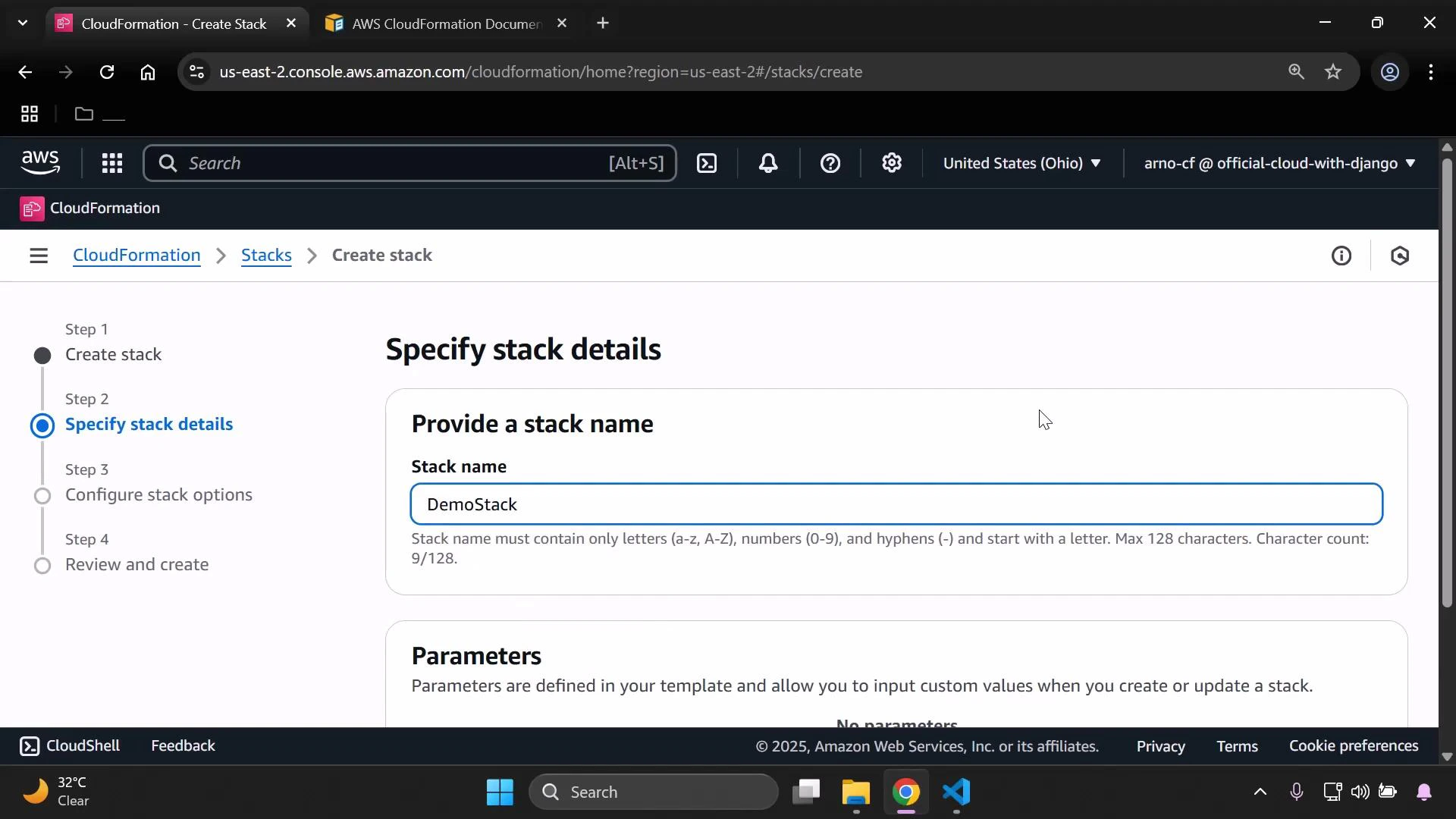
cf-templates bucket appear in your S3 console for these uploads).
Monitor stack creation
After submission, CloudFormation begins creating the stack. Use the Events tab to monitor progress and surface any errors. When creation completes successfully, the stack status will change toCREATE_COMPLETE.
- Refresh the CloudFormation console to update the stack status and events.
- The Stack info pane shows the stack ID, creation time, and current status.
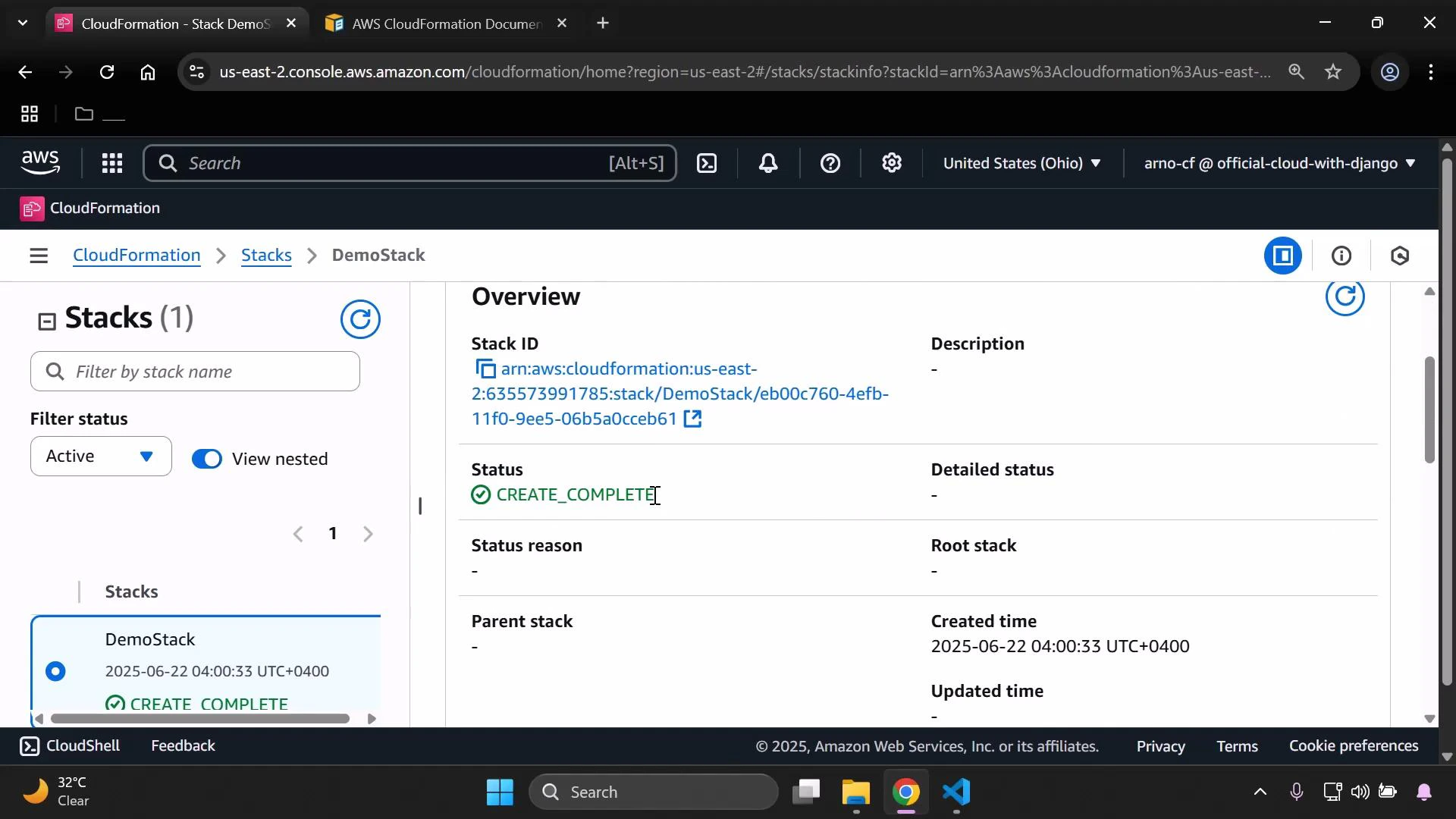
Verify the provisioned S3 bucket
-
Open the stack and go to the Resources tab.
- The logical ID in the template (
MyS3Bucket) appears here along with the resource type (AWS::S3::Bucket). - The Physical ID is the actual S3 bucket name created (
eden-kodekloud-xcvt-bktin this example). Click the Physical ID to open the bucket in the S3 console.
- The logical ID in the template (
-
Check the S3 console to confirm the new bucket exists. You will usually see:
- The bucket created by your stack (the physical ID shown in CloudFormation).
- A
cf-templatesbucket prefixed bucket used by CloudFormation to store uploaded templates (created automatically for console uploads).
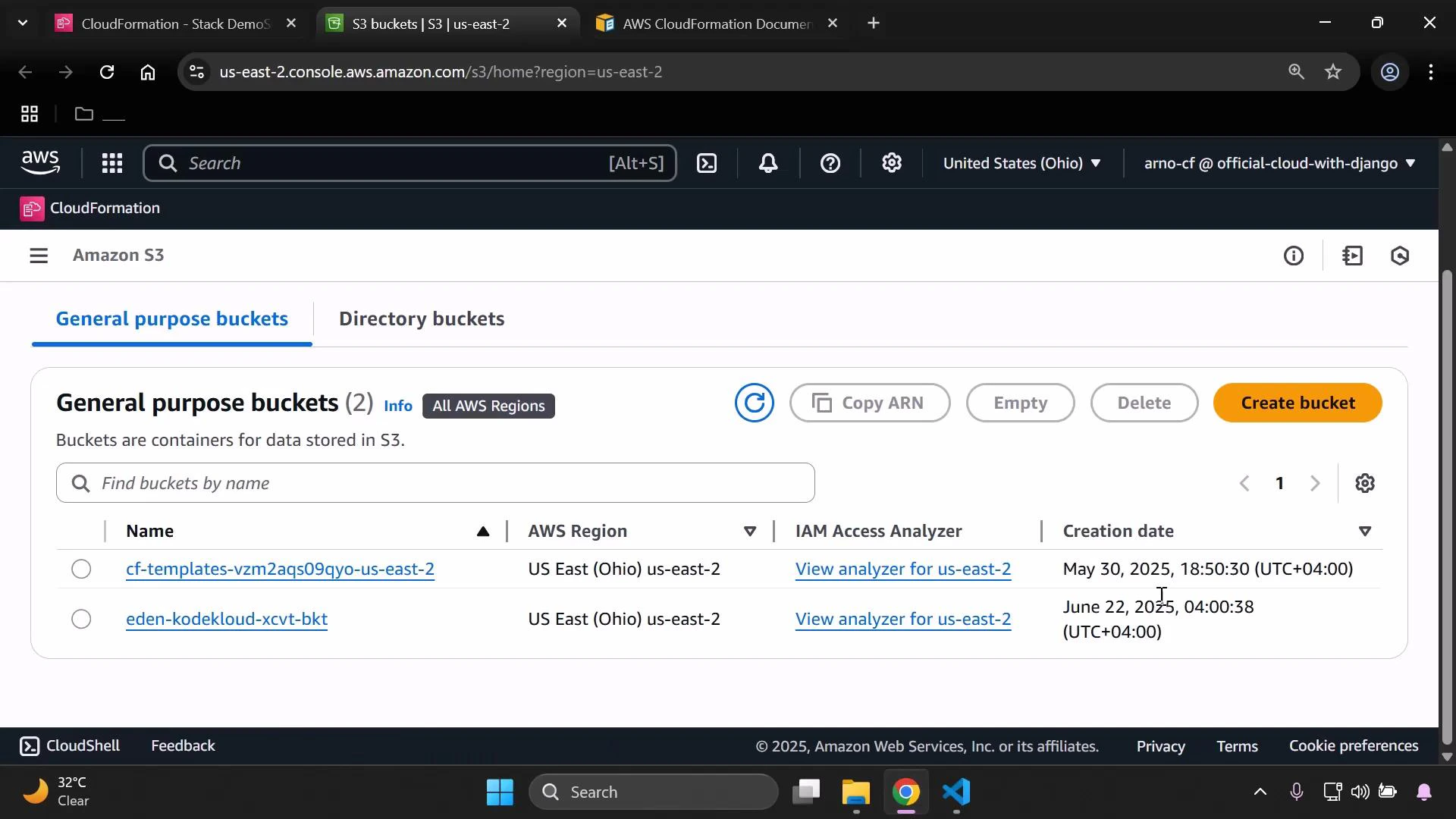
When you upload a template through the CloudFormation console, CloudFormation creates and uses a
cf-templates S3 bucket in your account to store the uploaded template. This is expected behavior for console uploads.CREATE_COMPLETE and provides a direct link to the physical S3 bucket created by the stack.
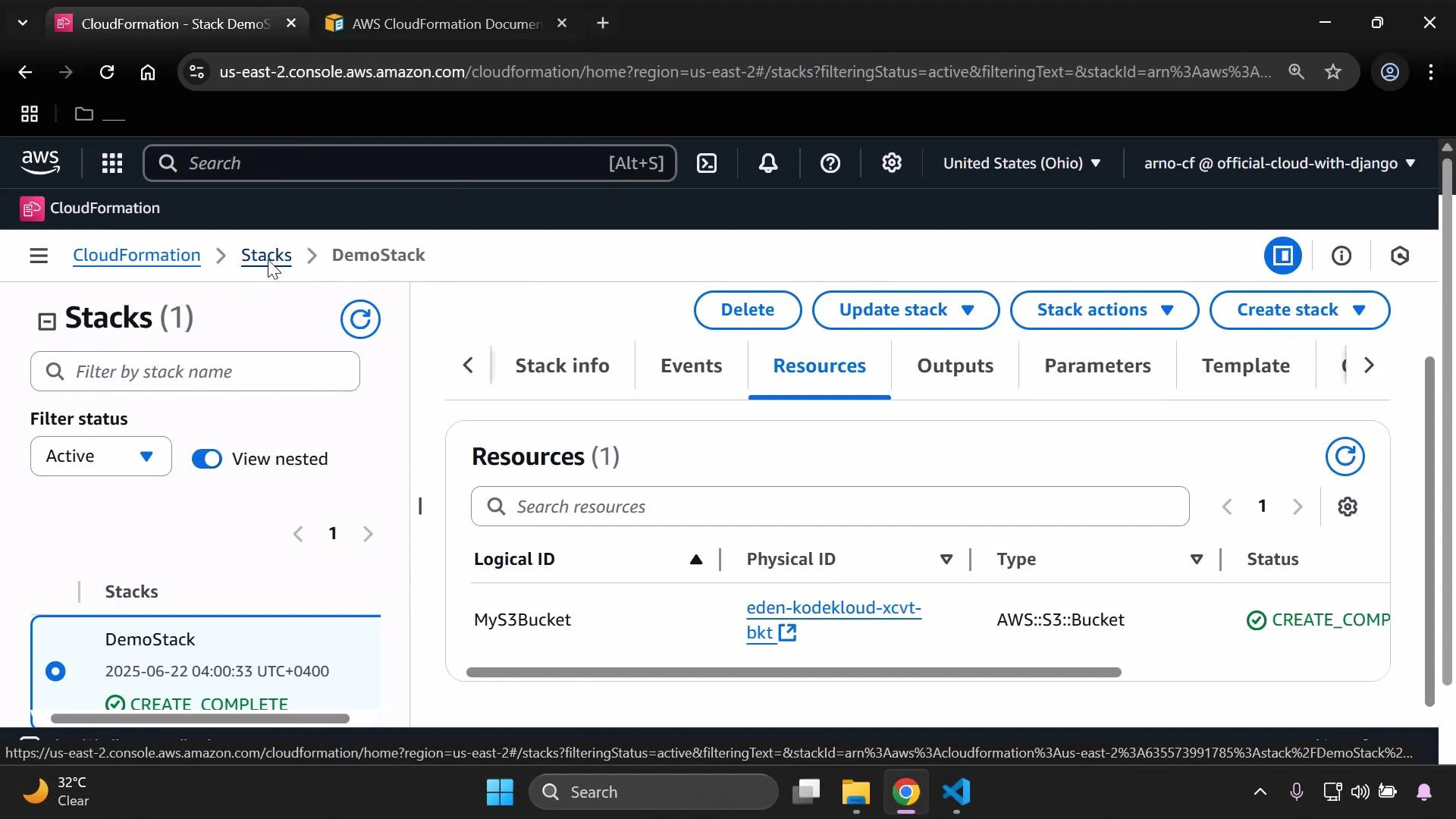
Summary and next steps
- Create a simple CloudFormation template that defines an S3 bucket.
- Validate the template locally (for example, with cfn-lint) before uploading.
- Upload the template through the CloudFormation console, provide a stack name, and create the stack.
- CloudFormation creates the S3 bucket defined in the template and an internal
cf-templatesbucket to store the uploaded template. - Use the CloudFormation Events and Resources tabs to verify creation and to navigate directly to the S3 bucket.