In this lesson you’ll create a minimal AWS CloudFormation template that provisions a single EC2 instance. The goal is to demonstrate the bare minimum properties required to launch an instance, validate the template locally, and deploy it through the CloudFormation console. Before you start, open the EC2 console in the AWS region you want to use. AMI IDs are region-specific, so for reproducibility while following this lesson it’s easiest to use the same region shown in the screenshots because the AMI ID used below will only work in that region.
AMI IDs are unique per region. If you change regions, find and use the matching AMI ID for that region (use the EC2 AMIs page to search by name).
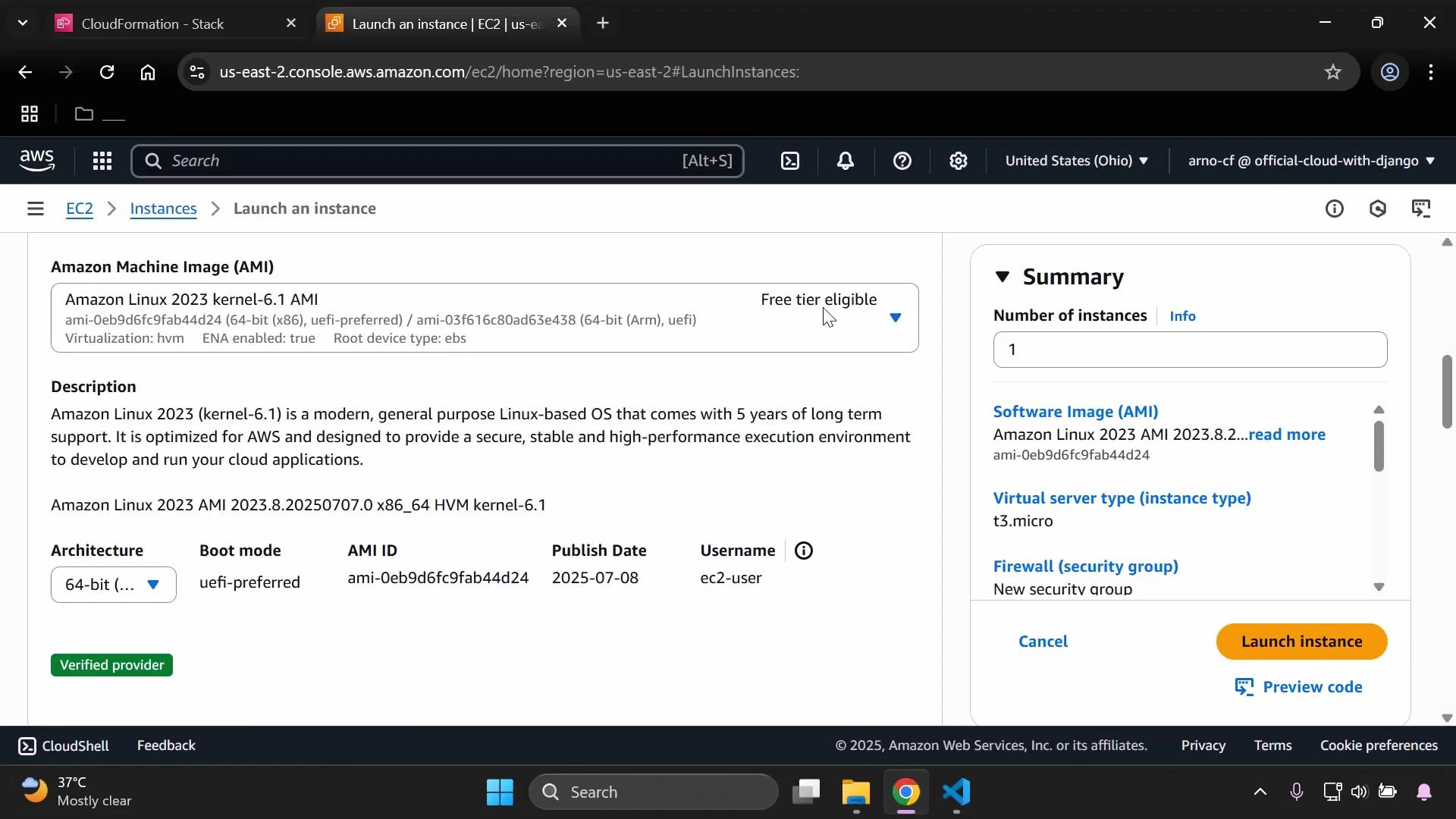
A screenshot of the AWS EC2 "Launch an instance" page showing the Amazon Linux 2023 AMI details (architecture, AMI ID, publish date, username) on the left. On the right is a Summary panel with number of instances, virtual server type (t3.micro) and a "Launch instance" button.
Keep that EC2 page open (or copy the AMI ID) because you will need the ImageId value when writing the CloudFormation template. Create a new file named ec2-instance.yaml in your CloudFormation project (for example, open the project in Visual Studio Code). If your project already contains other templates, you might have existing Mappings and Parameters. Below is a corrected, minimal example showing how Mappings and Parameters are structured. This example is optional and not required for the minimal EC2 template that follows:
Mappings:
  DevMap:
    Arno:
      Field: "Quality assurance"
      Env: "Testing/development"
    Alice:
      Field: "Backend developer"
      Env: "Production"

Parameters:
  InputBucketName:
    Type: String
    Description: "Please enter your desired S3 bucket name"
  InputDeveloperName:
    Type: String
    Description: "Developer name used for tagging"
    AllowedValues:
      - Arno
      - Alice
Key elements required in the minimal EC2 template:
  • The top-level Resources block
  • A logical resource name (here: MyInstance)
  • Resource Type: AWS::EC2::Instance
  • Required properties: InstanceType and ImageId
Table: Minimal CloudFormation resource elements for an EC2 instance
ElementPurposeExample
ResourcesContainer for all stack resourcesResources:
Logical IDTemplate-local name for the resourceMyInstance:
TypeResource type identifierAWS::EC2::Instance
PropertiesResource properties (required and optional)InstanceType, ImageId
Below is a minimal CloudFormation template that creates a t3.micro EC2 instance using a specific AMI ID (example AMI ID shown in the screenshot). Replace the ImageId value with the correct AMI ID for the region you are using.
AWSTemplateFormatVersion: '2010-09-09'
Description: "Minimal template to create an EC2 instance"

Resources:
  MyInstance:
    Type: AWS::EC2::Instance
    Properties:
      InstanceType: t3.micro
      ImageId: ami-0eb9d6fc9fab44d24
Save the file as ec2-instance.yaml. Validate the template locally (recommended) with cfn-lint. If you have cfn-lint installed, run:
cfn-lint ec2-instance.yaml
If cfn-lint reports no errors, the template is ready to upload to the CloudFormation console. Now open the CloudFormation console and create a new stack. Choose to upload a local template file (select the ec2-instance.yaml you just saved) and proceed through the stack creation steps.
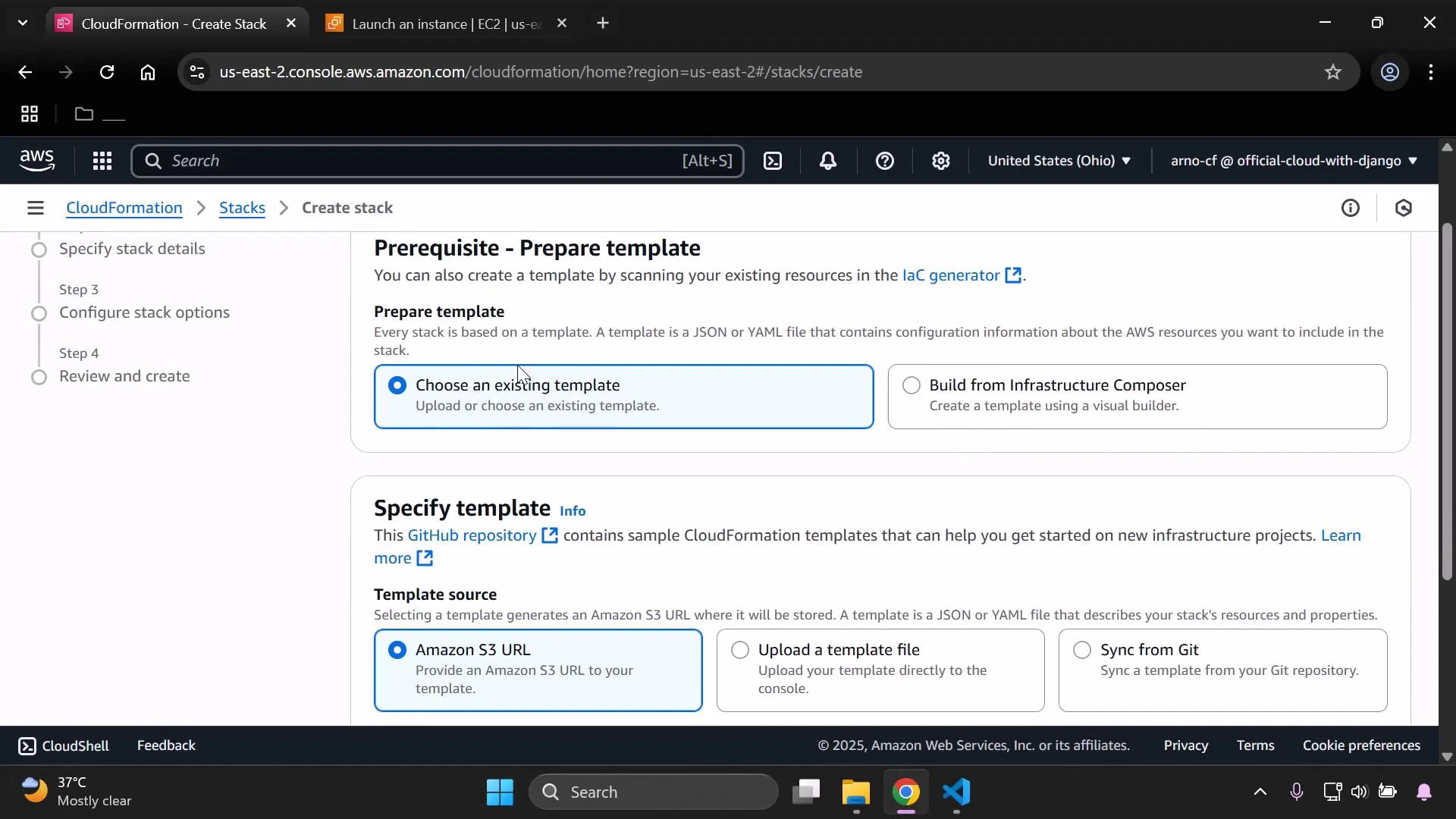
A screenshot of the AWS CloudFormation "Create stack" console showing the "Prerequisite - Prepare template" and "Specify template" sections. It displays options like "Choose an existing template" or "Build from Infrastructure Composer" and template sources such as "Amazon S3 URL", "Upload a template file", and "Sync from Git".
When prompted, give the stack a name (for example, demo-stack) and continue with the default options. Because this minimal template does not define Parameters, the CloudFormation console will display “No parameters” on the Specify stack details step.
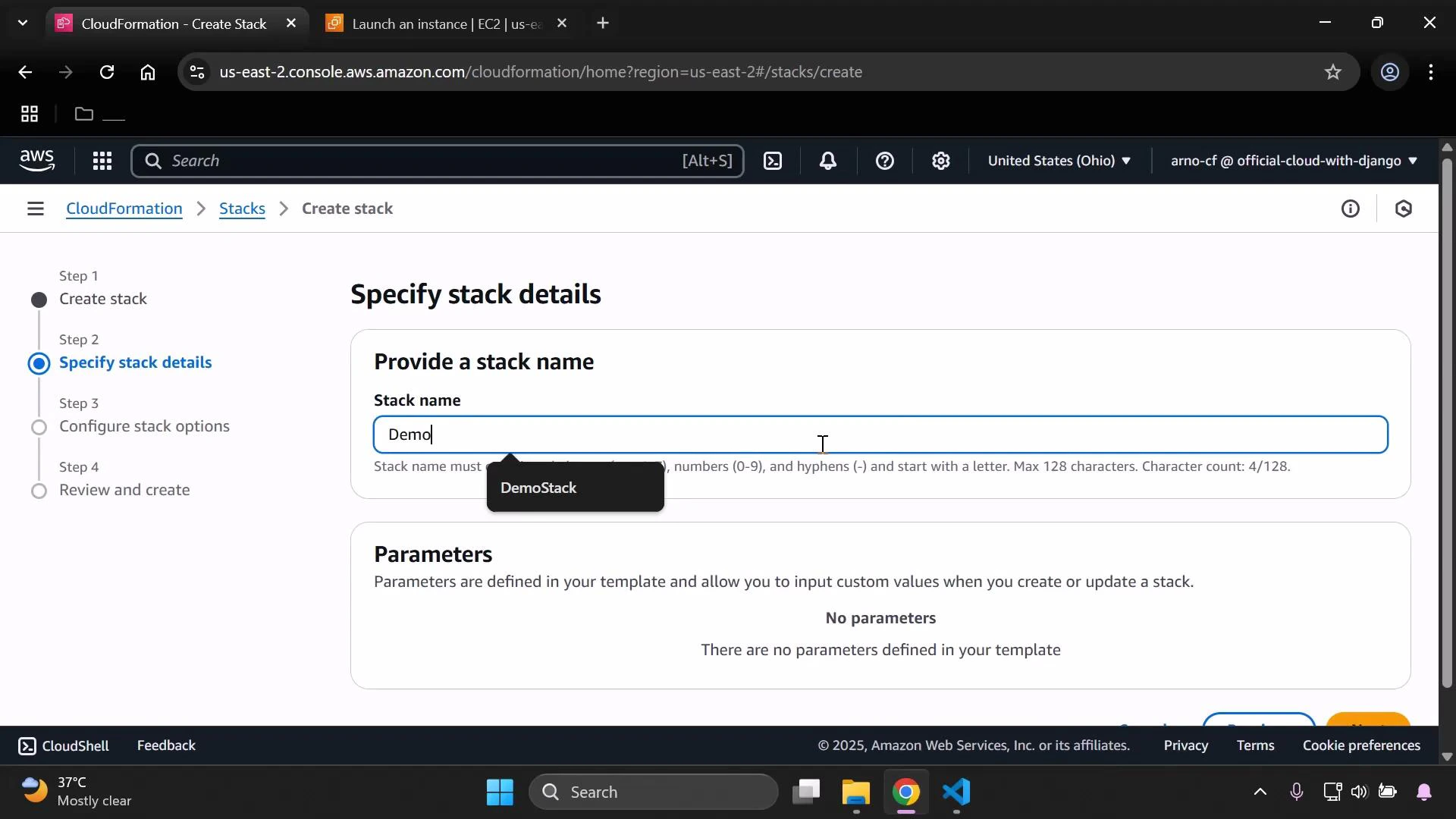
A screenshot of the AWS CloudFormation "Create stack" page on the console, showing the "Specify stack details" step with a Stack name field containing "Demo". The Parameters section below indicates "No parameters" defined in the template.
Submit the stack creation. Monitor the CloudFormation Events tab to track resource creation progress. When the stack reaches CREATE_COMPLETE, open the EC2 console and view Instances to confirm the instance is running. You should see the instance launched with the instance type and AMI/platform defined in the template. By default, CloudFormation places the instance into your account’s default VPC and default security group unless you specify otherwise. If you want to control placement, add SubnetId or AvailabilityZone to the resource’s Properties.
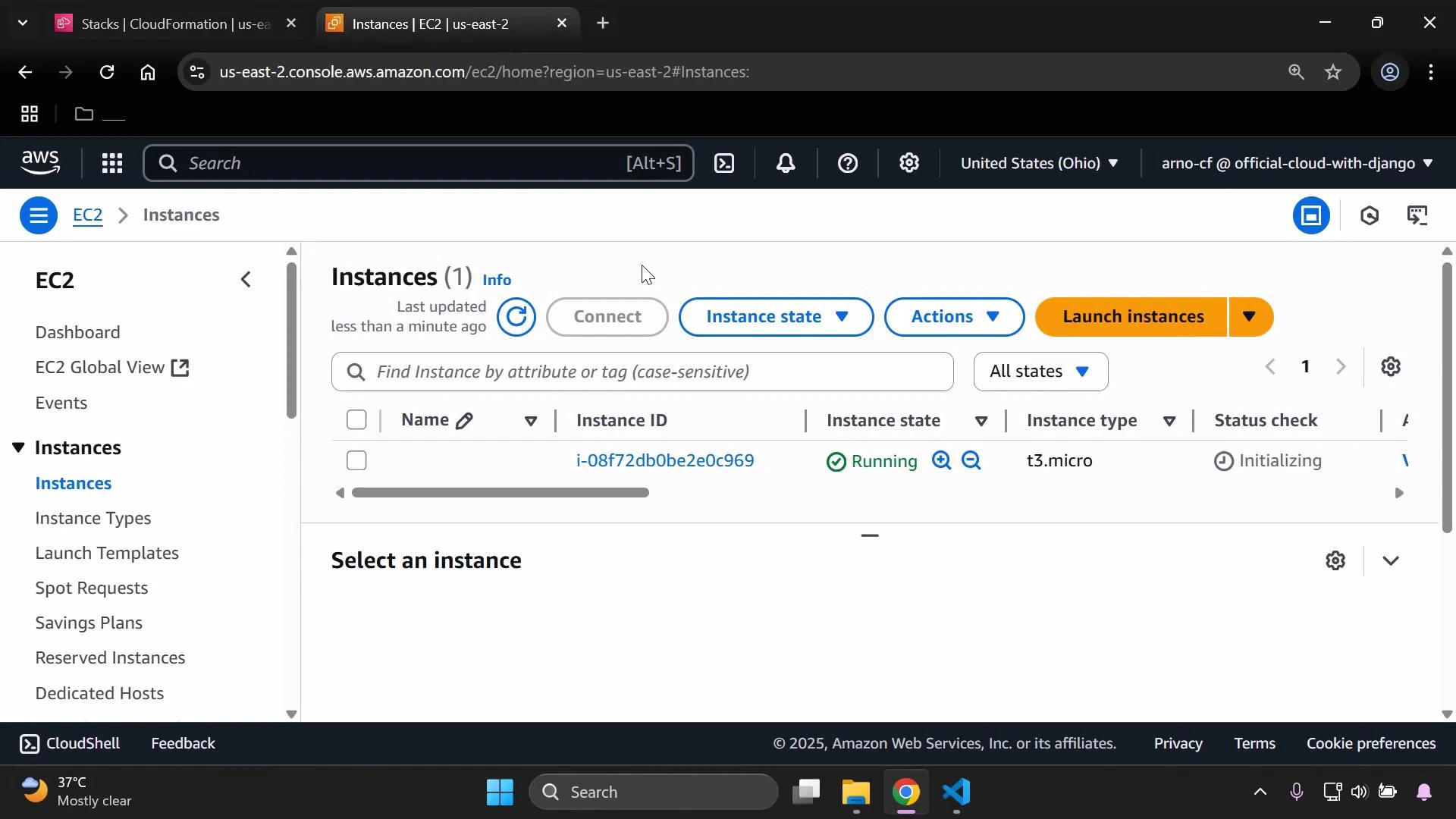
A screenshot of the AWS EC2 console Instances page (us-east-2) showing a single t3.micro instance in "Running" state with its status check listed as "Initializing." The EC2 navigation sidebar and the Launch instances/Actions controls are visible.
This minimal template does not configure SSH key pairs, security groups, or user data. For production or remote access, add a KeyName, security group rules, and UserData to install or configure software at launch. Leaving defaults may expose the instance to restricted access — always follow security best practices.
Next steps you can add to the template (optional):
  • Add a KeyPair: KeyName property for SSH access.
  • Create or reference Security Groups to allow HTTP/SSH traffic.
  • Add UserData to bootstrap software (e.g., install and start a web server).
  • Add Tags for cost allocation and resource identification.
  • Specify SubnetId or AvailabilityZone to control placement.
Useful links and references: That’s the simplest CloudFormation approach to provision a basic EC2 instance. From here you can extend the template to include keys, networking, user data, tags, and more to match your deployment requirements.

Watch Video